Pagination bar
Some tables in the eClinical applications may have more content than can be displayed on one page. Use the pagination bar located at the bottom of the contents panel to view more of the current table grid.

The pagination bar options are explained in detail in the following table.
|
Element |
Details |
|---|---|
|
|
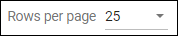
Opens a dropdown list to customize the number of table rows per page. The default number is 10 or 25 depending on the application and tab currently selected. You can change it to 10, 25, or 50, respectively. |
|
|
Indicates the number of items currently displayed and the total number of items in a table. |
|
|
Select it to go to the first page of the table. |
|
|
Select it to go to the previous page of the table. |
|
|
Select it to go to the next page of the table. |
|
|
Select it to go to the last page of the table. |