View report on emails sent by workflow
In eTMF, various emails are sent by different workflows to assigned teams or personnel. These emails are sent automatically when a certain system event occurs.
For instance, according to the associated workflow, once the file is submitted (uploaded) to a certain eTMF directory, the system notifies the designated personnel of this event via email. This kind of reminder email is considered workflow-sent in eTMF.
The Sent Emails by Workflows report assists you with tracking the record of all the emails sent by the system according to the workflow. It provides details of the email, such as the name of the workflow from which the email was sent, the name of the workflow stage (node) that triggered the email sending, and so on.
Important
To view this report, you must have the Sent Emails by Workflows permission granted to your user role via the ADMIN application.
-
In the eTMF application header, select the REPORT tab.
-
On the page that opens, in the left pane, select Sent Emails by Workflows.
-
In the Sent Emails by Workflows table that appears, view the details as explained in the following table.
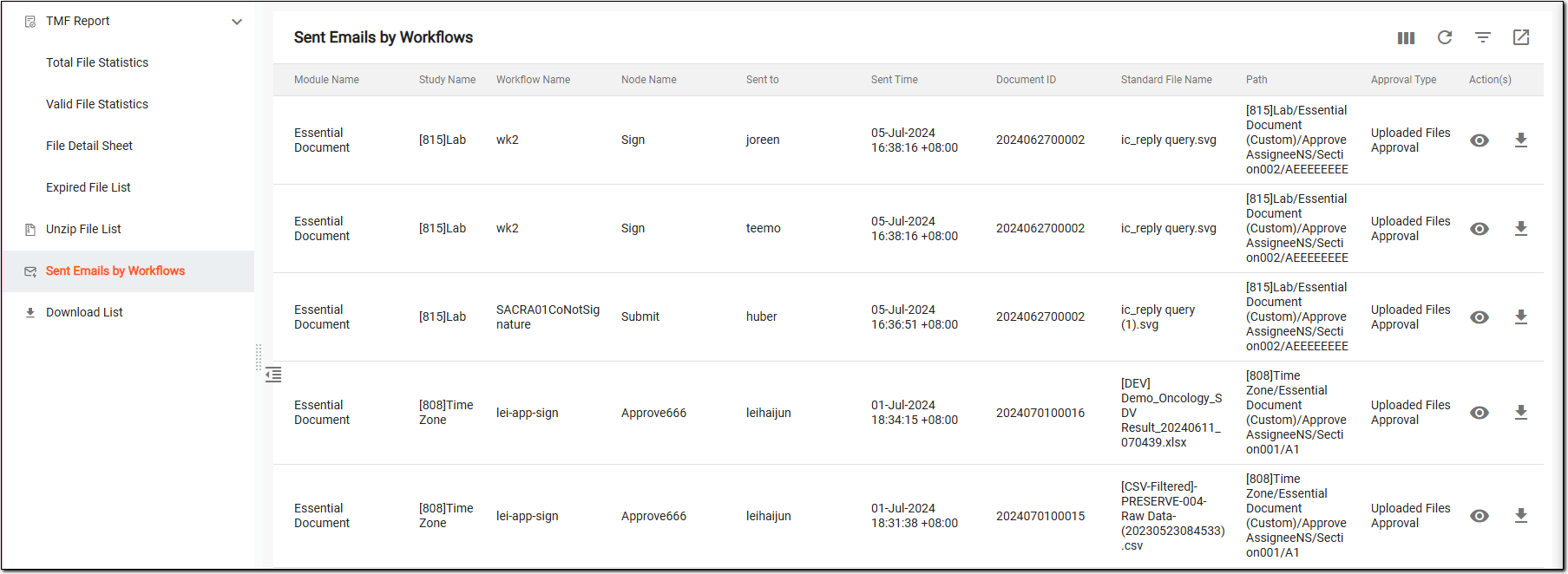 Figure 1. Viewing emails sent by workflows
Column
Details
Module Name
Represents the eTMF directory—File Management or Essential Documents—from where the event file is sent via email.
Study Name
Represents the name of the study to which the file belongs, on which the email is sent.
Workflow Name
Represents the name of the workflow according to which the email is sent.
Node Name
Represents the name of the workflow stage (node) according to which the email is sent, for instance, Sign.
Sent to
Represents the name of the user or team to whom the email is sent.
Sent Time
Represents the time when the email is sent.
Document ID
Represents the unique identification of the file with which the event that triggered the email.
Standard File Name
Represents the standard name of the file with which the event that triggered the email.
Path
Represents the path to the system directory comprising the file that caused the event (which triggered the email).
Approval Type
Represents the approving category of the file for which the event occurred (which triggered the email).
For instance, if a task reminder is set for the Approve node, it is supposed to send an email when the file uploaded in the Essential Document module is accepted. In this scenario, the category of approval is Uploaded Files Approved.
Action(s)
Preview
Select
 to preview the content of the email sent by the workflow.
Download
Select
 to download the content of the email sent by the workflow.
You have viewed the details of the Sent Emails by Workflows report. You can also export it and work with it offline.