View report on files uploaded from emails
In eTMF, there is a functionality of automatic file extraction from the email server, where all the files sent by your study participants and executors to specific email addresses are automatically saved in eTMF, saving time on manual upload to the system. Furthermore, the files retrieved from the email server can be autoprocessed by the system, analyzing their names and contents and then, based on this analysis, transferred to their intended Essential Documents directories.
Tip
The system can detect errors in the retrieved file names and trigger a respective notification letter to the email sender. For instance, if the naming convention requires the study name to be present in the file name, and the system retrieves the file that does not follow this convention, the sender of the email from which the file is retrieved will receive the letter with the respective notification.
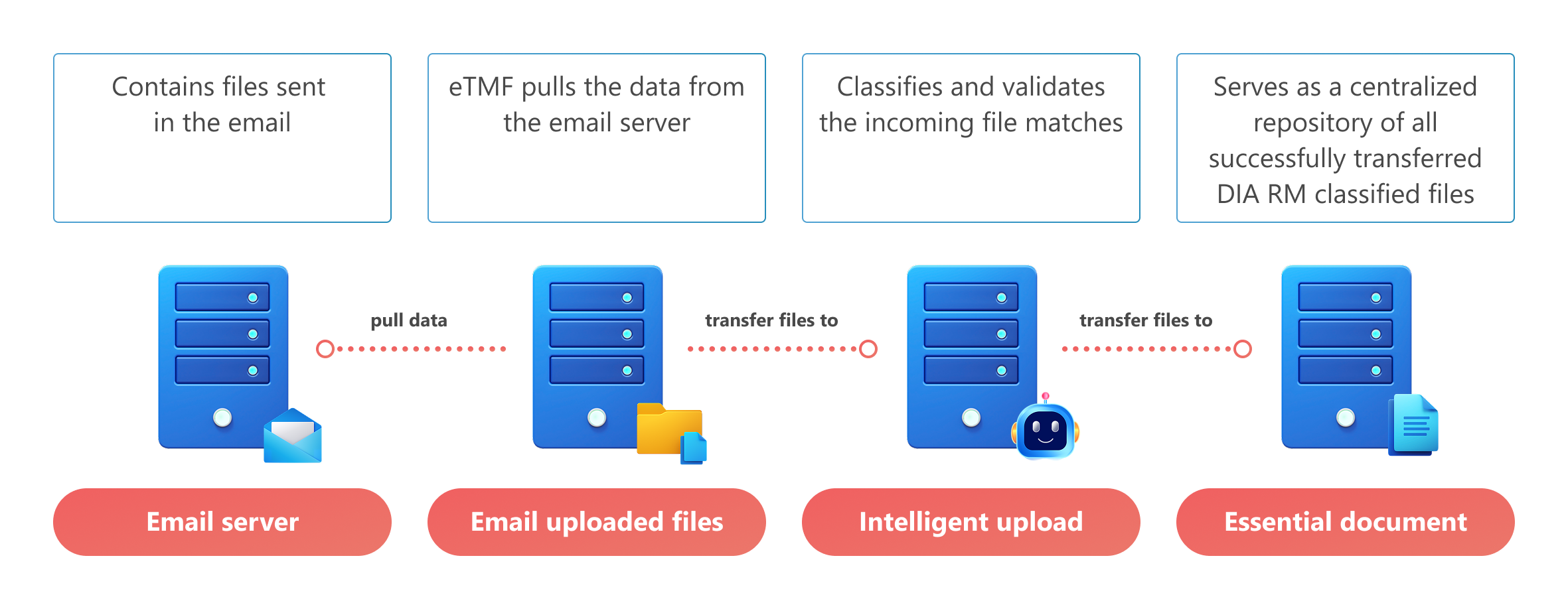
All files automatically extracted from the email server undergo the following path in eTMF:
-
Files Uploaded by Emails: the module is the first landing point for all files extracted from the email server. This module also acts as a report storing all files and their details even after they are processed and transferred to their destination directories. This allows for traceability and single-source oversight of files for all your studies.
-
Intelligent Upload: the intermediate point for files on their way to being classified—automatically or manually—and reaching their final destination. This module provides tools for analyzing files, amending their metadata, and distinguishing their place in the DIA RM-based storage of Essential Documents.
-
Essential Documents: the final destination for files that are classified according to DIA RM and directed to the intended artifact-level folders.
This section focuses on how you can access and interpret the details of the Files Uploaded by Emails report to review the files that are already or not yet transferred to Intelligent Upload or their intended Essential Documents directories.
-
In the eTMF application header, select the REPORTS tab.
-
On the page that opens, in the left pane, select Files Uploaded by Emails.
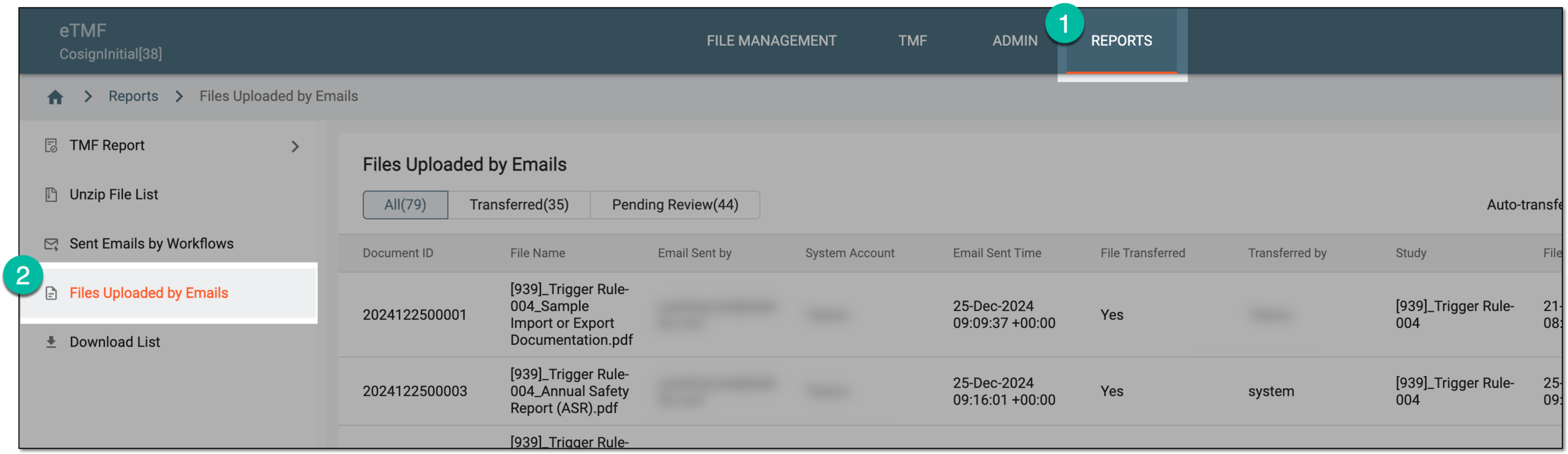 Figure 2. Accessing files uploaded via emails
-
On the Files Uploaded by Emails page that opens, review the report data as explained in the following table.
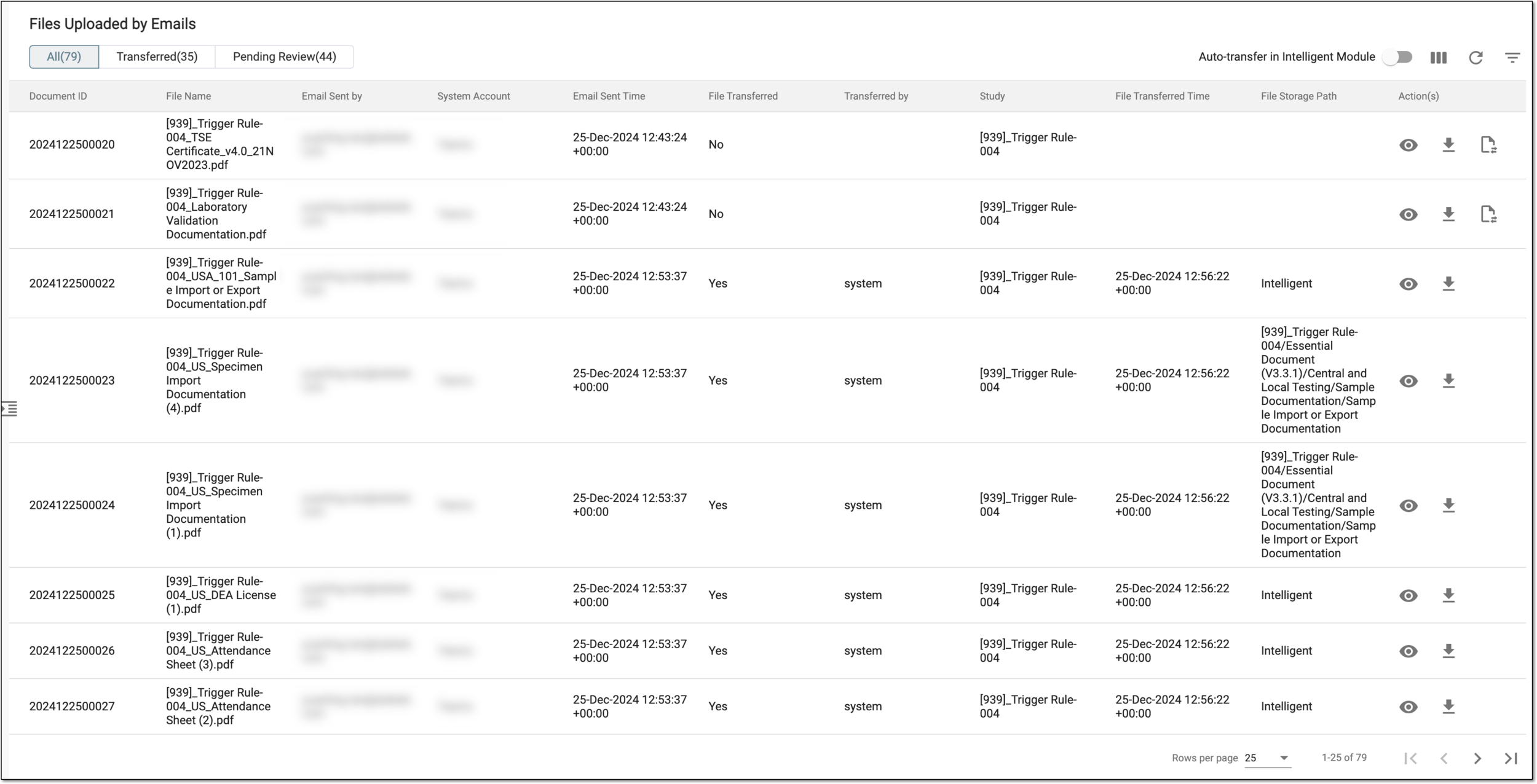 Figure 3. Analyzing files uploaded from emails and their details
Tip
Use the filter buttons to sort the report by the file transfer status and show all, transferred, or pending review and manual transfer files.
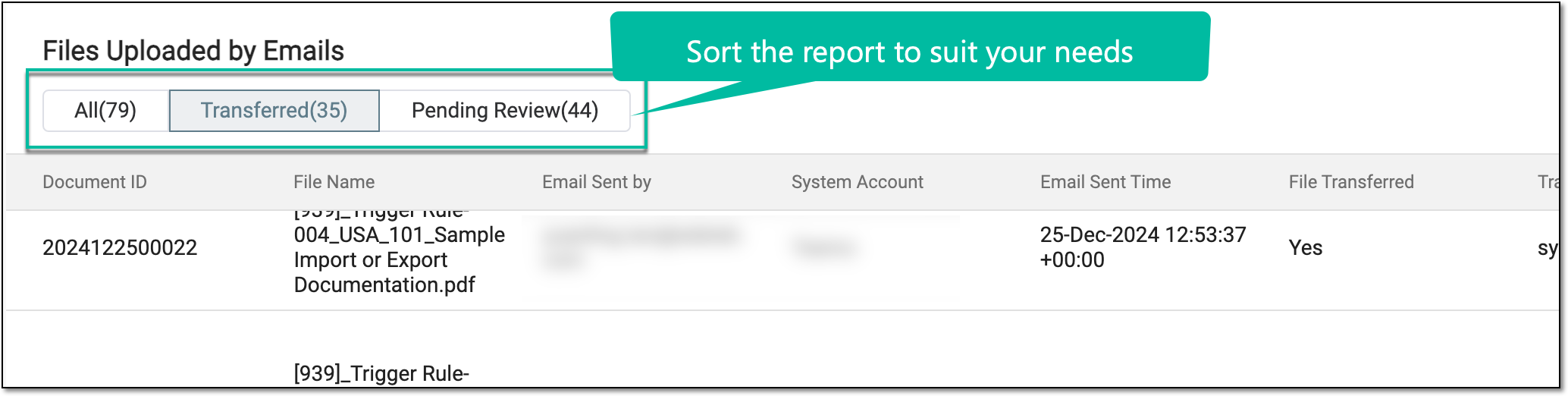 Figure 4. Sorting report by file transfer status
Column
Details
Document ID
Represents the unique identifier assigned to the file by the system upon upload to eTMF for tracking purposes.
File Name
Represents the name of the file retrieved from the email server.
Email Sent by
Represents the email address of the sender of the email that contained the retrieved file.
System Account
Represents the eClinical system user name of the sender of the email that contained the retrieved file.
This value is only available if the sender's email is associated with the user profile in the ADMIN application.Email Sent Time
Represents the exact date, time, and time zone indicator of when the email containing the file was sent.
File Transferred
Represents one of the following:
-
Yes: the file is already transferred to the eTMF directory—Intelligent Upload module or Essential Documents directory—based on the analysis of its name and contents by the system or manually by the user.
-
No: the file is not yet relocated to any eTMF directory and requires manual transfer.
Fail Reason
Represents the reason why the file autotransfer failed, such as if the study is locked or decommissioned, the email sender had no access to the study autodetected by the system as file destination, and so on.
This column is only available if the file autotransferring is enabled.Transferred by
Represents one of the following:
-
If the file is transferred manually by the system user, this column displays the name of the user who performed the operation.
-
If the file is transferred automatically by the system, this column displays system.
Study
Represents the name of the study to which the file belongs or remains blank if the study is not yet indicated for the file.
File Transferred Time
Represents the exact date, time, and time zone indicator of when the file was transferred to the Intelligent Upload module.
File Storage Path
Represents the path to the current location of the file in the Essential Documents directory or displays Intelligent if the file currently resides under the Intelligent Upload module.
-
You have analyzed the details of the files uploaded to eTMG from emails.