Enable/Disable autotransferring of files from emails
In eTMF, you can configure an automatic file extraction from the email server prepared for this purpose. All the files retrieved from the email server first land in the Files Uploaded by Emails module. From here, the system gives you the flexibility to decide on file transfer logic. One option is for the files to be automatically transferred to the Intelligent Upload module and then autoprocessed by the system, analyzing their names and contents, and based on this analysis, moved to their intended Essential Documents directories. Another option is to disable autoprocessing in favor of the manual transfer.
-
In the eTMF application header, select the REPORTS tab.
-
On the page that opens, in the left pane, select Files Uploaded by Emails.
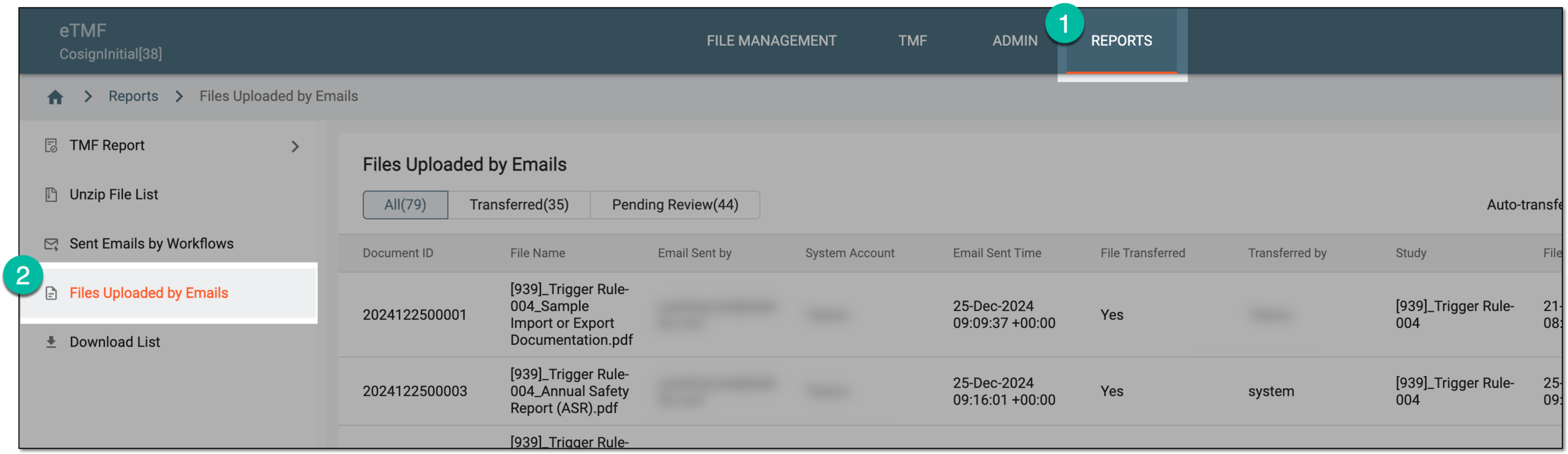 Figure 1. Accessing files uploaded via emails
-
On the Files Uploaded by Emails page that opens, from the workspace toolbar, turn on the Auto-transfer in Intelligent Module toggle to enable the files autotransferring or turn off the toggle to disable it.
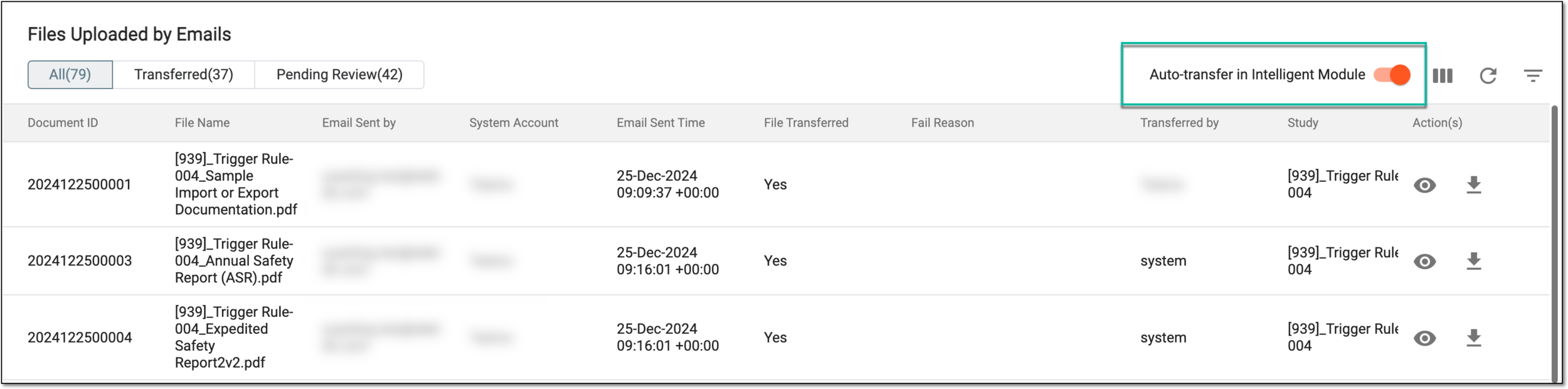 Figure 2. Enabling autotransferring of files from emails
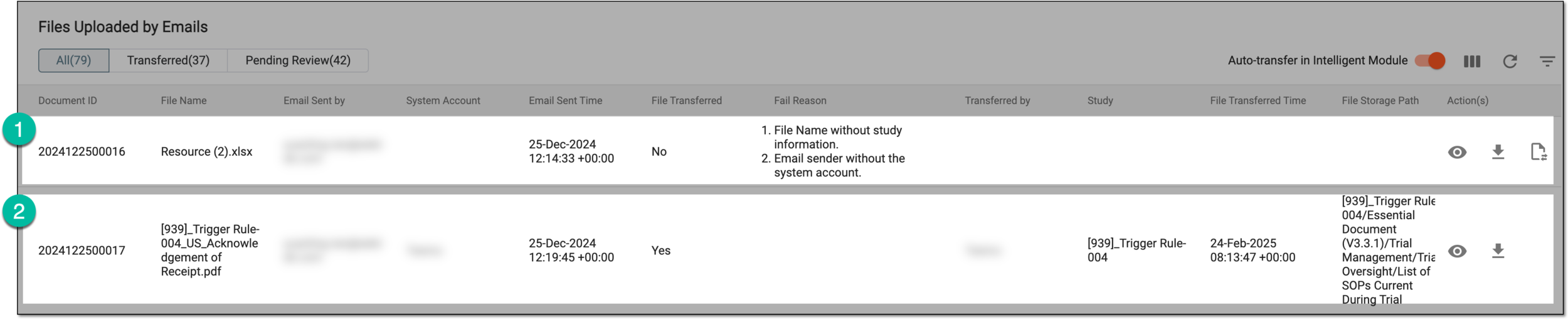
Turning on or off activates or disables the file autotransferring feature. Once enabled, the system performs autotransfer, and you can see the result of it by analyzing the columns of the Files Uploaded by Emails report, such as File Transferred, which shows if the file is transferred, File Storage Path, which shows where the file has landed, and Fail Reason, which shows why the autotransfer failed, if needed.
For instance, the following figure shows that the first file is not transferred because its title does not have enough details to detect the destination study, and the second file is transferred successfully to its intended folder in Essential Documents.
Tip
The system can detect errors in the retrieved file names and trigger a respective notification letter to the email sender. For instance, if the naming convention requires the study name to be present in the file name, and the system retrieves the file that does not follow this convention, the sender of the email from which the file is retrieved will receive the letter with the respective notification.