Manually transfer file uploaded from email
In eTMF, you can configure an automatic file extraction from the email server prepared for this purpose. All the files retrieved from the email server first land in the Files Uploaded by Emails module, from where they are transferred to the Intelligent Upload module and autoprocessed by the system, analyzing their names and contents. Based on this analysis, these files are then transferred to their intended Essential Documents directories.
Some files cannot be autoprocessed and require manual review and transfer. This can happen because the system cannot detect sufficient details from the file name or contents to locate its destination in the Essential Documents directories, or the autotransfer is disabled.
Tip
The system can detect errors in the retrieved file names and trigger a respective notification letter to the email sender. For instance, if the naming convention requires the study name to be present in the file name, and the system retrieves the file that does not follow this convention, the sender of the email from which the file is retrieved will receive the letter with the respective notification.
Using the Files Uploaded by Emails report, you can trace all the unprocessed files for all your studies, preview their contents if needed, and decide to which study they belong. Once the study is indicated, the system moves the file to the Intelligent Upload module for further manual processing or detects enough details to autolocate the intended directory for the file in Essential Documents.
Tip
There is also an option to pull unreviewed files from the Files Uploaded by Emails report on the Essential Documents side. To learn more, go to the Upload files extracted from emails section.
-
In the eTMF application header, select the REPORTS tab.
-
On the page that opens, in the left pane, select Files Uploaded by Emails.
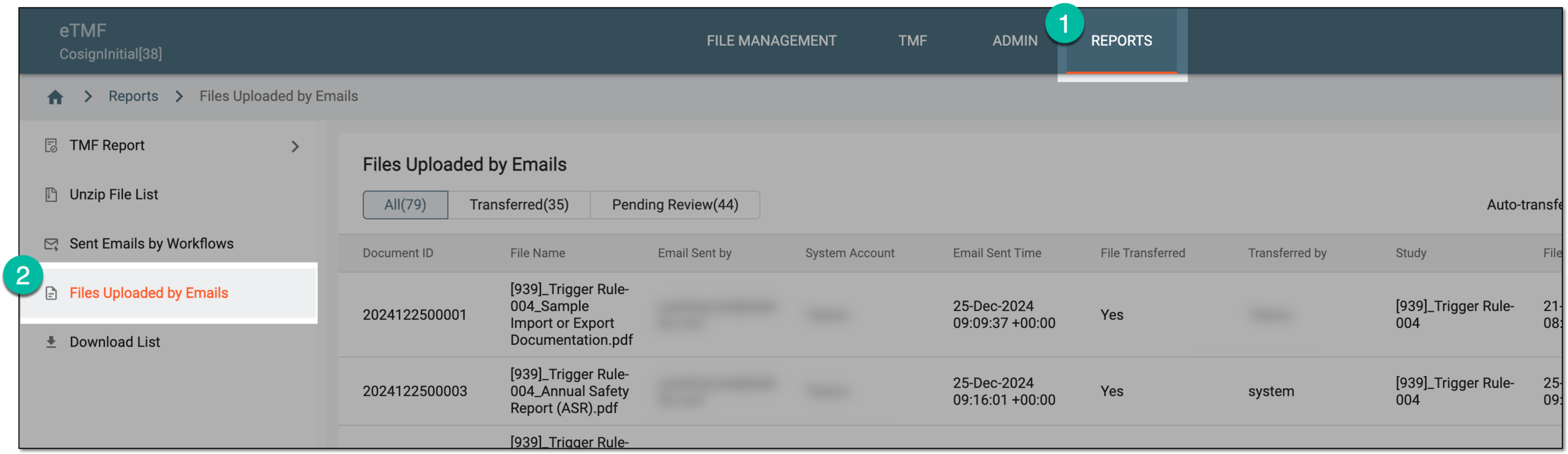 Figure 1. Accessing files uploaded via emails
-
On the Files Uploaded by Emails page that opens, locate the file that you want to transfer to its destination directory. Then from the Action(s) column, select Transfer
 .
.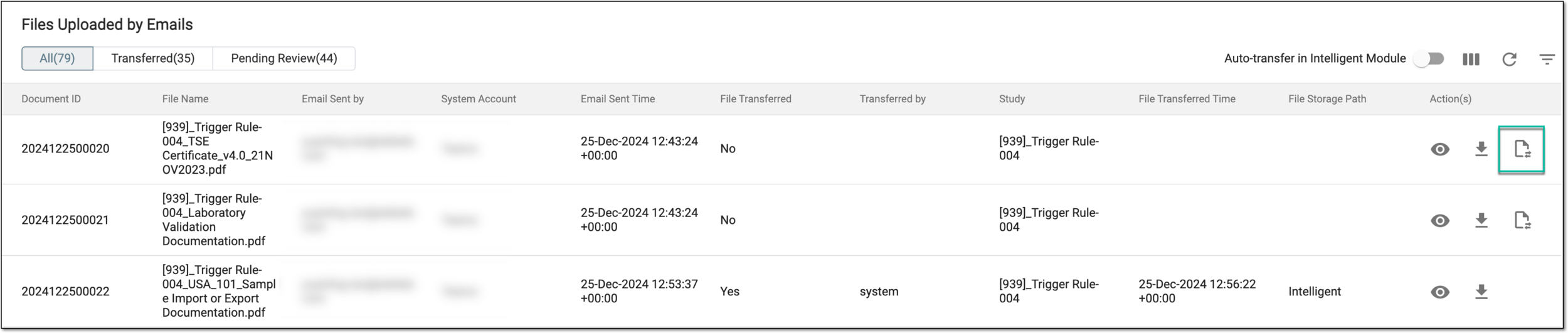 Figure 2. Selecting to transfer file
-
In the Transfer File dialog, the document ID and file name are prefilled with your file details and cannot be edited. Select the study to which this file belongs and select
 .
.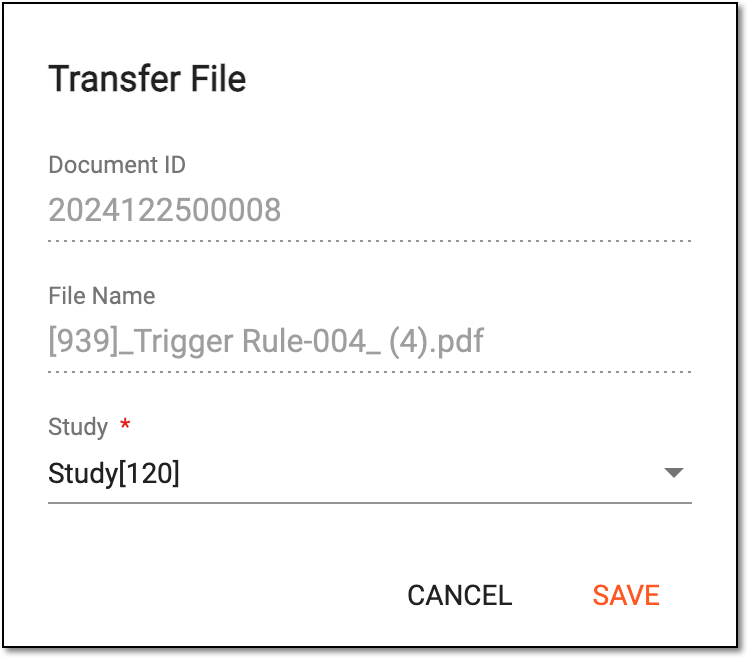 Figure 3. Selecting study for file transfer
Once saved, the file is transferred to its destination directory under the selected study in Essential Documents.