Associate workflow with folder or country
In eTMF, you can associate workflows with folders, thus, limiting or controlling the actions that can be performed on the files within these folders. Another possibility is to associate the workflow with the countries so that all the files collected for the study within the established country followed the same auditing procedure. The system refers to the associated workflow each time an action is attempted on the objects and the audit is triggered within the directories of the file management storage, essential documents, or document warehouse.
When associating a workflow with a folder, consider the following:
-
To one folder, you can assign only one workflow (a one-to-one relationship).
-
One workflow you can assign to multiple folders (a one-to-many relationship).
-
It is important to select a workflow for the folder before uploading files into it, because files inherit the workflow at the time of upload.
-
Assigning an alternate workflow to a folder replaces the existing one. However, files already present in the folder retain the workflow assigned to them at the time of their upload, whereas when a new file is uploaded to the folder, it inherits the new workflow.
-
Workflows are not inherited by new subfolders created under the root folder.
-
In the eTMF application header, select the ADMIN tab.
-
In the left pane, select the Associate Workflow subtab.
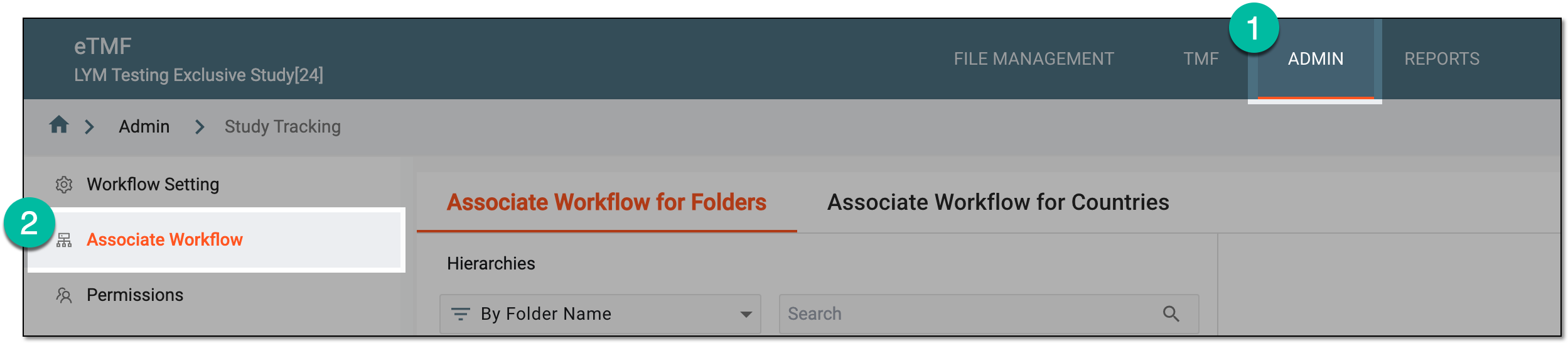 Figure 1. Accessing workflow setting
-
On the page that opens, select one of the available tabs to associate the workflow with folders or countries as follows.
-
Select the Associate Workflow for Folders tab and in the hierarchy tree that appears, drill down the directories of File Management and TMF and select the folders to which you want to associate the workflow.
-
From the workspace toolbar, select Associate Workflow
 .
.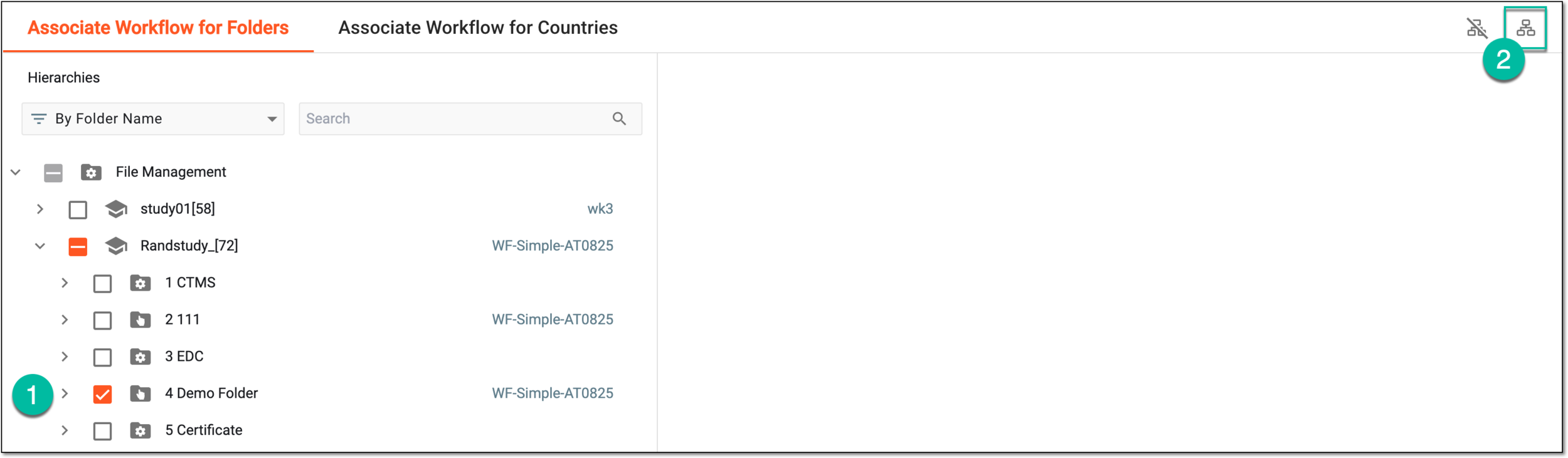 Figure 2. Selecting option to associate workflow with folder
-
Select the Associate Workflow for Countries tab and in the hierarchy tree that appears, drill down the countries of file origin in TMF and select the ones to which you want to associate the workflow.
-
From the workspace toolbar, select Associate Workflow
.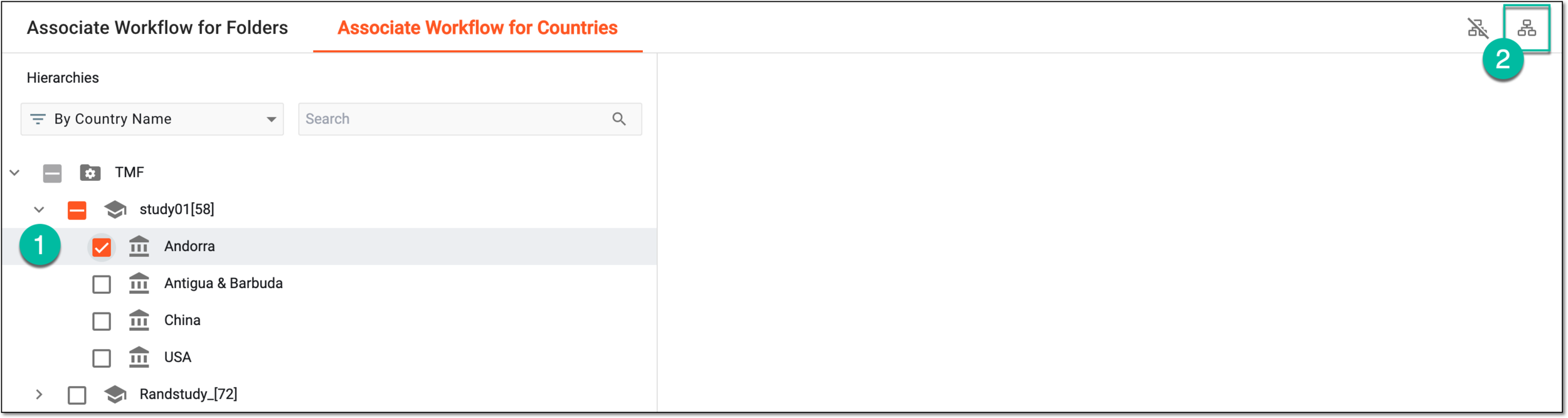 Figure 3. Selecting option to associate workflow with country
-
-
In the Associate Workflow dialog that opens, from the list of the available workflows, select the one you want to associate with your folder.
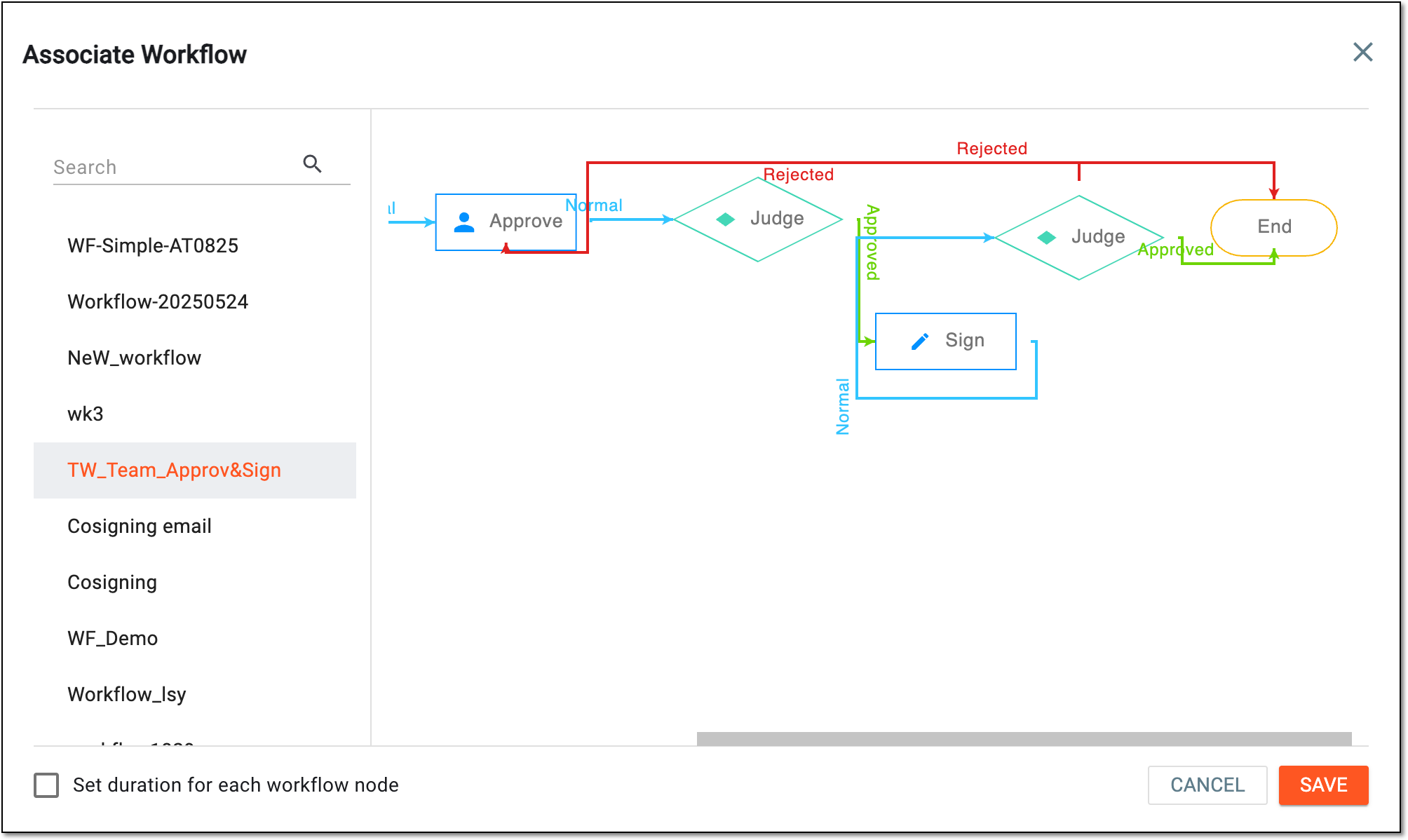 Figure 4. Selecting workflow to associate
Important
If the existing workflows do not meet your needs, you can create a new workflow and then associate it to your folder.
-
Optionally, select the Set duration of each workflow node checkbox and in the respective fields below the workflow nodes, enter the needed duration (in days). This sets the duration for each workflow stage (node) to outline the limitation for task completion for the assignees.
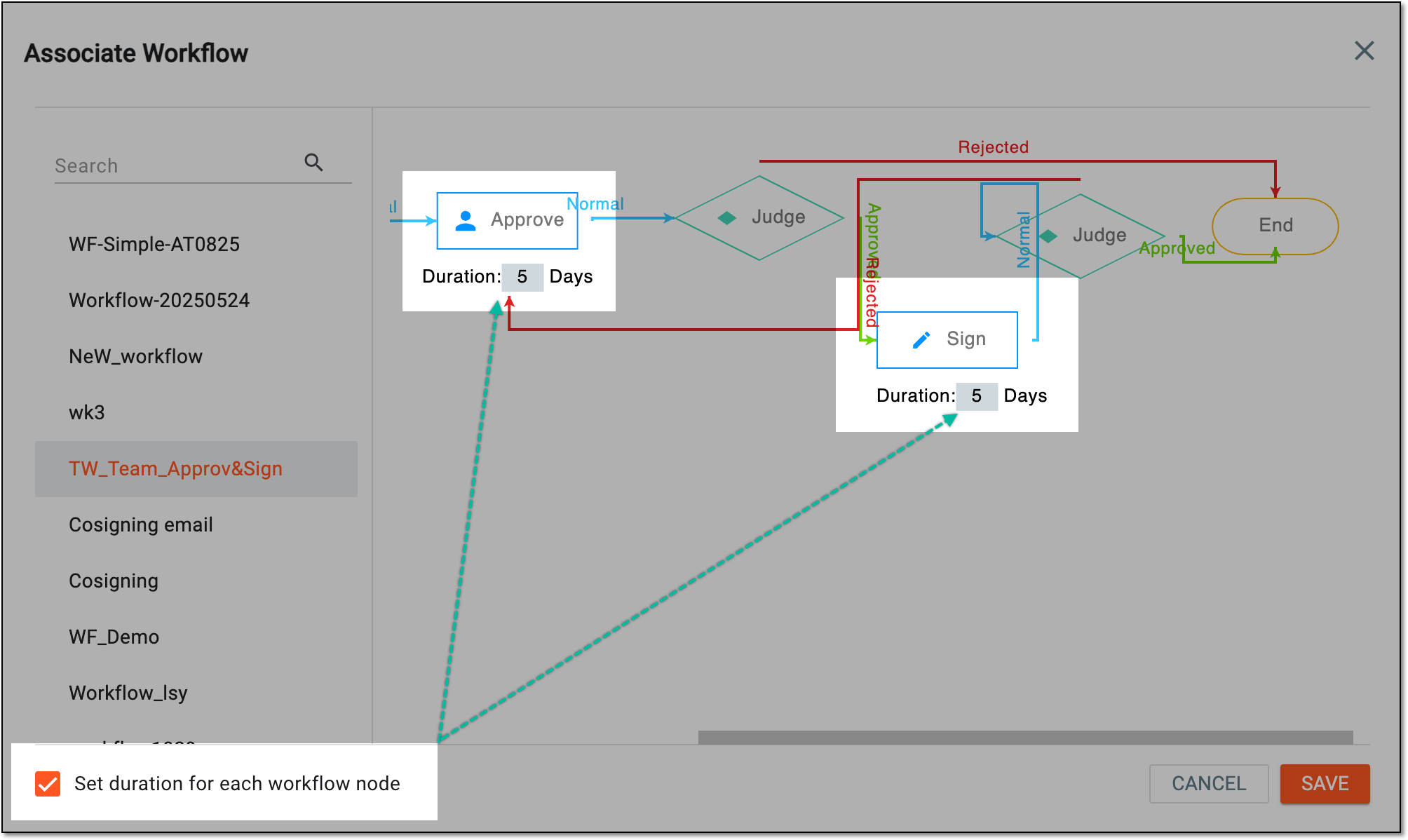 Figure 5. Setting workflow nodes duration
Important
If upon configuring your TMF base according to DIA RM or configuring your custom TMF base, you have established the study-level duration of all the workflow steps, this individual setting for the workflow nodes overwrites the study-level setting.
-
Select
 to save the changes.
The chosen workflow is associated with selected folders or countries. From now on, all the files uploaded to the respective directories inherit the associated workflow.
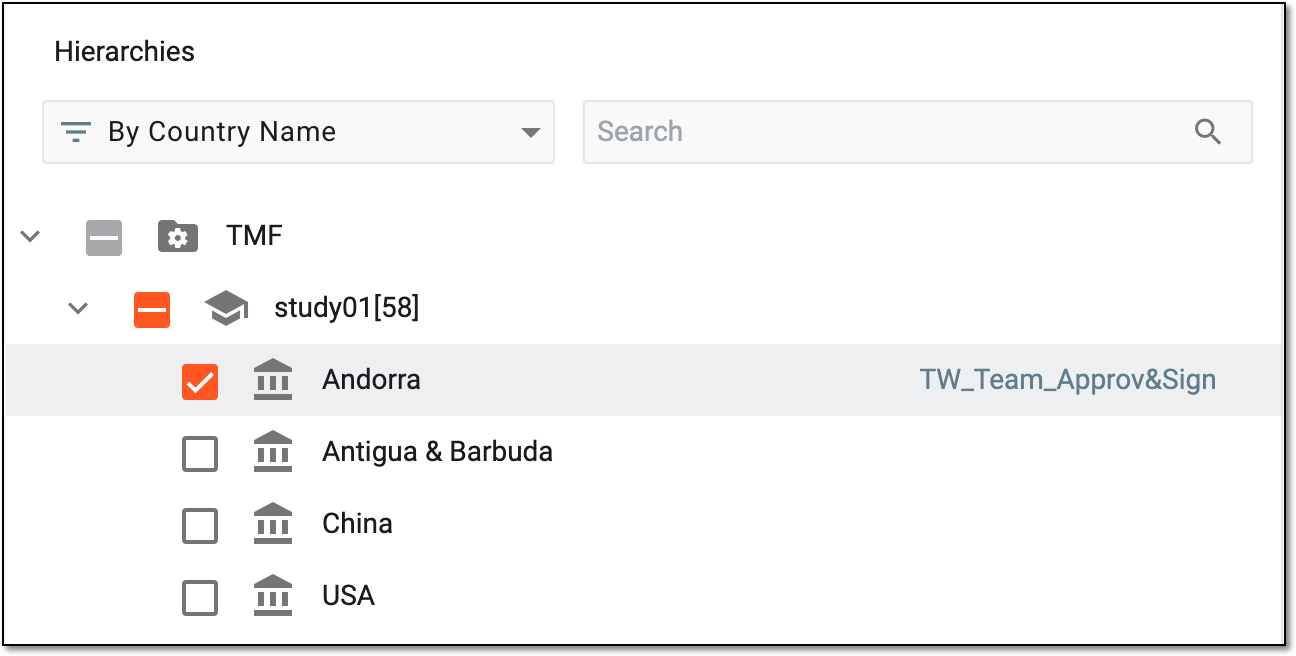
Next to the folder name in the explorer tree of the Associate Workflow page, you can see if there is an associated workflow.
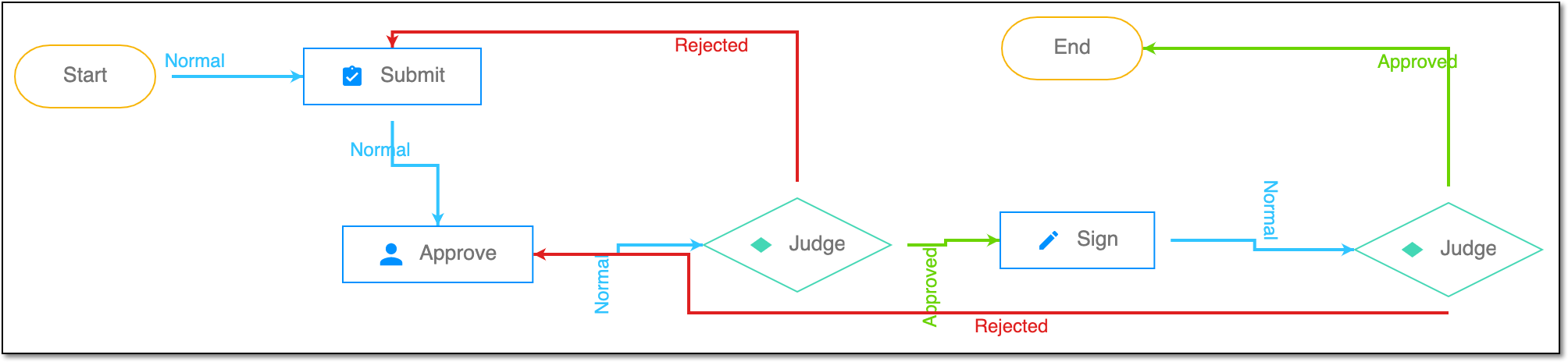
A schema, each step of which represents a stage of a specific entity lifecycle in the system.
A workflow can be considered an instrument to help control various actions on system entities for the sake of accountability, as it limits the actions that can be performed on the entity associated with a workflow. This provides an additional tier of scrutiny, and the approval/rejection mechanism reduces the risk of unintended impact on sensitive resources and important information.
 |
For instance, in eTMF, the workflow dictates the procedure of file and folder management from the moment of upload to the approval stage; in CTMS, the workflow controls the process of creation, completion, and approval of a trip report; in EDC, the workflow covers the process of source document handling.