Configure study TMF base according to DIA RM
In eTMF, the system automatically adds new studies to the Study List page after they are created in CTMS. However, the TMF base for the study must be configured manually by respective users to let the system know how to organize and store the files that are going to be uploaded. Users can select to use the standard built-in DIA RM structure to configure their TMF base.
The DIA RM model provides a standardized terminology and structure to facilitate consistency across TMFs used in different clinical trials and presents a hierarchical way of organizing documents, making it easier to navigate and locate specific records, enhancing clarity and understanding among stakeholders.
-
In the eTMF application header, select the TMF tab.
-
On the page that opens, in the left pane, select the Study List subtab.
-
In the Study List table that appears, go to the study you need to configure and select its name.
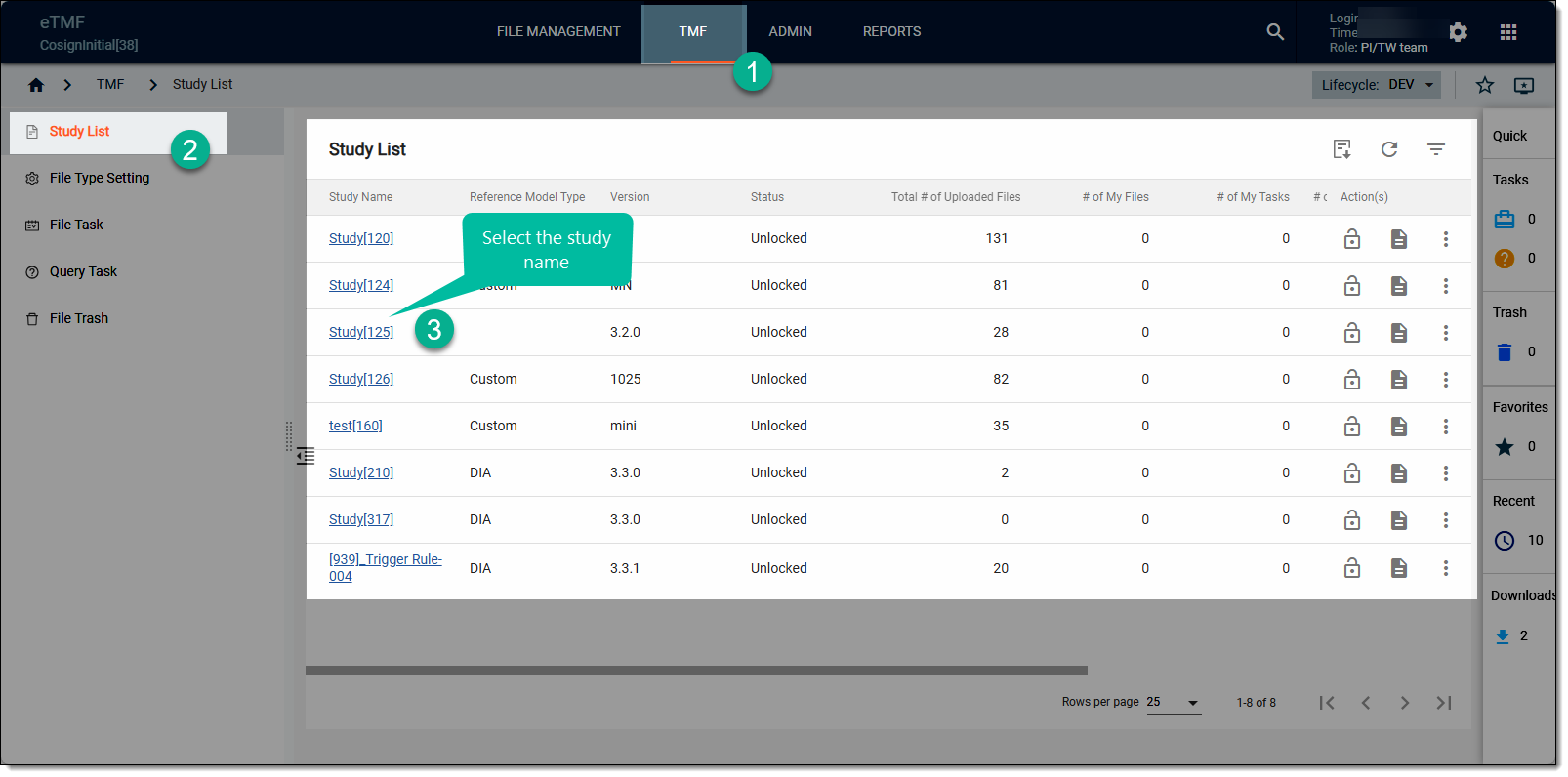 Figure 1. Selecting study
Alternatively, locate the study that you want to configure, and in the Action(s) column, select More
 > Edit
  .
. -
In the Edit dialog that appears, select the DIA value for the reference model and fill in the rest of the fields as explained in the following table.
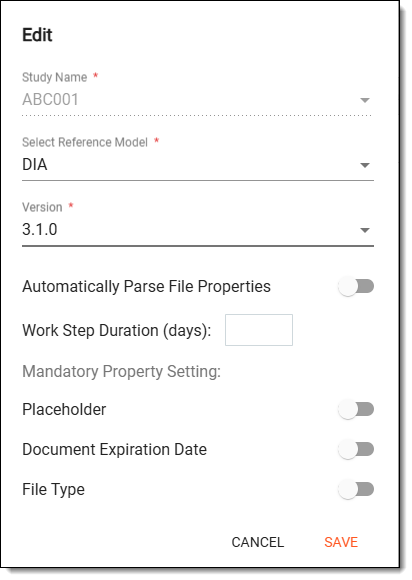 Figure 2. Configuring new study TMF base
Tip
In the following table, mandatory elements are marked with an asterisk (*).
Element
Details
Study Name*
Displays the study name. The field is read-only because the study name is assigned in CTMS and referenced in eTMF.
Select Reference Model*
Select the DIA reference model to configure the TMF base according to the standard built-in DIA RM structure.
Version*
Select the version of the reference model from the dropdown list.
Automatically Parse File Properties
Turn this toggle on to automatically populate file attributes when uploading files. When the file name matches the naming convention of a certain file type, once the file type is selected upon uploading, the system parses the file name and populates the corresponding default and customized attributes.
Work Step Duration (days)
Enter the number of days to set as a study-level duration for each step of the file management workflow (audit, signature, and other stages).
If this parameter is configured, the setting applies to all the folders in the study and the files within those folders.Mandatory Properties Settings
Placeholder
Turn on the toggle to make the placeholder selection option mandatory upon file upload. If turned off, the placeholder selection is optional.
Document Expiration Date
Turn on the toggle to make the document expiration date selection option mandatory upon file upload. If turned off, the expiration date selection is optional.
File Type
Turn on the toggle to make the file type option mandatory upon file upload. If turned off, the file type selection is optional.
SAVE
Select
 to implement the changes.
CANCEL
Select
 to dismiss changes without saving.
Upon saving, the study TMF base is configured according to the DIA reference model and displayed with the respective attributes in the Study List table. You can now import the TMF files.

An eClinical application that is mainly used to manage and control the personnel, communication, budget, progress, expenses, documents, and declaration involved in the entire clinical trial. It provides study and site management, study quality control, study progress tracking, project management, risk management, reports, and a visualized dashboard.
Get to know all the possibilities of the app with the comprehensive CTMS User Guide.
A compilation of documents proving that the study is held following regulatory requirements. The TMF is a crucial part of ensuring the trial is successfully managed by all the involved parties.
A model for organizations from DIA that helps the organizations to effectively compile the minimum list of essential documents to ensure the compliance of the investigator, sponsor, and monitor with the industry standards of good clinical practice (GCP) and with the regulatory requirements.
A schema, each step of which represents a stage of a specific entity lifecycle in the system.
A workflow can be considered an instrument to help control various actions on system entities for the sake of accountability, as it limits the actions that can be performed on the entity associated with a workflow. This provides an additional tier of scrutiny, and the approval/rejection mechanism reduces the risk of unintended impact on sensitive resources and important information.
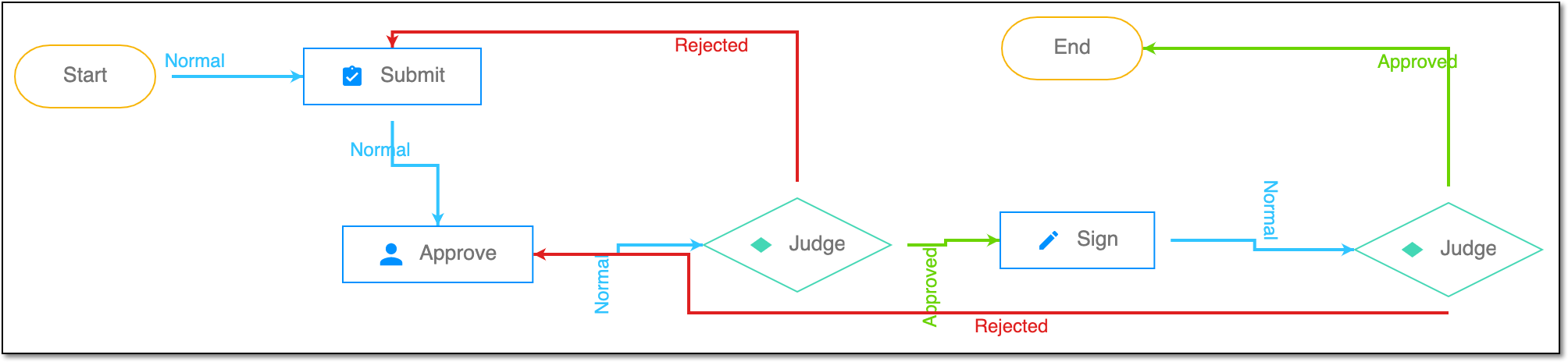 |
For instance, in eTMF, the workflow dictates the procedure of file and folder management from the moment of upload to the approval stage; in CTMS, the workflow controls the process of creation, completion, and approval of a trip report; in EDC, the workflow covers the process of source document handling.