Import TMF files from S3 platform
The eTMF application is a file storage and management system. Therefore, to work with files in eTMF, you need to import them into the system. A file can be imported into the list of essential documents if it contains crucial information related to regulatory and trial compliance. This import is performed with the TMF Import functionality.
The TMF Import functionality helps you retrrieve the required files from two storage options: Amazon S3 (as discussed in the following procedure) or DIA EMS, as discussed in the Import TMF files from DIA EMS section. These two types of file upload are typically used in scenarios where the sponsor switches eTMF system vendors, and the data is taken from the original vendor's system; thus, these data origins may vary.
-
In the eTMF application header, select the TMF tab. On the page that opens, in the left pane, select the Study List subtab.
-
In the Study List table, next to the needed study, select TMF Import
 .
.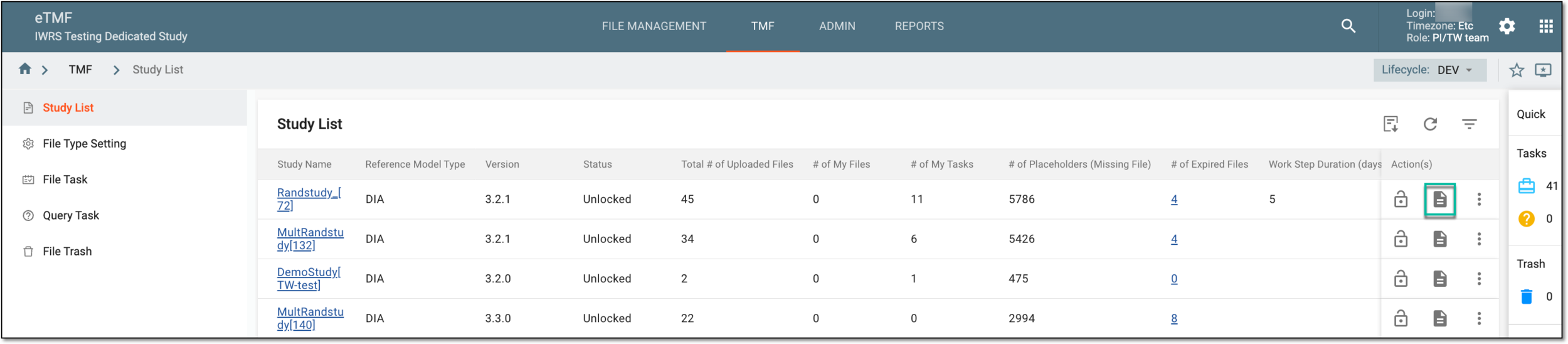 Figure 1. Accessing TLF import
-
From the open dropdown menu, select Import from S3.
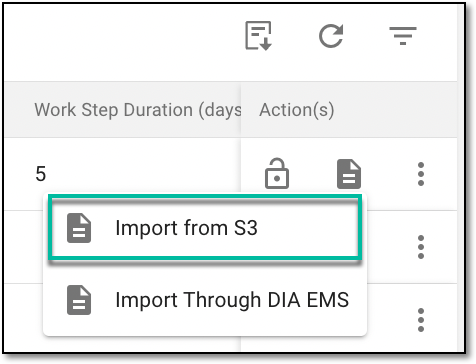 Figure 2. Selecting option to import from S3 database
-
On the Import from S3 page, from the workspace toolbar, select New Item
 .
. Figure 3. Accessing option to add new items
-
In the New dialog, specify the details as discussed in the following table.
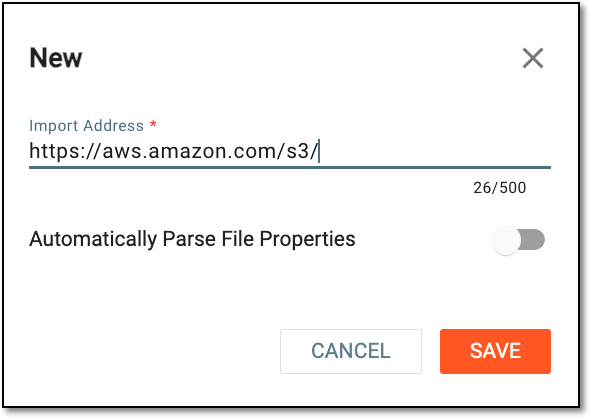 Figure 4. Entering import details
Tip
In the following table, mandatory elements are marked with an asterisk (*).
Element
Details
Import Address*
Enter the import address provided by the cloud team upon the data manager's request.
Automatically Parse File Properties
Use the toggle switch as follows:
-
Leave the toggle turned off to ignore file attributes.
-
Turn on the toggle if you need to populate the file attributes automatically from the S3 bucket to the TMF database.
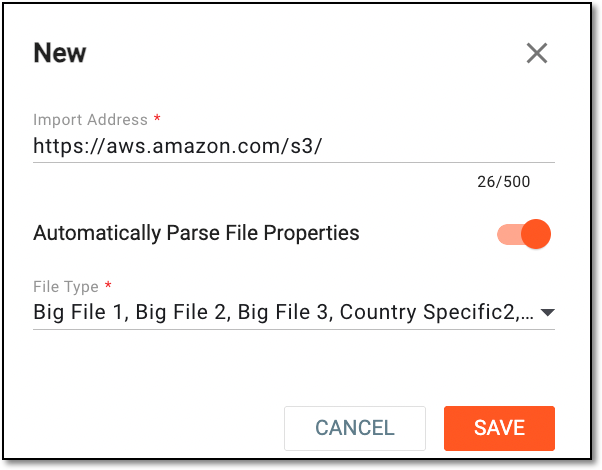 Figure 5. Turning on toggle
File Type*
From the dropdown menu, select the required file types or clear the unnecessary ones. These file properties are populated from the file type settings.
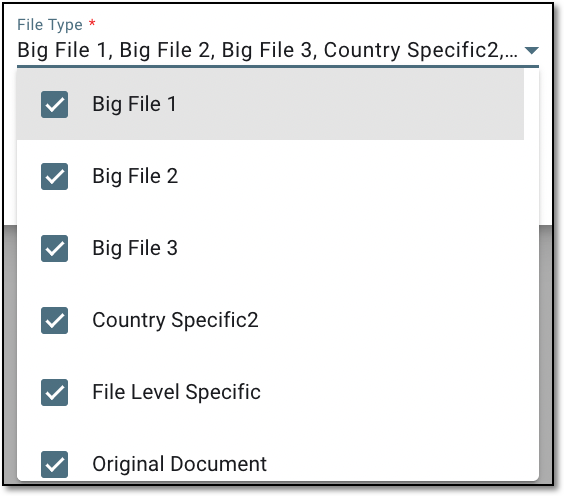 Figure 6. Selecting and clearing file types for file import
The dropdown menu is available only if the Automatically Parse File Properties toggle is turned
                                  on.
SAVE
Select
 to save settings for file import.
CANCEL
Select
 to cancel configurations and close the dialog without saving.
 -
After saving, the selected file is uploaded from the specified address.
After you have imported the required files from the S3 bucket, you may need to update the file details before further use in the TMF storage. You can update the details by downloading the file as an Excel sheet, editing the details on your computer, and then uploading the file back to the system, using the Download functionality.
-
In the eTMF application header, select the TMF tab. On the page that opens, in the left pane, select the Study List subtab.
-
In the Study List table, next to the needed study, select TMF Import
.Figure 1. Accessing TLF import
-
From the open dropdown menu, select Import from S3.
Figure 2. Selecting option to import from S3 database
-
Now, in the Import from S3 contents panel, next to the imported file you are interested in, select Download
 to download the file on your computer.
 Figure 3. Downloading file
-
The file list you have downloaded consists of two sheets—Index and Detail. In the Detail sheet, configure the attributes as explained in the following table.
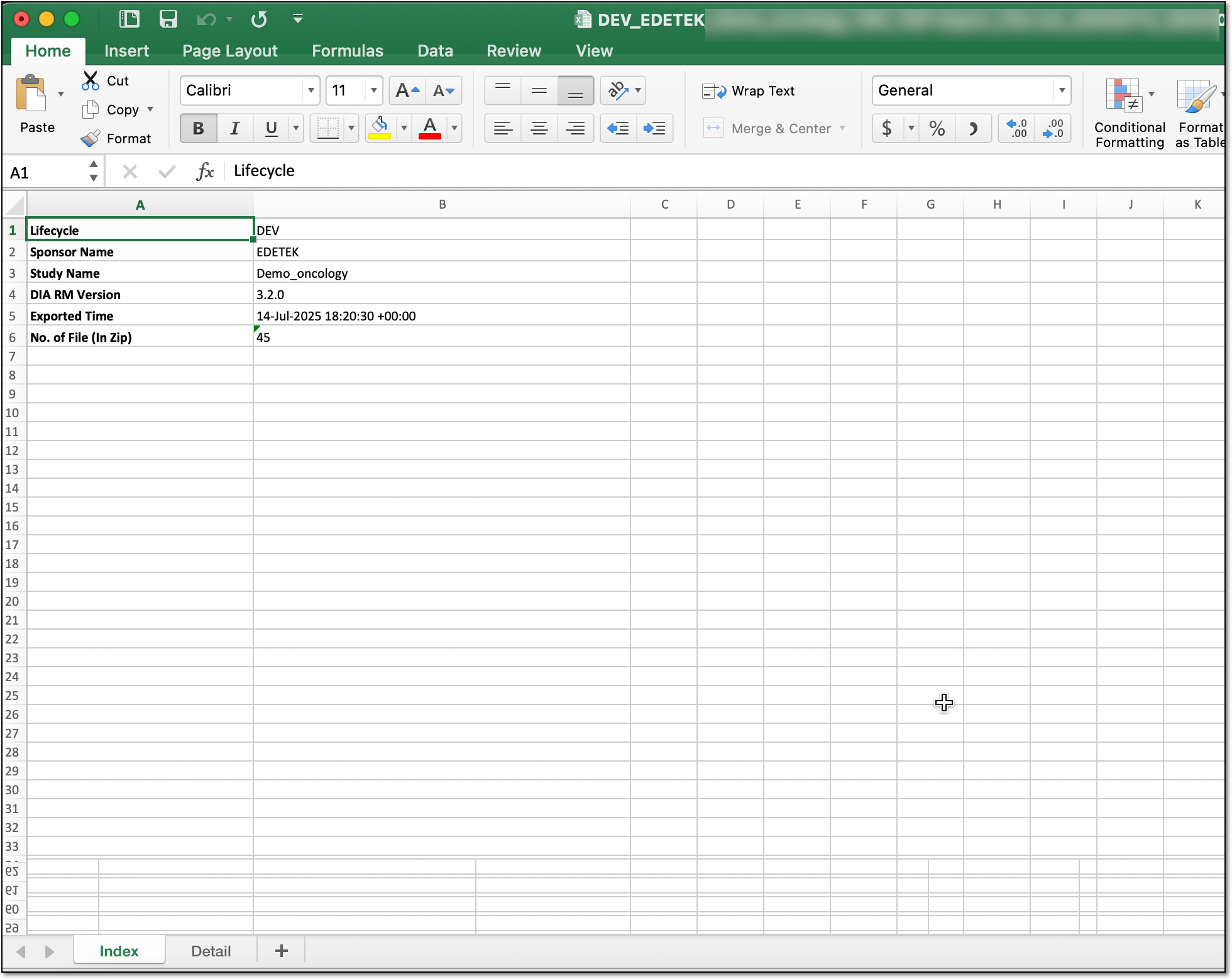 Figure 4. Downloaded file example
Column
Details
Path
Enter the path to the file.
File
Enter the name of the file.
Zone-Section-Artifact
Enter the target upload path of the file. For more information about the zone, section, and artifact, refer to the DIA RM version of the TMF base.
Country
Specify the country of the file if it belongs to a country-level milestone.
Site Code
Specify the site of the file if it belongs to a country-level milestone.
Document Expiration Date (UTC)
Specify the expiration date of the file.
Important
According to the selected file types, the system will add corresponding customized attributes as columns to the spreadsheet.
Now, you can upload the updated matching file back to the eTMF app.
After introducing the required changes to the downloaded file (initially imported from the S3 bucket), you can upload it back to TMF. To do this, use the Upload functionality.
-
In the eTMF application header, select the TMF tab. On the page that opens, in the left pane, select the Study List subtab.
-
In the Study List table, next to the needed study, select TMF Import
.Figure 1. Accessing TLF import
-
From the open dropdown menu, select Import from S3.
Figure 2. Selecting option to import from S3 database
-
In the contents panel, select Upload Matching File
 to upload the updated file from your computer.
Important
When uploading files from the S3 platform, file name uniqueness is not verified. Therefore, files with identical names are not overwritten.
If the file list spreadsheet for a study item is reloaded, existing files in the folder are overwritten.
 Figure 3. Accessing option to upload updated file
-
After selection, a dialog prompts you that the file will be overwritten. Select OK to confirm your choice.
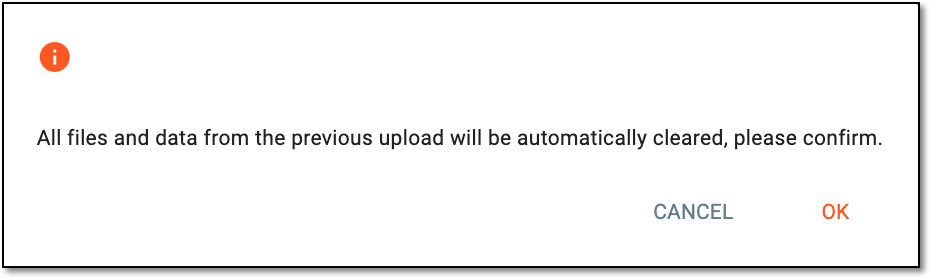 Figure 4. Prompting users on files to be overwritten
-
Follow the prompts of your computer to locate and select the file you have updated and prepared for the upload.
Once uploaded, the system begins validating the file list and generating the upload report. The accountable personnel can directly audit the file imported under the Essential Documents subtab.
If every file’s mapping relation is valid, the item Status in the contents panel is changed from Not start to Success, and the upload is completed. Otherwise, it changes to Failure, and no files are uploaded.
You may troubleshoot the failure by downloading the report after analyzing and resolving it, and then trying to reload the matching file back to TMF.
You may need to download the report on your computer and upload activities for the specific file to analyze and troubleshoot the issues that might occur during one of the performed actions.
-
In the eTMF application header, select the TMF tab. On the page that opens, in the left pane, select the Study List subtab.
-
In the Study List table, next to the needed study, select TMF Import
.Figure 1. Accessing TLF import
-
From the open dropdown menu, select Import from S3.
Figure 2. Selecting option to import from S3 database
-
In the contents panel, select Download Report
 to upload the report file onto your computer.
 Figure 3. Downloading report
-
Follow the prompts of your computer to locate and open the report file. Then, analyze the logs in the file details.
Once analyzed, perform the required troubleshooting. Afterwards, you can try to import the failed file again.