File audit actions in essential documents
In the eTMF application, the Essential Documents page represents the file storage for a study that is based on the DIA TMF reference model. Here, all the operations with files must be accounted for and comply with specific requirements. Thus, the auditing procedure must be established according to the workflow that is associated with folders.
Under the Essential Documents page, you have the auditing instruments as discussed in the following sections.
Tip
You can also audit files in batch using the File Task functionality.
In eTMF, all the operations with files under Essential Documents must undergo the auditing procedure according to the workflow that is associated with folders containing these files.
Thus, if an action is attempted with the file, the authorized user has to approve, sign, or reject this action.
-
In the eTMF application header, select the TMF tab.
-
From the left pane, select the Study List subtab.
-
On the Study List page, in the table, select the needed study name.
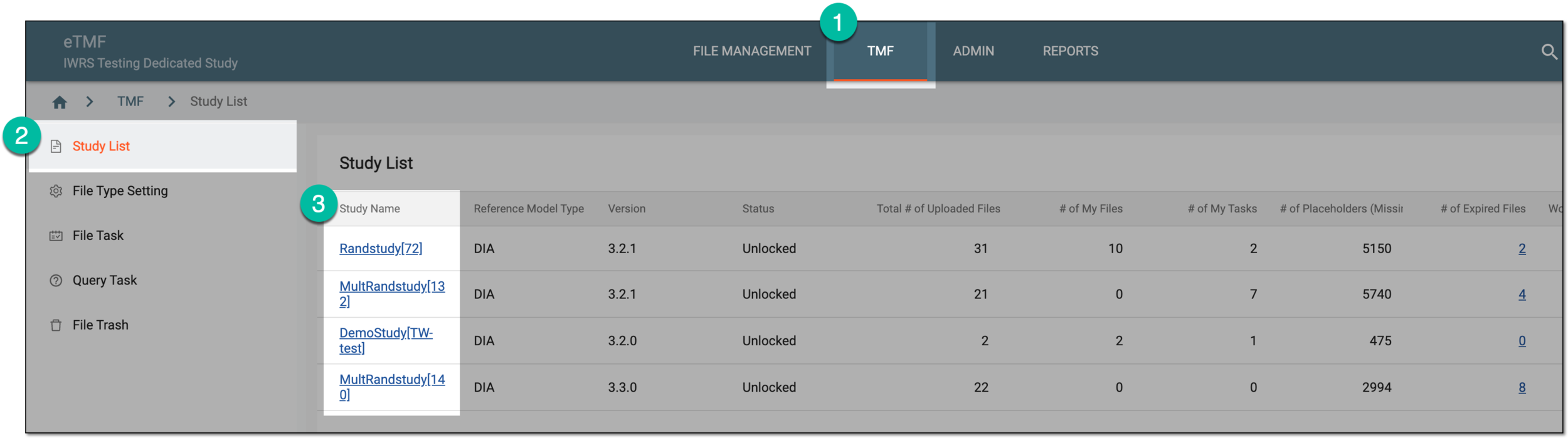 Figure 1. Accessing study
-
On the page that opens, in the left pane, select Essential Documents.
-
On the Essential Documents page, from the explorer tree pane, select the required directory, and in the File List table, go to the file you need to audit.
Tip
For easier location, the files you need to audit are marked with My Task
 .
.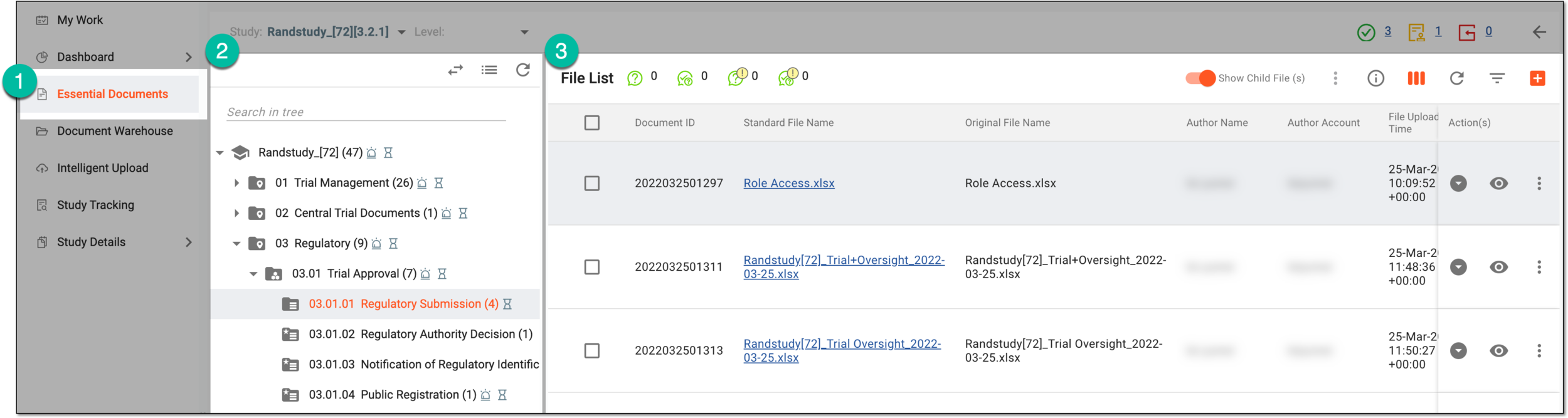 Figure 2. Locating files to audit in essential documents
-
Next to the file of your interest, from the Actions column, select More
 >
Audit
>
Audit  .
.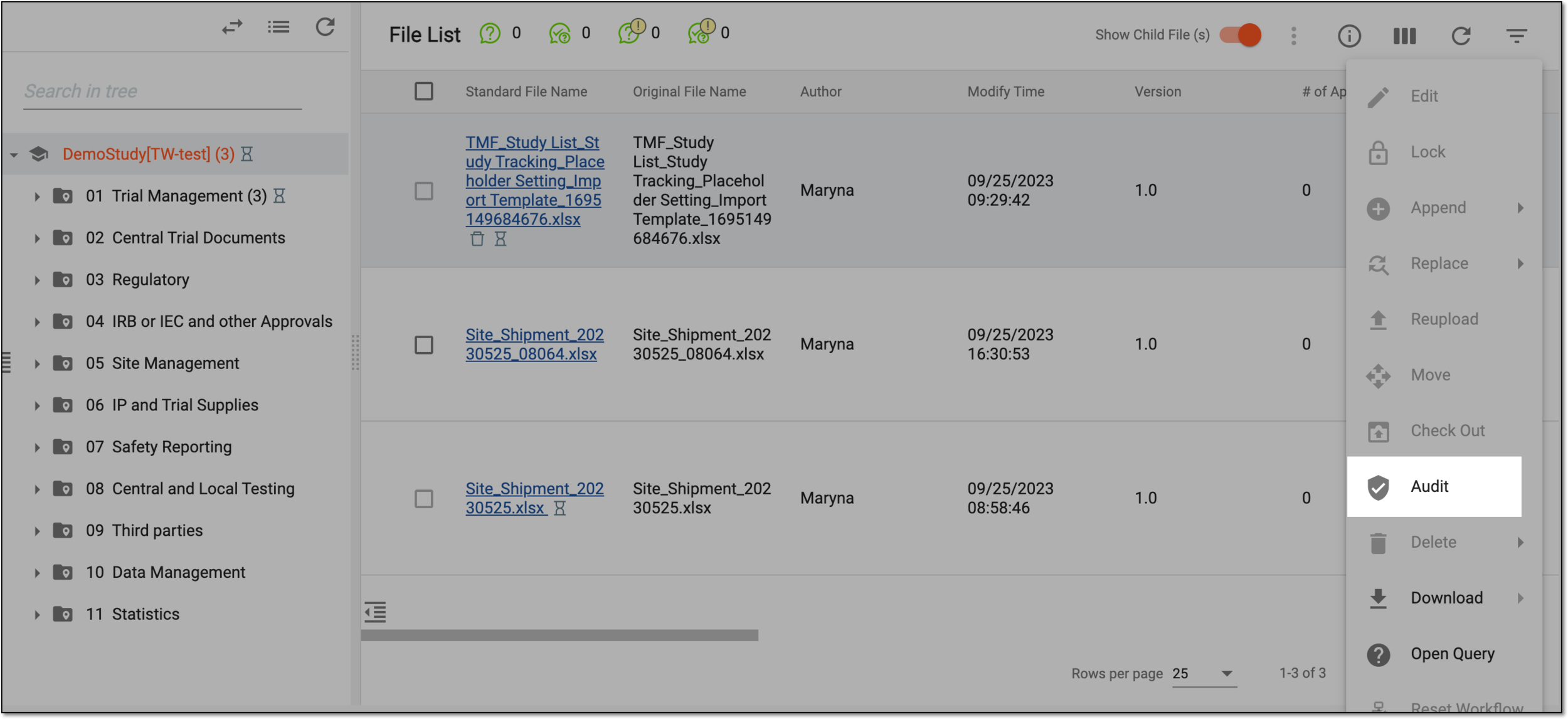 Figure 3. Selecting to audit file
Tip
The audit option can be disabled or hidden if:
-
The file is in a folder without a workflow.
-
The file is in the linked folder.
-
The file is in the locked folder.
-
The file is the linked one.
-
-
In the dialog that appears, select the File Preview option and complete the details as explained in the following table.
Tip
Select File Preview
 to open the file contents in a new browser tab with the ability to examine and
comment on it as an auditor. Learn more in the Preview and comment
on file content during audit section.
to open the file contents in a new browser tab with the ability to examine and
comment on it as an auditor. Learn more in the Preview and comment
on file content during audit section.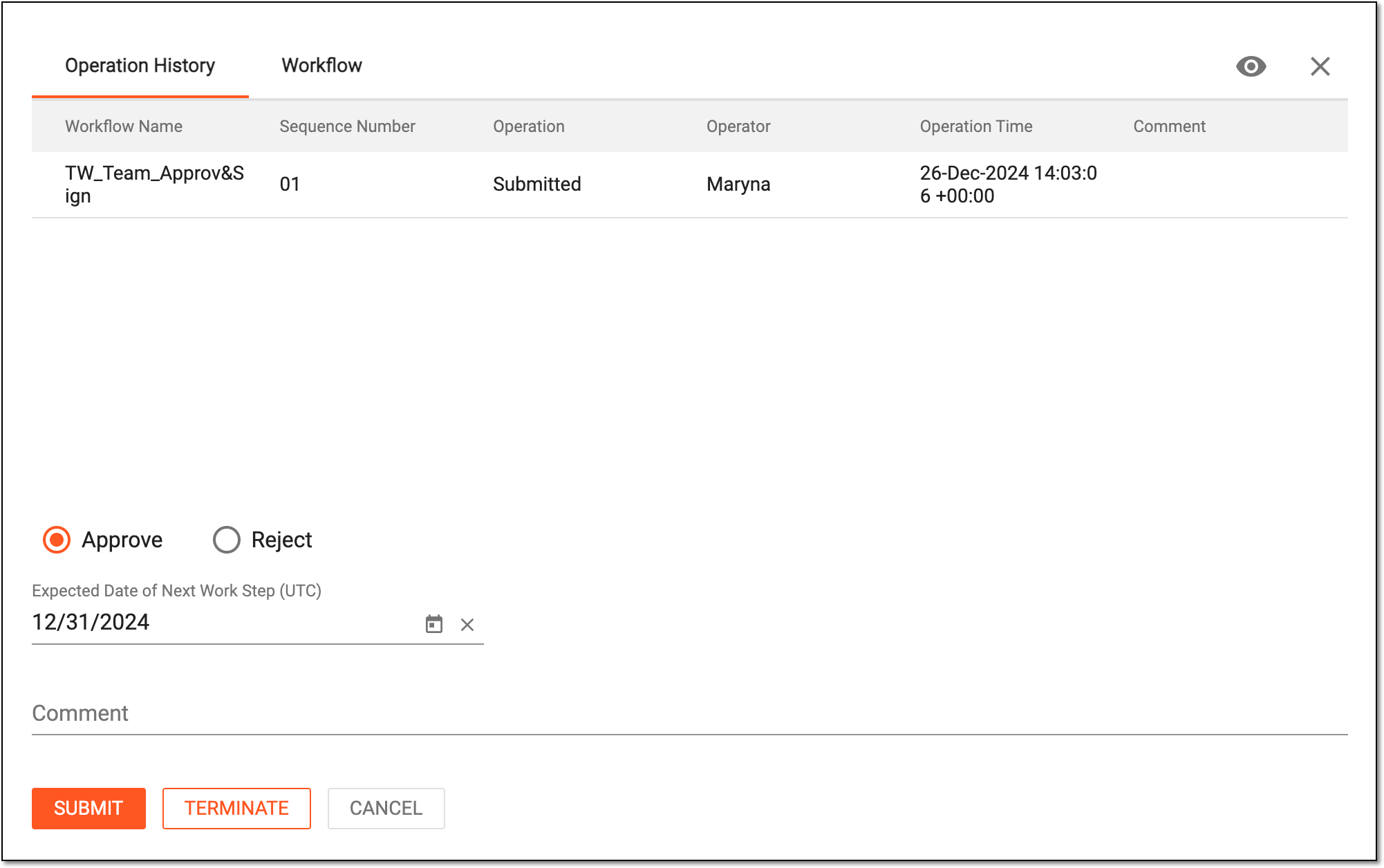 Figure 4. Approving file in essential documents
Element
Details
Expected Date of Next Work Step (UTC)
Enter the date when the next step in the file's workflow after the approval is expected to take place.
The system can automatically populate the expected date according to the following configurations of the associated workflow:
-
The unified study-level setting of all the workflow steps (nodes) duration upon configuring the DIA RM or custom TMF base. For such a setting, the system adds the set number of days to the current date to calculate the expected date of the next workflow step.
-
The individual workflow step (node) duration setting upon associating the workflow with the folder. For such a setting, the system adds the number of days set for each individual workflow step to the current date to calculate the expected date of the next step.
If both the study-level and the individual workflow node duration settings are applied, the individual setting for the workflow nodes has higher priority and overwrites the study-level setting.Comments
Enter a comment to support your action, if needed.
SUBMIT
Select
 to save applied changes.
TERMINATE
Select
 to terminate the file audit.
CANCEL
Select
 to discard the implemented changes and close the dialog.
 -
Once submitted, the file is audited and approved. The file status changes according to the associated workflow.
In eTMF, all the operations with files under Essential Documents must undergo the auditing procedure according to the workflow that is associated with folders containing these files.
Sometimes the workflow might require that if an action is attempted with the file, the authorized user has to approve this action by providing their electronic signature.
Important
For security, the system logs you out after three failed attempts to confirm your identity with a password or code.
-
In the eTMF application header, select the TMF tab.
-
From the left pane, select the Study List subtab.
-
On the Study List page, in the table, select the needed study name.
Figure 1. Accessing study
-
On the page that opens, in the left pane, select Essential Documents.
-
On the Essential Documents page, from the explorer tree pane, select the required directory and in the table, go to the file you need to sign.
Tip
For easier location, the files you need to audit are marked with My Task
.Figure 2. Locating file to audit in Essential Documents
-
Next to the file of your interest, from the Actions column, select More
>
Audit .Figure 3. Selecting to audit file
Tip
The audit option can be disabled or hidden if:
-
The file is in a folder without a workflow.
-
The file is in the linked folder.
-
The file is in the locked folder.
-
The file is the linked one.
-
-
In the dialog that appears, select the Approve option and complete the details as explained in the following table.
Tip
Select File Preview
to open the file contents in a new browser tab with the ability to examine and
comment on it as an auditor. Learn more in the Preview and comment
on file content during audit section.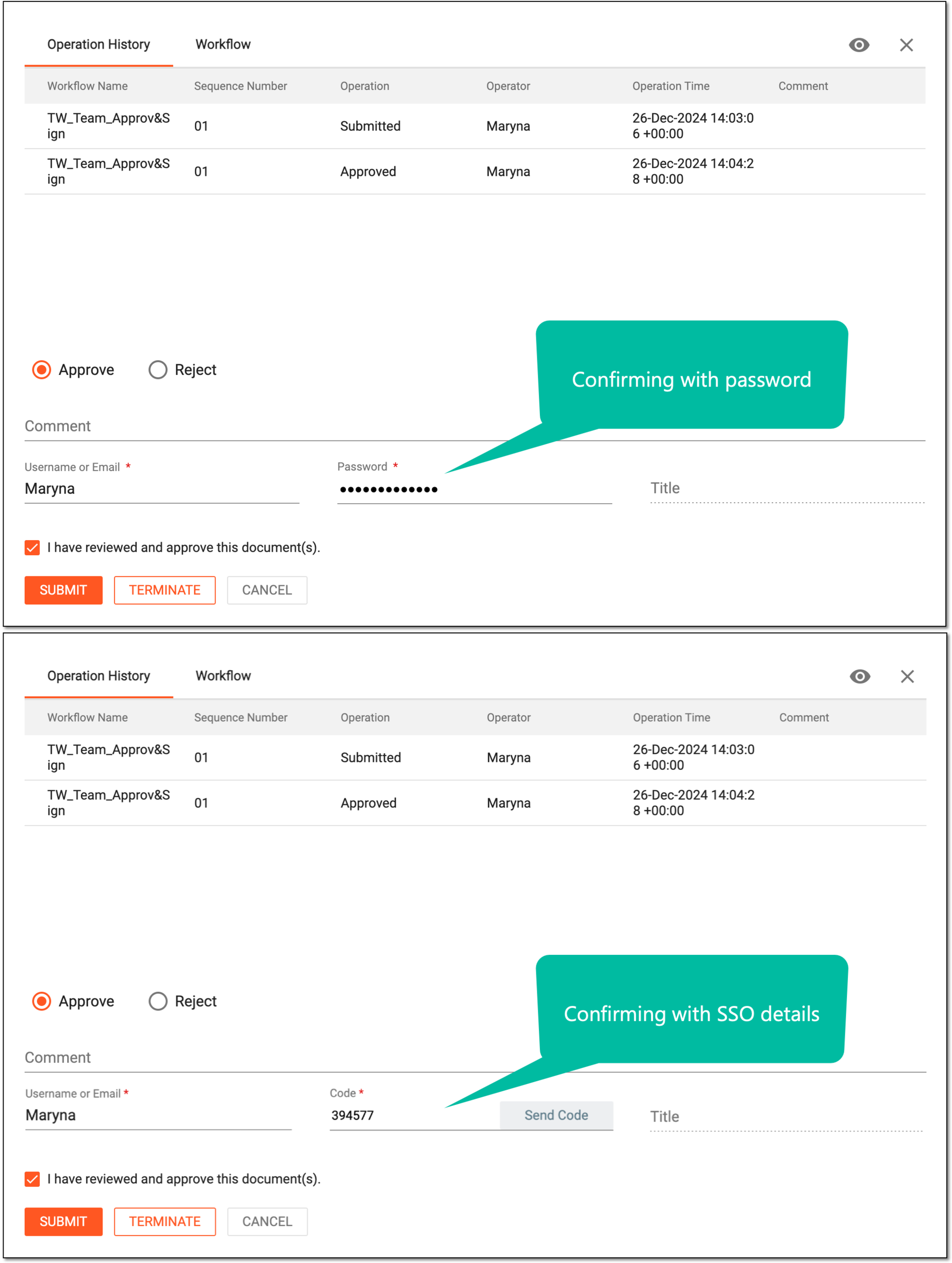 Figure 4. Signing file in essential documents
Tip
In the following table, mandatory elements are marked with an asterisk (*).
Element
Details
Comments
Enter a comment to support your action, if needed.
User Name*
Enter your user name to provide an electronic signature.
Password*
Enter your system password to confirm an electronic signature.
The field is only available if you use the authorization method by providing your login and password.Send Code
Select
 to send the temporary PIN code to your email for which the SSO method is configured.
The button is only available if you use the authorization method via SSO.Code*
Enter the temporary PIN code that you received via email to confirm an electronic signature.
The field is only available if you use the authorization method via SSO.Title
Represents the title of the user entered in the User Name field if it is configured in the ADMIN application. The field cannot be edited manually.
I have reviewed and approve this document(s)
Select this checkbox to acknowledge that you have reviewed the document for which you are signing.
SUBMIT
Select
to complete the approval process.TERMINATE
Select
to terminate the file audit.CANCEL
Select
to dismiss your actions without saving and close the dialog.Important
The details you need to provide for action confirmation depend on the authentication method configured for you in the system—via SSO or via providing your login and password.
Once submitted, the file is approved and signed. The file status changes according to the associated workflow.
In eTMF, all the operations with files under Essential Documents must undergo the auditing procedure according to the workflow that is associated with folders containing these files.
Thus, if an action is attempted with the file, the authorized user has to approve this action or sign for it. At both these stages—approval or signature—based on your judgment, you can decide to reject the action with the file for some valid reason, such as a duplicated document, misclassified file, or else.
-
In the eTMF application header, select the TMF tab.
-
From the left pane, select the Study List subtab.
-
On the Study List page, in the table, select the needed study name.
Figure 1. Accessing study
-
On the page that opens, in the left pane, select Essential Documents.
-
On the Essential Documents page, from the explorer tree pane, select the required directory. In the table, go to the file you need to audit.
Tip
For easier location, the files you need to audit are marked with My Task
.Figure 2. Locating file to audit in Essential Documents
-
Next to the file of your interest, from the Actions column, select More
>
Audit .Figure 3. Selecting to audit file
Tip
The audit option can be disabled or hidden if:
-
The file is in a folder without a workflow.
-
The file is in the linked folder.
-
The file is in the locked folder.
-
The file is the linked one.
-
-
In the dialog that appears, select the Reject option and complete the details as explained in the following table.
Tip
Select File Preview
to open the file contents in a new browser tab with the ability to examine and
comment on it as an auditor. Learn more in the Preview and comment
on file content during audit section.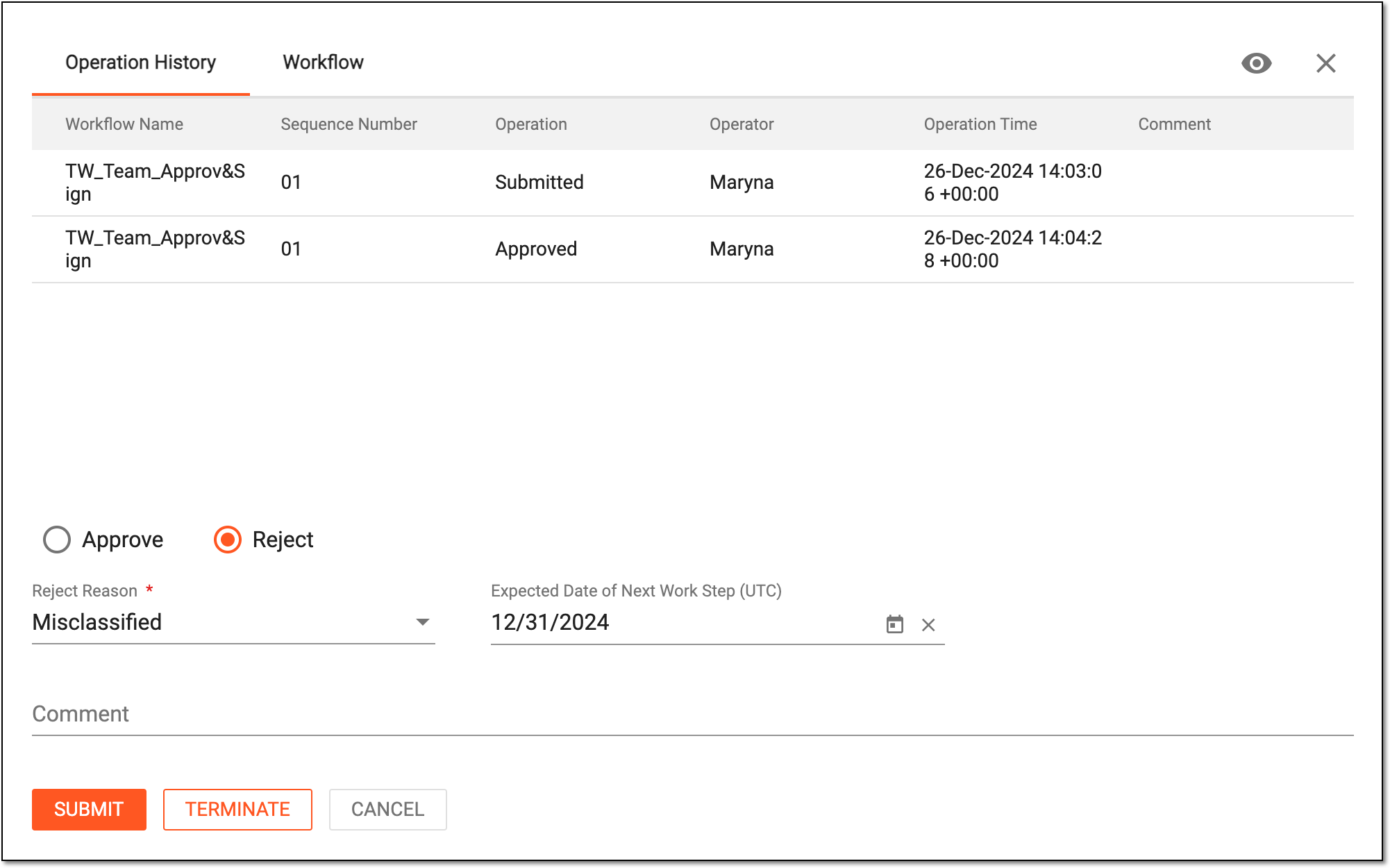 Figure 4. Rejecting file in essential documents
Tip
In the following table, mandatory elements are marked with an asterisk (*).
Element
Details
Reject reason*
Select the reason why you are rejecting the file, such as Missing Signature, Duplicate Document, and so on.
Expected Date of Next Work Step (UTC)
Enter the date when the next step in the file's workflow after the rejection is expected to take place.
The system can automatically populate the expected date according to the following configurations of the associated workflow:
-
The unified study-level setting of all the workflow steps (nodes) duration upon configuring the DIA RM or custom TMF base. For such a setting, the system adds the set number of days to the current date to calculate the expected date of the next workflow step.
-
The individual workflow step (node) duration is set upon associating the workflow with the folder. For such a setting, the system adds the number of days set for each individual workflow step to the current date to calculate the expected date of the next step.
If both the study-level and the individual workflow node duration settings are applied, the individual setting for the workflow nodes has higher priority and overwrites the study-level setting.Comments
Enter a comment to support your action, if needed.
SUBMIT
Select
to complete the rejection process.TERMINATE
Select
to terminate the file audit.CANCEL
Select
to dismiss your actions without saving and close the dialog. -
Once submitted, the file is audited and rejected. The file status changes according to the associated workflow.
In eTMF, all the operations with files under Essential Documents must undergo the auditing procedure according to the workflow that is associated with folders containing these files.
Thus, if an action is attempted with the file, especially the file deletion that can cause a file loss, the authorized user has to approve, sign, or reject this action.
Important
For security, the system logs you out after three failed attempts to confirm your identity with a password or code.
-
In the eTMF application header, select the TMF tab.
-
From the left pane, select the Study List subtab.
-
On the Study List page, in the table, select the needed study name.
Figure 1. Accessing study
-
On the page that opens, in the left pane, select Essential Documents.
-
On the Essential Documents page, from the explorer tree pane, select the required directory and in the table, go to the file for which you need to audit the deletion operation.
Tip
For easier location, the files you need to audit are marked with My Task
.Figure 2. Locating file to audit in Essential Documents
-
Next to the file of your interest, from the Actions column, select More
>
Audit .Figure 3. Selecting to audit file
Tip
The audit option can be disabled or hidden if:
-
The file is in a folder without a workflow.
-
The file is in the linked folder.
-
The file is in the locked folder.
-
The file is the linked one.
-
-
In the dialog that appears, select the Approve File Deletion option and complete the details as explained in the following table.
Tip
Select File Preview
to open the file contents in a new browser tab with the ability to examine and
comment on it as an auditor. Learn more in the Preview and comment
on file content during audit section.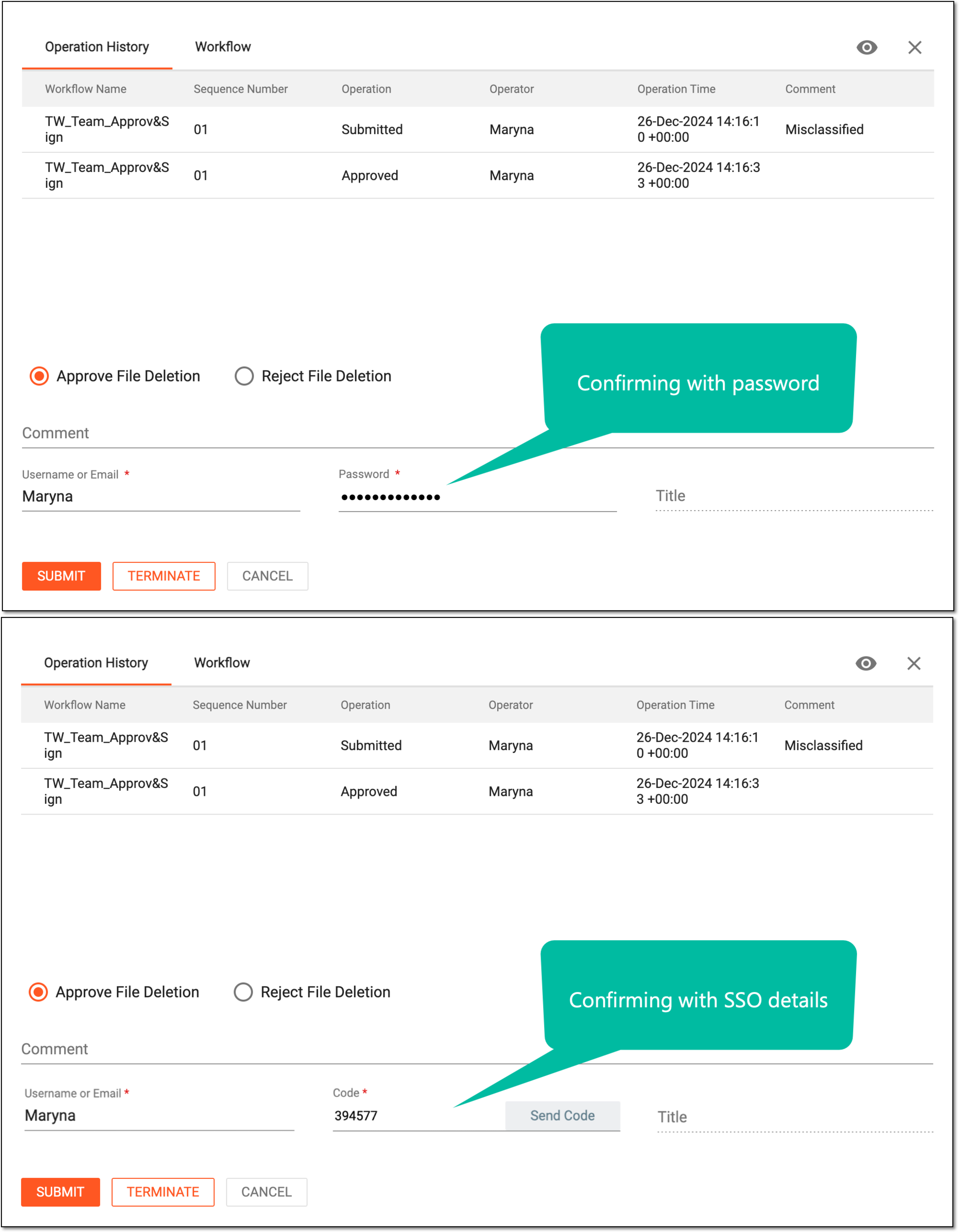 Figure 4. Approving file deletion in essential documents
Tip
In the following table, mandatory elements are marked with an asterisk (*).
Element
Details
Comments
Enter a comment to support your action, if needed.
User Name*
Enter your user name to provide an electronic signature.
Password*
Enter your system password to confirm an electronic signature.
The field is only available if you use the authorization method by providing your login and password.Send Code
Select
to send the temporary PIN code to your email for which the SSO method is configured.The button is only available if you use the authorization method via SSO.Code*
Enter the temporary PIN code that you received via email to confirm an electronic signature.
The field is only available if you use the authorization method via SSO.Title
Represents the title of the user entered in the Username or Email field if it is configured in the ADMIN application. The field cannot be edited manually.
I have reviewed and approve this document(s)
Select this checkbox to acknowledge that you have reviewed the document whose deletion you are approving.
SUBMIT
Select
to complete the deletion approval process.TERMINATE
Select
to terminate the file audit.CANCEL
Select
to dismiss your actions without saving and close the dialog.Important
The details you need to provide for action confirmation depend on the authentication method configured for you in the system—via SSO or via providing your login and password.
Once submitted, the file deletion is audited and approved. The file status changes according to the associated workflow.
In eTMF, all the operations with files under Essential Documents must undergo the auditing procedure according to the workflow that is associated with folders containing these files.
Thus, if an action is attempted with the file, especially if it concerns deletion that might cause a file loss, the authorized user has to approve this action or sign for it. At both these stages—approval or signature—based on your decision, you can decide to reject the deletion of the file.
-
In the eTMF application header, select the TMF tab.
-
From the left pane, select the Study List subtab.
-
On the Study List page, in the table, select the needed study name.
Figure 1. Accessing study
-
On the page that opens, in the left pane, select Essential Documents.
-
On the Essential Documents page, from the explorer tree pane, select the required directory, and in the table, go to the file you need to audit.
Tip
For easier location, the files you need to audit are marked with My Task
.Figure 2. Locating file to audit in Essential Documents
-
Next to the file of your interest, from the Actions column, select More
>
Audit .Figure 3. Selecting to audit file
Tip
The audit option can be disabled or hidden if:
-
The file is in a folder without a workflow.
-
The file is in the linked folder.
-
The file is in the locked folder.
-
The file is the linked one.
-
-
In the dialog that appears, select the Reject File Deletion option and complete the details as explained in the following table.
Tip
Select File Preview
to open the file contents in a new browser tab with the ability to examine and
comment on it as an auditor. Learn more in the Preview and comment
on file content during audit section.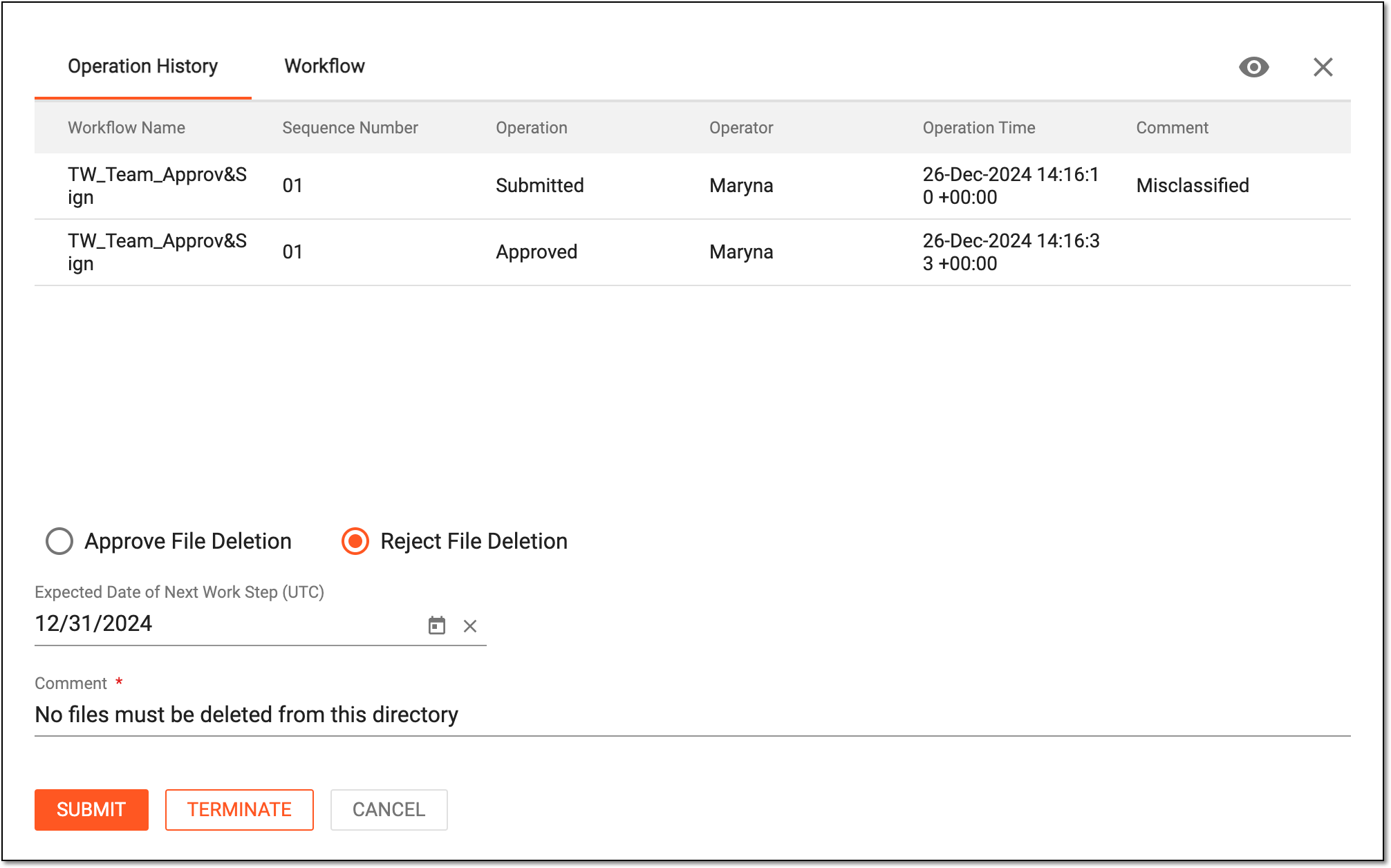 Figure 4. Rejecting file deletion in essential documents
Tip
In the following table, mandatory elements are marked with an asterisk (*).
Element
Details
Expected Date of Next Work Step (UTC)
Enter the date when the next step in the file's workflow after the rejection is expected to take place.
The system can automatically populate the expected date according to the following configurations of the associated workflow:
-
The unified study-level setting of all the workflow steps (nodes) duration upon configuring the DIA RM or custom TMF base. For such a setting, the system adds the set number of days to the current date to calculate the expected date of the next workflow step.
-
The individual workflow step (node) duration setting upon associating the workflow with the folder. For such a setting, the system adds the number of days set for each individual workflow step to the current date to calculate the expected date of the next step.
If both the study-level and the individual workflow node duration settings are applied, the individual setting for the workflow nodes has higher priority and overwrites the study-level setting.Comments*
Enter a comment to support your action and provide a reason for deletion rejection.
SUBMIT
Select
to complete the rejection process.TERMINATE
Select
to terminate the file audit.CANCEL
Select
to dismiss your actions without saving and close the dialog. -
Once submitted, the file deletion is rejected. The file status changes according to the associated workflow.
In the eTMF, files are constantly subjected to change due to deletions, copying, and other modifications, and it is vital to have an established audit process to control changes to sensitive files and data. Thus, the file audit is held to assess and confirm the validity and compliance of all operations involving files.
All the actions with files under the Essential Documents storage can be controlled via auditing procedure according to the workflow that is associated to their parent folders. Thus, if an action is attempted with the file, the authorized user has to approve, sign, or reject this action.
Nevertheless, sometimes you might need to terminate the file audit before it is completed.
-
In the eTMF application header, select the TMF tab.
-
From the left pane, select the Study List subtab.
-
On the Study List page, in the table, select the needed study name.
Figure 1. Accessing study
-
On the page that opens, in the left pane, select Essential Documents.
-
On the Essential Documents page, from the explorer tree pane, select the required directory and in the table, go to the file for which you need to terminate the audit.
Tip
For easier location, the files you need to audit are marked with My Task
.Figure 2. Locating file to terminate audit in Essential Documents
-
Next to the file of your interest, from the Actions column, select More
>
Audit .Figure 3. Selecting to audit file
Tip
The audit option can be disabled or hidden if:
-
The file is in a folder without a workflow.
-
The file is in the linked folder.
-
The file is in the locked folder.
-
The file is the linked one.
-
-
In the dialog that appears, select
.Tip
Select File Preview
to open the file contents in a new browser tab with the ability to examine and
comment on it as an auditor. Learn more in the Preview and comment
on file content during audit section.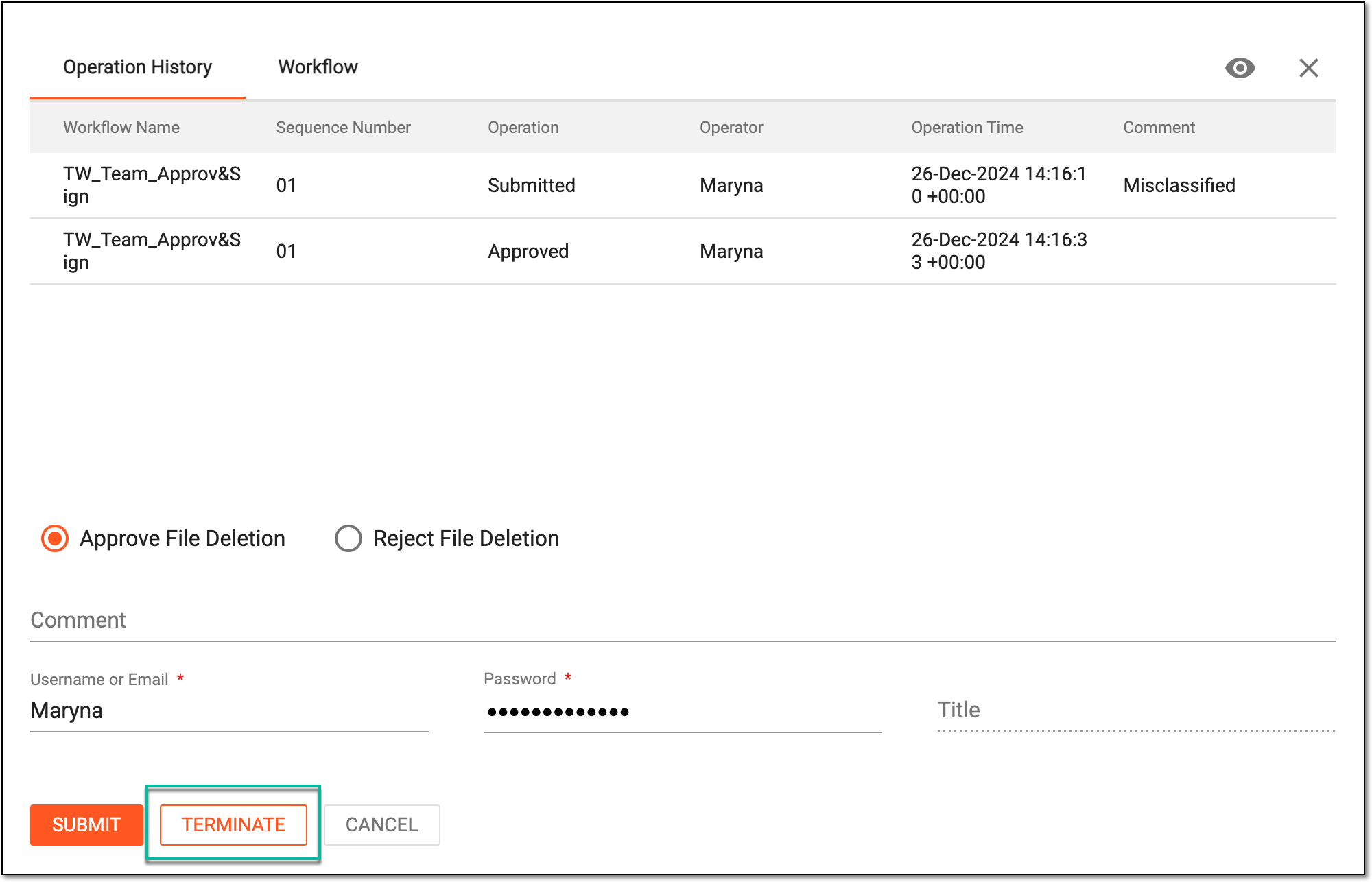 Figure 4. Terminating file audit in essential documents
-
In the Comment dialog that appears, enter the accompanying comment for your action and select
 .
.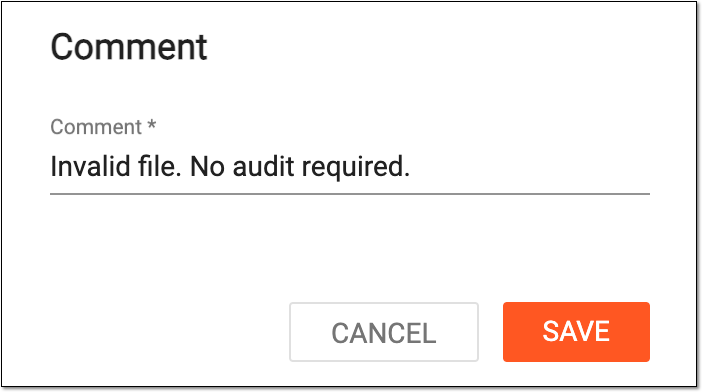 Figure 5. Commenting on file audit termination
Once terminated, the file audit is aborted, and the file status changes to Dropped.
In the eTMF application, all the operations with files under Essential Documents must be accounted for and comply with specific requirements. Thus, the auditing procedure must be established according to the workflow that is associated with folders.
While working with your files in the essential documents, you may see the need to clear the current execution process for the file through the Reset Workflow functionality. By resetting the workflow, you can reinitiate the auditing process for the file that, for some reason, needs to be revalidated. You can do so even for the files in the Auditing status, meaning that you can abort the current audit, nullify its results, and start over.
-
In the eTMF application header, select the TMF tab.
-
On the page that opens, in the left pane, select the Study List subtab.
-
In the Study List table, select the study for which you want to access the relevant files and documents.
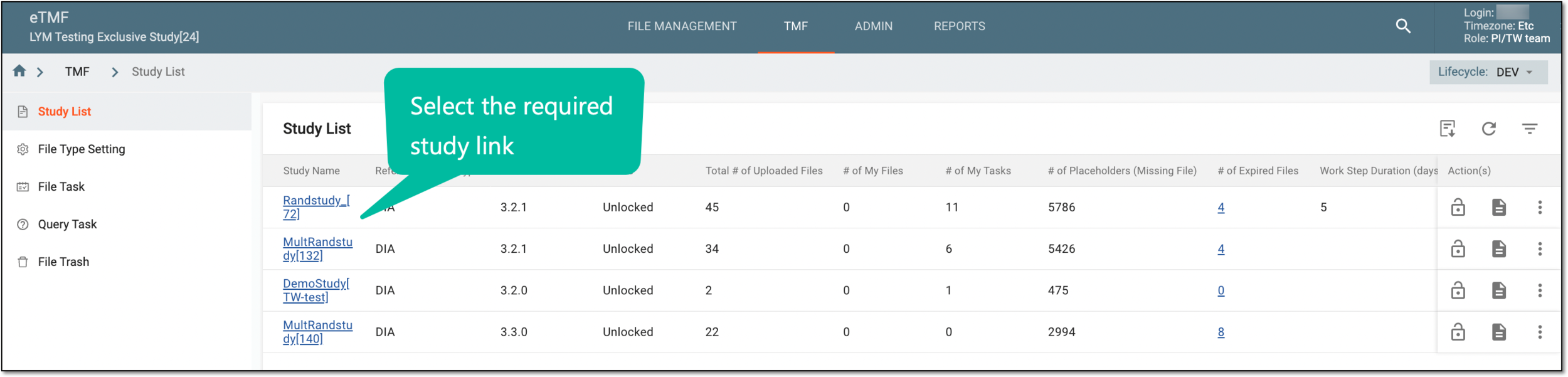 Figure 1. Selecting study
-
On the page that opens, in the left pane, select the Essential Documents subtab.
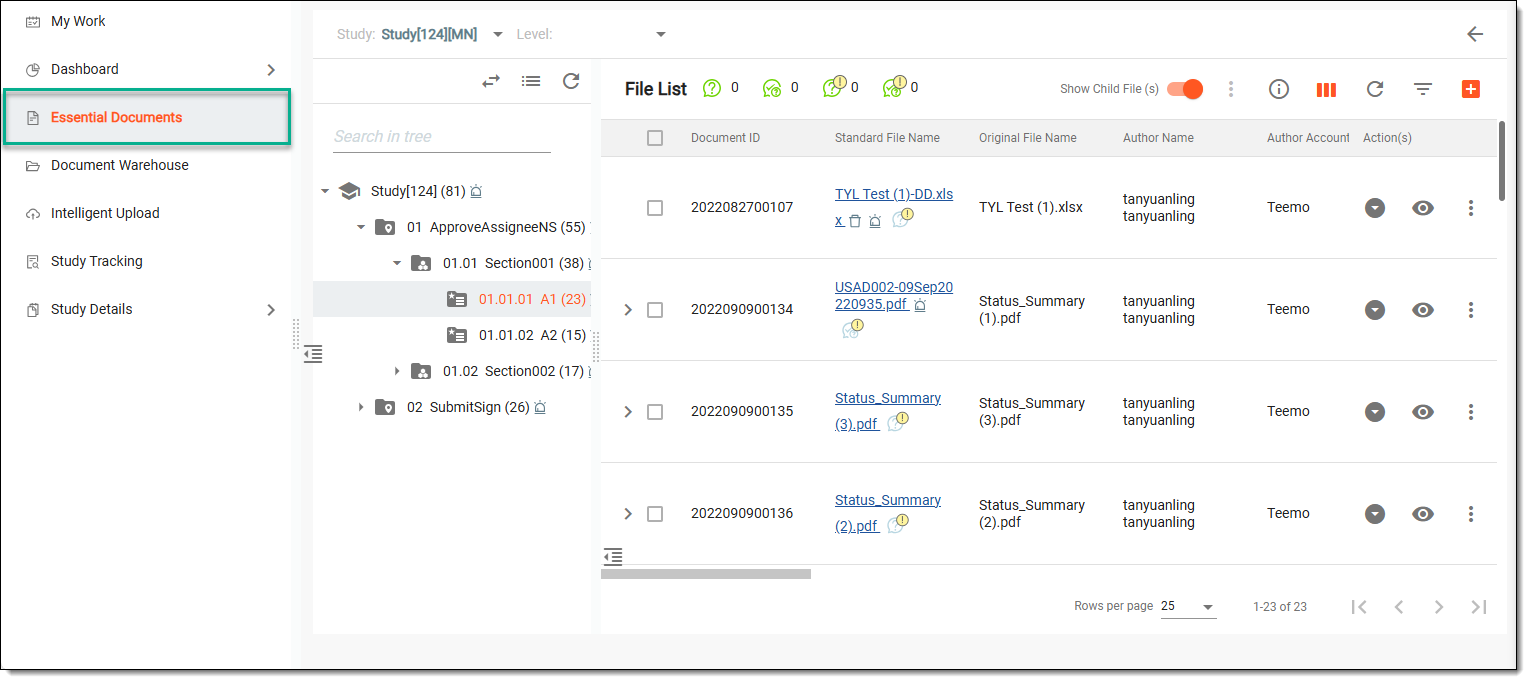 Figure 2. Accessing essential documents
-
In the File List table that appears, next to the needed file, select More actions
> Reset workflow  .
.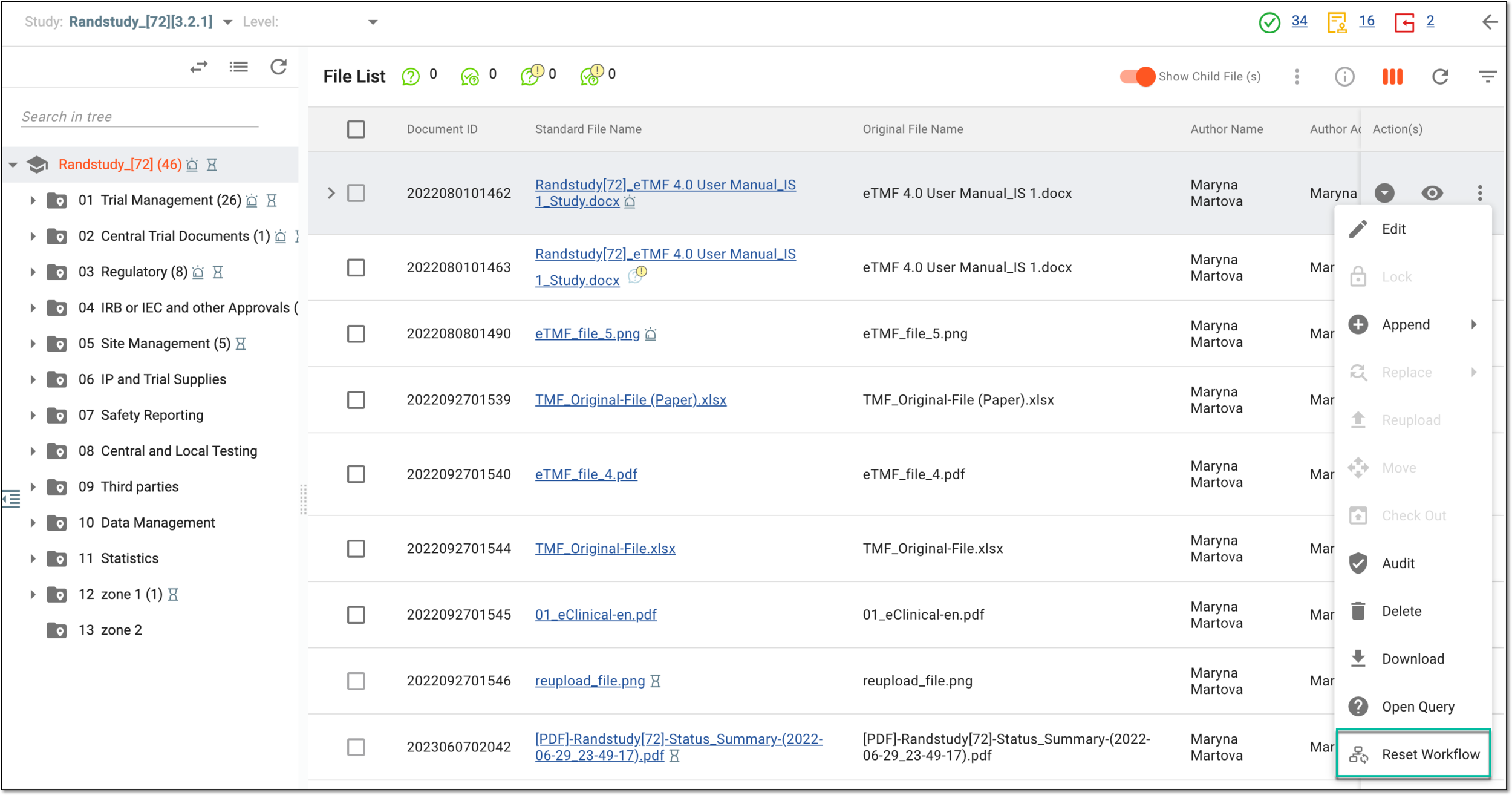 Figure 3. Accessing option to reset file workflow
-
In the Reset Workflow dialog that opens, specify the required details as discussed in the following table.
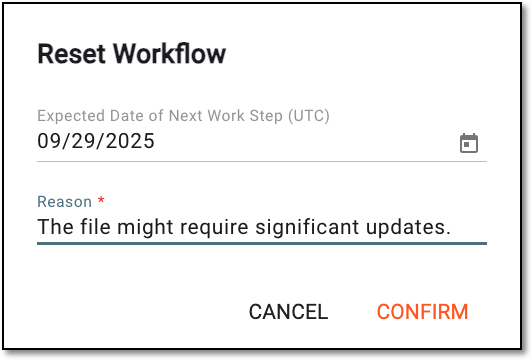 Figure 4. Resetting file workflow
Element
Details
Expected Date of Next Work Step (UTC)
Select the date when the assignee of the next workflow step must complete their auditing task.
For instance, you reset the workflow whose first node requiring action is Approve. Thus, by setting the date of the next step upon reset, you outline the due date for the approver to complete their auditing task.
Reason*
Enter the reason to justify the workflow reset.
CONFIRM
Select
 to implement the changes.
CANCEL
Select
to close the dialog without saving any changes.
Once confirmed, the workflow is reset and the file auditing resumes from the first node of the associated workflow.
While auditing files in Essential Documents, you can examine the file content without downloading it with the Preview functionality. Additionally, you can add comments to the file contents, for instance, if you have any notes that must be captured and shared with other study personnel.
Important
You can only add comments if the Essential Document Write > Add Comments During File Review permission is granted to your user role in ADMIN.
-
In the eTMF application header, select the TMF tab.
-
From the left pane, select the Study List subtab.
-
On the Study List page, in the table, select the needed study name.
Figure 1. Accessing study
-
On the page that opens, in the left pane, select Essential Documents.
-
On the Essential Documents page, from the explorer tree pane, select the required directory, and in the File List table, go to the file you need to audit.
Tip
For easier location, the files you need to audit are marked with My Task
.Figure 2. Locating files to audit in essential documents
-
Next to the file of your interest, from the Actions column, select File Preview
.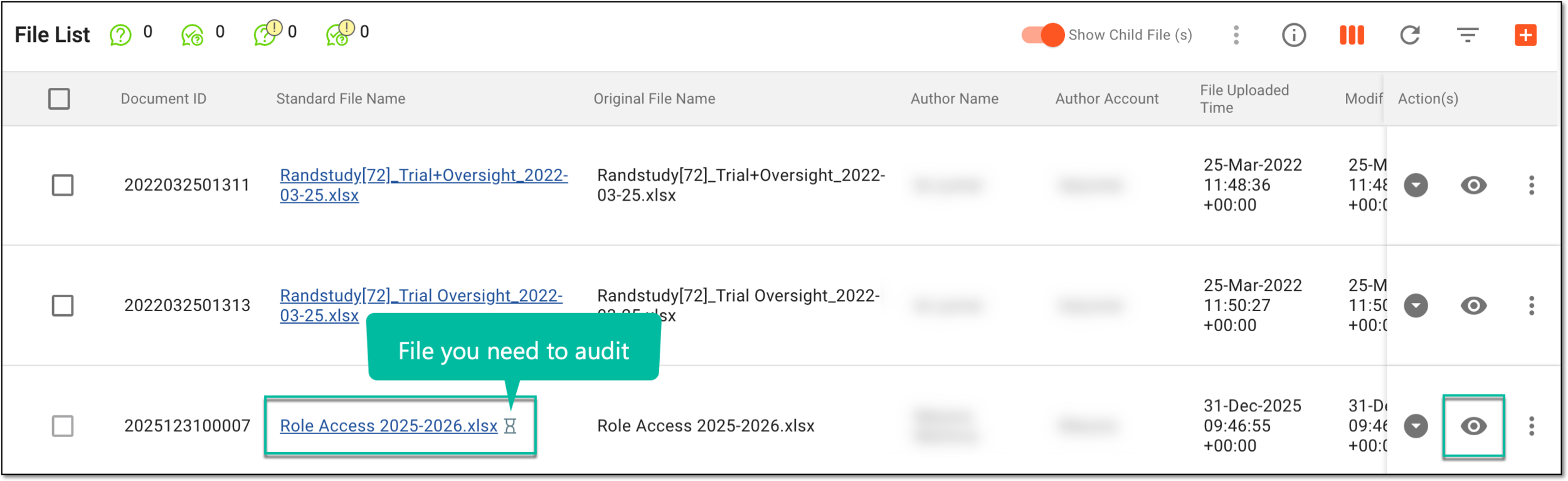 Figure 3. Selecting to preview file in auditing
Tip
You can also examine file contents and comment on them while auditing by selecting File Preview
from the dialog workspace toolbar.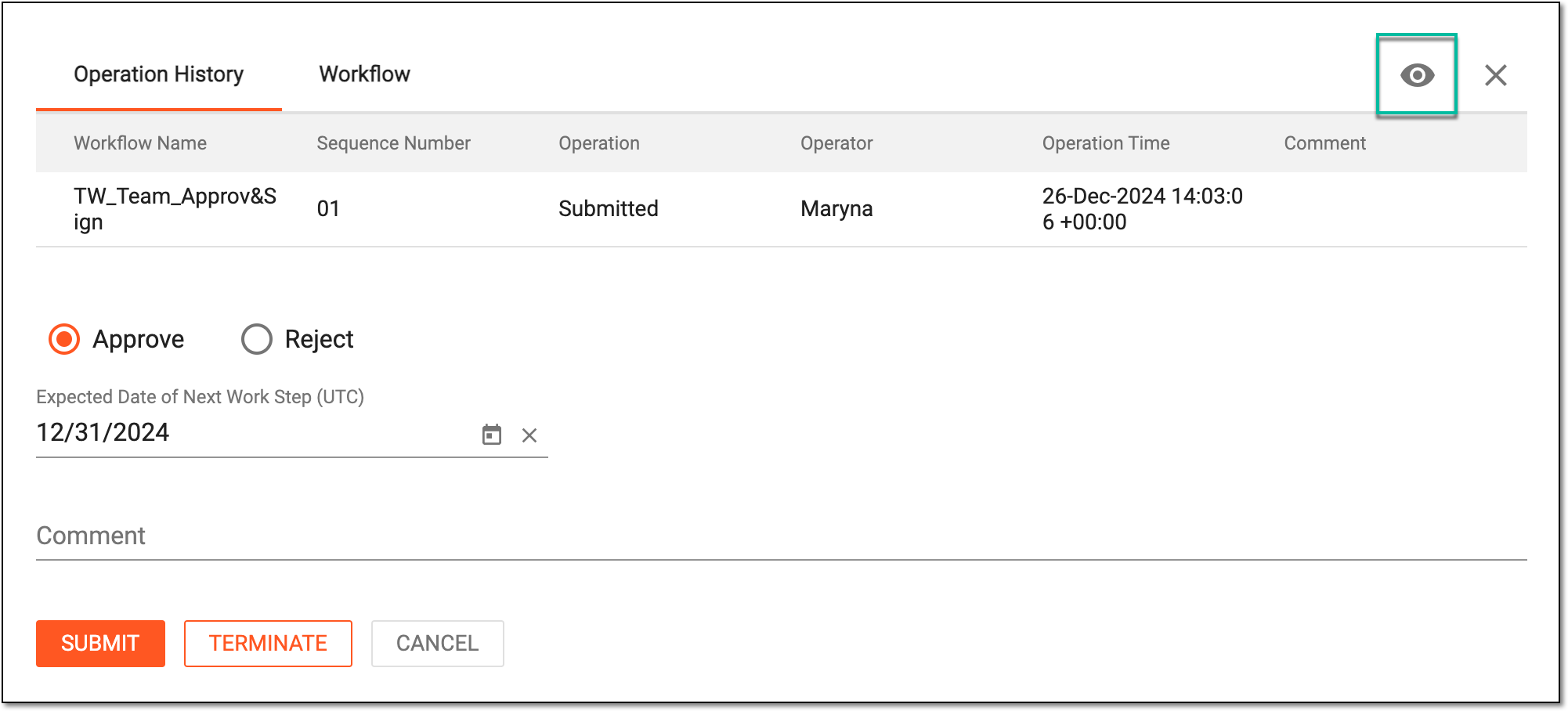 Figure 4. Accessing preview while auditing file in essential documents
-
In the new browser tab that opens, examine the file content and add comments on the portions you need.
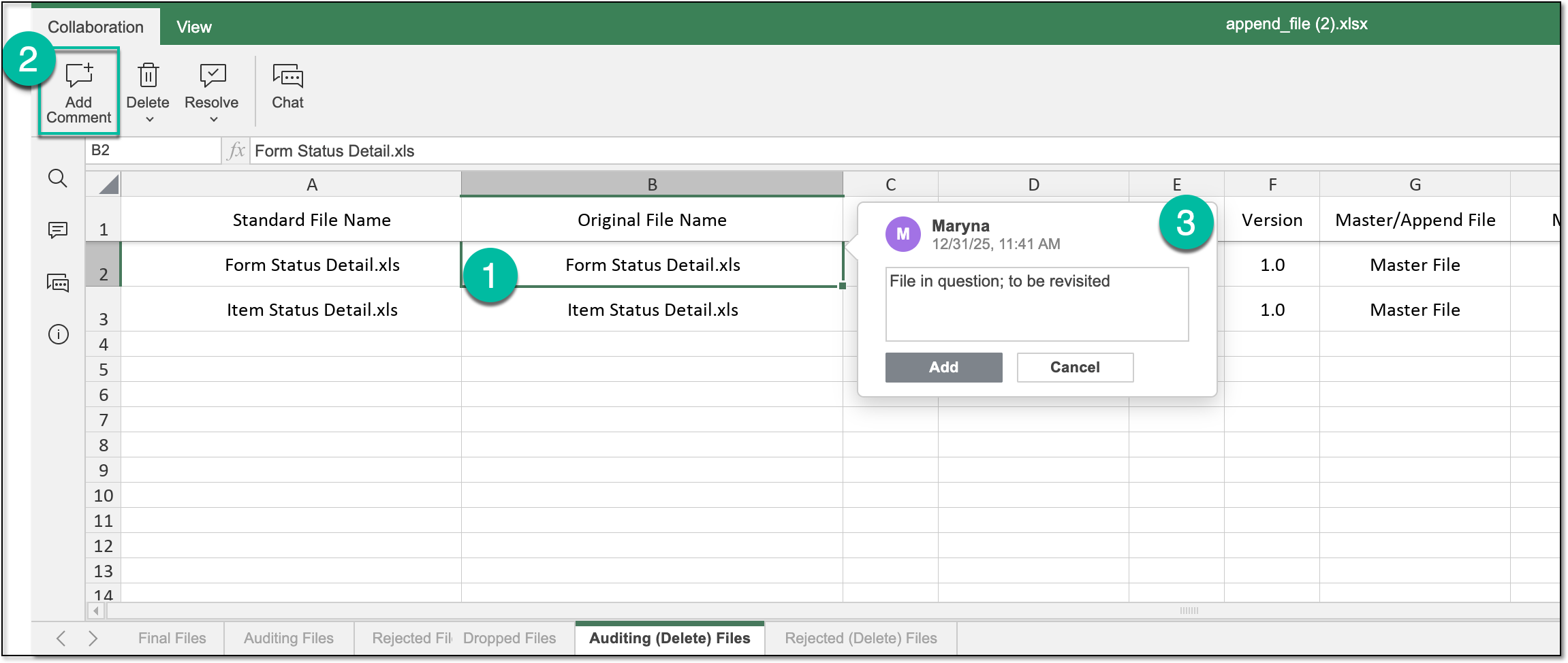 Figure 5. Example of commenting on Excel file content
Once the comments are added, they become available to all study personnel with access to the file upon preview. They can also interact with them to reply, edit, delete, and resolve the comment.
A model for organizations from DIA that provides a standard taxonomy and metadata of TMF content.
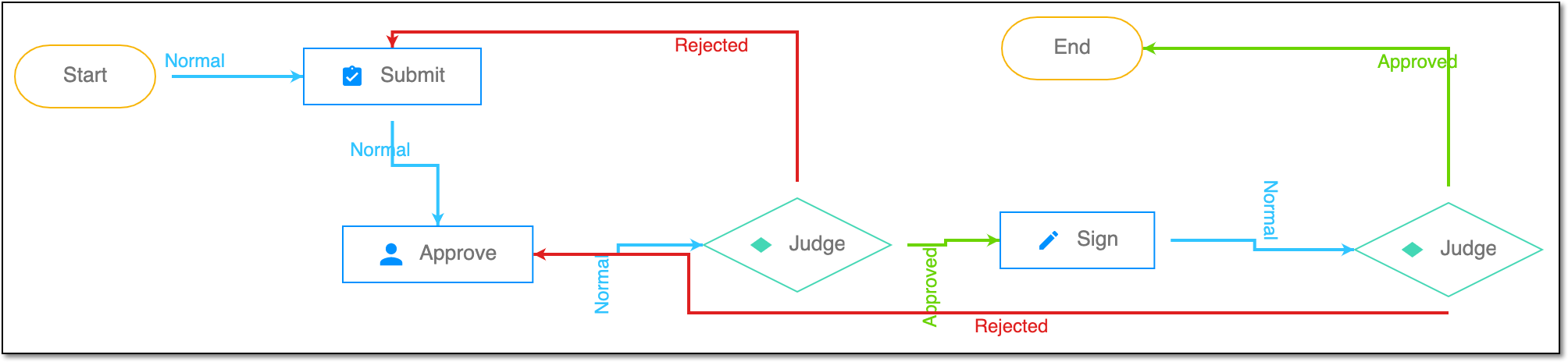
A schema, each step of which represents a stage of a specific entity lifecycle in the system.
A workflow can be considered an instrument to help control various actions on system entities for the sake of accountability, as it limits the actions that can be performed on the entity associated with a workflow. This provides an additional tier of scrutiny, and the approval/rejection mechanism reduces the risk of unintended impact on sensitive resources and important information.
 |
For instance, in eTMF, the workflow dictates the procedure of file and folder management from the moment of upload to the approval stage; in CTMS, the workflow controls the process of creation, completion, and approval of a trip report; in EDC, the workflow covers the process of source document handling.