Configure custom TMF base structure
In eTMF, the system automatically adds new studies to the Study List page after they are created in CTMS. However, the TMF base for the study must be configured manually by respective users to let the system know how to organize and store the files that are going to be uploaded. The users can select to use the custom structure to configure their TMF base by uploading the previously downloaded and filled template.
The custom TMF base is a tailored version of the TMF framework that organizations can develop based on their specific operational and regulatory requirements. This can be done by modifying the DIA RM or a different template to suit their unique processes, trial designs, or documentation needs. This might include adding specific document types or altering the hierarchical structure.
Tip
The TMF hierarchy template can be downloaded from the eTMF system and modified to reflect the expected TMF base configurations.
-
In the eTMF application header, select the TMF tab.
-
On the page that opens, in the left pane, select the Study List subtab.
-
In the Study List table that appears, go to the new study you need to configure and select its name.
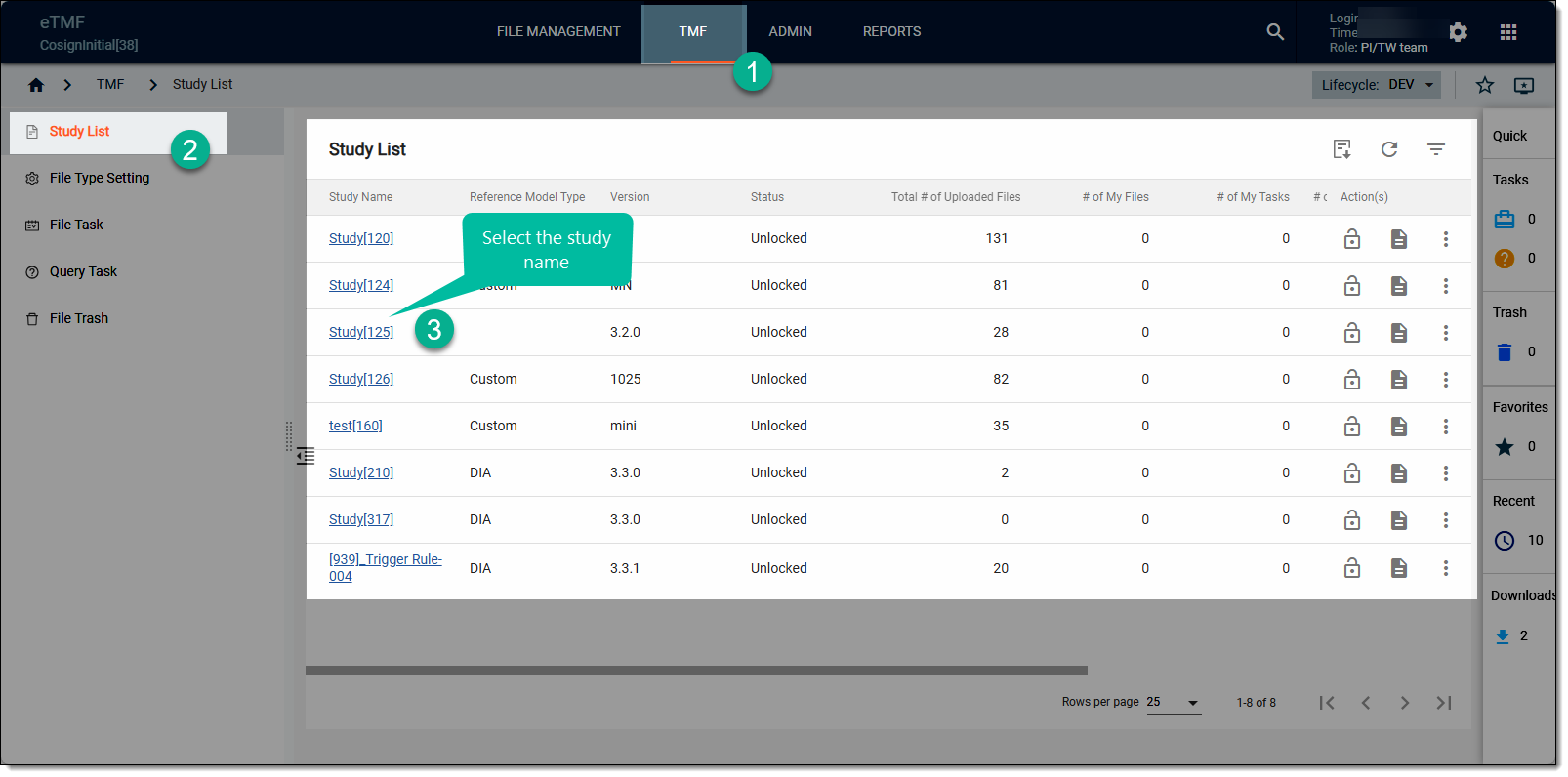 Figure 1. Selecting study
-
In the Edit dialog that appears, fill in the fields as explained in the following table.
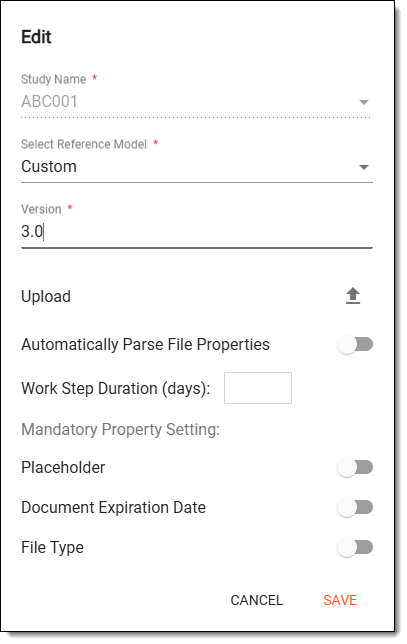 Figure 2. Configuring new study TMF base
Tip
In the following table, mandatory elements are marked with an asterisk (*).
Element
Details
Study Name*
Displays the study name. The field is read-only because the study name is assigned in CTMS and referenced in eTMF.
Select Reference Model*
Select the Custom reference model to configure the TMF base according to your business requirements.
Version*
Enter the study version number manually.
Upload
Select Upload
 to upload the filled custom TMF hierarchy file.
This field is only available when the Custom reference model is selected.Automatically Parse File Properties
Turn this toggle on to automatically populate file attributes when uploading files. When the file name matches the naming convention of a certain file type, once the file type is selected upon uploading, the system parses the file name and populates the corresponding default and customized attributes.
Work Step Duration (days)
Enter the number of days to set as a study-level duration for each step of the file management workflow (audit, signature, and other stages).
If this parameter is configured, the setting applies to all the folders in the study and the files within those folders.Mandatory Properties Settings
Placeholder
Turn on the toggle to make the placeholder selection option mandatory upon file upload. If turned off, the placeholder selection is optional.
Document Expiration Date
Turn on the toggle to make the document expiration date selection option mandatory upon file upload. If turned off, the expiration date selection is optional.
File Type
Turn on the toggle to make the file type option mandatory upon file upload. If turned off, the file type selection is optional.
SAVE
Select
 to implement the changes.
CANCEL
Select
 to dismiss changes without saving.
Upon saving, the new TMF base is configured. You can now import the TMF files.