Import TMF files from DIA EMS
The eTMF application is a file storage and management system. Therefore, to work with files in eTMF, you need to import them into the system. A file can be imported into the list of essential documents if it contains crucial information related to regulatory and trial compliance. This import is performed with the TMF Import functionality.
With the eClinical platform, you can import the required files from two commonly used storage options, DIA EMS (as discussed in the following procedure) or Amazon S3, as discussed in the Download S3 file import artifacts section. These two types of file uploads are typically used in scenarios where the sponsor switches eTMF system vendors and the data is transferred from the original vendor's system.
In clinical trials, DIA EMS stands for Exchange Mechanism Standard of Drug Information Association—an open ZIP and XML package that allows all TMF folders to be transferred between sponsors, CROs, and sites without manual reindexing to the Drug Information Association.
The primary purpose of the EMS documentation is to provide a written record of patient assessment and treatment that can help guide further care.
-
In the eTMF application header, select the TMF tab. On the page that opens, in the left pane, select the Study List subtab.
-
In the Study List table, next to the needed study, select TMF Import
 .
.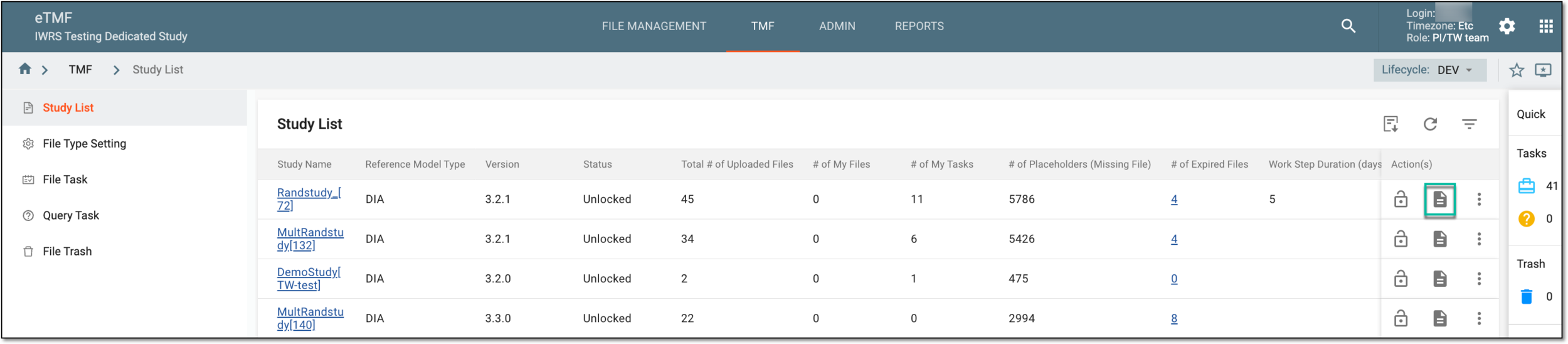 Figure 1. Accessing TLF import
-
From the open dropdown menu, select Import Through DIA EMS.
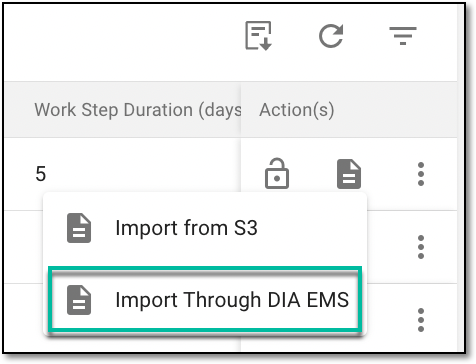 Figure 2. Selecting option to import files via DIA EMS
-
In the contents panel, select Upload
 and select the prepared file from your computer to upload the configured file list.
 Figure 3. Accessing option to import EMS files
-
Follow your computer prompts to upload the EMS file to the TMF storage.
Once uploaded, the system begins validating the file list and generating the upload report. The file imported under the Essential Documents subtab can be directly audited by the accountable personnel.