Lock/Unlock study (TMF base)
In eTMF, locking a study means that the study is completed and is in the process of decommissioning, formally ending or closing a clinical trial after all the planned activities and data collection are completed.
You can lock a study from the Study List page, but if needed, it can be unlocked later if there is a need to let system users perform actions with its TMF base.
Important
You can only lock a study that has no active tasks requiring any operations with files. Thus, to lock the study, all files pertinent to this study must have the Final or Dropped status, and if there is at least one file in the auditing status, then the Lock operation fails. A respective error message is displayed to the user stating the reason for the failure, such as There are files under review, or else.
-
In the eTMF application header, select the TMF tab.
-
On the page that opens, in the left pane, select the Study List subtab.
-
In the Study List table that appears, go to the study of your interest.
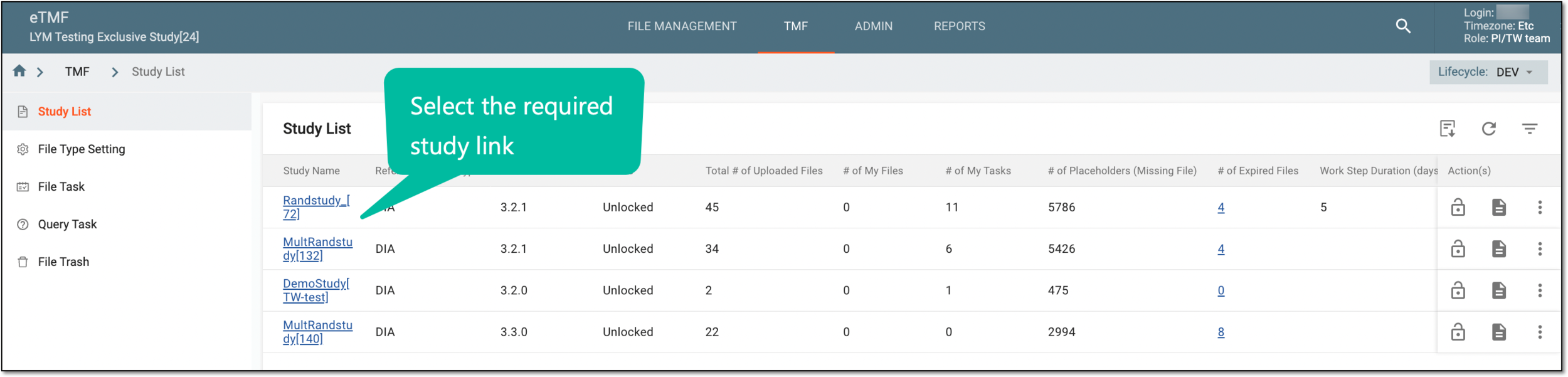 Figure 1. Accessing study list
-
In the Actions column next to your study, select Lock
 or Unlock
  to lock or unlock the study, respectively.
 Figure 2. Locking or unlocking study
-
In the confirmation dialog that appears, enter the mandatory reason for locking/unlocking.
 Figure 3. Specifying reason for locking/unlocking
-
Select
 to complete your action.
Upon saving, depending on the selected action, your study TMF base is locked or unlocked. This action is recorded in the operation history for tracking and compliance purposes.