Fill TMF hierarchy template
TMF hierarchy template is a structured framework that organizes the documentation of a clinical trial within eTMF. This hierarchy outlines how documents are categorized and stored, facilitating easier access, management, and compliance with regulatory standards.
After you have downloaded and saved the TMF hierarchy template locally, you can now fill in the relevant information in the following two tabs of the template file:
-
Define Milestones: on this sheet, define the milestones needed to manage the progress of different zones, sections, or artifacts.
-
Import Template: this sheet displays by default when you open the XLXS file. Headers on this sheet are consistent with the DIA reference model or DIA TMF reference model (except a few optional columns that have been omitted). Provide the necessary information under the related column.
-
Provide the data required in the Import Template sheet, the columns of which are explained in the following table.
 Figure 1. Filling import template sheet
Tip
In the following table, mandatory elements are marked with an asterisk (*).
Column
Details
Zone Name*
Enter the descriptive name of the zone level directory—the highest level directory within the file storage, organized according to the DIA RM. Zones are typically used to categorize documents by their role or type within the clinical trial. The zone helps with the general document grouping that may later be subdivided into specific sections and artifacts.
Section Name*
Enter the descriptive name of the section-level directory. Sections are grouped within zones and help divide the documents of the zone into more specific categories. Each section defines a group of documents that share a similar purpose or function within the clinical trial.
Artifact Name*
Enter the descriptive name of the artifact level directory—the lowest level of the file directory predefined by the DIA RM. Artifact level folders exist within a section and store individual documents—the actual files related to.
Definition/Purpose
Enter the definition or purpose of the files to be stored within the configured artifact-level directory.
Recommended Subartifacts -Documents/documentation recommended to be filed to the artifact. It means placeholder. If multiple, please use separator "",""
Enter the placeholder name. If there is more than one placeholder, separate them with a comma. For example, Document Evidence Documentation, Evidence of Quality Review, and so on.
Core or Recommended for inclusion
Enter one of the two possible values:
-
Core: if the item is mandatory and must be included.
-
Recommended: if the item is optional but suggested for inclusion.
DIA Unique ID
Enter the DIA unique ID.
TMF Artifacts (Non-device) Applicable/Not applicable; X: applicable; NO : Not applicable
Sponsor Document
Enter X for applicable and NO for not applicable.
Investigator Initiated
Enter X for applicable and NO for not applicable.
TMF Artifacts (Device) Applicable/ Not applicable; X: applicable; NO : Not applicable"
Sponsor Document
Enter X for applicable and NO for not applicable.
Investigator Initiated
Enter X for applicable and NO for not applicable.
Investigator Initiated Study Artifacts M: mandatory, D: dependent upon the type of study, R: recommended
Enter one of the following:
-
M: if uploading the artifact is mandatory.
-
D: uploading necessity depends on the type of study.
-
R: recommended to upload artifact but not mandatory.
Milestone (At least one)
Trial Level MILESTONE/EVENT
Enter the trial-level milestone or event name.
Country Level MILESTONE
Enter the country-level milestone.
Site Level MILESTONE
Enter the site-level milestone.
-
-
Provide the data required in the Define Milestones sheet, the columns of which are explained in the following table.
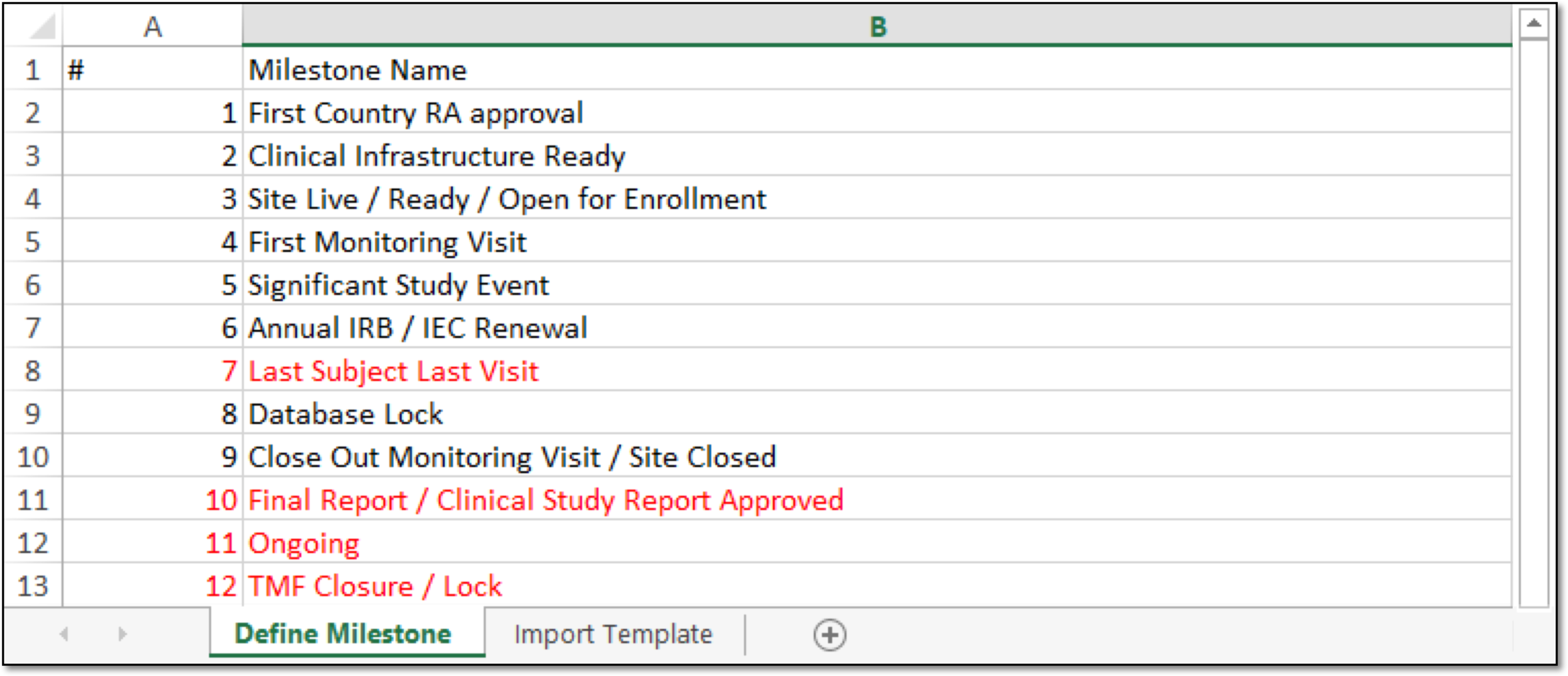 Figure 2. Defining milestones
Tip
In the following table, mandatory elements are marked with an asterisk (*).
Column
Details
#*
Enter the milestone number.
Milestone Name*
Enter the milestone name. These milestones will be added to the study, and you can view them from Study Tracking > Milestone.
-
Save and close the sheet.
The completed TMF hierarchy template can now be used to configure a new custom TMF base structure in eTMF.