View folder/file associated workflow
In eTMF, you can create workflows and associate them with folders, thus, limiting or controlling the actions that can be performed on the files within these folders. The system refers to the associated workflow each time an action is attempted on the folder or any file within.
Sometimes you might need to view the workflow associated with a specific folder to find out what actions and restrictions exist for the files within.
There are a few ways to view the workflow associated with the folder in the eTMF system:
-
Via the View Workflow option: to determine the currently associated workflow of a specific folder.
For instance, you need to upload some new files to a folder, and you know that they will inherit the currently associated workflow. Thus, you can check the workflow in advance and see if it is appropriate.
-
Upon auditing a file: to check the available actions and restrictions of this file when auditing it in file management or essential documents.
For instance, you can check whether the signature is needed upon auditing or if other stages of approval are involved in the process.
-
Depending on where the folder of your interest resides, in the eTMF application header:
-
Select the FILE MANAGEMENT tab.
-
Select the TMF tab and in the study list, select the needed study. Then select the Essential Documents option.
-
-
In the explorer tree pane, drill down to and right-click the needed folder.
-
From the menu that appears, select the View Workflow option.
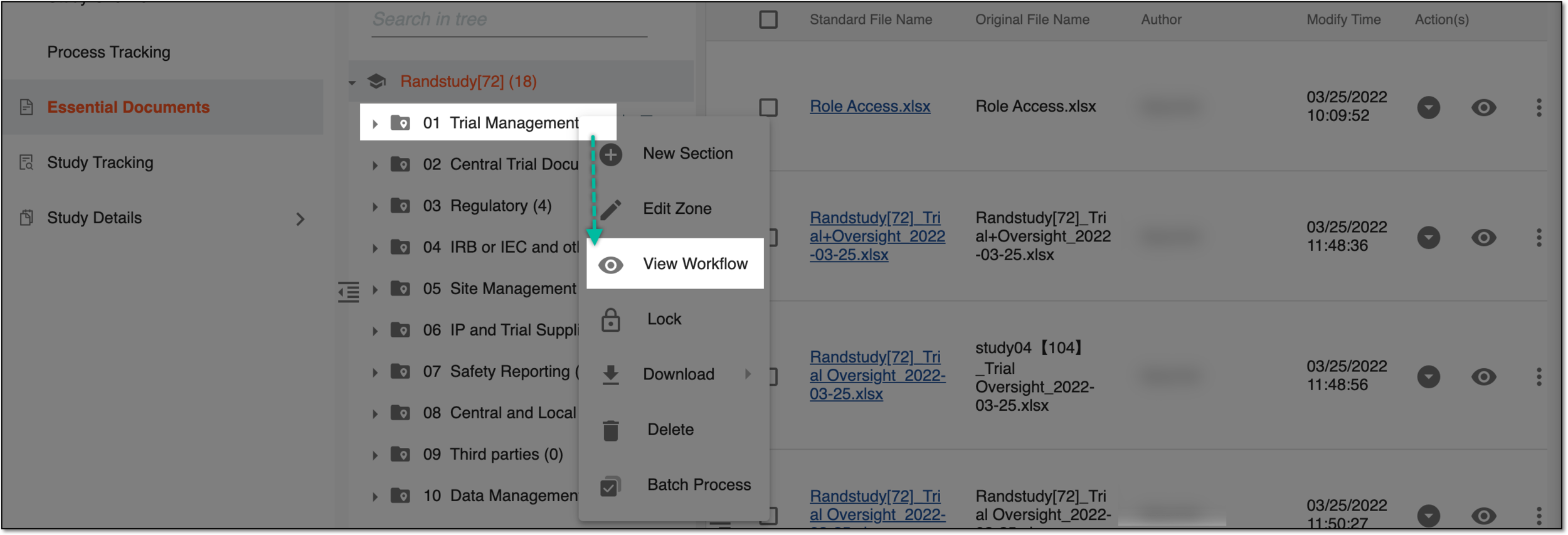 Figure 1. Selecting to view associated workflow
-
In the dialog that appears, view the schema of the workflow associated with the folder and select
 to close the dialog.
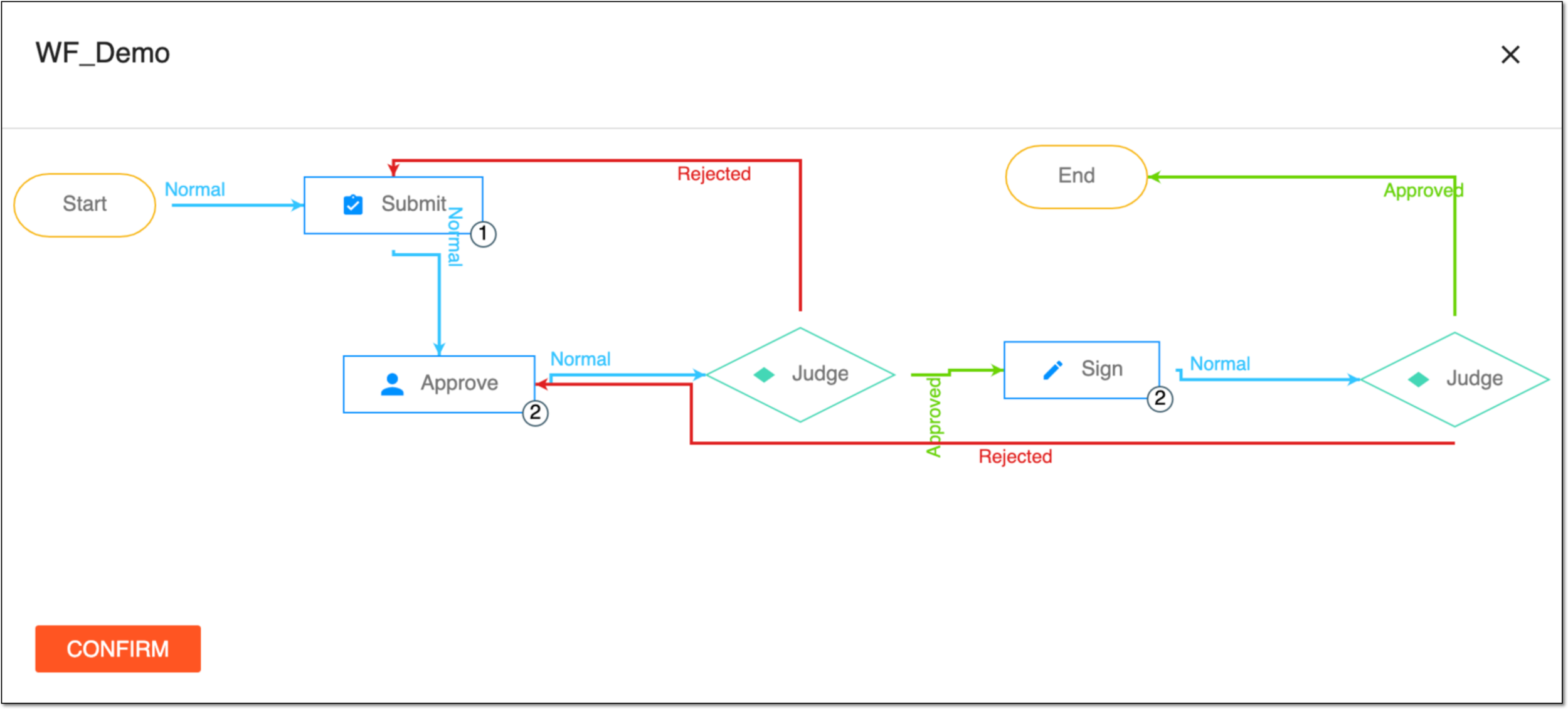 Figure 2. Viewing workflow associated with folder
You have viewed the workflow associated with the folder.
-
Depending on where the object of your interest resides, in the eTMF application header:
-
Select the FILE MANAGEMENT tab.
-
Select the TMF tab and in the study list, select the needed study. Then select the Essential Documents option.
-
-
In the explorer tree pane, select the needed folder.
-
In the File List table, go to the file that needs to be audited and whose workflow you want to check.
-
Next to the file, from the Actions column, select More > Audit.
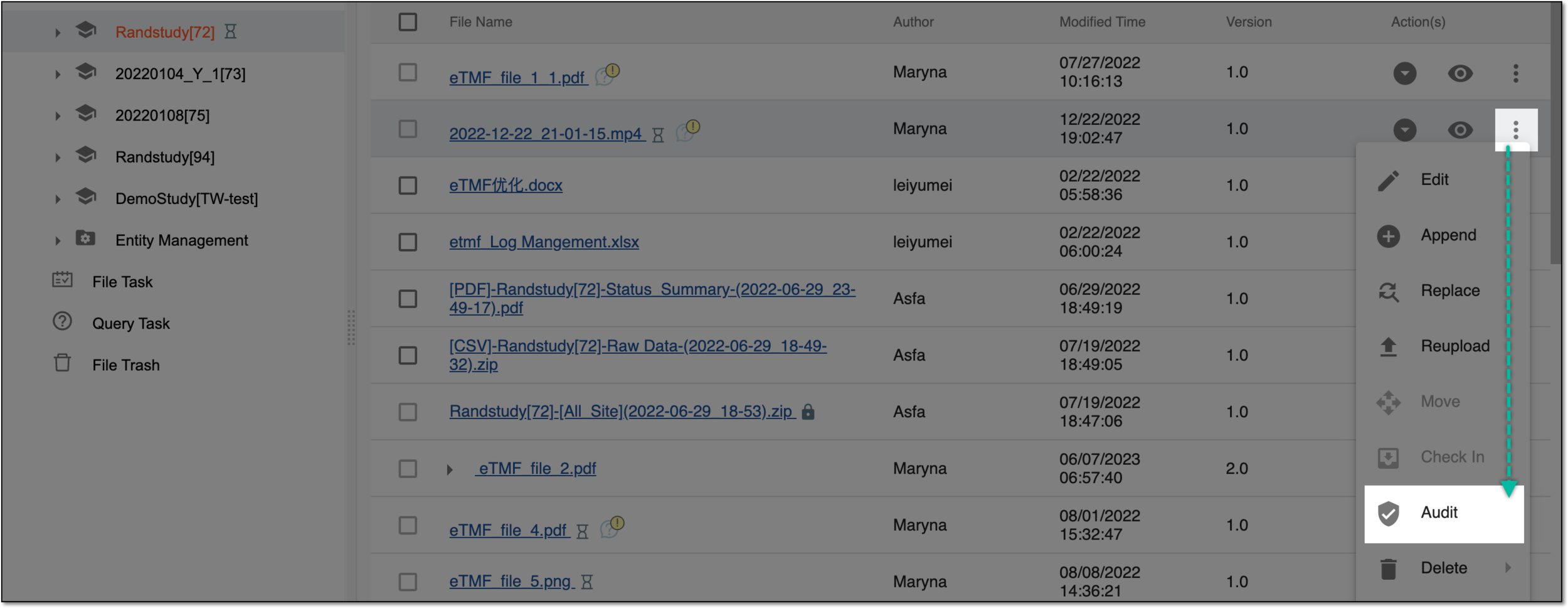 Figure 3. Selecting file auditing option
-
In the dialog that appears, select the Workflow tab.
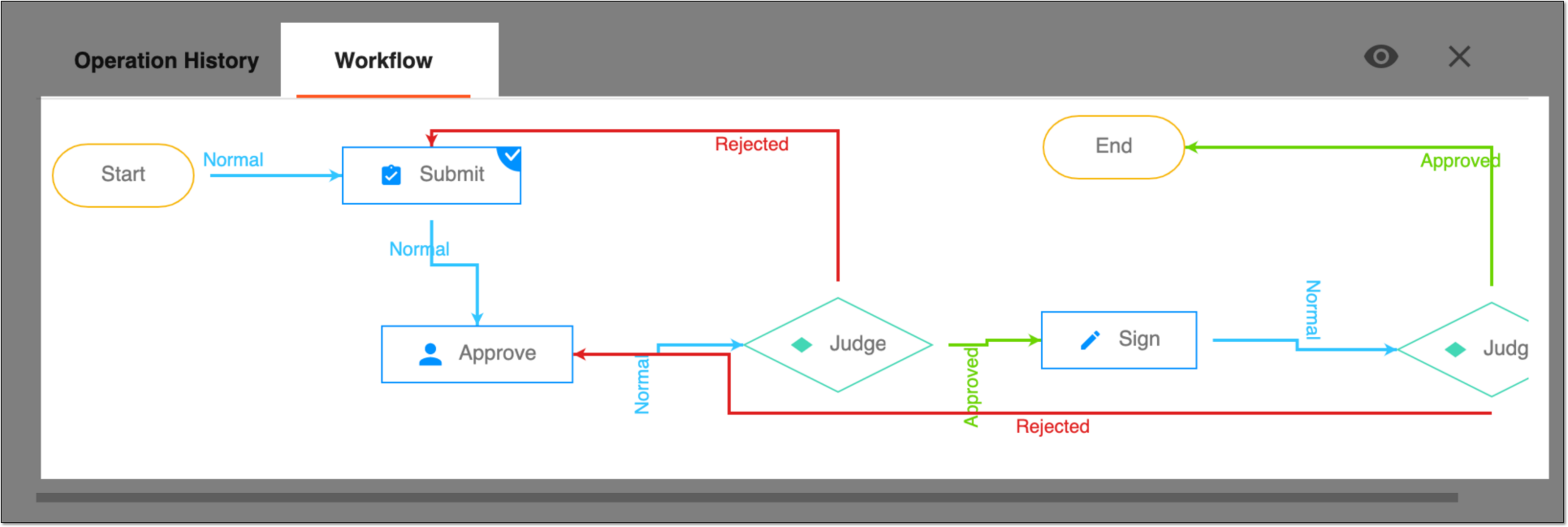 Figure 4. Opening workflow associated with file
You have viewed the workflow associated with the folder containing the file that needs to be audited.