Edit workflow
In eTMF, a workflow outlines the proper way of handling the files and folders. In some cases, you might need to update your previously created workflow.
For instance, you can seriously modify the workflow schema by adding/removing the nodes or making smaller updates, like changing the assignee of the email notification or the user whose signature is required.
Important
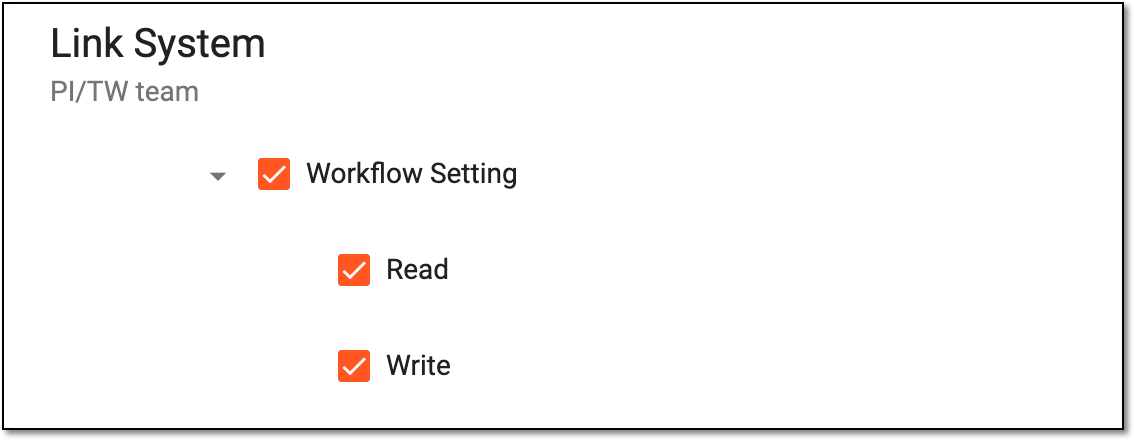
To utilize the workflow management functionality, you must have the Workflow Setting > Write permission granted to your user role via the ADMIN application.
 |
-
In the eTMF application header, select the ADMIN tab.
-
In the left pane, select the Workflow Setting subtab.
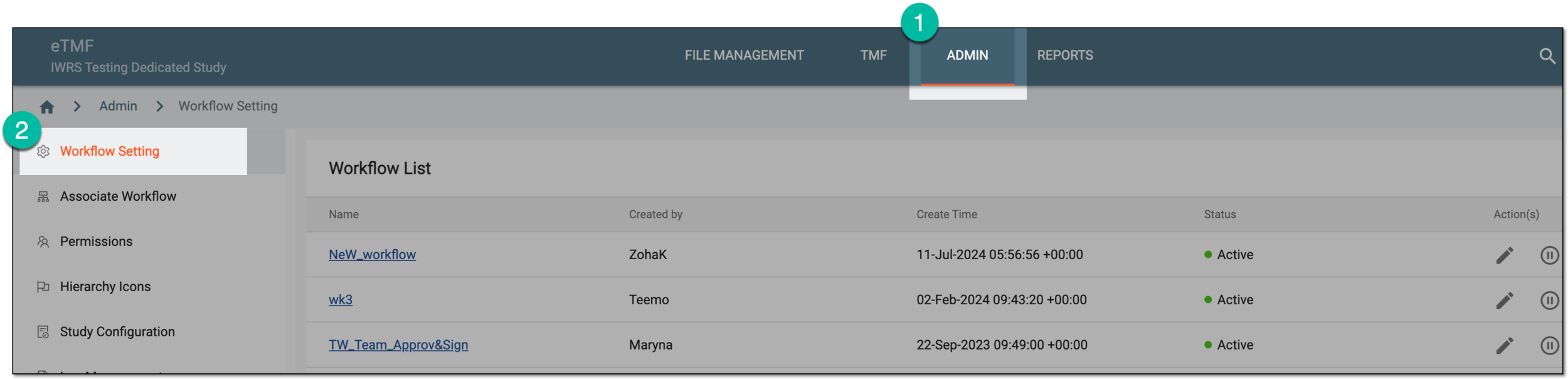 Figure 2. Accessing workflow setting
-
In the Workflow List table that appears, go to the workflow that you need to edit. Then from the Actions column next to it, select Edit
 .
.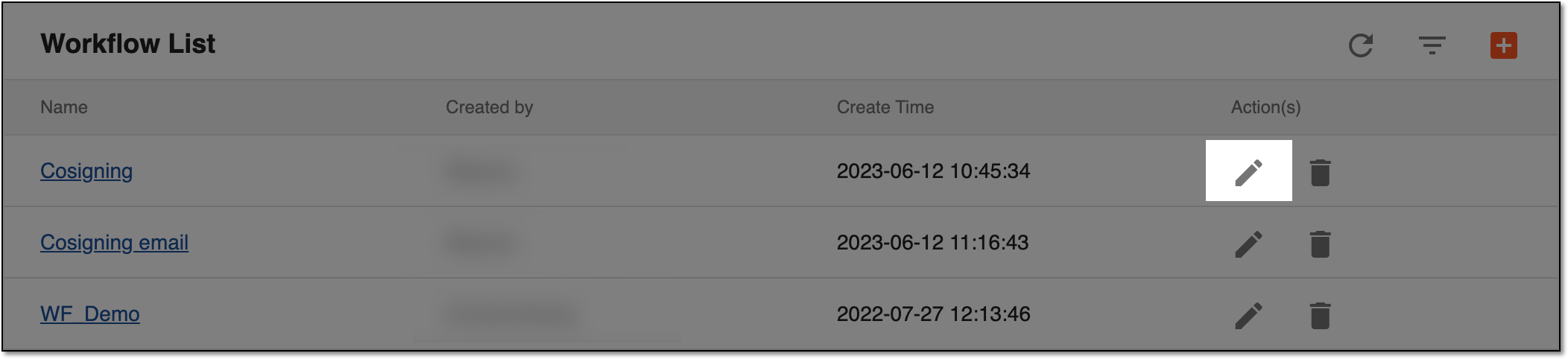 Figure 3. Selecting to edit workflow
-
On the page that opens, perform the needed updates to your workflow schema or its nodes as explained in the Create new workflow section.
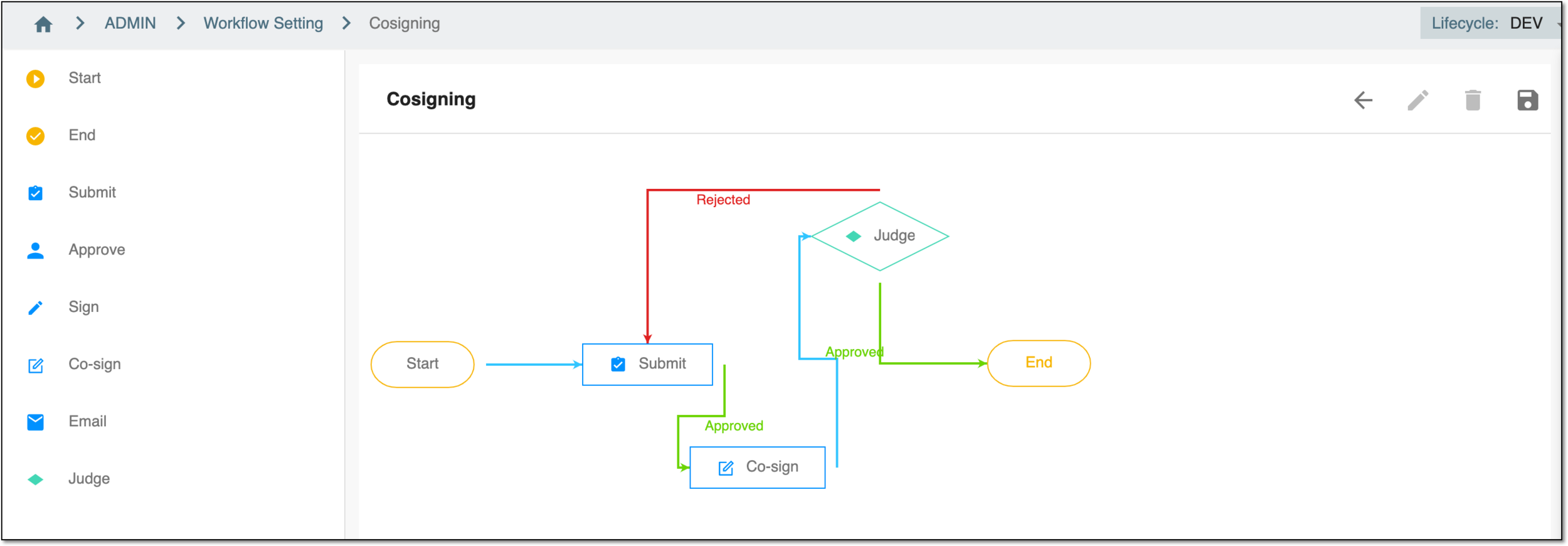 Figure 4. Updating workflow
-
After all the updates are made, select Save
 and in the Workflow dialog that
appears, in the Workflow Name field, update the workflow name if needed.
and in the Workflow dialog that
appears, in the Workflow Name field, update the workflow name if needed.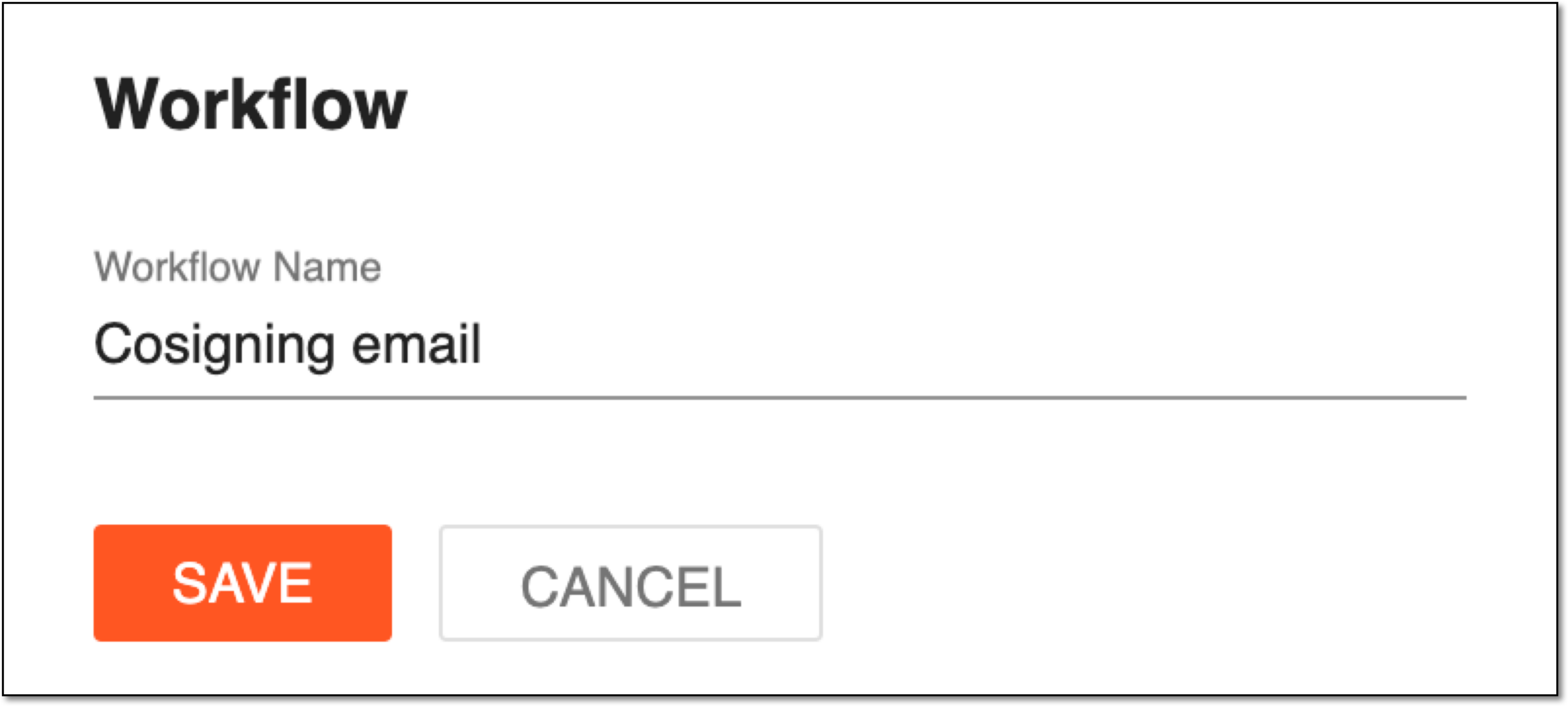 Figure 5. Entering workflow name
-
Select
 to save the changes.
Upon saving, the changes are implemented and the workflow logic is updated for all the associated folders. From now on, the files uploaded to the associated folders will inherit the new workflow logic. Nevertheless, the files that have been already in the folder(s) retain their previous workflow logic.
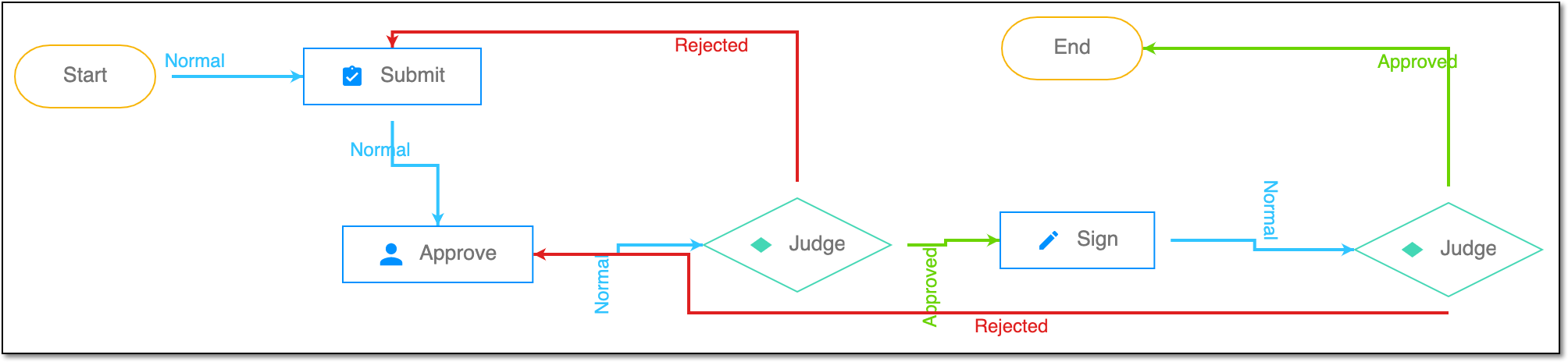
A schema, each step of which represents a stage of a specific entity lifecycle in the system.
A workflow can be considered an instrument to help control various actions on system entities for the sake of accountability, as it limits the actions that can be performed on the entity associated with a workflow. This provides an additional tier of scrutiny, and the approval/rejection mechanism reduces the risk of unintended impact on sensitive resources and important information.
 |
For instance, in eTMF, the workflow dictates the procedure of file and folder management from the moment of upload to the approval stage; in CTMS, the workflow controls the process of creation, completion, and approval of a trip report; in EDC, the workflow covers the process of source document handling.