Activate/Inactivate workflow
In eTMF, you can perform various actions on files and folders, such as copying, deleting, renaming, and more. These actions must be controlled to a certain extent for the sake of accountability. For this purpose, you can create workflows and associate them with folders, thus limiting or controlling the actions that can be performed on the files within these folders.
To additionally control the process of workflow association, you can deactivate the workflows that are currently not ready to be used and activate only those that are valid for your study processes. Only active workflows can be associated with folders for audit control.
Important
To utilize the workflow management functionality, you must have the Workflow Setting > Write permission granted to your user role via the ADMIN application.
 |
-
In the eTMF application header, select the ADMIN tab.
-
In the left pane, select the Workflow Setting subtab.
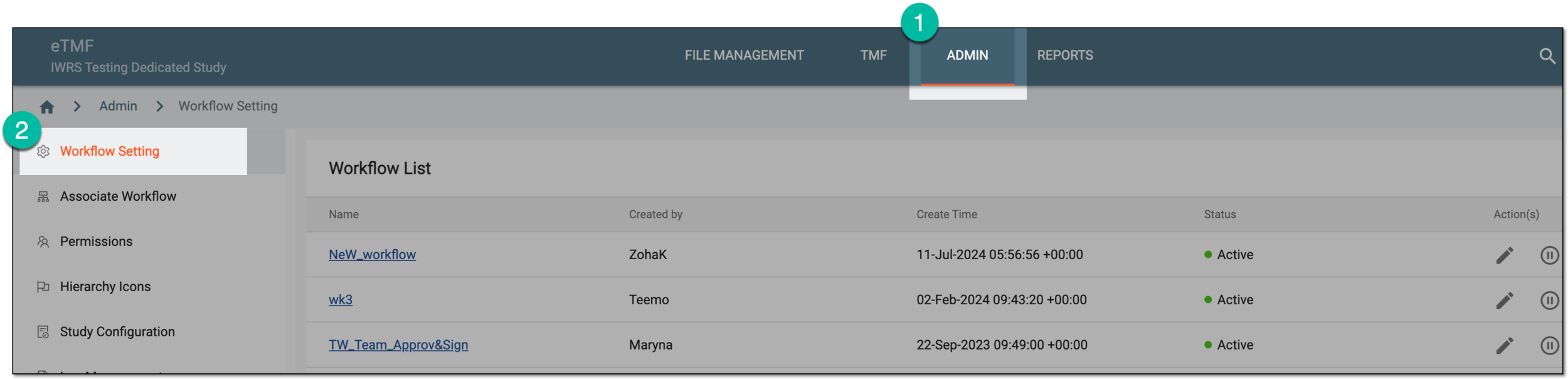 Figure 2. Accessing workflow setting
-
In the Workflow List table that opens, locate the workflow that you want to activate or inactivate. From the Action(s) column, select one of the following options:
-
Activate
 : to make the workflow active and available in the eTMF system for association with folders.
 -
Inactivate
 : to deactivate the workflow and make it unavailable for association with folders, hence, temporarily
conceal this workflow from the system users.
: to deactivate the workflow and make it unavailable for association with folders, hence, temporarily
conceal this workflow from the system users.
 Figure 3. Activating/Inactivating workflow
-
-
In the dialog that opens, provide the reason for your action and select
 .
. Figure 4. Providing reason for workflow activation/deactivation
Once confirmed, the workflow becomes active or inactive based on your performed action.