Delete workflow
In eTMF, a workflow outlines the proper way of handling the files and folders. Sometimes you might need to delete your workflow if it is no longer used and has no purpose in the system.
Important
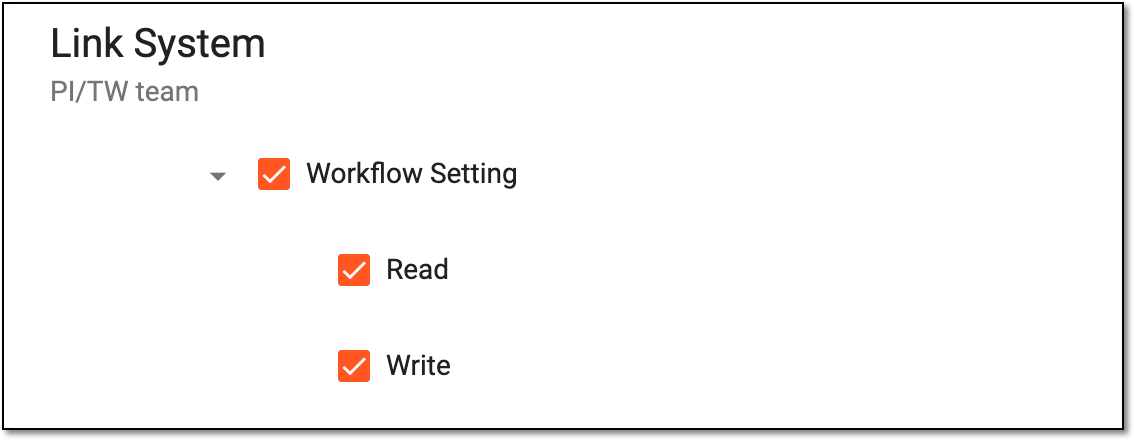
To utilize the workflow management functionality, you must have the Workflow Setting > Write permission granted to your user role via the ADMIN application.
 |
-
In the eTMF application header, select the ADMIN tab.
-
In the left pane, select the Workflow Setting subtab.
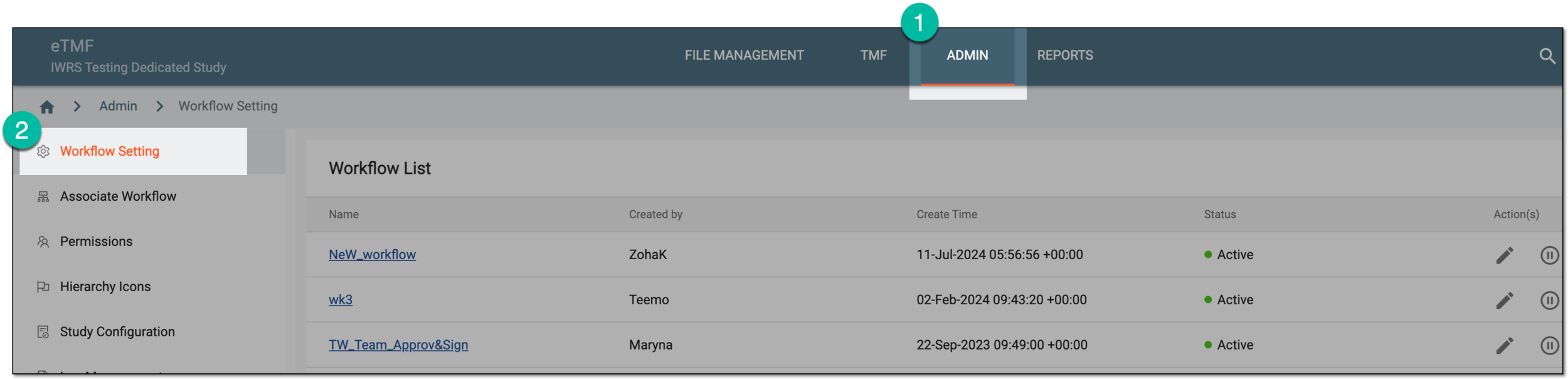 Figure 2. Accessing workflow setting
-
In the Workflow List table that appears, go to the workflow that you need to delete, Then from the Actions column next to it, select Delete
 .
.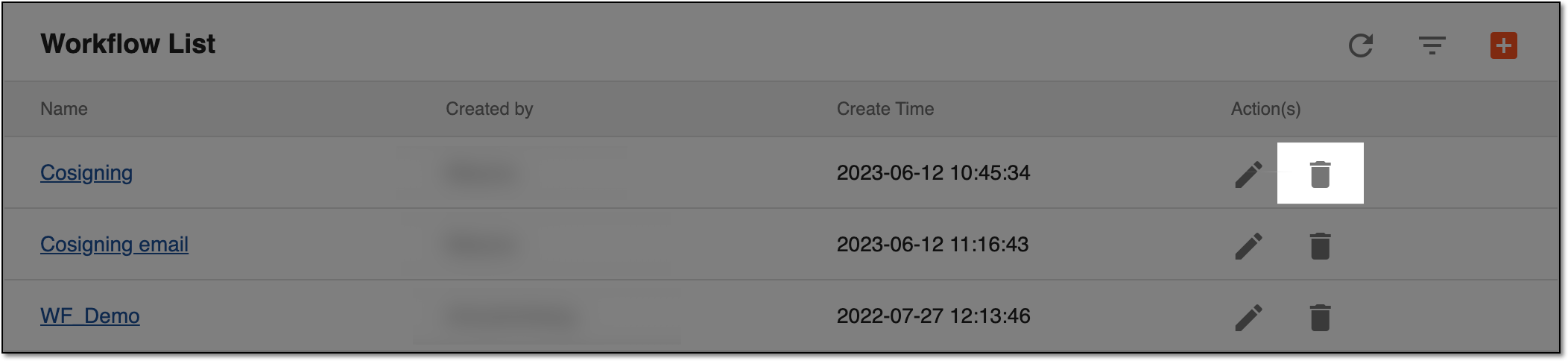 Figure 3. Selecting to edit workflow
-
In the confirmation dialog that appears, select
 to delete the workflow.
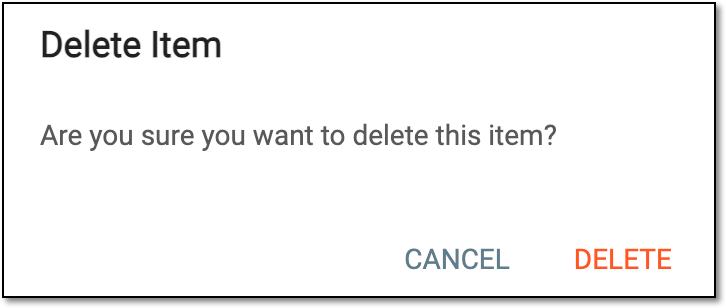 Figure 4. Confirming workflow deletion
Upon confirmation, the workflow is deleted from the system and you can no longer select it to associate with folders.
Important
If there were folders associated with the workflow, upon the workflow deletion, the folder no longer has any workflow and can be associated with another one.
Nevertheless, the files that were previously uploaded to this folder and inherited the workflow will still follow it despite the workflow deletion.
A schema, each step of which represents a stage of a specific entity lifecycle in the system.
A workflow can be considered an instrument to help control various actions on system entities for the sake of accountability, as it limits the actions that can be performed on the entity associated with a workflow. This provides an additional tier of scrutiny, and the approval/rejection mechanism reduces the risk of unintended impact on sensitive resources and important information.
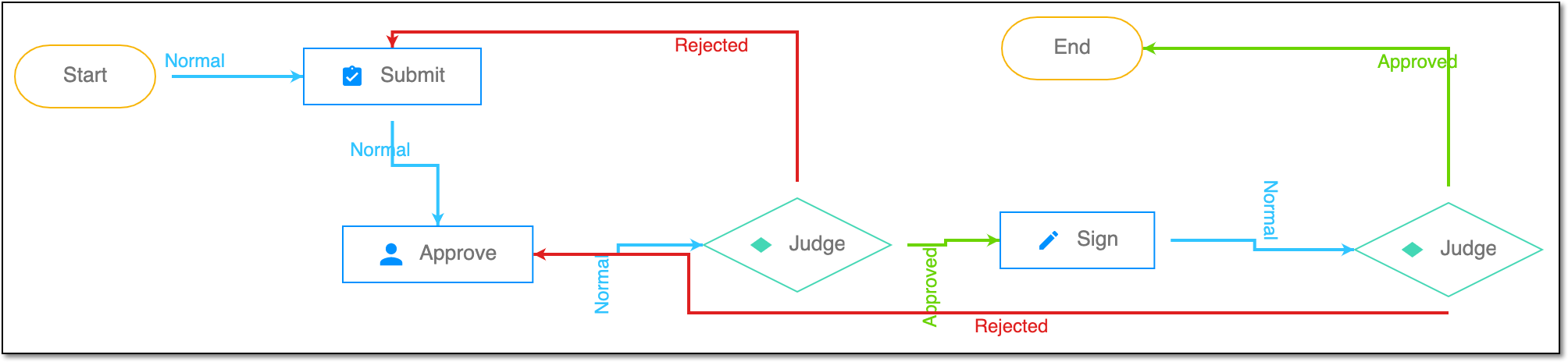 |
For instance, in eTMF, the workflow dictates the procedure of file and folder management from the moment of upload to the approval stage; in CTMS, the workflow controls the process of creation, completion, and approval of a trip report; in EDC, the workflow covers the process of source document handling.