Auditing file tasks in batch
In eTMF, all the operations with files under the FILE MANAGEMENT storage must undergo the auditing procedure according to the workflow that is associated with folders containing these files.
Since there can be cases when multiple files are waiting for your approval, auditing them one by one can be frustrating and time-consuming. Thus, in eTMF, you can audit multiple files at once from the File Task page via the Batch Process functionality.
From the File Task page you can see all the files that await your audit and perform the actions with them as discussed in the following sections.
While working with files in eTMF, there can be cases when multiple files are waiting for your approval, and auditing them one by one can be frustrating and time-consuming. Thus, you can audit multiple files at once from the File Task page via the Batch Process functionality.
-
In the eTMF application header, select the FILE MANAGEMENT tab.
-
On the page that opens, from the left pane, select File Task
 .
.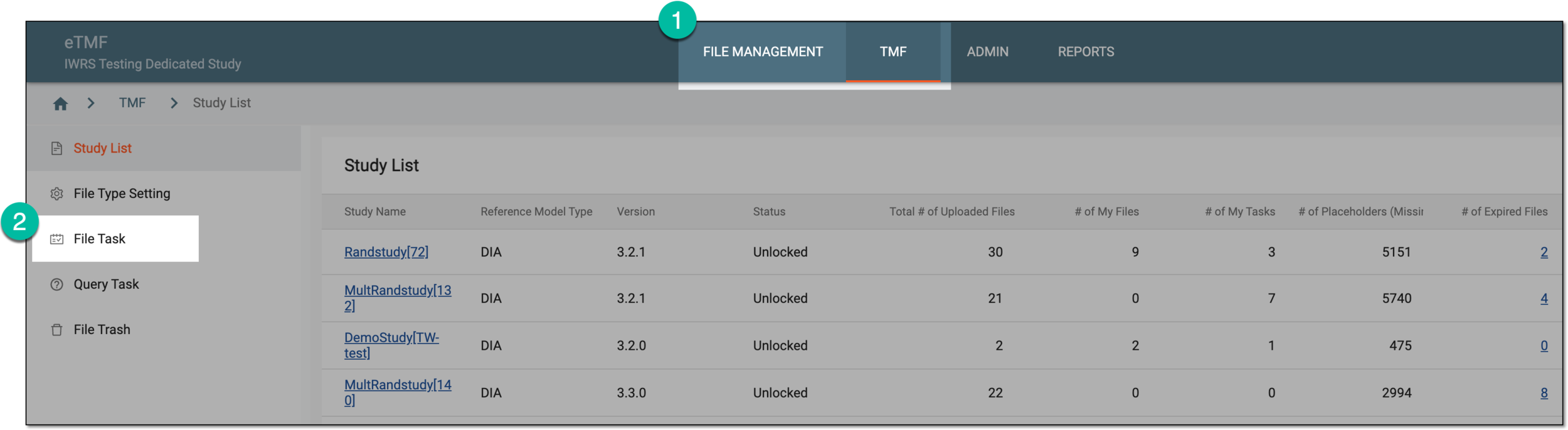 Figure 1. Accessing file tasks
-
On the File Task page, from the workspace toolbar, select Batch Process
 .
. Figure 2. Selecting to audit files in batch
-
On the new page that opens, select the Approve tab to see the files that await your approval.
-
Next to the files that you want to approve in batch, select the checkboxes, then select Approve and leave an optional comment.
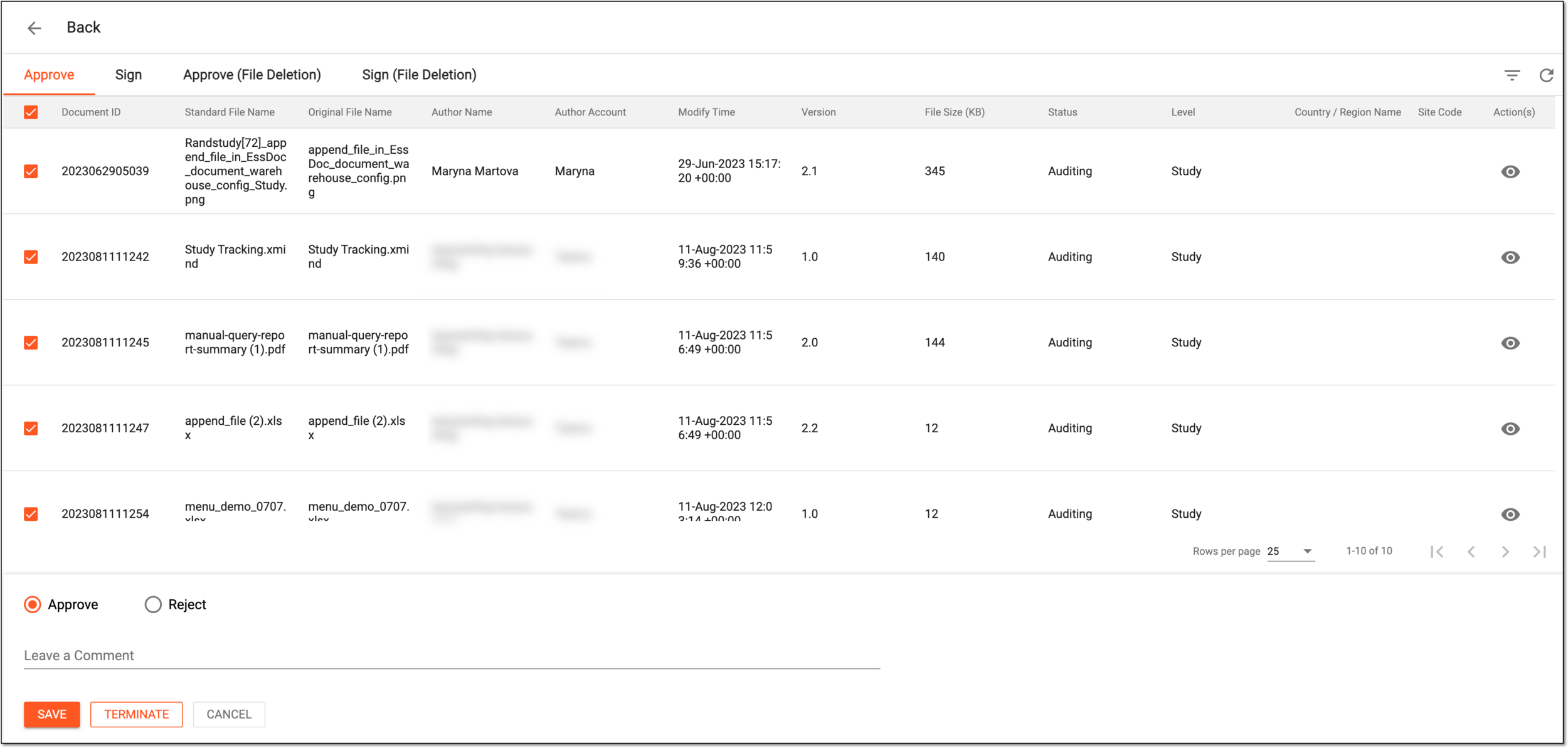 Figure 3. Approving files in batch
-
Select
 to complete the auditing procedure.
Upon saving, the selected files are approved and their statuses change according to the associated workflows.
While working with files in eTMF, there can be cases when multiple files have been deleted from the system and these operations are waiting for your approval. Auditing them one by one can be frustrating and time-consuming. Thus, you can audit multiple files at once from the File Task page via the Batch Process functionality.
-
In the eTMF application header, select the FILE MANAGEMENT tab.
-
On the page that opens, from the left pane, select File Task
.Figure 1. Accessing file tasks
-
On the File Task page, from the workspace toolbar, select Batch Process
.Figure 2. Selecting to audit files in batch
-
On the new page that opens, select the Approve (File Deletion) tab to see the files that await your approval for deletion.
-
Next to the files fro which you want to approve the deletion in batch, select the checkboxes, then select Approve File Deletion and leave an optional comment.
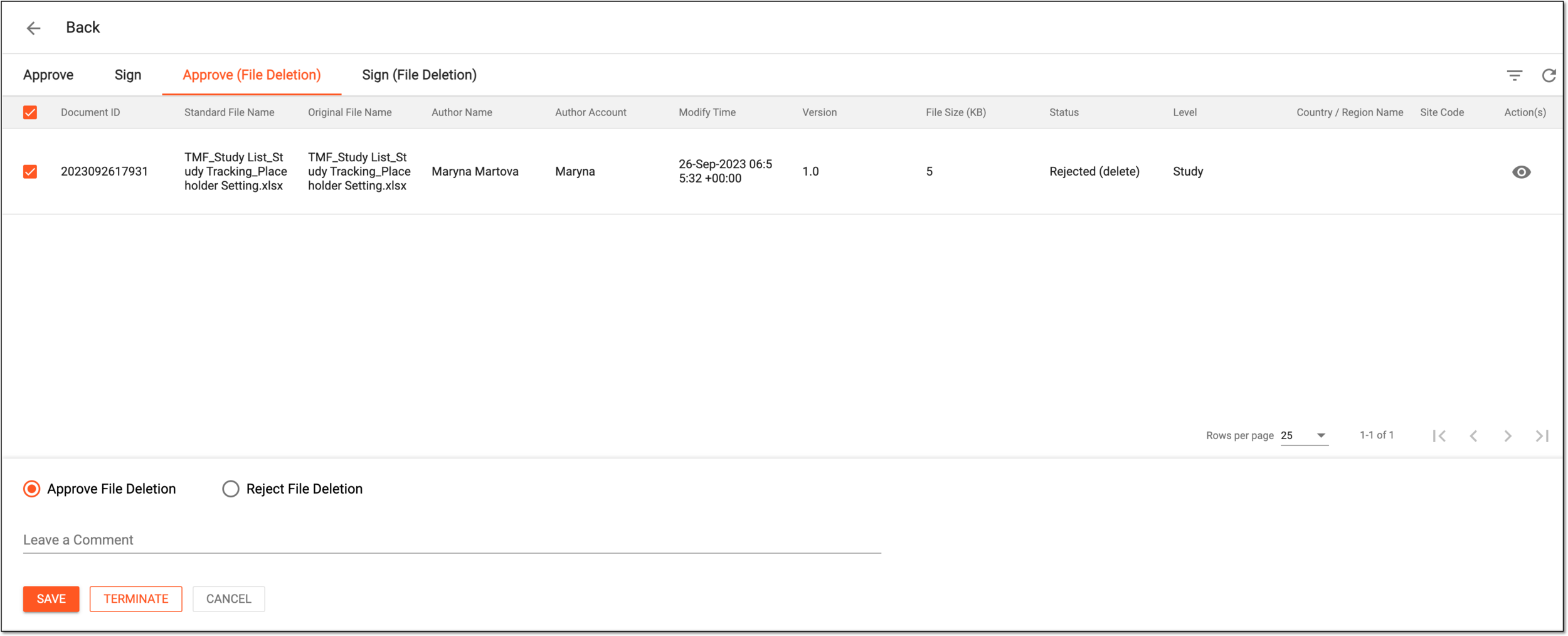 Figure 3. Approving deletion of multiple files
-
Select
to complete the auditing procedure.
Upon saving, the deletion of selected files is approved and their statuses change according to the associated workflows.
While working with files in eTMF, there can be cases when multiple files are waiting for your signature and signing them one by one can be frustrating and time-consuming. Thus, you can sign multiple files at once from the File Task page via the Batch Process functionality.
Important
For security, the system logs you out after three failed attempts to confirm your identity with a password or code.
-
In the eTMF application header, select the FILE MANAGEMENT tab.
-
On the page that opens, from the left pane, select File Task
. -
On the File Task page, from the workspace toolbar, select Batch Process
.Figure 1. Selecting to audit files in batch
-
On the new page that opens, select the Sign (File Deletion) tab to see the files that await your signature.
-
Next to the files for which you want to sign for the deletion, select the checkboxes, then select Sign File Deletion and complete the details as explained in the following table.
Important
The details you need to provide for action confirmation depend on the authentication method configured for you in the system—via SSO or via providing your login and password.
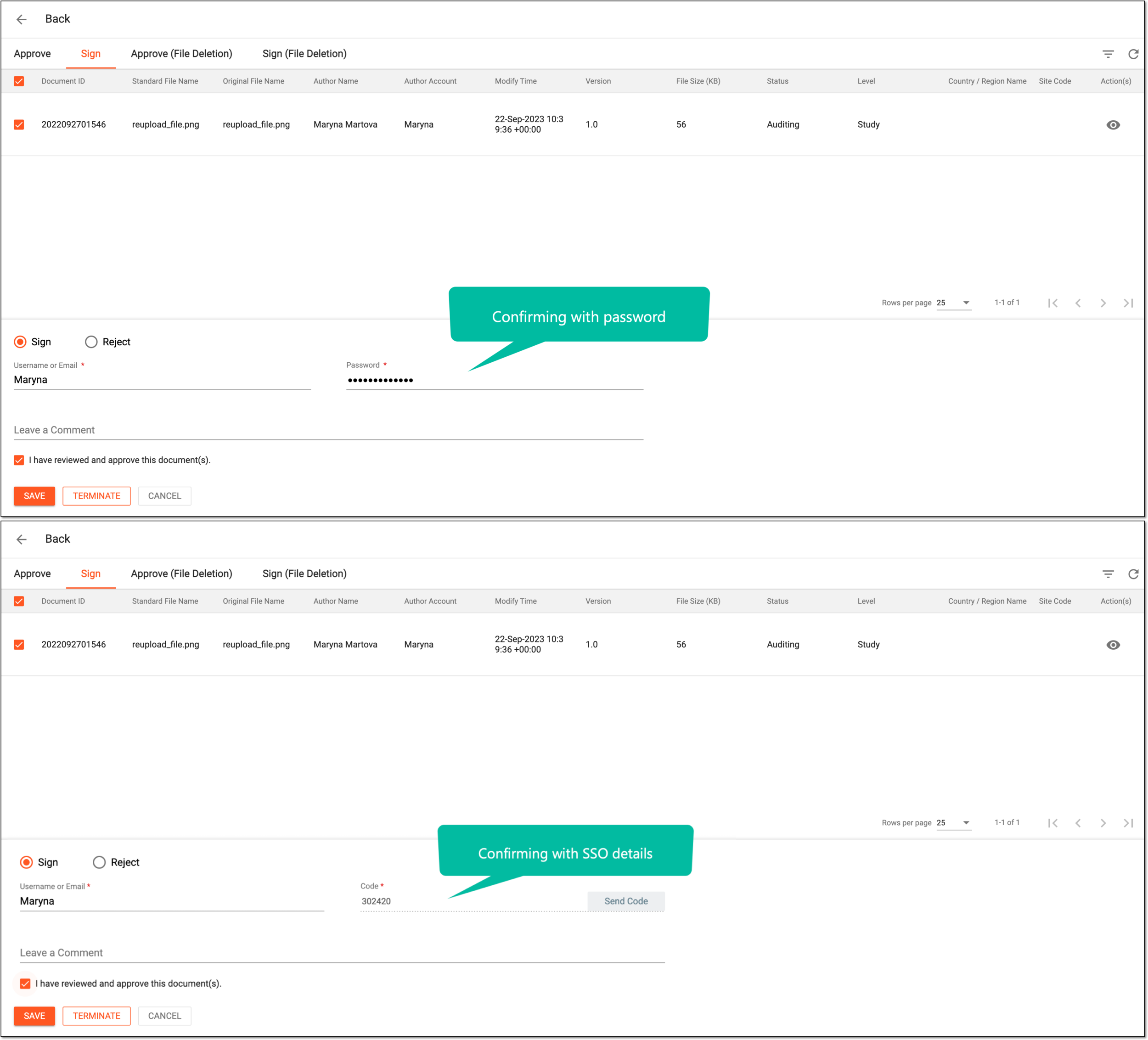 Figure 2. Signing files in batch
Tip
In the following table, mandatory elements are marked with an asterisk (*).
Element
Details
Username or Email*
Enter your user name to provide an electronic signature.
Password*
Enter your system password to confirm an electronic signature.
The field is only available if you use the authorization method by providing your login and password.Send Code
Select
 to send the temporary PIN code to your email for which the SSO method is configured.
The button is only available if you use the authorization method via SSO.Code*
Enter the temporary PIN code that you received via email to confirm an electronic signature.
The field is only available if you use the authorization method via SSO.Leave a Comment
Enter a comment to support your action, if needed.
I have reviewed and approve this document(s)
Select the checkbox to acknowledge that you have reviewed the files for which you are signing.
SAVE
Select
to complete the signing process.CANCEL
Select
 to dismiss your actions without saving.
Upon saving, the selected files are approved and signed for. The statuses of files change according to the associated workflows.
While working with files in eTMF, there can be cases when multiple files have been deleted from the system and these operations are waiting for your approval and signature. Signing them one by one can be frustrating and time-consuming. Thus, you can sign for the deletion of multiple files at once from the File Task page via the Batch Process functionality.
Important
For security, the system logs you out after three failed attempts to confirm your identity with a password or code.
-
In the eTMF application header, select the FILE MANAGEMENT tab.
-
On the page that opens, from the left pane, select File Task
. -
On the File Task page, from the workspace toolbar, select Batch Process
.Figure 1. Selecting to audit files in batch
-
On the new page that opens, select the Sign (File Deletion) tab to see the files that await your signature for deletion.
-
Next to the files for which you want to sign for the deletion in batch, select the checkboxes, then select Sign File Deletion and complete the details as explained in the following table.
Important
The details you need to provide for action confirmation depend on the authentication method configured for you in the system—via SSO or via providing your login and password.
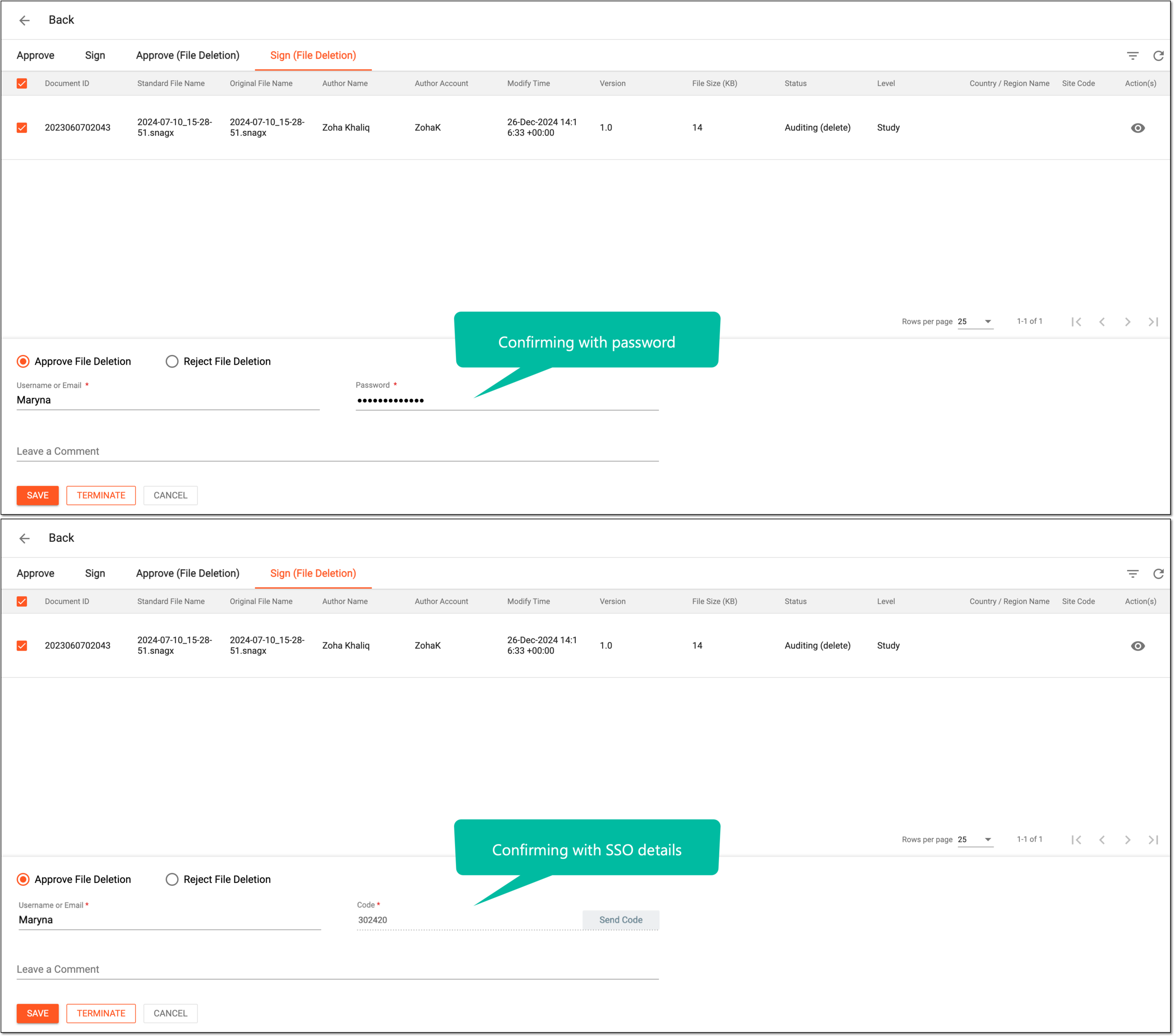 Figure 2. Signing for deletion of multiple files
Tip
In the following table, mandatory elements are marked with an asterisk (*).
Element
Details
User Name*
Enter your user name to provide an electronic signature.
Password*
Enter your system password to confirm an electronic signature.
The field is only available if you use the authorization method by providing your login and password.Send Code
Select
to send the temporary PIN code to your email for which the SSO method is configured.The button is only available if you use the authorization method via SSO.Code*
Enter the temporary PIN code that you received via email to confirm an electronic signature.
The field is only available if you use the authorization method via SSO.Leave a Comment
Enter a comment to support your action, if needed.
SAVE
Select
to complete the signing process.CANCEL
Select
to dismiss your actions without saving.
Upon saving, the deletion of selected files is approved and signed for. The statuses of files change according to the associated workflows.
While working with files in eTMF, there can be cases when multiple files are waiting for your approval and auditing them one by one can be frustrating and time-consuming. Thus, you can audit multiple files at once from the File Task page via the Batch Process functionality. Auditing files in batch also provides you with an option to reject multiple files at once as long as the reason for rejection is the same.
-
In the eTMF application header, select the FILE MANAGEMENT tab.
-
On the page that opens, from the left pane, select File Task
. -
On the File Task page, from the workspace toolbar, select Batch Process
.Figure 1. Selecting to audit files in batch
-
On the new page that opens, select the Approve or Sign tab to see the files that await your approval or signature.
-
Next to the files that you want to reject in batch, select the checkboxes, then select Reject and complete the fields as explained in the following table.
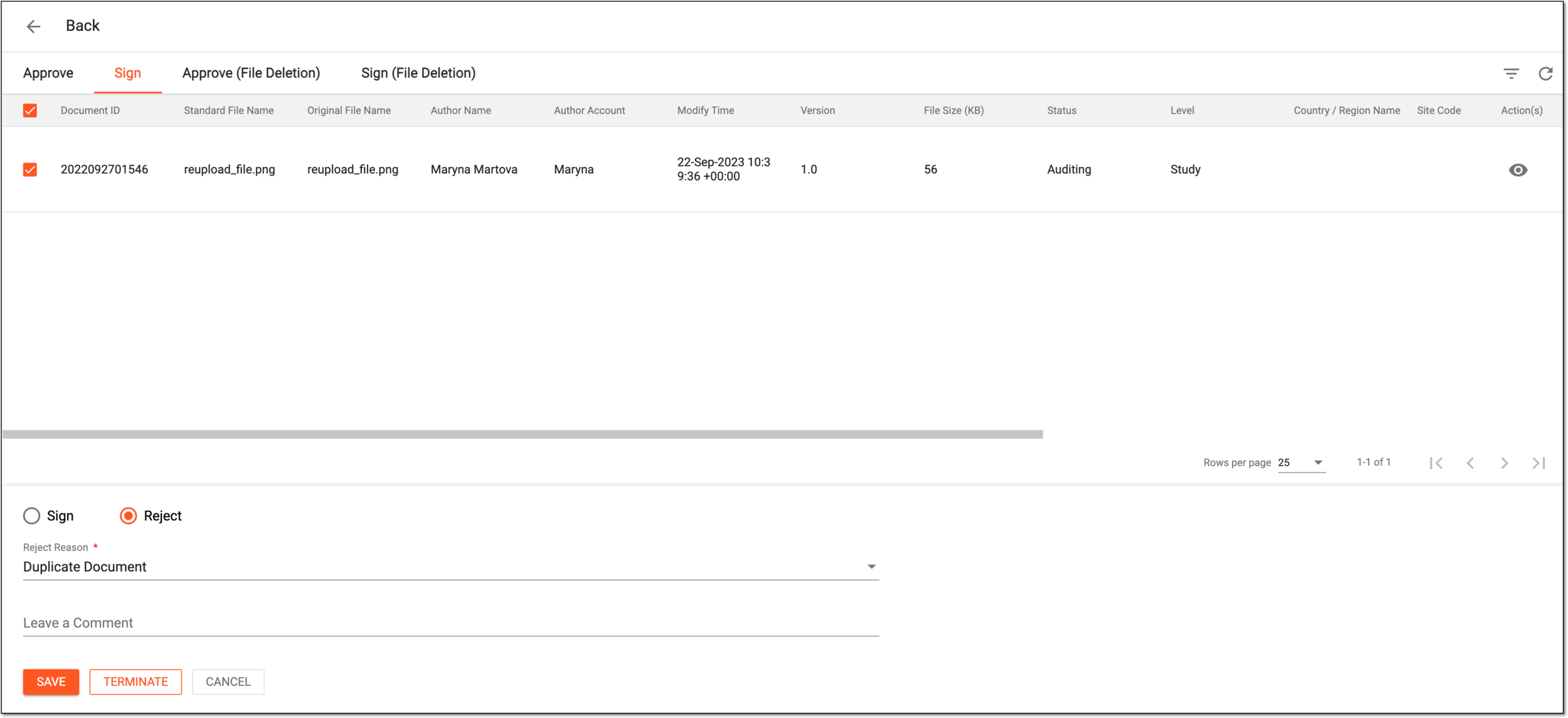 Figure 2. Rejecting multiple files
Tip
In the following table, mandatory elements are marked with an asterisk (*).
Element
Details
Reject Reason*
Select the reason why you are rejecting the files, such as Missing Signature, Duplicate Document, and so on.
The reason must be the same for all the files that you are rejecting.
Leave a Comment
Enter a comment to support your action, if needed.
SAVE
Select
to complete the rejection procedure.CANCEL
Select
to dismiss your actions without saving.
Upon saving, the selected files are rejected and their statuses change according to the associated workflows.
While working with files in eTMF, there can be cases when multiple files have been deleted and these operations are waiting for your approval and auditing them one by one can be frustrating and time-consuming. Thus, you can audit multiple files at once from the File Task page via the Batch Process functionality. Auditing files in batch also provides you with an option to reject operations such as deletion for multiple files at once as long as the reason for rejection is the same.
-
In the eTMF application header, select the FILE MANAGEMENT tab.
-
On the page that opens, from the left pane, select File Task
. -
On the File Task page, from the workspace toolbar, select Batch Process
.Figure 1. Selecting to audit files in batch
-
On the new page that opens, select the Approve (File Deletion) or Sign (File Deletion) tab to see the files whose deletion operation awaits your approval or signature.
-
Next to the files whose deletion you want to reject in batch, select the checkboxes, then select Reject File Deletion and add a mandatory comment providing reason for rejection.
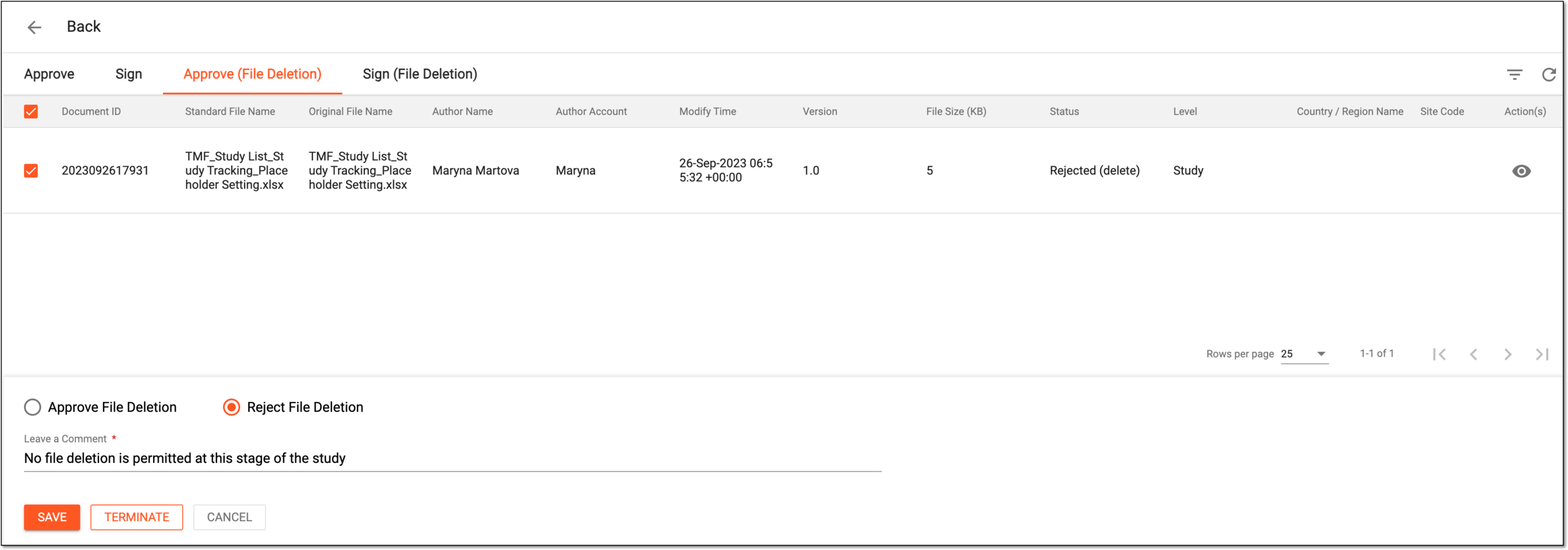 Figure 2. Rejecting deletion of multiple files
-
Select
to complete the rejection procedure.
Upon saving, the deletion of selected files is rejected and their statuses change according to the associated workflows.
A schema, each step of which represents a stage of a specific entity lifecycle in the system.
A workflow can be considered an instrument to help control various actions on system entities for the sake of accountability, as it limits the actions that can be performed on the entity associated with a workflow. This provides an additional tier of scrutiny, and the approval/rejection mechanism reduces the risk of unintended impact on sensitive resources and important information.
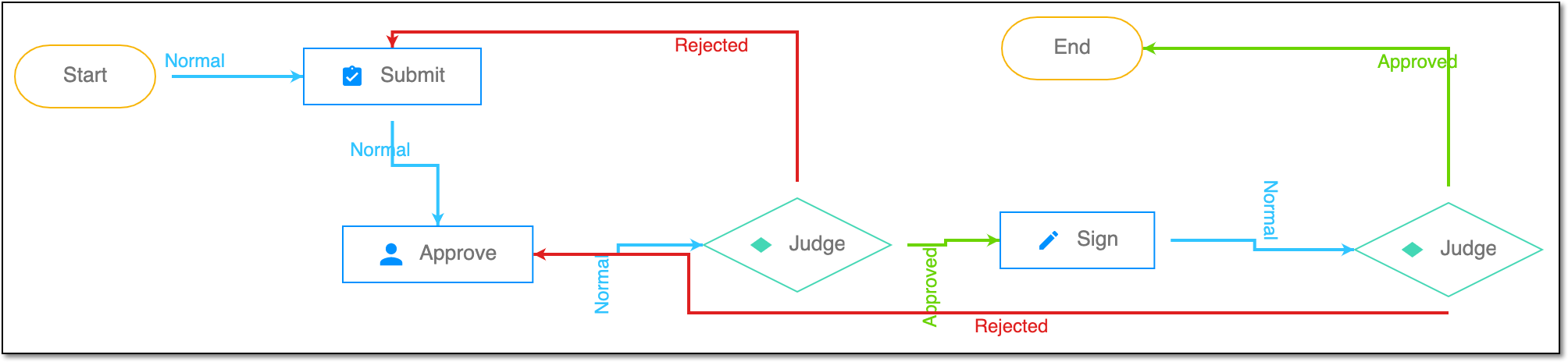 |
For instance, in eTMF, the workflow dictates the procedure of file and folder management from the moment of upload to the approval stage; in CTMS, the workflow controls the process of creation, completion, and approval of a trip report; in EDC, the workflow covers the process of source document handling.