Set query expiration period for study
In eClinical, queries are created to ask a question or get feedback from a designated system user on a particular data item. There are two types of queries in the system:
-
Manual query: these are created by one system user and assigned to another to address the issues and either correct them or confirm the data's accuracy.
-
System query: these are generated automatically by the system and require user interaction to manage and resolve them.
When managing queries for your study files in eTMF, you can set a unified study-level expiration period (in days) for all of them.
For instance, you want all the queries opened for your study files to be resolved within two days or considered expired. To achieve this, you go to the Study Configuration page and set the two-day query expiration period on a study level. As a result, all queries of your study have a unified expiration period of two days.
-
In the eTMF application header, select the ADMIN tab.
-
On the page that opens, in the left pane, select the Study Configuration subtab.
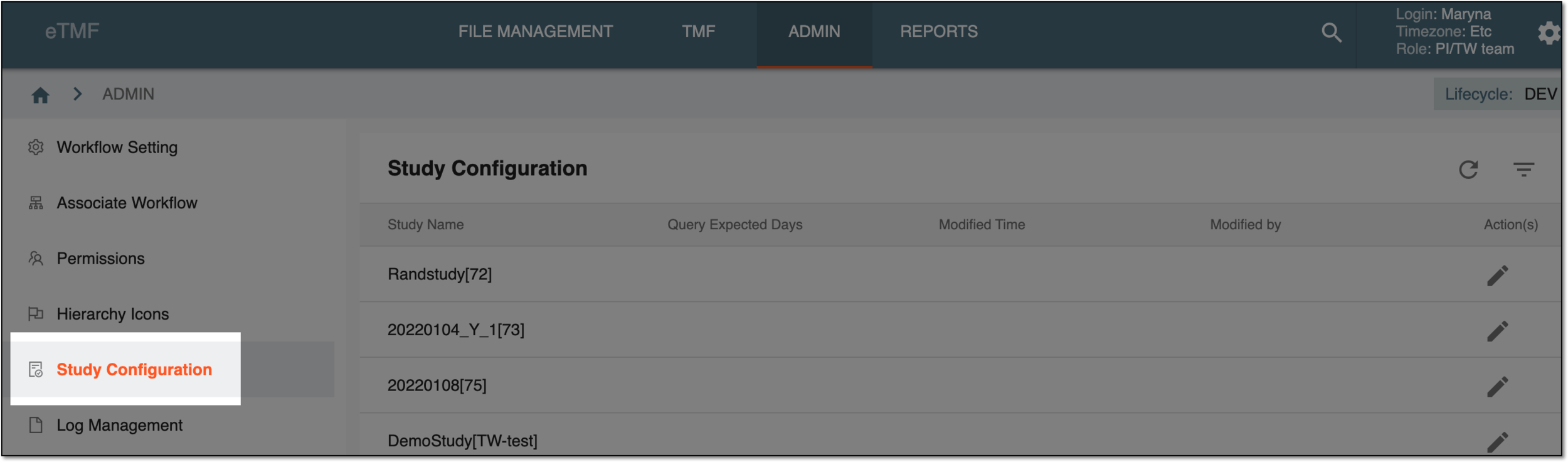 Figure 1. Selecting Study Configuration subtab
-
In the Study Configuration table that appears, go to the study for which you want to set a query expiration period and in the Action column next to it, select
 .
. -
In the Edit dialog that opens, enter the number of days within which you want the open queries to be resolved.
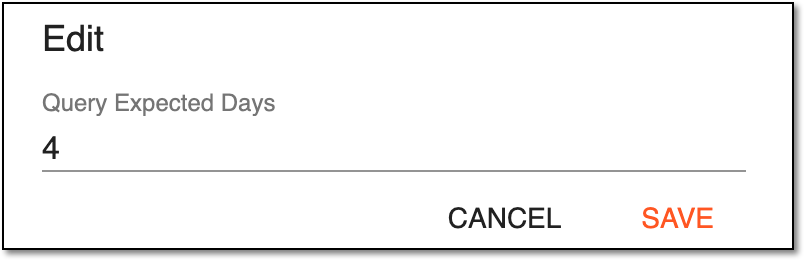 Figure 2. Setting query expiration for study
-
Select
 to save the implemented changes.
Upon saving, the query expiration period (in days) is set for your study.
Now when opening a new query, the Query Expected Days value is always predefined, although editable.