Replace user/file author via exception handling
In eTMF, the process of file management often requires user interaction, such as approval, signature, or else, according to the workflow pertinent to the file. Hence, some specific user can be assigned a task and if this user is currently or temporarily unavailable, the file management process can be delayed or stopped altogether. This is when the Exception Handling feature becomes useful because, with it, you can replace the user in charge of the task with another one.
For instance, a John Doe user is assigned a task to approve a file. Let us assume John is on sick leave, and all his tasks are neglected. To avoid delays and inconveniences, you can reassign all or some of his tasks to another user capable of covering them on time.
-
In the eTMF application header, select the ADMIN tab.
-
From the left pane, select Exception Handling.
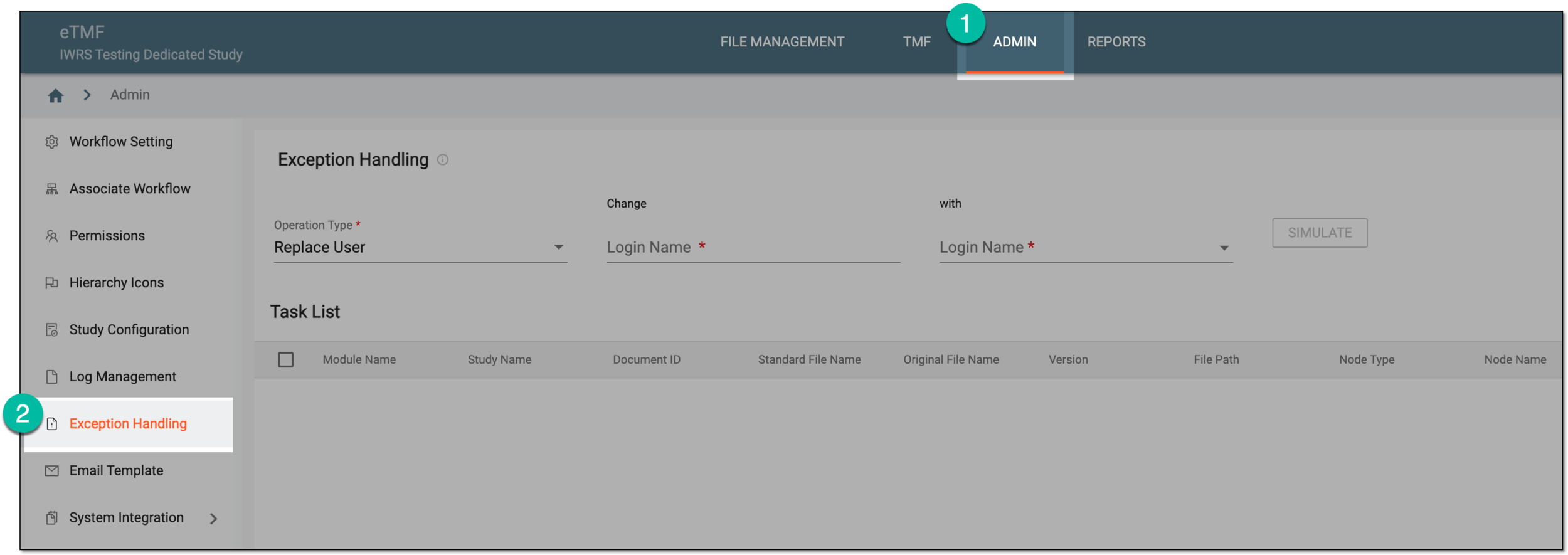 Figure 1. Accessing exception handling
-
On the Exception Handling page that opens, select the replacement user as explained in the following table.
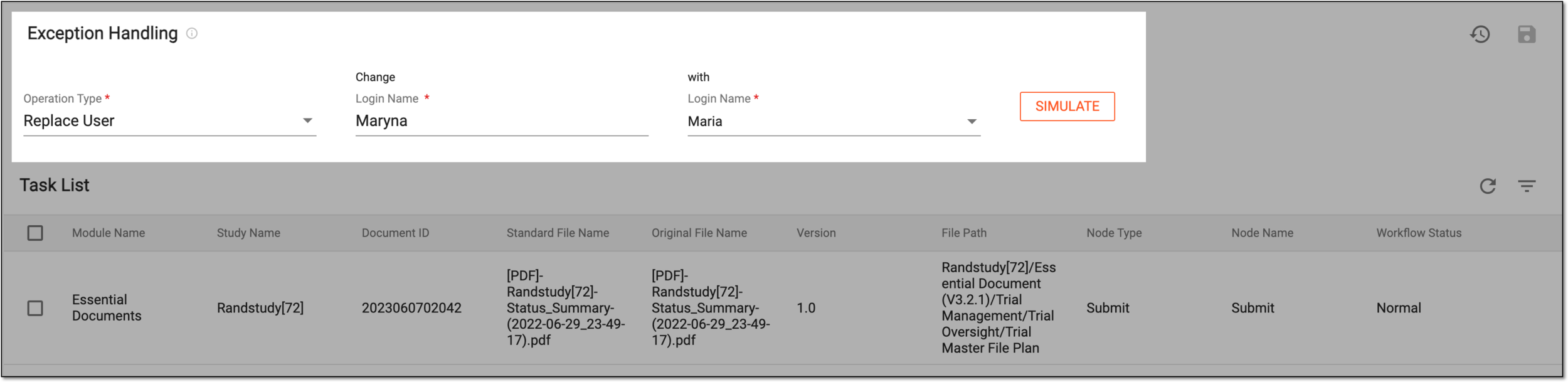 Figure 2. Selecting user to replace
Tip
In the following table, mandatory elements are marked with an asterisk (*).
Element
Details
Operation Type*
Select the type of operation that you are performing:
-
Replace User: to replace the user responsible for the execution of a certain workflow task—signature, approval, and so on.
-
Replace File Author: to replace the user as the owner of the files.
Change Login Name*
Select the current user who you want to replace with another one to cover their tasks or file ownership in the system.
with Login Name*
Select the user with whom you want to replace the unavailable one to cover their tasks or file ownership in the system.
SIMULATE
Select
 to generate the list of tasks currently assigned to the user that you need to replace.
 -
-
From the Task List table, select the tasks you want to assign to the replacement user. The columns of Task List are explained in the following table.
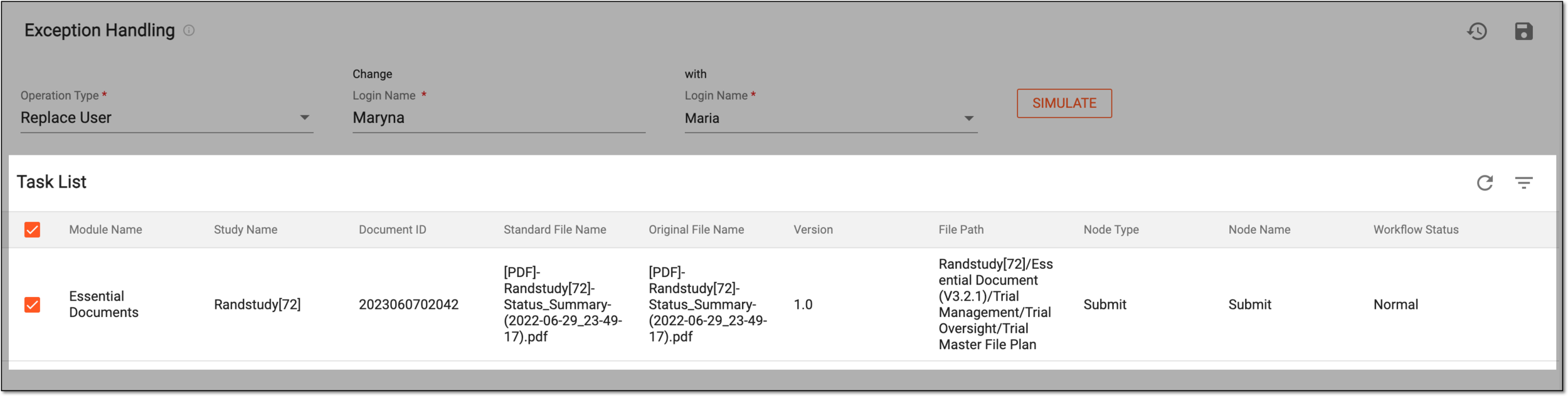 Figure 3. Selecting tasks/files to reassign
Column
Details
Module Name
Represents the name of the module within the eTMF application, where the file pertinent to the task is located.
Study Name
Represents the name of the study to which the file pertinent to the task belongs.
Document ID
Represents the unique identification number assigned to the file by eTMF for tracking purposes.
Standard File Name
Represents the standard name of the file given to it by the system upon upload.
Original File Name
Represents the original name of the file that it obtained before being uploaded to the system.
Version
Represents the file version.
File Path
Represents the path to the file location in the eTMF system.
Status
Represents the current auditing status of the file—Auditing, Rejected, Final, and so on.
This column is only available for the Replace File Author operation type.Node Type
Represents the type of the workflow node (stage) to which the file currently belongs. This can be Approve, Sign, Co-Sign, or else.
This column is only available for the Replace User operation
                                  type.
Node Name
Represents the name of the workflow node (stage) to which the file currently belongs. This can be a standard system name, such as Approve, Sign, Co-Sign; or it can be any custom name given to the node upon workflow configuration.
This column is only available for the Replace User operation
                                  type.
Workflow Status
Represents the status of the workflow associated with the file.
This column is only available for the Replace User operation type. -
From the workspace toolbar, select Save
 .
.
Once saved, the selected tasks or file ownership are reassigned to the replacement user and they can see them in their file task list in eTMF.
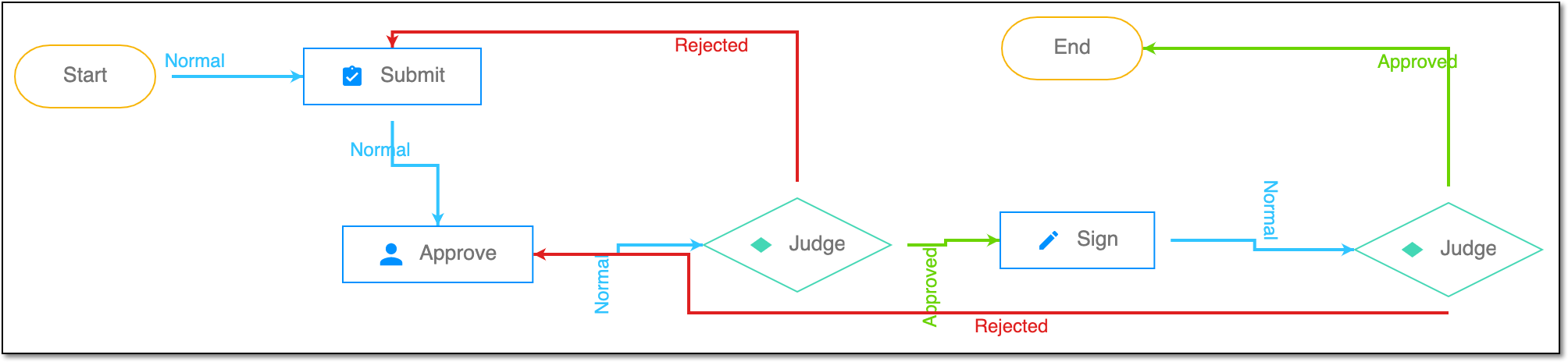
A schema, each step of which represents a stage of a specific entity lifecycle in the system.
A workflow can be considered an instrument to help control various actions on system entities for the sake of accountability, as it limits the actions that can be performed on the entity associated with a workflow. This provides an additional tier of scrutiny, and the approval/rejection mechanism reduces the risk of unintended impact on sensitive resources and important information.
 |
For instance, in eTMF, the workflow dictates the procedure of file and folder management from the moment of upload to the approval stage; in CTMS, the workflow controls the process of creation, completion, and approval of a trip report; in EDC, the workflow covers the process of source document handling.