Study-level management of files and folders
The eTMF application is a storage repository and management center for clinical trial files.
At the study level, you can arrange all the folders and files study-wide by creating these folders and files, copying and moving them, and even locking or unlocking the study with all the content it preserves, and many more.
At the study level, you can arrange all the folders and files study-wide by creating these folders and files, copying and moving them, and even locking or unlocking the study with all the content it preserves, and many more.
Suppose, in addition to standard file directories, you need a custom folder for a company's Standard Operating Procedures (SOPs) or unique documents for your trial. In that case, you can manually create a custom directory at the study level of the explorer tree pane.
Important
You cannot create a new folder if the selected study is locked. First, unlock the study.
-
In the eTMF application header, select the FILE MANAGEMENT tab.
-
In the left explorer pane, locate the study of your interest and right-click the study. In the menu that opens, select New Folder
 .
.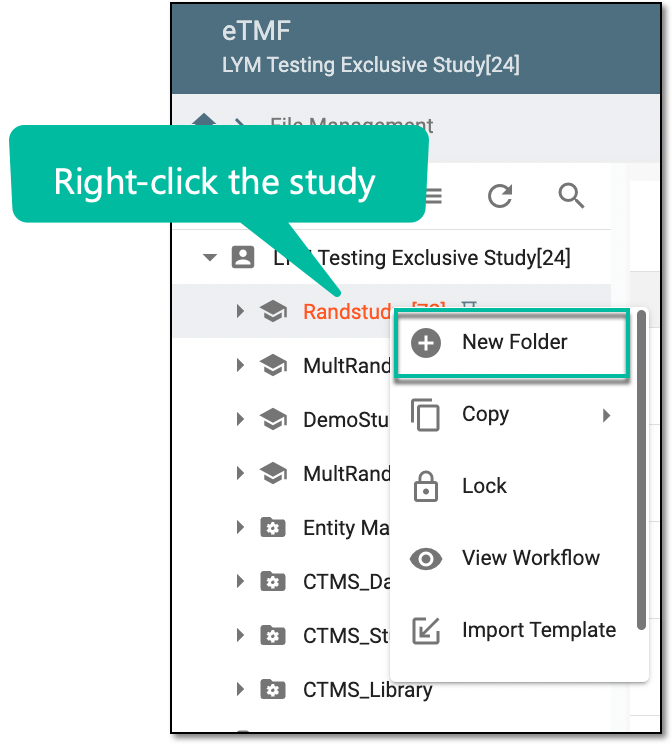 Figure 1. Selecting option to create new folder
-
In the New Folder dialog that appears, select the folder type—Common or Site—as follows.
-
Select
 to save changes.


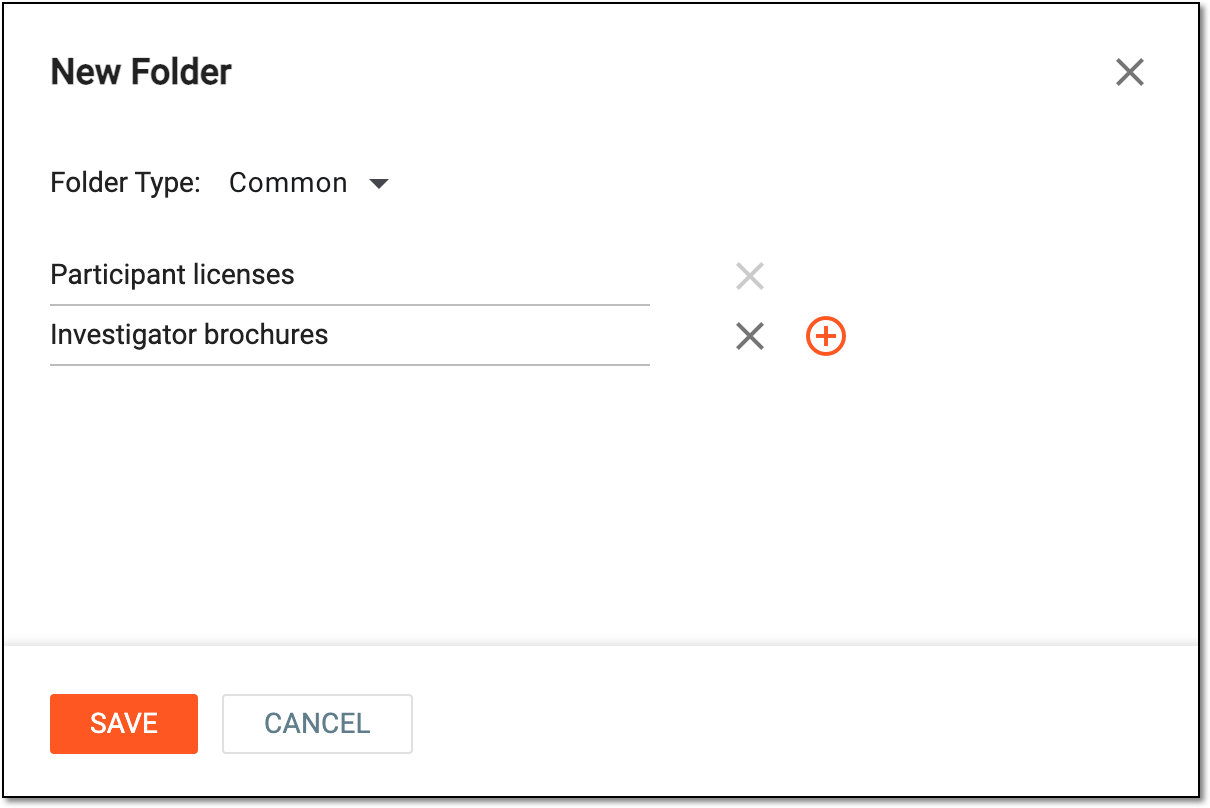
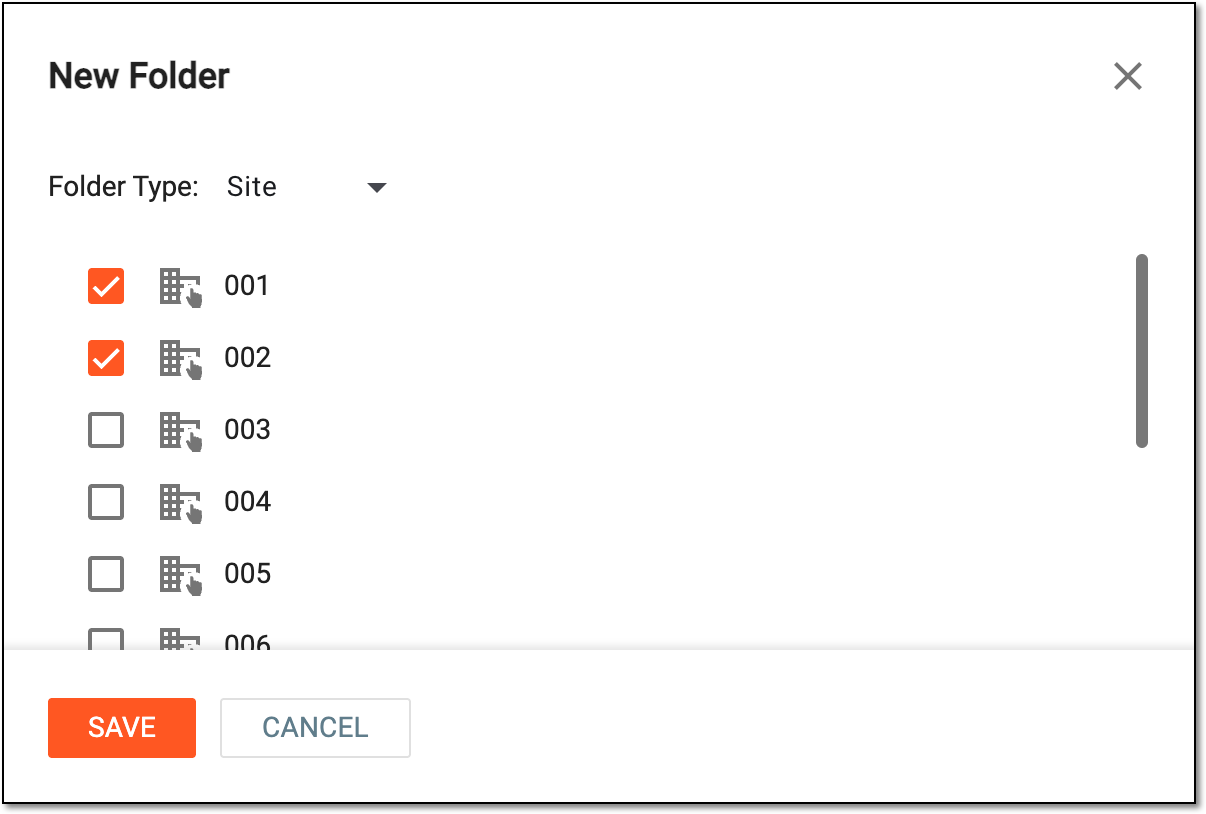
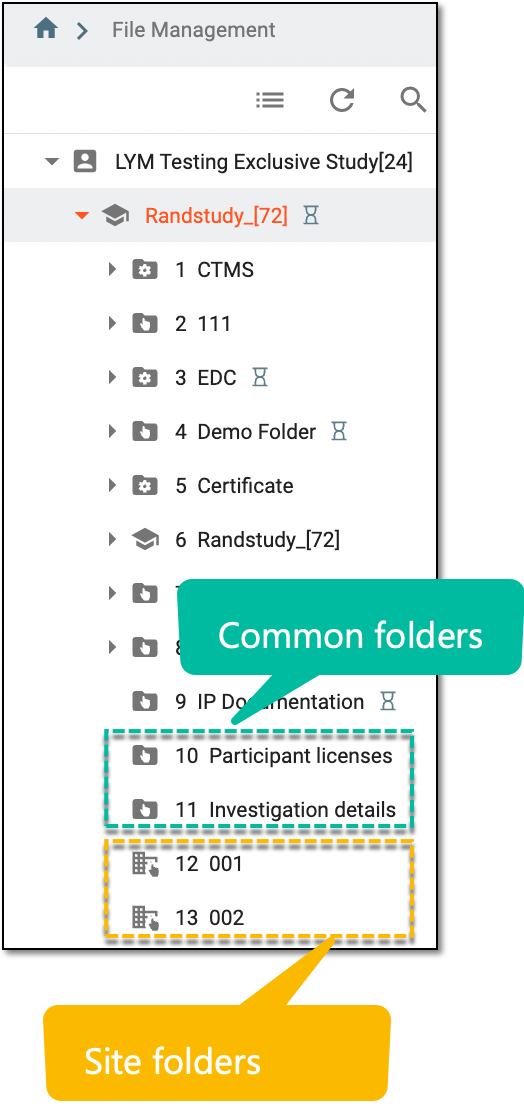
Upon saving, the new folder is created and appears in the study directory as a common or site type.
 |
In the eTMF application, you may need to copy folders to quickly recreate the needed folder structure. The only limitation is that you cannot copy folders of the system-created directories.
-
In the eTMF application header, select the FILE MANAGEMENT tab.
-
In the left explorer pane, locate the study of your interest and right-click it. In the menu that opens, select Copy
 >
Copy Folder From
>
Copy Folder From  .
.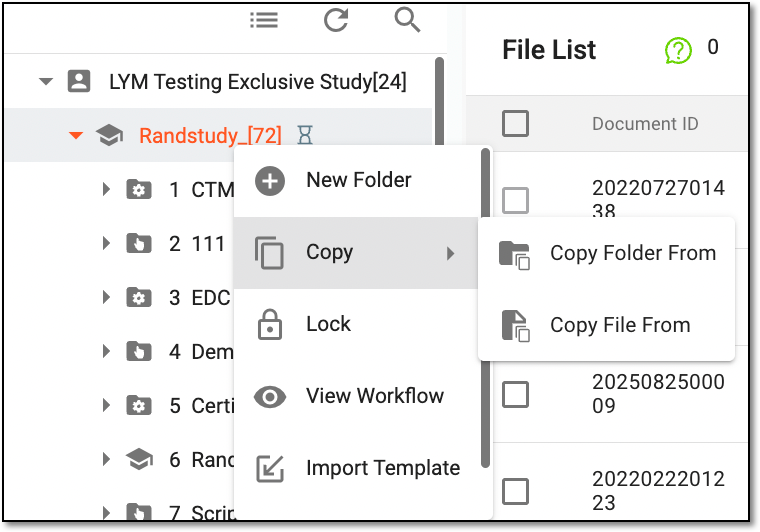 Figure 1. Accessing option to copy folder at study level
-
In the Copy folder(s) from dialog that appears, perform the copying as explained in the following table.
Element
Details
How to copy folder(s)
Select one of the following:
Select the option to create linked copies of a folder, enabling the system to populate any modifications of the original folder to all its linked copies.
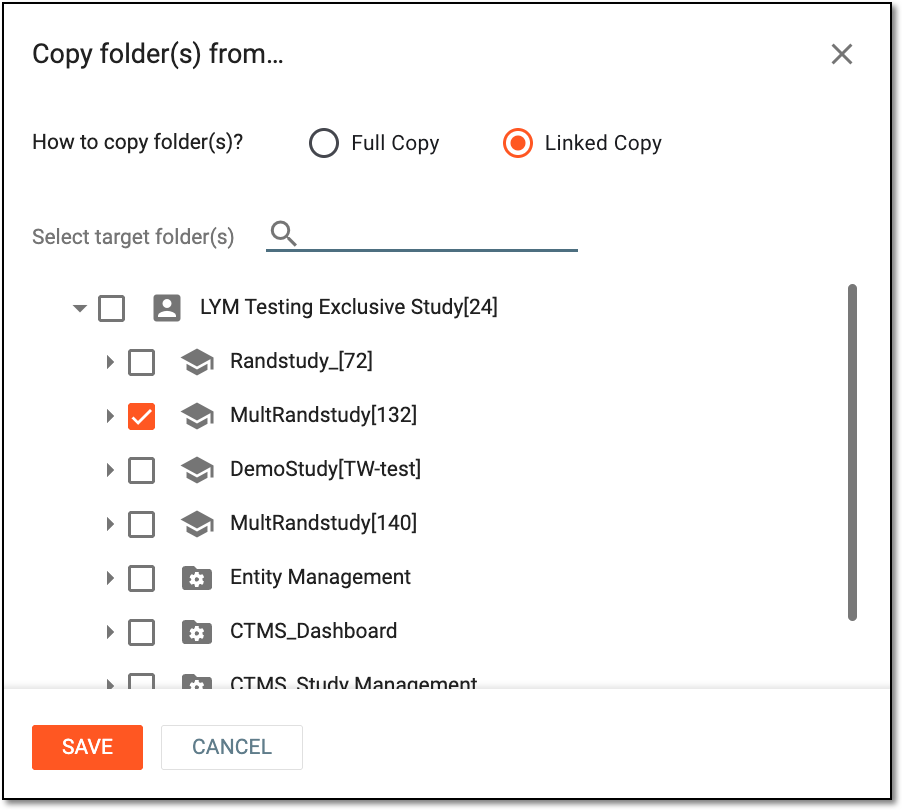 Figure 3. Making linked copies
The linking represents the connection between the original and the copied objects. Thus, when users modify the original object, all the changes are automatically applied to its linked copy.
The structure of the Linked folder cannot be changed. Thus, you cannot delete subfolders and files within.Apply to subdirectories
Turn this toggle on to copy all subdirectories of the selected root directory. If turned off, the empty folder is copied with no subdirectories in it.
This toggle is only available when Full Copy is selected for the folder copying.
                                        For Linked Copy, the subdirectories and files within are copied by default.
Select target folder(s)
In the explorer tree, select the directories you want to copy.
Select target folder(s)
Select the magnifying glass symbol
 and enter the name of the target directory to search for it faster.
SAVE
Select
to implement the changes.CANCEL
Select
 to discard the changes and close the dialog.
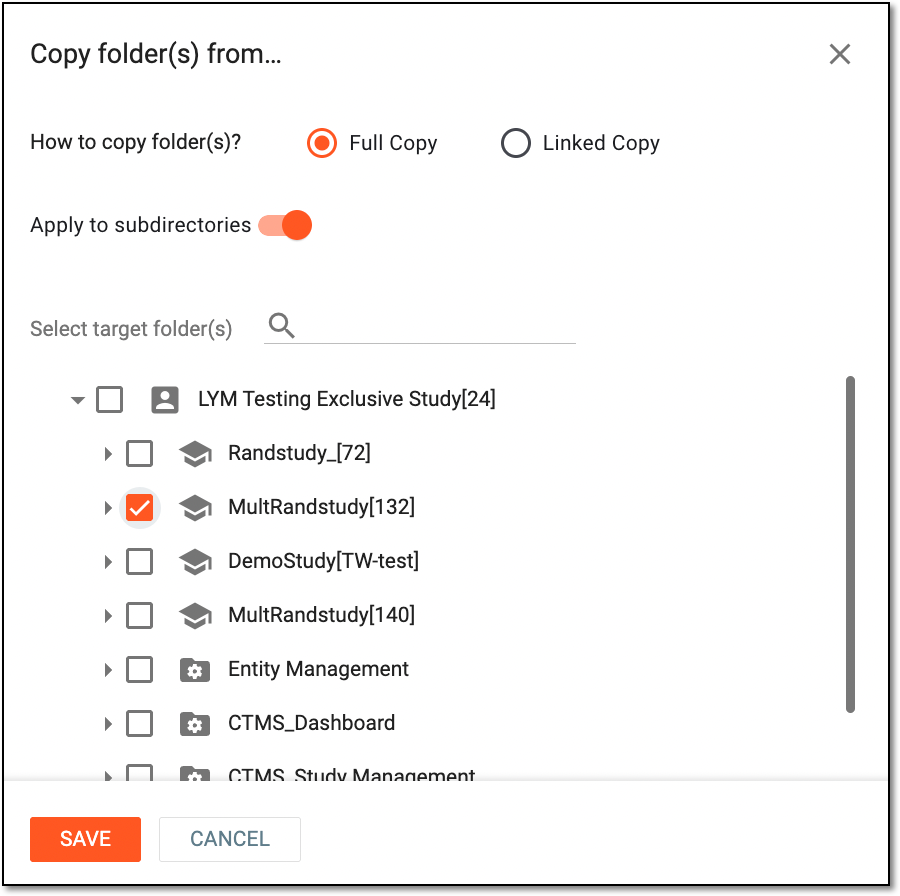
Upon saving, the folders are copied and appear in the selected target directory. If it is a linked copy, the Linked Folder  indicator is displayed next to the folder node in the explorer tree.
In the eTMF application, you can add new files by copying the existing ones and creating their linked copies. This may become helpful, for example, when you need to store the same file in different folders. The only limitation is that you cannot copy the system-created files.
Important
Note that when copying the file with archived versions, the file is copied along with them.
-
In the eTMF application header, select the FILE MANAGEMENT tab.
-
In the left explorer pane, locate the study of your interest and right-click it. In the menu that opens, select Copy
>
Copy File From  .
.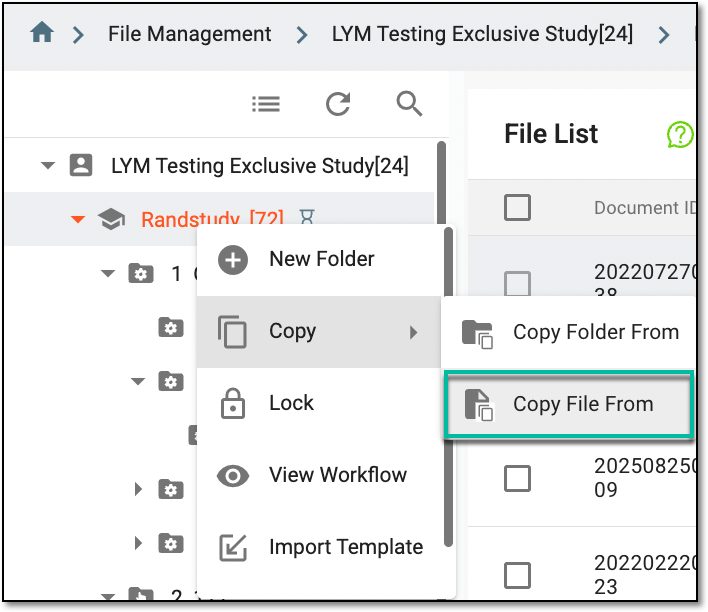 Figure 1. Accessing option to copy file at study level
-
In the Copy file(s) from dialog that appears, perform the file copying as explained in the following table.
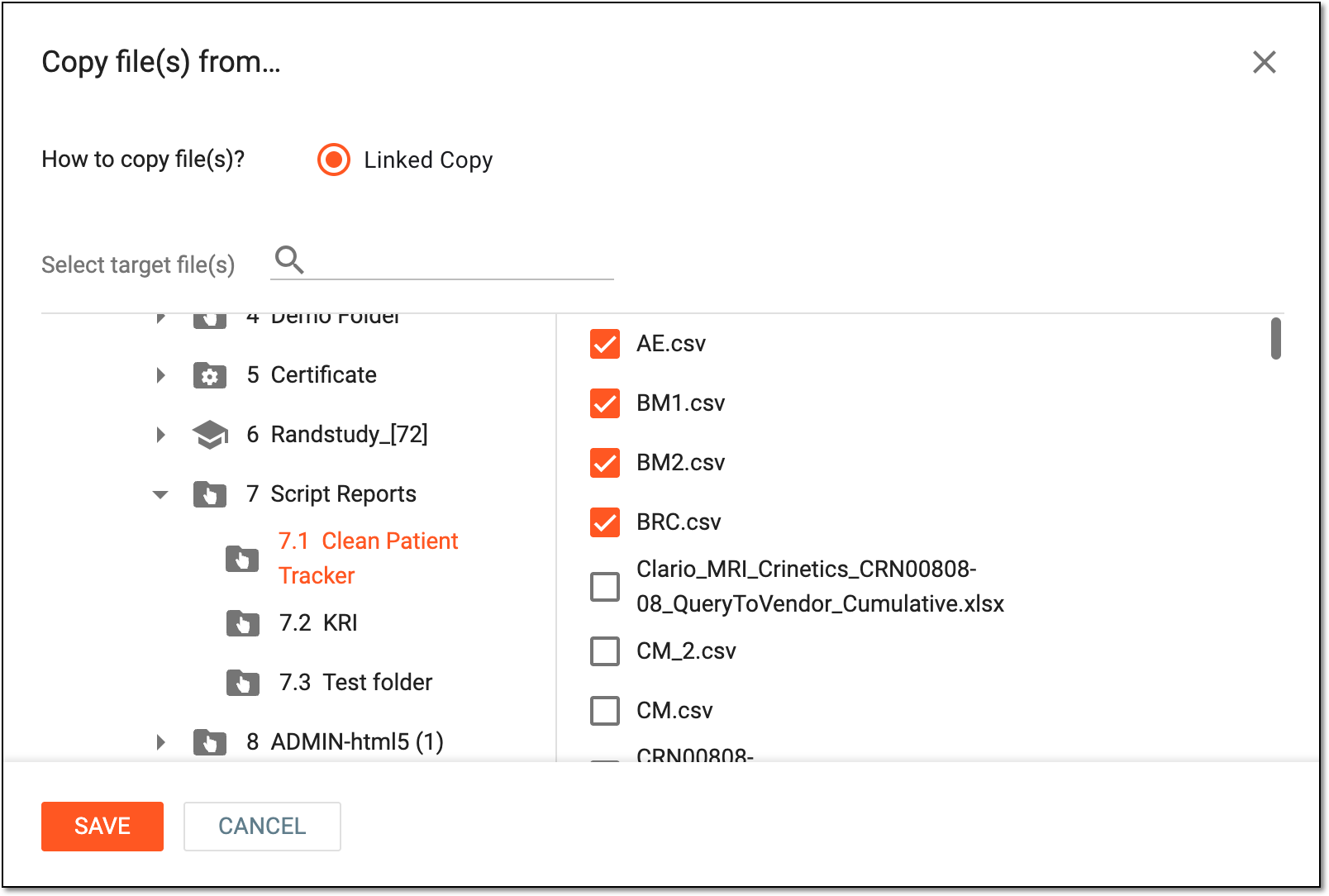 Figure 2. Copying files
Element
Details
How to copy file(s)
Only the Linked Copy option is available for file copying. With this option, you create the connected file copies, enabling the system to propagate any modifications of the original file to all its linked copies.
Select target file(s)
In the explorer tree on the left, select the directory from which you want to copy files. In the file list that appears on the right, select the checkboxes next to the files you want to copy.
Select target file(s)
Select the magnifying glass symbol
and enter the name of the target file or directory to search for it faster.SAVE
Select
to implement the changes.CANCEL
Select
to discard the changes and close the dialog.
Once saved, the file and its archived versions are copied to the selected directory. The Linked File  tag is
displayed next to the file name in the table.
tag is
displayed next to the file name in the table.

The Lock functionality helps you make the study unavailable for amendments, for instance, before study decommissioning, for review purposes, or for other reasons.
Important
In FILE MANAGEMENT, the Lock option is unavailable for system folders to prevent any manipulations with them that can lead to data loss.
-
In the eTMF application header, select the FILE MANAGEMENT tab.
-
In the left explorer pane, locate the study of your interest and right-click it. In the menu that appears, select Lock
 .
.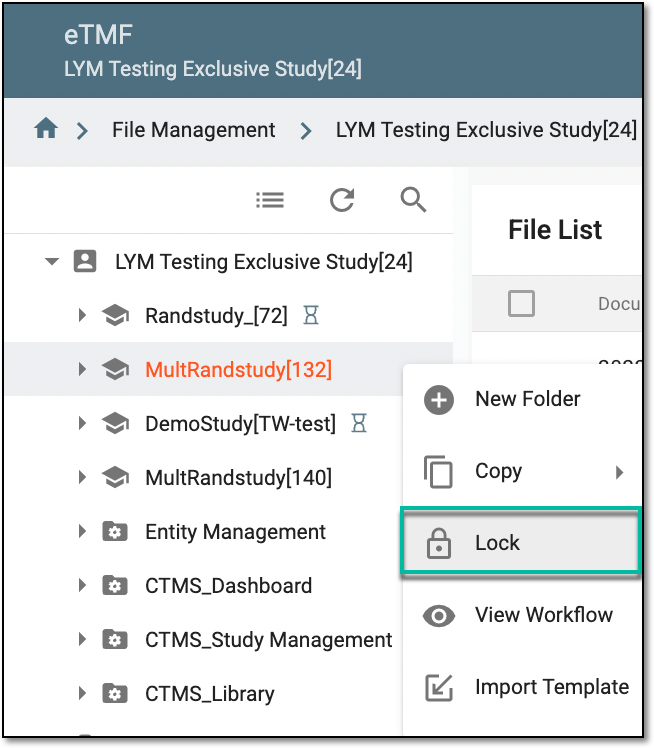 Figure 1. Locking study
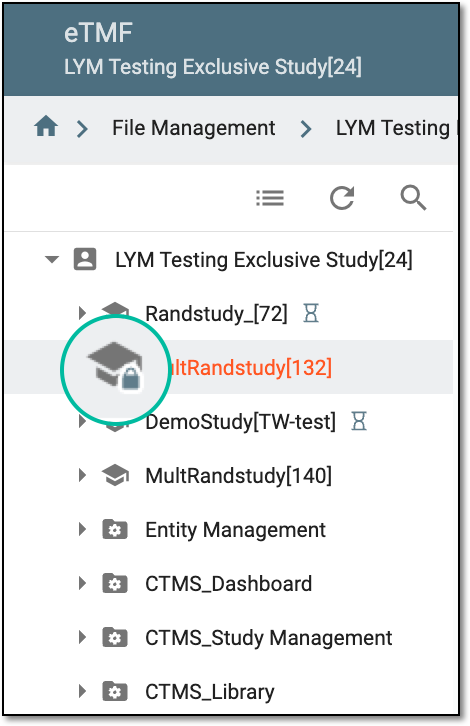
The folder or study is now locked, and the Locked Folder icon  appears on the study node in the explorer tree pane.
Once the study is locked, its structure and files within cannot be modified. Thus, the audit, download, and preview options are not available for this folder or the files within.
 |
With the Unlock functionality, you can make the study available for amendments.
Important
In FILE MANAGEMENT, the Unlock option is unavailable for system folders to prevent any manipulations with them that can lead to data loss.
-
In the eTMF application header, select the FILE MANAGEMENT tab.
-
In the left explorer pane, locate the locked study of your interest and right-click it. In the menu that opens, select Unlock
 .
.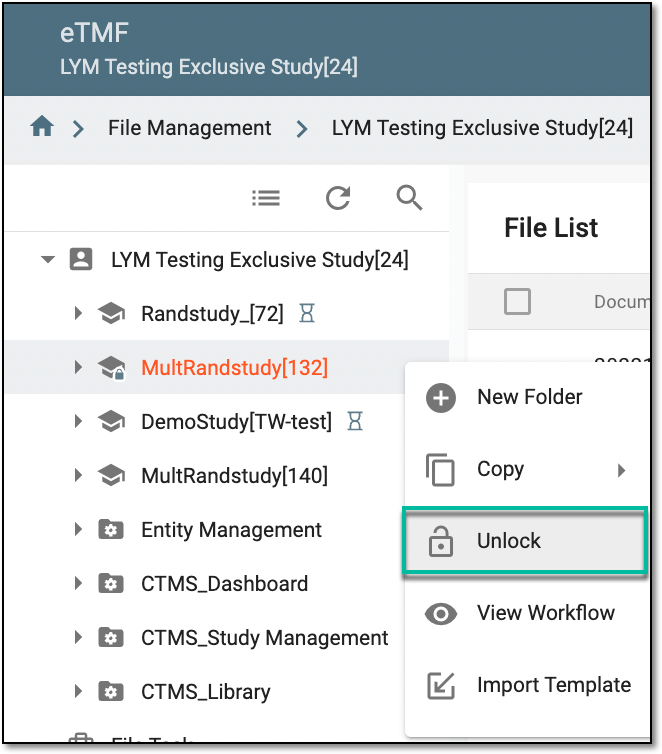 Figure 1. Unlocking study
The study is now unlocked, and the label disappears from the study node. Now, the study, along with all its directories, can be modified.
A workflow is a schema, each step of which represents a stage of a specific entity lifecycle in the system.
You may need to view an eTMF study workflow to analyze whether various actions on system entities are performed as expected. This provides an additional tier of scrutiny in which the approval and rejection mechanism reduces the risk of unintended impact on sensitive resources and important information.
-
In the eTMF application header, select the FILE MANAGEMENT tab.
-
In the left explorer pane, locate the study of your interest and right-click it. In the menu that appears, select View workflow
 .
.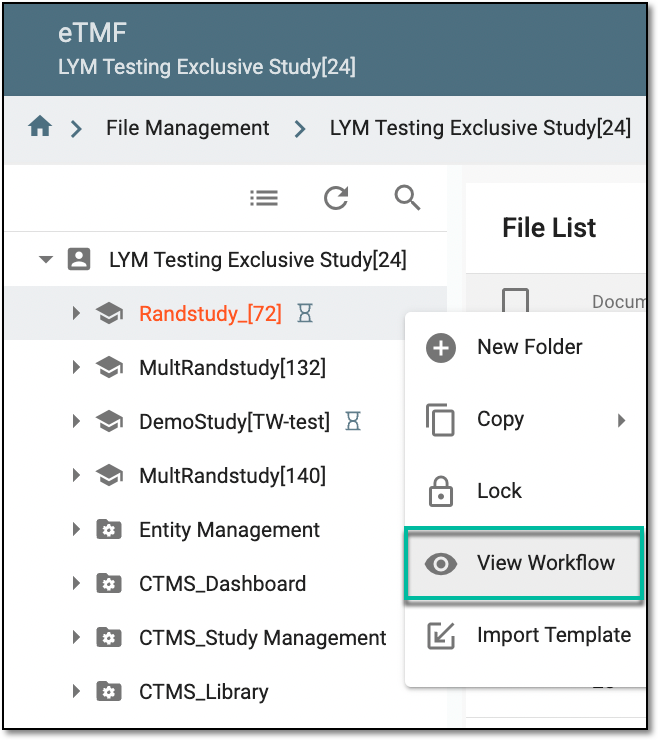 Figure 1. Accessing option to view workflow
-
In the dialog that opens, analyze the workflow for your study.
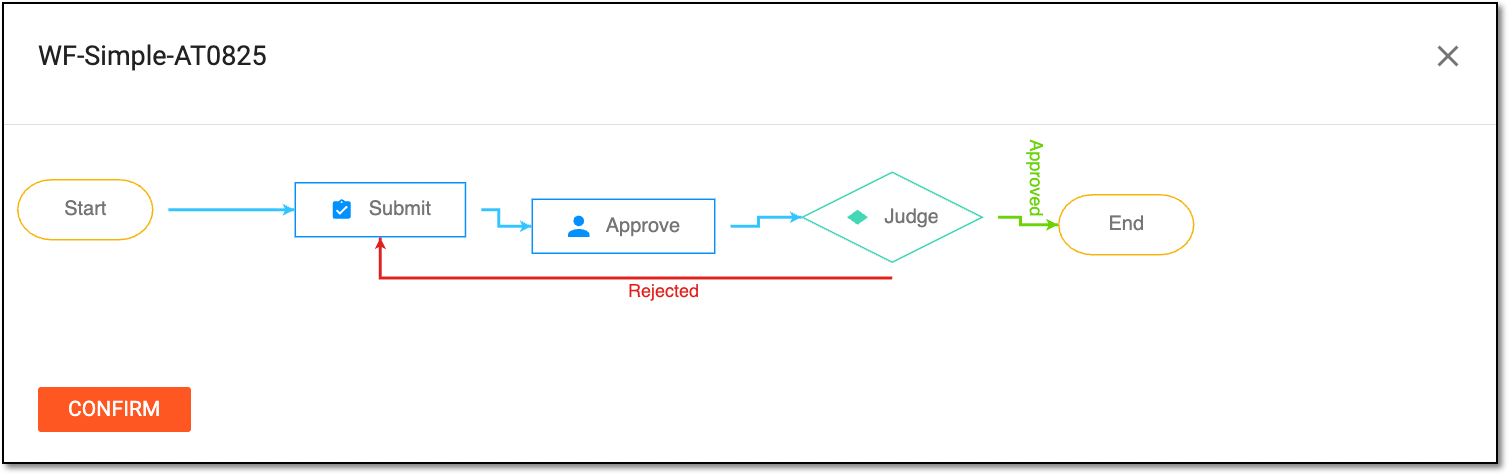 Figure 2. Analyzing study workflow
-
Now, select
 to close the dialog.
Once selected, the dialog closes and you return to the file management page. If you need to introduce any changes to the existing workflow, refer to the Edit workflow section and add the required changes.
While working with study-level documentation, you may require a document that might contain standard study elements, like study phases, specific requirements, or else. So, you can upload a template document at the study level and then reuse it as needed.
-
In the eTMF application header, select the FILE MANAGEMENT tab.
-
In the left explorer pane, locate the study of your interest and right-click it. In the menu that appears, select Import template
 .
.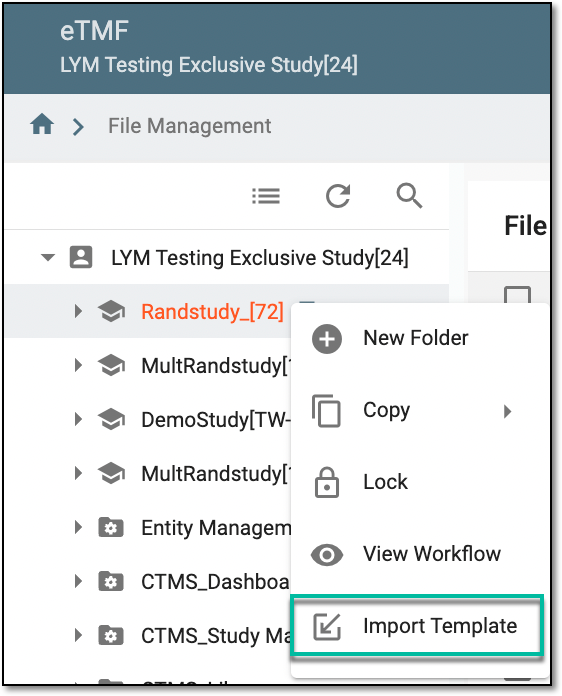 Figure 1. Accessing option to import template
-
In the dialog of your operating system, follow the computer prompts and select the file you want to download as a template.
Once downloaded, the template appears in the study structure.