Export study TOC report
When managing your study files with the eTMF application, the Table of Content (TOC) report serves as an organized, structured index or overview of every study file in the essential documents storage.
You can analyze the report online in the application or export the data to your computer in the XLSX format. This can be useful if you need to work with data offline or share it with a third party who has no access to the eTMF application.
-
In the eTMF application header, select the TMF tab.
-
On the Study List page that opens, in the table, select the study for which you need to view the table of contents.
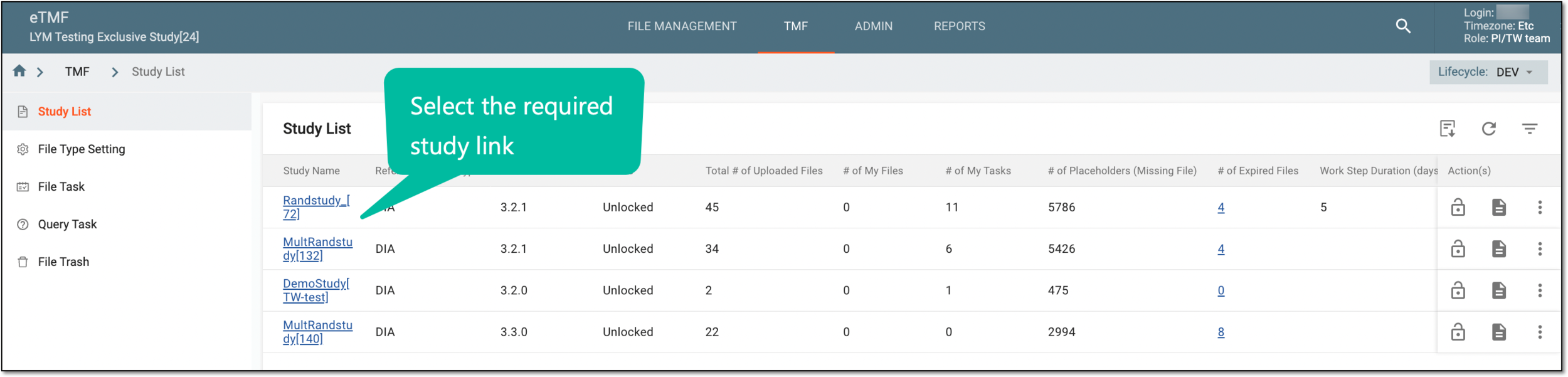 Figure 1. Selecting study
-
On the page that opens, in the left pane, select Study Details > Table of Content.
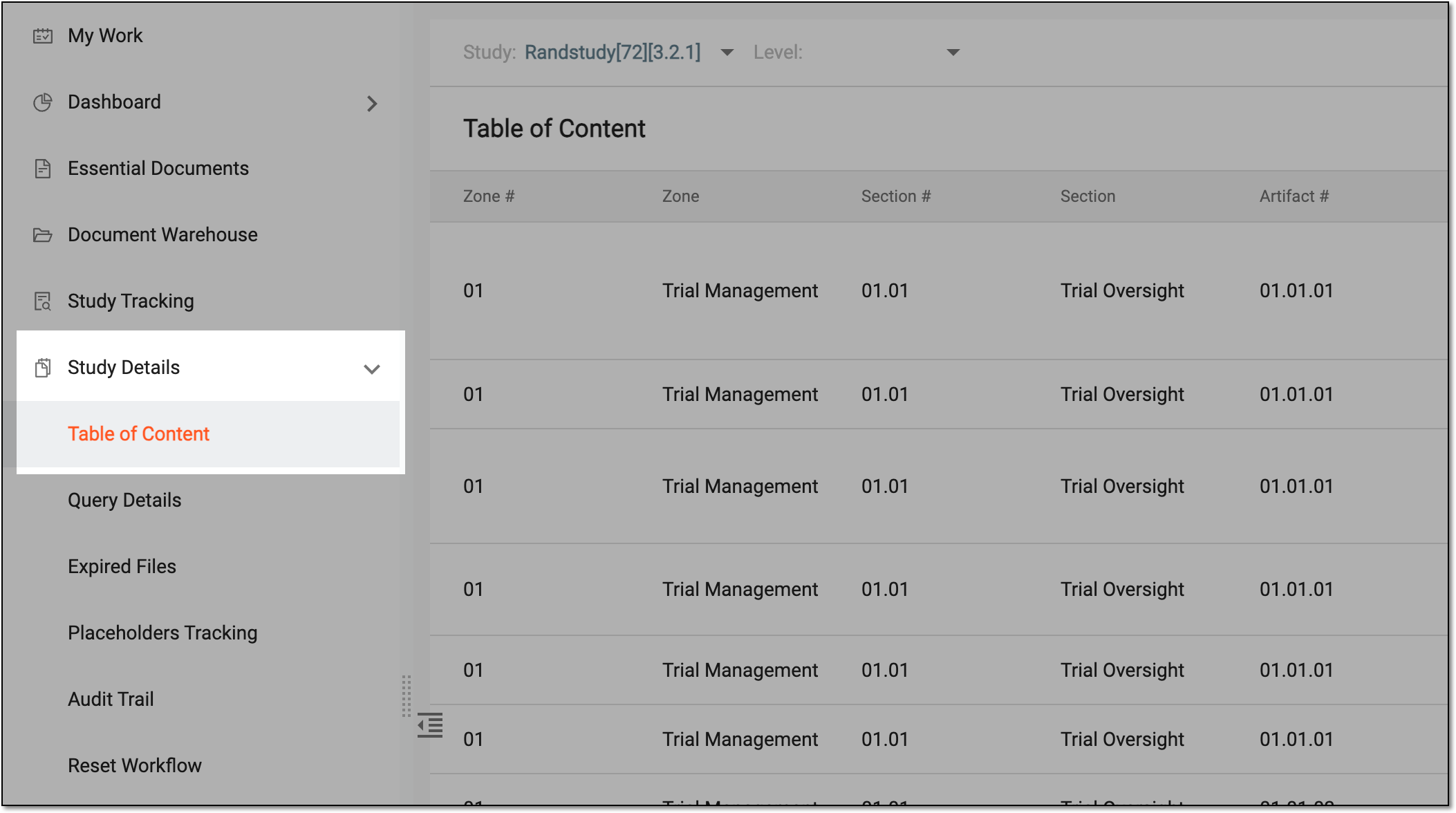 Figure 2. Accessing study table of contents
Tip
Use filtering to view the complete lifecycle of the file. For instance, to view only the files that have appended documents, select Append in the Master/Append File column.
-
On the Table of Content page that opens, optionally, select another study or sort by study-, country-, and site-level files.
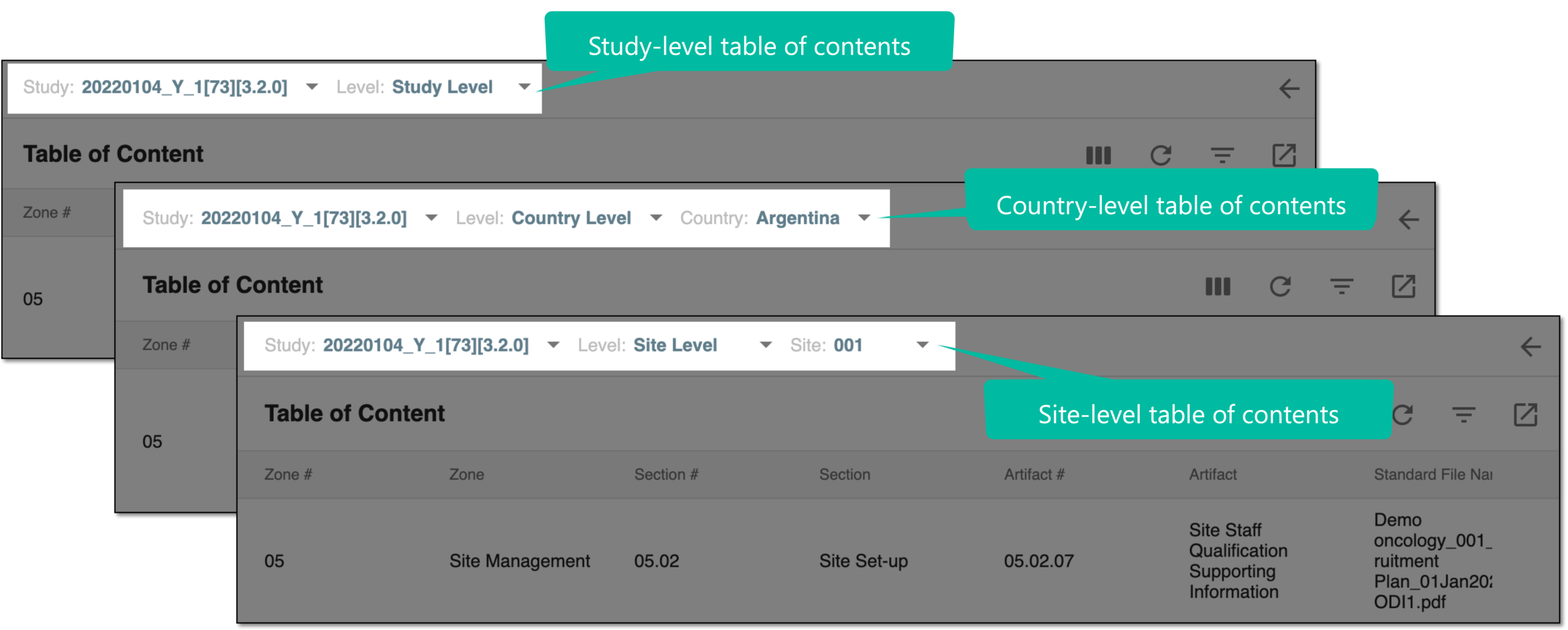 Figure 3. Sorting table of contents data by file level
-
From the workspace toolbar, select Export
 and follow the prompts to save the file on your computer.
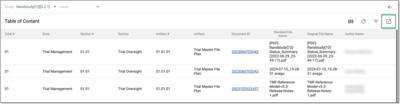 Figure 4. Exporting table of contents data
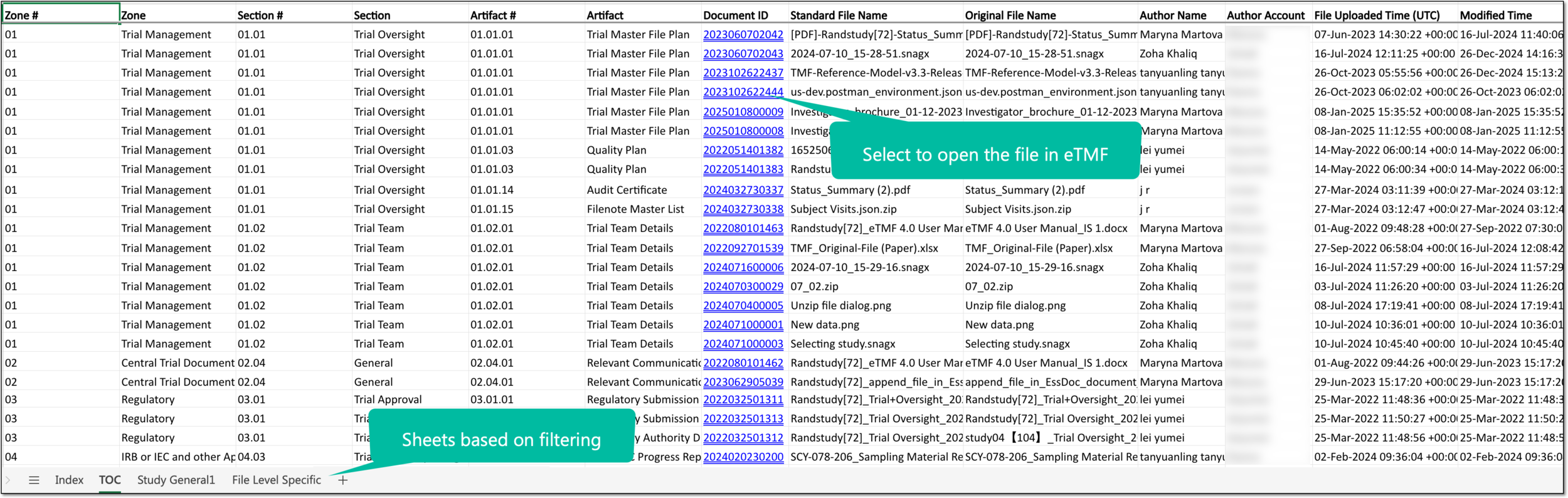
Upon saving, the study table of contents data is available on your computer in the XLSX format.
Important
The sheets in the exported document rely on the filter conditions applied to the report before exporting.
The Document ID column contains an active hyperlink leading to the file in the eTMF system. To be able to access the file via the hyperlink, you need to be authorized in the system.