View study table of contents
When managing your study files with the eTMF applications, the Table of Content (TOC) report serves as an organized, structured index or overview of every study file in the essential documents storage. The purpose of the report is to provide an efficient way to review and extract the documentation throughout the clinical trial.
-
In the eTMF application header, select the TMF tab.
-
On the Study List page that opens, in the table, select the study for which you need to view the table of contents.
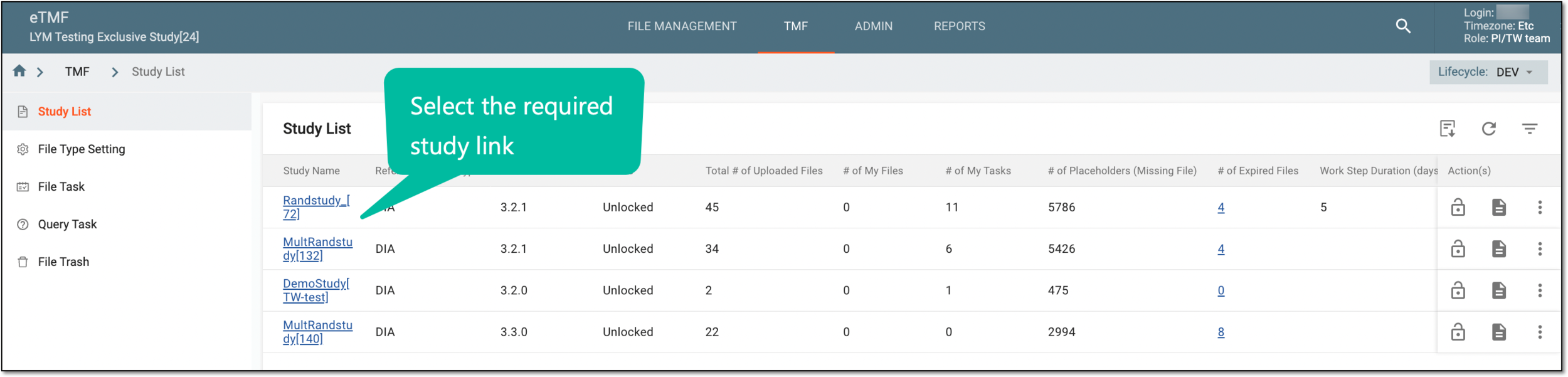 Figure 1. Selecting study
-
On the page that opens, in the left pane, select Study Details > Table of Content.
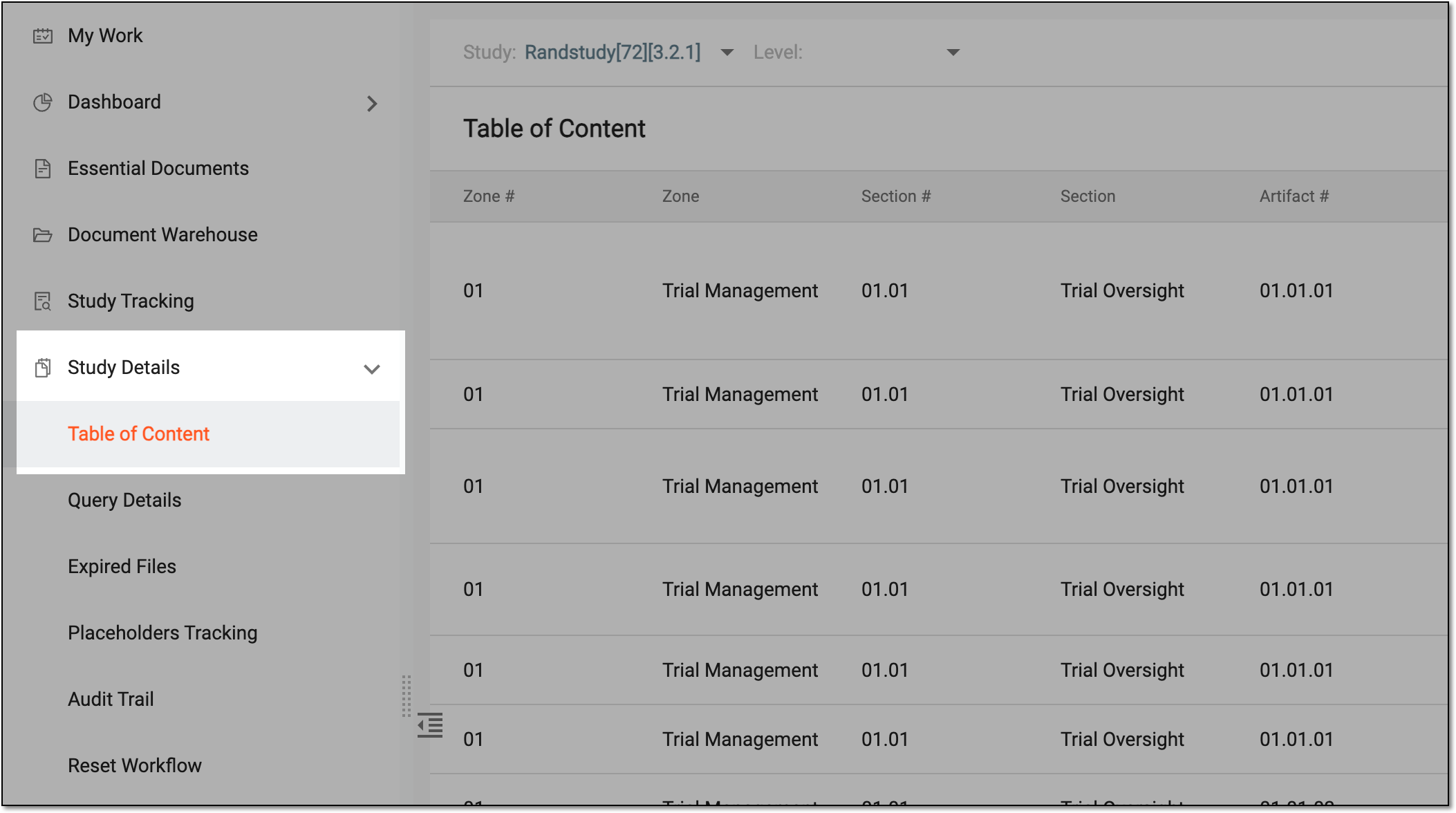 Figure 2. Accessing study table of contents
Tip
Use filtering to view the complete lifecycle of the file. For instance, to view only the files that have appended documents, select Append in the Master/Append File column.
-
On the Table of Content page that opens, optionally, select another study or sort by study-, country-, and site-level files.
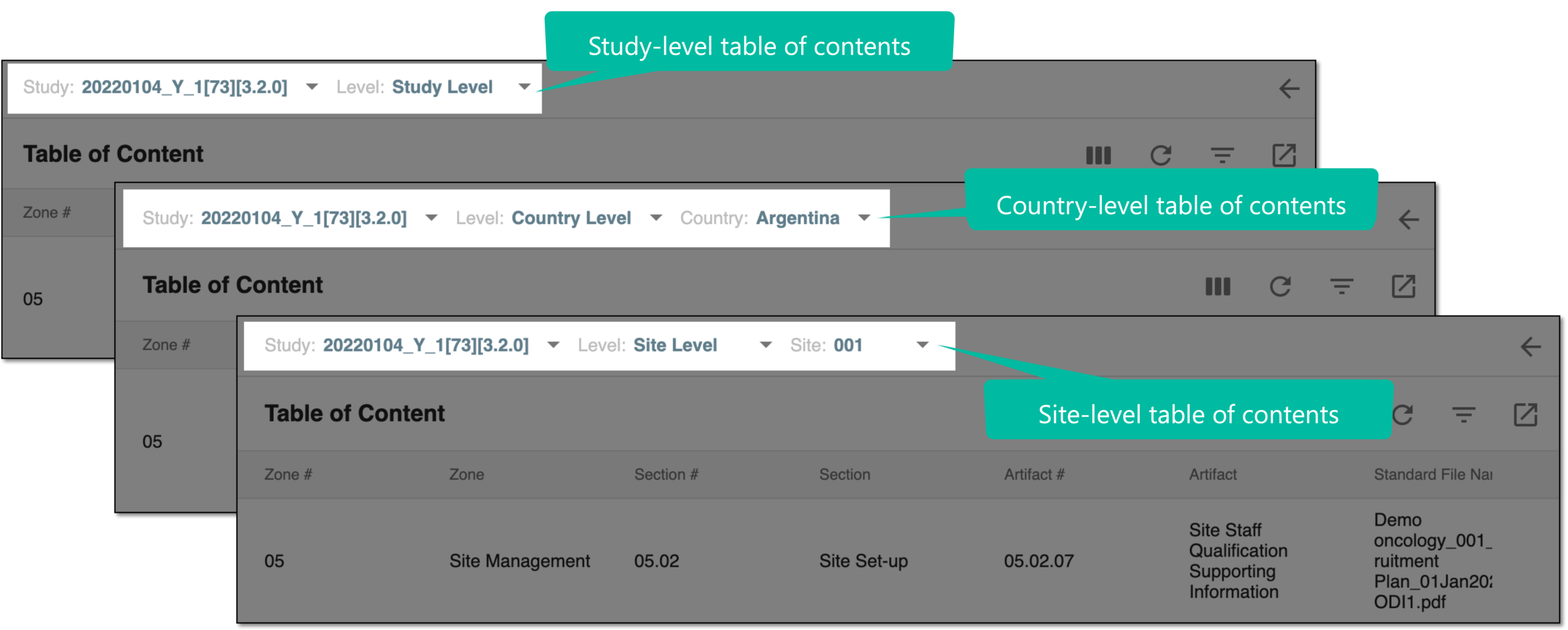 Figure 3. Sorting table of contents data by file level
-
In Table of Content, view the details of every study file stored in the eTMF system as explained in the following table.
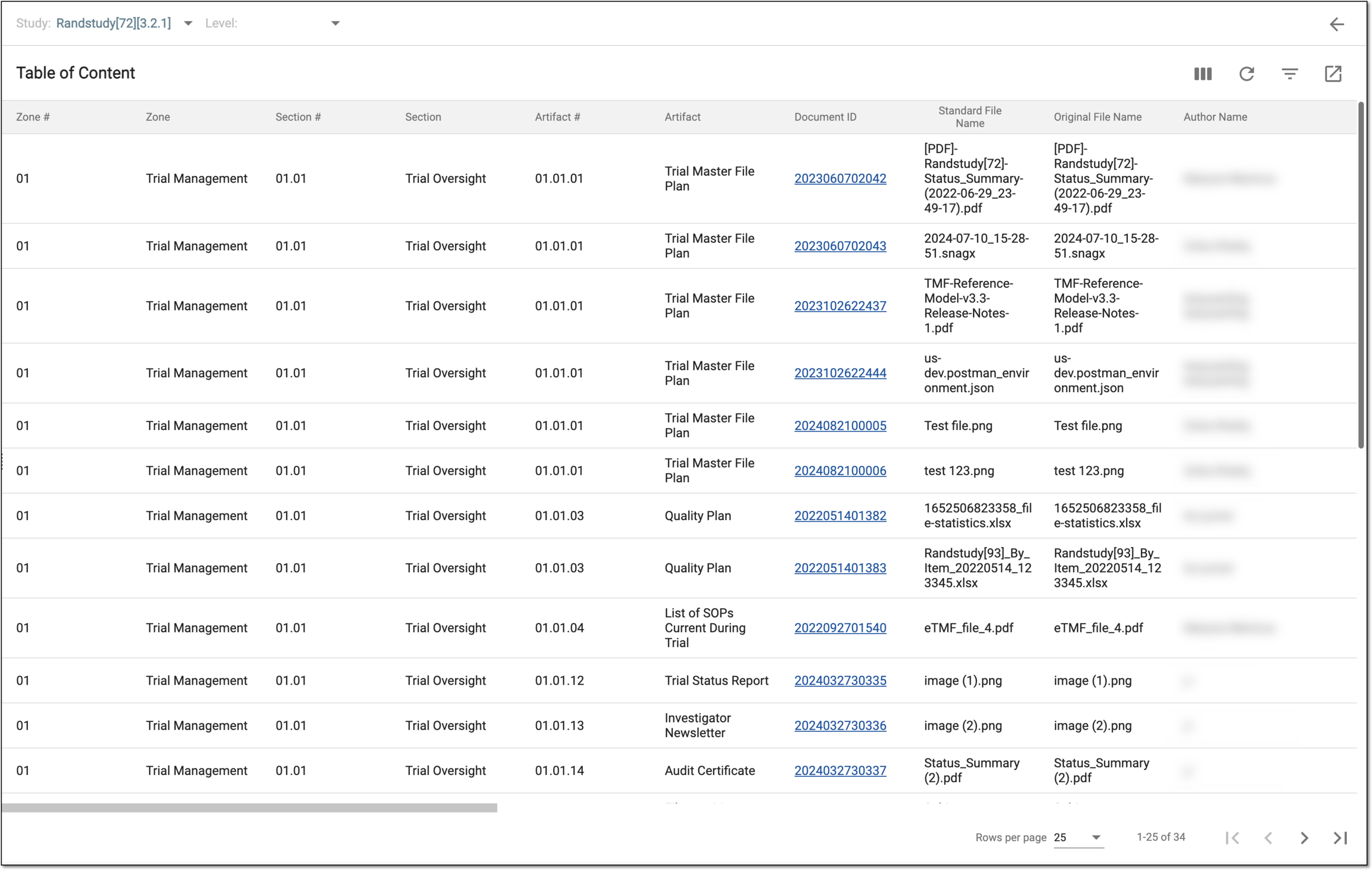 Figure 4. Reviewing study table of contents
Element
Details
Zone #
Represents the division number to which the file belongs.
Zone
Represents the division to which the file belongs under a particular study, for instance, Trial Management.
Section #
Represents the number of the categorized location of the file.
Section
Represents the categorized location within the selected zone to which the file belongs, for instance, the sections for Trial Management are Trial Team, Trial Oversight, and so on.
Artifact #
Represents the artifact number to which the file belongs.
Artifact
Select the artifact level to which the file belongs based on the selected zone and section, for instance, the artifact of Trial Management in Trial Team is Trial Team Details.
Document ID
Represents the unique identification code of the document that remains constant throughout the eClinical application. Select this hyperlink to open the file in its nesting directory in the new browser tab.
Standard File Name
Represents the name of the file given when it is initially uploaded.
This name cannot be edited once the file is uploaded.Original File Name
Represents the name of the file with wich it was uploaded to the system before it was changed to the standard file name. These two names can be identical if the file name was not changed upon uploading to eTMF.
Author Name
Represents the name of the user who created the file.
Author Account
Represents the account name of the user who created the file.
Uploaded Time
Represents the exact date, time, and time zone identifier when the file is uploaded to the system.
Modified Time
Represents the exact date, time, and time zone identifier when the file has been modified last.
Version
Represents the version of the file.
File Size (KB)
Represents the size of the file in kilobytes (KB).
Status
Represents the status of the file which can be either of the following:
-
Rejected: represents that the intended operation with the file has been rejected in the process of auditing.
-
Auditing: represents that the intended operation with the file is in the process of review.
-
Auditing (delete): represents that the file deletion operation is under review.
-
Rejected (delete): represents that the file deletion operation has been rejected by the auditors.
-
Final: represents that the file has received its final approval or signature by the respective auditors.
-
Dropped: represents that the file has not passed the final auditing.
Level
Represents the level at which the file is available:
-
Study Level: the file is available at all the sites and countries of the selected study.
-
Site Level: the file is only available for the selected site.
-
Country Level: the file is only available at the sites of the selected country.
Country/Region Name
Represents the name of the country or region for which the file is available.
The country or region name only appears if the file level is site or country.Site Code
Represents the code of the site to which the file belongs.
Document Expiration Date
Represents the date when the document's validity expires. This field remains blank if there is no expiration date provided.
Master/Append File
Specifies whether the file is a master or append file, where the master file is the first file uploaded in the main repository and the append file is the supplementary file that provides additional information about the master file.
Master File Name (Standard File Name)
Represents the name of the master file.
Placeholder
Represents the placeholder name of the file. For the file appended to the master (originally uploaded) file, the placeholder is inherited after the master file. If there is no placeholder, this field remains blank.
Original Document Needed
Represents whether an additional document is required to be collected for the file or not.
For instance, if the file is about the comparison of audit updates, it is mandatory to upload an additional file that includes the previous audit along with the audited records updates.
Original Document Received
Represents whether the original document is provided.
The Highest Master File Name
Represents the name of the highest master file.
File Description
Represents brief information provided about the file.
File Type
Represents the category of the file that distinguishes its purpose in the eClinical system, for instance, "Big File" represents a file containing a large amount of data.
File types you see in the list are populated from File Type Setting. -
You have viewed the document table of contents for your study.