Misc actions is essential documents
Maintain the Essential Documents storage as per your business scenario using various actions with files.
When managing study essential documents in eTMF according to the DIA RM, you often have to create a variety of custom file types to ensure compliance, consistency, and easy access for all stakeholders in clinical trials.
For your convenience, from the Essential Documents storage, you can assign any of the custom file types to your documents in bulk. This helps to save time and effort in maintaining the documents one by one.
For instance, you have the custom file type "Investigator Brochure" to label all the documentation detailing the investigational product, clinical data, and safety information. Thus, you can go to the directory containing such files in eTMF and assign the "Investigator Brochure" type to all files within the directory at once.
Important
When associating files with the custom type in bulk, the system only assigns the selected type to the files that have no file type at the moment. If there are files with any file type already assigned to them, the system does not overwrite the file type.
-
In the eTMF application header, select the TMF tab.
-
From the left pane, select the Study List subtab.
-
On the Study List page, in the table, select the needed study name.
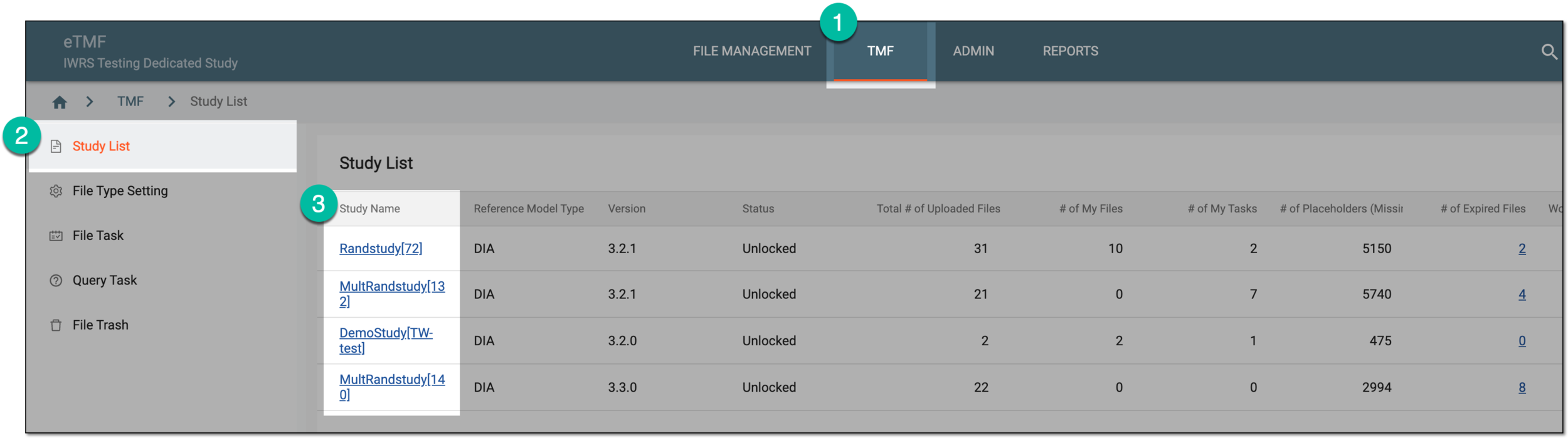 Figure 1. Accessing study
-
On the page that opens, in the left pane, select Essential Documents.
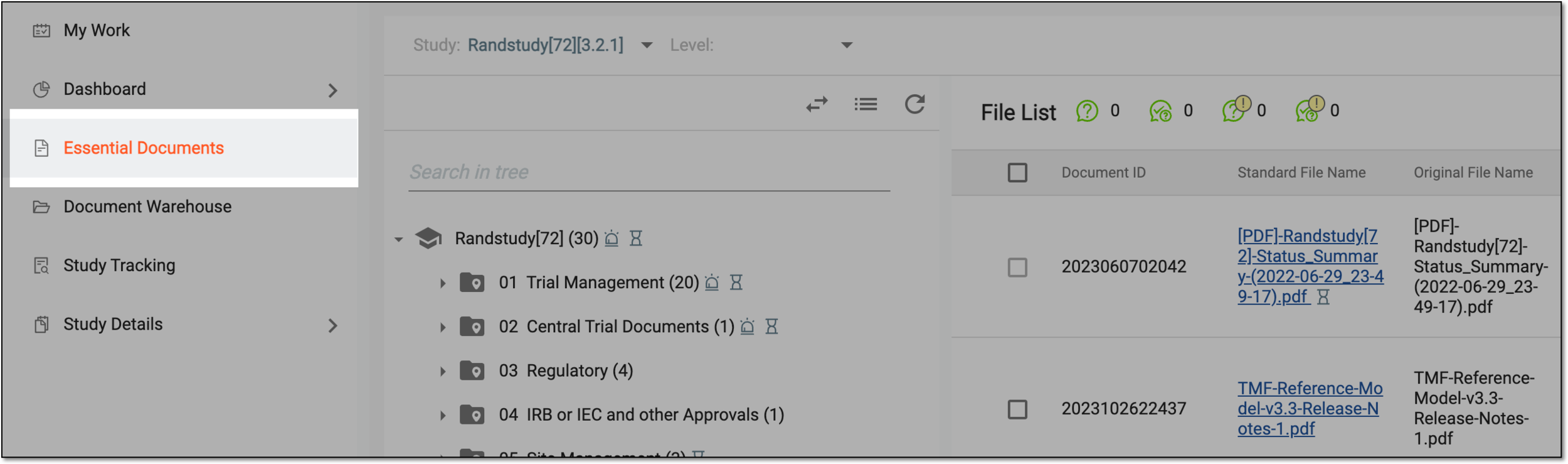 Figure 2. Accessing essential documents
-
On the Essential Documents page, from the explorer tree pane, right-click the directory with the files you want to associate with the file type. Then select Batch Assign a File Type
 .
.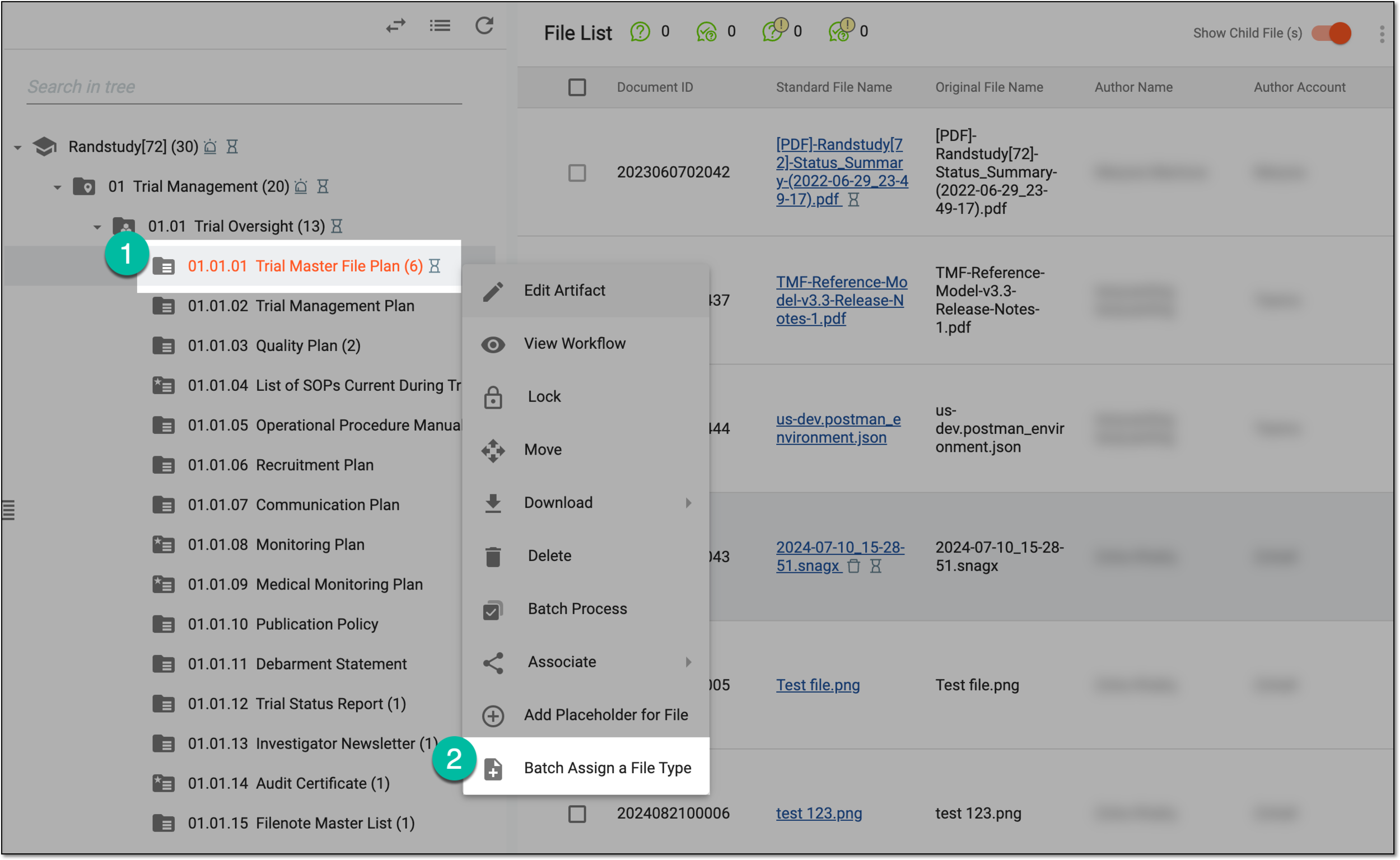 Figure 3. Accessing file type assignation
-
In the Batch Assign a File Type dialog that opens, select the file level for which the custom type must be assigned—study, country, or site. Then from the file type list, select the type to assign to the files.
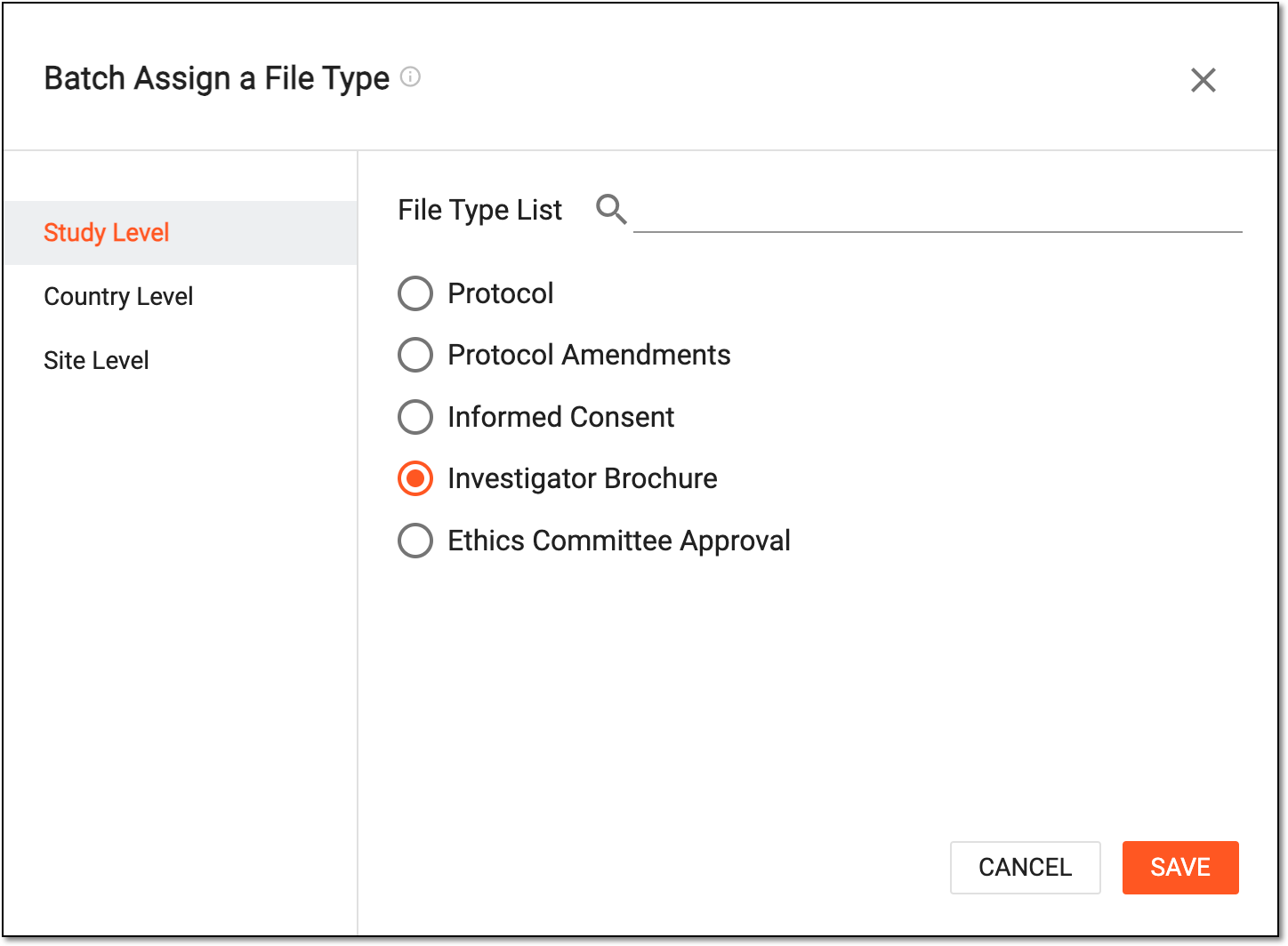 Figure 4. Assigning file type
-
Select
 to implement the changes.
Once saved, the selected file type is assigned to all the documents of the specific level that previously had no file type.
In the eTMF application, from the Essential Documents storage, editing a file means updating different file properties or amending its contents directly from the application. This helps in efficient documentation management and ensures traceability of all the changes for regulatory compliance and study data integrity.
Important
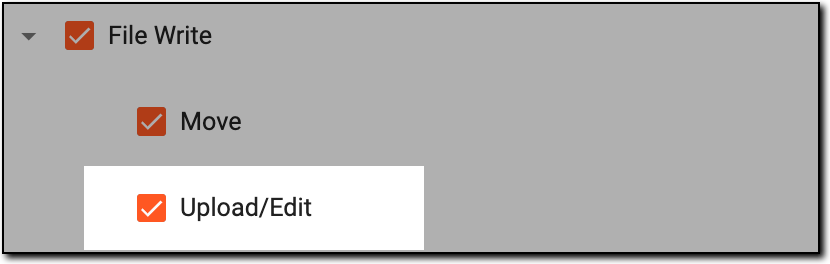
Only the users who have the Upload/Edit permission granted via the ADMIN application are authorized to make changes to files that are marked as Final or Dropped.
 |
-
In the eTMF application header, select the TMF tab.
-
In the Study List table that appears, select the study name to which the file of your interest belongs.
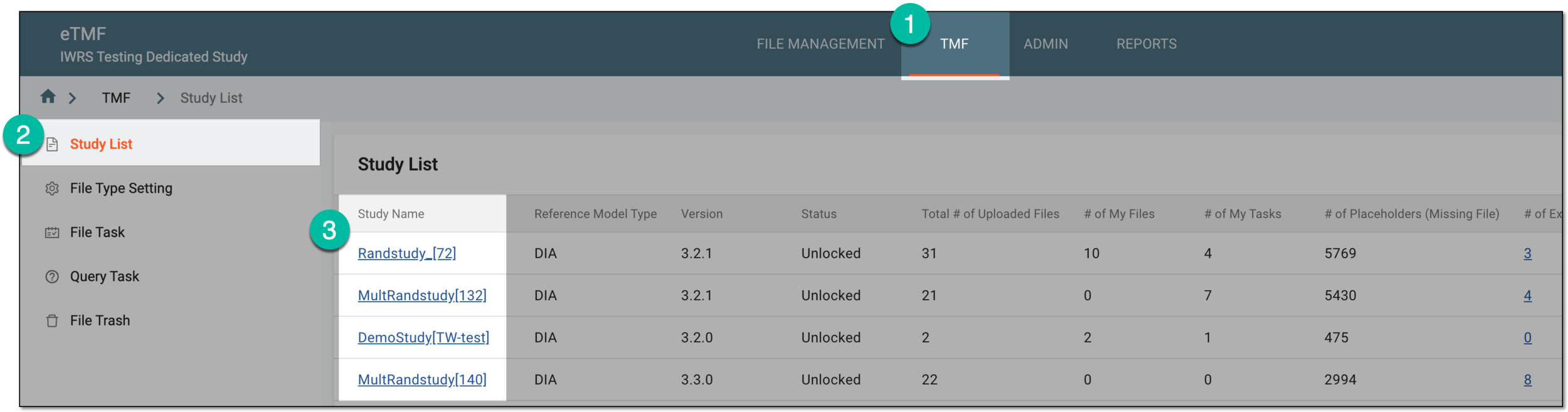 Figure 2. Accessing study under TMF tab
-
On the page that opens, from the left pane, select Essential Documents.
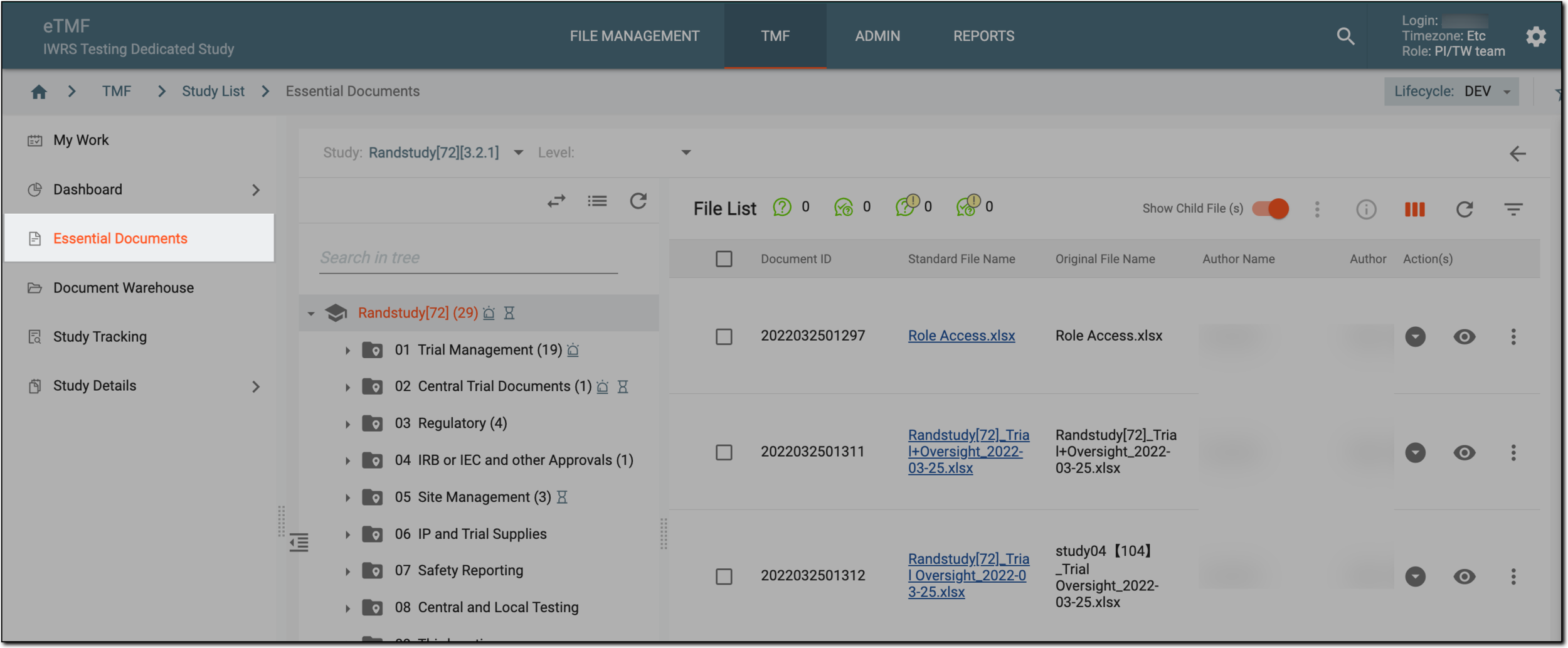 Figure 3. Selecting Essential Documents under TMF
-
In the explorer tree, select the required directory.
-
In the File List table, locate the needed file. Then, in the Action(s) column next to the file, select More
 > Edit
  .
.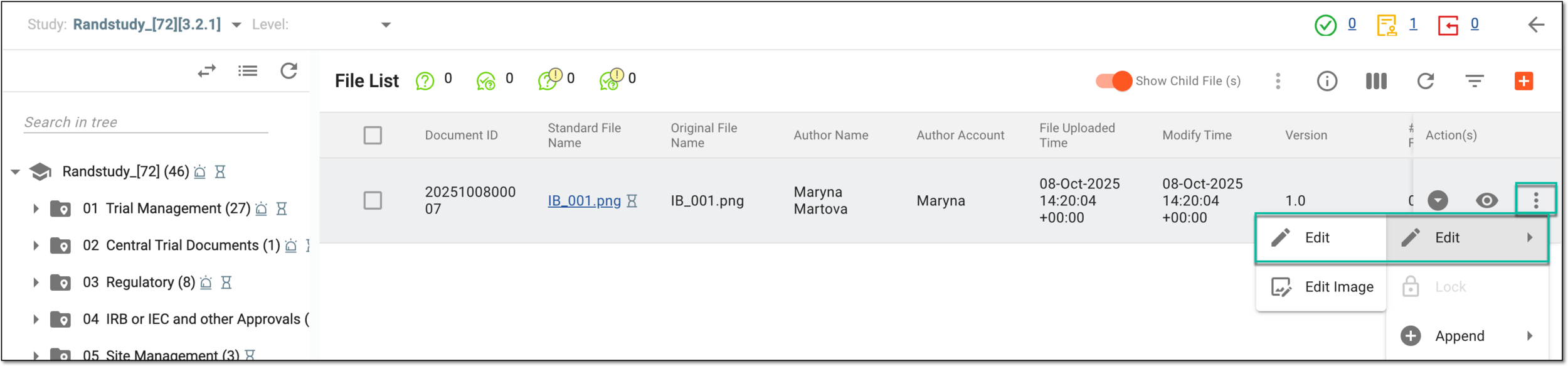 Figure 4. Selecting option to edit file
-
In the Edit dialog that appears, update the file details as explained in the following table.
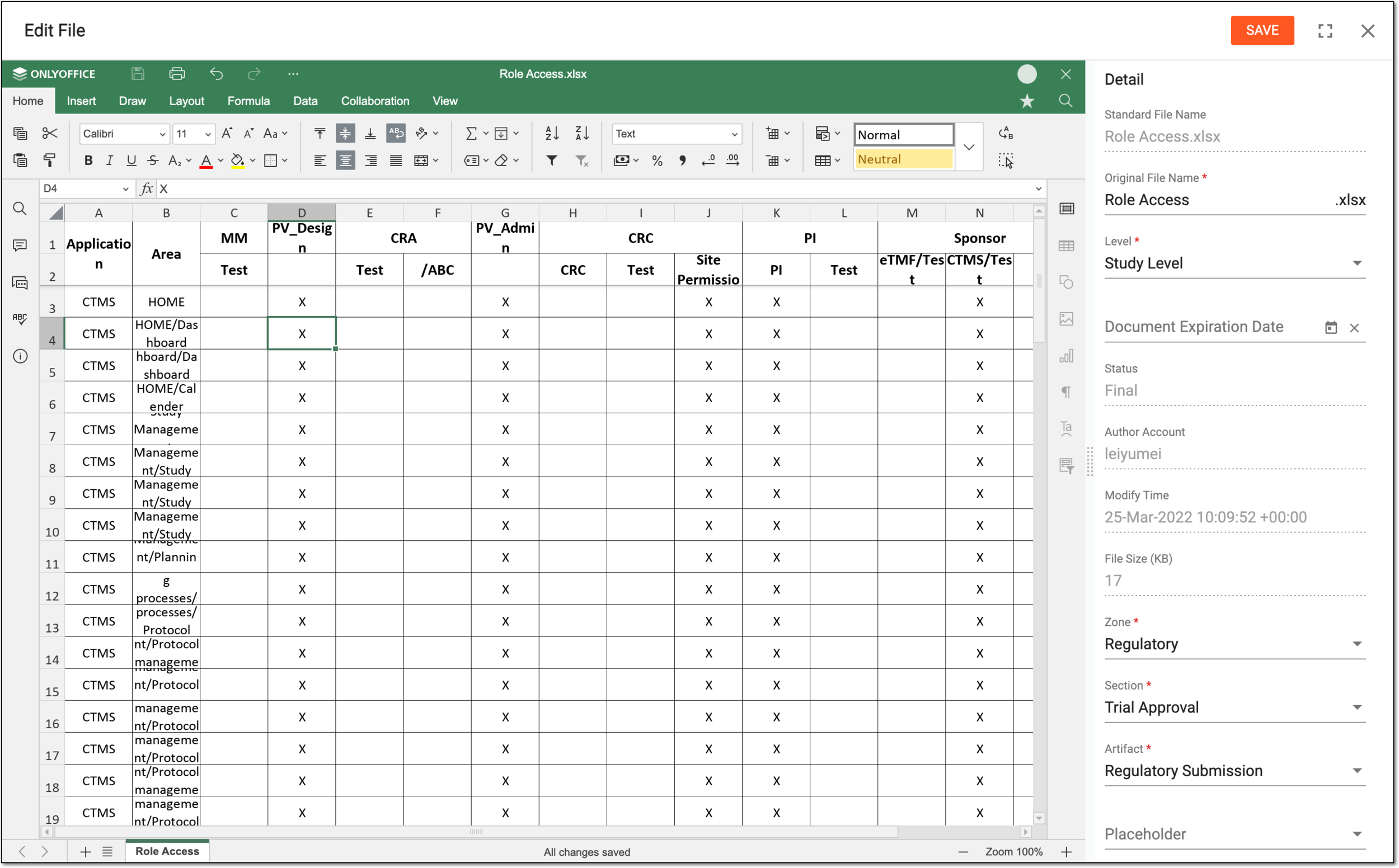 Figure 5. Editing file content and properties
Tip
In the following table, mandatory elements are marked with an asterisk (*).
Element
Details
[File content preview area]
In the file preview area, edit the document contents as needed. You can reenter or correct data in the XLSX sheets, update the text in PDF files, and so on.
The following file formats are available for contents editing: PDF, DOCX, DOTX, DOCM, ODT, TXT, XLSX, XLTX, XLSM, ODS, CSY, PPTX, POTX, PPTM, and ODP.Detail
Standard File Name
This read-only field represents the name of the file generated upon file upload to the system.
Original File Name*
Represents the original name of the file that you can edit.
Level*
Select the stage to which the file belongs, such as Country, Study, or Site.
Country/Region Name*
Select the country or region to which the file belongs.
This field is only available if the file level is Country or
                                        Site.
Site Code*
Select the site to which the file belongs.
This field is only available if file level is Site.Document Expiration Date
Select the file's expiration date that once reached triggers an alert email.
Status
This read-only field represents the current file status, which can be one of the following:
-
Rejected: represents that the intended operation with the file has been rejected in the process of auditing.
-
Auditing: represents that the intended operation with the file is in the process of auditing.
-
Auditing (delete): represents that the file deletion operation is under review.
-
Rejected (delete): represents that the file deletion operation has been rejected by the auditors.
-
Final: represents that the file has received its final approval or signature by the respective auditors.
-
Dropped: represents that the file has not passed the final auditing.
Author
This read-only field represents the name of the file's author.
Modify Date
Represents the uneditable date and time when the file has been last modified.
File Size
Represents the uneditable size of the file.
Zone*
Select the zone to which the file belongs, for instance, Trial Management.
Editing this field changes file location.Section*
Select the section within the selected zone, to which the file belongs, for instance, the sections for Trial Management are Trial Team, Trial Oversight, and so on.
Editing this field changes file location.Artifact*
Select the artifact to which the file belongs based on the selected zone and section, for instance, the artifact of Trial Management in Trial Team is Trial Team Details.
Editing this field changes file location.Placeholder
Select the placeholder with which you want to associate the file.
File Type
Select the category to which the file belongs. In eTMF, you can create various custom categories, facilitating file grouping and diversification of the file.
Original Document Needed
Turn the toggle on or off if the original document based on which the file is created must be collected or not.
For instance, if the scan of a certain specialist's certificate is uploaded to the system, you can specify if the original copy of this document must be collected.
Original Document Received
Turn the toggle on or off if the original document, based on which the file is created, has already been collected or not.
For instance, if the scan of a certain specialist's certificate is uploaded to the system, you can specify if the original copy of this document has already been obtained.
Comment
Enter a comment to provide any auxiliary information about the file or your actions with it.
Full Screen
Select
 to expand the file editing form to the entire size of your screen.
Exit Full Screen
Select
 to exit the full-screen mode and go back to the Edit dialog view.
SAVE
Select
 to implement the changes to both file contents and
properties and close the dialog.
to implement the changes to both file contents and
properties and close the dialog.Close
Select
 to close the dialog without saving the changes to the file properties. However, if the
file contents have been changed, the changes are automatically preserved when closing the dialog. In such a case, you receive the confirmation prompt, where you can do the following:
to close the dialog without saving the changes to the file properties. However, if the
file contents have been changed, the changes are automatically preserved when closing the dialog. In such a case, you receive the confirmation prompt, where you can do the following:-
Select
 if you are sure of the applied changes and agree to preserve them.
 -
Select
 to return to the file editor and ensure that the file contents are proper, or make the needed changes.
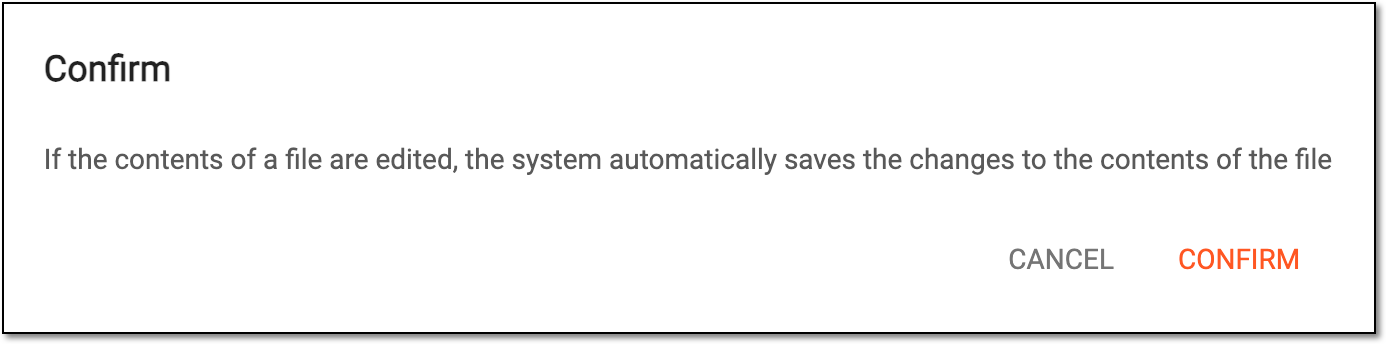 Figure 6. Confirming or cancelling editing mode closure
Important
More fields can be available than suggested in the table if the artifact to which you upload files has them preconfigured according to the applied DIA RM.
For instance, the Tracking Documents artifact can have an optional field Version Date for file configuration, or the Database Change Control artifact can have the Change Control Date field, and so on.
-
Once saved, the file properties and contents are updated.
In the eTMF application, from the Essential Documents storage, you can edit image files in PNG, JPEG, and JPG formats directly without the need to download them for adjustments. For instance, you can rotate or flip the improperly oriented image.
-
In the eTMF application header, select the TMF tab.
-
In the Study List table that appears, select the study name to which the file of your interest belongs.
Figure 1. Accessing study under TMF tab
-
On the page that opens, from the left pane, select Essential Documents.
Figure 2. Selecting Essential Documents under TMF
-
In the explorer tree, select the required directory.
-
In the File List table, locate the needed image file. Then, in the Action(s) column next to the file, select More
> Edit >
Edit Image  .
.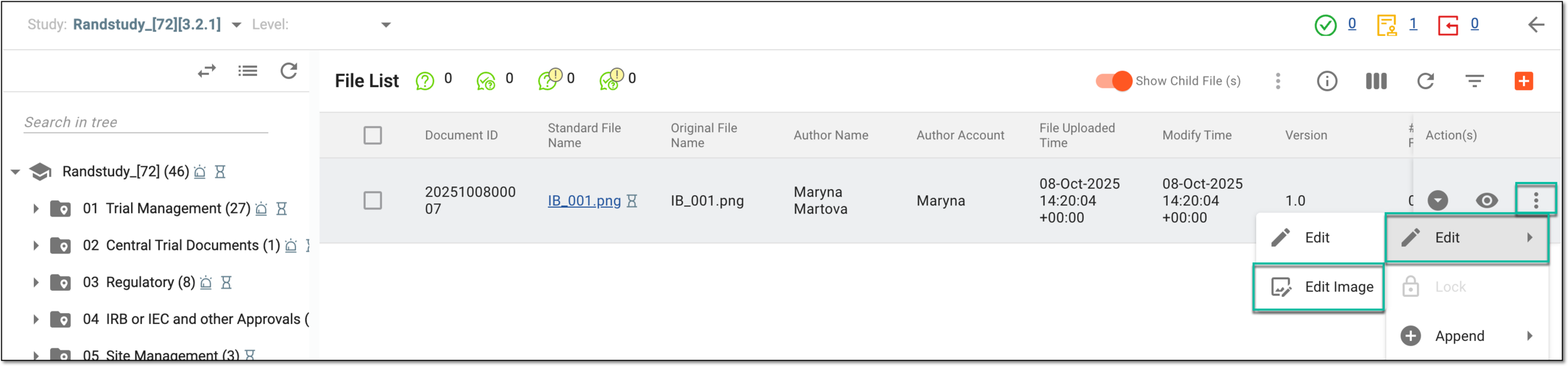 Figure 3. Selecting option to edit image in essential documents
-
On the Edit Image page that opens, update the image using the tools explained in the following table.
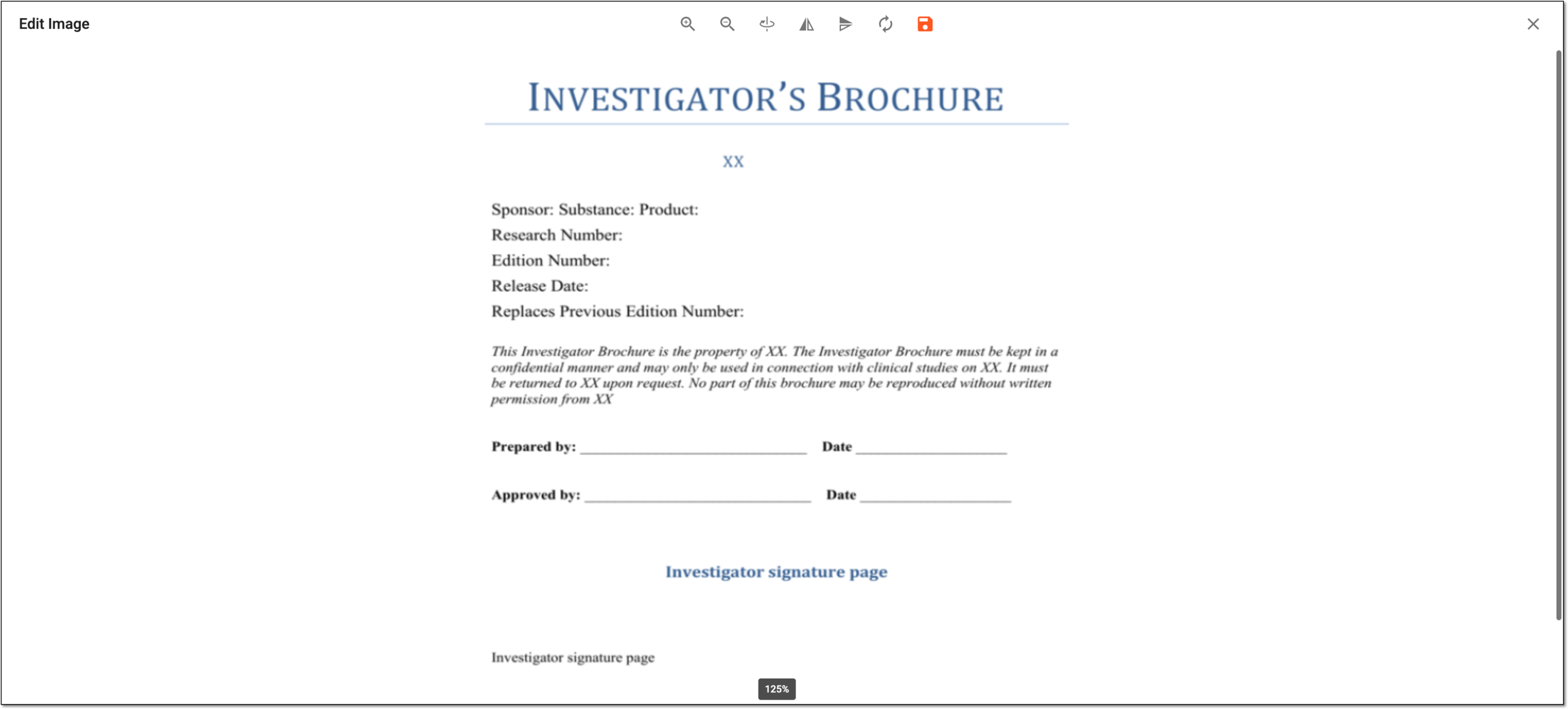 Figure 4. Editing image in essential documents
Element
Details
Zoom In
Select
 to enlarge the image.
Zoom Out
Select
 to reduce the image.
Rotate
Select
 to rotate the image 90° at a time.
Horizontal Flip
Select
 to flip the image horizontally.
Vertical Flip
Select
 to flip the image vertically.
Reset
Select
 to discard all the unsaved changes and start over.
Save
Select
 to implement the changes.
Select this icon to close the editing mode without saving the changes and return to the document warehouse storage.
Once saved, the image file in the essential documents is edited.
When working with files in eTMF, you may want to restrict access of other users from introducing changes to some of the files. In such a case, you can lock the needed files. The Lock feature also provides a mechanism to restrict unauthorized and undesirable edits, thus enhancing the reliability of stored documents and streamlining version control.
Tip
In eTMF, you can lock files in the FILE MANAGEMENT tab and from the Essential Documents directory.
-
In the eTMF application header, select the TMF tab.
-
On the page that opens, in the left pane, select the Study List subtab.
-
In the Study List table, select the study for which you want to access the relevant files and documents.
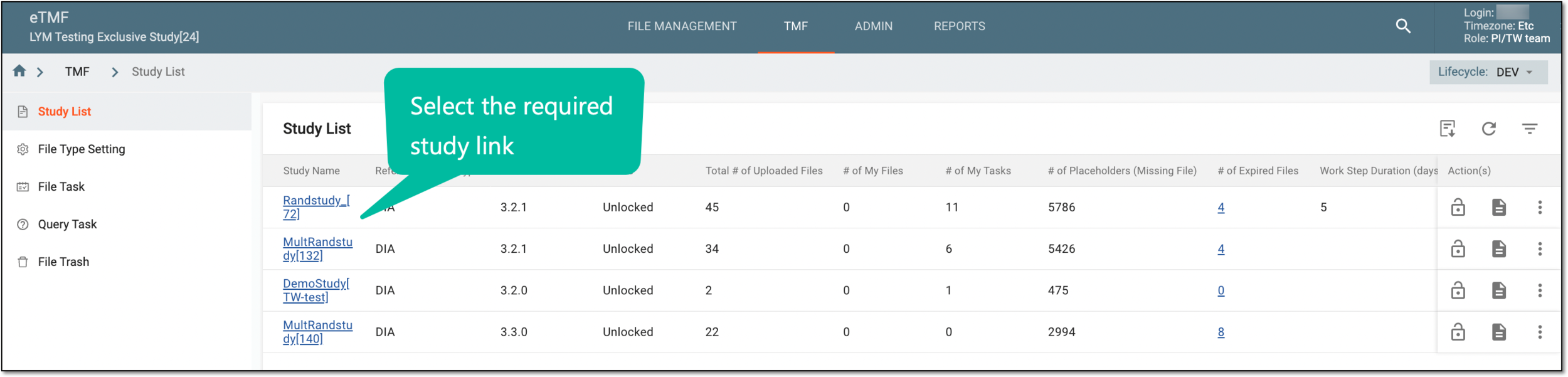 Figure 1. Selecting study
-
On the page that opens, in the left pane, select the Essential Documents subtab.
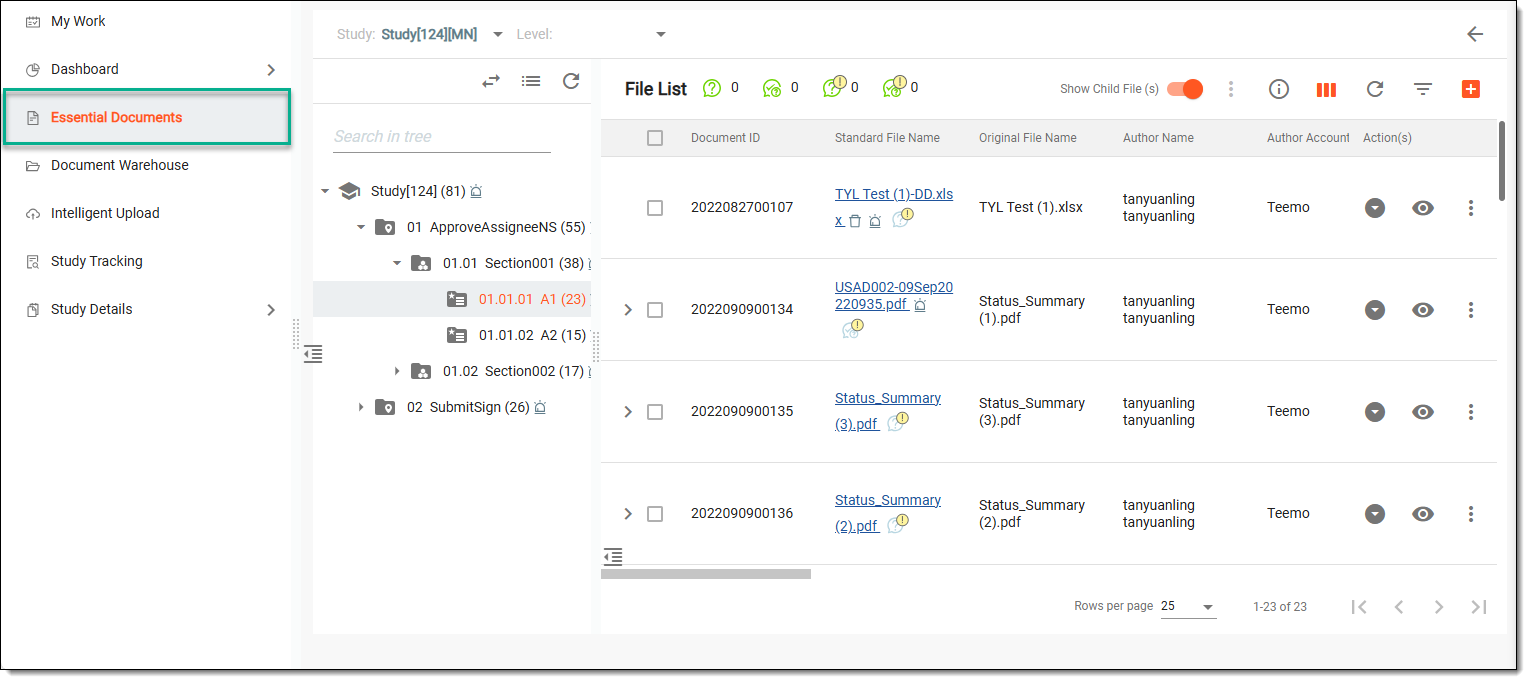 Figure 2. Accessing essential documents
-
In the File List table, in the Actions column next to the file, select More
 > Lock
  .
.Important
The Lock option is unavailable for system files to prevent any manipulations with them that can lead to data loss.
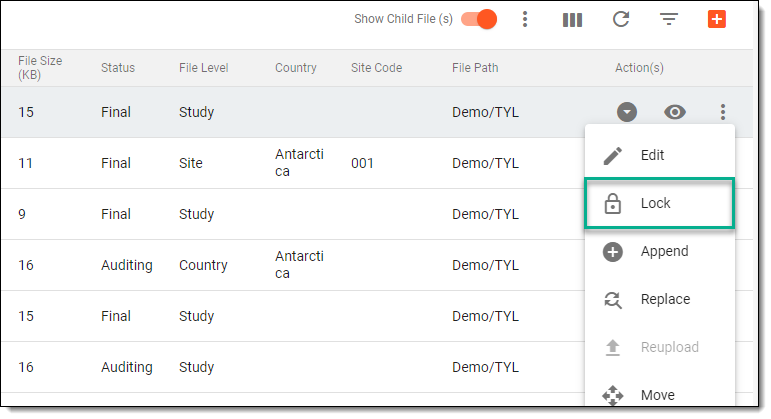 Figure 3. Selecting option to lock file
-
In the Reason dialog that opens, enter the reason for locking the file.
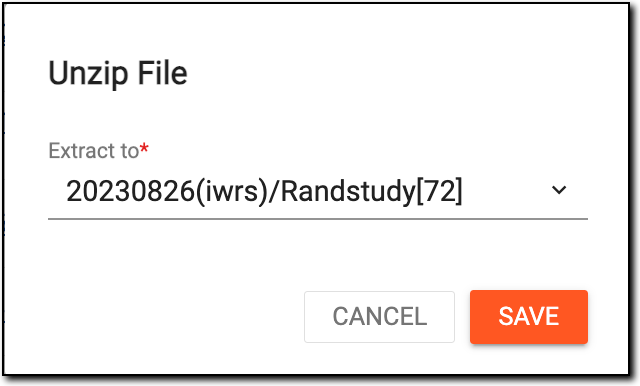 Figure 4. Entering reason for locking file
Upon saving, the file is locked in the eTMF system. The corresponding locked icon  appears next to the file name.
When working with files in eTMF, you may want to provide access to files that you have previously locked. In such a case, you can unlock the needed files. The Unlock feature allows authorized users to remove the restrictions placed on a file, thereby enabling subsequent edits or updates. This functionality is essential for making approved modifications to documents, thus facilitating collaboration between different teams.
Tip
In eTMF, you can unlock files in the FILE MANAGEMENT tab and in the Essential Documents directory.
-
In the eTMF application header, select the TMF tab.
-
On the page that opens, in the left pane, select the Study List subtab.
-
In the Study List table, select the study for which you want to access the relevant files and documents.
Figure 1. Selecting study
-
On the page that opens, in the left pane, select the Essential Documents subtab.
Figure 2. Accessing essential documents
-
In the File List table, in the Actions column next to the file, select More
> Unlock  .
.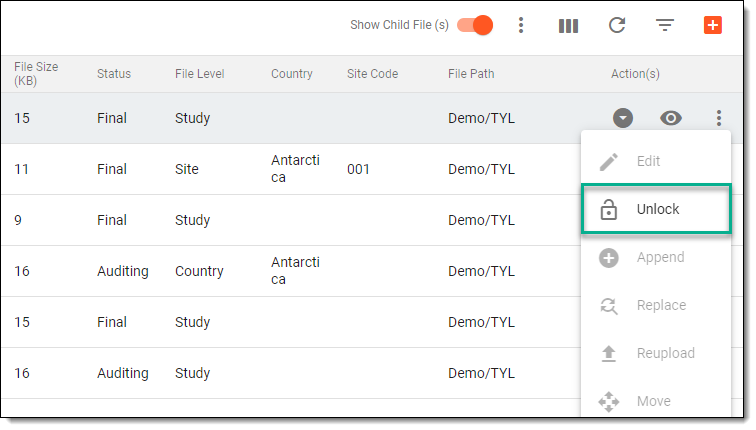 Figure 3. Selecting option to unlock file
-
In the Reason dialog that opens, enter the reason for unlocking the file.
Figure 4. Entering reason for unlocking file
Upon saving, the file is unlocked in the eTMF system. The corresponding locked icon disappears next to the file name.
Placeholders represent expected documents for the study even before these documents are prepared. Placeholders serve as digital reminders for the organization, ensuring that all necessary documents will be added throughout the study development lifecycle.
Associating placeholders with study artifacts is crucial for maintaining the organization and accessibility of trial documents. This practice allows for efficient management of essential records by categorizing them in a structured manner, facilitating quick retrieval for auditing, monitoring, and regulatory review. Additionally, it aids in ensuring compliance with Good Clinical Practice (GCP) guidelines and regulatory requirements by systematically organizing documents according to predefined standards and protocols.
-
In the eTMF application header, select the TMF tab.
-
In the left pane of the page that opens, select Study List, and then select the needed study.
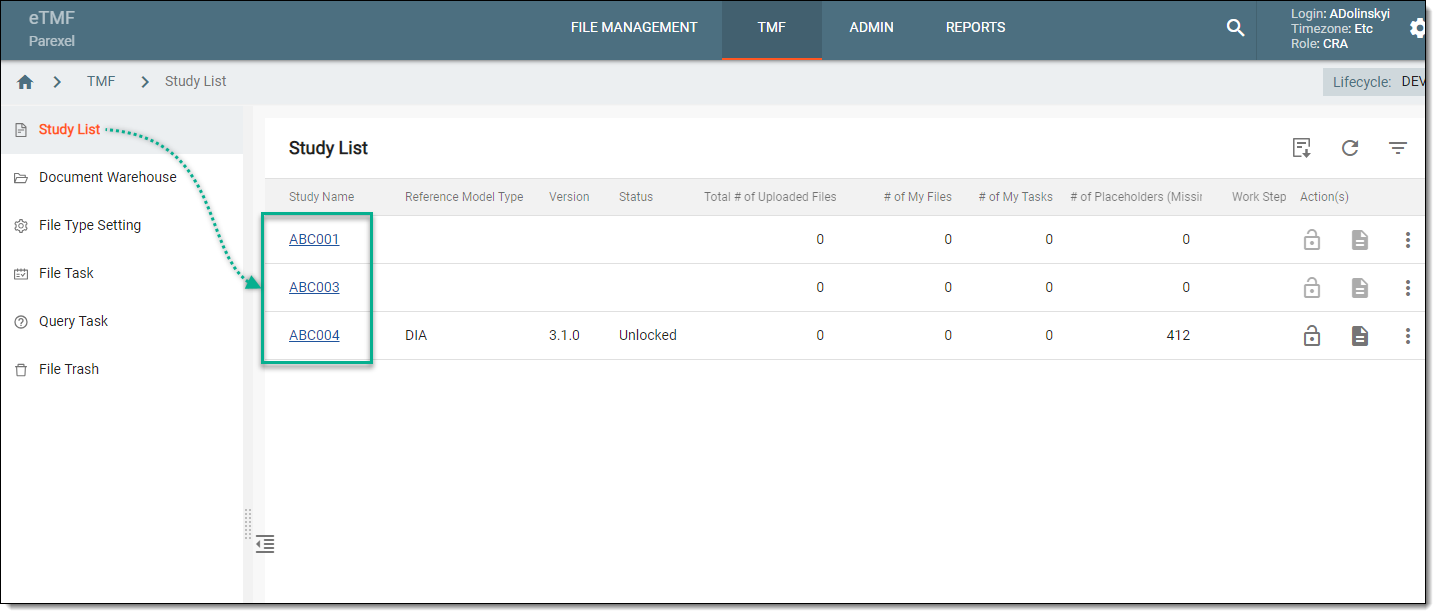 Figure 1. Selecting study
-
In the left pane of the page that opens, select Essential Documents.
-
In the hierarchy tree that appears in the contents panel, locate the needed artifact. Then right-click this artifact and select Associate
 > Set Up New Placeholders
  .
.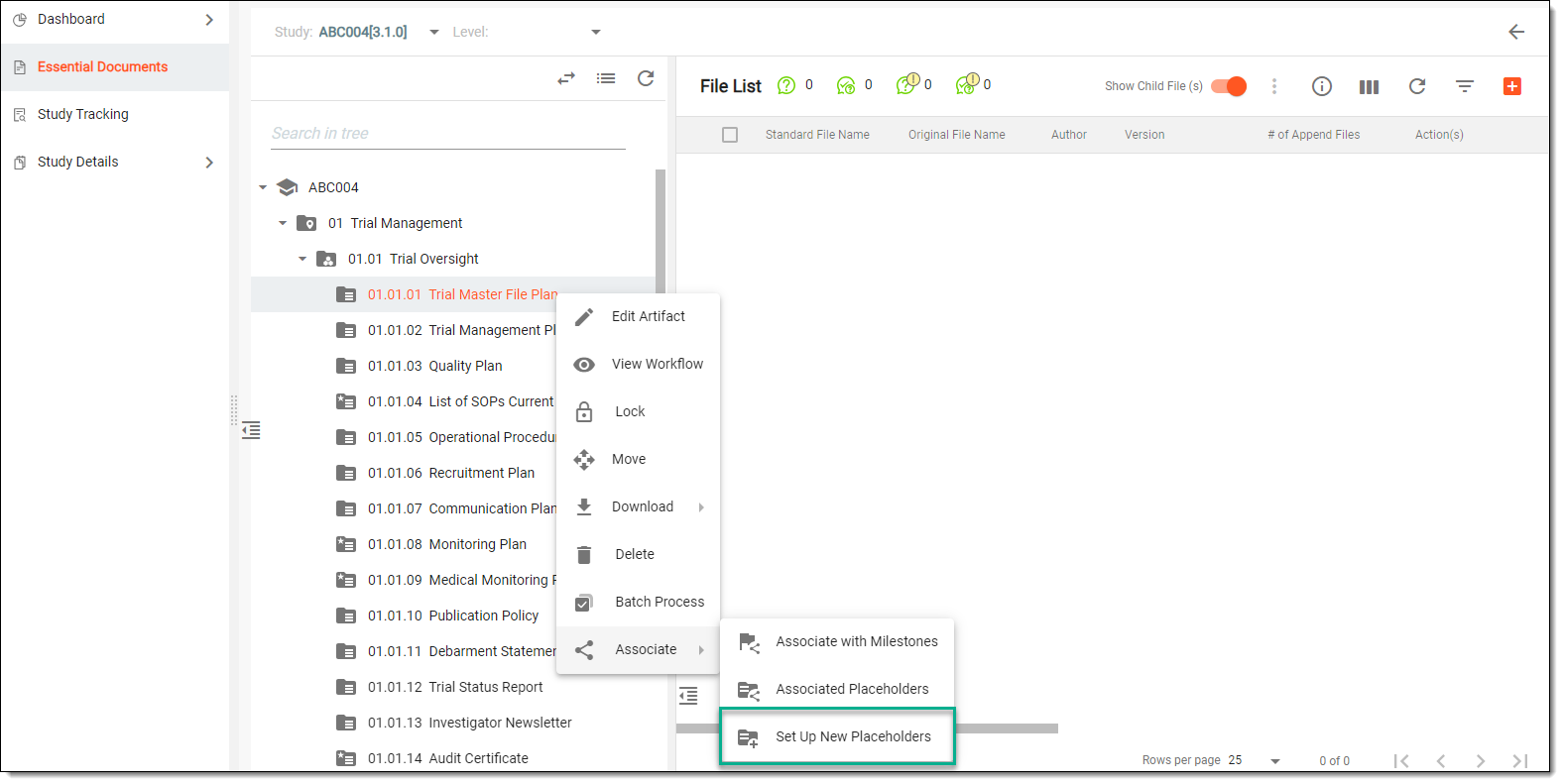 Figure 2. Selecting to set up artifact placeholders
-
In the dialog that opens, at the Set Up New Placeholders stage, set up new artifact placeholders as follows.
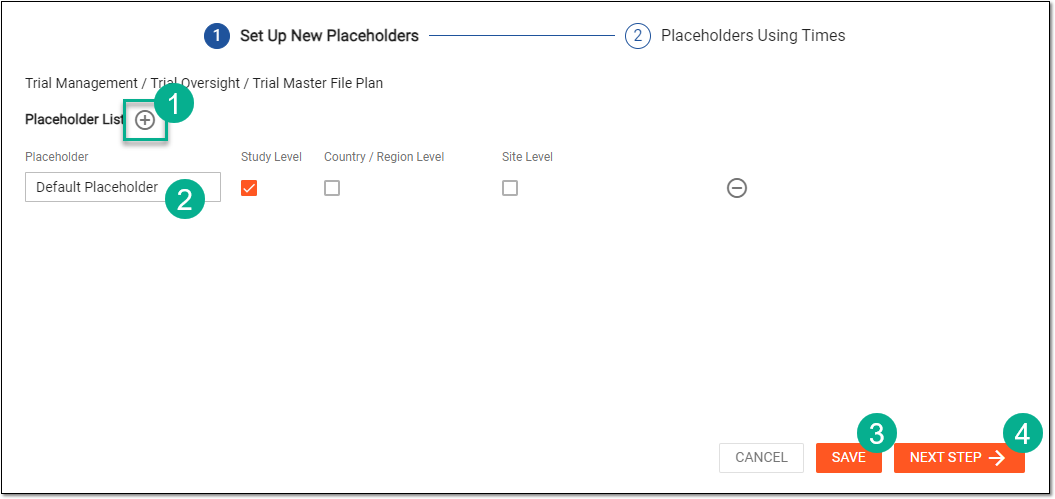 Figure 3. Setting up artifact placeholders
-
Select Add
 to create as many new placeholders as needed.
 -
In the Placeholder column, enter names for the newly added placeholders and select the levels of operation.
-
Select
to apply the configuration. -
Then select
 to configure how many times each of the created placeholders can be used.
-
-
At the Placeholders Using Times stage, configure how many times each of the placeholders can be used
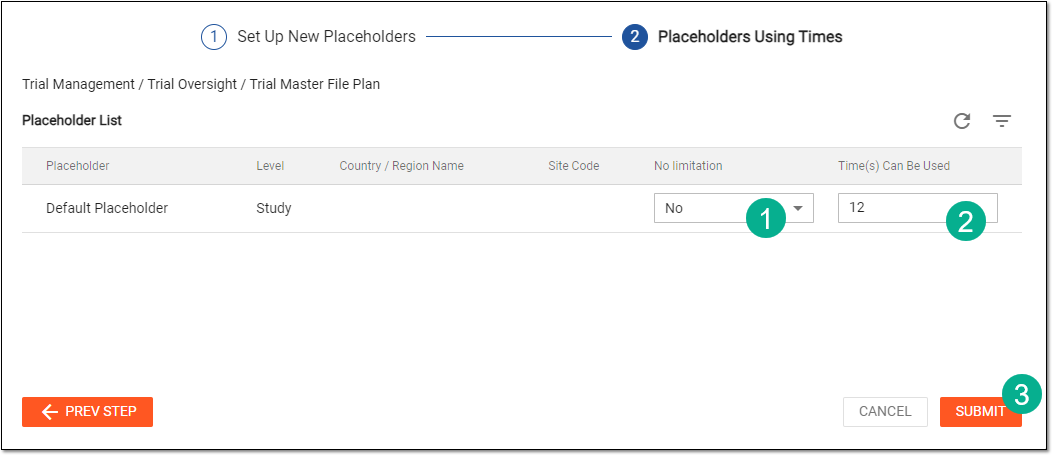 Figure 4. Configuring placeholder usage
-
In the No limitation column, select Yes or No for each placeholder depending on whether you want to set up usage limits.
-
In the Time(s) Can Be Used column, enter the number of times each placeholder can be used.
Important
You can set the usage limit for placeholders that have limitation restrictions defined in the No limitation column previously.
-
Select
 to complete the placeholder setup for an artifact.
-
Once submitted, new placeholders for an artifact are set up.
Associating placeholders with study artifacts is crucial for maintaining the organization and accessibility of trial documents. This practice allows for efficient management of essential records by categorizing them in a structured manner, facilitating quick retrieval for auditing, monitoring, and regulatory review. Additionally, it aids in ensuring compliance with Good Clinical Practice (GCP) guidelines and regulatory requirements by systematically organizing documents according to predefined standards and protocols.
After setting up new placeholders for specific artifacts, the placeholder configuration can be updated. This enables eTMF to dynamically adapt to the evolving needs of the study. By tailoring the configuration to match specific artifact requirements, it ensures that the system remains aligned with trial protocols and regulatory expectations.
-
In the eTMF application header, select the TMF tab.
-
In the left pane of the page that opens, select Study List, and then select the needed study.
Figure 1. Selecting study
-
In the left pane of the page that opens, select Essential Documents.
-
In the hierarchy tree that appears in the contents panel, locate the needed artifact. Then right-click this artifact and select Associate
> Associated Placeholders  .
.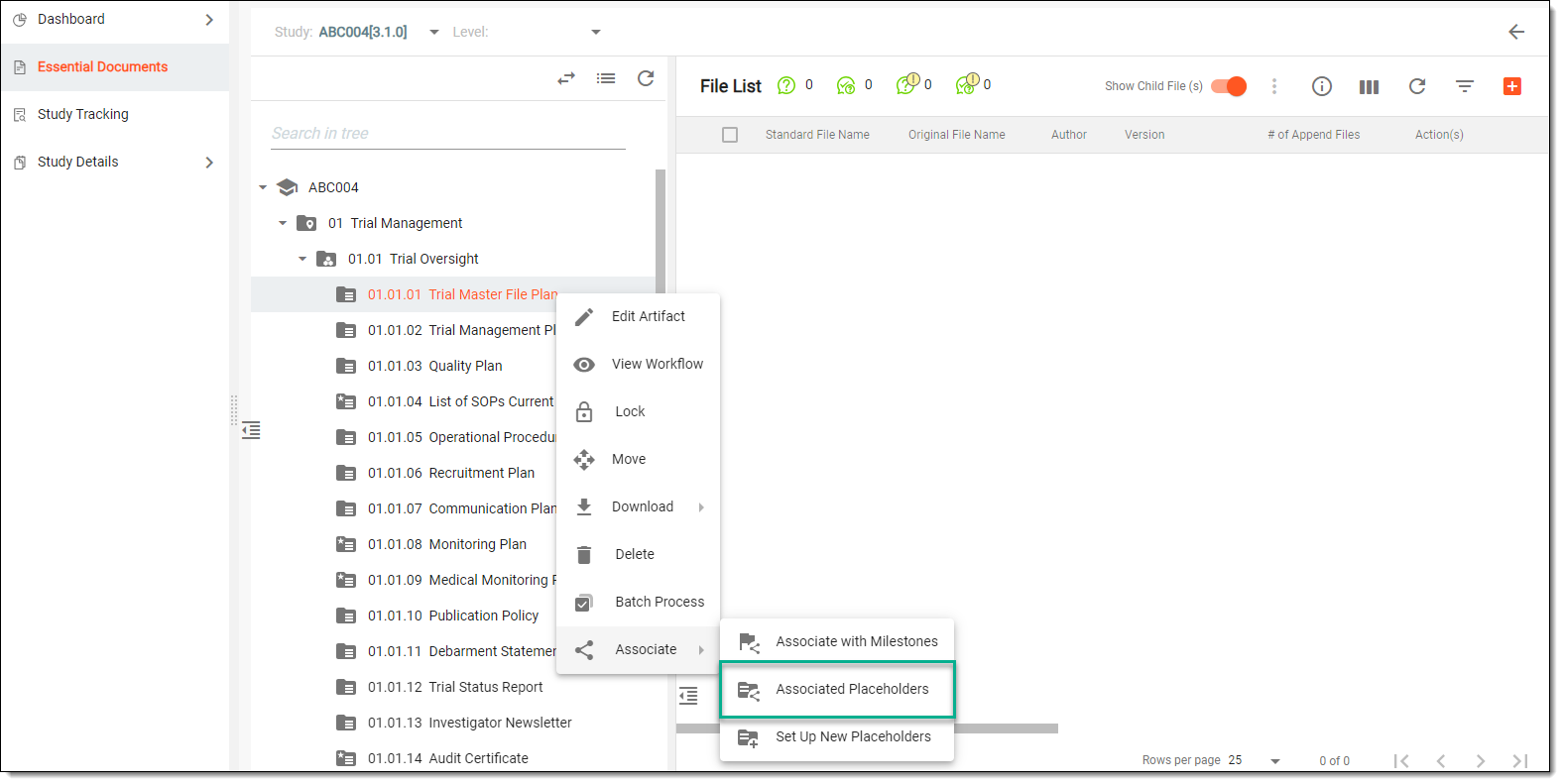 Figure 2. Selecting to update artifact placeholders
-
In the dialog that opens, at the Associated Placeholders stage, update placeholder names and the levels of their operation. Make sure to select Update
 next to modified placeholders and provide the reason after introducing changes, if any. Then select .
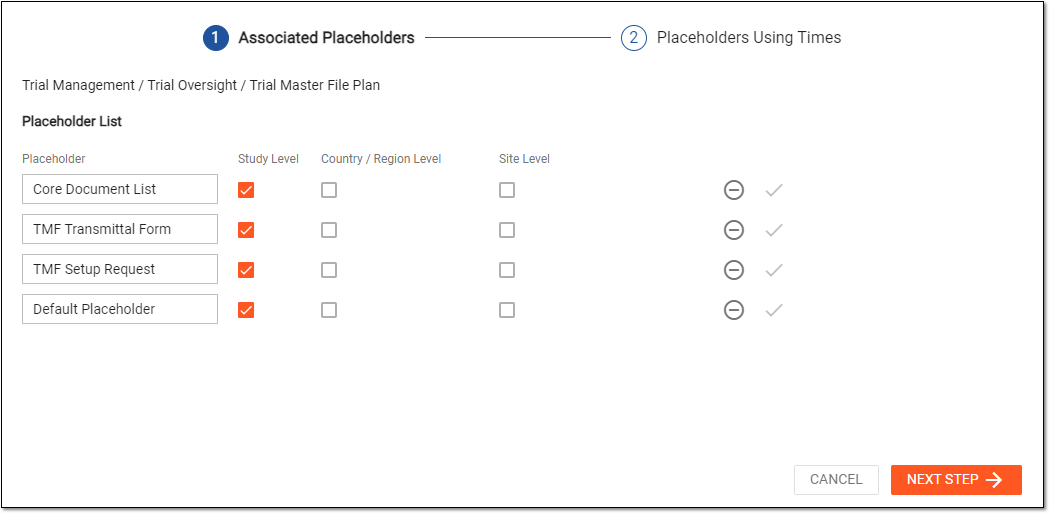 Figure 3. Updating artifact placeholders
-
At the Placeholders Using Times stage, update using times of artifact placeholders as follows.
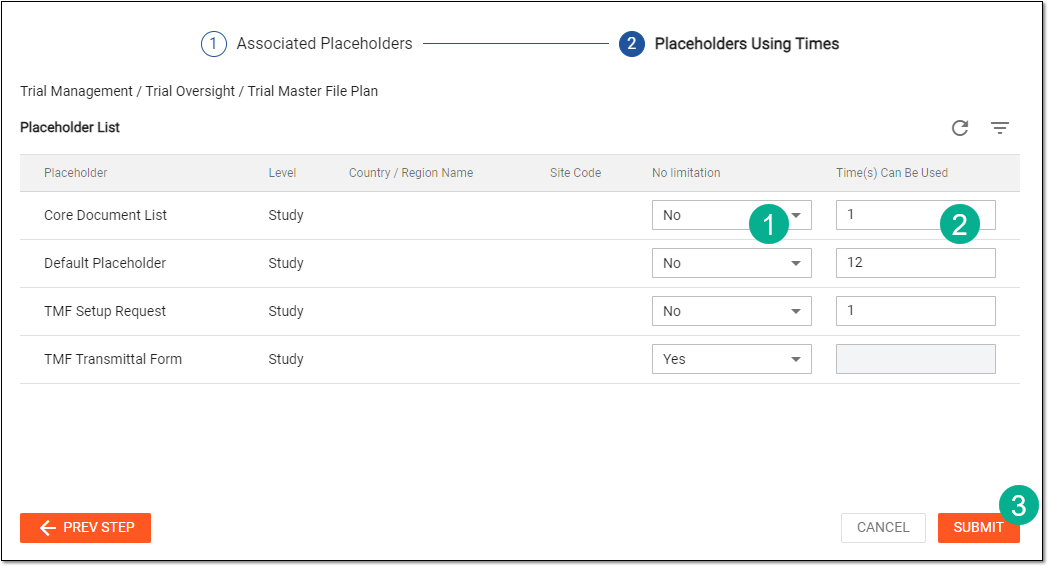 Figure 4. Updating using times of placeholders
-
In the No limitation column, select Yes or No for each placeholder depending on whether you want to set up usage limits.
-
In the Time(s) Can Be Used column, enter the number of times each placeholder can be used.
Important
You can set the usage limit for placeholders that have limitation restrictions defined in the No limitation column previously.
-
Select
to update artifact placeholders.
-
Once submitted, the placeholders associated with an artifact are updated.
The eTMF application is a storage repository and management center for clinical trial files.
The files that must be well-managed during clinical trials are crucial for data integrity. One of the management aspects for such files is understanding the stage of the file readiness, or in other words, its lifecycle.
-
In the eTMF application header, select the TMF tab.
-
On the page that opens, in the left pane, select the Study List subtab.
-
In the Study List table, select the study for which you want to access the relevant files and documents.
Figure 1. Selecting study
-
On the page that opens, in the left pane, select the Essential Documents subtab.
Figure 2. Accessing essential documents
-
In the contents panel, find the file whose lifecycle you need to view—you can use filters to do this more quickly. Next to the file, select Lifecycle
 .
.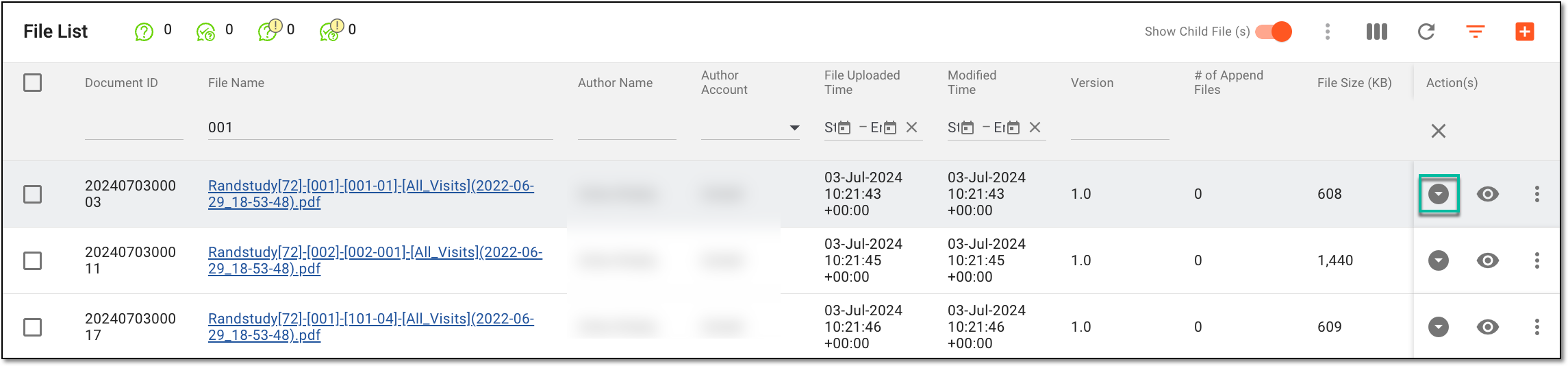 Figure 3. Selecting lifecycle option
-
In the Lifecycle contents pane that opens below the table, analyze the details about the file against the properties discussed in the following table.
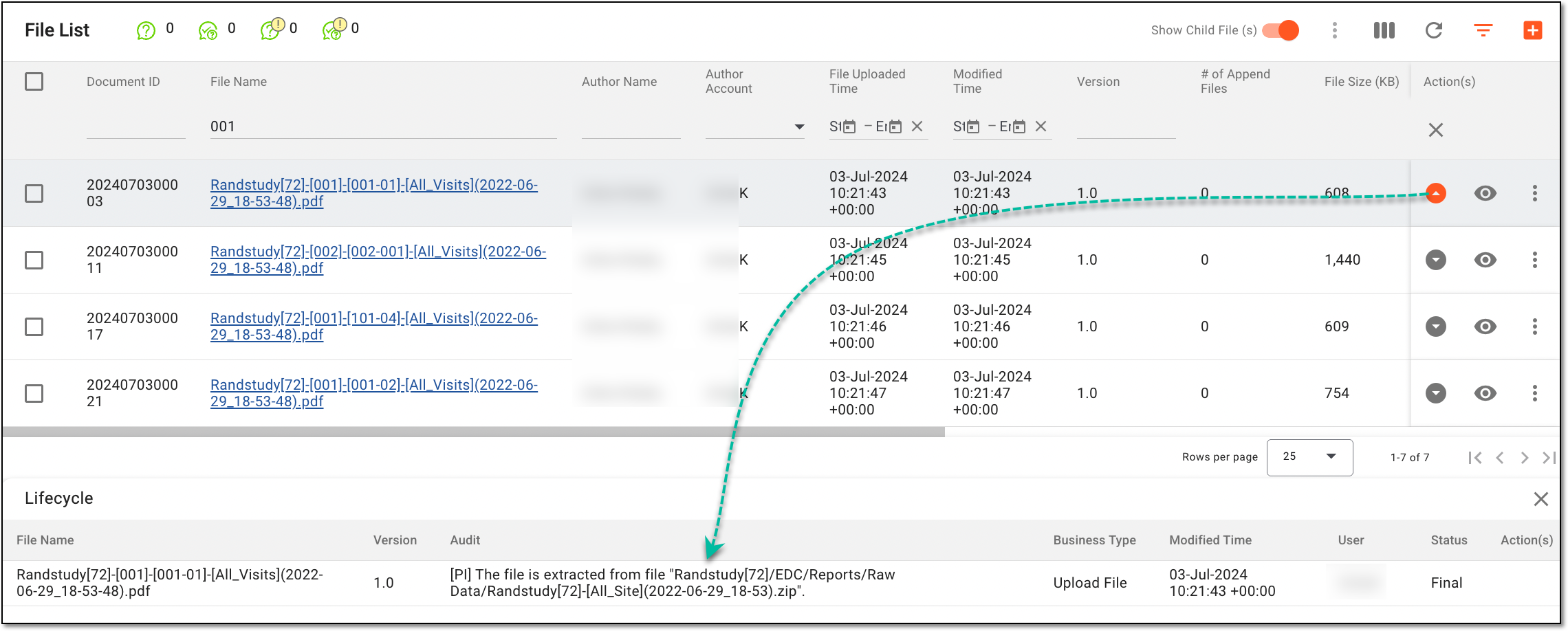 Figure 4. File lifecycle details
Column
Details
File name
The title of the file.
Version
An iteration of the file that was created at a specific point in time and contains a particular set of content and changes.
Audit
The information on how and when the file was obtained, what procedures were performed with this file, and by whom.
Business Type
The action type performed on the file, for example, Upload File means that the file was uploaded, Edit File—edited, and so on.
Modified Time
A timestamp (a date, time, and timezone) of the action performed, DD-MMM-YYYY 00:00:00 +00:00.
User
A login of the user who uploaded or modified the file.
Status
The information about the success or failure of the performed action.
After you have analyzed the file details, select  .
.
In eTMF, you can examine the file without downloading it with the Preview functionality. This functionality is also available for files in the ZIP format, for which you can first expand a list of files within, and then access each file's contents as long as it is in a format available for preview.
Important
The in-browser preview is available for the most common file formats. However, if a file preview is not supported, download the file to access its contents.
-
In the eTMF application header, select the TMF tab.
-
On the page that opens, in the left pane, select the Study List subtab.
-
In the Study List table, select the study for which you want to access the relevant files and documents.
Figure 1. Selecting study
-
On the page that opens, in the left pane, select the Essential Documents subtab.
Figure 2. Accessing essential documents
-
In the File List table that appears, next to the needed file, select File Preview
 .
.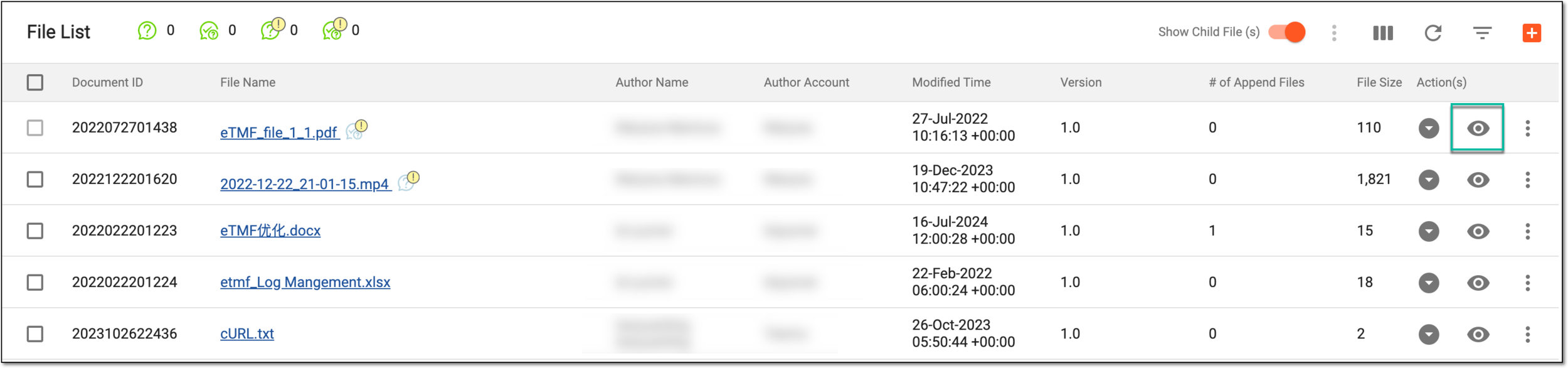 Figure 3. Accessing option to preview file
Tip
For the files in the ZIP format, in the contents panel that opens, review the complete list of archived files. Next to the needed file, select File Preview
.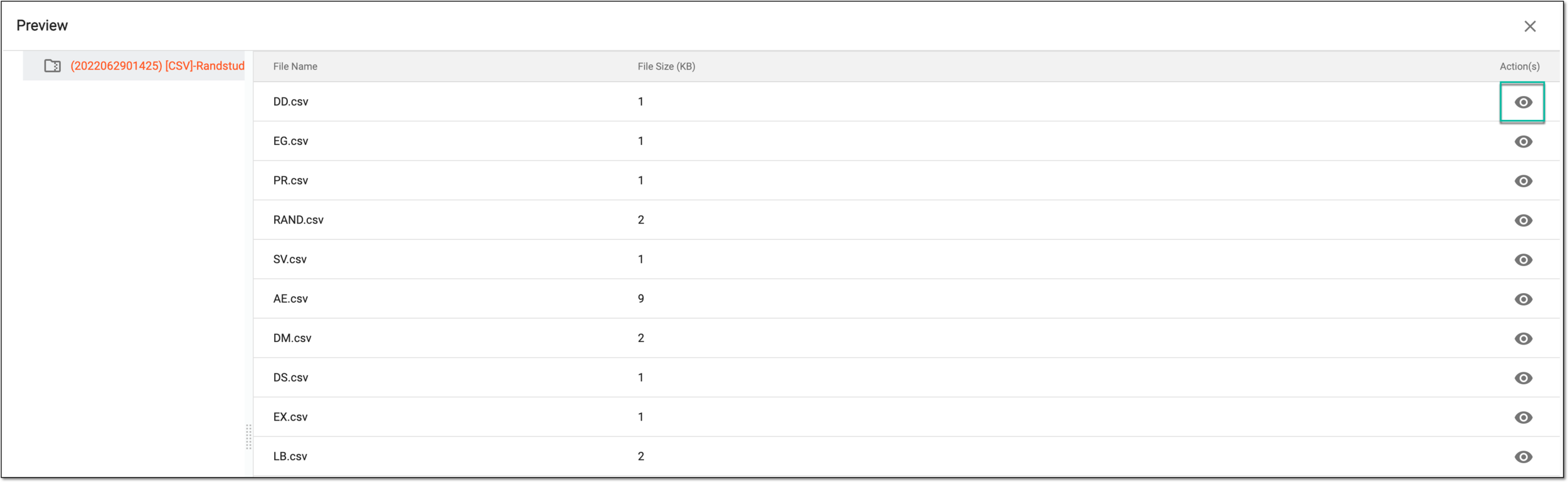 Figure 4. Previewing ZIP files
-
In the new browser tab that opens, examine the file content and find some common actions like zooming, rotation, printing, and so on.
Tip
When previewing files assigned to you for audit, you can also comment on their contents to share some notes with other study personnel or preserve them for future reference.
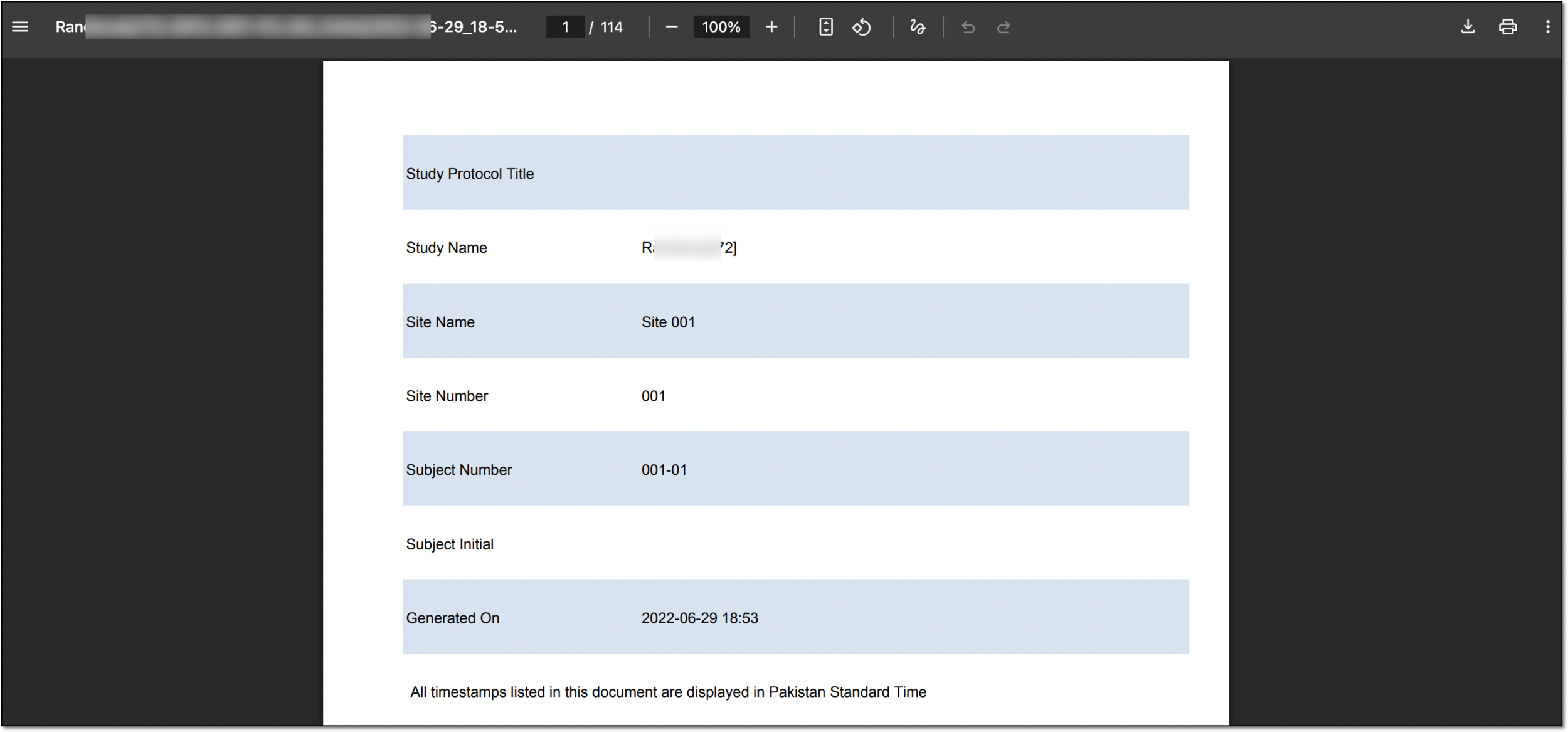 Figure 5. Previewing file in new browser tab
After examining the file contents, you can repeat this procedure to check all the necessary files.
In eTMF, you can move files between different directories to more efficiently arrange your eTMF files. However, there are certain limitations in the Move functionality:
-
You cannot move files between different studies, only between the directories within the same study.
-
You cannot move the files that are stored in or targeted to the locked directory. You must unlock the directory first.
-
You cannot move files that are DIA RM artifacts. Any modifications added to the DIA RM artifact may compromise the reliability of the TMF documentation and violate the regulatory requirements.
-
You cannot move files in the Auditing status.
-
You cannot move the system files.
-
In the eTMF application header, select the TMF tab.
-
On the page that opens, in the left pane, select the Study List subtab.
-
In the Study List table, select the study for which you want to access the relevant files and documents.
Figure 1. Selecting study
-
On the page that opens, in the left pane, select the Essential Documents subtab.
Figure 2. Accessing essential documents
-
Now, locate the subfolder and file that you need to move, and in the Actions column next to the file, select More
> Move  .
.Tip
You can also use the multiselect option to move multiple files at once.
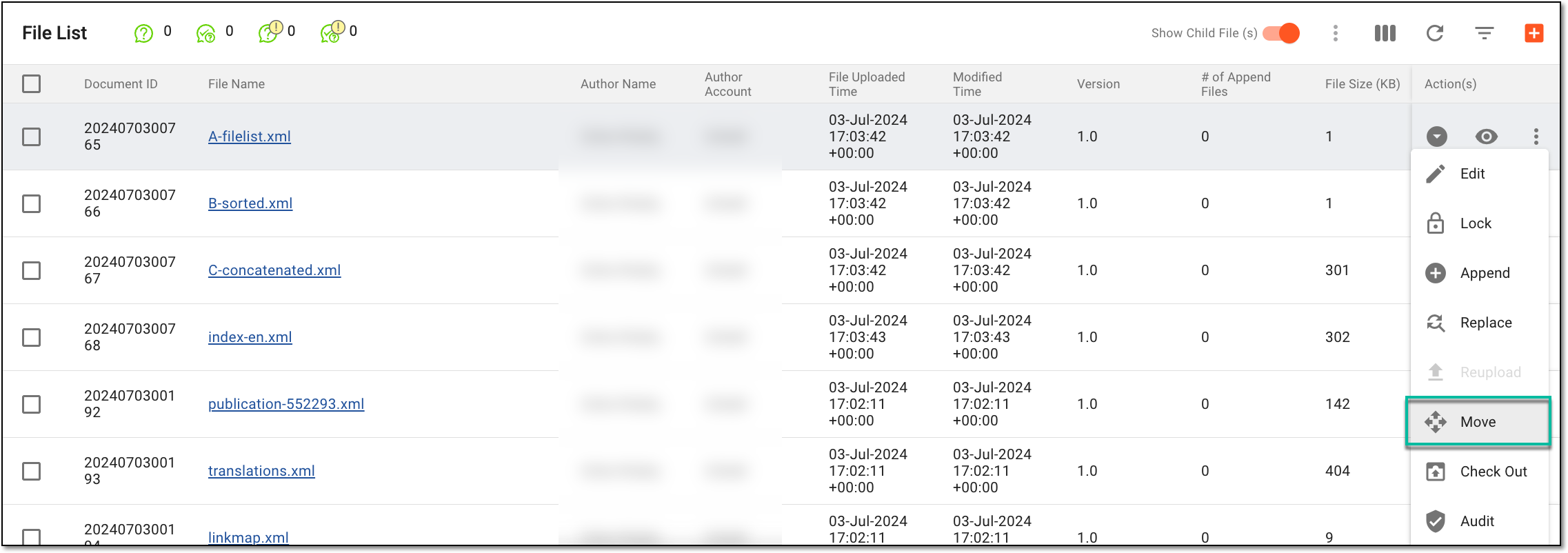 Figure 3. Accessing option to move file
-
In the Move File(s) dialog that appears, in the left column, the file you need to move is preselected—ensure that it is the needed one. In the right column, expand the study and select a new target folder for the file.
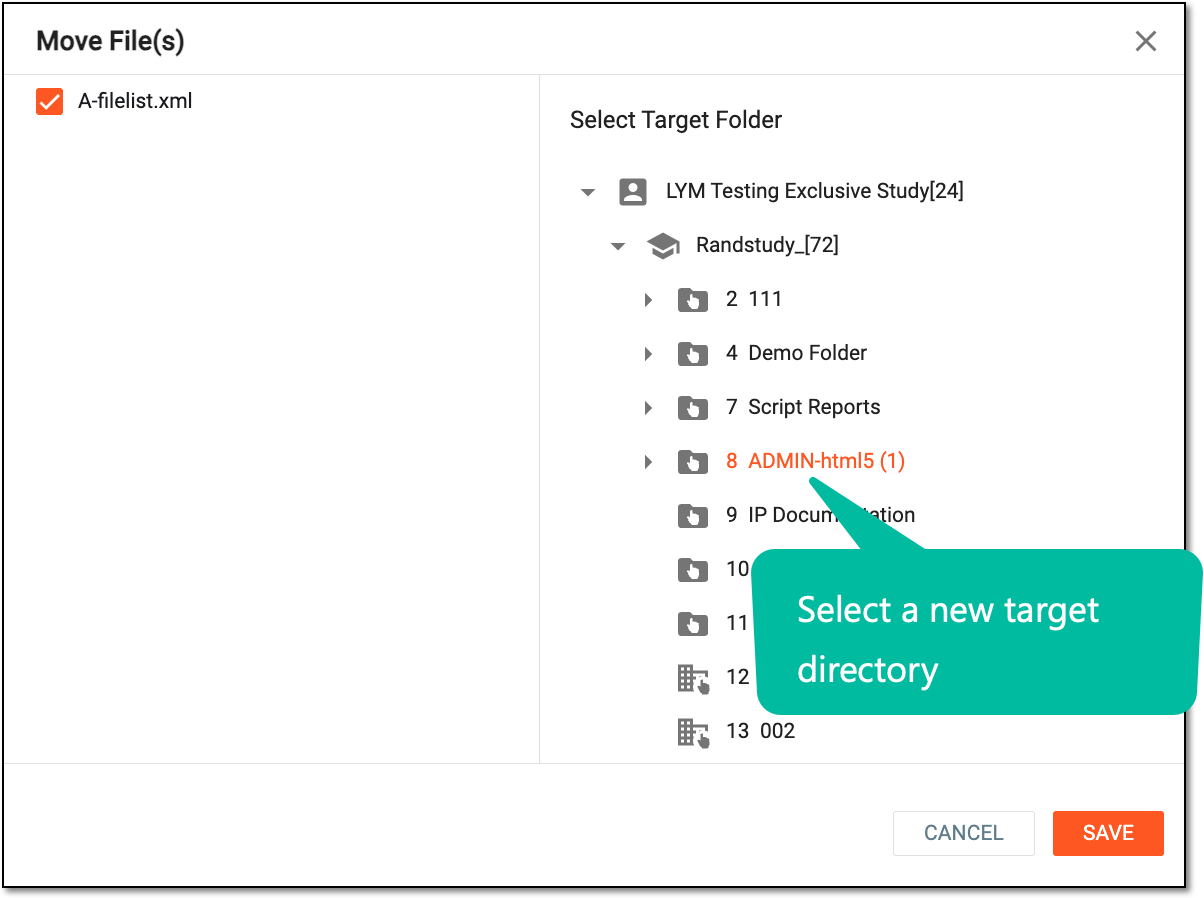 Figure 4. Selecting new target directory
-
Select
and in the Reason dialog that appears, enter the reason why you are moving the file to a different
directory.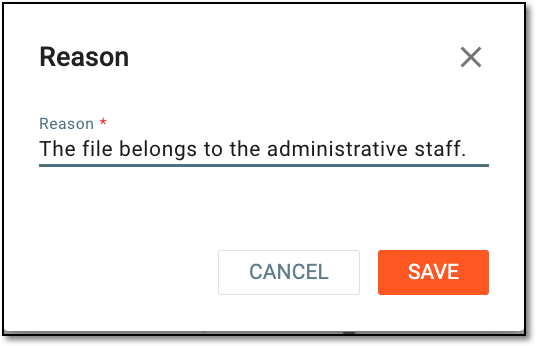 Figure 5. Providing reason to move files
-
Select
to save the changes.Important
When moving a file that already exists in the target directory, select the Skip or Replace option in the dialog that appears:
-
Skip: terminates the file movement.
-
Replace: replaces the file in the target directory with the moved file.
-
The file has been moved and is available under the new location.
The Check Out option helps you prevent the file from any modifications while you need to work with this file.
One example of why you may need to check out the file is when you download the file for offline processing, and thus, to prevent it from being amended by other users in the meantime.
On the other hand, the Check In functionality makes the changes you have introduced to the file available to others.
Important
The Check In and Check Out options are unavailable for system files to prevent any manipulations with them that can lead to data loss.
-
In the eTMF application header, select the FILE MANAGEMENT tab.
-
On the page that opens, in the left pane, select the Study List subtab.
-
In the Study List table, select the study for which you want to access the relevant files and documents.
Figure 1. Selecting study
-
On the page that opens, in the left pane, select the Essential Documents subtab.
Figure 2. Accessing essential documents
-
Now, in the File List table that appears, locate the required file, in the Actions column, next to the needed file, select More
, and then one of the following:-
Select Check Out
 to prevent the file from editing. Now, you can download the file and introduce the required changes.
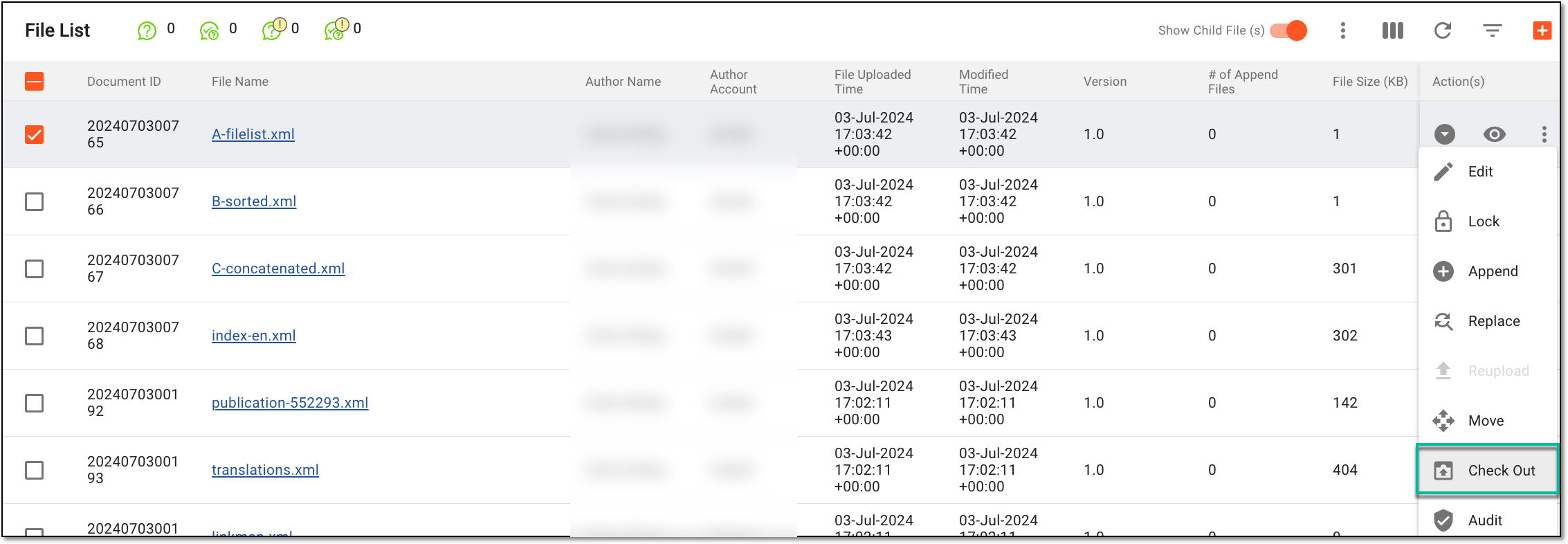 Figure 3. Accessing option to check out files
-
In the confirmation dialog that opens, select OK.
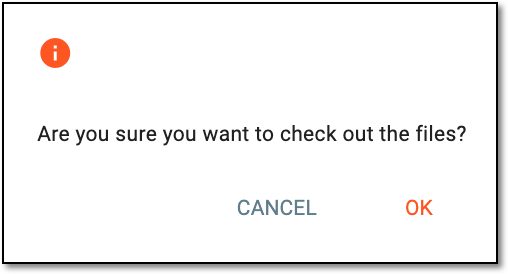 Figure 4. Confirming file check-out
-
Select Check In next to the file that you need to make available again and update it with certain changes.
Tip
The file that you need to check into the system has to have the lock label
next to it. -
In the Check In dialog that appears, perform a set of actions as explained in the following table.
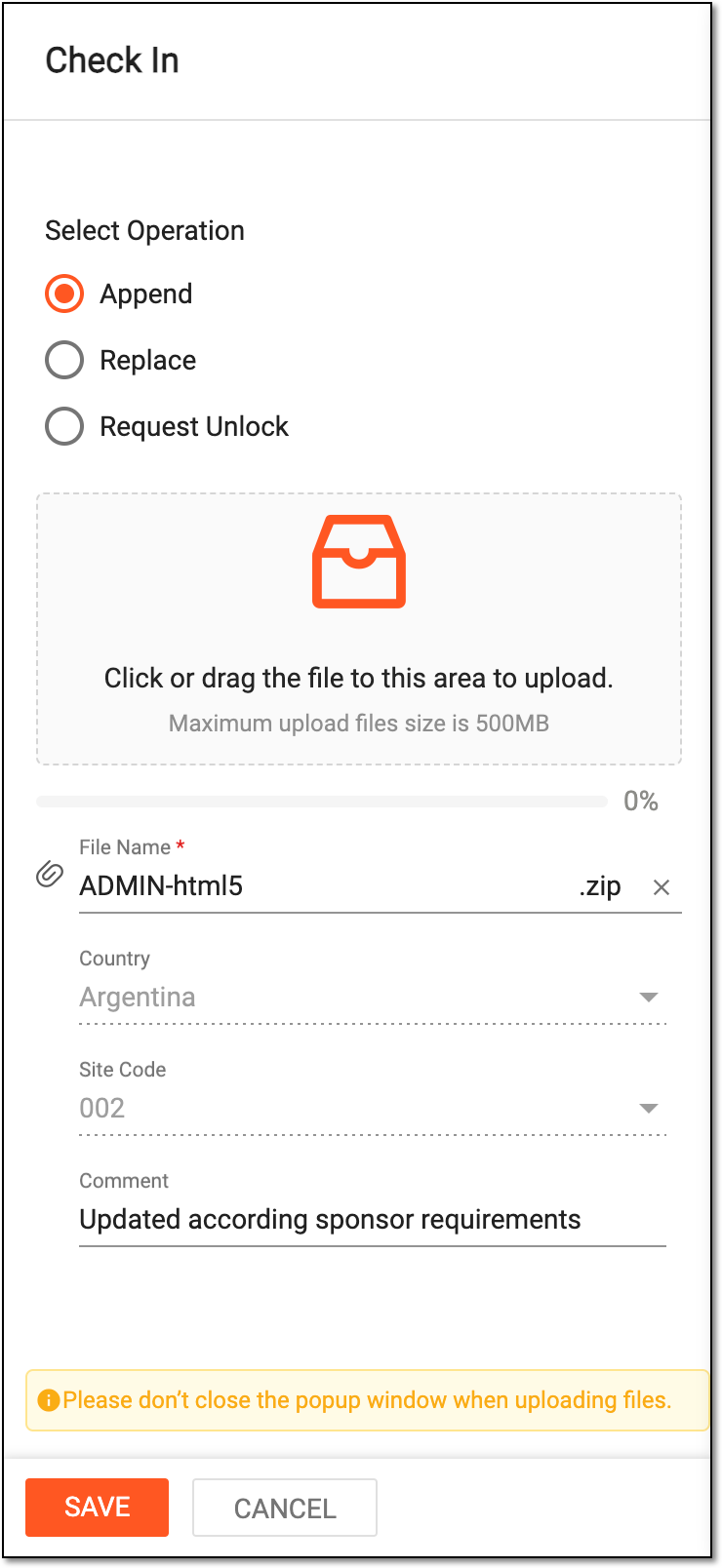 Figure 5. Uploading file to check it in
Tip
In the following table, mandatory elements are marked with an asterisk (*).
Element
Details
Select operation
Append
Select the Append option to unlock the file and append it to the master file.
The file cannot be checked in via the Append feature if the directory in which it is located is locked.Replace
Select the Replace option to unlock the file and replace the master file.
The file cannot be checked in via the Replace feature if the directory in which it is located is locked. You need to unlock the directory first.Request Unlock
Select the Request Unlock option to unlock the file without appending or replacing it. When selecting this option, you have to specify the reason for your actions, and you do not need to upload the file.
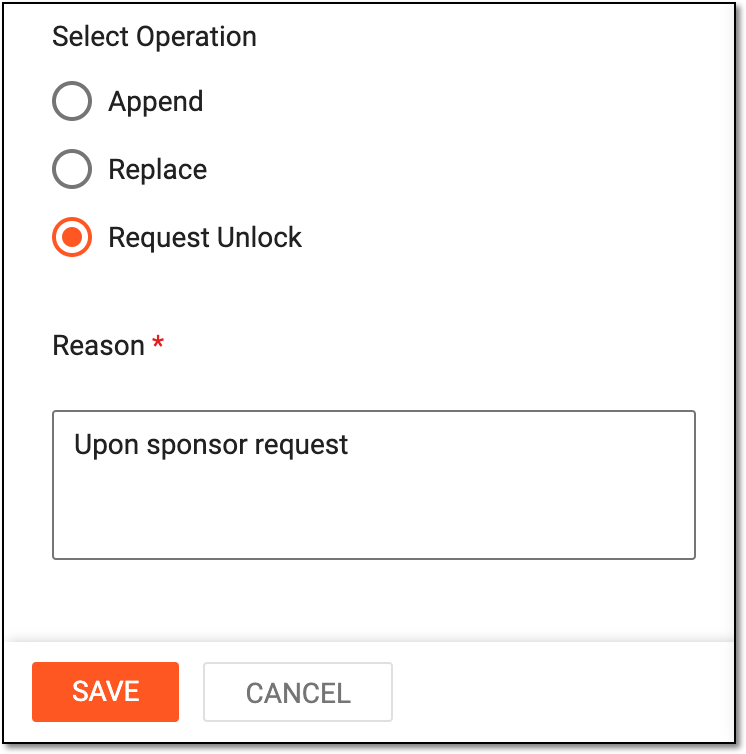 Figure 6. Requesting to unlock upon checking in
Click or drag the file to this area to upload
Drag the file from your computer to the area or click this area to select the file on your computer for upload.
This option is only available for Append and Replace operations.File Name*
Represents the name of the file being uploaded. The file name can be updated if required.
This option is only available for Append and Replace operations.[File properties]
Represent the fields autopopulated by the system or available for manual completion based on the file level and other custom properties, such as file author, country of origin, and more.
This option is only available for Append and Replace operations.SAVE
Select
to implement the changes.CANCEL
Select
to discard the file checking in operation.
-
Upon saving, the file is checked out and unavailable or checked in again, depending on the performed actions.
The eTMF application serves as a file storage and management tool for your clinical trial documents. Sometimes, you might need to download files to work with them offline on your computer or share them with parties that have no access to eTMF.
-
In the eTMF application header, select the TMF tab.
-
On the page that opens, in the left pane, select the Study List subtab.
-
In the Study List table, select the study for which you want to access the relevant files and documents.
Figure 1. Selecting study
-
On the page that opens, in the left pane, select the Essential Documents subtab.
Figure 2. Accessing essential documents
-
In the File List table that opens, locate the needed file and in the Actions column next to the file, select More
> Download  . Now, perform one of the following options:
-
Download with Signature
 : to download a file with an additional page that includes
the signature information—user name, date and time, and the hash code of the file.
: to download a file with an additional page that includes
the signature information—user name, date and time, and the hash code of the file. -
Download without Signature
 : to download a file with no signature
information.
: to download a file with no signature
information.
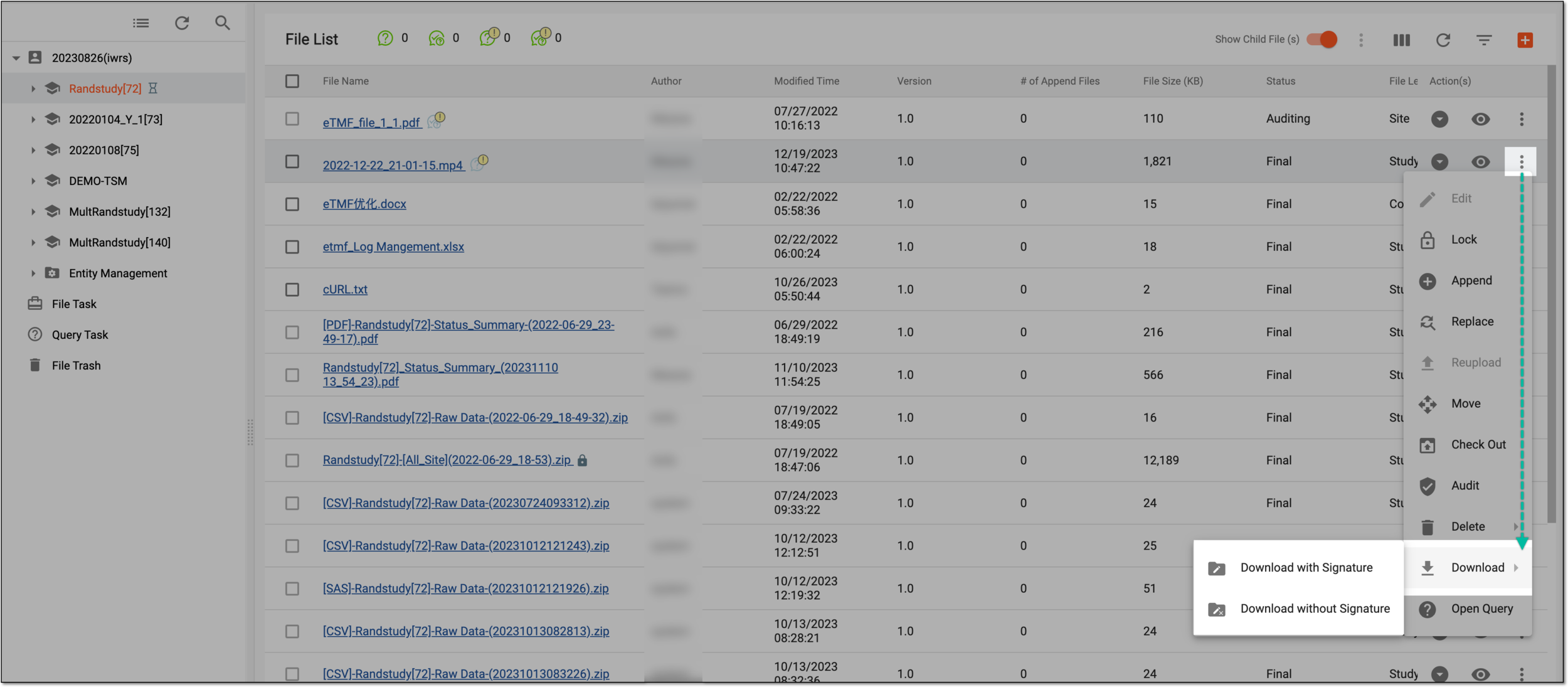 Figure 3. Downloading file
-
Once you save the file, it becomes available on your computer.
The first file uploaded to the main repository is the master file, and the supplementary document that provides additional information or supports the master file is an appended file. It may include items such as amendments to the study protocol, safety reports, data listings, or other relevant documents.
A replaced file in eTMF is a file that has been substituted with a newer, more relevant, or otherwise more valid version. For instance, it can be a newer version of some specialist's license document.
In eTMF, the file that is appended or replaced and passed all the audits disappears from the list that contains all the files, so that only the master file is available in the list. However, you can download the appended or replaced file if required.
-
In the eTMF application header, select the TMF tab.
-
In the Study List table that appears, select the study name to which the file of your interest belongs.
Figure 1. Accessing study under TMF tab
-
On the page that opens, from the left pane, select Essential Documents.
Figure 2. Selecting Essential Documents under TMF
-
In the File List table that appears, go to the required file and select the hyperlink under the Standard File Name column.
 Figure 3. Selecting file name
-
In the View dialog that appears, locate the appended/replaced file version. Then, from the Action(s) column next to it, select Download without Signature
.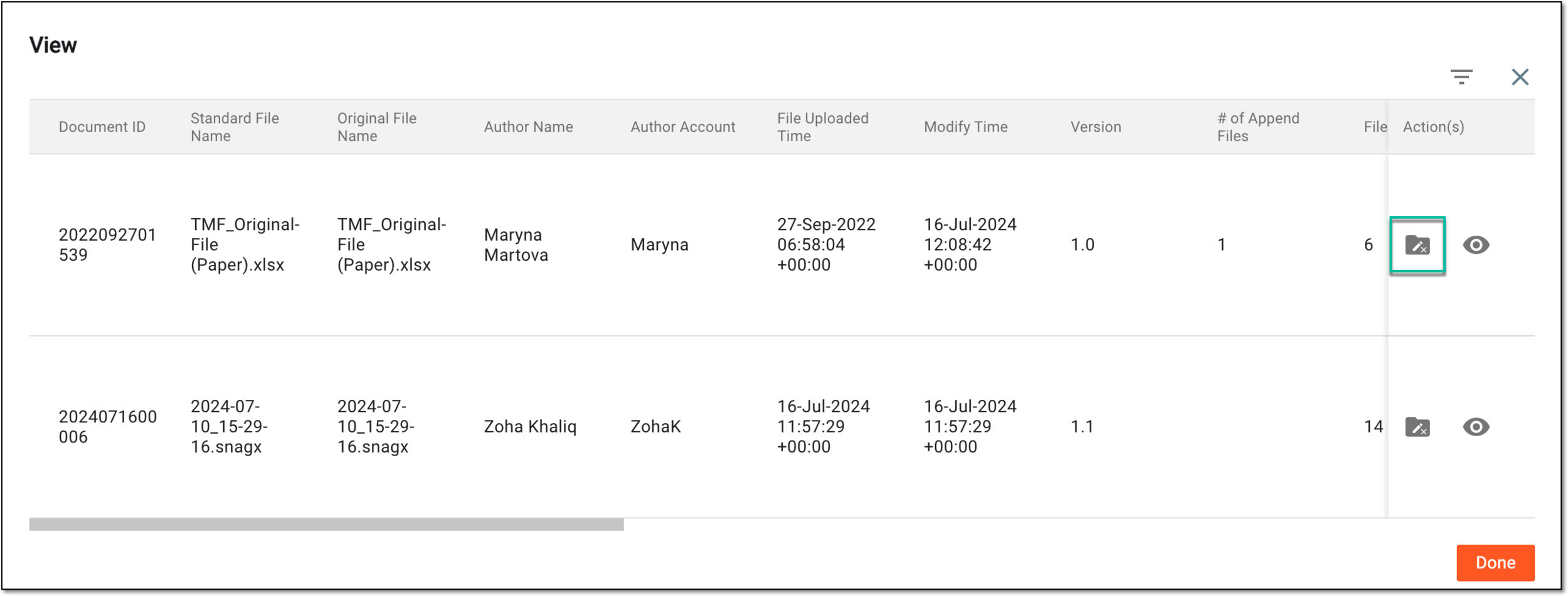 Figure 4. Downloading appended file version from essential documents
The appended file is downloaded to your PC, and you can work with it offline. Select  to go back to the File List
page.
to go back to the File List
page.
In the eTMF application, if the file is obsolete or no longer needed, you can delete the file or file group under a certain folder of the essential documents.
Important
The Delete option is unavailable for the following file types:
-
System files: to prevent any manipulations with them that can lead to data loss.
-
DIA RM artifacts: any modifications added to the DIA RM artifact may compromise the reliability of the TMF documentation and violate the regulatory requirements.
-
In the eTMF application header, select the TMF tab.
-
On the page that opens, in the left pane, select the Study List subtab.
-
In the Study List table, select the study for which you want to access the relevant files and documents.
Figure 1. Selecting study
-
On the page that opens, in the left pane, select the Essential Documents subtab.
Figure 2. Accessing essential documents
-
In the Actions column next to the file you want to remove, select More
>
Delete  .
.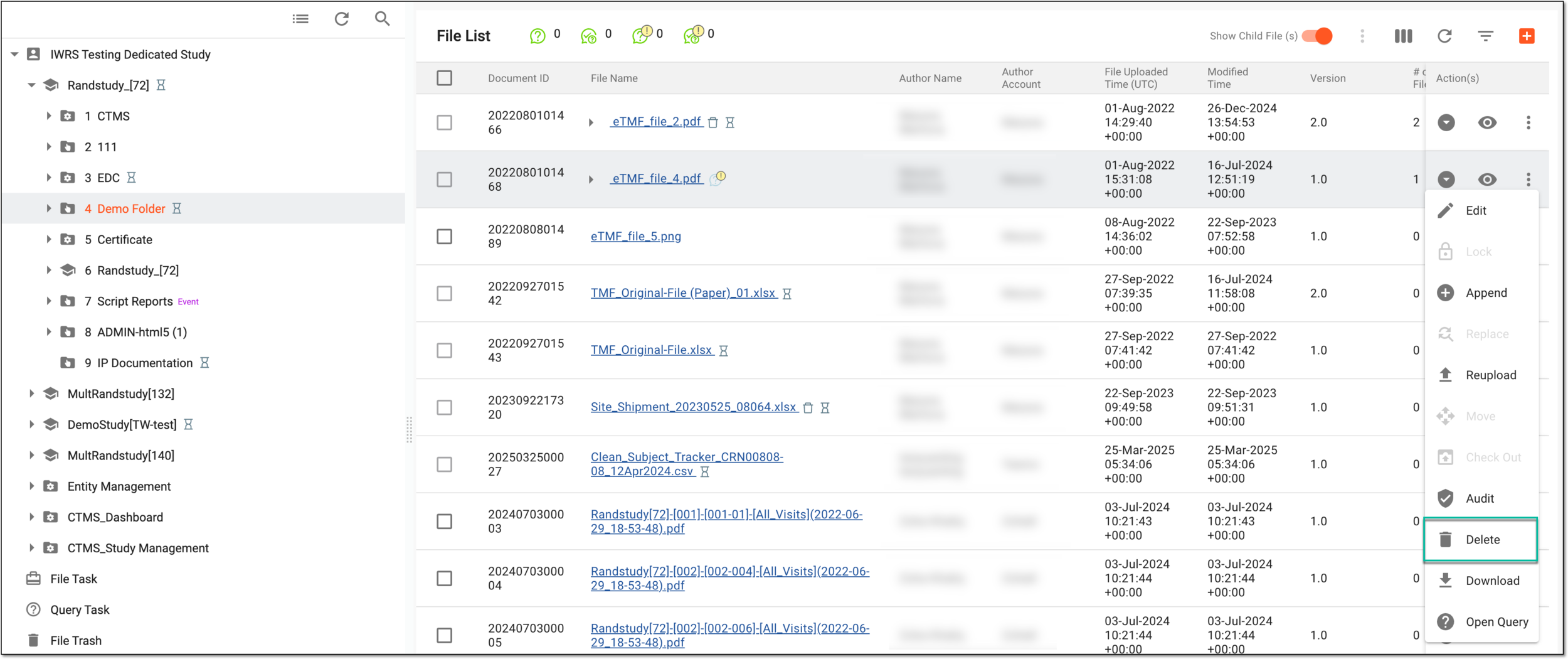 Figure 3. Selecting option to delete file
-
In the Delete Options dialog that appears, select one of the following:
-
Delete Group: this action is only available for master files and results in deleting the whole file group (master file, replaced files, and appended files).
-
Delete File: this action is available for master, appended, and replaced files and results in deleting only the corresponding file.
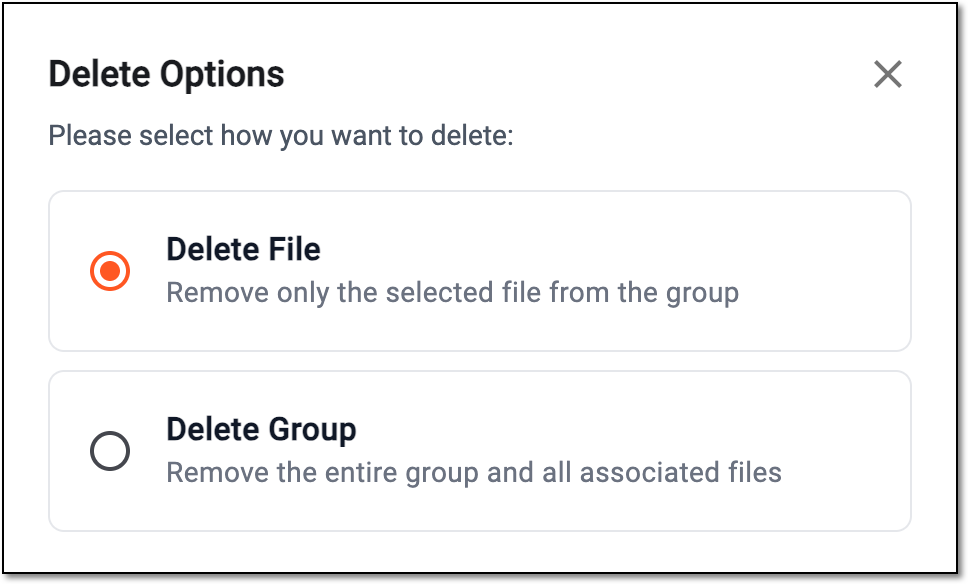 Figure 4. Selecting to delete file or file group
-
-
In the confirmation dialog that appears, enter the reason for the file or file group deletion and select
 .
.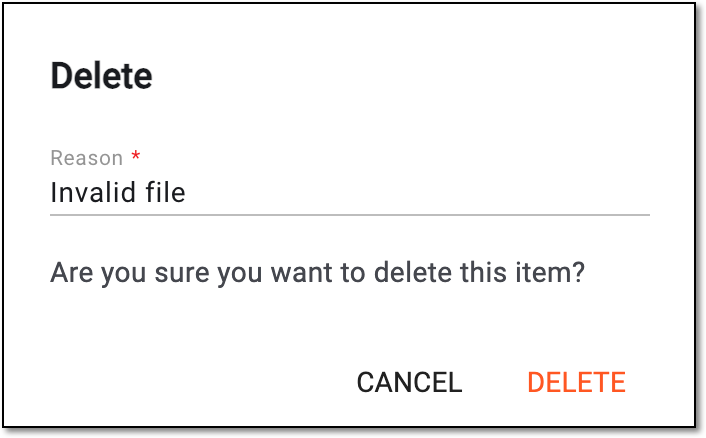 Figure 5. Providing reasons and confirming file deletion
Upon deleting, one of the following results occurs:
-
If the file or file group has no workflow or its status is Auditing or Dropped, it is deleted and moved to the Trash page, where it can be restored or permanently deleted.
-
If the file or file group has a workflow associated with it, deleting master files in the Final status requires an audit. Once you perform the Delete action, the workflow is triggered, and the file status changes to Auditing (delete). When the workflow is finished and your deletion is approved, the file is moved to the Trash. Otherwise, if rejected, the file remains in the file storage.
A rejected file located in File List and no longer required in the eClinical system can be permanently deleted.
Important
You can only permanently delete the file that is uploaded by you and has one appended file.
-
In the eTMF application header, select the TMF tab.
-
In the Study List table that appears, under the Study Name column, select the hyperlink of the needed study.
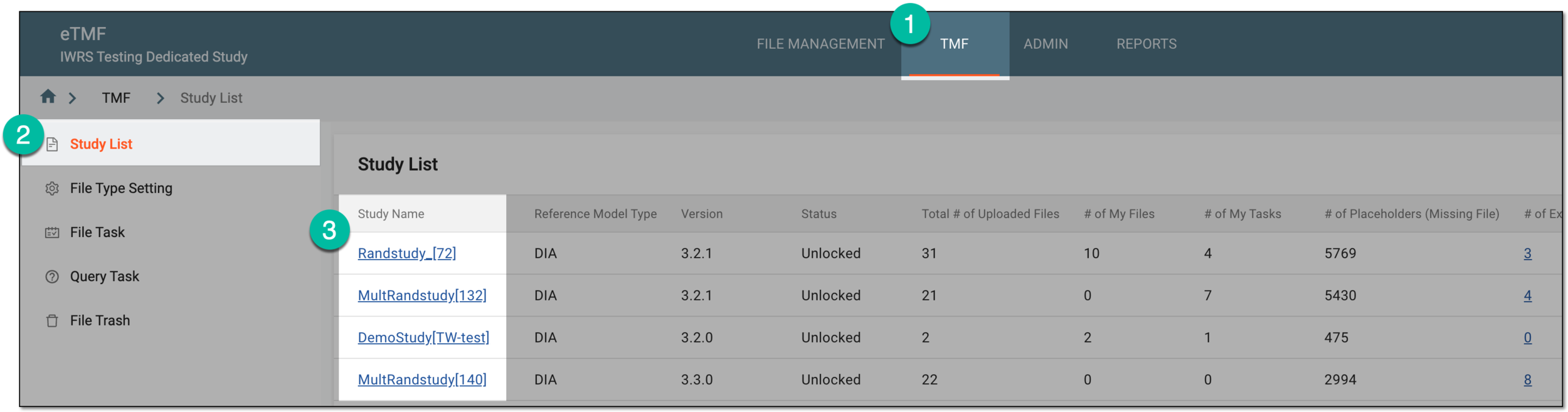 Figure 1. Accessing study under TMF tab
-
On the page that appears, from the left pane, select Essential Documents.
Figure 2. Selecting Essential Documents under TMF
-
In the File List page that appears, next to the needed file, select More
>
Permanently Delete  .
.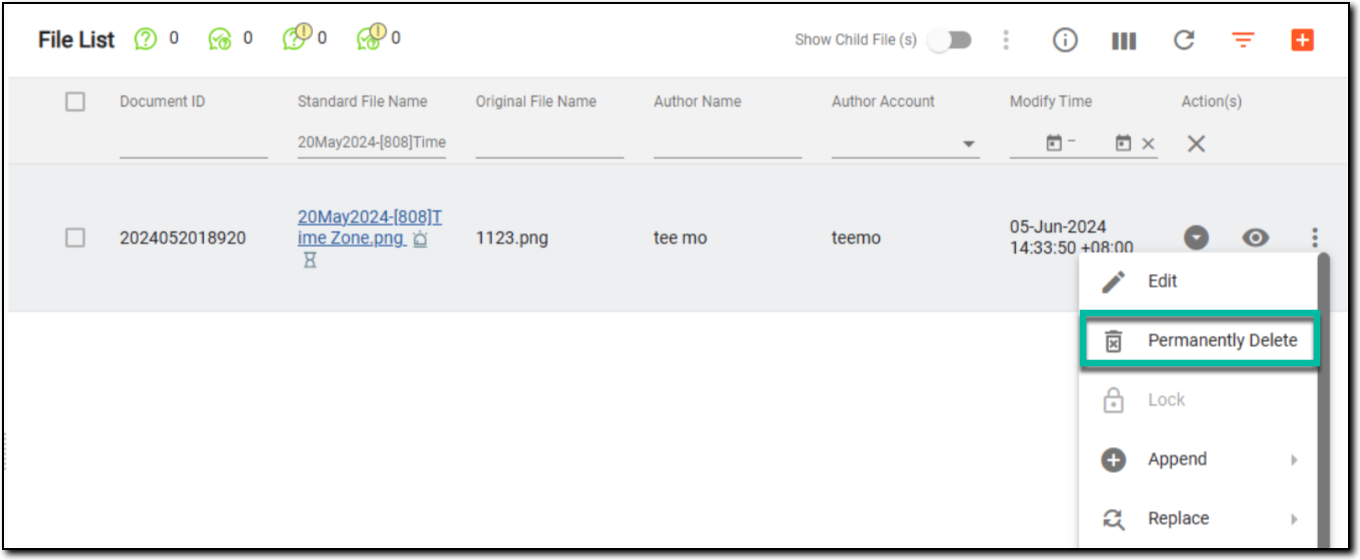 Figure 3. Selecting to delete permanently
-
In the confirmation dialog that appears, enter the reason for file deletion and select
.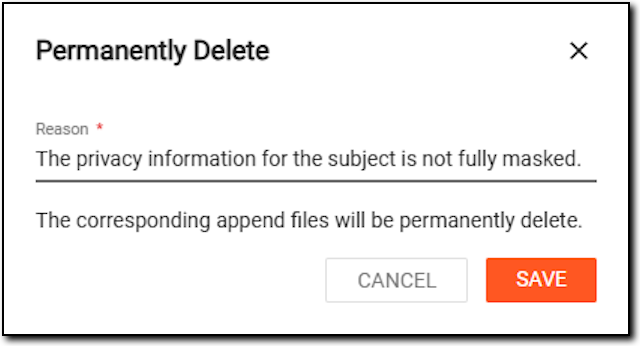 Figure 4. Deleting file permanently
Tip
To permanently delete multiple files at once, use the multiselect functionality.
Upon confirmation, the file is permanently deleted from the eClinical system.
A model for organizations from DIA that helps the organizations to effectively compile the minimum list of essential documents to ensure the compliance of the investigator, sponsor, and monitor with the industry standards of good clinical practice (GCP) and with the regulatory requirements.
An eClinical application that represents an administrative system used to manage users, authorities, and sponsors at the company level. It provides studies, sites, and sponsors with high-granularity role-based access management across all eClinical applications.
In a clinical trial, a location where the subject treatment and drug dispensation occur. It can be a hospital, a private laboratory, or other institutions.
An international ethical and scientific quality standard for designing, recording, and reporting trials that involve the participation of human subjects.
A schema, each step of which represents a stage of a specific entity lifecycle in the system.
A workflow can be considered an instrument to help control various actions on system entities for the sake of accountability, as it limits the actions that can be performed on the entity associated with a workflow. This provides an additional tier of scrutiny, and the approval/rejection mechanism reduces the risk of unintended impact on sensitive resources and important information.
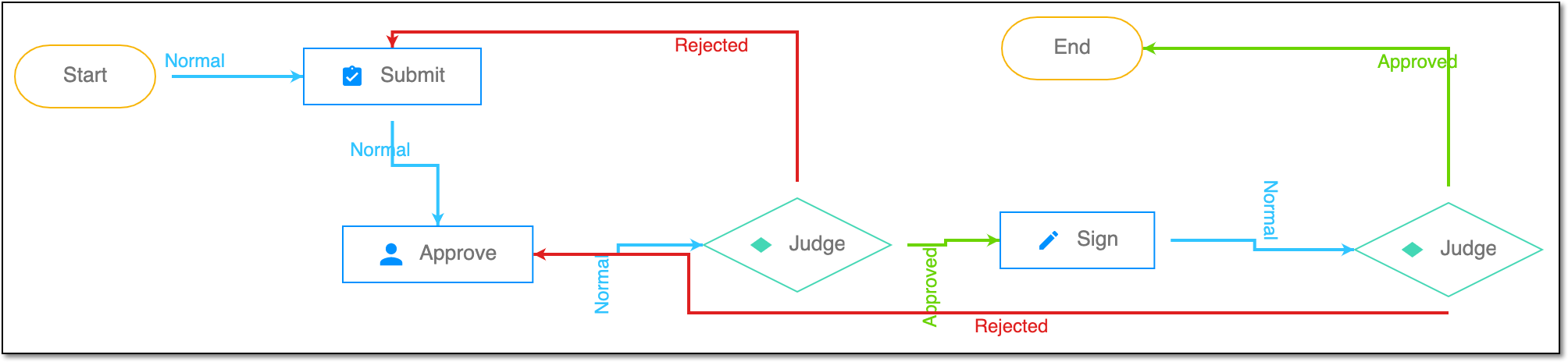 |
For instance, in eTMF, the workflow dictates the procedure of file and folder management from the moment of upload to the approval stage; in CTMS, the workflow controls the process of creation, completion, and approval of a trip report; in EDC, the workflow covers the process of source document handling.