Create file type
While managing files in eTMF, you can create new custom file types per your business needs. You can choose to create a brand new file type or clone it from the existing ones.
-
In the eTMF application header, select the TMF tab.
-
On the page that opens, in the left pane, select the File Type Setting subtab.
-
On the File Type Setting page that opens, on the workspace toolbar, select New Item
 .
.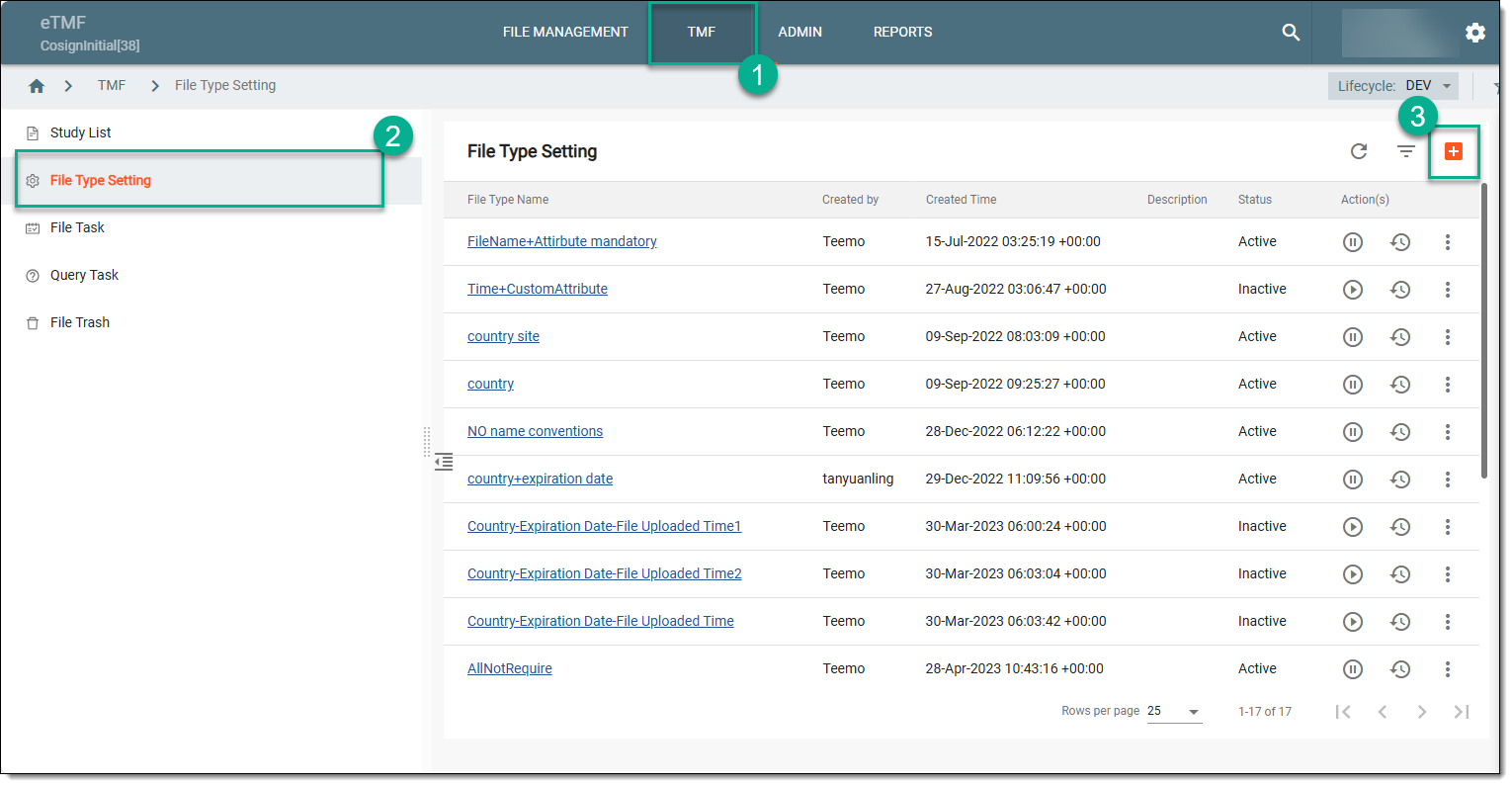 Figure 1. Accessing option to create file type
-
In the New dialog that appears, configure the fields as explained in the following table.
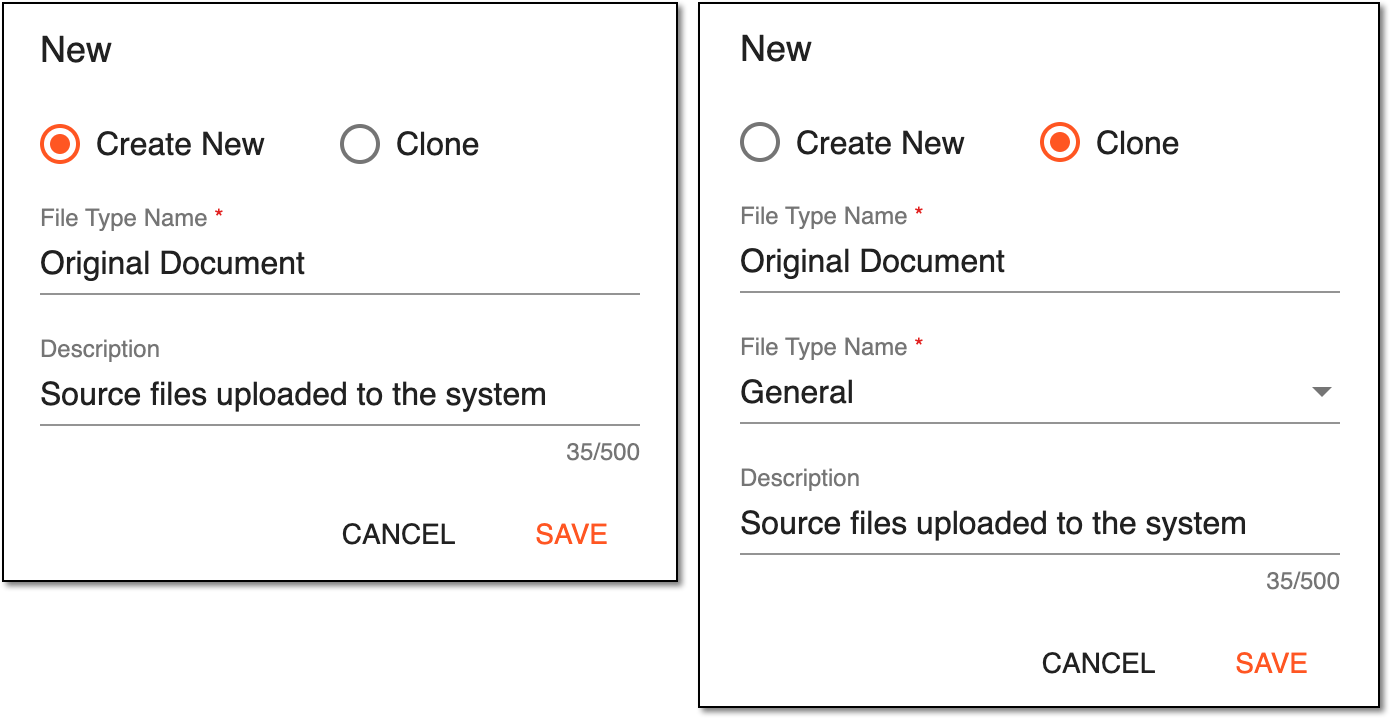 Figure 2. Creating new/cloning file type
Tip
In the following table, mandatory elements are marked with an asterisk (*).
Element
Details
Create New
Select this option to create the new file type and customize it from scratch.
Clone
Select this option to clone the file type from the existing one with all the custom settings, and then configure the details if needed.
File Type Name*
Enter the meaningful and unique name of your file type.
File Type Name*
Expand the dropdown list of the existing file types to select the one to clone.
This field is only available if the Clone option is selected.Description
Enter the meaningful description of the file type you are creating.
SAVE
Select
 to implement the changes.
CANCEL
Select
 to dismiss changes without saving.
Upon saving, the new file type is created and can be viewed in the File Type Setting list. Now you can customize file attributes and add naming conventions.