File trash in TMF
In eTMF, when deleting files and folders from the essential documents or document warehouse storage, these objects are moved to File Trash. This provides an additional tier of control over file management, preventing from accidental file loss or unauthorized file deletion.
In the following sections, you can learn how to permanently delete or restore the objects that were already moved to the trash.
Sometimes, you may need to restore the objects—files or folders—that were previously deleted from the Trial Master File (TMF) (essential documents) or document warehouse. In the eTMF application, you can do that with objects that, upon deletion, have been moved to File Trash.
-
In the eTMF application header, select the TMF tab.
-
On the page that opens, in the explorer tree pane, select File Trash.
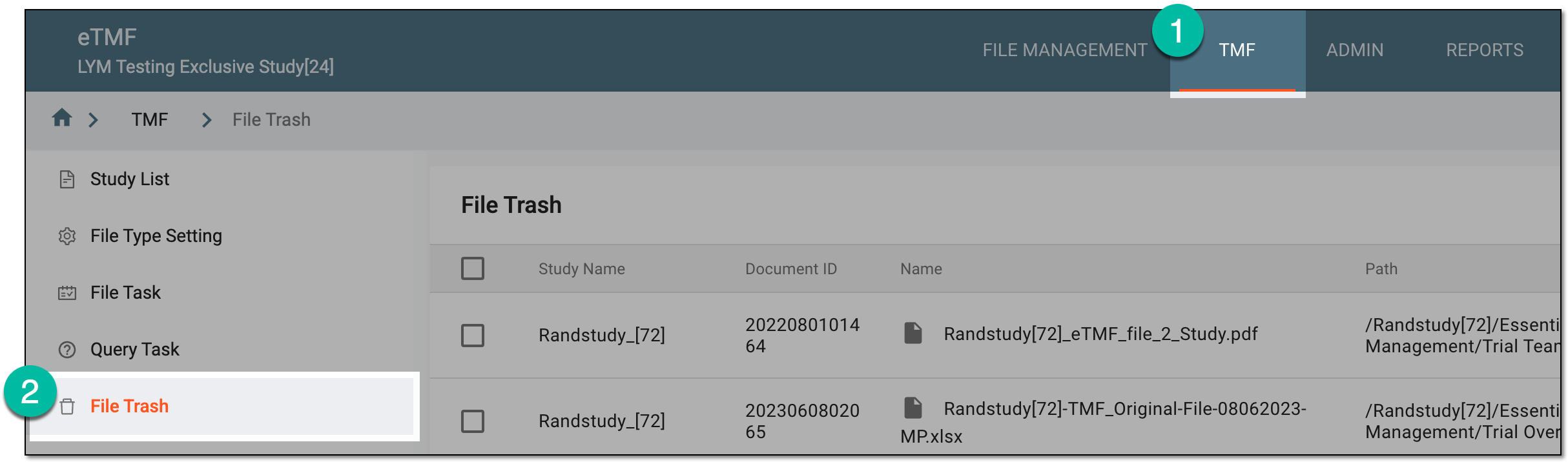 Figure 1. Accessing file trash in TMF
-
In the File Trash table that opens, select the checkboxes next to the objects you want to restore. Then from the workspace toolbar, select Restore
 .
.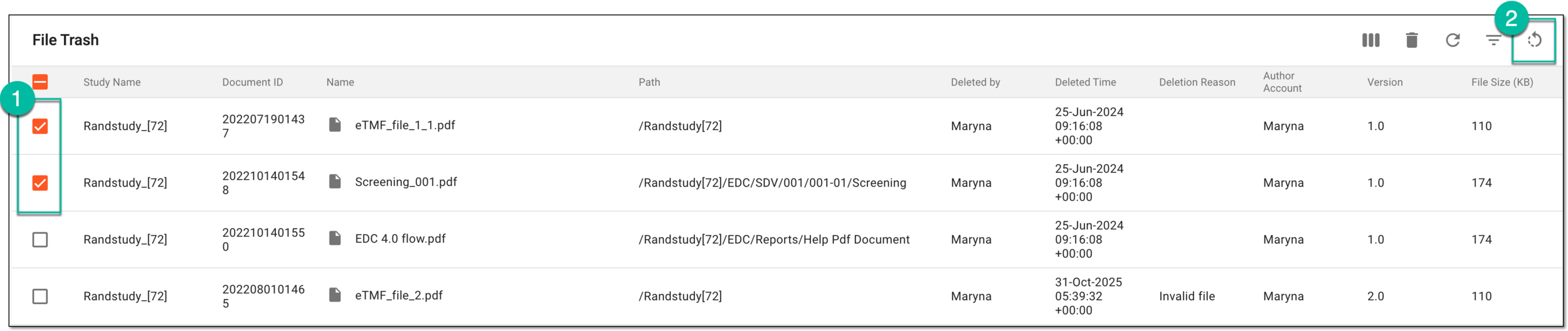 Figure 2. Restoring objects from trash in TMF
The restored objects return to their original location in the essential documents or document warehouse storage and disappear from the File Trash table. Moreover, the restored objects retain the properties and statuses they had before being deleted.
In the eTMF application, the objects—files or folders—deleted from the Trial Master File (TMF) (essential documents) or document warehouse move to File Trash. You can permanently delete such objects with no further option to restore from the File Trash page.
Important
In a clinical trial, it is important to keep track of all actions and data pieces for conformity reasons. Thus, such an option as a permanent object deletion has to be accounted for. When deleting an object from trash, you need to specify a reason for it and your user credentials.
-
In the eTMF application header, select the TMF tab.
-
On the page that opens, in the explorer tree pane, select File Trash.
Figure 1. Accessing file trash in TMF
-
On the File Trash table that opens, select the checkboxes next to the files you want to permanently delete. Then from the workspace toolbar, select Delete
 .
.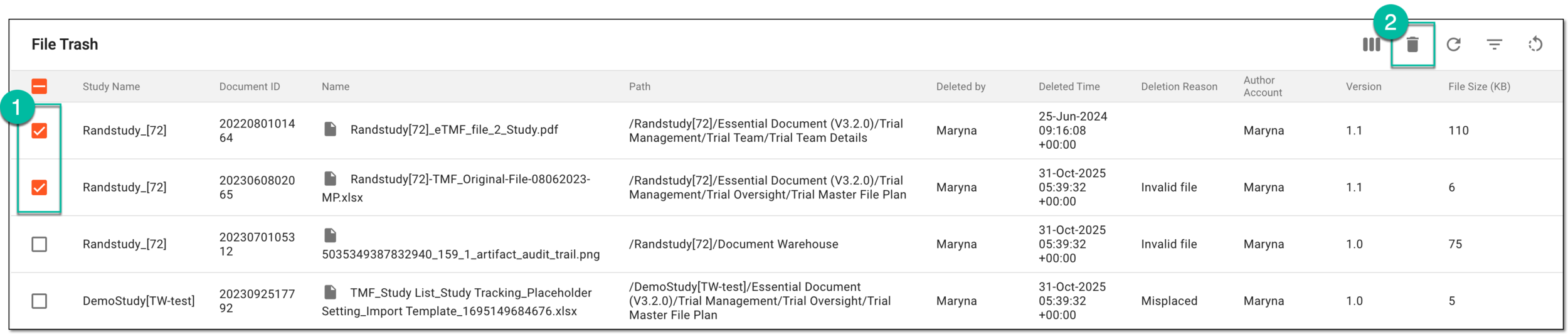 Figure 2. Permanently deleting files from trash in TMF
-
In the Permanently Delete dialog that appears, fill in the required fields explained in the following table.
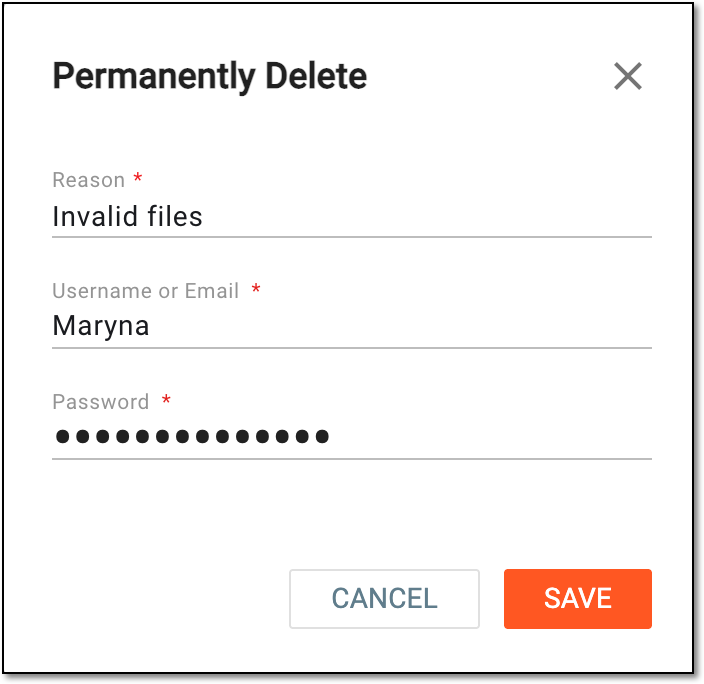 Figure 3. Confirming permanent object deletion in TMF
Tip
In the following table, mandatory elements are marked with an asterisk (*).
Element
Details
Reason*
Enter the reason for permanent file deletion.
Username or Email*
Enter your user name to provide an electronic signature.
Password*
Enter your system password to confirm an electronic signature.
The field is only available if you use the authorization method by providing your login and password.Send Code
Select
 to send the temporary PIN code to your email for which the SSO method is configured.
The button is only available if you use the authorization method via SSO.Code*
Enter the temporary PIN code that you received via email to confirm an electronic signature.
The field is only available if you use the authorization method via SSO.SAVE
Select
 to complete the process.
CANCEL
Select
 to dismiss your actions without saving.
Important
For security, the system logs you out after three failed attempts to confirm your identity with a password or code.
Upon saving, the selected object is permanently deleted from the eTMF system and cannot be restored.