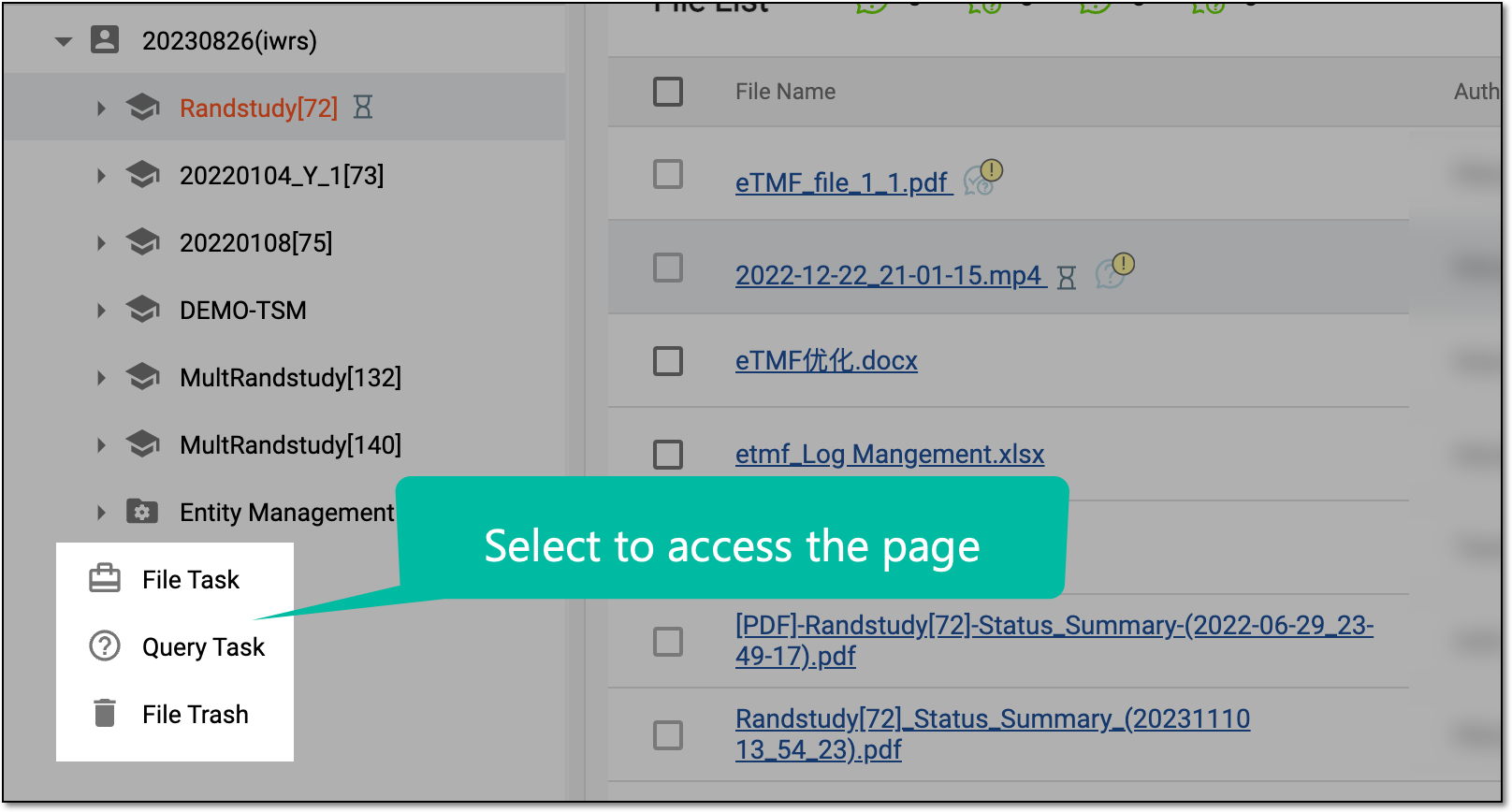
Explorer tree pane
A hierarchical structure of folders is a fundamental feature of achieving the most effective and convenient organization of clinical trial files.
The content that you see in the explorer tree pane depends on the role and group that are assigned to you as a user via the ADMIN application, as well as access permissions assigned to you via the ADMIN tab. It means that different users with different access permissions may have different folders available in the explorer tree. Also, the folder contents are specific to each environment selected in the Lifecycle menu.
The structure of folder hierarchy in the Explorer tree pane varies under the FILE MANAGEMENT and TMF tabs.
Under FILE MANAGEMENT, there are four main levels of directories: Sponsor, Study, System, and Common.
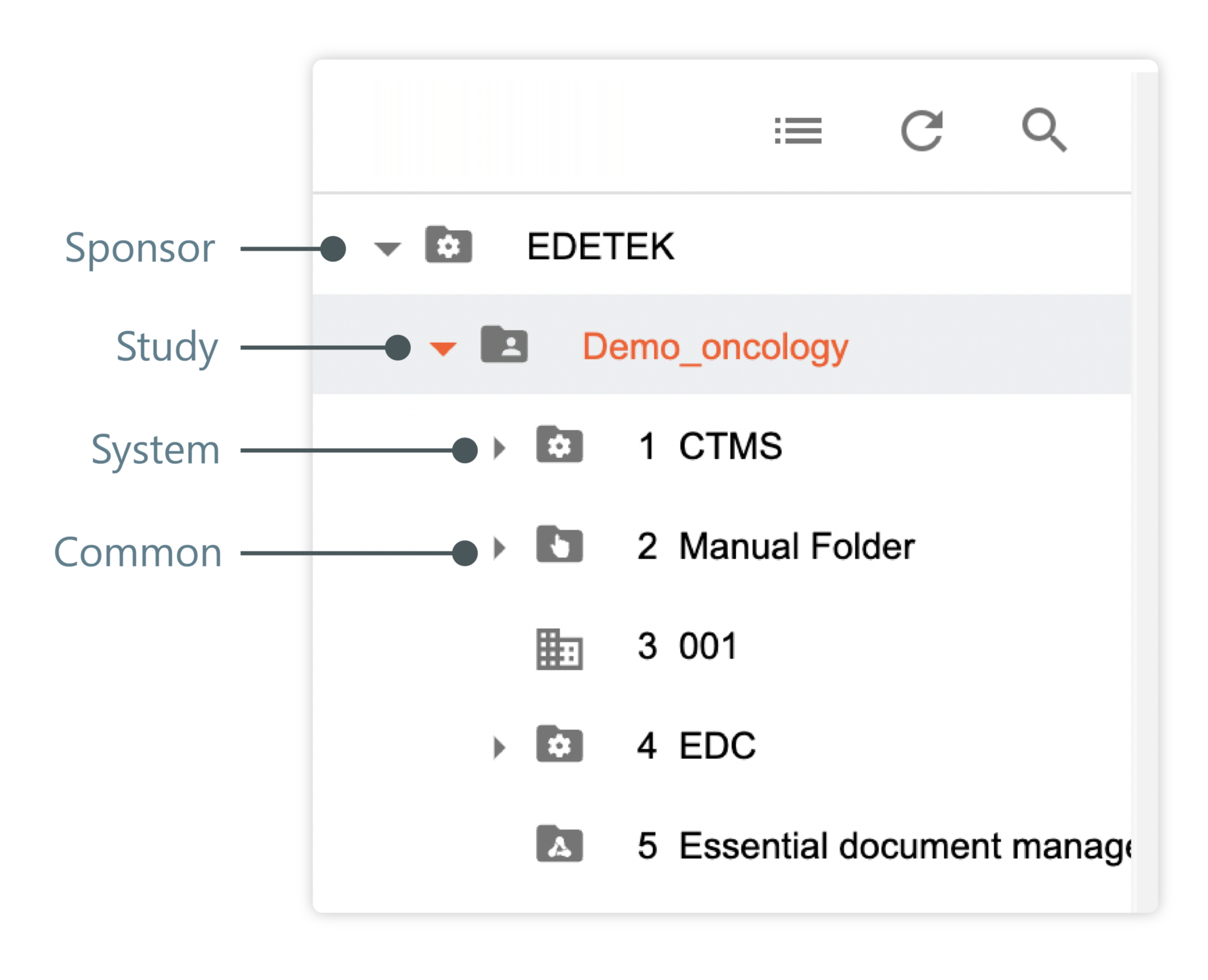
The actions available for you in the FILE MANAGEMENT explorer tree are the following:
-
Collapse All
 : select this icon to collapse all the expanded directories.
 -
Refresh
 : select this icon to refresh the explorer tree and get the latest up-to-date structure and contents.
 -
Search
 : select this icon to open the Search dialog and search for
files and folders. Next to the search result, select Go to Location
: select this icon to open the Search dialog and search for
files and folders. Next to the search result, select Go to Location  to open the object in the file management storage.
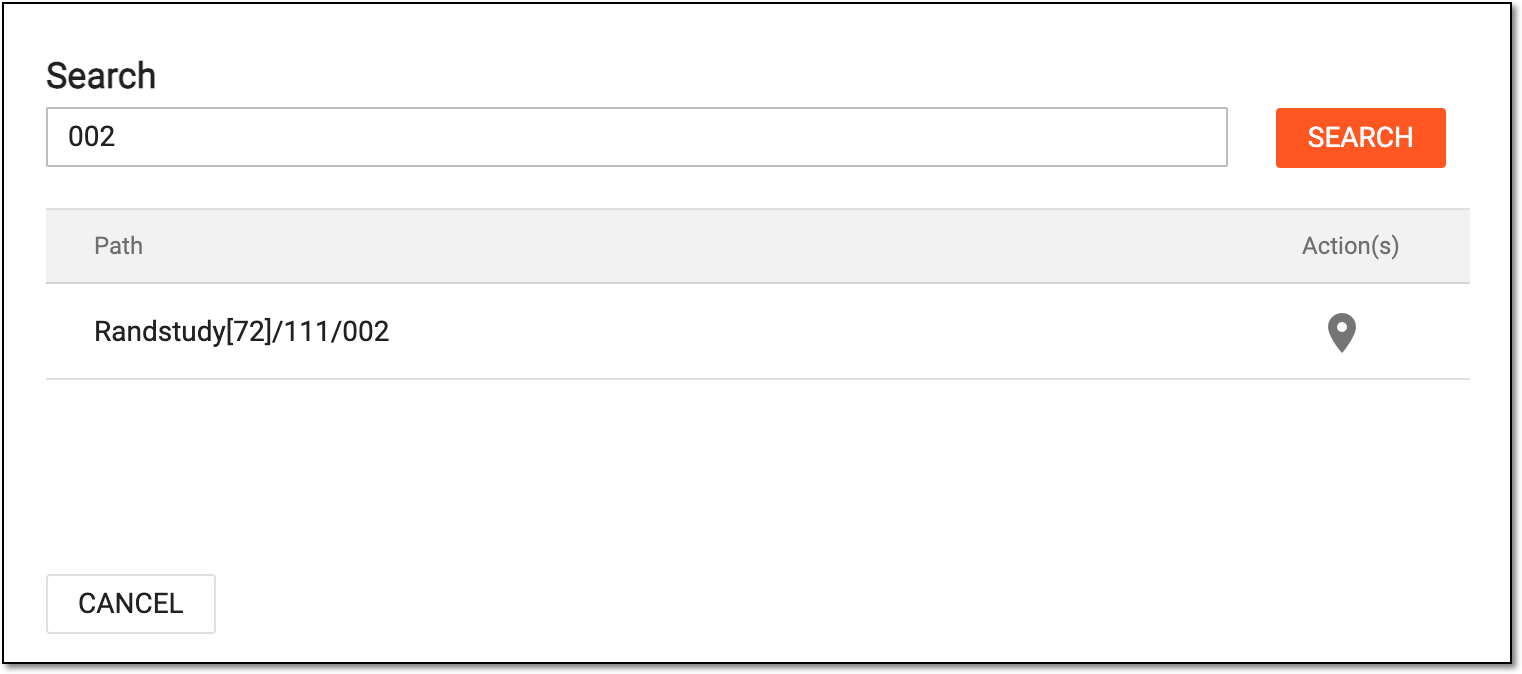 Figure 2. Searching for objects
Under the TMF tab, however, the directories you see may vary depending on the view being selected: Custom or DIA RM.
Tip
The digits after the folder name indicate the number of study files within. If there are two numbers via slash, the one before slash stands for the currently existing number of files, and the one after slash represents the total expected number of files.
-
For the DIA Reference Model view, the directories are structured according to the DIA's standards with the hierarchies of Zone > Section > Artifacts.
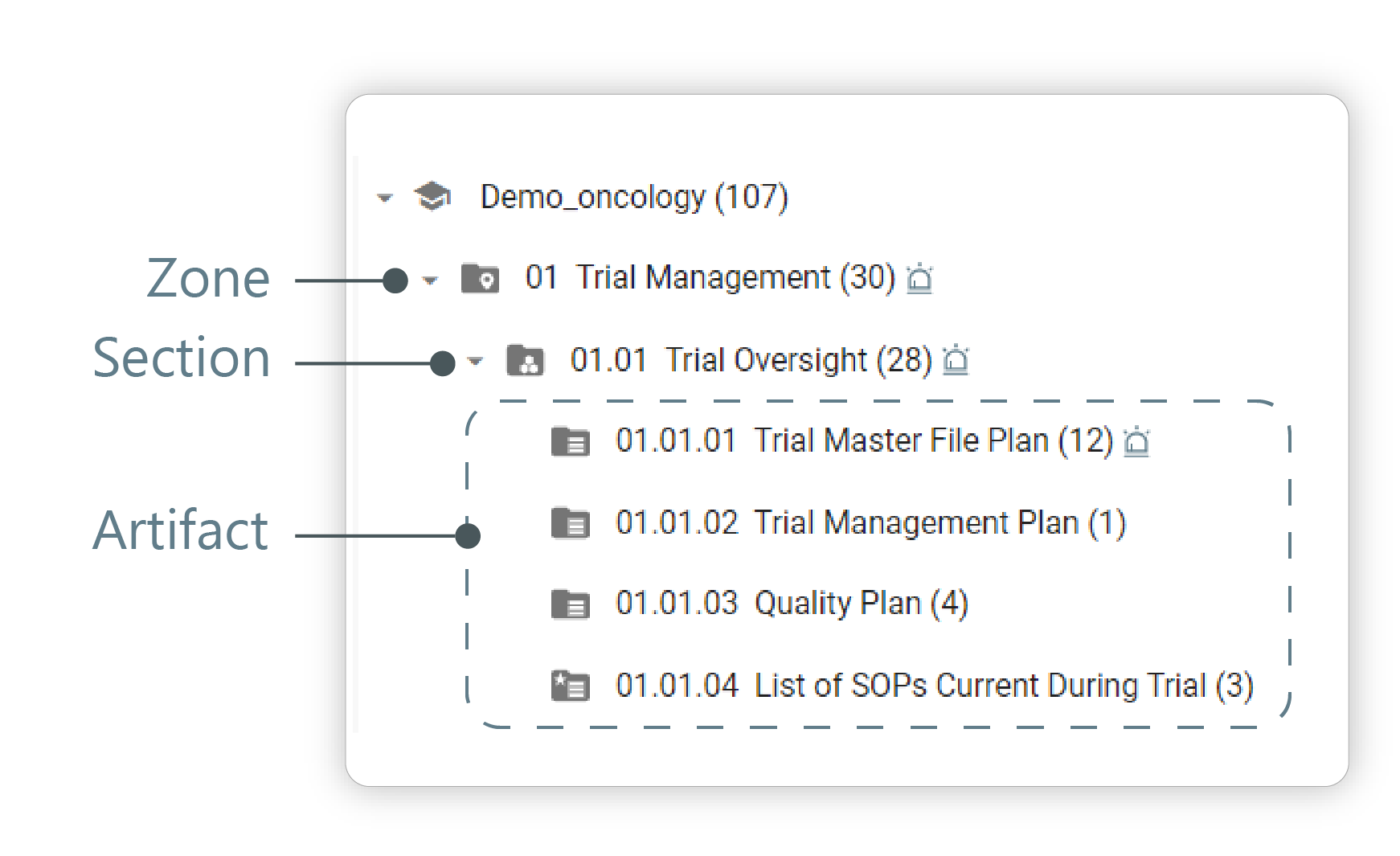 Figure 3. Explorer tree structure. DIA RM view
-
For the Custom view, the Explorer tree pane only displays the directory structure of a single selected study. The main purpose of this structure is to organize the TMF files by file levels.
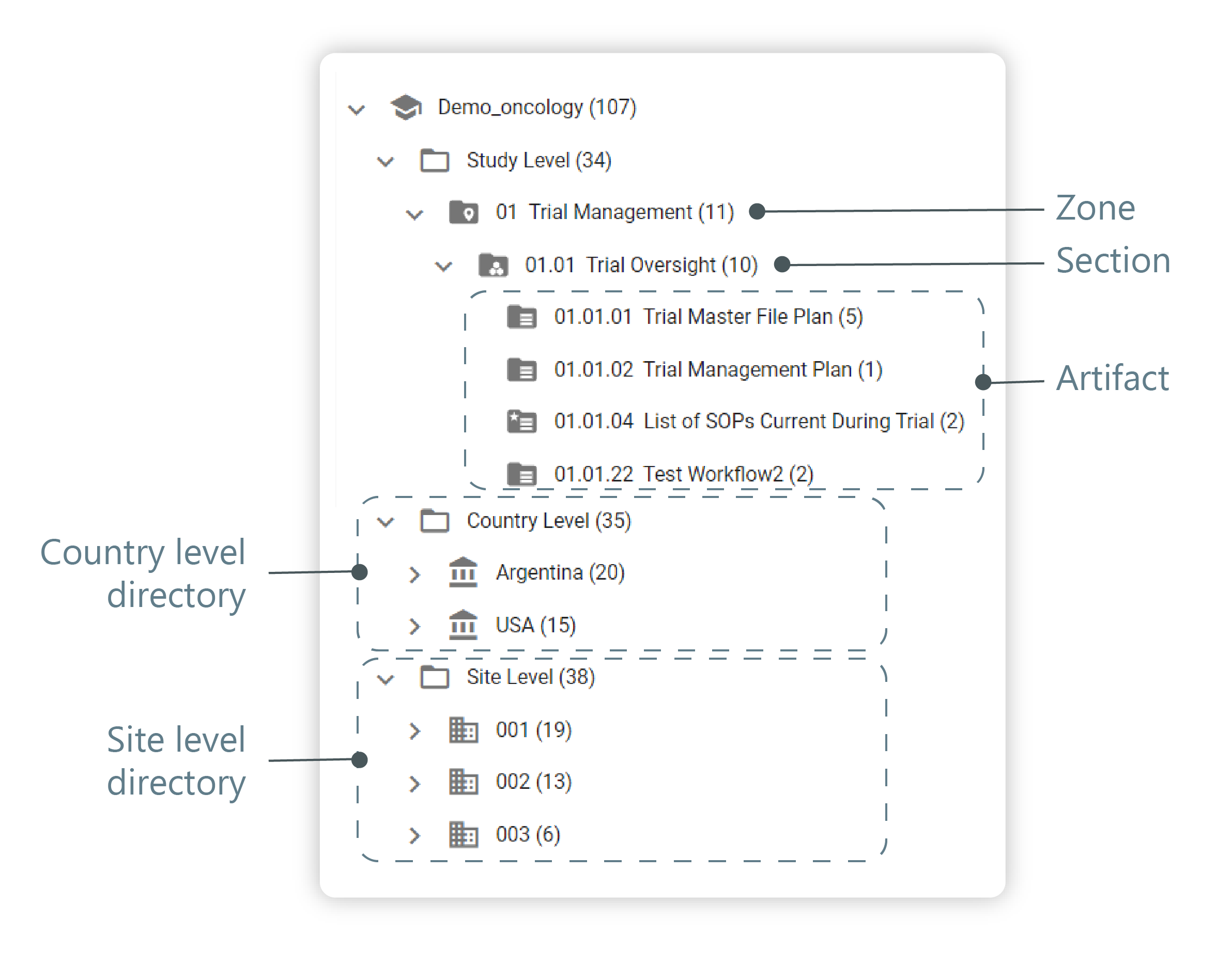 Figure 4. Explorer tree structure. Custom view
Additionally, under the FILE MANAGEMENT tab, in the Explorer tree pane, you can access the File Task, Query Task, and File Trash directories where you can audit files, manage queries, and delete or restore objects.