Simple and advanced search
To locate a file in eTMF with the search box, you can use the simple and advanced search functionalities.
Use the search box to quickly locate the files of your interest in eTMF.
-
In the application header, select search
 .
. -
In the search field that appears, enter a desirable combination of characters to find the file (the field is not case-sensitive).
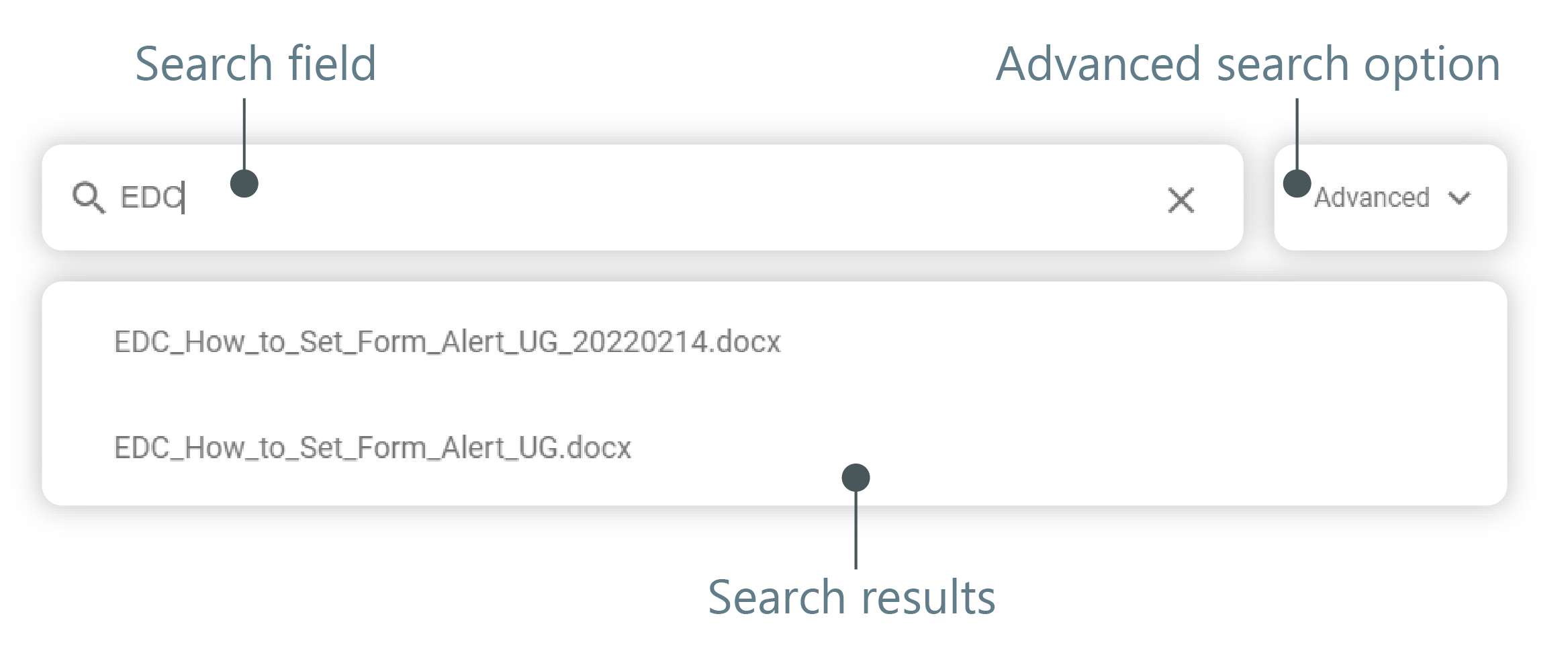 Figure 1. Searching for file
-
In the search result dropdown that appears, select the name of the found file.
Upon selection, the file appears in the contents panel. If the search result returns too many matches, you can also apply the advanced search.
Use the advanced filters for more selective and precise searching of the files of your interest in eTMF.
-
In the application header, select search
. -
In the search box that appears, select the Advanced option to open the FILTERS panel.
-
In the FILTERS panel, specify the desired filters as described in the following table.
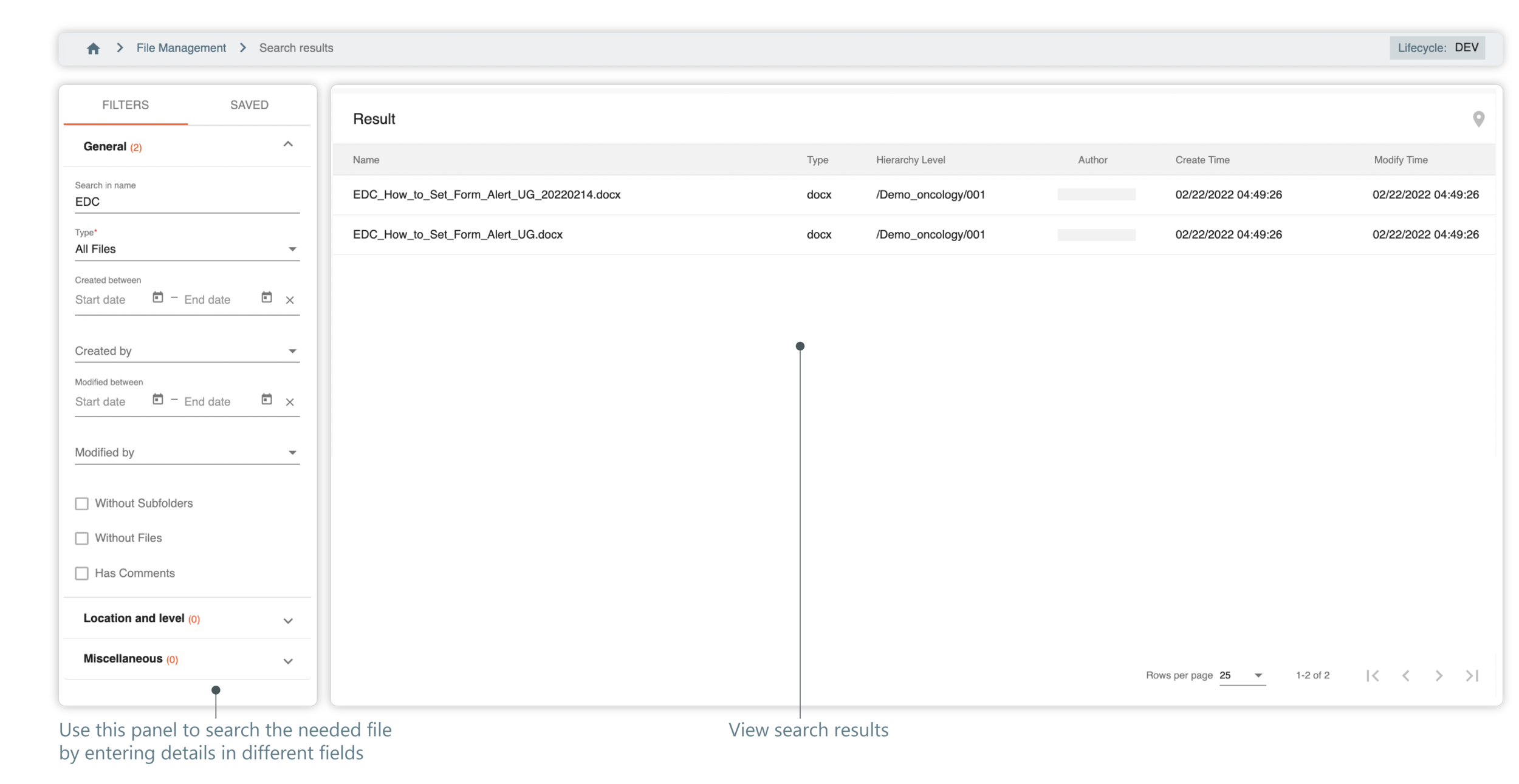 Figure 2. Searching file using advanced search and filters
Tip
You can use any combination of filtering parameters available in the FILTERS panel.
Element
Details
FILTERS
Select the tab to view and apply General, Location and hierarchy, and Miscellaneous filter parameters listed further in the table.
SAVED
Select this tab to access, apply, edit, or delete previously saved filters.
General
Expand the hierarchy to apply one of the following parameters.
Search in name
Enter a combination of characters to search the object by its name.
Type
From the list of available ones, select the type of the searched object:
-
All Files
-
Folders
-
Text documents
-
Photos and images
-
Spreadsheets
-
PDFs
-
SAS
-
Others
Created between
Use the date picker to indicate the date range within which the searched object might have been created.
Created by
From the list of suggested users, select the name of the user who might have created the object.
Modified between
Use the date picker to indicate the date range within which the searched object might have been modified.
Modified by
From the list of suggested users, select the name of the user who might have introduced changes to the object.
Without subfolders
Select the checkbox if the object has no subfolders.
Without files
Select the checkbox if the object has no files.
Has comments
Select the checkbox if the object has no comments in it.
Location and hierarchy
Expand the category to specify the needed filter as follows.
Location
Select the directory in which the searched file may reside.
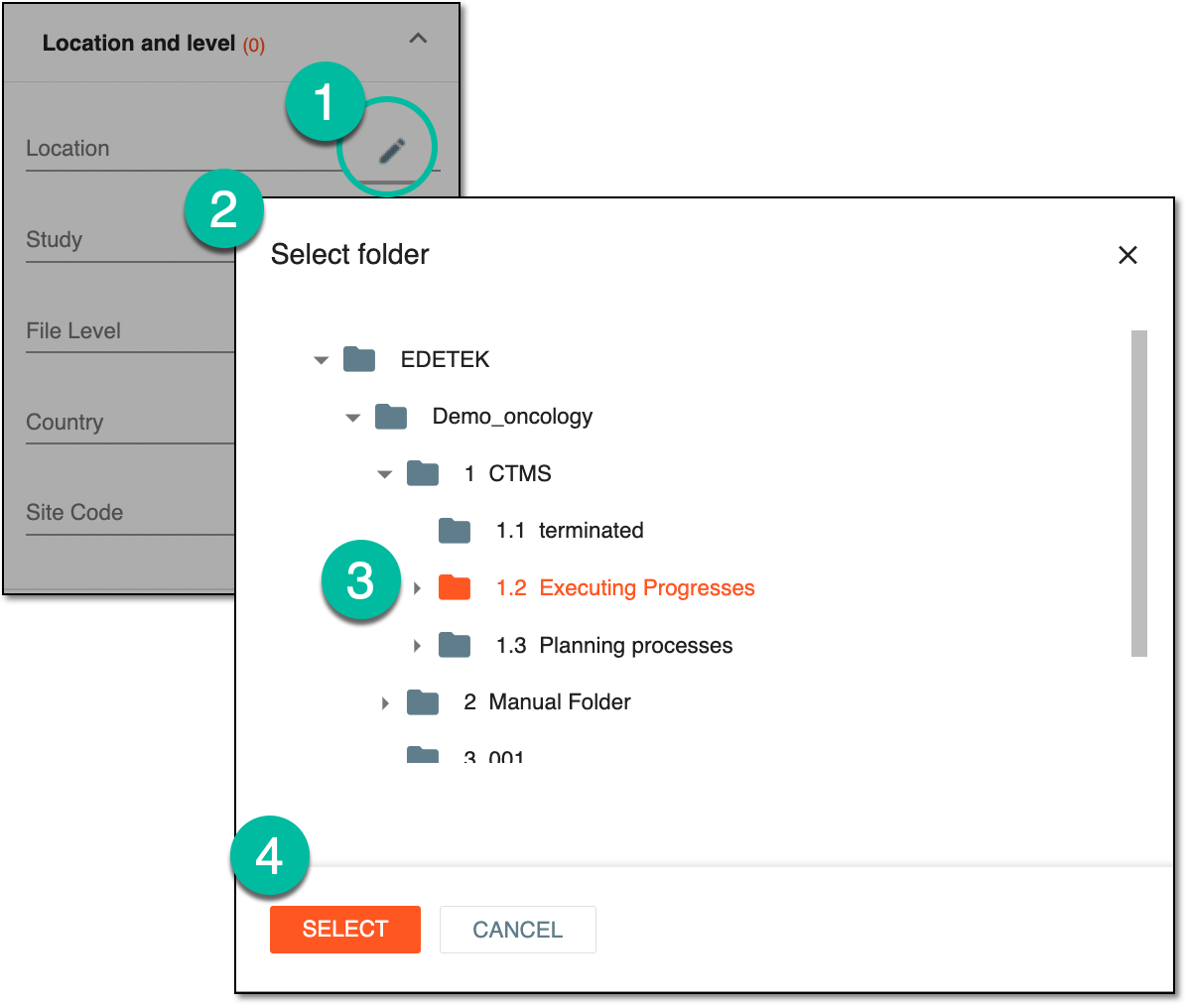 Figure 3. Selecting location
Study
From the list of available studies, select the study to which the searched file pertains.
File level
From the list of the hierarchies (Study level, Country level, or Site level), select the level at which the searched object may be stored.
Country
From the list of available countries, select the one that may pertain to the searched object.
Site Code
From the list of available site codes, select the one that may pertain to the searched object.
Miscellaneous
Expand the category to specify the needed filter as follows.
Linked
Select the checkbox to search for the file that has originated as a result of a linked copy from another file.
Public
Select the checkbox to search for the file that is available to all eTMF users.
Private
Select the checkbox to search for the file with restricted access (is available only for you).
Locked
Select the checkbox to search for the file that has been locked to prevent any changes.
CLEAR
Select
 to clear the applied search parameters.
SAVE
Select
 to save the filter parameters to use them the next time during the search.
Once the button is selected, the Save Filter dialog appears. In the dialog, you can specify the name of the filter combination applied and its description so that to reuse it later on if needed.
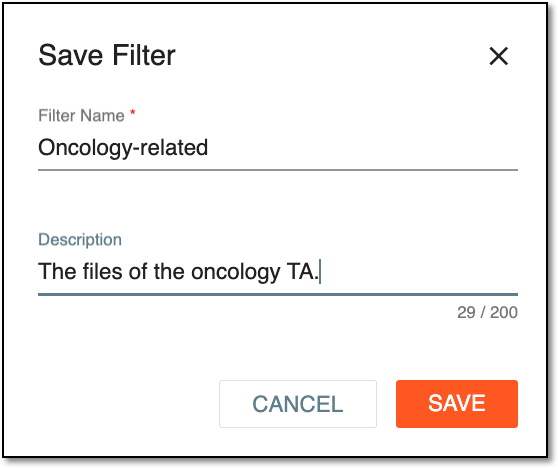 Figure 4. Saving filters
Select
 to save the filter settings. Once saved, the configuration appears under the SAVED tab.
APPLY
Select
 to conduct a search by specified filter parameters.
 -
Once all the needed filters have been applied, if any matches are found, the search results are displayed in the сontents panel. Double-click the content or select the target file and select Locate  to navigate to the file at once.