Set folder permissions
In a clinical trial, some documents contain sensitive data and must be concealed from unauthorized personnel and managed with caution. Thus, some folders with files might require access restrictions.
In eTMF, the administrator can manage folder-level access permissions based on the user role.
-
In the eTMF application header, select the ADMIN tab.
-
In the left pane, select the Permissions subtab.
-
In the role categories panel on the left, expand the node of the role category for which you want to set permissions.
Tip
You can limit your permissions to a particular role within a role category by selecting it from the list.
-
In the Hierarchy panel on the right, next to the directories of the explorer tree, select/clear the Read or Write checkboxes to grant/restrict access permissions, respectively.
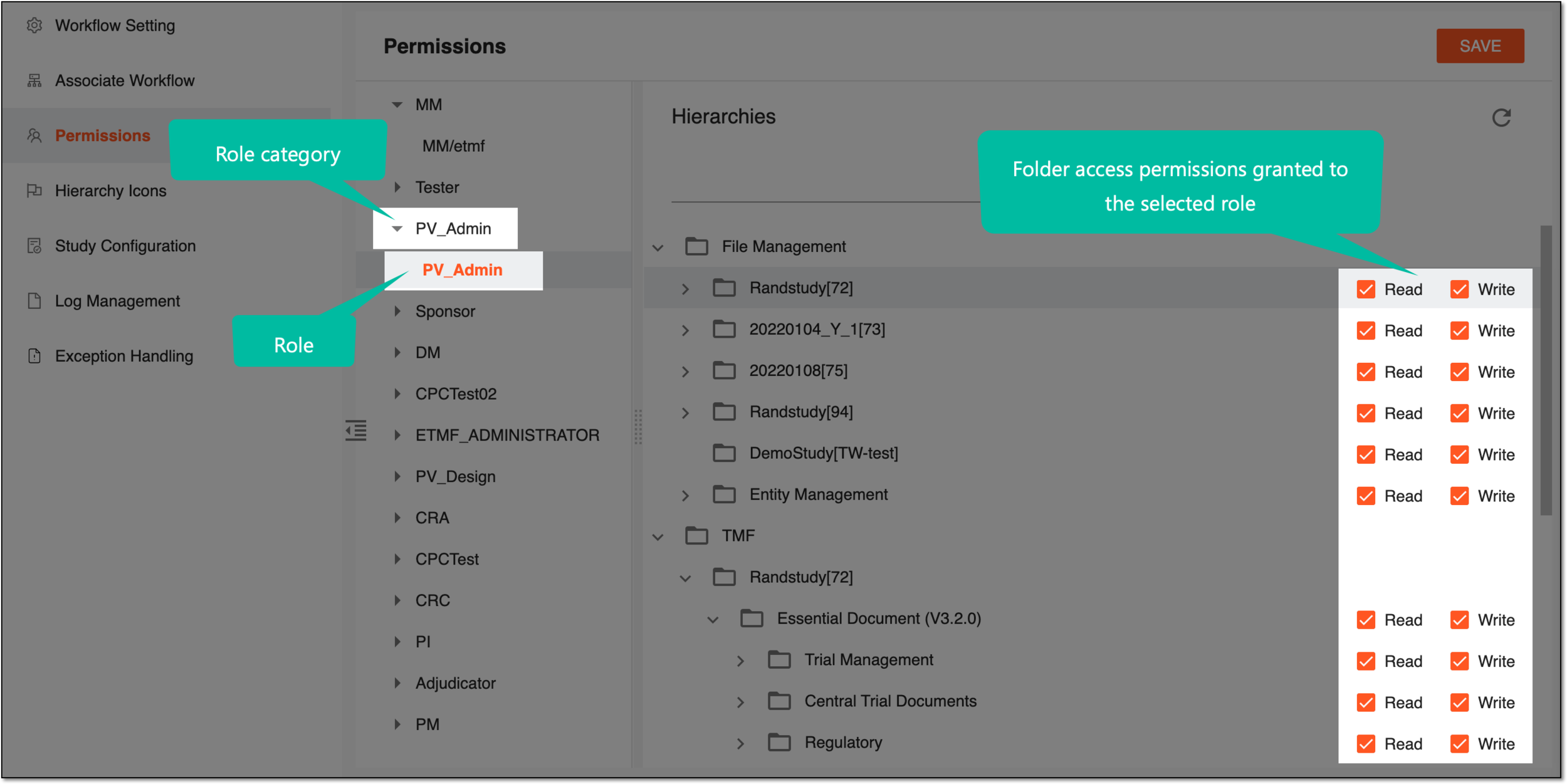 Figure 1. Assigning access control permissions
Tip
When the Write permission is granted, the Read permission is granted automatically.
-
In the Action Required dialog that appears, select one of the following options:
-
Yes: to extend granting/restricting the access permissions of the parent folder to all the child-level files and folders.
-
No: not to extend granting/restricting the access permissions to the child-level files and folders and only apply changes to the parent-level folder.
 Figure 2. Selecting to grant/restrict access for child-level objects
-
-
Select
 to save the changes.
Upon saving, the selected role is granted/restricted access permissions to the set folder(s).
Important
The user or role can audit files via the Task page even if they have no access to a folder containing the respective files.