Set alerts for file expiration
Setting up file expiration alerts helps inform users via email when documents or files related to a clinical trial are nearing their expiration date or have already expired. This feature plays a critical role in the management of trial documentation and compliance.
Important
Note that you cannot set expiration alerts for replaced files and files with the Dropped status.
There are three types of default alert recipients:
-
File Owner: the user who uploaded the file.
-
File Approver: the user who approved or signed the file.
-
eTMF Administrator: the user who is assigned as the eTMF administrator in the ADMIN application.
The eTMF administrators will receive the email according to accesses granted to them via the ADMIN application, as described in the following table.
|
File level/Access level |
Study Site |
Study Site |
Study Site |
|---|---|---|---|
|
Study-level file |
|
|
|
|
Country-level file |
|
|
|
|
Site-level file |
|
|
|


Additionally, you can set up specific email addresses to receive notification alerts on file expiration for:
-
The study level
-
The country level and specific countries
-
The site level and specific sites
-
In the eTMF application header, select the TMF tab.
-
On the page that opens, in the left pane, select the Study List subtab.
-
On the Study list table that appears, go to the required study. Then next to this study, select More
 > File Expired Alerts
  .
.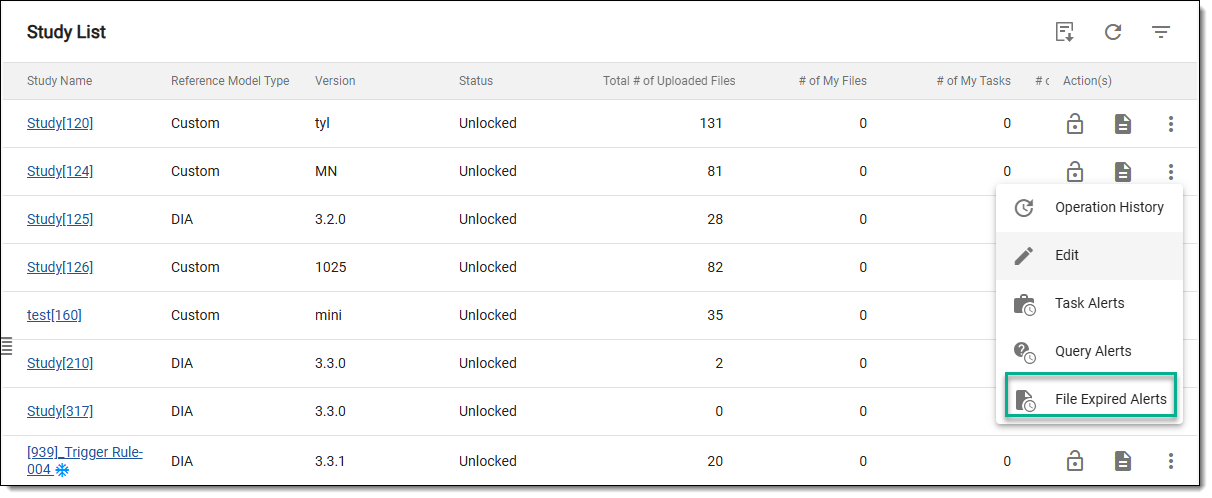 Figure 1. Accessing option to set alerts
-
On the page that opens, select the checkbox of the needed recipient type. In the table, go to the target level of an email recipient and in Action(s) column, select Edit
 next to it.
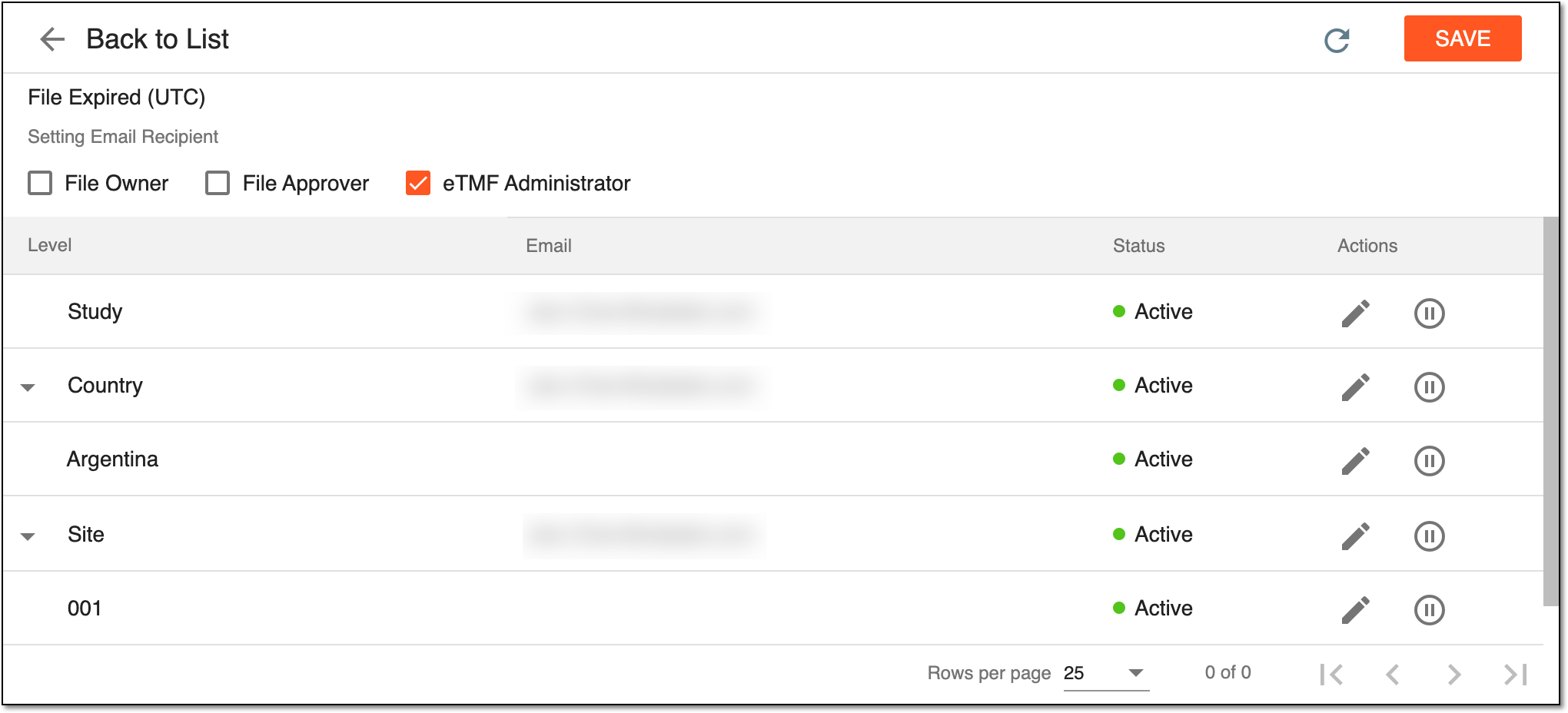 Figure 2. Selecting target level of email recipient
-
In the Set Email Address dialog that appears, enter the recipient's email address and select
 .
.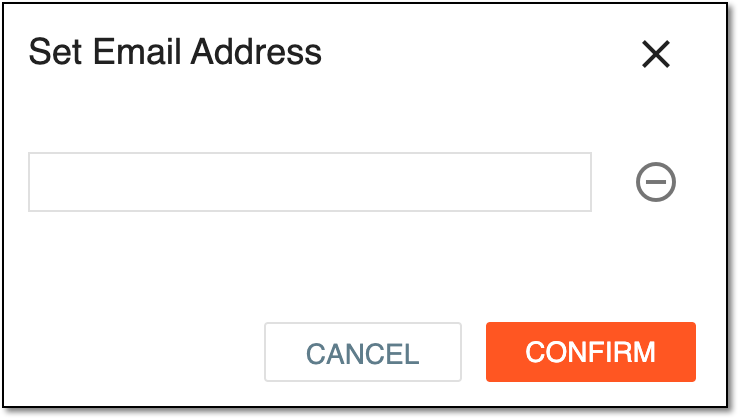 Figure 3. Setting email address
-
Select
 to save the implemented changes.
Upon saving, the set recipients start receiving notifications on the expired files in their emails.