Activate/Deactivate alert notification for expired files
Setting up file expiration alerts helps inform users via email when documents or files related to a clinical trial are nearing their expiration date or have already expired. This feature plays a critical role in the management of trial documentation and compliance.
In eTMF, you can activate or deactivate the configured alerts for a study to specified recipients. When the alert is active, the recipients are informed accordingly, whereas alerts in the inactive state do not trigger the notifications but remain in the system.
-
In the eTMF application header, select the TMF tab.
-
On the page that opens, in the left pane, select the Study List subtab.
-
On the Study list table that appears, go to the required study. Then next to this study, select More
 > File Expired Alerts
  .
.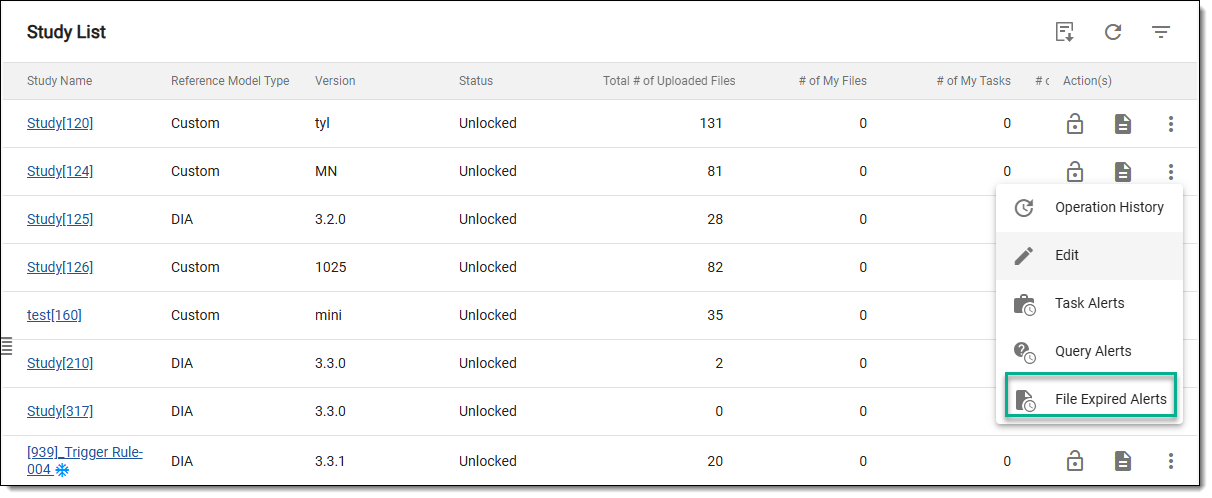 Figure 1. Accessing expired alerts
-
On the page that opens, select the checkbox of the needed recipient type. In the table, go to the target level of an email recipient and from the Action(s) column, activate or inactivate the alert.
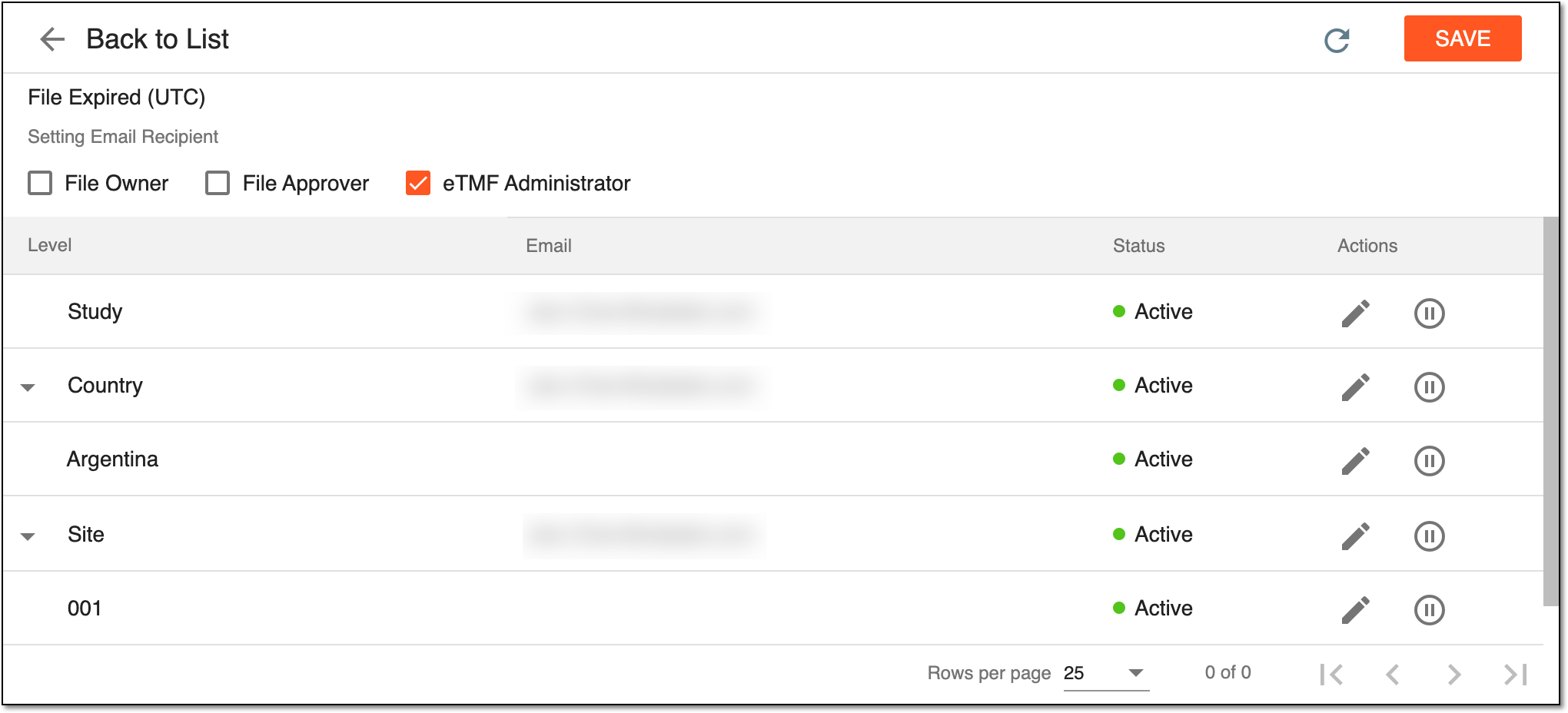 Figure 2. Selecting target level of email recipient
-
Activate
 : to start sending alert emails to the recipients upon the trigger condition being met.
 -
Inactivate
 : to stop sending alert emails to recipients.
-
Depending on the selected option, the alert notification is either activated or inactivated.