Edit customfile type
While managing files in eTMF, you can create and manage custom file types per your business needs. At times, you might need to edit the file type details to adjust them to the current requirements.
-
In the eTMF application header, select the TMF tab.
-
On the page that opens, in the left pane, select the File Type Setting subtab.
-
On the File Type Setting page that opens, go to the file type of your interest. Then in the Actions column next to it, select More
 > Edit
  .
.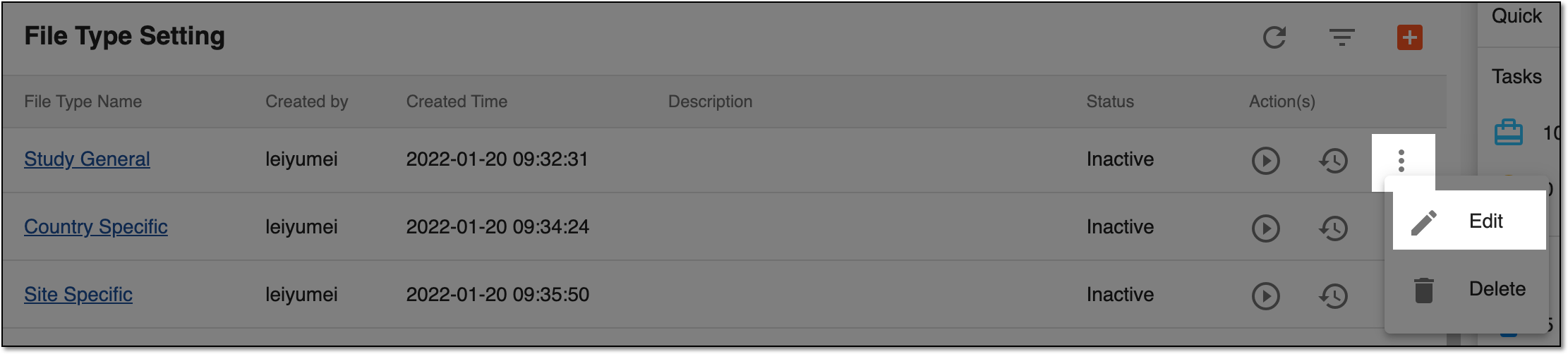 Figure 1. Locating Edit option
-
In the Edit dialog, update the File Type Name and Description fields as needed. The fields are identical to those explained in the table of the Create file type section.
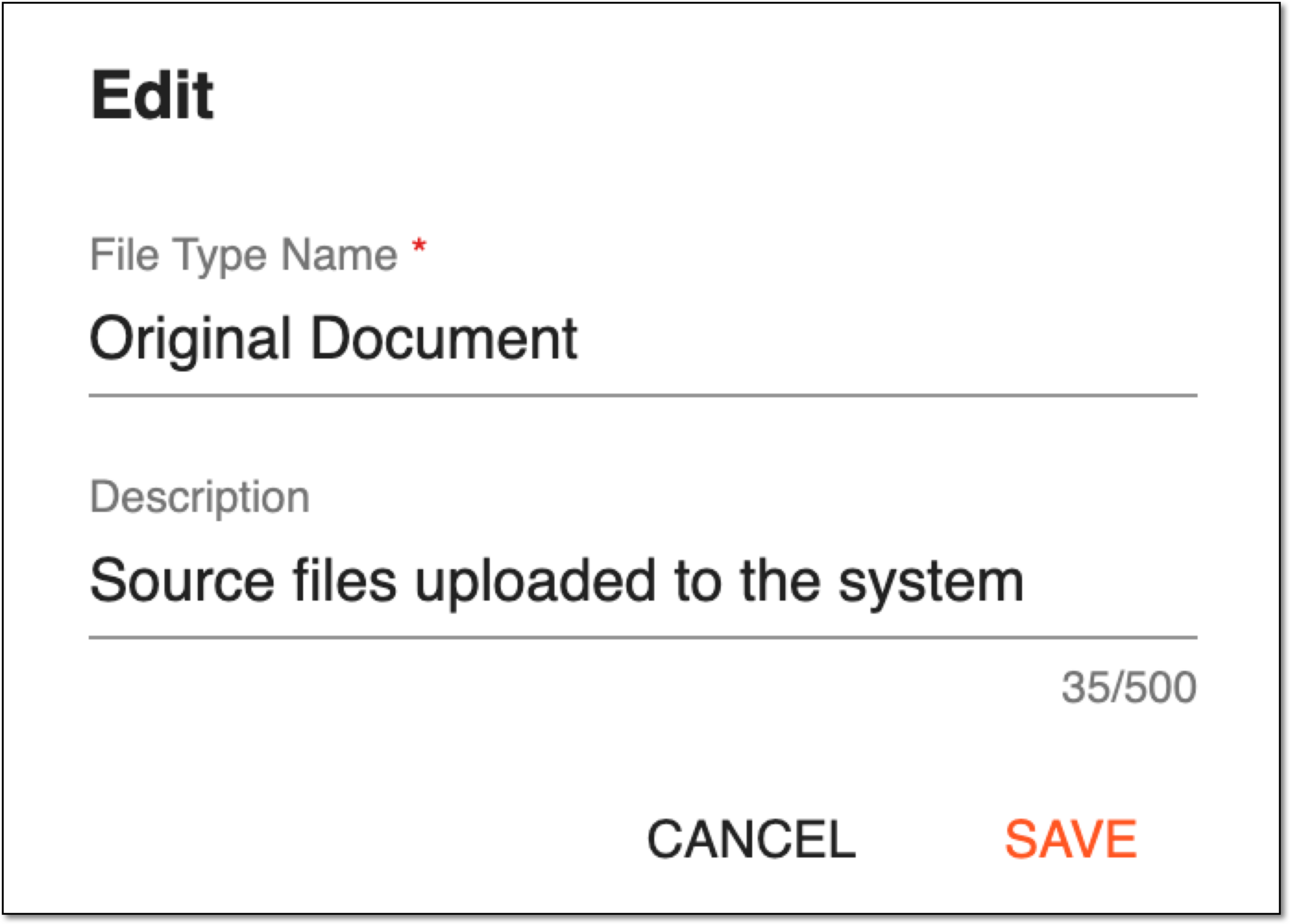 Figure 2. Editing custom file type
-
Select
 to implement the changes.
Upon saving, the custom file type details are updated. You can also activate/inactivate file types.