Activate/Inactivate file type
While managing files in eTMF, you can create and manage custom file types per your business needs. Sometimes, you might need to make some file types unavailable for selection upon file upload to the system. Thus, you can temporarily inactivate the file type and later activate it and make it available for use.
-
In the eTMF application header, select the TMF tab.
-
On the page that opens, in the left pane, select the File Type Setting subtab.
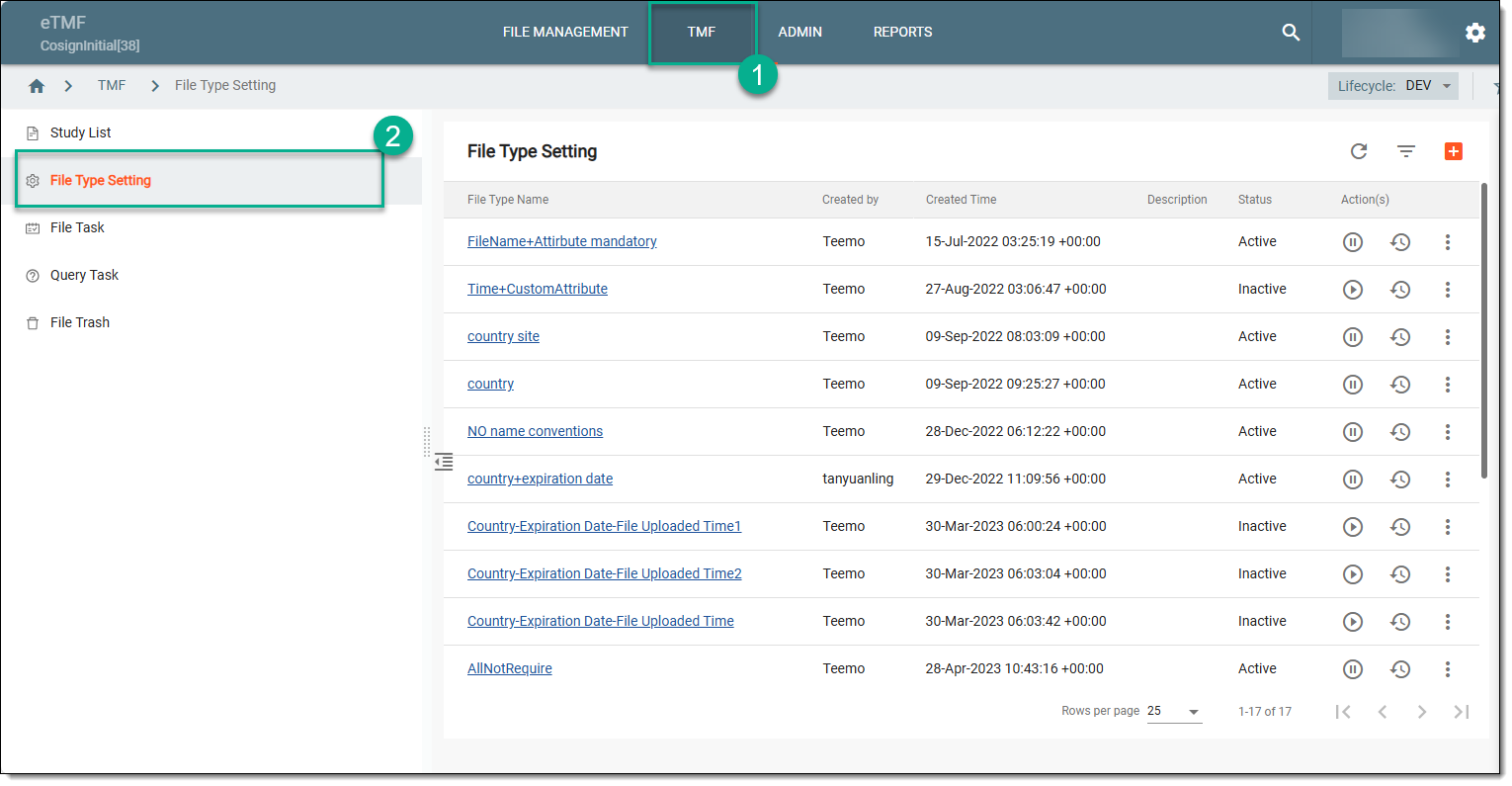 Figure 1. Selecting file type setting
-
On the File Type Setting page that opens, go to the file type of your interest and in the Actions column next to it, and proceed as follows.
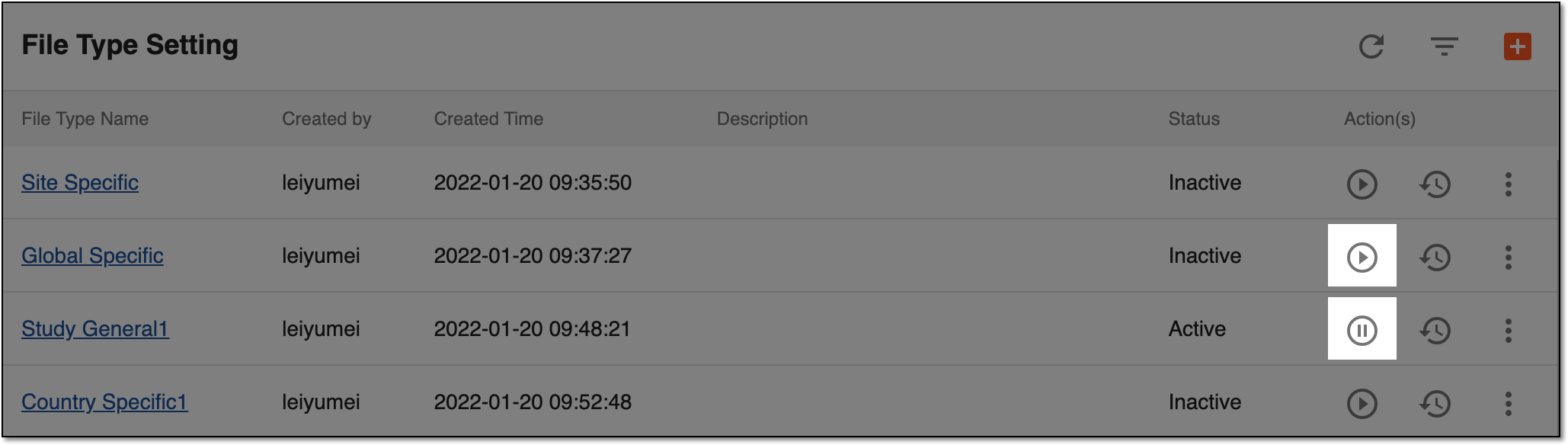 Figure 2. Activating/Inactivating file type
-
Activate
 : to make the file type available all over the eTMF system, for instance, when uploading new files.
 -
Inactivate
 : to make the file type unavailable throughout the eTMF system and only available from the File Type Setting page for activation.
-
-
In the Active/Inactive confirmation dialog that appears, specify the reason for the file type activation/inactivation and select
 to confirm your action.
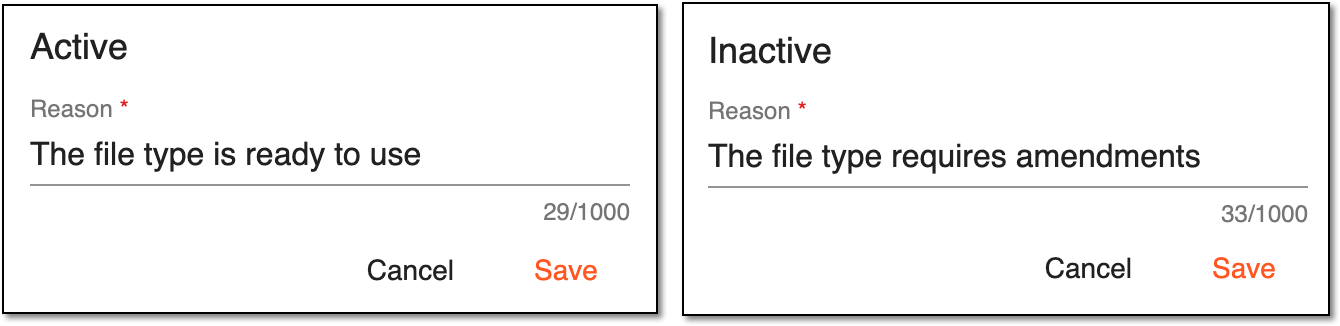 Figure 3. Editing custom file type
Upon confirmation, the file type is activated/inactivated depending on the selected action. You can also view the file type operation history.