View file type operation history
While managing files in eTMF, you can create and manage custom file types per your business needs. Sometimes, you might need to review the operations performed with file type to investigate its history in the system.
-
In the eTMF application header, select the TMF tab.
-
On the page that opens, in the left pane, select the File Type Setting subtab.
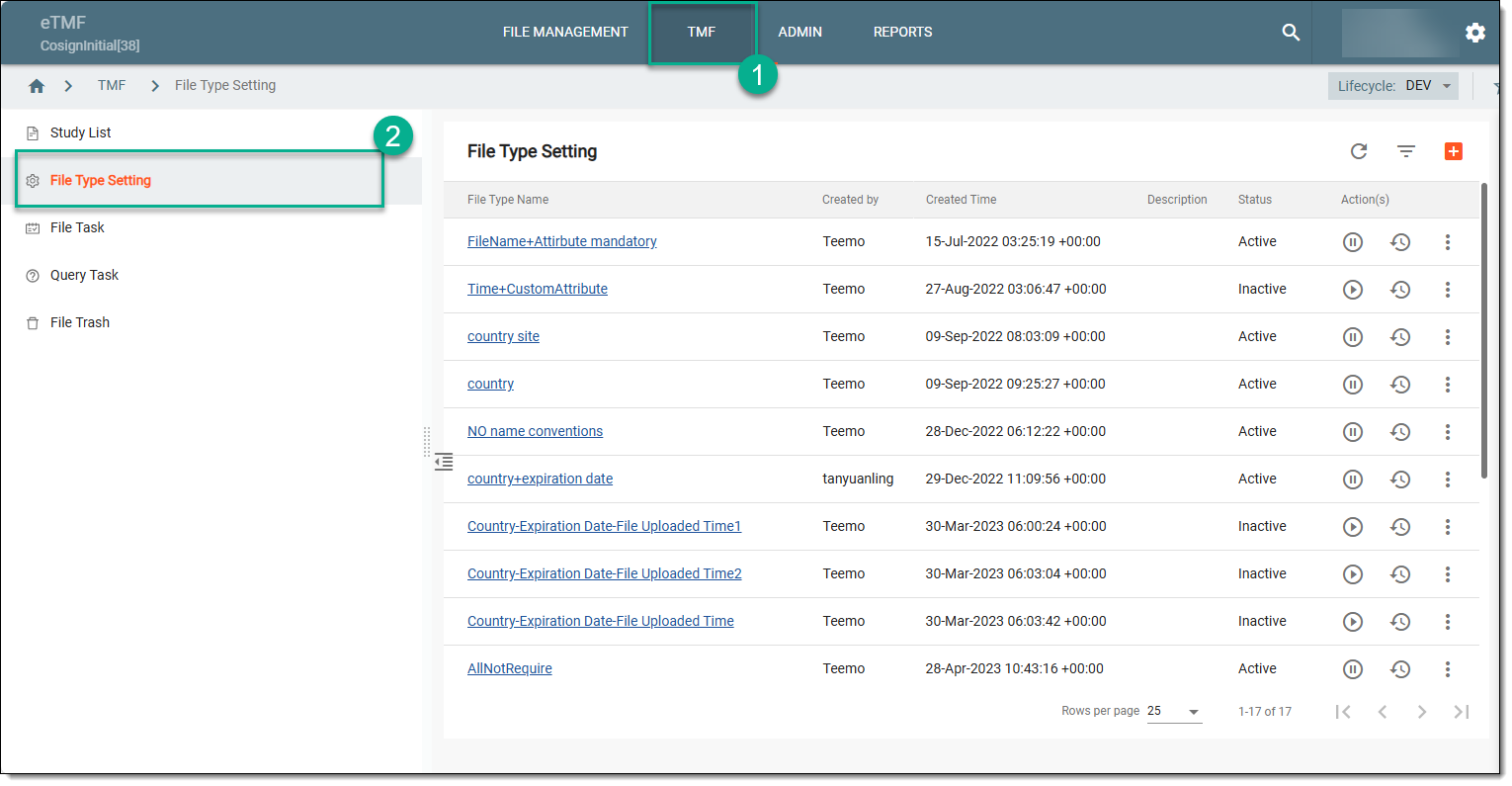 Figure 1. Selecting file type setting
-
On the File Type Setting page that opens, go to the file type of your interest. Then in the Actions column next to it, select Operation History
 .
.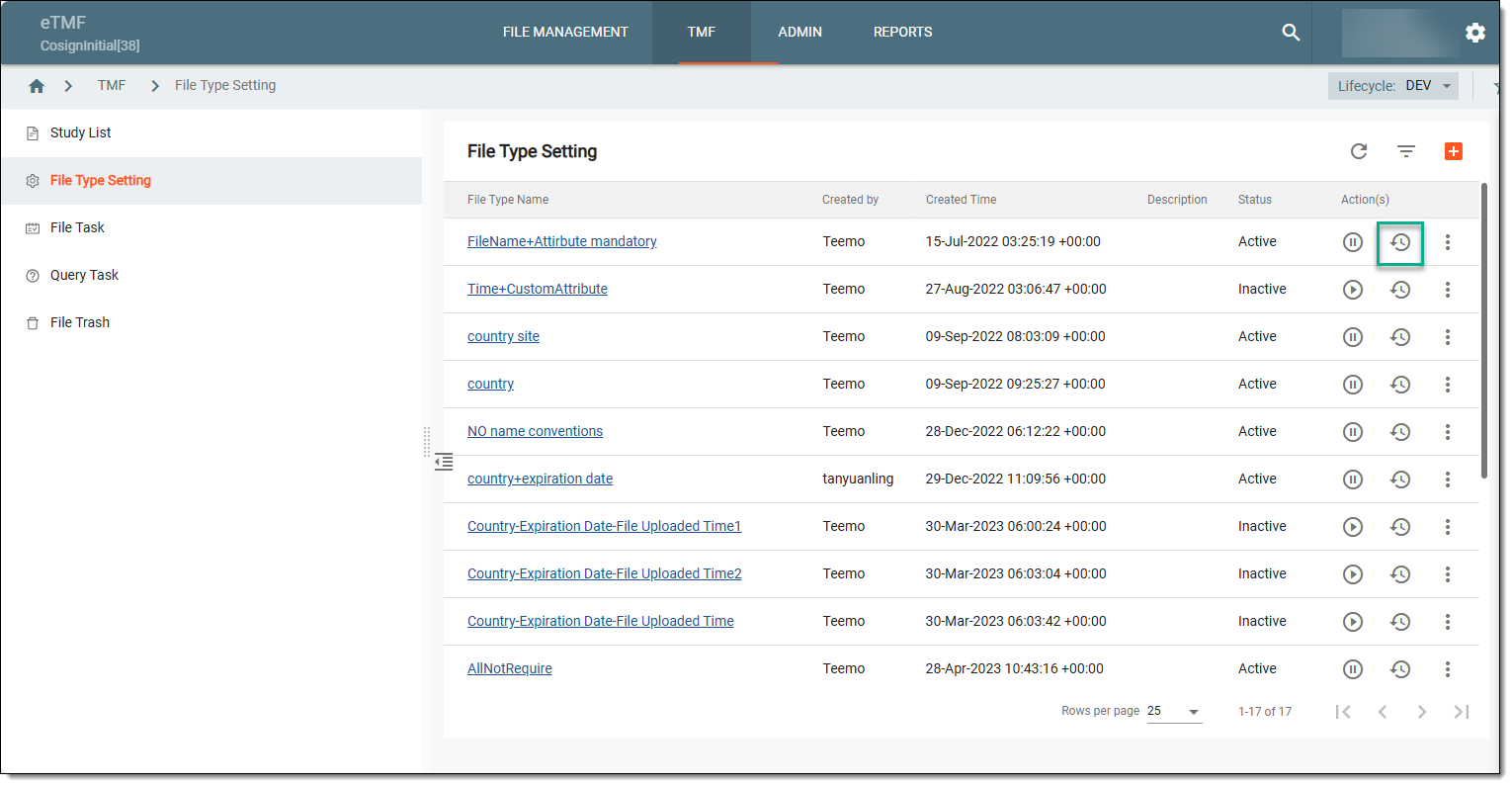 Figure 2. Accessing file type operation history
-
In the Operation History dialog that appears, view the details of operations such as operator name, time, and comment, if any.
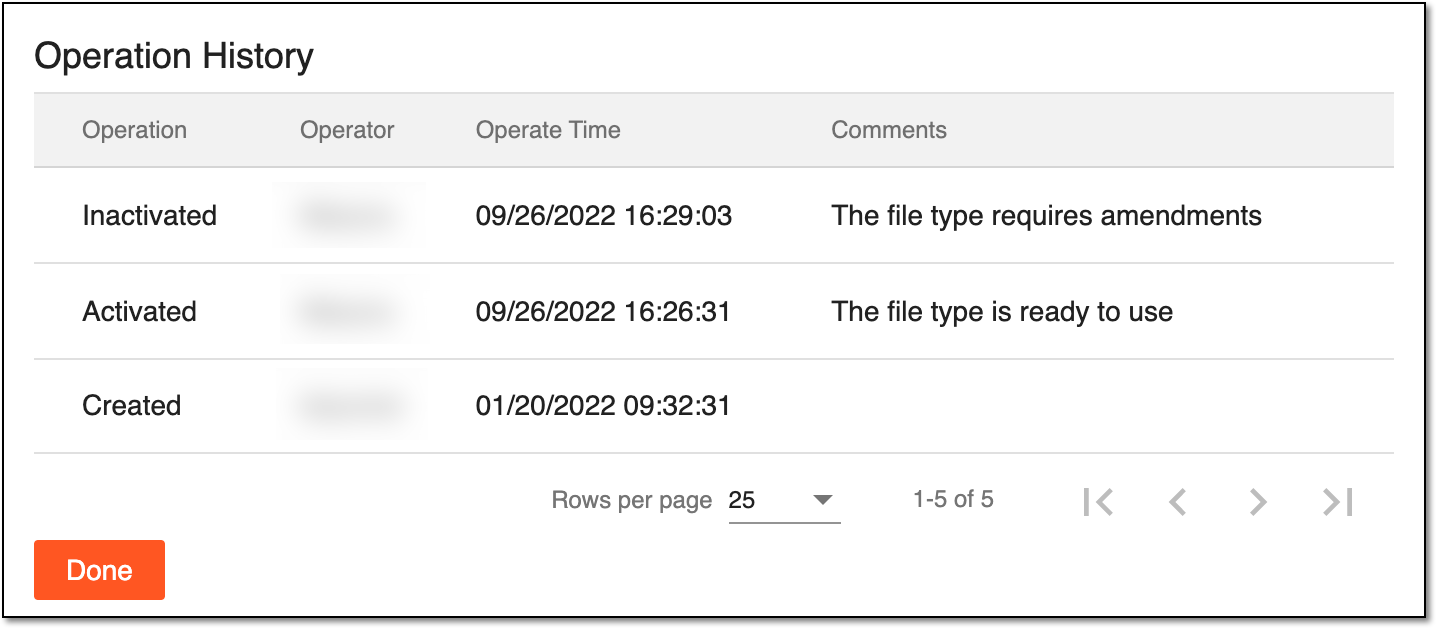 Figure 3. Viewing file type operation history
-
Select
 to close the dialog and return to the File Type Setting page.
You have viewed the details of operations, if needed, you can also delete the custom file type that you no longer need.