Add new user
In the ADMIN app, from the USER tab, you can add new user accounts for individuals that require access to the eClinical products.
-
In the ADMIN application header, select the USER tab.
-
On the User Management page that opens, select New Item
 .
. Figure 1. Selecting option to add new user
-
On the page that opens, complete the four steps of configurations as follows.
-
In the User Information form that opens, fill in all the fields as explained in the following table.
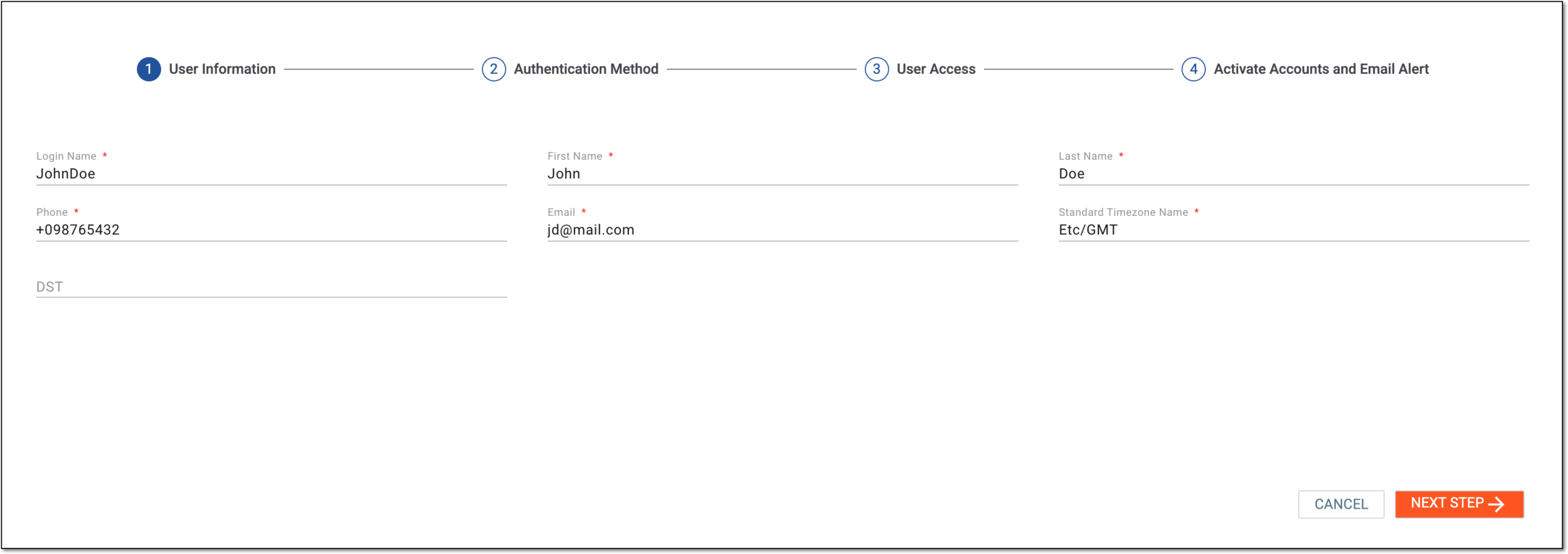 Figure 2. Providing user information
Tip
In the following table, mandatory elements are marked with an asterisk (*).
Element
Details
Login Name*
Enter the unique name the new user enters to log in to the system. Each user must have a different login name as it cannot be duplicated.
Once saved, this value cannot be changed later while editing user information.First Name*
Enter the first name of the new user being added.
Last Name*
Enter the last name of the new user being added.
Phone*
Enter the phone number of the new user.
Email*
Enter the email address of the new user. Each user's email address should be different as two users cannot have identical email addresses. Once created, the user receives all the system notifications in the email.
Standard Timezone Name*
Select the standard timezone to set how the system processes and displays data to the user in the applications.
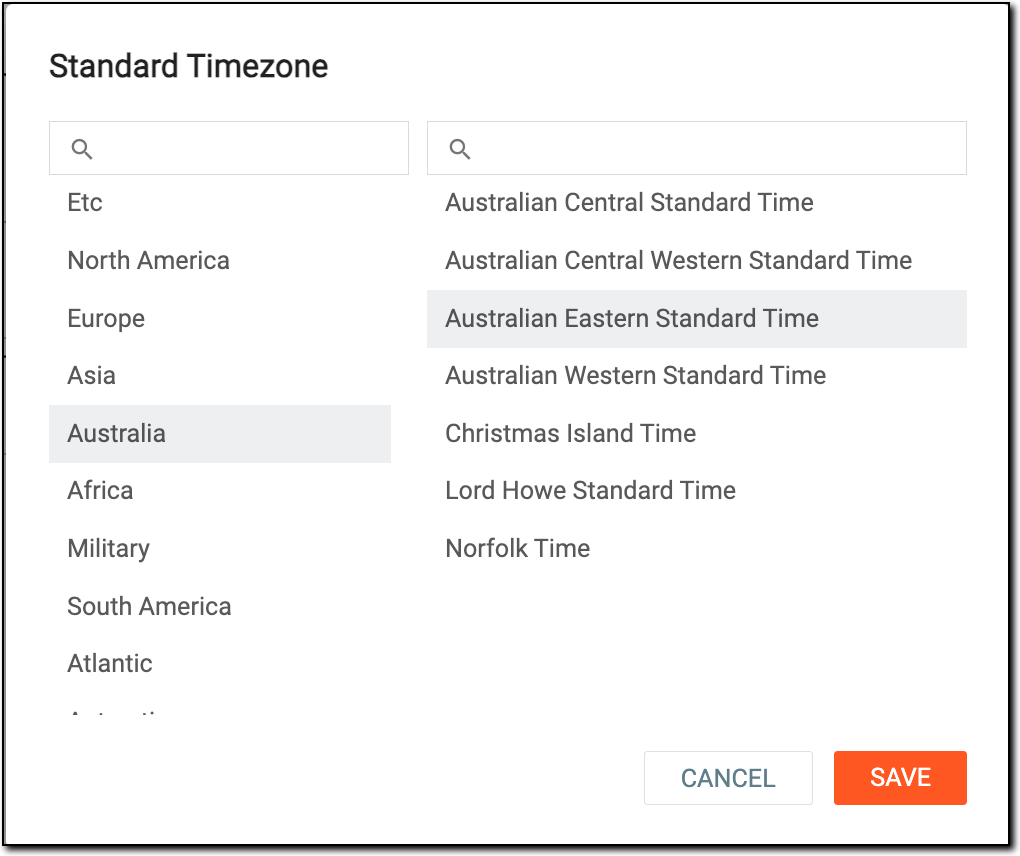 Figure 3. Selecting standard timezone
DST
Select the daylight saving time for the new user being added.
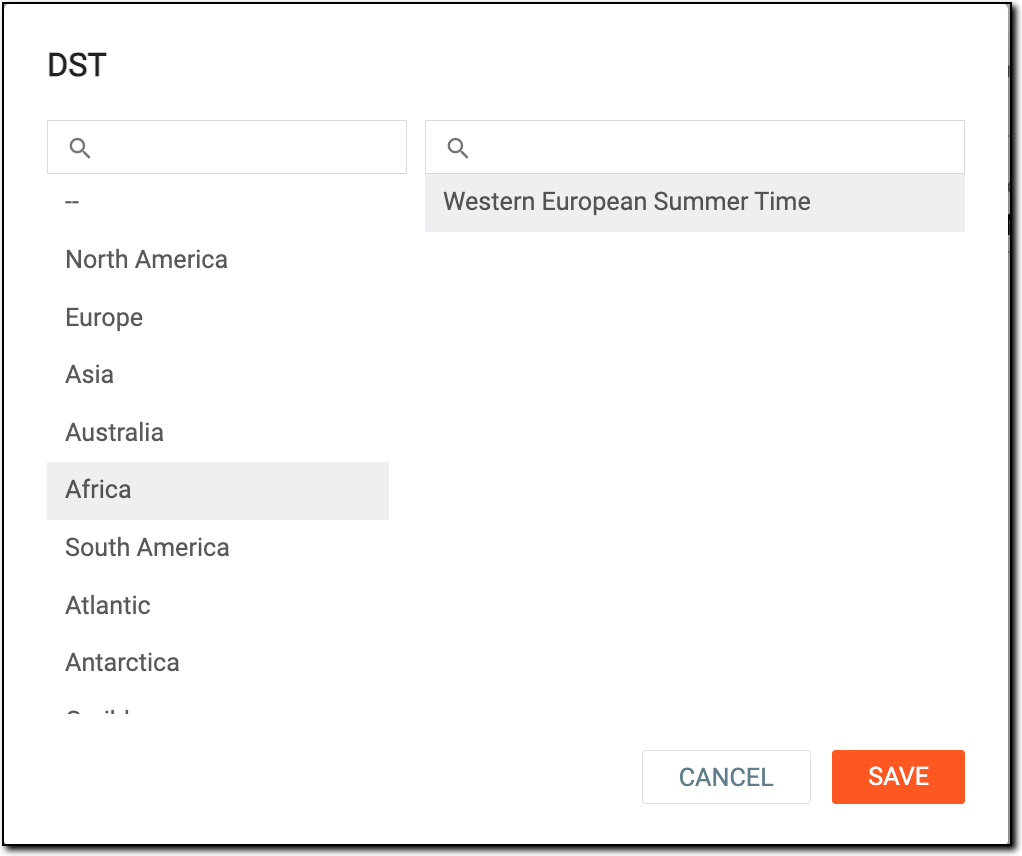 Figure 4. Selecting DST
NEXT STEP
Select
 to confirm the changes you made.
CANCEL
Select
 to dismiss without adding the new user.
 -
In the confirmation dialog that appears, select
 to proceed to the next step of user configuration.
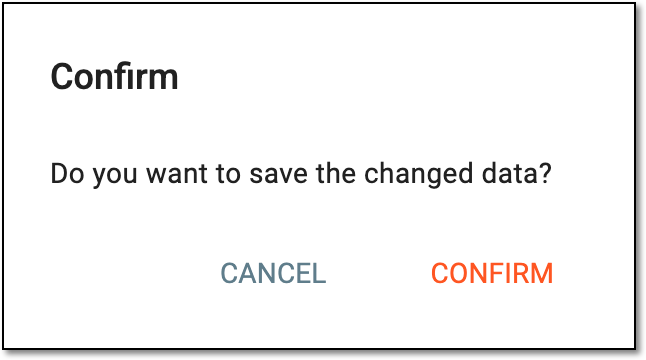 Figure 5. Confirming data change
-
In the Authentication Method form that opens, fill in the details as explained in the following table.
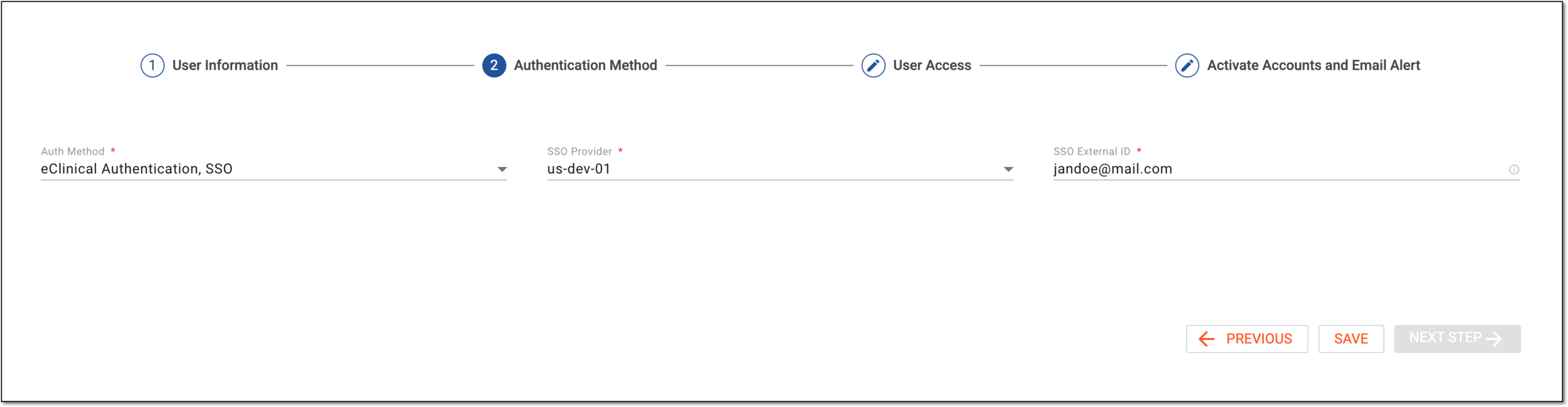 Figure 6. Specifying authentication method
Tip
In the following table, mandatory elements are marked with an asterisk (*).
Element
Details
Auth Method*
Select the authentication method:
-
eClinical Authentication: for the user to log in to the eClinical system using their credentials—preconfigured login name and password.
-
SSO: for the user to log in to the eClinical system using the single sign-on authentication method.
SSO Provider*
Select the name of the single sign-on authentication provider configured for you in the system by the EDETEK dev team.
This field only appears if SSO is selected as an authentication method.SSO External ID*
Enter a unique identifier provided by the user from their single sign-on system to identify and authenticate their identity. This external identifier can be the user's email address, but it can also be their username, phone number, or any other unique identifier used to recognize the user across eClinical and the identity provider system.
This field only appears if SSO is selected as an authentication method.SAVE
Select
 to implement the changes.
PREVIOUS
Select
 to return to the previous step of user configuration.
 -
-
Once saved, select
to proceed to the next step of user configuration.
-
In the User Access form that opens, from the workspace toolbar, select New Item
.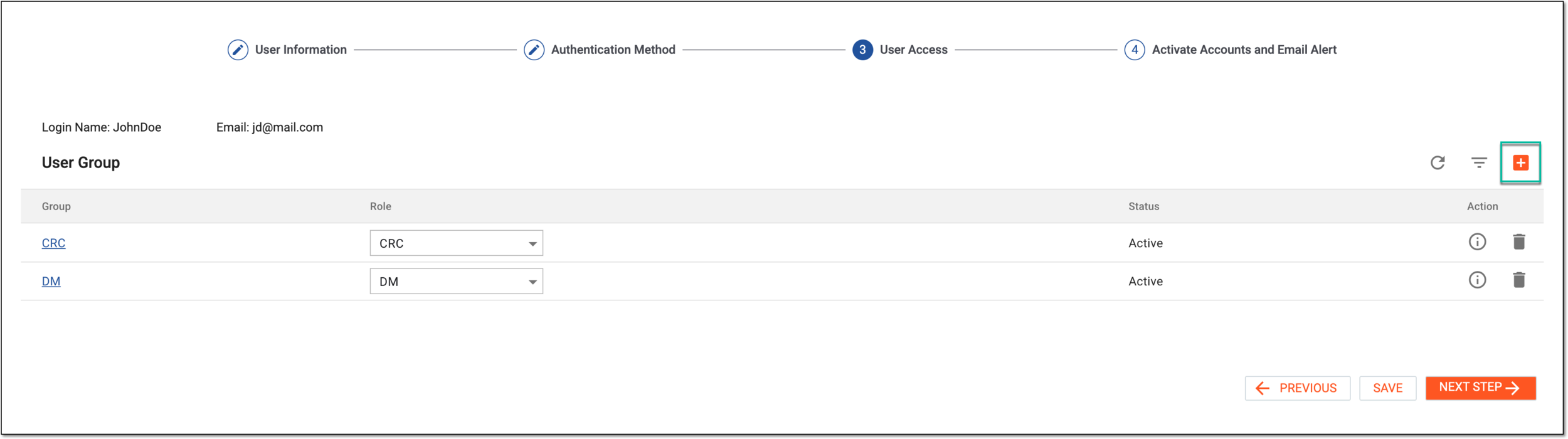 Figure 7. Selecting option to add user access
-
In the Select User Group dialog that appears, next to the user group representing the access levels you want to grant to your user, in the Role* field, select the role to assign to the user. You can select multiple user roles within one group if needed.
For instance, for the principal investigator in the study, you want to give the maximum level of access that is represented by the Study Management user group. Thus, next to this group, you can select the PI role. This will result in your user obtaining the PI user role and granting them access permissions configured for the Study Management user group.
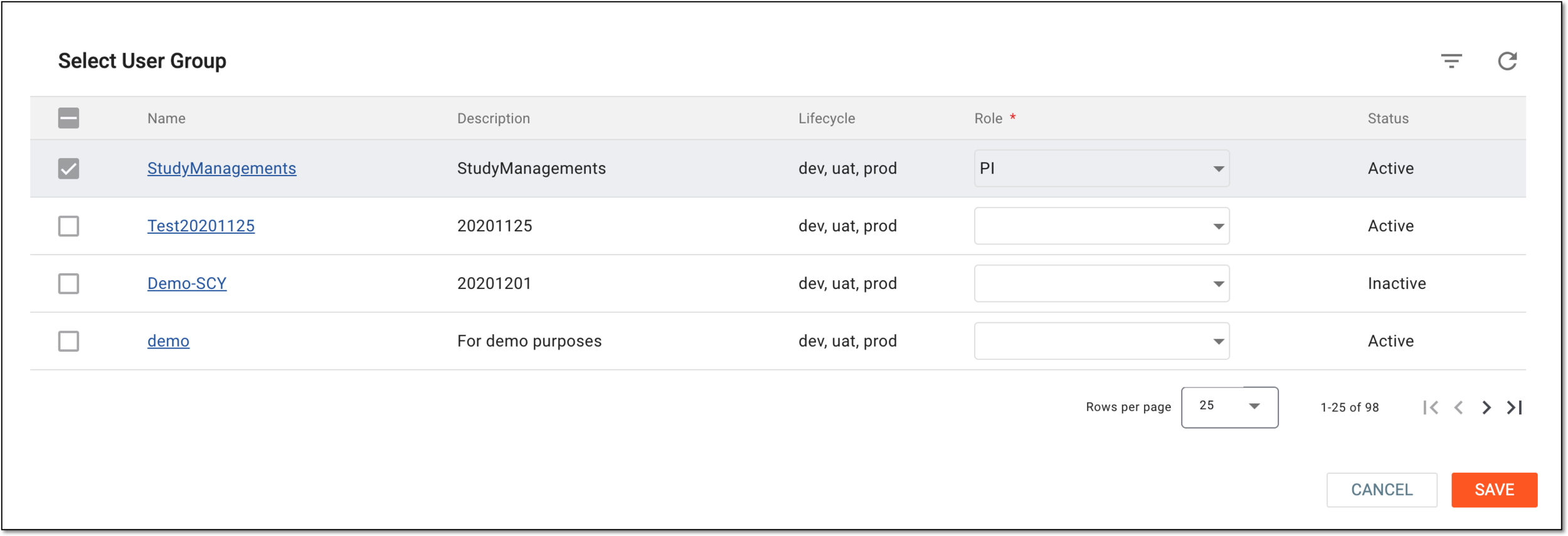 Figure 8. Selecting role within user group to provide access
-
Select
 to save the applied role settings, close the dialog, and return to the User Access page.
 -
Once the access configuration is completed, select
to implement the changes. Then select to proceed to the next step of user configuration.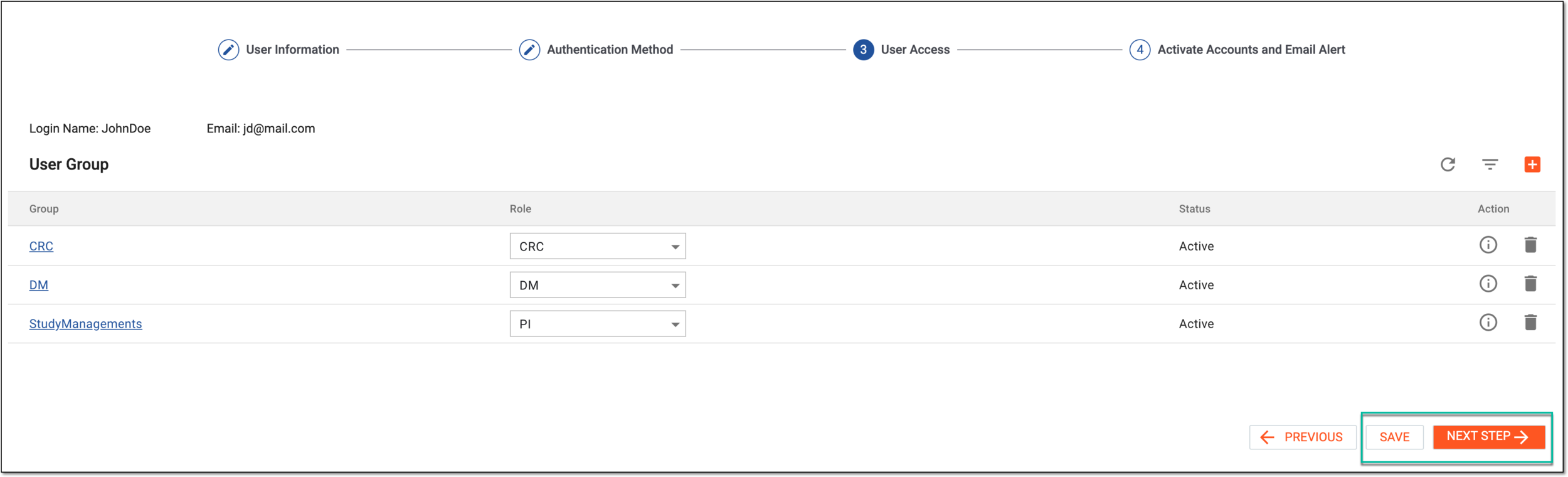 Figure 9. Saving user access settings and proceeding to next step
Tip
Select
to return to the previous step of user configuration.
-
In the Access List table, review the details of the granted access permissions according to the user roles. In the Title column, enter the title that the user has in the respective sponsor's organization.
Tip
Use the Site and Depot option buttons to switch between the access permission list per site or depot, respectively.
-
To send the notification email to the user on their account configuration, ensure the Send creation email toggle is turned on. Then in the Email Alert text box, review and adjust the preconfigured default text of the letter.
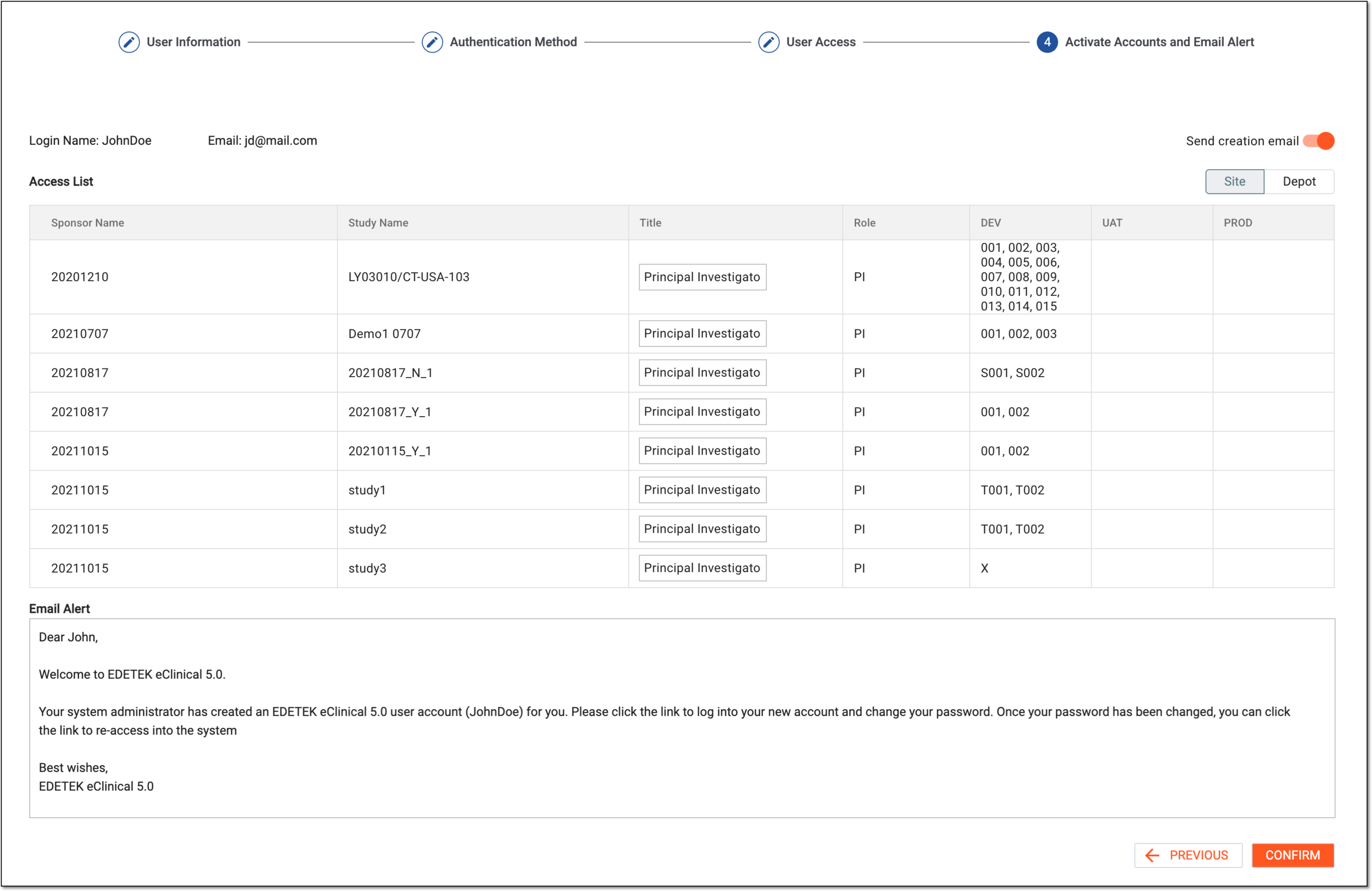 Figure 10. Confirming and activating user roles and accesses and sending email
-
Select
 to finalize the user account creation and activation.
-
Once all the configuration stages are completed, the new user is added to the system and activated. If set so, the user receives the notification email on their account configuration and can follow the embedded link to access the system, or they can open the eClinical system from the otherwise obtained link and start using the apps as per their access setting.