Folder-level management of essential documents
In the eTMF application, the Essential Documents page represents file storage based on the DIA TMF reference model. It contains specific files required for compliance and regulatory purposes. These files are used for planning and integrity purposes, for example, a file that includes the detailed plan of the eClinical trial, along with modifications made to the original protocol.
After you have analyzed the details of the files of interest via the Essential Documents storage, you can manage your essential documents at different levels that represent study containers, the folders inside the study containers, and the files inside these folders.
Essential documents can be controlled at the folder level to which they belong, as discussed in the sections that follow.
A workflow is a schema, each step of which represents a stage of a specific entity lifecycle in the system.
You may need to view an eTMF study workflow to analyze whether various actions on system entities are performed as expected. This provides an additional tier of scrutiny in which the approval and rejection mechanism reduces the risk of unintended impact on sensitive resources and important information.
-
In the eTMF application header, select the TMF tab.
-
On the page that opens, in the left pane, select the Study List subtab.
-
In the Study List table, select the study for which you want to access the relevant files and documents.
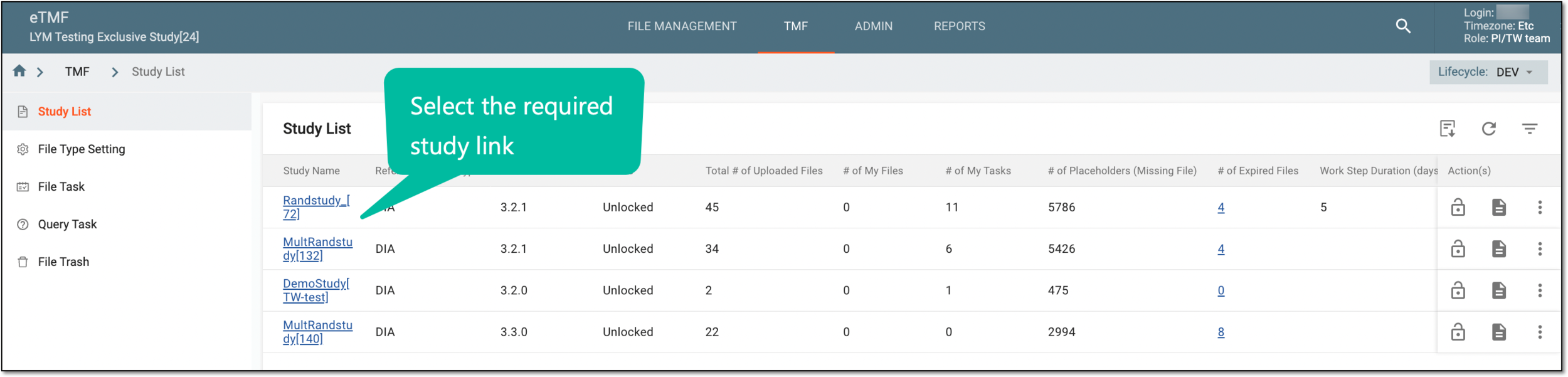 Figure 1. Selecting study
-
On the page that opens, in the left pane, select the Essential Documents subtab.
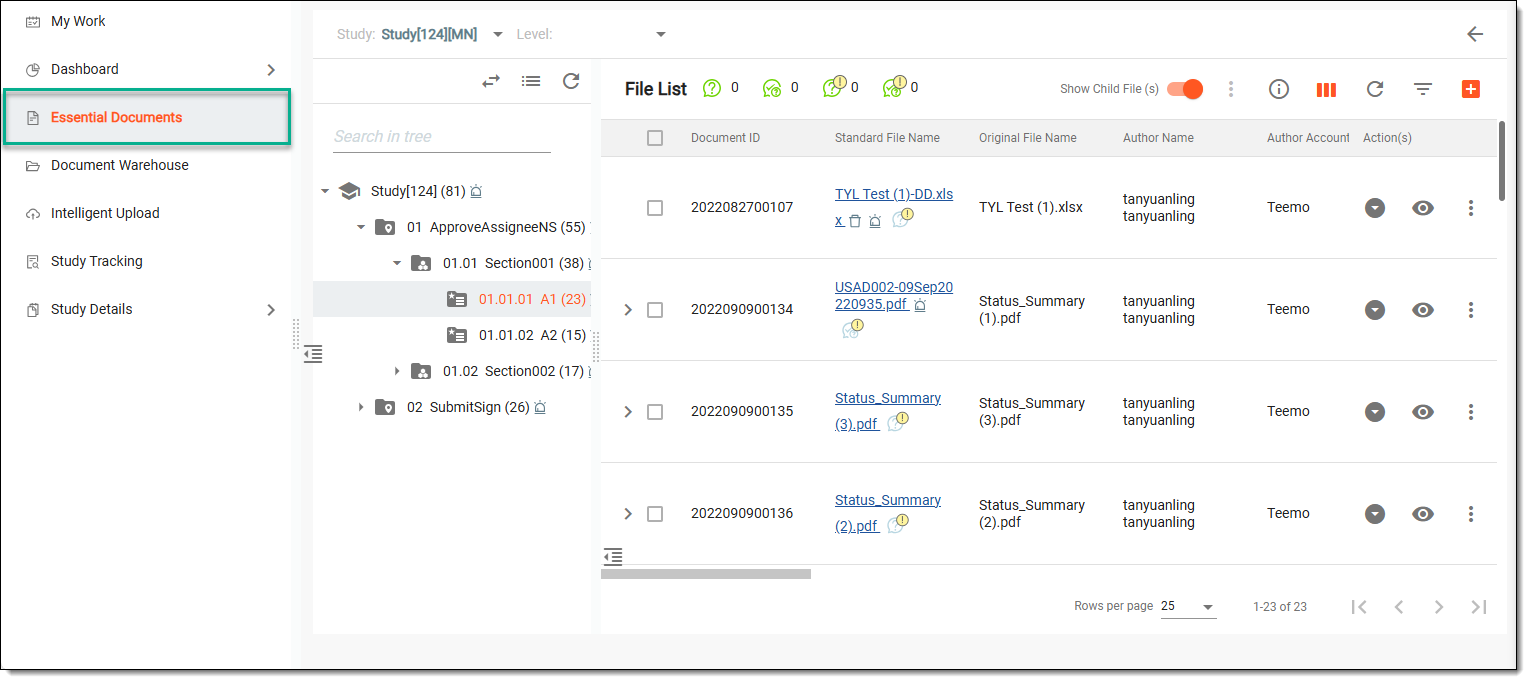 Figure 2. Accessing essential documents
-
In the left explorer pane, locate and select the study folder whose workflow you need to check, and right-click it. From the dropdown menu that opens, select View workflow
 .
.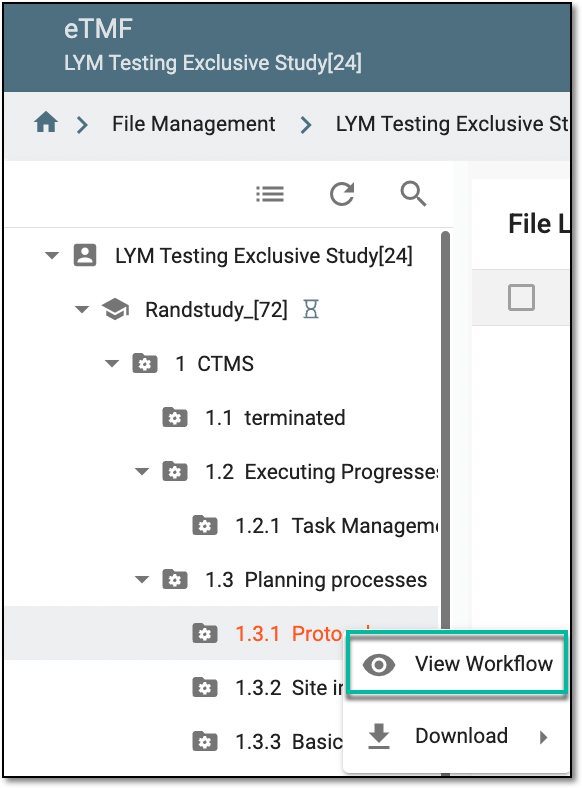 Figure 3. Accessing option to view workflow
-
In the dialog that opens, study the workflow for your folder.
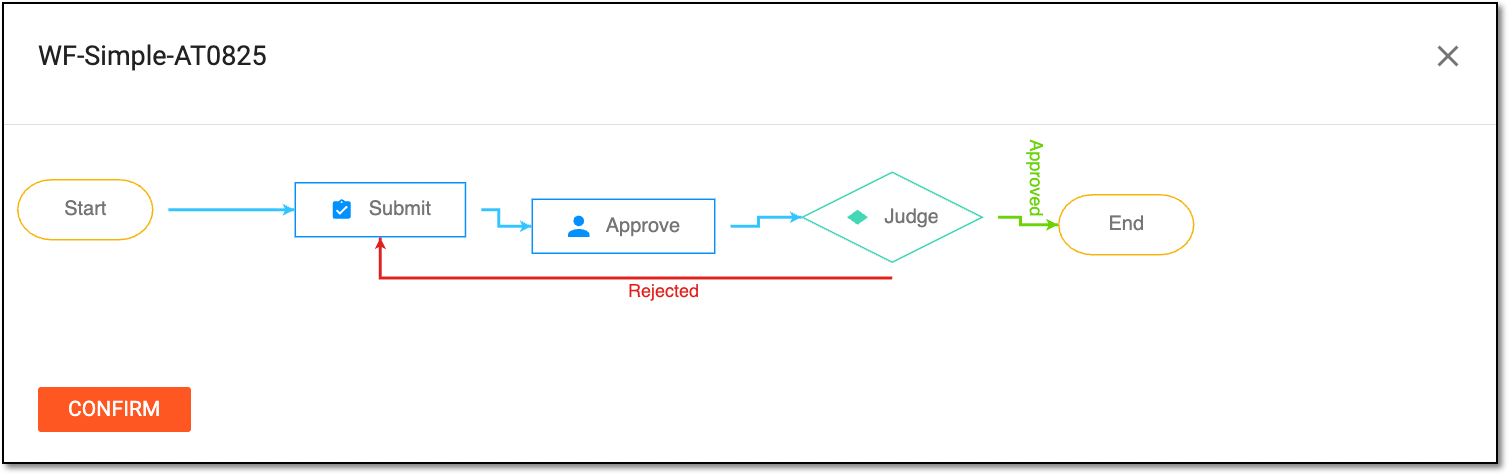 Figure 4. Analyzing study workflow
-
Now, select
 to close the dialog.
Once selected, the dialog closes and you return to the file management page. If you need to introduce any changes to the existing workflow, refer to the Edit workflow section and add the required changes.
In the eTMF app, you can download a folder with files to work with them offline on your computer. This Download option has been enhanced with the ability to download the files with or without electronic signatures, depending on your internal rules and business processes.
-
In the eTMF application header, select the TMF tab.
-
On the page that opens, in the left pane, select the Study List subtab.
-
In the Study List table, select the study for which you want to access the relevant files and documents.
Figure 1. Selecting study
-
On the page that opens, in the left pane, select the Essential Documents subtab.
Figure 2. Accessing essential documents
-
On the page that opens, in the explorer tree, locate and right-click the required folder.
-
In the expanded menu, select one of the following options:
-
Folder with Signature
 : to download all the files in this folder and a PDF file
containing all the data on electronic signatures for the downloaded files.
: to download all the files in this folder and a PDF file
containing all the data on electronic signatures for the downloaded files. -
Folder without Signature
 : to download all the files in this folder without
an additional file with electronic signature information.
: to download all the files in this folder without
an additional file with electronic signature information.
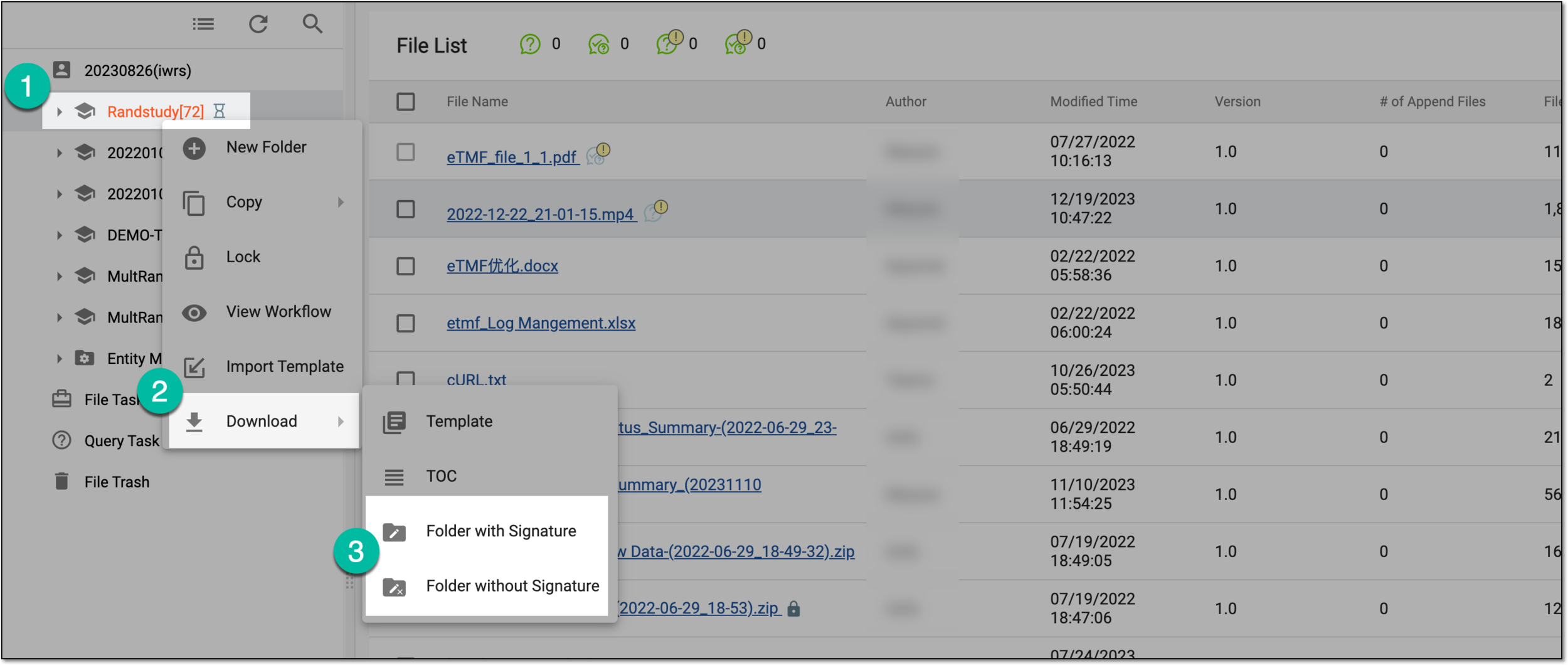 Figure 3. Downloading folder
-
-
The confirmation message appears that the folder is zipped and once ready, will be available in the Quick > Download option. Select
 to close the dialog.
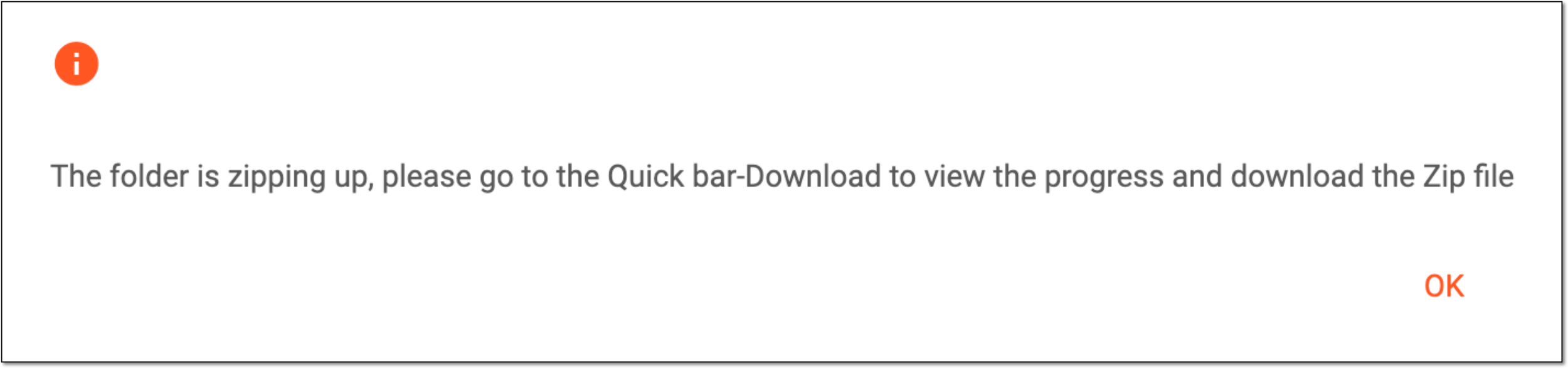 Figure 4. Notification on folder download
-
To access the ZIP file and download it, select the Download option of the Quick panel or the widget that appears. Then in the My Downloads dialog that opens, next to the needed file, select
 .
.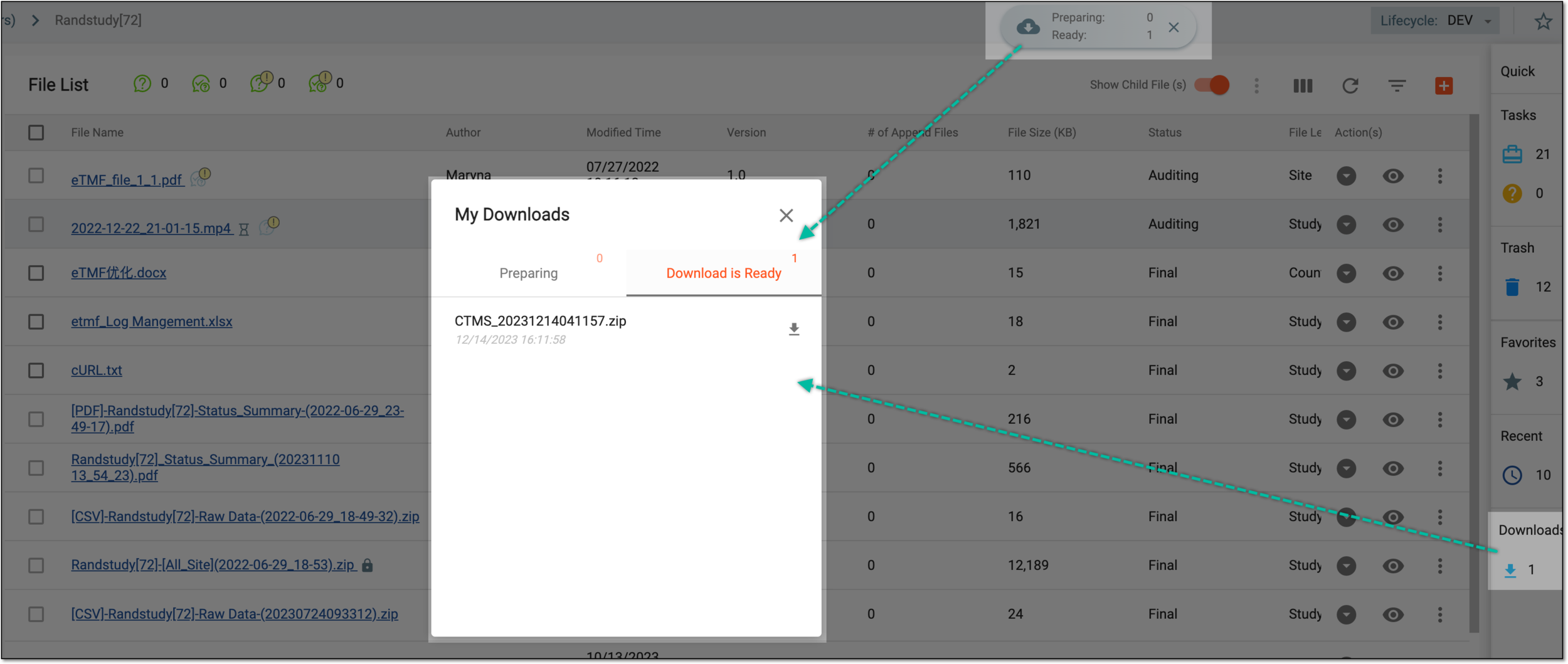 Figure 5. Downloading folder from Quick panel
Tip
You can also download your file from Downloads List.
Upon downloading and saving, the ZIP file becomes available on your computer.
In eTMF, you may need to arrange your artifacts by moving custom folders within a single study. Moving folders (directories) of essential documents is possible only if you are an eTMF administrator.
Important
The folders cannot be moved if:
-
The folder with such a name already exists in the target directory.
-
The folder is a part of DIA RM. Only custom folders can be moved.
-
In the eTMF application header, select the TMF tab.
-
On the page that opens, in the left pane, select the Study List subtab.
-
In the Study List table, select the study for which you want to access the relevant files and documents.
Figure 1. Selecting study
-
On the page that opens, in the left pane, select the Essential Documents subtab.
Figure 2. Accessing essential documents
-
On the page that opens, in the explorer tree pane, select the directory of your interest.
-
Right-click the directory name and in the menu that opens, select Move
 .
. -
In the Move Folder(s) dialog that appears, perform the following steps:
-
In the explorer tree with folder hierarchy, select the folder(s) to move.
-
In the Select Target Folder explorer tree, select the target directory.
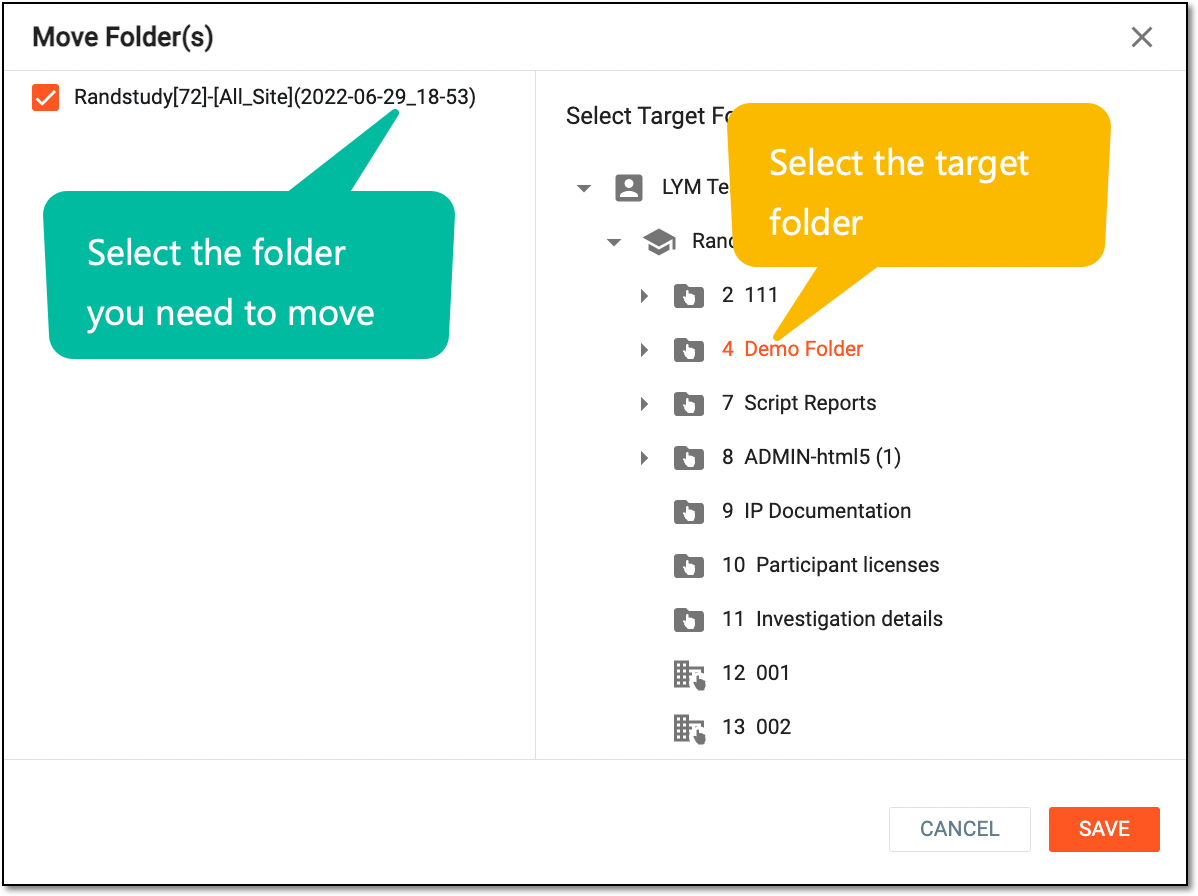 Figure 3. Moving folder
-
-
Select
 and in the Reason dialog that appears, enter the reason why you are moving the folder to a different
directory.
and in the Reason dialog that appears, enter the reason why you are moving the folder to a different
directory.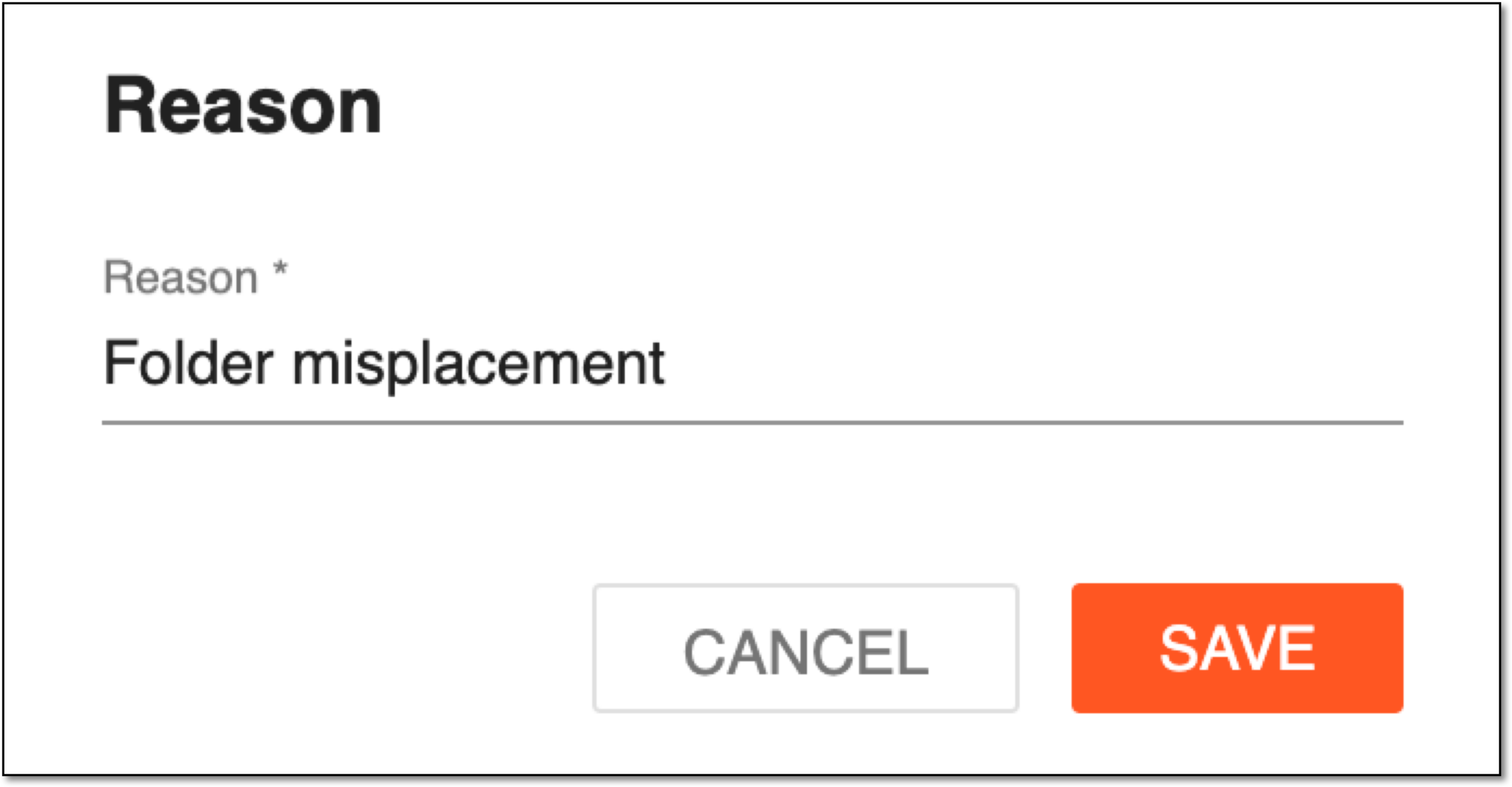 Figure 4. Providing reason to move file
-
Select
to save the changes.
Upon saving, the folders are moved to the target directory.
In eTMF, an empty custom folder can be deleted at any time. However, if the folder contains any files within it, it does not allow you to delete it until it is empty.
Important
The Delete option is unavailable for folders that belong to DIA RM.
-
In the eTMF application header, select the TMF tab.
-
On the page that opens, in the left pane, select the Study List subtab.
-
In the Study List table, select the study for which you want to access the relevant files and documents.
Figure 1. Selecting study
-
On the page that opens, in the left pane, select the Essential Documents subtab.
Figure 2. Accessing essential documents
-
On the page that opens, in the explorer tree pane, right-click the required folder and in the menu that opens, select Delete
 .
.Important
Deleting the folder does not trigger any workflows for approval. Always check the objects within the folders before deleting them.
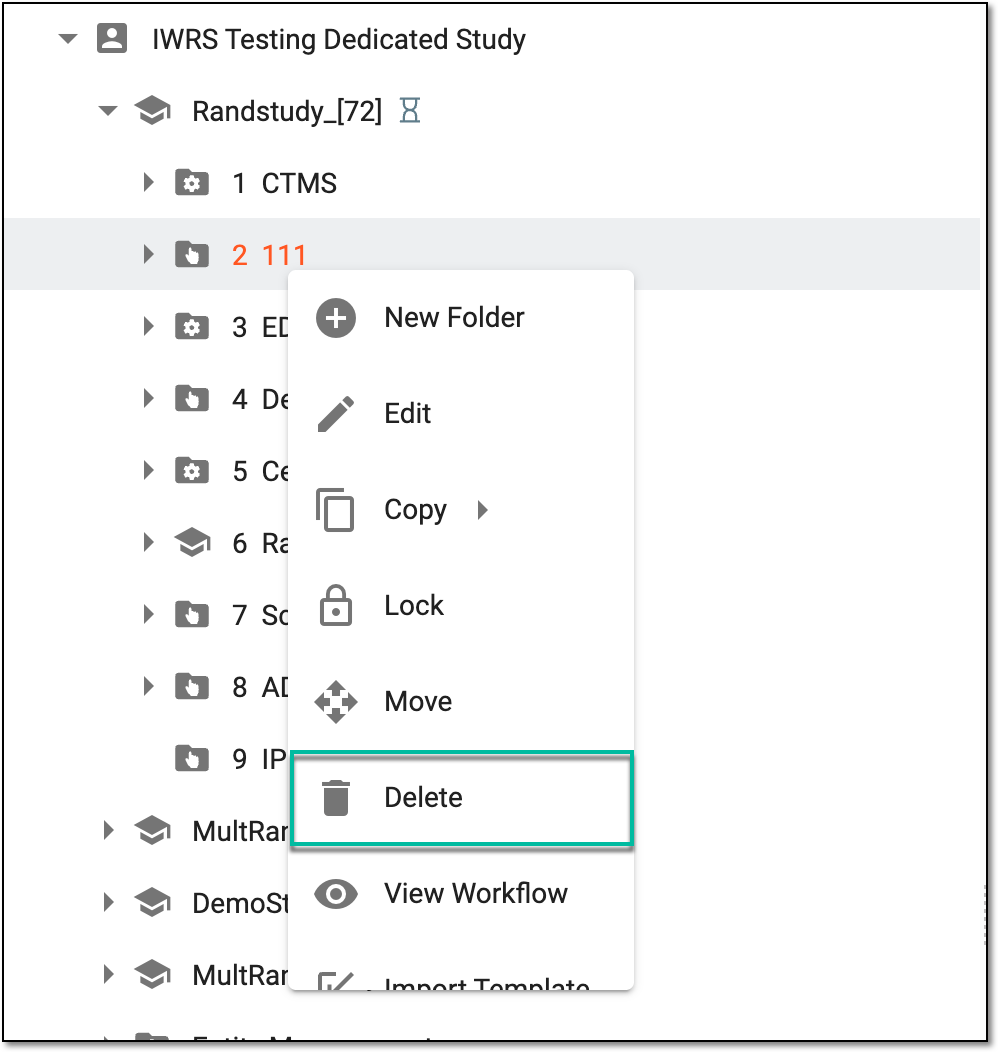 Figure 3. Selecting option to delete folder
-
In the Delete Item confirmation dialog that appears, select
 .
.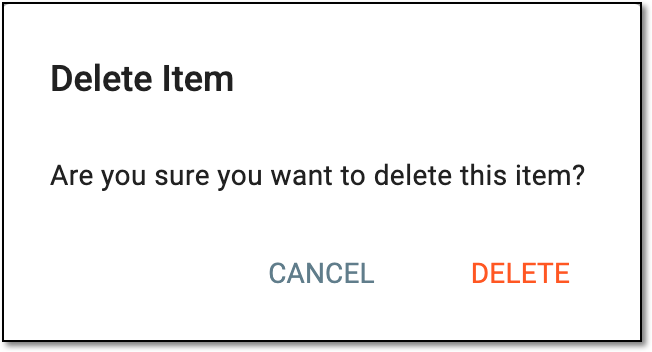 Figure 4. Confirming folder deletion
Tip
You cannot delete a folder when it has any locked folders, checked-out files, or files in the Auditing status within.
If the folder contains such a file within it, then it displays a notification dialog and does not allow you to delete the folder.
Once the deletion is confirmed, the folder disappears from the essential documents' hierarchy tree.
In the eTMF application, on the Essential Documents page, you can manually create new zone-, section-, and artifact-level folders as described in the following sections.
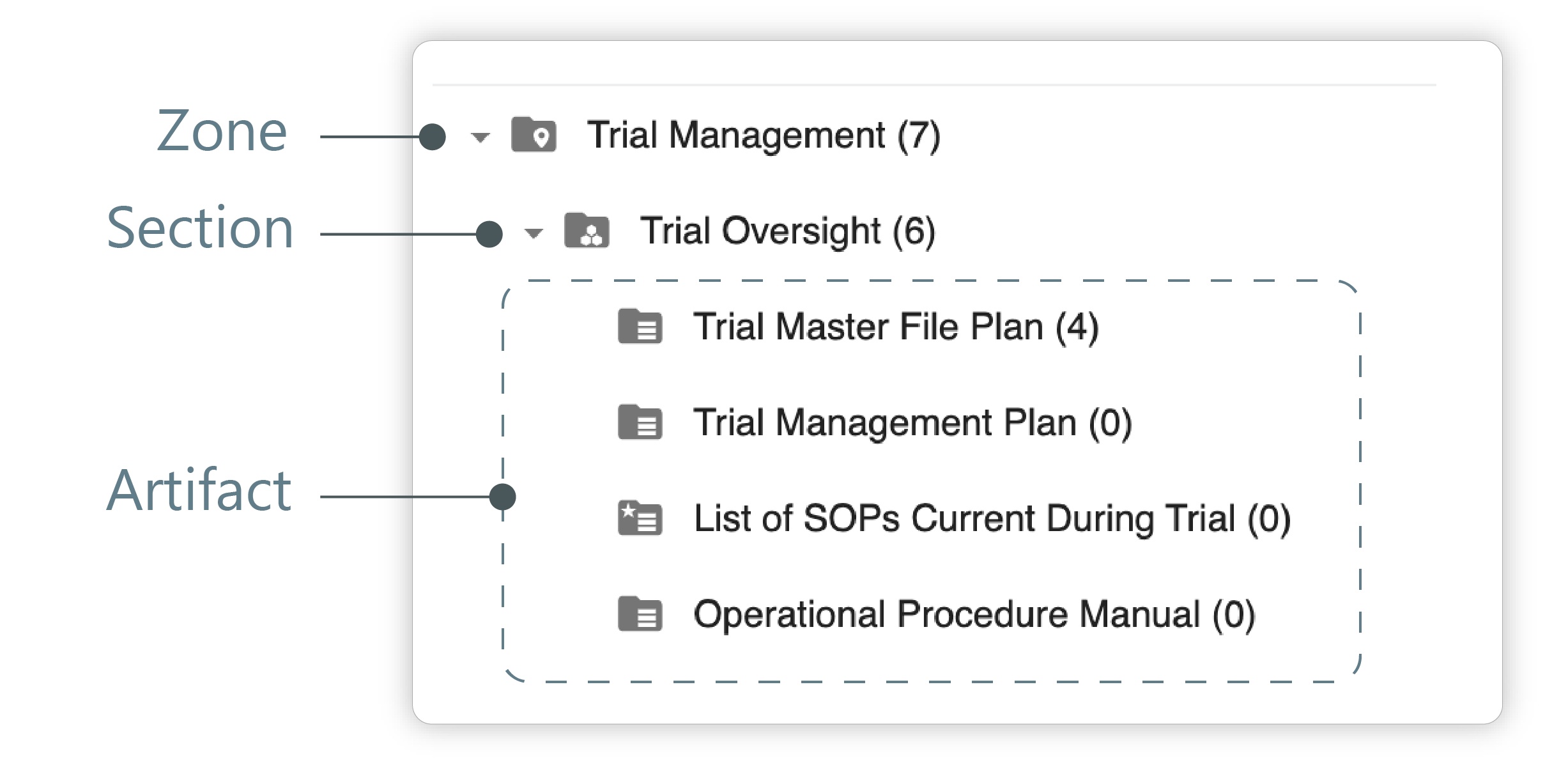
A zone is the highest-level directory within the file storage, organized according to the Drug Information Association Reference Model (DIA RM). Zones are typically used to categorize documents by their role or type within the clinical trial. The zone helps with the general document grouping that may later be subdivided into specific sections and artifacts.
Zones can represent large groups of documents, such as regulatory documents, study documentation, clinical trial agreements, and so on.
On the Essential Documents page of the eTMF application, you can create a new zone within a study to add and manage sections within it.
-
In the eTMF application header, select the TMF tab.
-
On the page that opens, in the left pane, select the Study List subtab.
-
In the Study List table, select the study name of your interest.
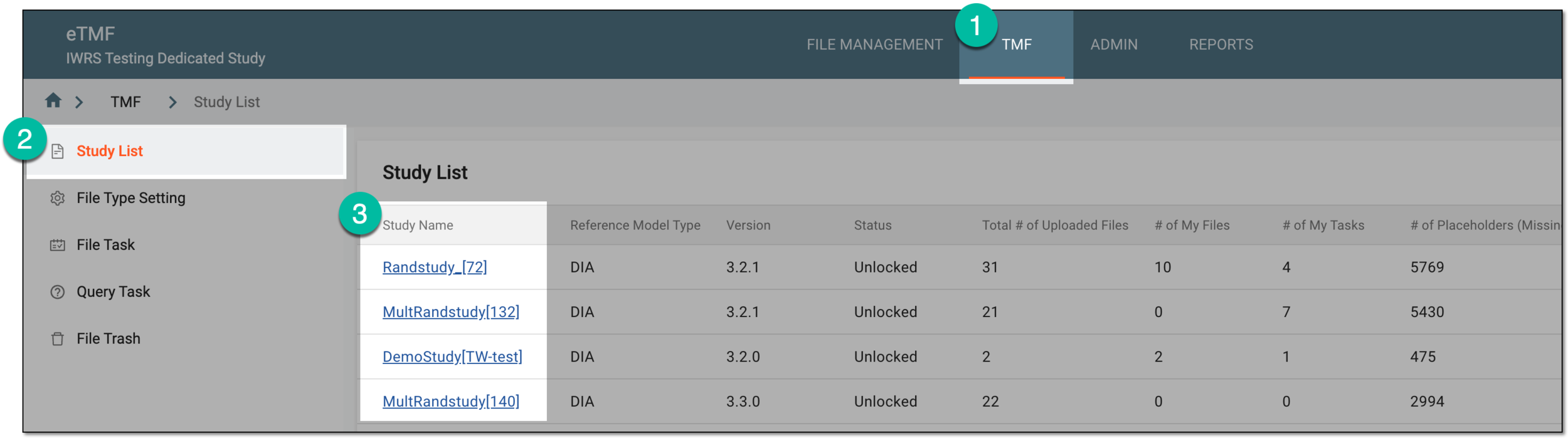 Figure 1. Accessing needed study
-
On the page that opens, in the left pane, select the Essential Documents subtab.
-
On the Essential Documents page that opens, in the explorer tree pane, right-click the study name and from the menu that appears, select New Zone
 .
.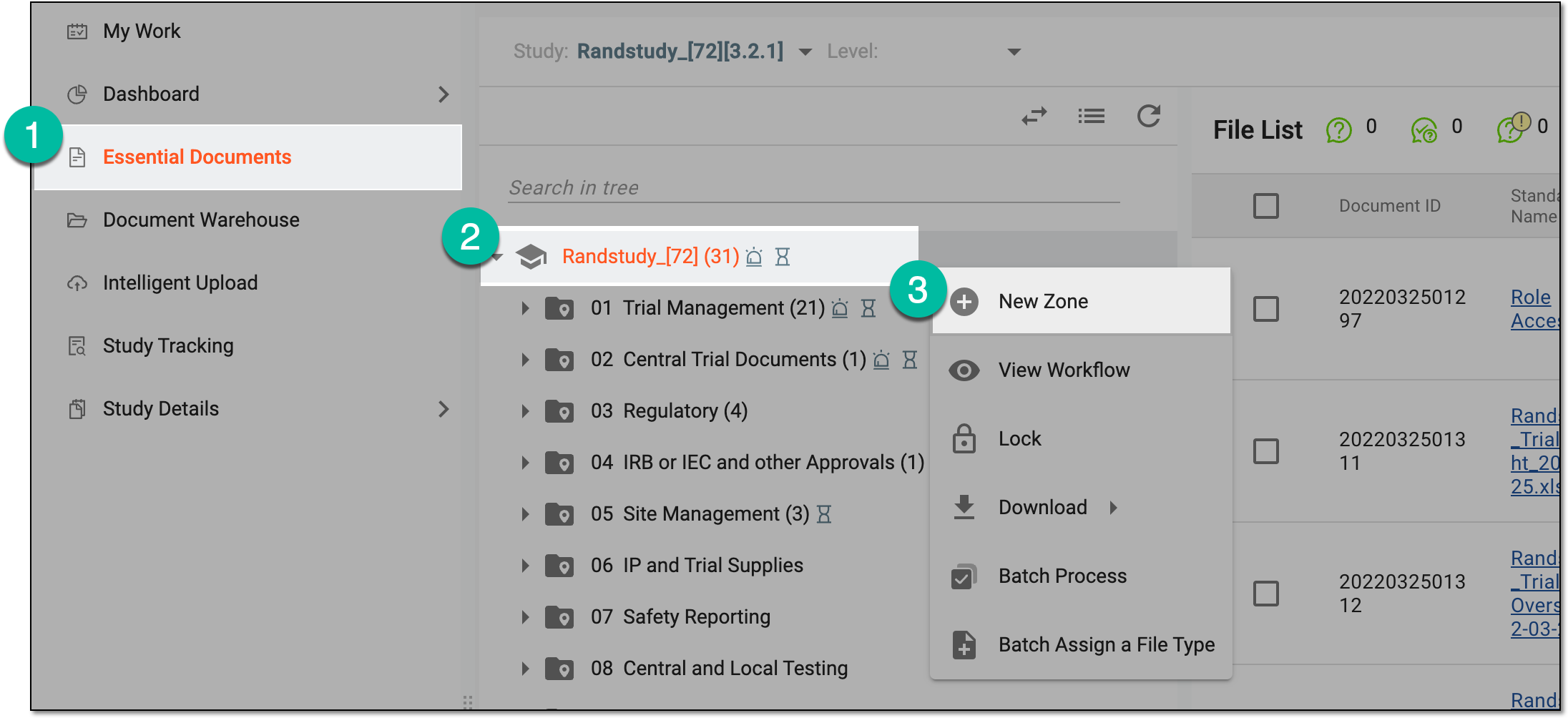 Figure 2. Selecting to add new zone
-
In the New dialog that opens, enter the new zone name. Add as many zones as required.
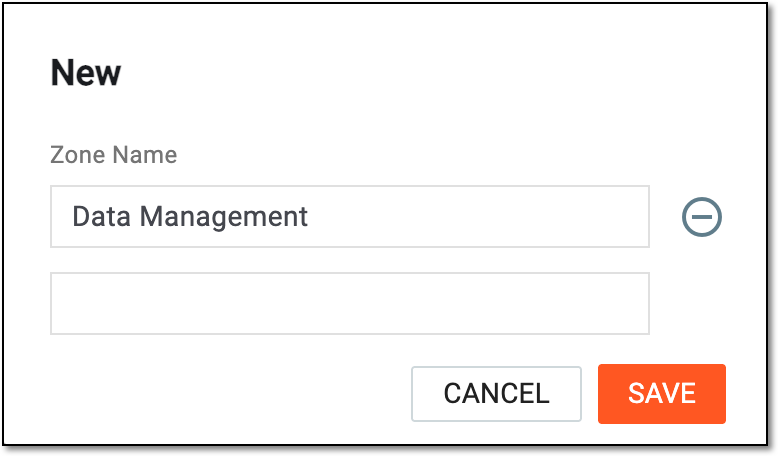 Figure 3. Adding new zone
Tip
To remove any of the added entities, select
 next to it.
 -
Select
to implement the changes.
Upon saving, the new zone is added to the explorer tree under the respective study directory. You can now create a section within the created zone.
A section is a level of the file directory predefined by the Drug Information Association Reference Model (DIA RM). Sections are grouped within zones and help divide the documents of the zone into more specific categories. Each section defines a group of documents that share a similar purpose or function within the clinical trial.
For example, within the regulatory zone, sections might include ethical approvals, investigator brochures, or site contracts.
On the Essential Documents page of the eTMF application, you can create new sections within zones manually.
-
In the eTMF application header, select the TMF tab.
-
On the page that opens, in the left pane, select the Study List subtab.
-
In the Study List table, select the study name of your interest.
Figure 1. Accessing needed study
-
On the page that opens, in the left pane, select the Essential Documents subtab.
-
On the Essential Documents page that opens, in the explorer tree, expand the needed study and right-click the zone under which you want to create a section. In the menu that opens, select New Section
.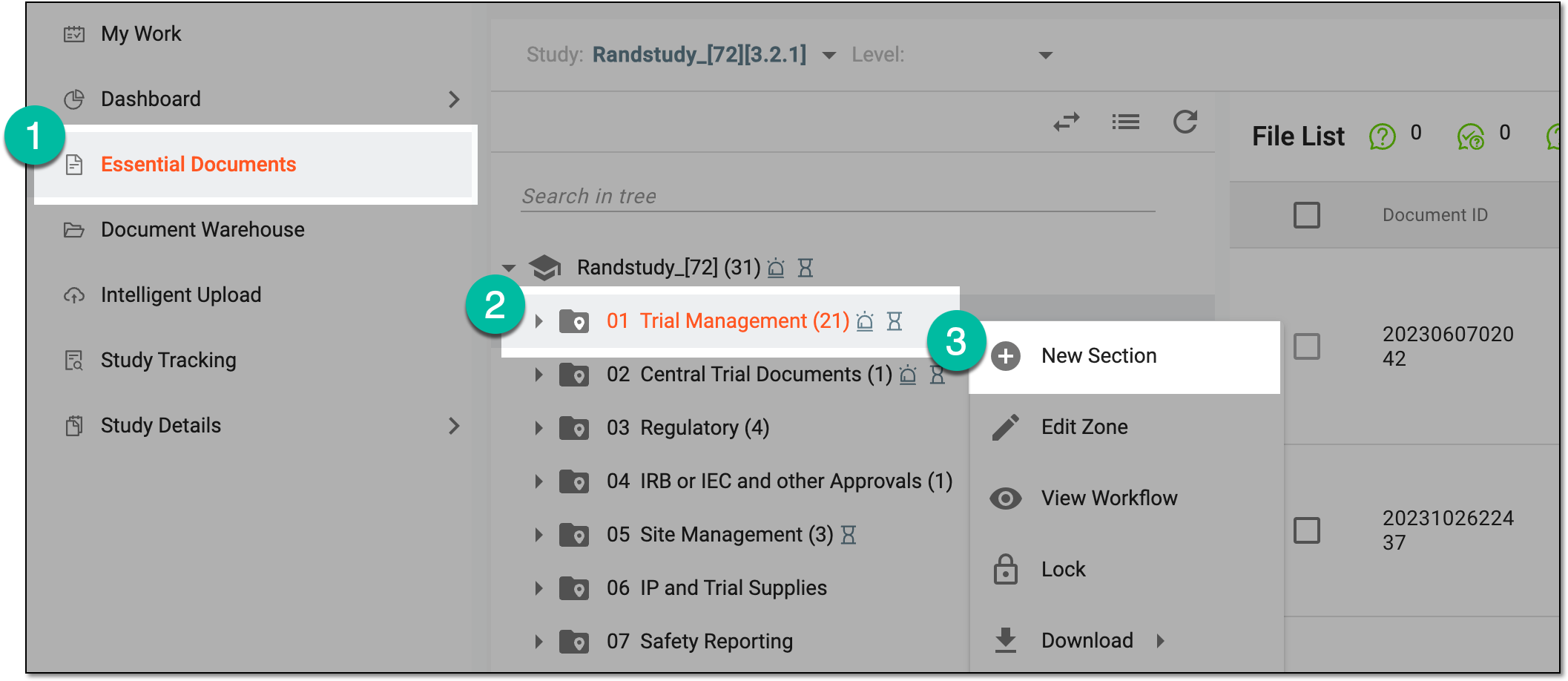 Figure 2. Selecting option to create section
-
In the New dialog that opens, enter the new zone name. Add as many sections as required.
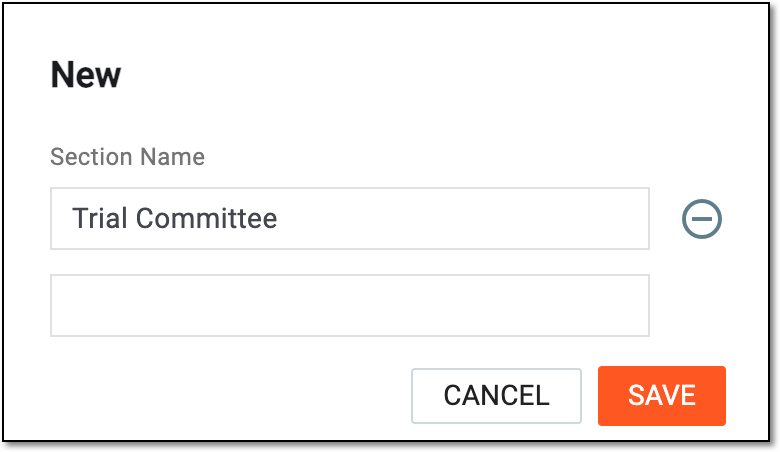 Figure 3. Adding new section
Tip
To remove any of the added entities, select
next to it. -
Select
to save the implemented changes.
Upon saving, the new section is added to the explorer tree within the respective zone. You can also create an artifact within the created section.
In eTMF, an artifact is the lowest level of the file directory predefined by the Drug Information Association Reference Model (DIA RM). Artifact-level folders exist within a section and store individual documents—the actual files related to the clinical trial that are stored in the eTMF system.
Artifacts could include files of regulatory submissions, consent forms, clinical trial protocols, or monitoring visit reports.
On the Essential Documents page of the eTMF application, you can create new artifacts within the sections.
-
In the eTMF application header, select the TMF tab.
-
On the page that opens, in the left pane, select the Study List subtab.
-
In the Study List table, select the study name of your interest.
Figure 1. Accessing needed study
-
On the page that opens, in the left pane, select the Essential Documents subtab.
-
On the Essential Documents page that opens, in the explorer tree, expand the needed study and zone. Right-click the section under which you want to create an artifact. In the menu that opens, select New Artifact
.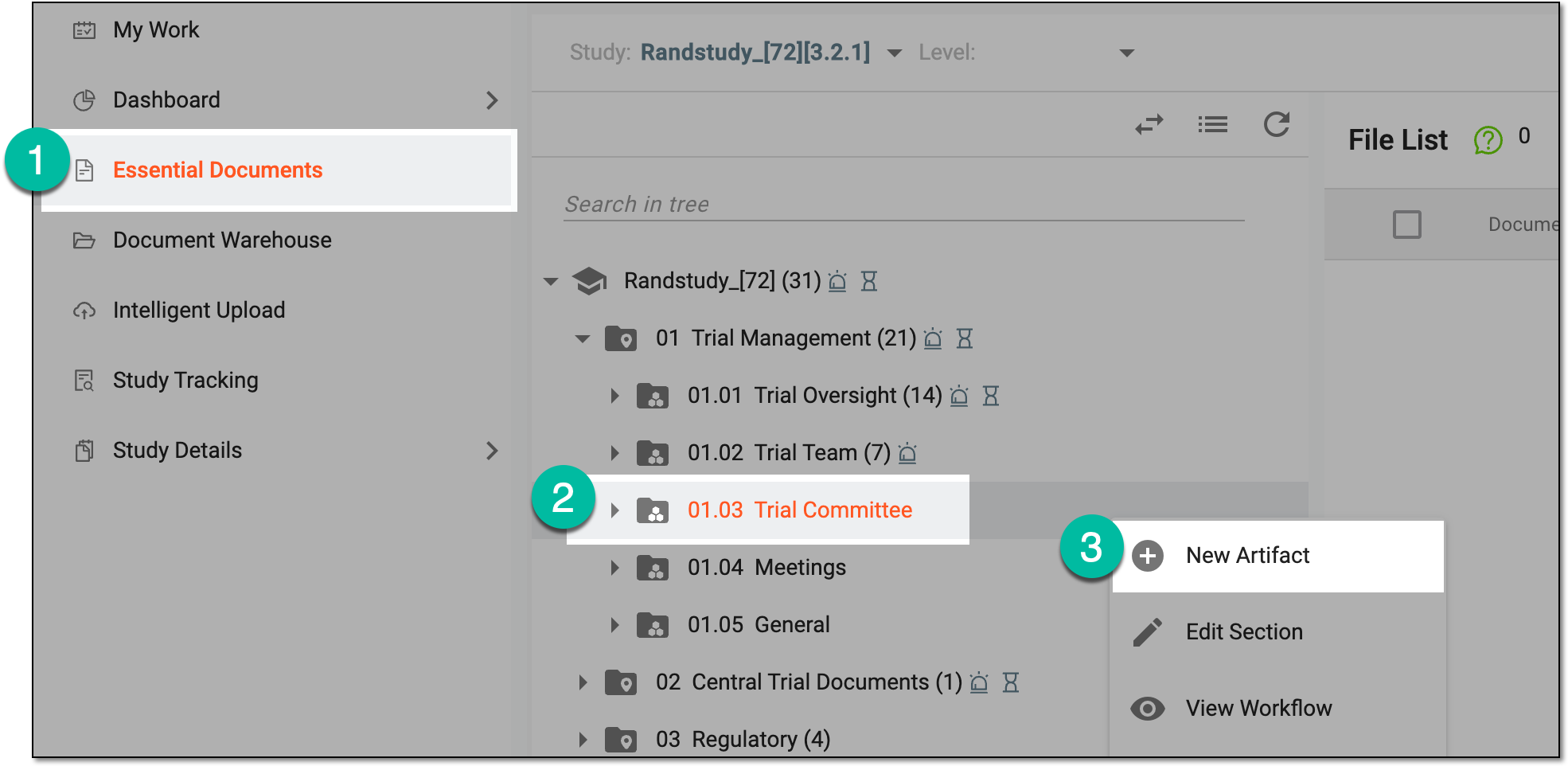 Figure 2. Selecting option to create artifact
-
In the New dialog that opens, complete the settings as explained in the following table.
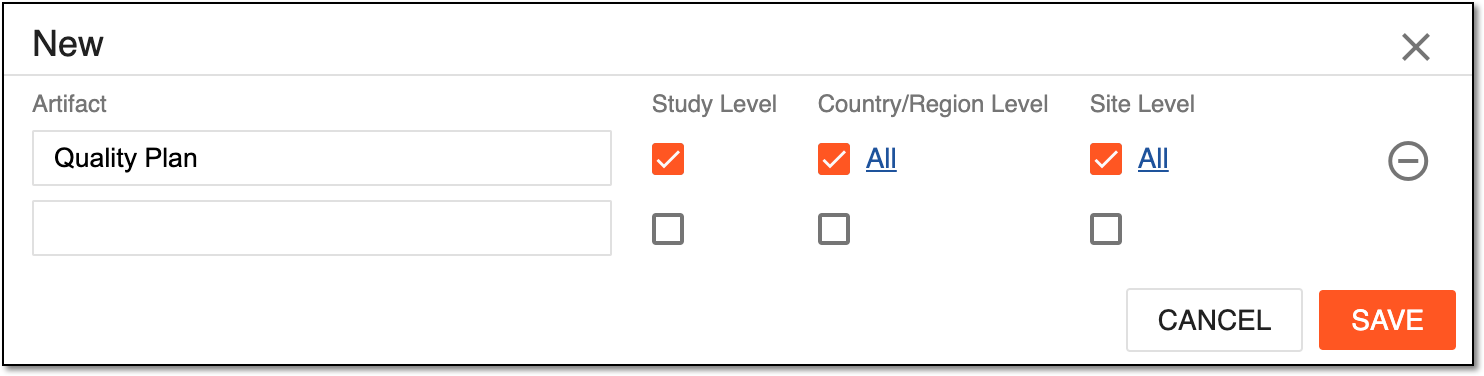 Figure 3. Adding new artifact
Element
Details
Artifact
Enter the name of the artifact-level folder you want to create.
Study Level
Select this checkbox next to the artifact to make it available for all the sites in every country and region taking part in the specific study.
Country/Region Level
Select this checkbox next to the artifact to make it available only for the sites in the specific countries and regions. Then select the hyperlink next to the checkbox and in the dialog, choose the countries and regions where you want this artifact to be available. You can also turn on the Apply to All toggle to make the artifact available in all your study's countries and regions. Then save the changes.
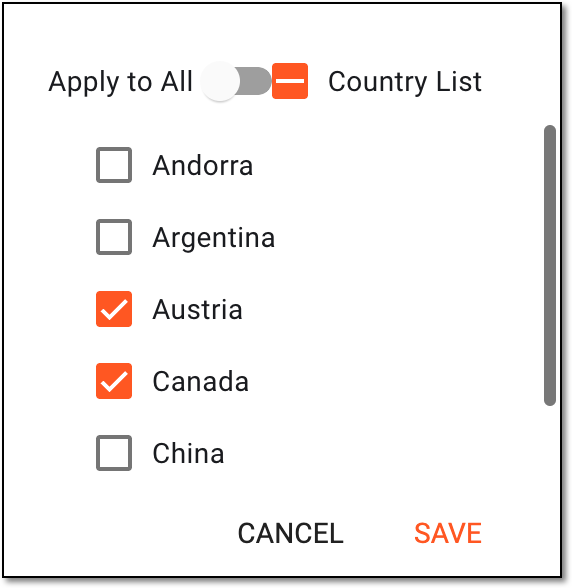 Figure 4. Choosing countries for artifact availability
Site Level
Select this checkbox next to the artifact to make it available only for the specific sites. Then select the hyperlink next to the checkbox and in the dialog, choose the sites where you want this artifact to be available. You can also turn on the Apply to All toggle to make the artifact available for all your study's sites. Then save the changes.
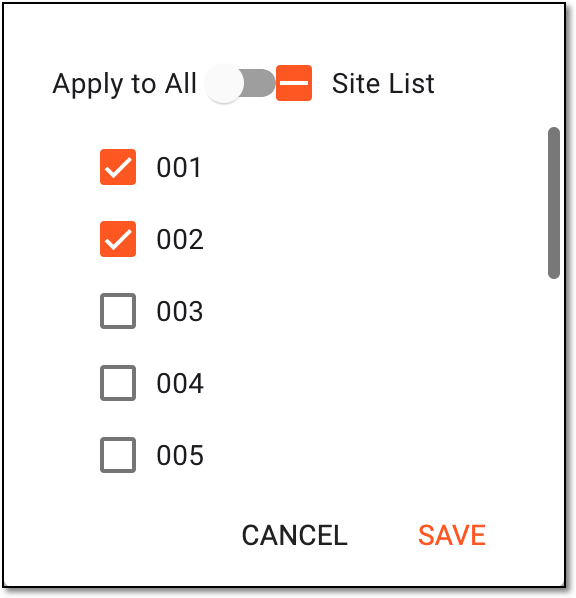 Figure 5. Choosing sites for artifact availability
Select the minus symbol next to any of the added artifacts to remove them from the list.
SAVE
Select
to implement the changesCANCEL
Select
 to discard the changes without saving.
Upon saving, the new artifact is added to the explorer tree under the respective section. You can now upload files to this folder.
In the eTMF application, you can edit the zone-, section-, or artifact-level folders from the Essential Documents page. Editing them means updating the folder name.
Important
On the Essential Documents page, only eTMF administrators can edit the manually created artifact-level folders.
-
In the eTMF application header, select the TMF tab.
-
On the page that opens, in the left pane, select the Study List subtab.
-
In the Study List table, select the study name of your interest.
Figure 1. Accessing needed study
-
On the page that opens, in the left pane, select the Essential Documents subtab.
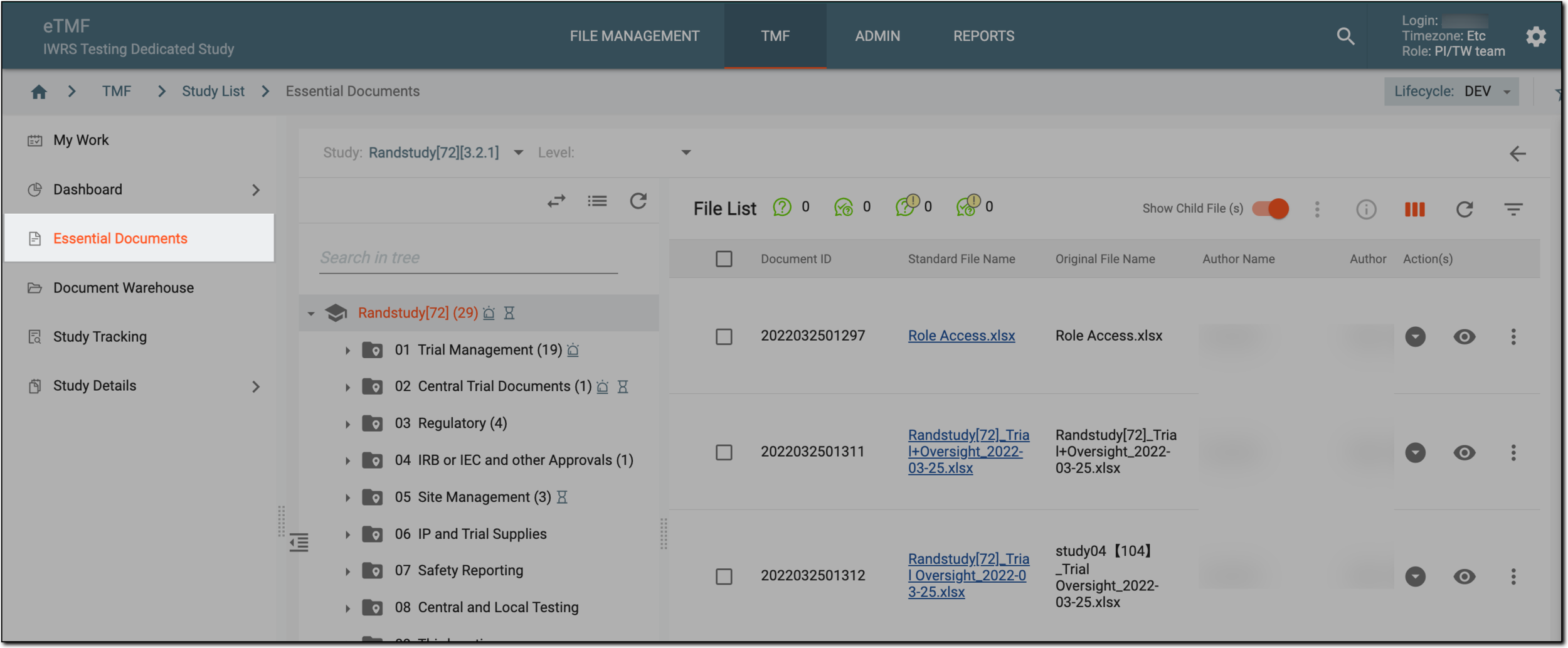 Figure 2. Accessing essential documents under TMF
-
On the page that opens, in the explorer tree pane, locate and right-click the needed zone-, section-, or artifact-level folder and select the respective action—Edit Zone, Edit Section, or Edit Artifact.
 Figure 3. Selecting to edit zone-, section-, artifact-level folder
-
In the Edit dialog that opens, perform one of the following actions:
-
For the zone- and section-level folders, update the folder name as needed and select
to implement the changes.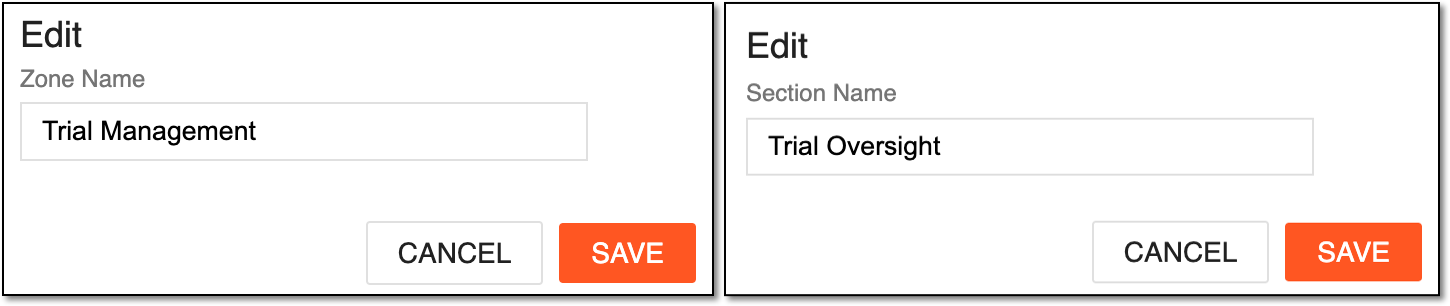 Figure 4. Editing zone- and section-level folders
-
For the artifact-level folders, update the folder details as explained in the following table.
Important
Please note that for DIA RM artifacts, you can only change the levels of the artifact availability. You cannot move or delete the artifact, nor edit its name.
Any modifications added to the DIA RM artifact may compromise the reliability of the TMF documentation and violate the regulatory requirements.
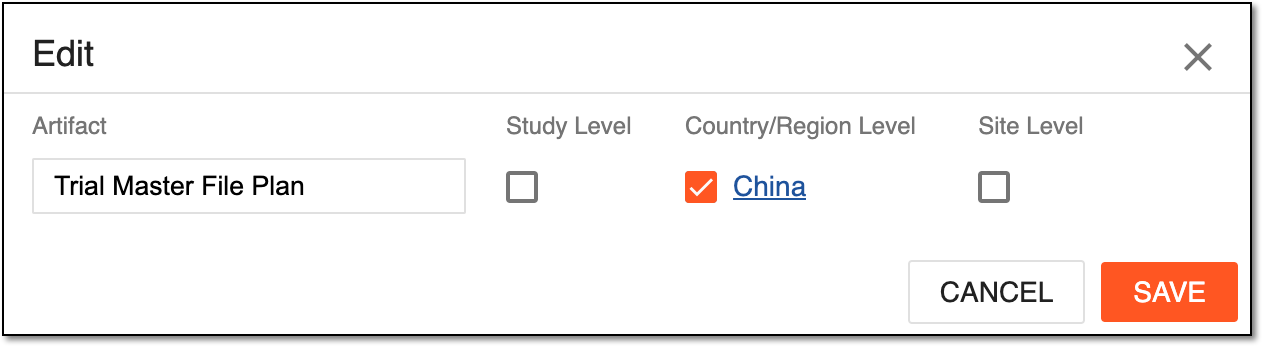 Figure 5. Editing artifact-level folder
Element
Details
Artifact
Update the name of the artifact-level folder.
You cannot edit the name of the DIA RM folder. Only custom folder names can be modified.Study Level
Select this checkbox to make the artifact available for all sites in every country and region taking part in the specific study.
Country/Region Level
Select this checkbox to make the artifact available only for the sites in the specific countries and regions. Then select the hyperlink next to the checkbox and in the dialog, choose the countries and regions where you want this artifact to be available. You can also turn on the Apply to All toggle to make the artifact available in all your studies' countries and regions. Then save the changes.
Figure 6. Choosing countries for artifact availability
Site Level
Select this checkbox to make the artifact available only for the specific sites. Then select the hyperlink next to the checkbox, and in the dialog, choose the sites where you want this artifact to be available. You can also turn on the Apply to All toggle to make the artifact available for all your study's sites. Then save the changes.
Figure 7. Choosing sites for artifact availability
SAVE
Select
to implement the changesCANCEL
Select
to discard the changes without saving.
-
Upon saving, the respective folder is updated.
A model for organizations from DIA that provides a standard taxonomy and metadata of TMF content.
A model for organizations from DIA that helps the organizations to effectively compile the minimum list of essential documents to ensure the compliance of the investigator, sponsor, and monitor with the industry standards of good clinical practice (GCP) and with the regulatory requirements.
A schema, each step of which represents a stage of a specific entity lifecycle in the system.
A workflow can be considered an instrument to help control various actions on system entities for the sake of accountability, as it limits the actions that can be performed on the entity associated with a workflow. This provides an additional tier of scrutiny, and the approval/rejection mechanism reduces the risk of unintended impact on sensitive resources and important information.
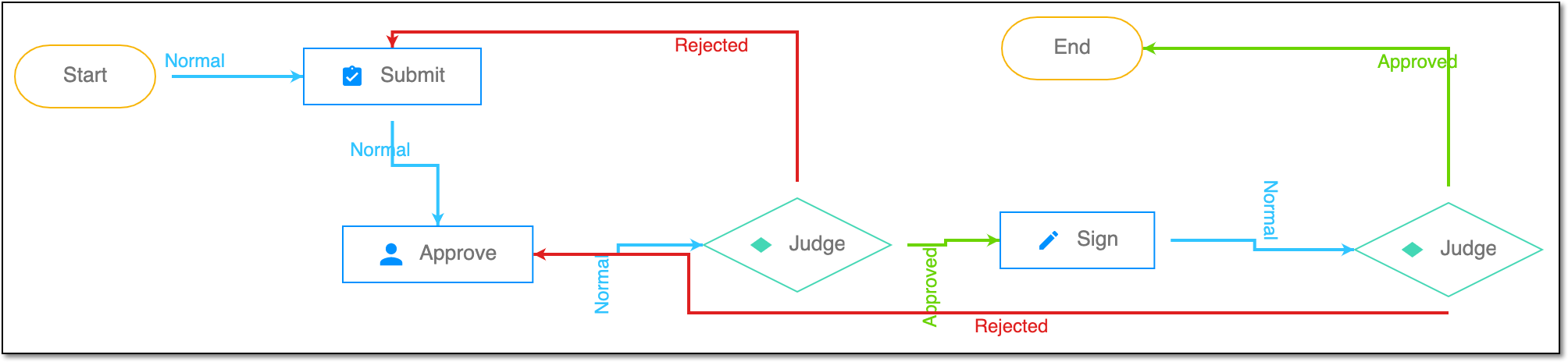 |
For instance, in eTMF, the workflow dictates the procedure of file and folder management from the moment of upload to the approval stage; in CTMS, the workflow controls the process of creation, completion, and approval of a trip report; in EDC, the workflow covers the process of source document handling.
In eTMF, a level of the file directory predefined by the Drug Information Association Reference Model (DIA RM). Sections are grouped within zones and help divide the documents of the zone into more specific categories. Each section defines a group of documents that share a similar purpose or function within the clinical trial.
For example, within the regulatory zone, sections might include ethical approvals, investigator brochures, or site contracts.
In eTMF, the lowest level of the file directory predefined by the Drug Information Association Reference Model (DIA RM). Artifact-level folders exist within a section and store individual documents—the actual files related to the clinical trial that are stored in the eTMF system.
Artifacts could include files of regulatory submissions, consent forms, clinical trial protocols, or monitoring visit reports.
In eTMF, a highest level directory within the file storage organized according to the Drug Information Association Reference Model (DIA RM). Zones are typically used to categorize documents by their role or type within the clinical trial. The zone helps with the general document grouping that may later be subdivided into specific sections and artifacts.
Zones can represent large groups of documents such as regulatory documents, study documentation, clinical trial agreements, and so on.