Study-level management of essential documents
In the eTMF application, the Essential Documents page represents file storage based on the DIA TMF reference model. It contains specific files required for compliance and regulatory purposes. These files are used for planning and integrity purposes, for example, a file that includes the detailed plan of the eClinical trial, along with modifications made to the original protocol.
After you have analyzed the details of the files of interest via the Essential Documents storage, you can manage your essential documents at different levels that represent study containers, the folders inside the study containers, and the files inside these folders.
At the study level, your actions are limited to downloading activities and creating zones, sections, and artifacts for arranging files, as discussed in the following sections.
In the eTMF app, you can download a folder with files at the level of study (meaning all the folders and files of this study) to work with them offline on your computer. This Download option is equipped with the functionality to download files with or without electronic signatures, depending on your organization's rules and business processes.
-
In the eTMF application header, select the TMF tab.
-
On the page that opens, in the left pane, select the Study List subtab.
-
In the Study List table, select the study for which you want to access the relevant files and documents.
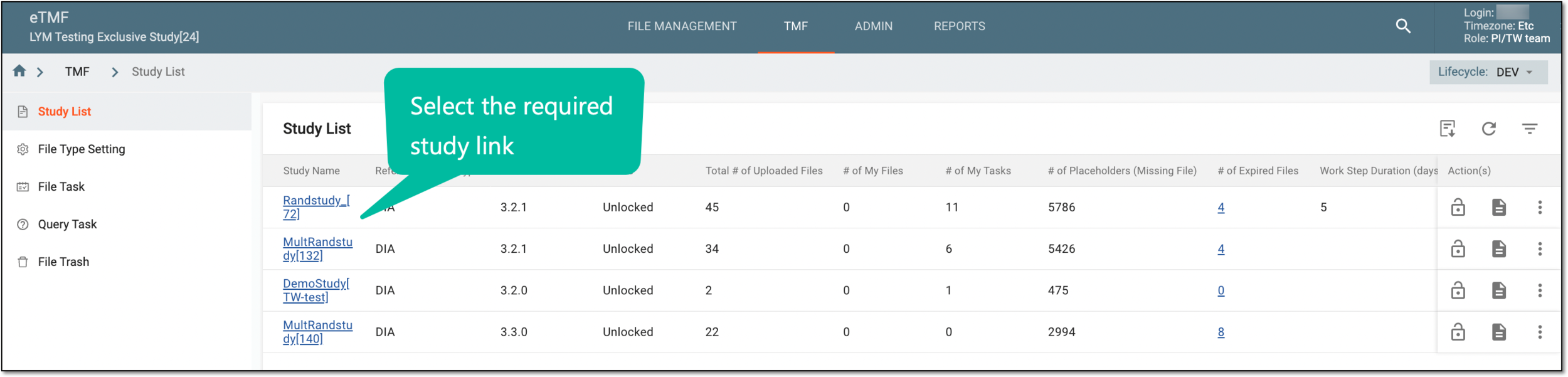 Figure 1. Selecting study
-
On the page that opens, in the left pane, select the Essential Documents subtab.
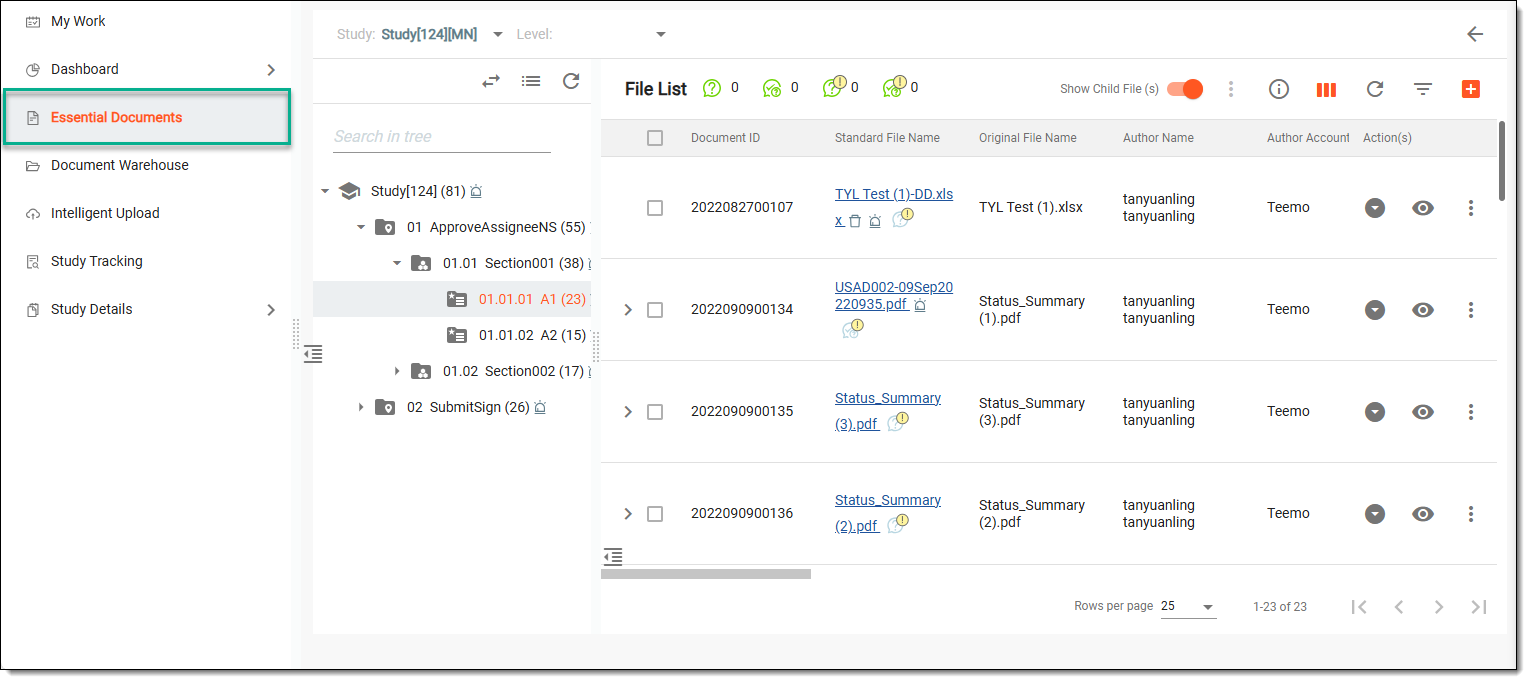 Figure 2. Accessing essential documents
-
In the left explorer pane, locate the study folder of your interest and right-click it. In the open menu, select one of the following options:
-
Folder with Signature
 : to download all the files in the study container, and a PDF
file containing all the data on electronic signatures for the downloaded files.
: to download all the files in the study container, and a PDF
file containing all the data on electronic signatures for the downloaded files.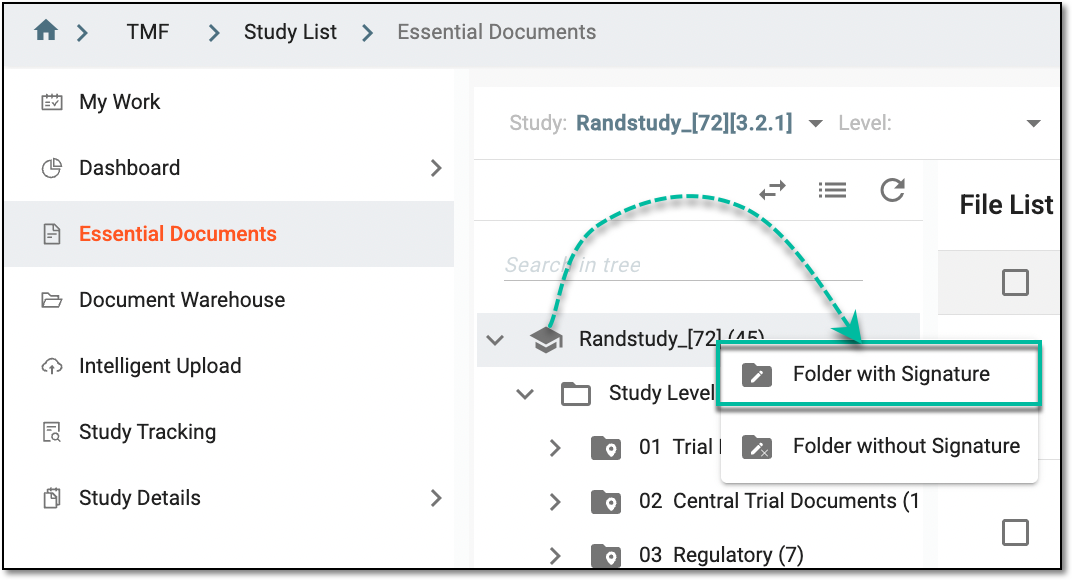 Figure 3. Accessing option to download folder with signature
-
Folder without Signature
 : to download all the files in this study container
without an additional file with electronic signature information.
: to download all the files in this study container
without an additional file with electronic signature information.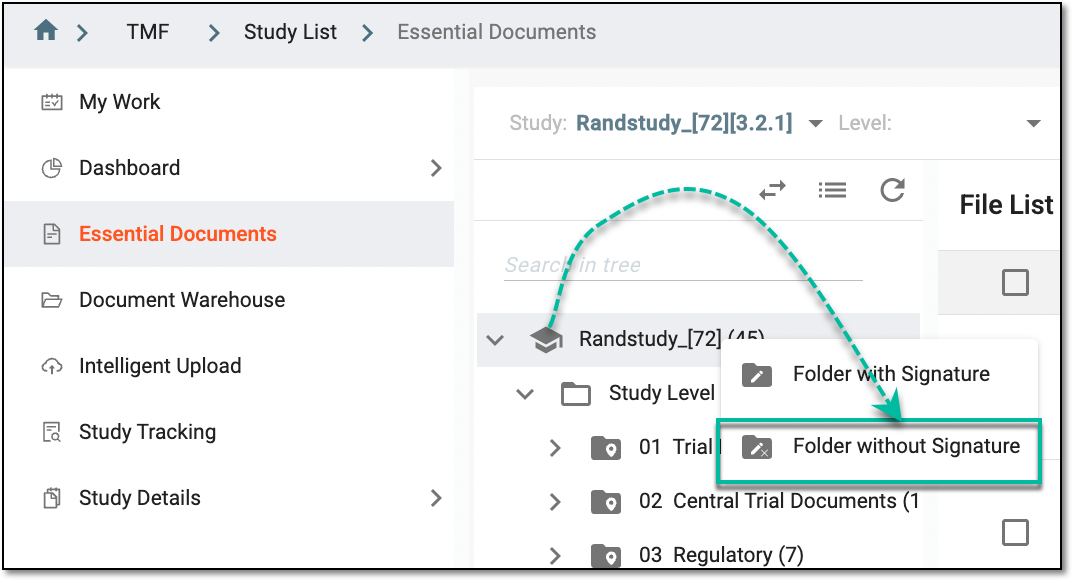 Figure 4. Accessing option to download folder without signature
-
-
The confirmation message appears that the folder is being zipped. Once ready, it will be available in the Quick > Download option. Select
 to close the dialog.
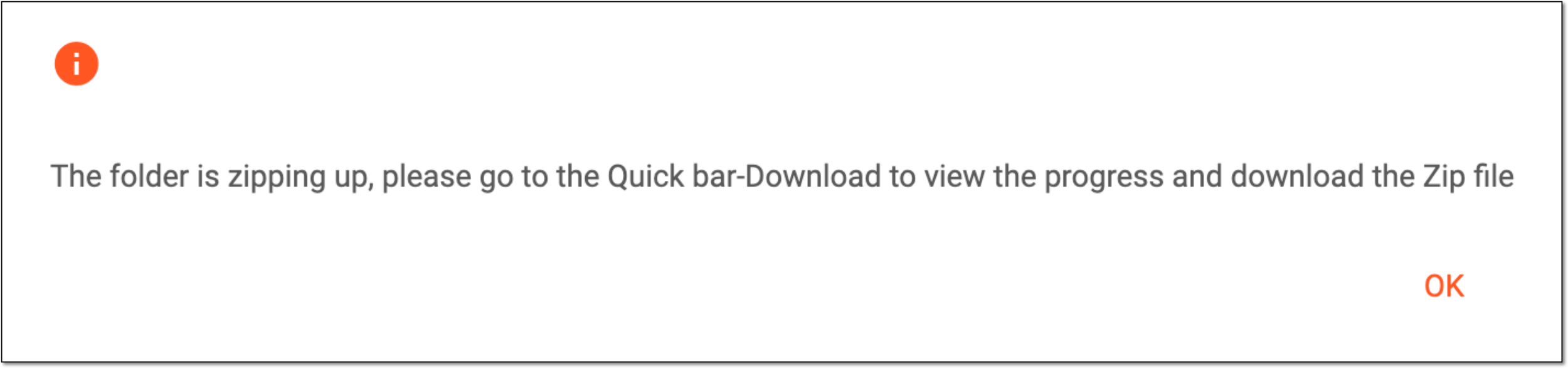 Figure 5. Notification on folder download
-
Now, you can access the ZIP file and download it, select the widget that appears below the application header.
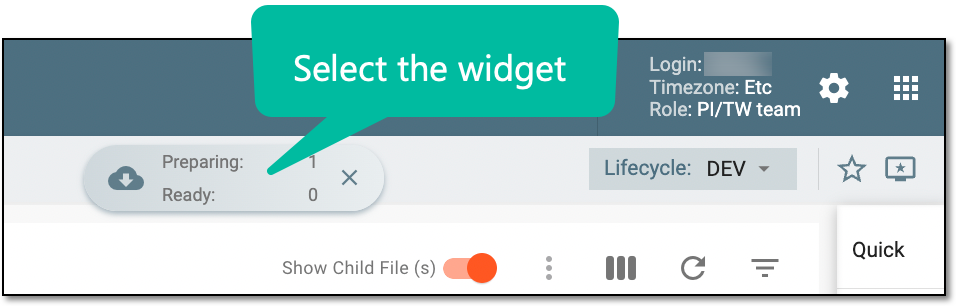 Figure 6. Accessing widget panel
-
Now, in the My Downloads panel, perform the action as discussed in the following table.
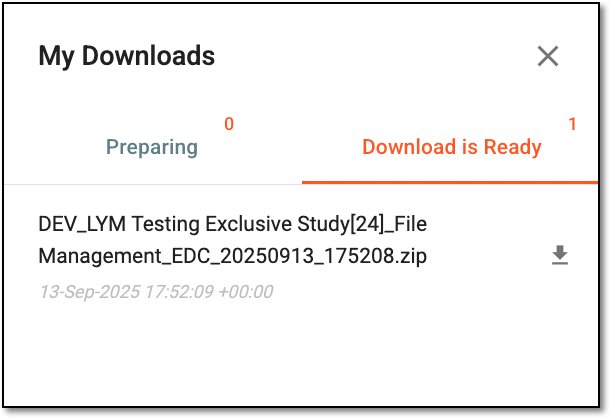 Figure 7. Working with files to be downloaded
Element
Details
Preparing
Switch to the tab to access the files that are being prepared, if any.
Download is ready
The tab is open by default. The tab displays the list of files that can now be downloaded to your computer.
Download
Next to the required file, select the Download option and follow the prompts on your computer.

Select the option to close the panel.
Upon downloading and saving, the ZIP file becomes available on your computer.