Site document management
The Site Documents feature is used to manage and store essential documents related to a clinical trial site. This includes regulatory approvals, contracts, training records, and other important files required for compliance and site management. By centralizing document storage, this feature ensures easy access, tracking, and organization of site-related documents, supporting regulatory readiness and efficient study operations.
The following sections explain different actions you can perform to manage the site documents.
In CTMS, you can add and store essential documents related to clinical trial site, such as regulatory approvals, contracts, training records, and other important files required for compliance and site management.
Important
This functionality is unavailable for the site that is inactive, terminated, closed, or suspended.
-
Access the study management page in one of the following ways:
-
In the CTMS application header, select the DASHBOARD tab and then select the study dashboard of your interest.
 Figure 1. Accessing study management from dashboard
-
In the CTMS application header, select the STUDY MANAGEMENT tab. Then from the Study Data List table, select the study name of your interest.
 Figure 2. Accessing study management from study data list
-
-
From the left pane of the study page that opens, select Study Details > Site List.
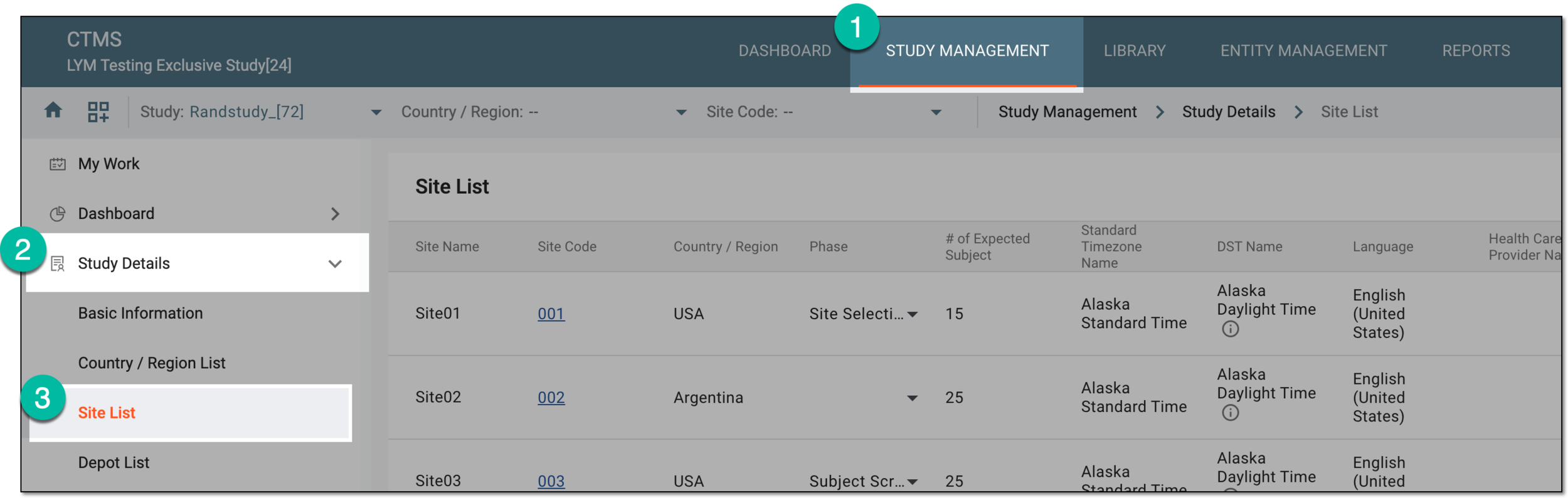 Figure 3. Accessing study sites
-
In the Site List table that appears, in the Site Name column, select the needed site or select Edit
 next to it.
 Figure 4. Accessing option to configure site
-
On the page that opens, two panes appear. The left pane groups sites by country or region, where you can expand or collapse sections and select a specific site. The middle pane displays the contents of the currently opened site.
From the horizontal navigation pane provided, select Site Documents.
-
In the Site Documents List table, from the workspace toolbar, select New Item
 .
.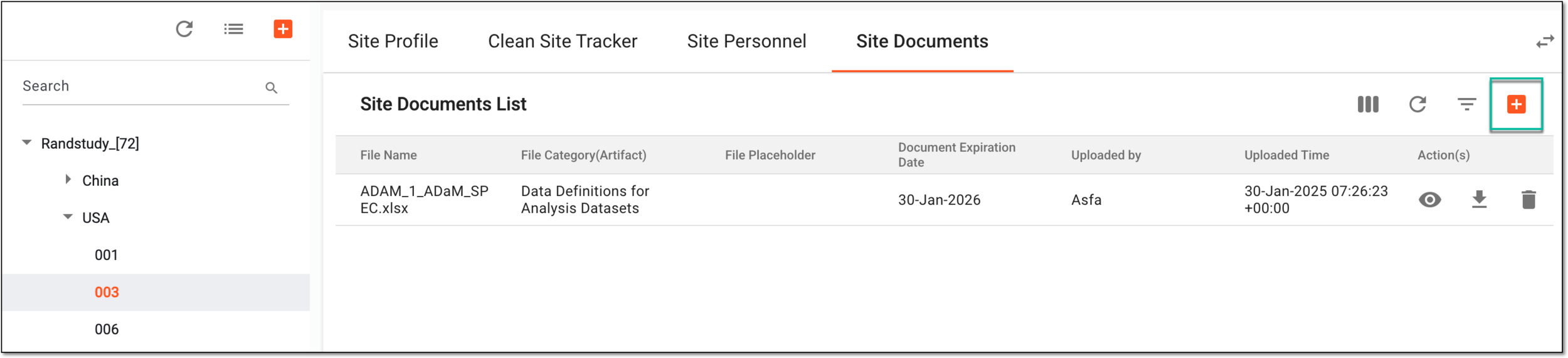 Figure 5. Accessing option to add site document
-
In the Upload File dialog that appears, add a document and its details as explained in the following table.
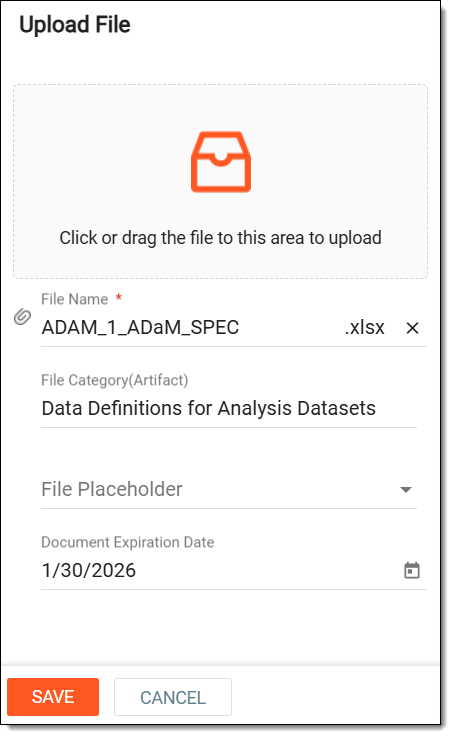 Figure 6. Uploading site document
Tip
In the following table, mandatory elements are marked with an asterisk (*).
Element
Details
Click or drag the file to this area to upload
Drag a file from your computer to this area or select this area and choose the document you want to upload from your computer.
File Name*
When a file is selected in the previous field, its name is automatically filled in this field. If necessary, you can edit the file name.
File Category(Artifact)
Select this field and from the extensive dropdown list of the documents that appear, choose the type of document you are uploading.
File Placeholder
Select the file placeholder that further categorizes the document you are uploading.
Document Expiration Date
Select the date picker icon
 to choose the date when the uploaded document expires.
SAVE
Select
 to upload the document.
CANCEL
Select
 to dismiss the document upload process.
Once saved, the site document is uploaded and appears in the Site Documents List table.
In CTMS, you can add and store essential documents related to the clinical trial site, such as regulatory approvals, contracts, training records, and other important files required for compliance and site management. Using the Preview feature, you can review the documents ensuring easy access and verification.
-
Access the study management page in one of the following ways:
-
In the CTMS application header, select the DASHBOARD tab and then select the study dashboard of your interest.
Figure 1. Accessing study management from dashboard
-
In the CTMS application header, select the STUDY MANAGEMENT tab. Then from the Study Data List table, select the study name of your interest.
Figure 2. Accessing study management from study data list
-
-
From the left pane of the study page that opens, select Study Details > Site List.
Figure 3. Accessing study sites
-
In the Site List table that appears, in the Site Name column, select the needed site or select Edit
next to it.Figure 4. Accessing option to configure site
-
On the page that opens, two panes appear. The left pane groups sites by country or region, where you can expand or collapse sections and select a specific site. The middle pane displays the contents of the currently opened site.
From the horizontal navigation pane provided, select Site Documents.
-
In the Site Documents List table, next to the required document, select Preview
 .
.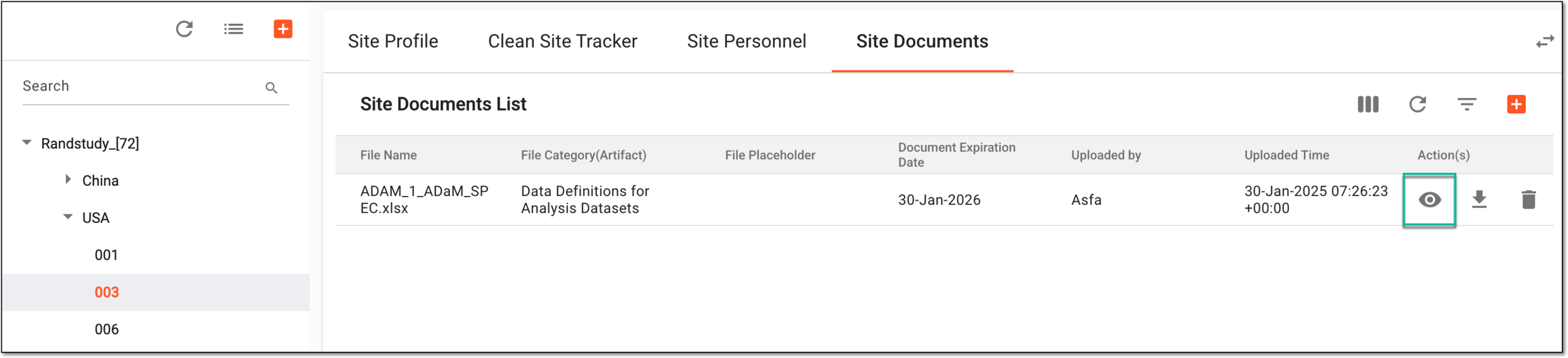 Figure 5. Accessing option to preview document
Once selected, the document is instantly downloaded to your computer where you can analyze the contents of the document.
In CTMS, you can add and store essential documents related to the clinical trial site, such as regulatory approvals, contracts, training records, and other important files required for compliance and site management. Using the Download feature, you can save site-related documents to your computer for offline access. This ensures that important files, such as regulatory approvals, contracts, and training records, can be easily retrieved and shared as needed for study management and compliance.
-
Access the study management page in one of the following ways:
-
In the CTMS application header, select the DASHBOARD tab and then select the study dashboard of your interest.
Figure 1. Accessing study management from dashboard
-
In the CTMS application header, select the STUDY MANAGEMENT tab. Then from the Study Data List table, select the study name of your interest.
Figure 2. Accessing study management from study data list
-
-
From the left pane of the study page that opens, select Study Details > Site List.
Figure 3. Accessing study sites
-
In the Site List table that appears, in the Site Name column, select the needed site or select Edit
next to it.Figure 4. Accessing option to configure site
-
On the page that opens, two panes appear. The left pane groups sites by country or region, where you can expand or collapse sections and select a specific site. The middle pane displays the contents of the currently opened site.
From the horizontal navigation pane provided, select Site Documents.
-
In the Site Documents List table, next to the required document, select Download
 .
.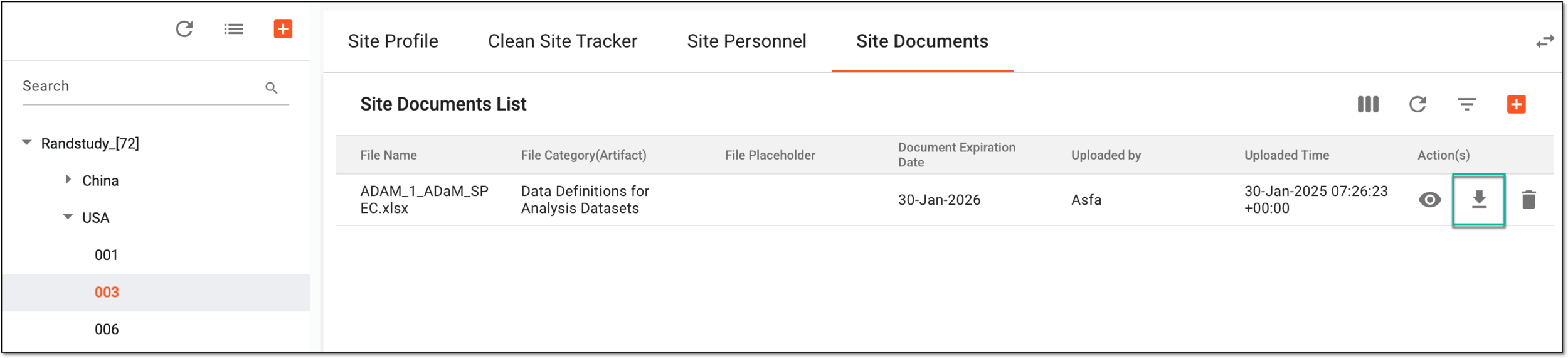 Figure 5. Accessing option to download document
Once selected, the document is instantly downloaded to your computer where you can analyze the contents of the document.
In CTMS, you can add and store essential documents related to the clinical trial site, such as regulatory approvals, contracts, training records, and other important files required for compliance and site management. If required, you can remove outdated or unnecessary site-related documents from the system. This helps maintain an organized and accurate document repository, ensuring that only relevant and up-to-date files are retained.
-
Access the study management page in one of the following ways:
-
In the CTMS application header, select the DASHBOARD tab and then select the study dashboard of your interest.
Figure 1. Accessing study management from dashboard
-
In the CTMS application header, select the STUDY MANAGEMENT tab. Then from the Study Data List table, select the study name of your interest.
Figure 2. Accessing study management from study data list
-
-
In the Site List table that appears, in the Site Name column, select the needed site or select Edit
next to it.Figure 3. Accessing option to configure site
-
On the page that opens, two panes appear. The left pane groups sites by country or region, where you can expand or collapse sections and select a specific site. The middle pane displays the contents of the currently opened site.
From the horizontal navigation pane provided, select Site Documents.
-
In the Site Documents List table, next to the required document, select Delete
 .
.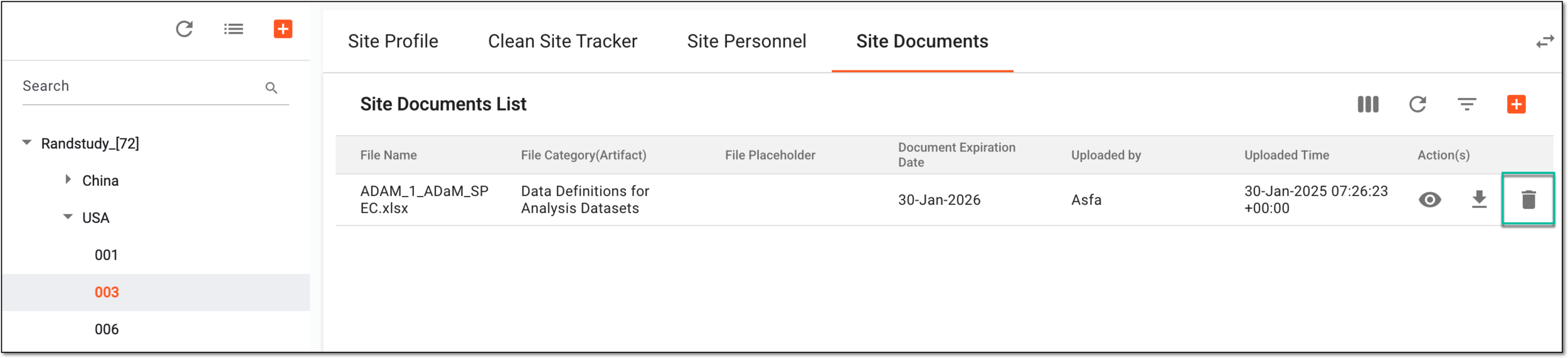 Figure 4. Accessing option to delete site document
-
In the confirmation dialog that appears, select DELETE to confirm the document removal action.
 Figure 5. Deleting site document
Once selected, the site document is deleted.