Configure site, staff, and participating organization file storage location
In CTMS, you can configure the eTMF storage location of different files uploaded by the user for complementing the site, staff, and participating organizations details defined for the study.
-
Access the study management page in one of the following ways:
-
In the CTMS application header, select the DASHBOARD tab and then select the study dashboard of your interest.
 Figure 1. Accessing study management from dashboard
-
In the CTMS application header, select the STUDY MANAGEMENT tab. Then from the Study Data List table, select the study name of your interest.
 Figure 2. Accessing study management from study data list
-
-
On the study page that opens, in the left pane, select Documentation Config.
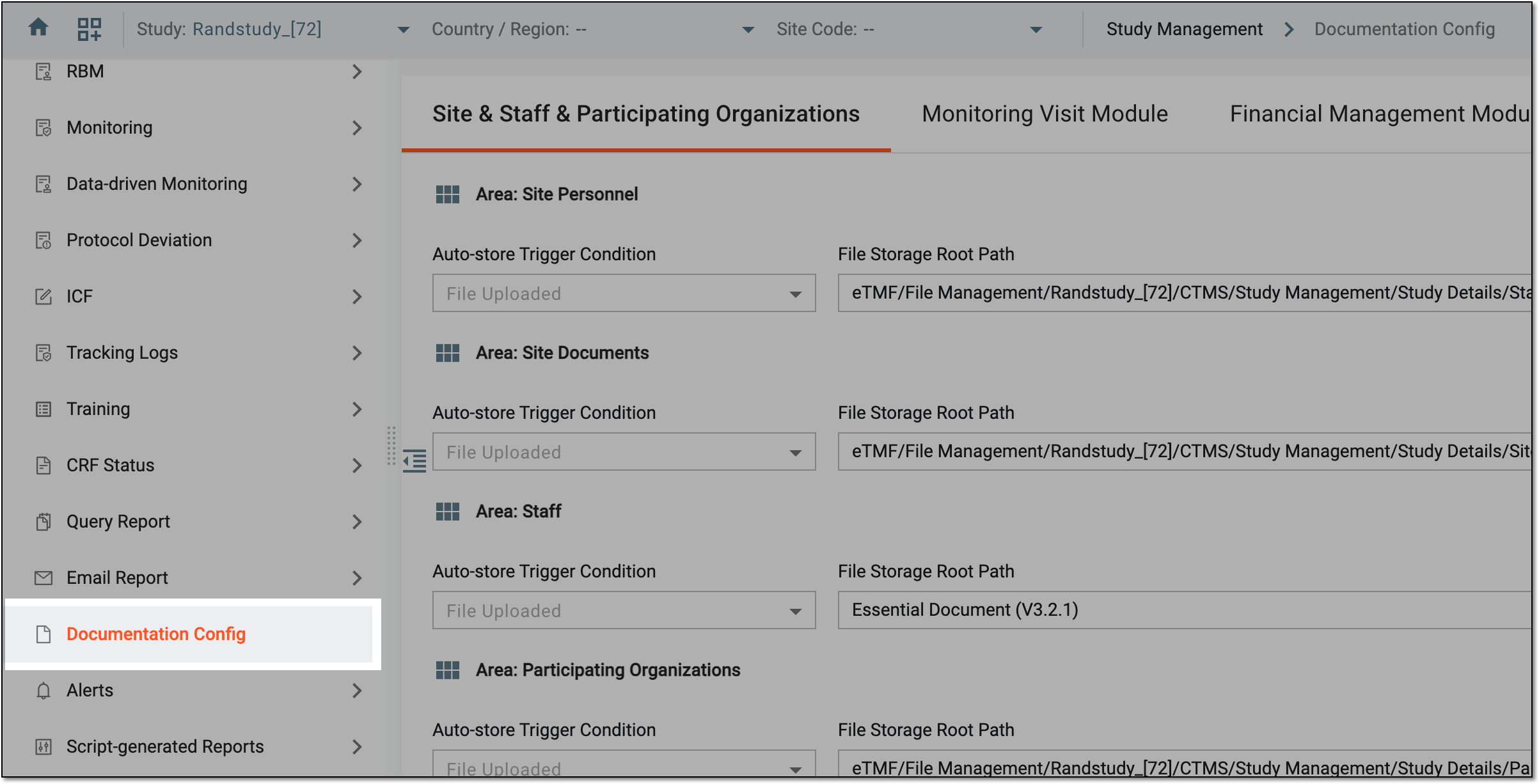 Figure 3. Accessing documentation configurations
-
In the Site & Staff & Institution tab that opens by default, analyze the default eTMF locations set for the site, staff, and institutions. To modify the locations, update the fields as explained in the following table.
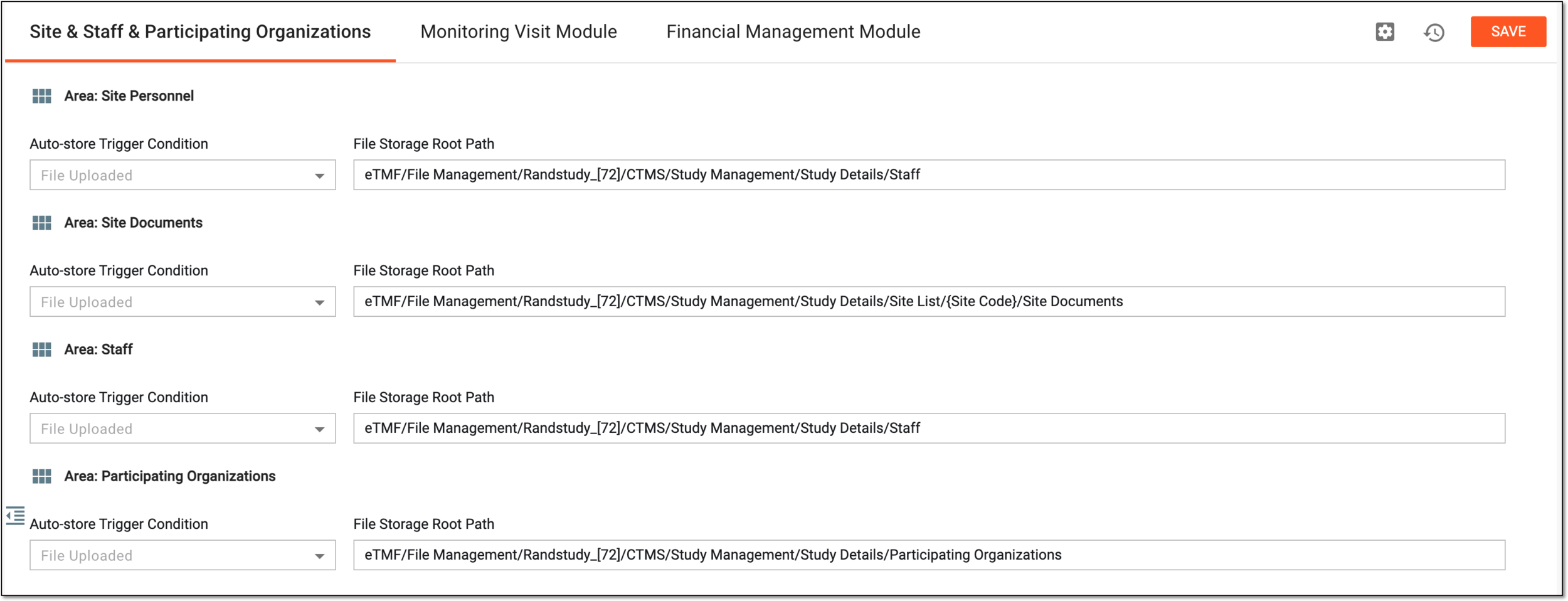 Figure 4. Updating file storage location
Element
Details
Area: Site Personnel
Specify the storage location of the files uploaded for the site personnel.
Auto-store Trigger Condition
Indicates the action that initiates file storage, for which you are defining the eTMF storage location. Currently, the only supported action is file upload.
File Storage Root Path
From the dropdown menu, select the file location where you want to store the uploaded file.
Area: Site Documents
Specify the storage location of the files uploaded for the site.
Auto-store Trigger Condition
Indicates the action that initiates file storage, for which you are defining the eTMF storage location. Currently, the only supported action is file upload.
File Storage Root Path
From the dropdown menu, select the file location where you want to store the uploaded file.
Area: Staff
Specify the storage location of the files uploaded for the study staff.
Auto-store Trigger Condition
Indicates the action that initiates file storage, for which you are defining the eTMF storage location. Currently, the only supported action is file upload.
File Storage Root Path
From the dropdown menu, select the file location where you want to store the uploaded file.
Area: Participating Organization
Specify the storage location of the files uploaded for the participating organization.
Auto-store Trigger Condition
Indicates the action that initiates file storage, for which you are defining the eTMF storage location. Currently, the only supported action is file upload.
File Storage Root Path
From the dropdown menu, select the file location where you want to store the uploaded file.
SAVE
Select
 to save the configurations.
Global Setting
Select
 to open a dialog in which you can choose if you want to store the documents in the eTMF application's TMF module. Then select SAVE.
Operation History
Select
 to analyze the history of operations made with the documentation configurations.
Once saved, the configurations are defined.