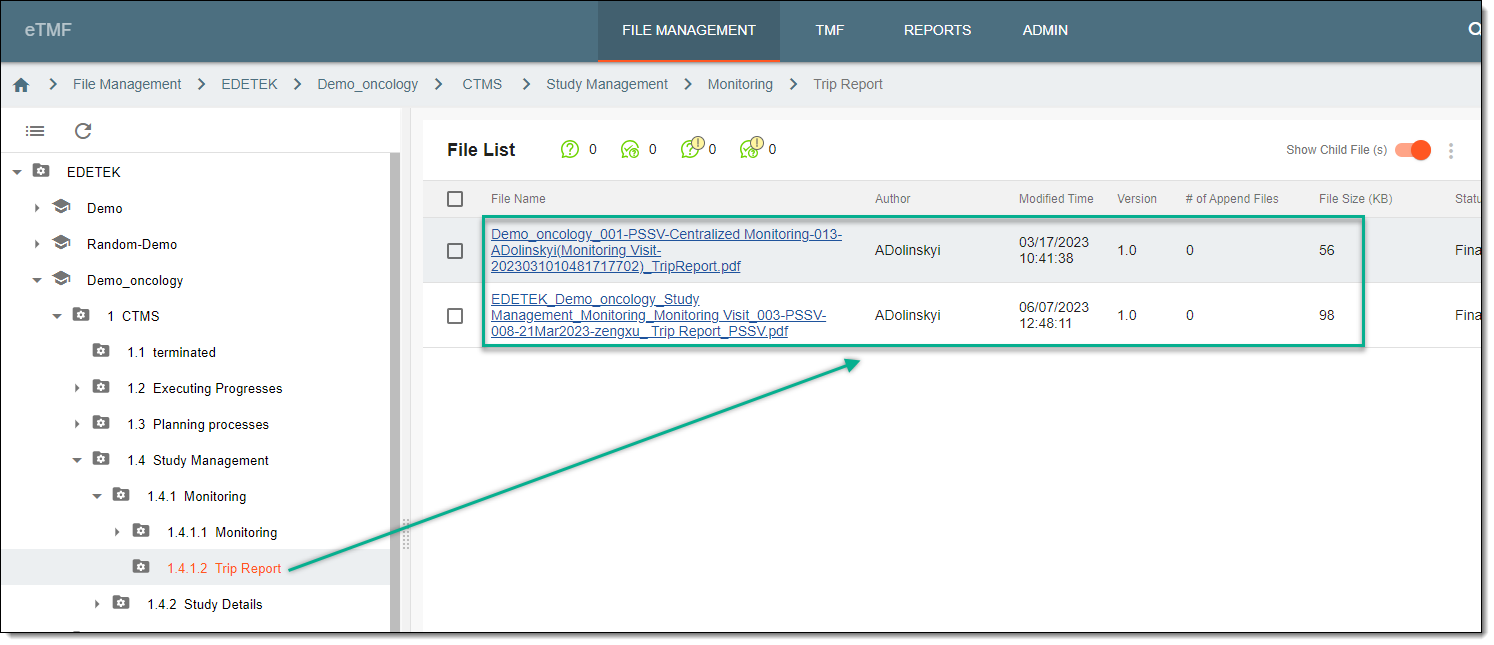
Prepare monitoring visit documentation configuration
With the Documentation Config feature, you can configure the files generated by the CTMS system when handling monitoring visits, namely, trip reports or confirmation and follow-up letter files.
The system generates the confirmation and follow-up letter files once such letters are sent, and the final version of the trip report is generated once the trip report is completed and the monitoring visit finalized. In CTMS, for all such files, you can customize the naming convention, document structure, and storage location in a specific directory of eTMF.
-
Access the study management page in one of the following ways:
-
In the CTMS application header, select the DASHBOARD tab and then select the study dashboard of your interest.
 Figure 1. Accessing study management from dashboard
-
In the CTMS application header, select the STUDY MANAGEMENT tab. Then from the Study Data List table, select the study name of your interest.
 Figure 2. Accessing study management from study data list
-
-
On the study page that opens, in the left pane, select Documentation Config.
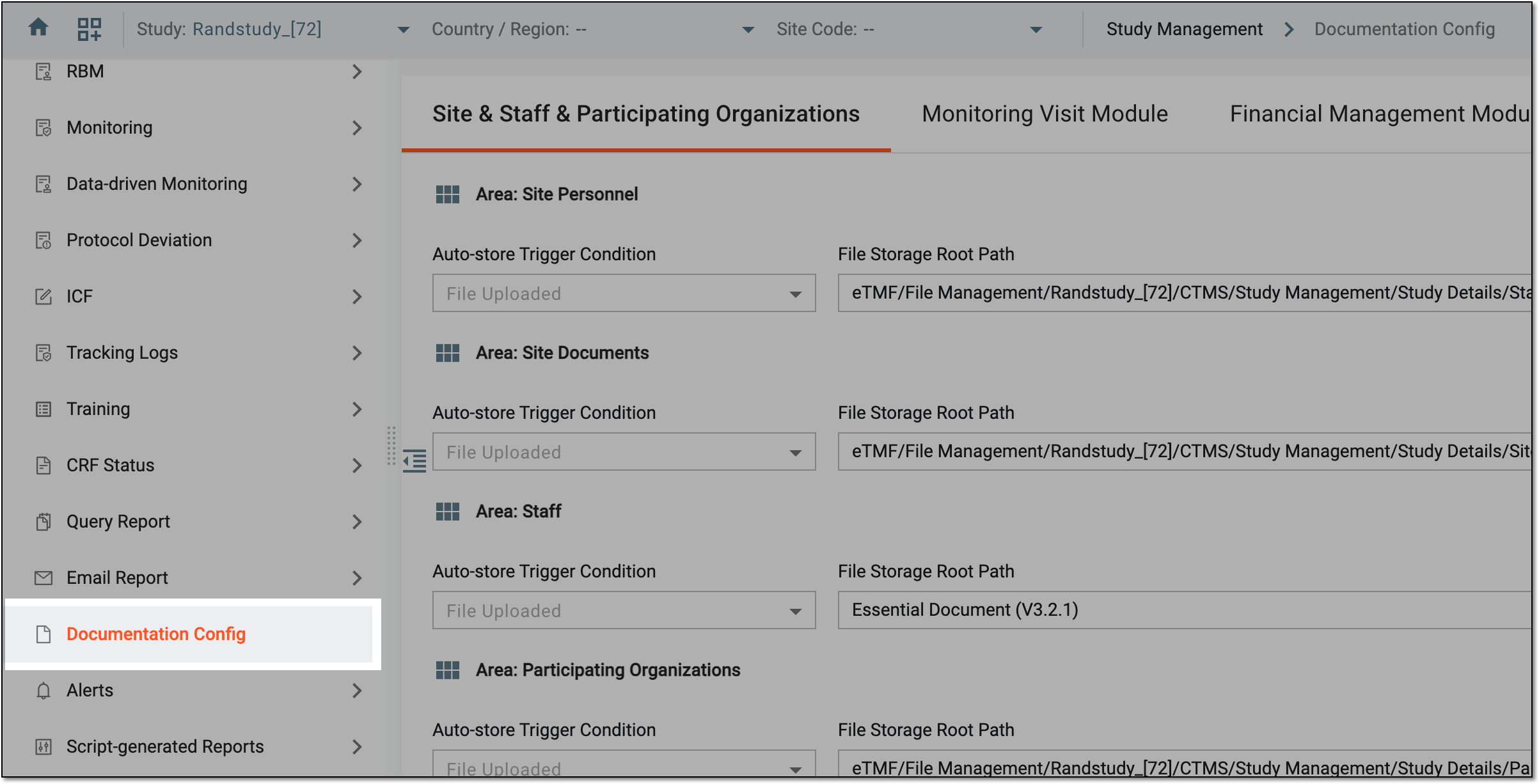 Figure 3. Accessing documentation configurations
-
Select the Monitoring Visit Module tab and define the corresponding document configurations as explained in the following table.
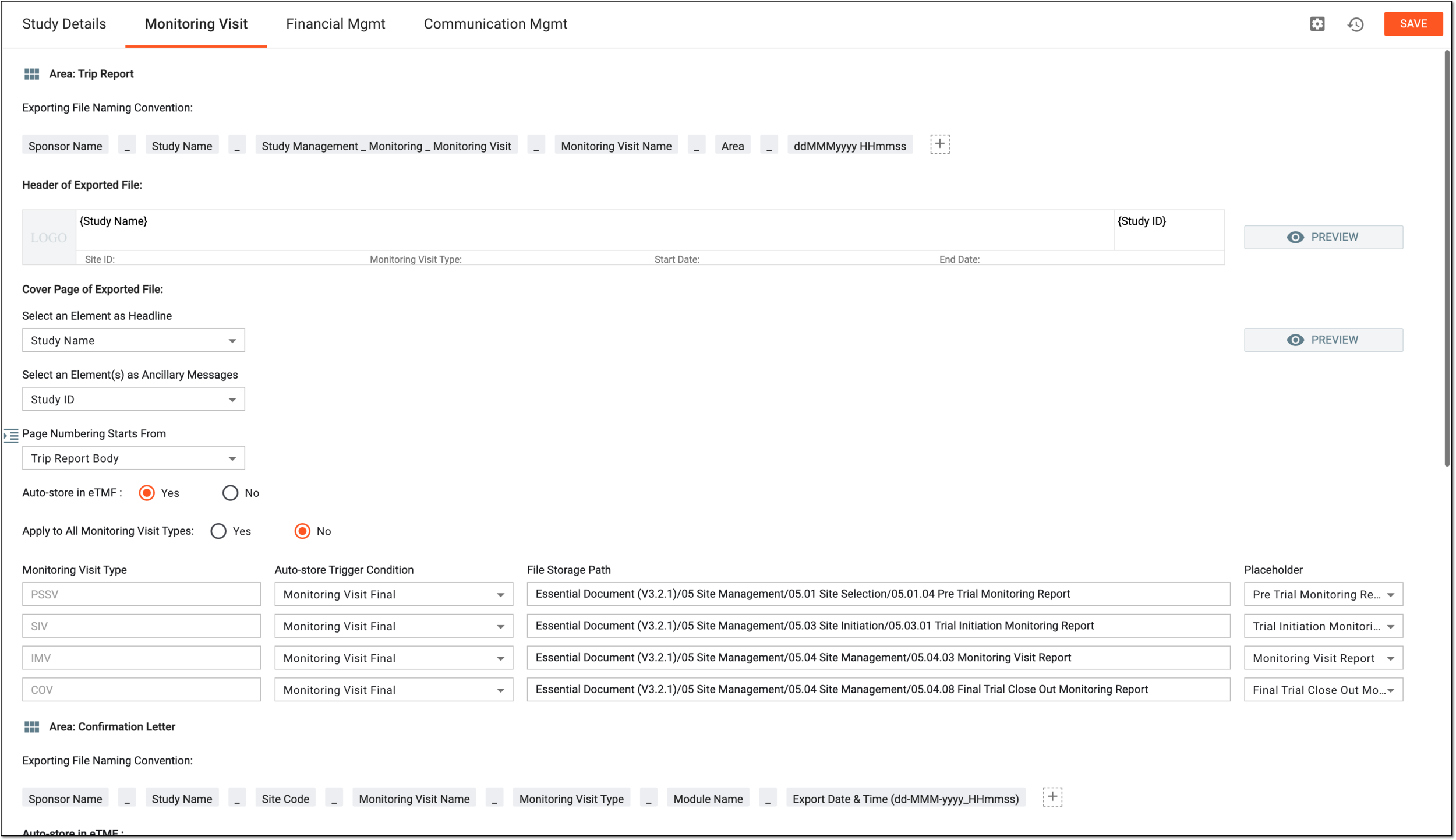 Figure 4. Defining monitoring visit documentation configurations
Element
Details
Area: Trip Report
Exporting File Naming Convention
Define the default naming convention for all final trip reports as follows:
-
Add more elements or separators to your naming convention by selecting Add
 .
. -
Move any elements around by dragging them.
-
Remove the elements by hovering over them and selecting
 .
.
Header of Exported File
Configure the elements of your document header by specifying the variables, such as {Study Name}, {Study ID}, and so on.
Note that the maximum number of allowed characters in the large header is 130, and 40 in the small header.
Cover Page of Exported File
Select an Element as Headline
Select the element to be used as the file headline on the cover page, such as Study Name, Study Description, or else.
If Other is selected, in the Input Description* field that appears, enter the needed details.
Select an Element(s) as Ancillary Messages
Select the elements to be used as an ancillary message on the cover page, such as Study Name, Study ID, and Study Description.
Note that if one of the elements is selected as a headline, it is missing from the list of available in this field.
Page Numbering Starts From
Select which page should be numbered as the first one—the cover page, table of contents, trip report body, or audit trail page.
Auto-store in eTMF
Select one of the following:
-
Select Yes to send all the completed final trip reports to the eTMF application and store them there by default.
-
Select No to store the completed final trip reports in the CTMS application only.
Apply to All Monitoring Visit Types
Select one of the following:
-
Select Yes to apply the trip report configurations—Auto-store Trigger Condition and File Storage Path—to all the monitoring visit types.
-
Select No to configure the storing trigger condition and file storage path for each monitoring visit type individually.
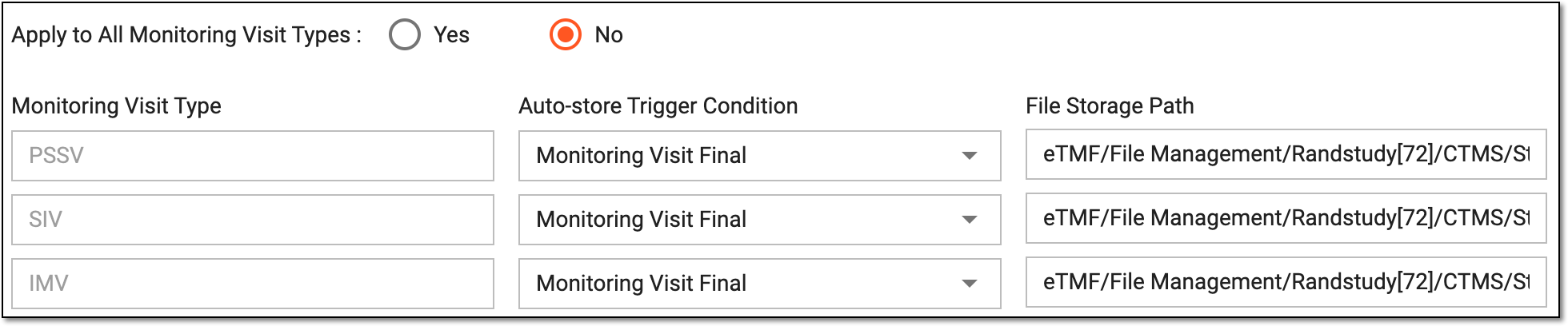 Figure 5. Configuring file storage per visit
When the trip report files are saved to a specific directory of eTMF, they can be maintained, edited, or deleted from there. Thus, to prevent the loss of files, a copy of each file is also saved to the file management storage of eTMF, where maintenance is
                                  restricted, and the files are safely stored and protected from any interaction.
Monitoring Visit Type
The value is set as follows:
-
If Yes is selected in the Apply to All Monitoring Visit Types field, this value is set to All and cannot be changed.
-
If No is selected in Apply to All Monitoring Visit Types, from this field, select the monitoring visit type for which you want to set the Auto-store Trigger Condition and File Storage Path configurations.
Auto-store Trigger Condition
Select the condition upon which the trip report file is generated:
-
Monitoring Visit Final: the trip report file is generated once the status of the monitoring visit is set to final.
-
Trip Report Approval Completion: the trip report file is generated once the dedicated user approves the trip report completion.
-
Monitoring Visit Final (only Trip Report Approval Completion): the trip report file is generated once the status of the monitoring visit is set to final and the dedicated user approves the trip report completion.
This field is available only if Yes is selected in the Auto-store in eTMF field.File Storage Path
Select the directory where the final trip reports need to be stored in eTMF. This field is available only if Yes has been selected in the Auto-store in eTMF field.
Note that you can use eTMF as trip report storage only if your study has been added to this application, otherwise, you cannot define the file storage path. Figure 6. Path error
When the trip report files are saved to a specific directory of eTMF, they can be maintained, edited, or deleted from there. Thus, to prevent the loss of files, a copy of each file is also saved to the file management storage of eTMF, where maintenance is
                                  restricted, and the files are safely stored and protected from any interaction.
PREVIEW
Select
 in the Header of Exported File or Cover Page of Exported File block to preview the header or cover page configurations in a new tab of your browser.
Area: Confirmation Letter
Exporting File Naming Convention
Define the default naming convention for the trip report confirmation letter file as follows:
-
Add more elements or separators to your naming convention by selecting Add
. -
Move any elements around by dragging them.
-
Remove the elements by hovering over them and selecting
.
Auto-store in eTMF
Select one of the following:
-
Select Yes to send all the confirmation letter files to the eTMF application and store them there by default.
-
Select No to store confirmation letter files in the CTMS application only.
Apply to All Monitoring Visit Types
Select one of the following:
-
Select Yes to apply the confirmation letter file configurations—Auto-store Trigger Condition and File Storage Path—to all the monitoring visit types.
-
Select No to configure storing trigger conditions and file storage path for each monitoring visit type individually.
Monitoring Visit Type
The value is set as follows:
-
If Yes is selected in the Apply to All Monitoring Visit Types field, this value is set to All and cannot be changed.
-
If No is selected in Apply to All Monitoring Visit Types, from this field, select the monitoring visit type for which you want to set the Auto-store Trigger Condition and File Storage Path configurations.
Auto-store Trigger Condition
The Email Send trigger condition is preset here and cannot be manually changed. This means that the file is generated once the confirmation letter is sent.
File Storage Path
Select the directory where the confirmation letters for your trip reports need to be stored in eTMF. This field is available only if Yes has been selected in the Auto-store in eTMF field.
Note that you can use eTMF as a storage for confirmation letters only if your study has been added to this application, otherwise, you cannot define the file storage path.When the trip report files are saved to a specific directory of eTMF, they can be maintained, edited, or deleted from there. Thus, to prevent the loss of files, a copy of each file is also saved to the file management storage of eTMF, where maintenance is restricted, and the files are safely stored and protected from any interaction.Area: Follow-up Letter
Exporting File Naming Convention
Define the default naming convention for the trip report follow-up letter file as follows:
-
Add more elements or separators to your naming convention by selecting Add
. -
Move any elements around by dragging them.
-
Remove the elements by hovering over them and selecting
.
Auto-store in eTMF
Select one of the following:
-
Select Yes to forward all the follow-up letter files to eTMF and store there by default.
-
Select No to store follow-up letter files in the CTMS application only.
Apply to All Monitoring Visit Types
Select one of the following:
-
Select Yes to apply the follow-up letter file configurations—Auto-store Trigger Condition and File Storage Path—to all the monitoring visit types.
-
Select No to configure storing trigger conditions and file storage path for each monitoring visit type individually.
Monitoring Visit Type
The value is set as follows:
-
If Yes is selected in the Apply to All Monitoring Visit Types field, this value is set to All and cannot be changed.
-
If No is selected in Apply to All Monitoring Visit Types, from this field, select the monitoring visit type for which you want to set the Auto-store Trigger Condition and File Storage Path configurations.
Auto-store Trigger Condition
The Email Send trigger condition is preset here and cannot be manually changed. This means that the file is generated once the follow-up letter is sent.
File Storage Path
Select the directory where the follow-up letters for your trip reports need to be stored in eTMF. This field is available only if Yes has been selected in the Auto-store in eTMF field.
Note that you can use eTMF as a storage for follow-up letters only if your study has been added to this application, otherwise, you cannot define the file storage path.When the trip report files are saved to a specific directory of eTMF, they can be maintained, edited, or deleted from there. Thus, to prevent the loss of files, a copy of each file is also saved to the file management storage of eTMF, where maintenance is restricted, and the files are safely stored and protected from any interaction.SAVE
Select
 to save the documentation config.
Global Setting
Select
 to open a dialog in which you can choose if you want to store the documents in the eTMF application's TMF module. Then select SAVE.
Operation History
Select
 to view the history of operations made with documentation configurations.
 -
Once saved, the documentation config is ready. If you have selected to store trip report, confirmation, or follow-up letter files in eTMF, you can locate them there once they are ready.