Manage trip report
A trip report refers to a document that provides a summary of a specific monitoring visit conducted by a clinical research associate (CRA) at a study site. The report outlines the findings and observations made during the visit, including any possible issues or deviations from the study protocol. The monitoring trip report is typically entered into the system by CRA users after the monitoring visit has taken place.
In CTMS, you have the following options to manage the trip report for the monitoring visit.
A trip report refers to a document that provides a summary of a specific monitoring visit conducted by a clinical research associate (CRA) at a study site. The report outlines the findings and observations made during the visit, including any possible issues or deviations from the study protocol. In the CTMS system, a monitoring trip report is typically entered into the system by CRA users after the monitoring visit has taken place.
The report contains a list of corrective actions taken by the CRA or site staff to address different activities or data issues. The CTMS application is used to track the status of monitoring trip reports for each monitoring visit, including when they have been entered into the system, reviewed, approved, and signed. You can also generate trip reports on monitoring activities for multiple sites in order to provide a comprehensive view of the study progress.
Important
Note that a trip report may or may not need to be submitted or approved and signed. This depends on workflow settings that are set up for a trip report completion configuration of the monitoring visit.
-
Access the study management page in one of the following ways:
-
In the CTMS application header, select the DASHBOARD tab and then select the study dashboard of your interest.
 Figure 1. Accessing study management from dashboard
-
In the CTMS application header, select the STUDY MANAGEMENT tab. Then from the Study Data List table, select the study name of your interest.
 Figure 2. Accessing study management from study data list
-
-
On the study page that opens, in the left pane, select Monitoring > Monitoring Visit.
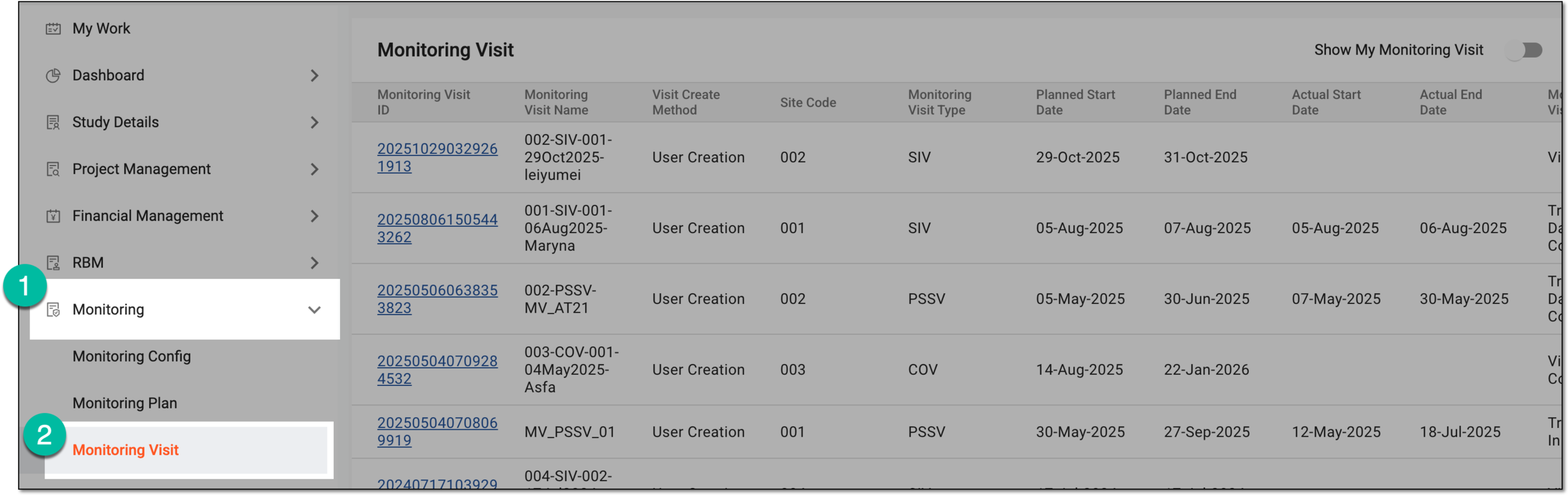 Figure 3. Accessing Monitoring Visit page
-
In the Monitoring Visit table that appears, next to the needed monitoring visit, select More
 > Trip Report
  .
.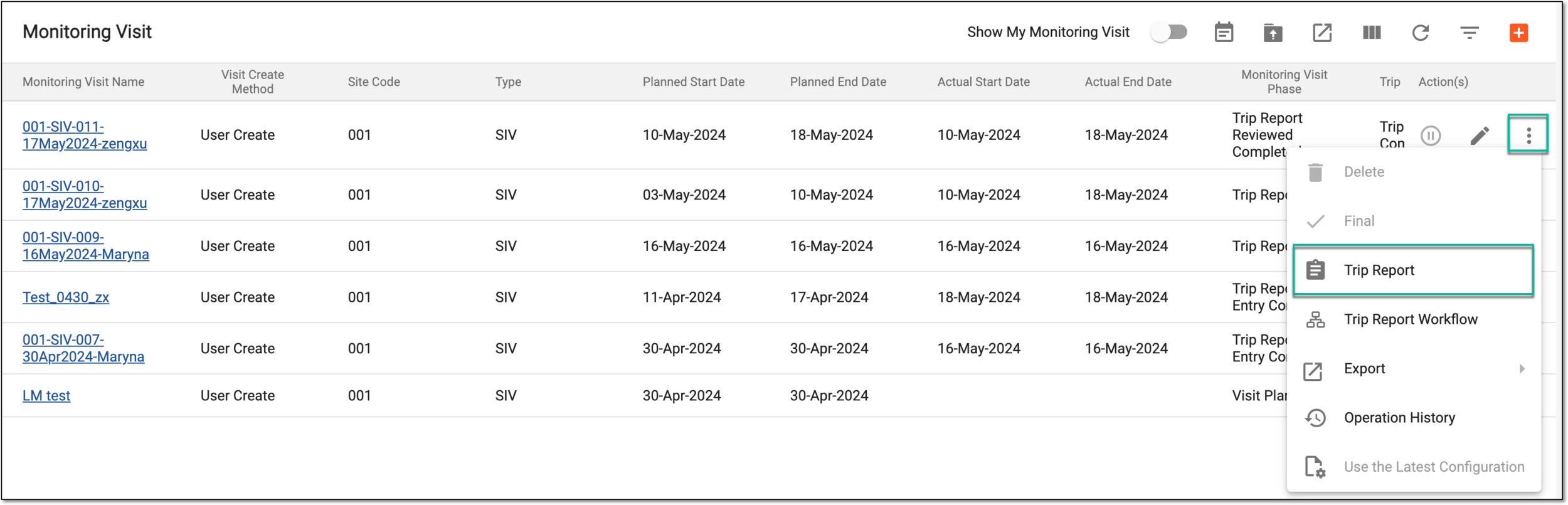 Figure 4. Accessing trip report
-
On the page that opens, from the left pane, choose the trip report you want to complete.
-
In the contents panel, complete the trip report by providing responses in different forms that characterize visit observations and findings. The number of forms with questions depends on the trip report template selected during the monitoring visit configuration.
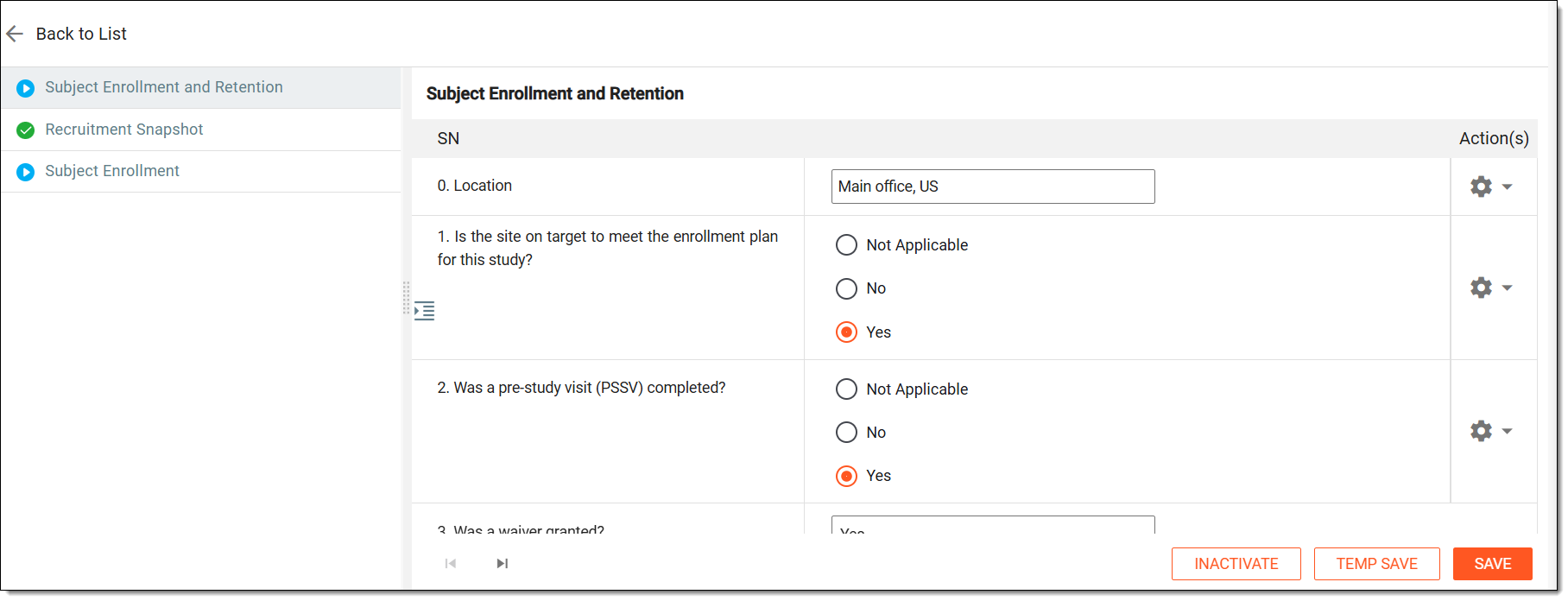 Figure 5. Completing trip report
Tip
If the help text is available for any question or item on the form, select Help Text
 to expand
the panel where you can read it before responding.
to expand
the panel where you can read it before responding.Also, if required, audit the changes made to each data item in the report by selecting
 and choosing Audit Trail
  from the Action(s) column and viewing the change log.
 -
Once the report is completed with the available data, select one of the buttons explained in the following table.
Button
Details
SAVE
Select
 to implement the changes and mark the trip report as completed.
TEMP SAVE
Select
 to save any partially or entirely completed form without marking the trip report as completed.
All operations of this kind are recorded in the monitoring visit operation history for traceability and compliance.INACTIVATE
Select
 to deactivate the form that does not need to be completed.
ACTIVATE
Select
 to activate a deactivated form that needs to be completed.
The trip report is completed. Depending on the assigned workflow, you can proceed to the submission or auditing stage.
A trip report refers to a document that provides a summary of a specific monitoring visit conducted by a clinical research associate (CRA) at a study site. The report outlines the findings and observations made during the visit, including any possible issues or deviations from the study protocol. In the CTMS system, a monitoring trip report is typically entered into the system by CRA users after the monitoring visit has taken place.
If any changes are required, for instance, if the data was incorrectly copied from the source document or if the source document itself had a mistake, you can edit the trip report record and change the value.
Important
You cannot edit the records of the submitted trip report.
-
Access the study management page in one of the following ways:
-
In the CTMS application header, select the DASHBOARD tab and then select the study dashboard of your interest.
Figure 1. Accessing study management from dashboard
-
In the CTMS application header, select the STUDY MANAGEMENT tab. Then from the Study Data List table, select the study name of your interest.
Figure 2. Accessing study management from study data list
-
-
On the study page that opens, in the left pane, select Monitoring > Monitoring Visit.
Figure 3. Accessing Monitoring Visit page
-
In the Monitoring Visit table that appears, next to the needed monitoring visit, select More
> Trip Report .Figure 4. Accessing trip report
-
On the page that opens, from the left pane, choose the trip report form whose record you need to edit.
-
In the form that opens, locate the needed field and select its value to enable editing mode for it. Enter the correct value, then in the adjacent field that appears, select the reason (or enter a custom one) to justify the data change.
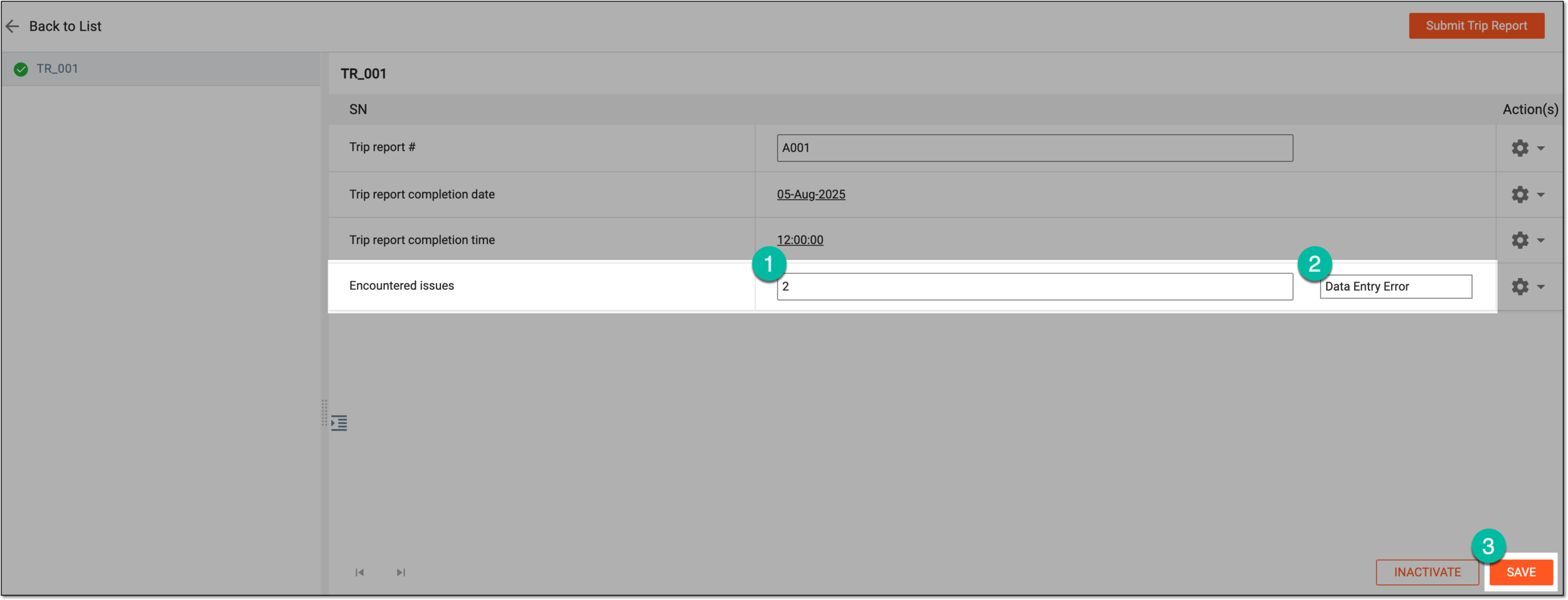 Figure 5. Updating value of trip report record
-
Once all the needed records are updated, select
to implement the changes.
Once saved, the trip report record is updated. The change history and audit trail of this action are recorded in the system and can be analyzed if required.
A trip report refers to a document that provides a summary of a specific monitoring visit conducted by a clinical research associate (CRA) at a study site. The report outlines the findings and observations made during the visit, including any possible issues or deviations from the study protocol. In the CTMS system, a monitoring trip report is typically completed by CRA users after the monitoring visit has taken place.
Once completed, depending on the associated workflow, the trip report might require submission to initiate the review and approval procedure.
-
Access the study management page in one of the following ways:
-
In the CTMS application header, select the DASHBOARD tab and then select the study dashboard of your interest.
Figure 1. Accessing study management from dashboard
-
In the CTMS application header, select the STUDY MANAGEMENT tab. Then from the Study Data List table, select the study name of your interest.
Figure 2. Accessing study management from study data list
-
-
On the study page that opens, in the left pane, select Monitoring > Monitoring Visit.
Figure 3. Accessing Monitoring Visit page
-
In the Monitoring Visit table that appears, next to the needed monitoring visit, select More
> Trip Report .Figure 4. Accessing trip report
-
On the trip report page that opens, make sure that all the trip reports are completed (indicated with the green check symbol
 ). Then from the
workspace toolbar, select
). Then from the
workspace toolbar, select  .
.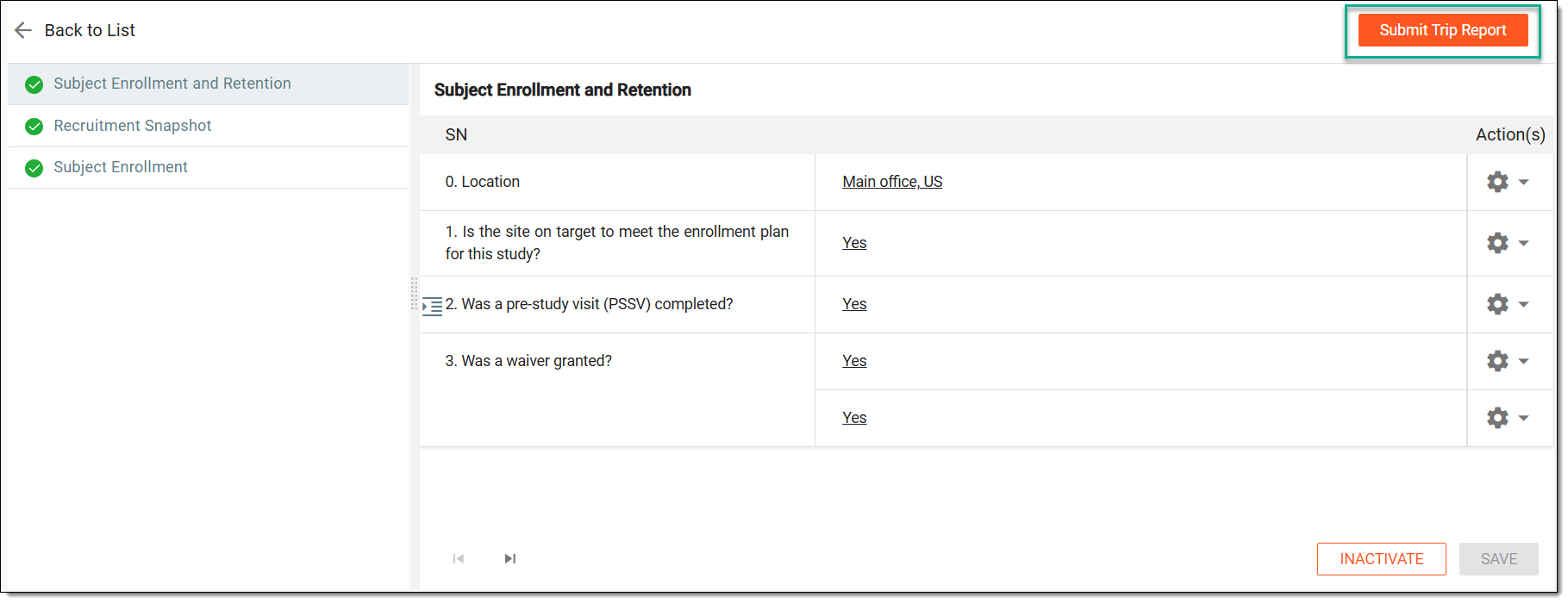 Figure 5. Submitting trip report
Once submitted, depending on the associated workflow, the trip report is either finalized or requires additional auditing.
A trip report refers to a document that provides a summary of a specific monitoring visit conducted by a clinical research associate (CRA) at a study site. The report outlines the findings and observations made during the visit, including any possible issues or deviations from the study protocol. In the CTMS system, a monitoring trip report is typically completed by CRA users after the monitoring visit has taken place.
Once completed and submitted, depending on the associated workflow, the trip report might require auditing to fulfill the review and approval procedure.
Important
The auditing procedure varies based on the approval workflow associated with the trip report. Auditing might require an electronic signature, have multiple reviewers, include multiple steps, or else.
-
Access the study management page in one of the following ways:
-
In the CTMS application header, select the DASHBOARD tab and then select the study dashboard of your interest.
Figure 1. Accessing study management from dashboard
-
In the CTMS application header, select the STUDY MANAGEMENT tab. Then from the Study Data List table, select the study name of your interest.
Figure 2. Accessing study management from study data list
-
-
On the study page that opens, in the left pane, select Monitoring > Monitoring Visit.
Figure 3. Accessing Monitoring Visit page
-
In the Monitoring Visit table that appears, next to the needed monitoring visit, select More
> Trip Report .Figure 4. Accessing trip report
-
On the trip report page that opens, review all the forms and their contents. Then, from the workspace toolbar, select
 .
. Figure 5. Selecting to audit trip report
-
In the dialog that appears, review the trip report details and make the decision on the audit as explained in the following table.
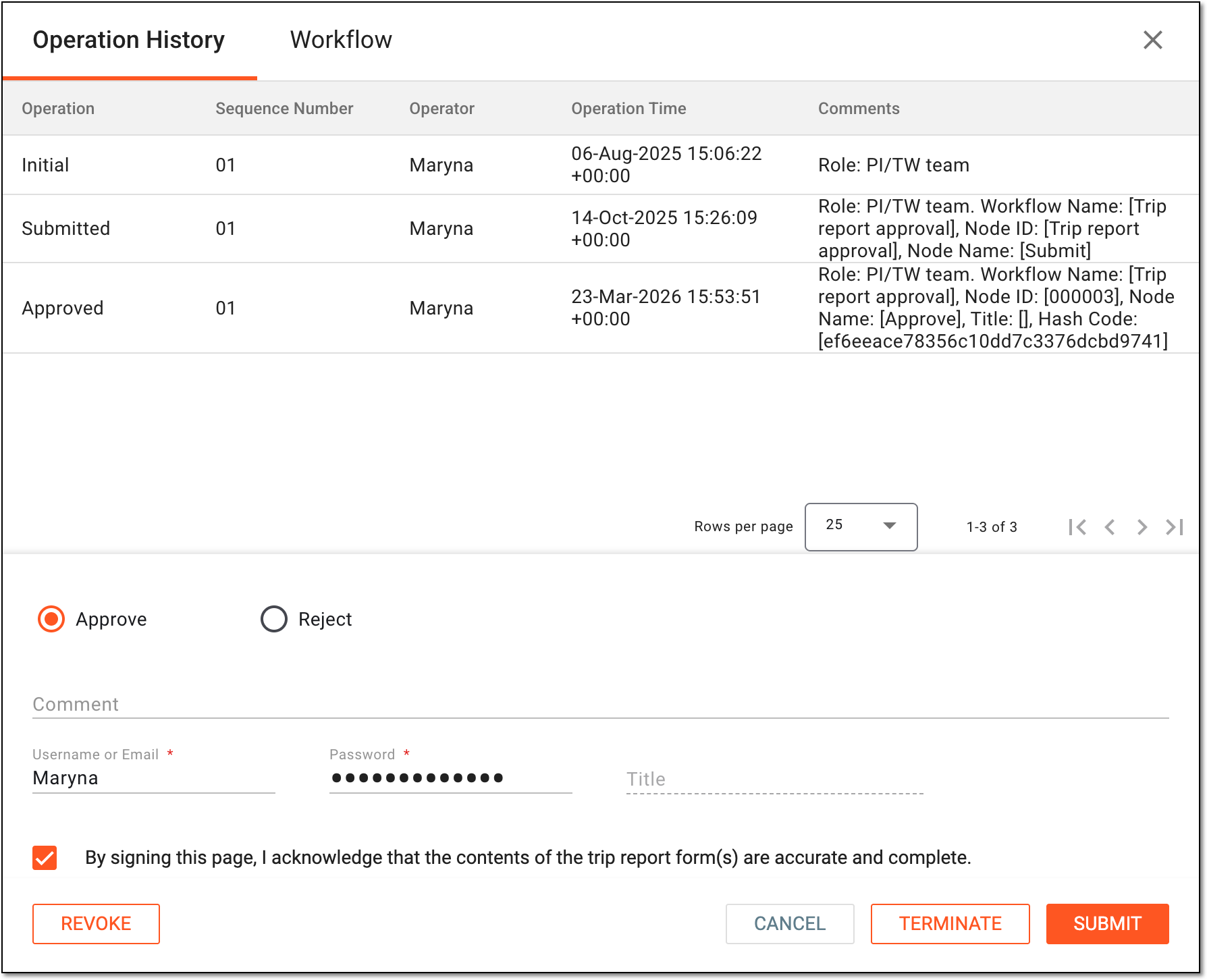 Figure 6. Auditing trip report
Tip
In the following table, mandatory elements are marked with an asterisk (*).
Element
Details
Operation History
Represents the tab selected by default that comprises the complete record of auditing operations for the trip report, as well as the approval and rejection functionality.
Operation
Represents the type of performed operation, such as Initial for the trip report that is created and saved, Submitted for the trip report submitted for audit, Approved or Signed for the trip report approved or signed by the auditor, respectively, and so on.
Sequence Number
Represents the sequential number of the audit to which the operation belongs. This enables the system to track the operations for the trip report audit restarted one or more times.
For instance, when the trip report is first created, submitted, and approved by the auditor, all these operations are recorded in the operation history with the sequential number 01. If the audit is restarted for any reason, and then the trip report is reviewed and approved or signed once again, these operations have the sequential number 02.
Operator
Represents the user name of the person who has performed the operation with the trip report.
Operation Time
Represents the exact date, time, and time zone indicator when the operation with the trip report has been performed.
Comment
Represents the text of the comment provided by the operator upon performing their action.
Workflow
Select this tab to check the workflow associated with the trip report. The stages that are already completed are marked with the blue check mark for easy tracking.
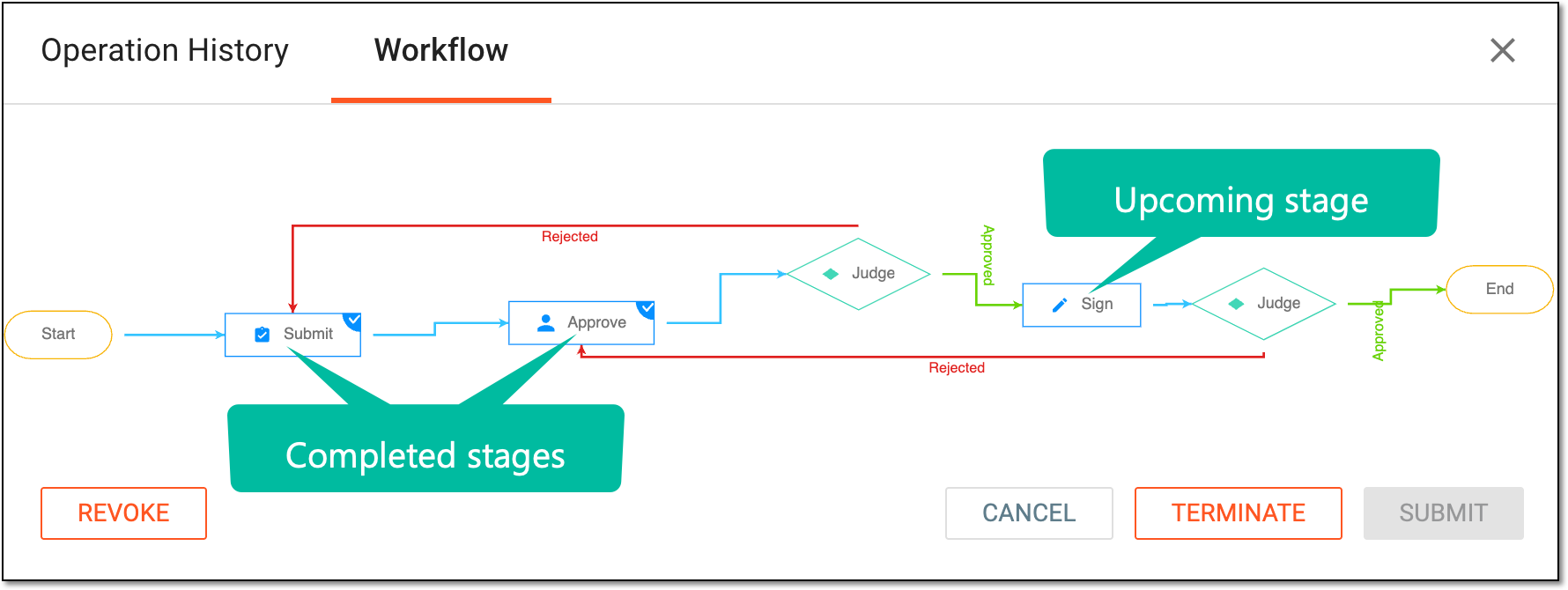 Figure 7. Checking workflow for trip report
Approve
Select this option to approve the trip report and all its forms.
Reject
Select this option to reject the trip report if there are reasons for it, such as incorrect or missing data or else.
Due Date of Next Work Step
Select the due date for the next user action required according to the assigned trip report auditing workflow.
This field becomes available only for the rejection operation.Comment
Enter a comment to follow up on the trip report. This might be an important note for the next reviewer or else.
This field becomes mandatory only for the rejection operation.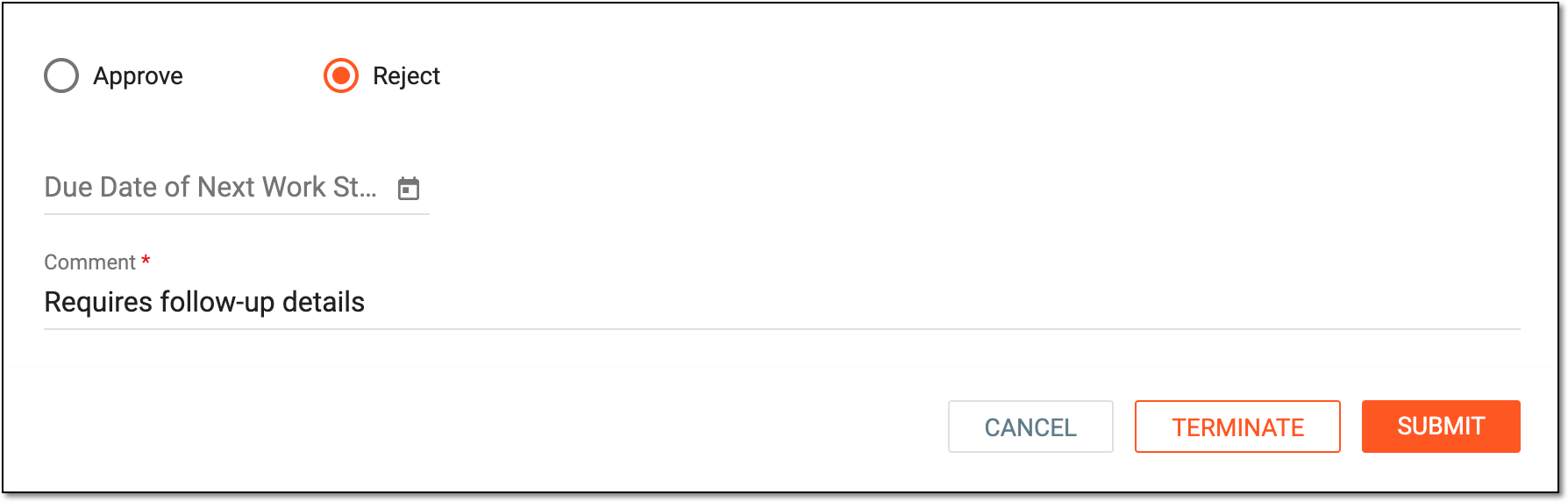 Figure 8. Adding mandatory comment for rejection
Username or Email*
Enter your username or email that you use to log in to the eClinical applications.
The field is only available for the approval operation.Password*
Enter the password that you use to log in to the eClinical applications.
The field is only available for the approval operation if you use the authorization method by providing your login and
                                        password.
Send Code
Select
 to send the temporary PIN code to your email for which the SSO method is configured.
The button is only available for the approval operation if you use the authorization method via SSO.Code*
Enter the temporary PIN code that you received via email.
The field is only available for the approval operation if you use the authorization method via SSO.By signing this page, I acknowledge that the contents of the trip report form(s) are accurate and complete
Select this checkbox to acknowledge that you have reviewed the trip report and are ready to approve its contents.
The checkbox is only available for the approval operation.SUBMIT
Select
 to proceed with your selected action.
TERMINATE
Select
 to reset the workflow to the previous step according to the associated workflow.
To terminate audit for the trip report, you must have the Monitoring Visit > Terminate permission granted to your user role in ADMIN.REVOKE
Select
 to retrieve the previous operation performed with the trip report.
For instance, if the trip report approval was premature, you can revoke this operation and start over.
CANCEL
Select
 to discard your changes, close the dialog, and return to the trip report page.
Important
For security, the system logs you out after three failed attempts to confirm your identity with a password or code.
Once audited, depending on the selected action, the trip report is approved or rejected. Based on the associated workflow, the trip report is finalized or forwarded to the next auditing step.
The trip report that is completed and submitted, depending on the associated workflow, might require auditing to fulfill the review and approval procedure. However, if during auditing there is a need to cease the process, discard the applied decisions, and start over, it is possible to restart the audit from scratch.
-
Access the study management page in one of the following ways:
-
In the CTMS application header, select the DASHBOARD tab and then select the study dashboard of your interest.
Figure 1. Accessing study management from dashboard
-
In the CTMS application header, select the STUDY MANAGEMENT tab. Then from the Study Data List table, select the study name of your interest.
Figure 2. Accessing study management from study data list
-
-
On the study page that opens, in the left pane, select Monitoring > Monitoring Visit.
Figure 3. Accessing Monitoring Visit page
-
In the Monitoring Visit table that appears, next to the needed monitoring visit, select More
> Trip Report .Figure 4. Accessing trip report
-
On the trip report page that opens, from the workspace toolbar, select
 .
.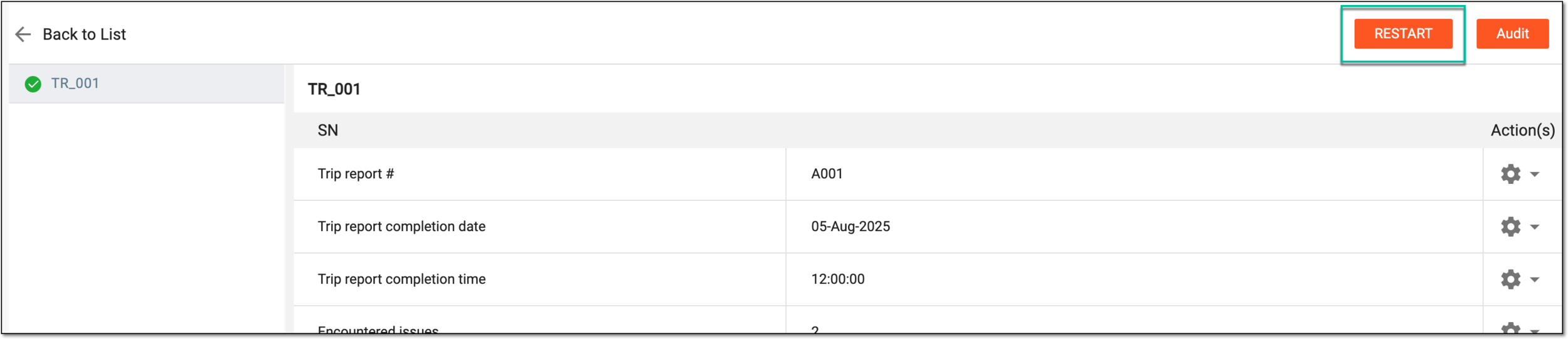 Figure 5. Restarting trip report auditing workflow
-
In the dialog that appears, select
 to proceed with restarting the audit.
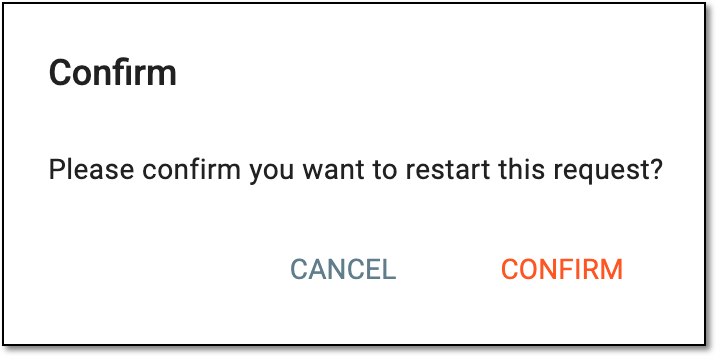 Figure 6. Confirming to restart trip report audit
In CTMS, when managing trip reports, you can open, reply to, and resolve queries to have a traceable and clear communication tool for resolving issues and clarifying data discrepancies for certain report records.
A trip report refers to a document that provides a summary of a specific monitoring visit conducted by a clinical research associate (CRA) at a study site. The report outlines the findings and observations made during the visit, including any possible issues or deviations from the study protocol. In the CTMS system, a monitoring trip report is typically completed by CRA users after the monitoring visit has taken place.
In CTMS, when managing trip reports and encountering any discrepancies or questionable data, you can open queries to request help or clarifications from the designated CRA or other personnel on certain report records.
-
Access the study management page in one of the following ways:
-
In the CTMS application header, select the DASHBOARD tab and then select the study dashboard of your interest.
Figure 1. Accessing study management from dashboard
-
In the CTMS application header, select the STUDY MANAGEMENT tab. Then from the Study Data List table, select the study name of your interest.
Figure 2. Accessing study management from study data list
-
-
On the page that opens, from the left pane, select Monitoring > Monitoring Visit.
-
In the Monitoring Visit table that appears, locate the monitoring visit of your interest and from the Action(s) column next to it, select More > Trip Report.
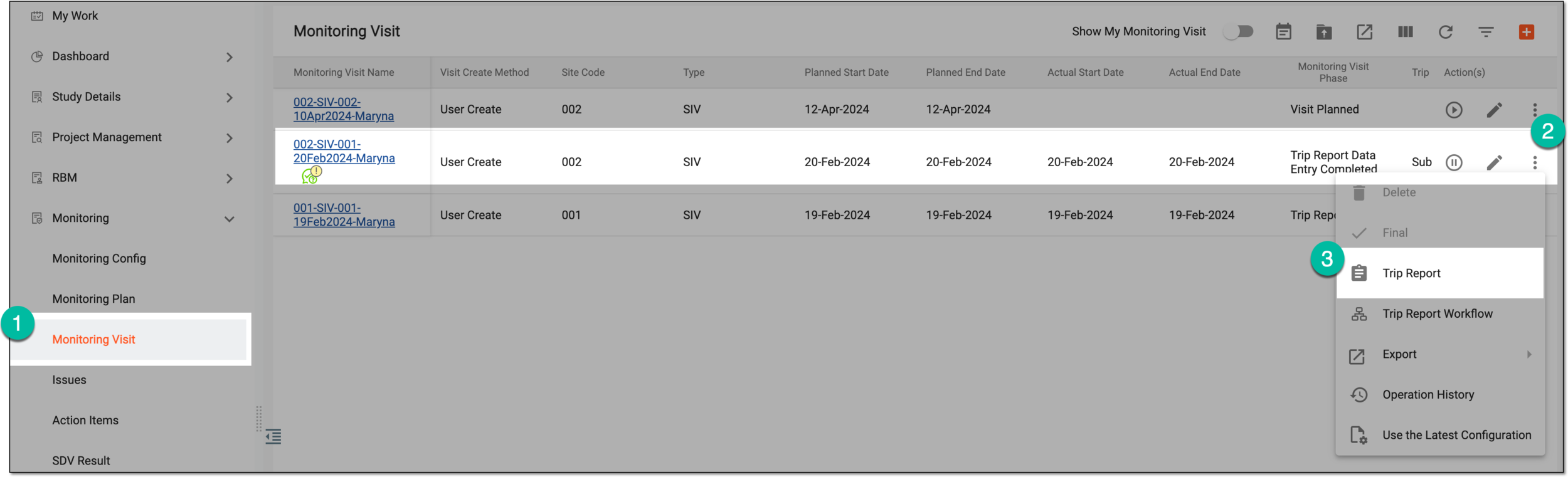 Figure 3. Accessing trip report of monitoring visit
-
On the page that opens, make sure the needed trip report form is selected from the left pane. In the form, locate the field of your interest and from the Action(s) column next to it, select
 and from the expanded menu, select Open Query
  .
.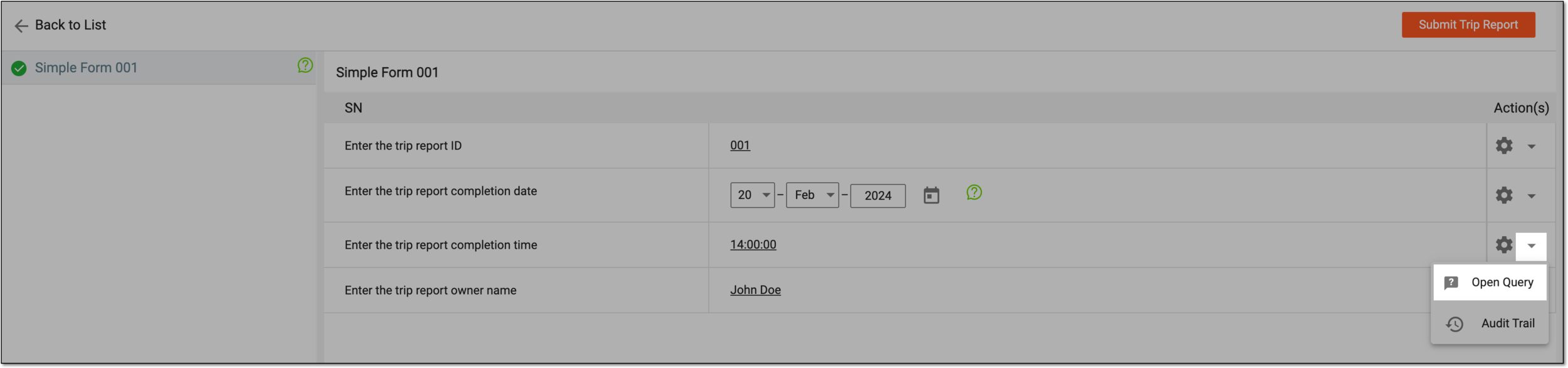 Figure 4. Selecting to open query
Tip
If there already is an existing query on the record of your interest, select the query icon, and in the panel that opens, select
 to open a new query.
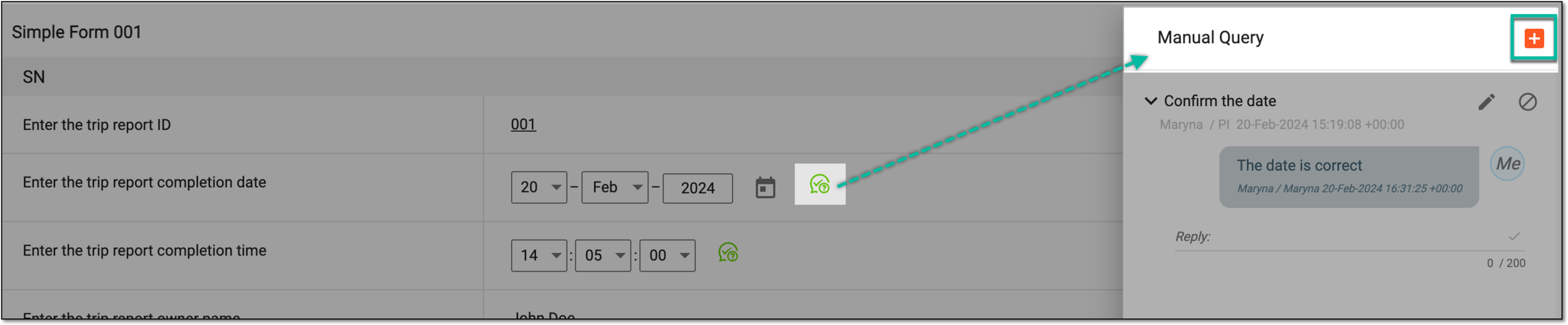 Figure 5. Adding query to existing one
-
In the Manual Query dialog that opens, complete the fields as explained in the following table.
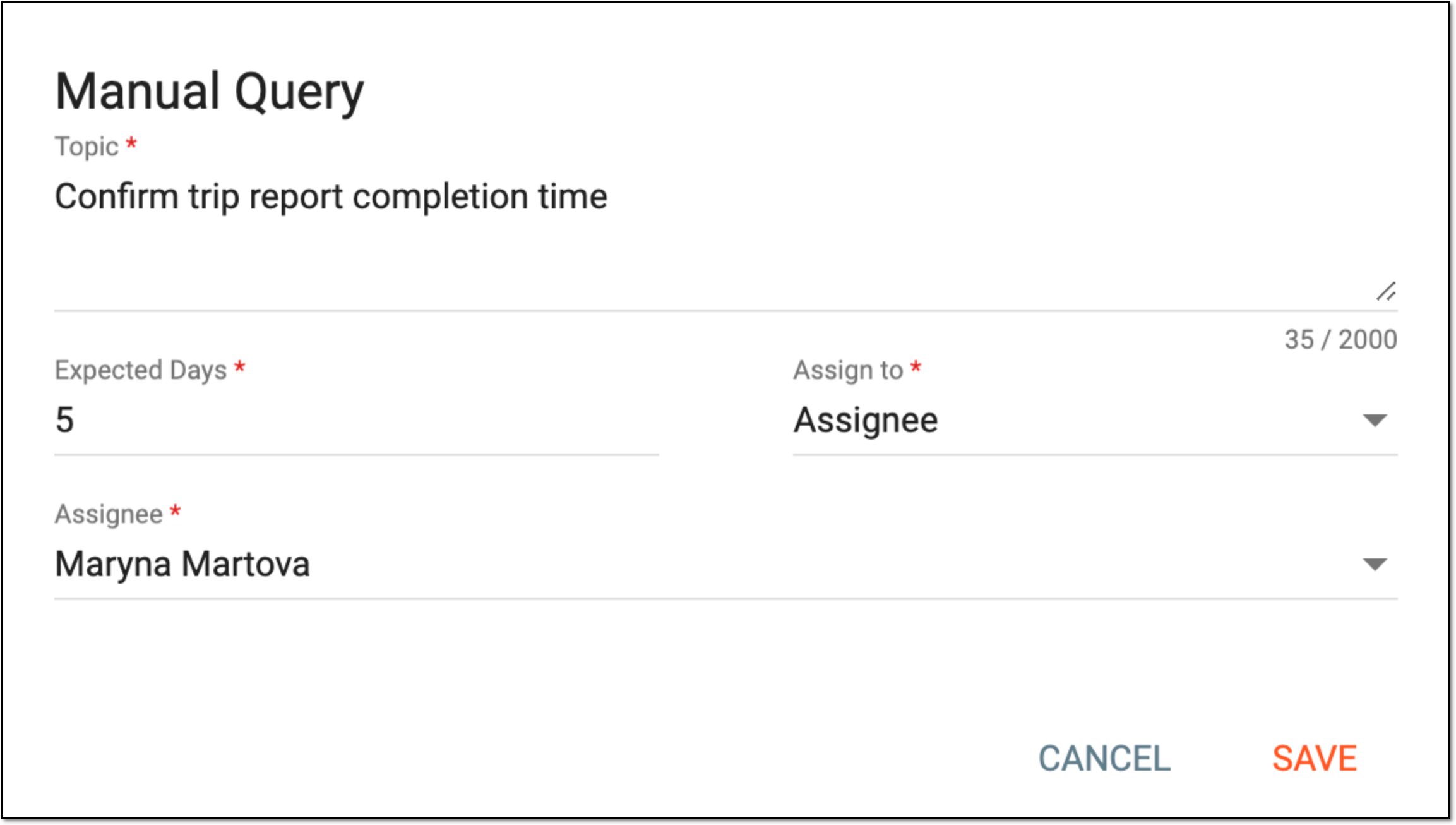 Figure 6. Completing manual query
Element
Details
Topic
Enter the query you want to ask the designated personnel.
Expected Days*
Enter the number of days by which you are expecting a reply from the reviewer. Ideally, the reviewer should respond within the indicated number of days. However, if they do not and the query is not removed, the reviewer can still provide their response.
Assign to*
From the dropdown menu, select one of the following options:
-
Assignee: select this option if you want to assign the query to a specific user.
-
Role: select this option if you want to assign the query to a user role.
Assignee*/Role*
Select the user/user role to which you want to assign the query for review.
The name of the field varies depending on your selection in the Assign to field.
SAVE
Select
 to add the query.
CANCEL
Select
to dismiss the operation. -
Once saved, the query is opened. The designated assignee(s) can now access the query via the My Work dashboard.
In CTMS, once a query is opened on the trip report record, the assigned user or user role representatives must take action to resolve it. To resolve the query, you must update or verify the correctness of the existing data in the trip report.
Important
You can also resolve a query by replying to it.
-
Access the study management page in one of the following ways:
-
In the CTMS application header, select the DASHBOARD tab and then select the study dashboard of your interest.
Figure 1. Accessing study management from dashboard
-
In the CTMS application header, select the STUDY MANAGEMENT tab. Then from the Study Data List table, select the study name of your interest.
Figure 2. Accessing study management from study data list
-
-
On the page that opens, perform one of the following actions:
-
On the My Work dashboard select the Queries tile to start working on queries assigned to you.
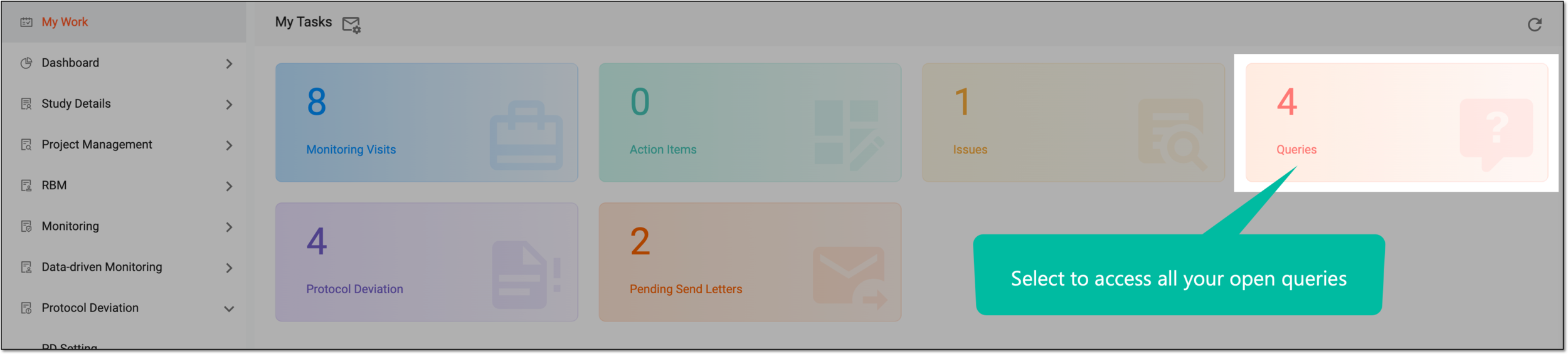 Figure 3. Accessing all your queries
-
In the left pane, select Monitoring > Monitoring Visit and in the table that appears, locate the monitoring visit of the trip report you need. Then from the Action(s) column next to it, select More
 > Trip Report.Figure 4. Accessing trip report from monitoring visit list
-
-
In the record form that opens, review the current value and make your amendments if required. If you change the data, provide the reason for it by selecting the existing ones—Source Documentation Error or Data Entry Error—or entering a custom reason.
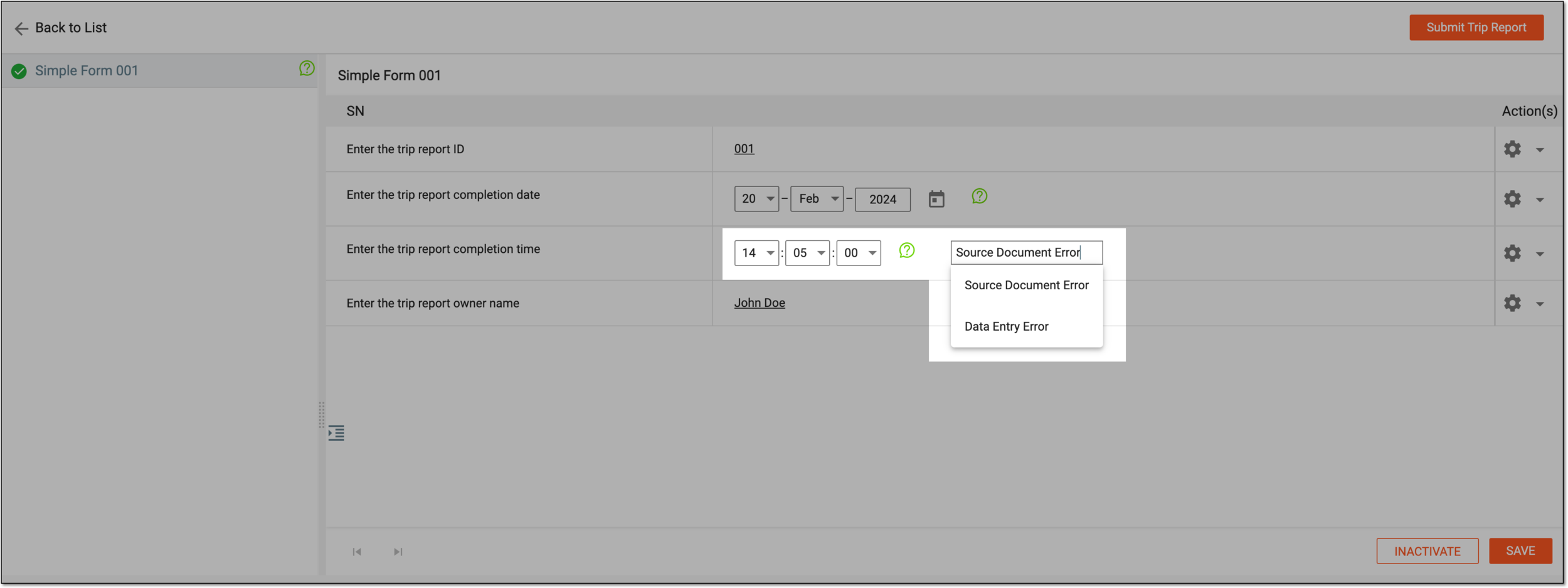 Figure 5. Resolving query
-
Select
to save the implemented changes.
Once saved, the trip report data is updated and a query may be considered resolved by you. The identification icon changes to the answered query  . If you want to provide more info on the corrected data, you can add a comment to a query by replying to it.
In CTMS, once a query is opened in some trip report record, its assignee—CRA, DM, or another user—or the creator—sponsor or monitor—can add a reply to it. This might become useful if you—as a person who created or reviewed the query—need to communicate additional information or add some clarifications to the topic of the query that you have resolved.
Important
The replied query is considered to be resolved.
-
Access the study management page in one of the following ways:
-
In the CTMS application header, select the DASHBOARD tab and then select the study dashboard of your interest.
Figure 1. Accessing study management from dashboard
-
In the CTMS application header, select the STUDY MANAGEMENT tab. Then from the Study Data List table, select the study name of your interest.
Figure 2. Accessing study management from study data list
-
-
On the page that opens, perform one of the following actions:
-
On the My Work dashboard select the Queries tile to start working on queries assigned to you.
Figure 3. Accessing all your queries
-
In the left pane, select Monitoring > Monitoring Visit and in the table that appears, locate the monitoring visit of the trip report you need. Then from the Action(s) column next to it, select More
> Trip Report.Figure 4. Accessing trip report from monitoring visit list
-
-
In the record form that opens, select the query icon next to the needed data item. In the panel that appears, expand the query, provide your comment, and select
 to submit the reply.
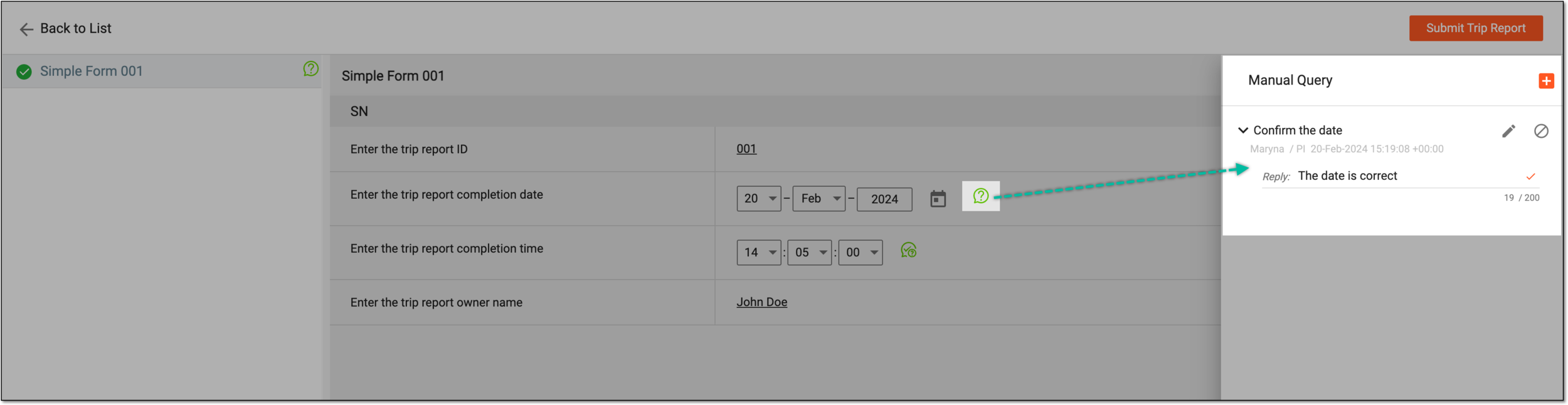 Figure 5. Replying to query
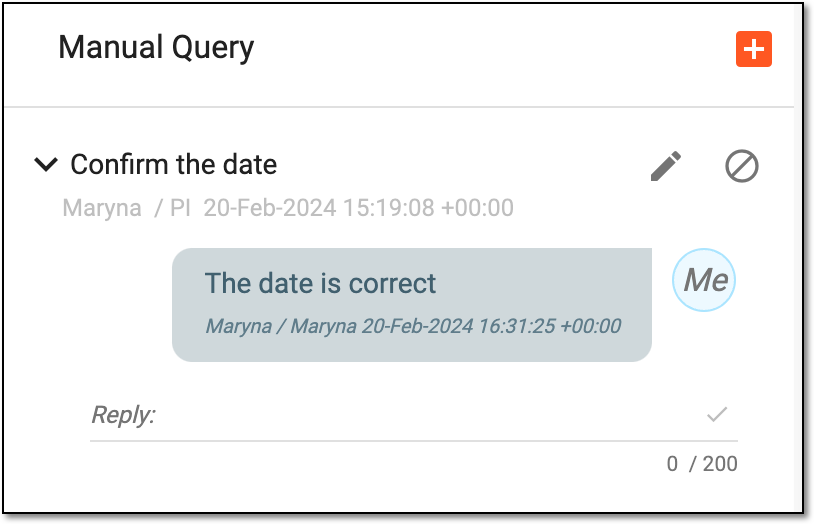
Once saved, the comment is added to a query and the identification icon changes to the answered query . You can add as many
replies to a query as needed to exhaust the topic.
 |
In CTMS, once a query is opened on some trip report record, it can be edited to change the needed details. This might become useful if you need to change the due date, replace the assignee, or update the topic of your query.
-
Access the study management page in one of the following ways:
-
In the CTMS application header, select the DASHBOARD tab and then select the study dashboard of your interest.
Figure 1. Accessing study management from dashboard
-
In the CTMS application header, select the STUDY MANAGEMENT tab. Then from the Study Data List table, select the study name of your interest.
Figure 2. Accessing study management from study data list
-
-
On the page that opens, perform one of the following actions:
-
On the My Work dashboard select the Queries tile to start working on queries assigned to you.
Figure 3. Accessing all your queries
-
In the left pane, select Monitoring > Monitoring Visit and in the table that appears, locate the monitoring visit of the trip report you need. Then from the Action(s) column next to it, select More
> Trip Report.Figure 4. Accessing monitoring visit from list
-
-
In the record form that opens, select the query icon next to the needed data item. In the panel that appears, next to the query you need to update, select Edit
 .
. Figure 5. Selecting to edit query
-
In the Manual Query dialog that opens, update the fields as needed. These fields are identical to the ones explained in the table of the Open query on trip report record section.
Figure 6. Editing query
-
Select
to save the implemented changes.
Once saved, the query is updated.
In CTMS, when managing completed trip reports and encountering any discrepancies or questionable data, you can open queries to request help or clarifications from the designated CRA or other personnel on certain report records.
Open queries can be edited, replied, or resolved. However, if you want to restrict any actions with the query and consider it exhausted, there is an option to close the query.
-
Access the study management page in one of the following ways:
-
In the CTMS application header, select the DASHBOARD tab and then select the study dashboard of your interest.
Figure 1. Accessing study management from dashboard
-
In the CTMS application header, select the STUDY MANAGEMENT tab. Then from the Study Data List table, select the study name of your interest.
Figure 2. Accessing study management from study data list
-
-
On the page that opens, perform one of the following actions:
-
On the My Work dashboard select the Queries tile to start working on queries assigned to you.
Figure 3. Accessing all your queries
-
In the left pane, select Monitoring > Monitoring Visit and in the table that appears, locate the monitoring visit of the trip report you need. Then from the Action(s) column next to it, select More
> Trip Report.Figure 4. Accessing monitoring visit from list
-
-
In the record form that opens, select the query icon next to the needed data item. In the panel that appears, next to the query you need to close, select Close
 .
. Figure 5. Resolving query
-
In the confirmation dialog that opens, select
 to proceed with the query closure.
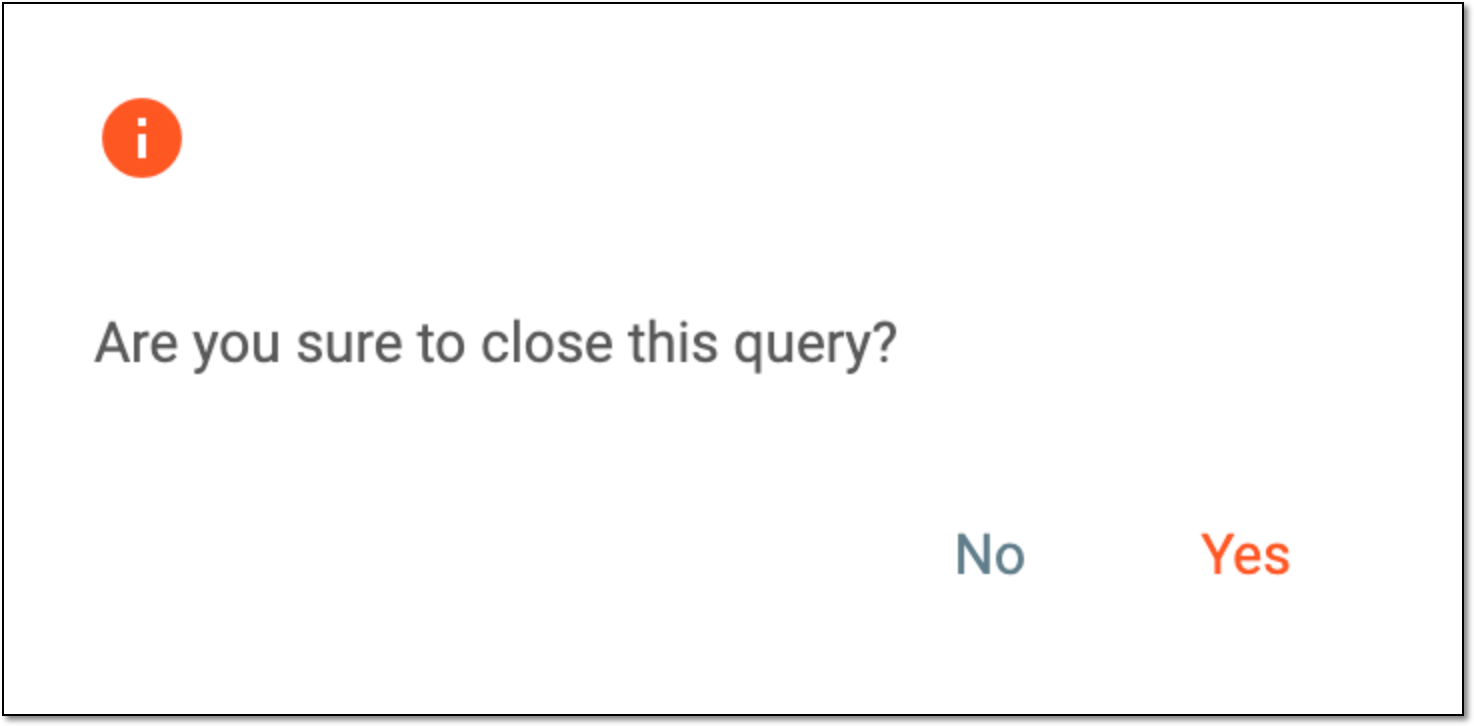 Figure 6. Editing query
Once confirmed, the query is closed, and its icon changes respectively  .
.
A trip report refers to a document that provides a summary of a specific monitoring visit conducted by a clinical research associate (CRA) at a study site. In the CTMS system, a monitoring trip report is typically completed by CRA users after the monitoring visit has taken place, and each record of the report outlines the findings and observations made during the visit.
Since modifications can be made to the trip report records, it is vital to keep track of such changes for compliance and traceability reasons. The change history provides an exhaustive, structured log of value changes, helping you trace what they were, who performed them, and when.
-
Access the study management page in one of the following ways:
-
In the CTMS application header, select the DASHBOARD tab and then select the study dashboard of your interest.
Figure 1. Accessing study management from dashboard
-
In the CTMS application header, select the STUDY MANAGEMENT tab. Then from the Study Data List table, select the study name of your interest.
Figure 2. Accessing study management from study data list
-
-
On the page that opens, from the left pane, select Monitoring > Monitoring Visit.
-
In the Monitoring Visit table that appears, locate the monitoring visit of your interest and from the Action(s) column next to it, select More > Trip Report.
Figure 3. Accessing trip report of monitoring visit
-
On the page that opens, make sure the needed trip report form is selected from the left pane. In the form, locate the field of your interest and from the Action(s) column next to it, select
and from the expanded menu, select Change History . Figure 4. Accessing trip report record change history
-
In the Change History dialog that opens, analyze the details of value changes for the trip report record from its first entry and up to date.
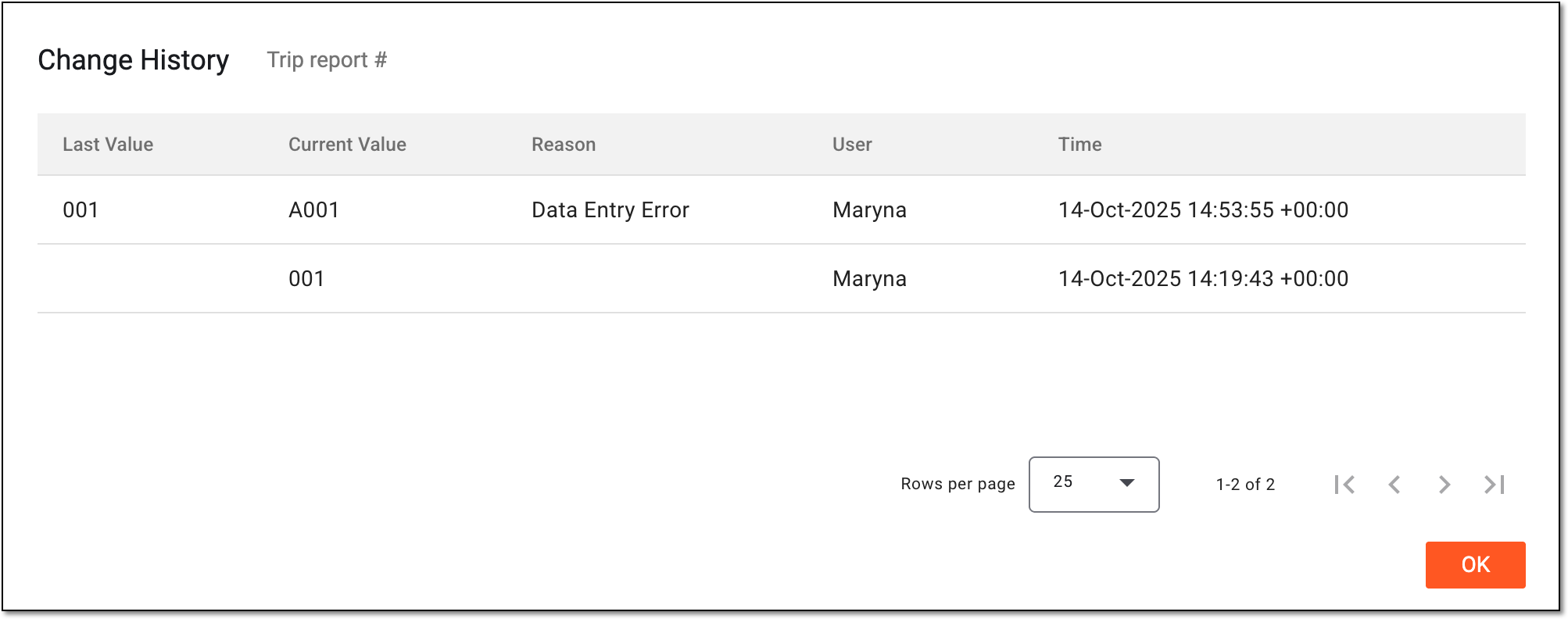 Figure 5. Analyzing change history for trip report record
You have analyzed the change history for the trip report record. You can now select OK to close the dialog and return to the trip report form.
A trip report refers to a document that provides a summary of a specific monitoring visit conducted by a clinical research associate (CRA) at a study site. In the CTMS system, a monitoring trip report is typically completed by CRA users after the monitoring visit has taken place, and each record of the report outlines the findings and observations made during the visit.
An audit trail is a documentation that descriptively records all the changes made to the values of the trip report record. Keeping the audit trail makes it possible to reconstruct the course of data changes, and the lack of the audit trail can be considered a serious breach of data integrity.
-
Access the study management page in one of the following ways:
-
In the CTMS application header, select the DASHBOARD tab and then select the study dashboard of your interest.
Figure 1. Accessing study management from dashboard
-
In the CTMS application header, select the STUDY MANAGEMENT tab. Then from the Study Data List table, select the study name of your interest.
Figure 2. Accessing study management from study data list
-
-
On the page that opens, from the left pane, select Monitoring > Monitoring Visit.
-
In the Monitoring Visit table that appears, locate the monitoring visit of your interest and from the Action(s) column next to it, select More > Trip Report.
Figure 3. Accessing trip report of monitoring visit
-
On the page that opens, make sure the needed trip report form is selected from the left pane. In the form, locate the field of your interest and from the Action(s) column next to it, select
and from the expanded menu, select Audit Trail  .
. Figure 4. Accessing trip report record audit trail
-
In the Audit Trail dialog that opens, analyze the details of all the data changes for the trip report record from its first completion and up to date.
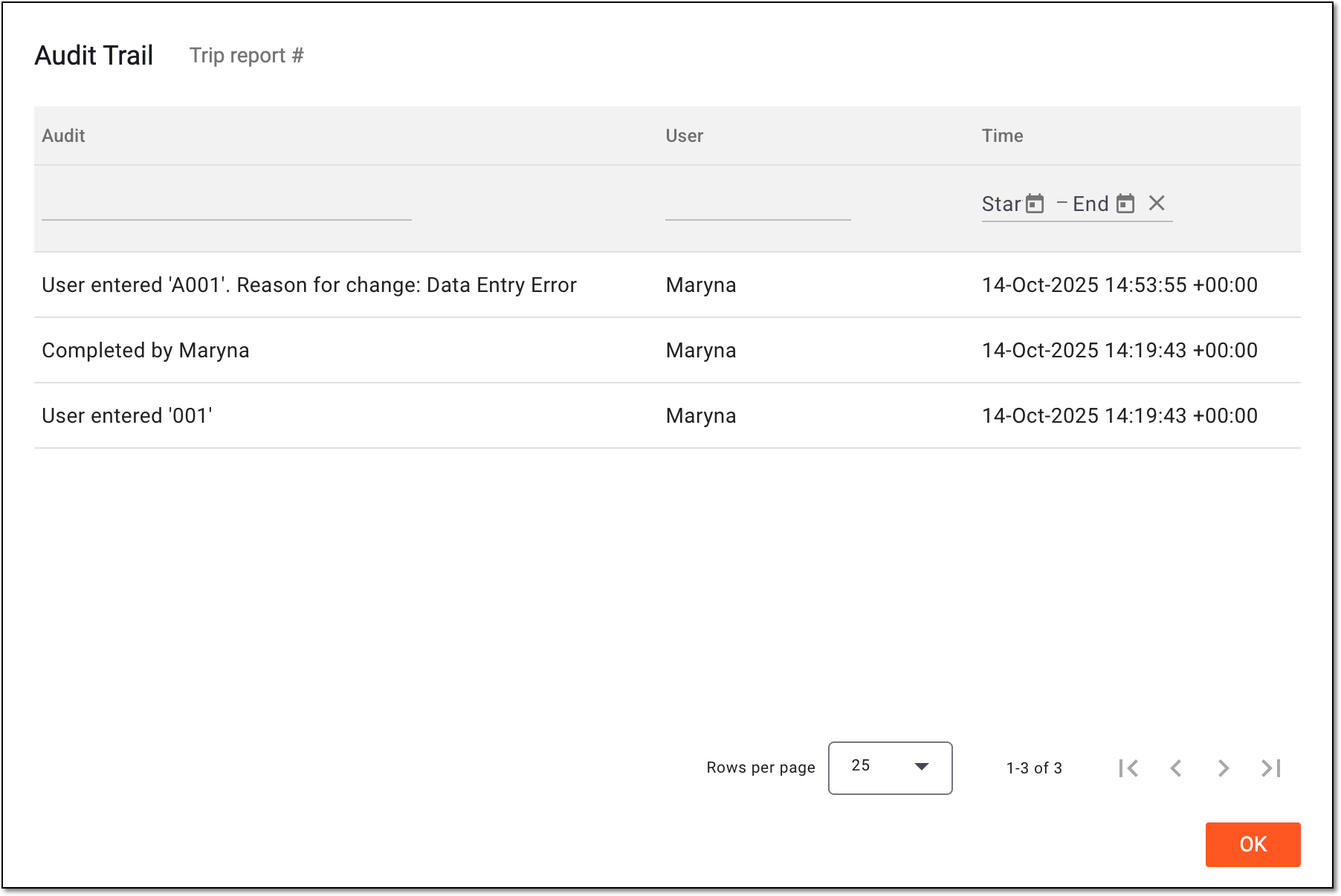 Figure 5. Analyzing audit trail for trip report record
You have analyzed the audit trail for the trip report record. You can now select OK to close the dialog and return to the trip report form.
A trip report refers to a document that provides a summary of a specific monitoring visit conducted by a clinical research associate (CRA) at a study site. The report outlines the findings and observations made during the visit, including any possible issues or deviations from the study protocol. Before or after completing a trip report, you can download it in PDF format to your computer. You have two options to download the file as editable or not editable.
-
Access the study management page in one of the following ways:
-
In the CTMS application header, select the DASHBOARD tab and then select the study dashboard of your interest.
Figure 1. Accessing study management from dashboard
-
In the CTMS application header, select the STUDY MANAGEMENT tab. Then from the Study Data List table, select the study name of your interest.
Figure 2. Accessing study management from study data list
-
-
On the study page that opens, in the left pane, expand Monitoring and select Monitoring Visit.
-
In the Monitoring Visit table that appears, next to the monitoring visit whose trip report you want to download, select More
> Export  . Then select Trip Report (editable) or Trip Report (uneditable) depending on what type of PDF file you want to export.
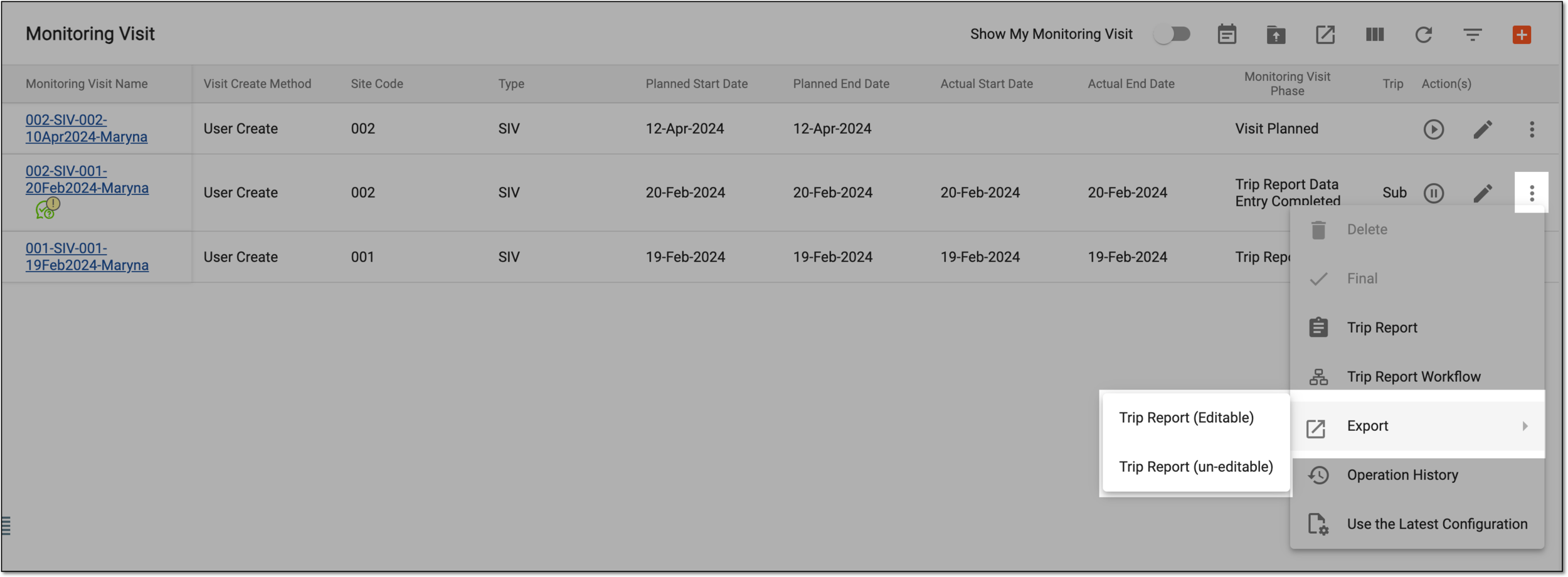 Figure 3. Exporting trip report
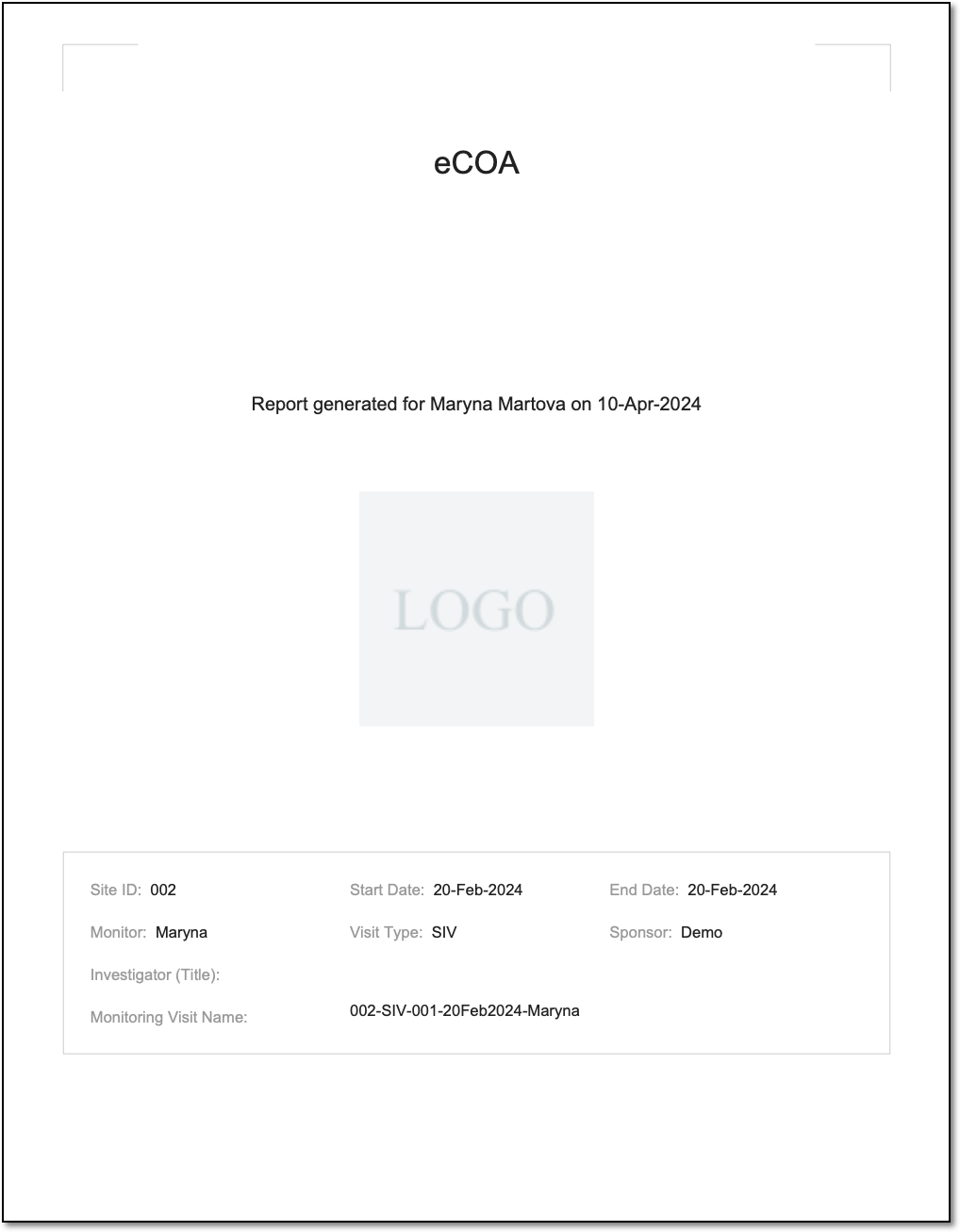
Once selected, a trip report becomes downloaded to your computer. The PDF file contains all the required information, including the signature unique hash code, if any.
 |