Create monitoring visit manually
A monitoring visit refers to an activity when a monitor, usually a clinical research associate (CRA), visits sites to review and verify study-related activities, including data collection, patient safety, and adherence to the study protocol. The monitor also verifies that the study is conducted in compliance with relevant regulatory requirements and GCP guidelines. Monitoring visits can be created in one of the following ways:
-
Automatically. Monitoring visits can be generated automatically by the CTMS system if they have been scheduled in the corresponding monitoring plan and a human resource has been assigned to them.
-
Autogenerated. Monitoring visits can be autogenerated from the key risk indicator (KRI) entities. When the risk level of a specific KRI entity is medium or high, a corresponding monitoring visit is generated automatically by the system and becomes assigned to a corresponding monitor.
-
Manually. You can manually create monitoring visits if they are not a part of the monitoring plan. The following instruction explains how to create a monitoring visit manually.
-
Access the study management page in one of the following ways:
-
In the CTMS application header, select the DASHBOARD tab and then select the study dashboard of your interest.
 Figure 1. Accessing study management from dashboard
-
In the CTMS application header, select the STUDY MANAGEMENT tab. Then from the Study Data List table, select the study name of your interest.
 Figure 2. Accessing study management from study data list
-
-
On the study page that opens, in the left pane, select Monitoring > Monitoring Visit.
-
From the workspace toolbar of the Monitoring Visit table that appears, select New Item
 .
.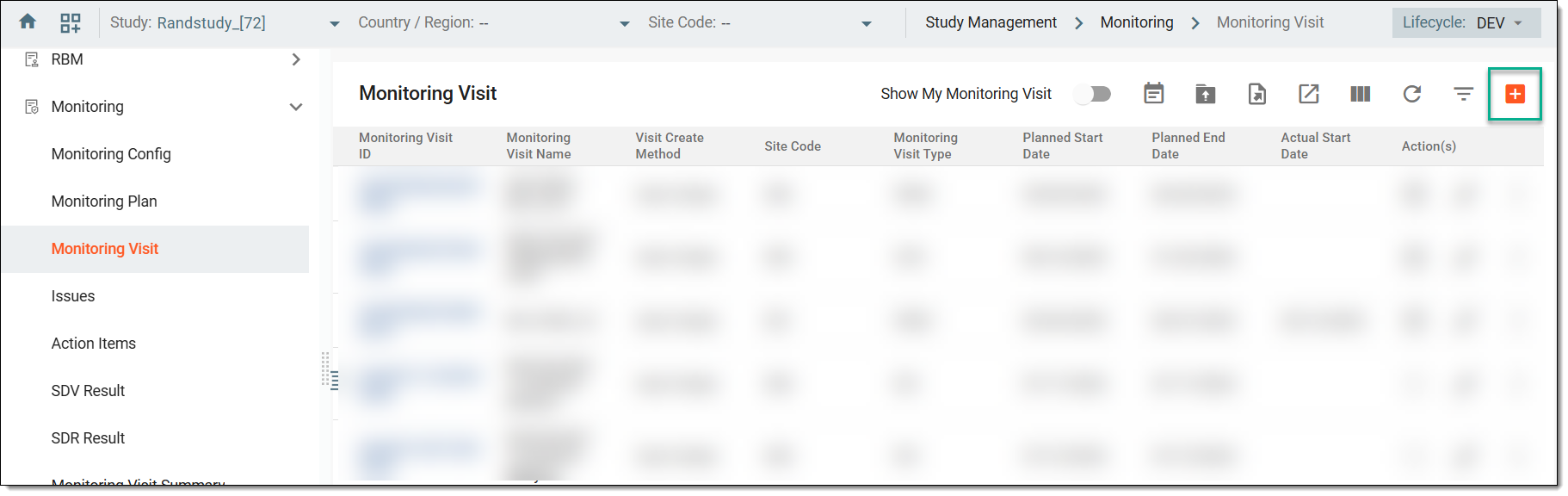 Figure 3. Accessing option to add monitoring visit
-
In the form that opens, configure the monitoring visit details as explained in the following table.
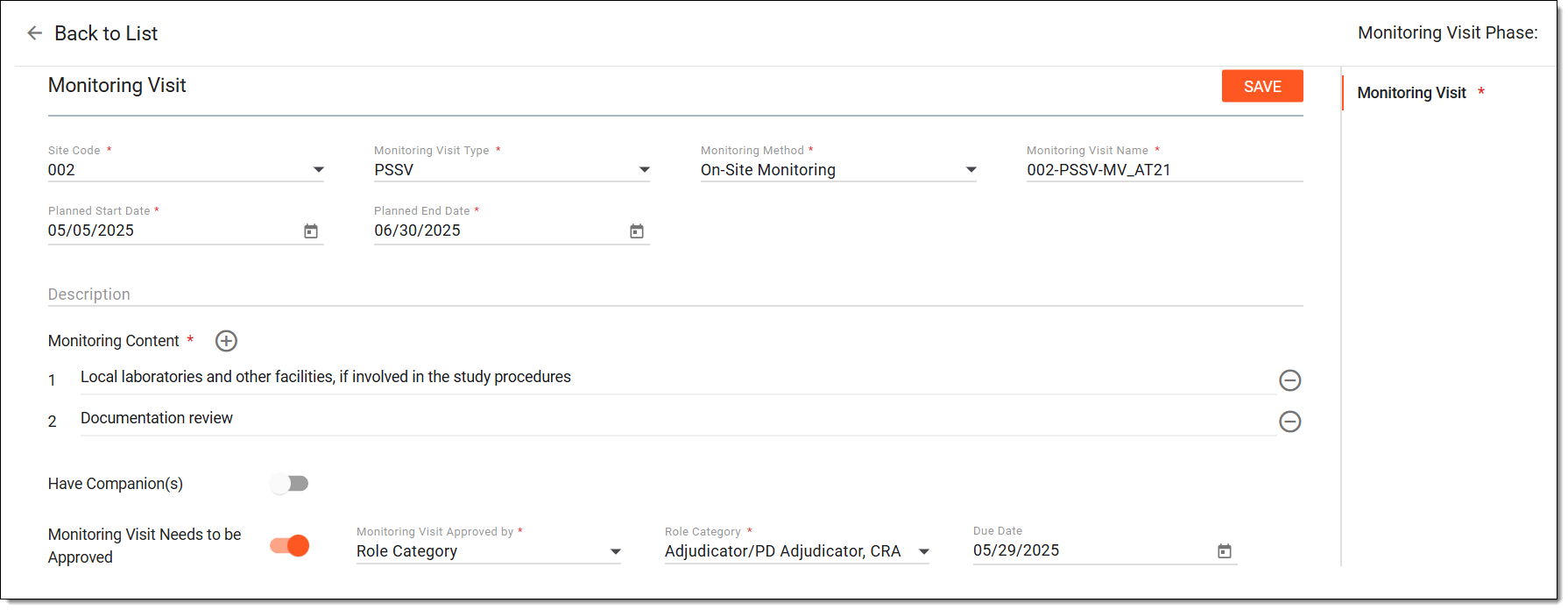 Figure 4. Creating monitoring visit
Tip
In the following table, mandatory elements are marked with an asterisk (*).
Element
Details
Site Code*
Select a trial site for which the monitoring visit is created.
Monitoring Visit Type*
Select the type of monitoring for the created monitoring visit: PSSV (Pre-Study Site Visit), SIV (Site Initiation Visit), IMV (Interim Monitoring Visit), or COV (Close Out Visit).
Monitoring Method*
Select the method of monitoring for the created monitoring visit. It can be either centralized monitoring, on-site monitoring, or remote monitoring depending on the monitoring planning design and its goals.
Monitoring Visit Name*
Enter a unique name for the created monitoring visit or leave the name that is autogenerated based on the naming convention of the monitoring visit configuration.
Note that this field is read-only if the monitoring visit name is indicated as not editable in the
                                  active monitoring visit configuration.
Planned Start Date*
Select the date when the created monitoring visit needs to be initiated.
Planned End Date*
Select the date when the created monitoring visit needs to finish.
Description
Enter a brief description of the created monitoring visit.
Monitoring Content*
In this block, add as many content items as needed. Each item reflects a specific activity that is to occur during the created monitoring visit.
Add Content
Select
 to add a new item to the monitoring visit content.
Delete Content
Select
 to remove an item from the monitoring visit content.
Have Companion(s)
Switch on this toggle if you want to add additional staff that is to participate in the monitoring visit.
COMPANION(S)
Click Select Username or Select from Staff to open a dialog from which you can select the required personnel to add as the monitoring visit companions. Then click SAVE.
This option is available only if the Have Companion(s) toggle switch has been enabled.Monitoring Visit Needs to be Approved
Switch on this toggle if you want specific CTMS users to approve the created monitoring visit before executing it.
Monitoring Visit Approved By*
Select either Role Category (if you want users with a specific role to approve the created monitoring visit) or Assignee (if you want specific users to approve the created monitoring visit).
This field is available only if the Monitoring Visit Needs to be Approved toggle has been switched
                                  on.
Role Category/Assignee*
If Role Category has been selected in the previous field, then select here a role or roles that will be required to approve the created monitoring visit. If Assignee has been selected in the previous field, then select here a user or users that will be required to approve the created monitoring visit.
This field is available only if the Monitoring Visit Needs to be Approved toggle has been switched
                                  on.
Expected Date
Define the date by which the assignee needs to approve the created monitoring visit.
This field is available only if the Monitoring Visit Needs to be Approved toggle has been switched
                                  on.
SAVE
Select
 to save the created monitoring visit.
APPROVE
Select
 to approve the monitoring visit.
This button is available only to users whose roles or who have been assigned to approve the created monitoring visit. -
Once the visit details are configured, proceed to the following configuration stages:
Once done, a new monitoring visit is created. You can now generate a trip report for this visit.
Configure and send confirmation letter
At this stage of the monitoring visit creation or editing, you can prepare or update the confirmation letter that is to be sent to the site staff where the monitoring visit must take place. The letter is a notification to inform the site personnel about the upcoming monitoring visit and activities that are expected to be performed during this visit.
Important
The Confirmation Letter stage is only available if it is added as a component of the monitoring visit configuration via Monitoring Config.
-
In the right pane of the page that opens, select the Confirmation Letter stage.
-
In the Confirmation Letter form that appears, configure email settings as explained in the following table.
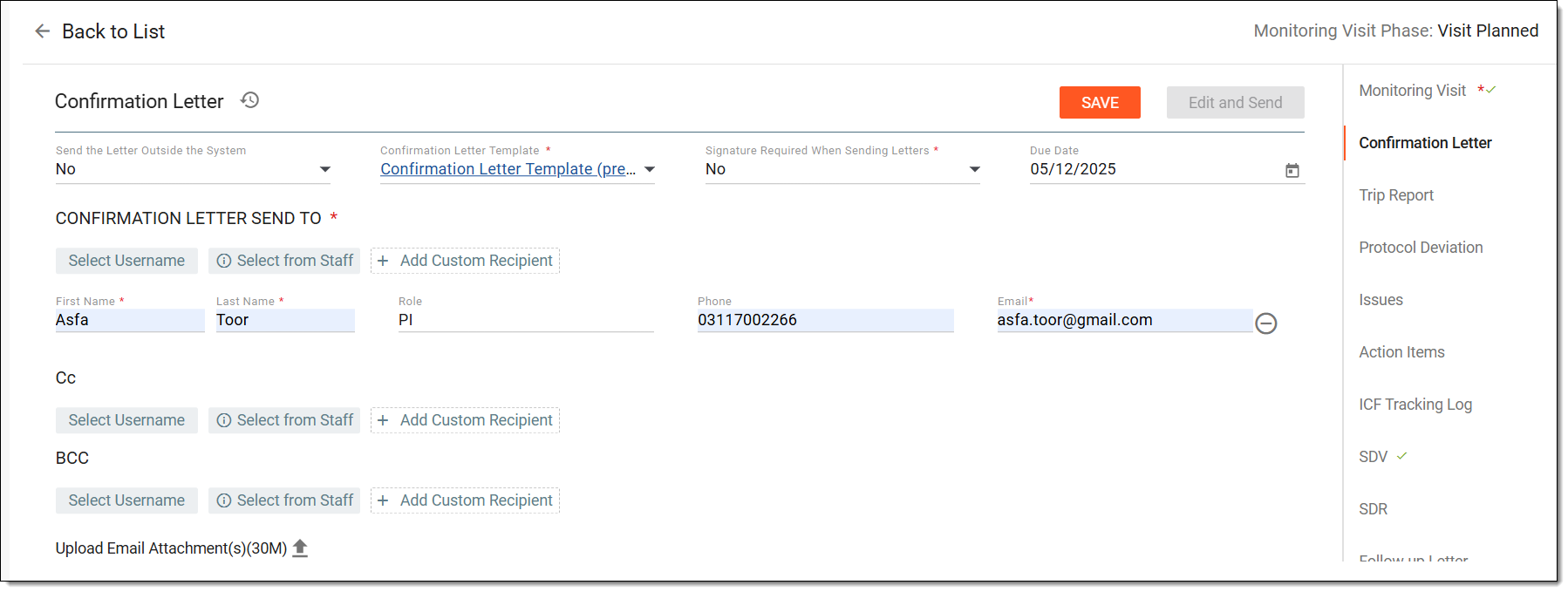 Figure 1. Configuring confirmation letter email
Tip
In the following table, mandatory elements are marked with an asterisk (*).
Element
Details
Operation History
Select
 next to the form name to view the list of already sent emails, which you can use as an example if you have sent a confirmation letter for the current
visit before.
next to the form name to view the list of already sent emails, which you can use as an example if you have sent a confirmation letter for the current
visit before.In the Operation History dialog that opens, select Download
 to export
the email in the ZIP (for multiple files) or PDF (for a single file) format to your computer, or select Preview
to export
the email in the ZIP (for multiple files) or PDF (for a single file) format to your computer, or select Preview  to
view this email in the browser.
to
view this email in the browser.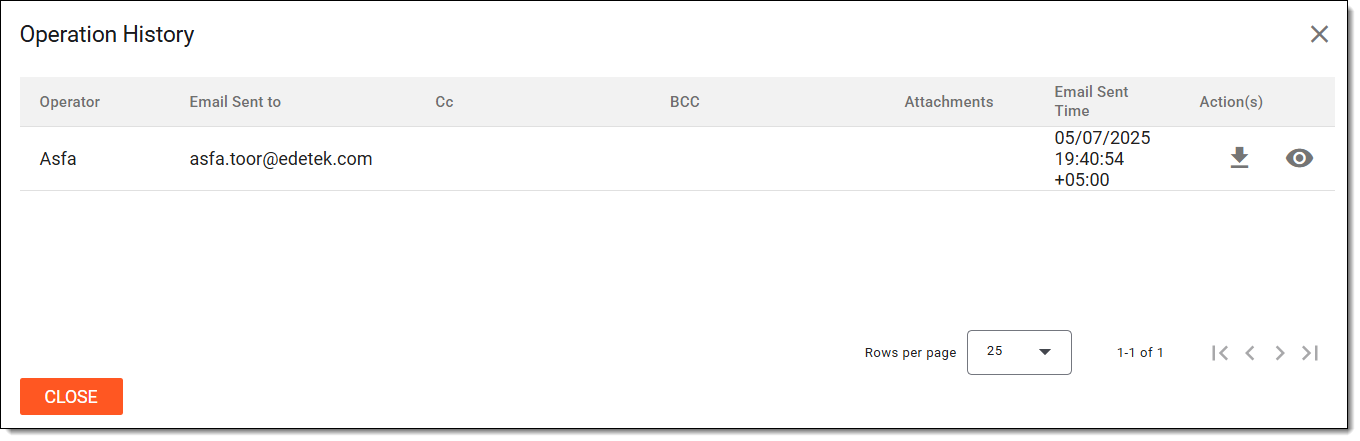 Figure 2. Viewing confirmation letter history
Send the Letter Outside the System
Select one of the following options:
-
No: to send the confirmation letter within the system, thus enabling the selection of recipients either custom or CTMS users.
-
Yes: select this option if the confirmation letter has been sent outside the system. In this case, you can upload the sent letters as a monitoring visit attachment.
Signature Required When Sending Letters*
Select one of the following options:
-
Yes: select this option to include the electronic signature details in the confirmation letter body.
-
No: select this option to exclude the electronic signature details from the confirmation letter body.
The value selected by default is preconfigured in the respective monitoring configuration setting. However, you can manually change the setting here.Confirmation Letter Template*
Select a template according to which the email content is to be generated for the confirmation letter.
Date Letter Sent*
Select the date when the confirmation letter has been sent outside the CTMS system.
This option is available only if the confirmation letter is sent outside the system.Due Date
Select the date by when the letter must be sent to the recipients.
Select Username
Select
 to pick the recipients from the list of eClinical system users configured via the ADMIN application.
Select From Staff
Select
 to pick the recipients of the confirmation letter among staff members who have no eClinical system user account configured via ADMIN. The staff members
are configured in human resources.
to pick the recipients of the confirmation letter among staff members who have no eClinical system user account configured via ADMIN. The staff members
are configured in human resources.Add Custom Recipient
Select
 to add a custom recipient of the confirmation letter who is not a CTMS user.
First Name*
Enter the first name of the confirmation letter recipient.
This field is read-only if a username or staff has been selected as a recipient and can only be manually entered for a custom recipient.Last Name*
Enter the last name of the confirmation letter recipient.
This field is read-only if a username or staff has been selected as a recipient and can only be manually entered for a custom recipient.Role
Enter the study role of the confirmation letter recipient if it has been added as custom.
This field is inactive if a username or staff has been selected as a recipient.Phone
Enter the phone number of the confirmation letter recipient.
Email*
Enter the email address of the confirmation letter recipient.
Remove
Select
next to any recipient to remove them from the list of confirmation letter recipients.Cc
Select recipients of the confirmation letter copy. The process of defining copy recipients is the same as selecting email recipients.
Upload Email Attachment(s)
Select
 to upload attachments to the confirmation letter.
This option is available only if the confirmation letter is sent within the system.Upload Sent Letter(s)
Select
to upload confirmation letters sent outside CTMS.This option is available only if the confirmation letter is sent outside the system.SAVE
Select
to apply the confirmation letter configuration.Edit and Send
Select
 to go to the email content page where you can update the confirmation letter and then send it.
This button becomes available only after you save the confirmation letter configuration. -
-
On the page that opens, do one of the following actions before sending the confirmation letter:
-
In the Email Subject and Email Content text blocks of the Edit panel, update the email subject and content, respectively. The email content is generated based on the template selected previously.
-
In the Placeholder block, update content placeholders to replace them with custom ones if needed. You can always select Refresh
 next to any placeholder to get the latest version of this placeholder.
 -
In the Preview panel, view the confirmation letter that includes all your latest subject and content changes as well as placeholder updates.
-
From the workspace toolbar, select
 to save the latest updates introduced to the confirmation letter.
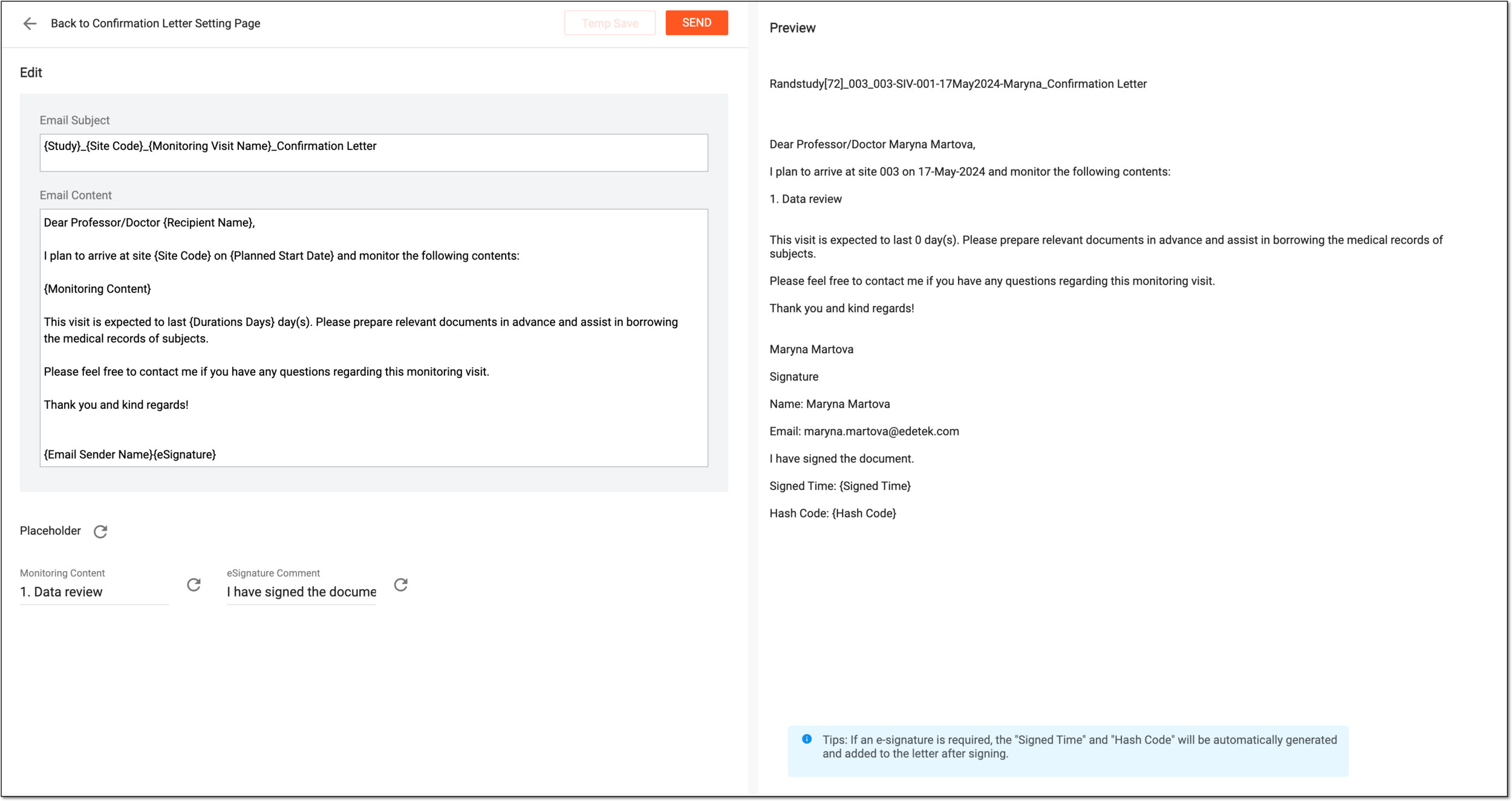 Figure 3. Updating letter content
-
-
Select
 to send the prepared confirmation letter to the selected recipients.
Once sent, you can proceed to the next stage of monitoring visit configuration, which is Trip Report.
Configure trip report settings
At this stage of the monitoring visit creation or editing, you can configure trip report settings related to how the trip report is to be generated for the monitoring visit.
Note that at this stage, you only configure trip report settings, the actual trip report is completed separately on a different page.
-
In the right pane of the page that opens, select the Trip Report stage.
-
In the Trip Report form that appears, configure the details as explained in the following table.
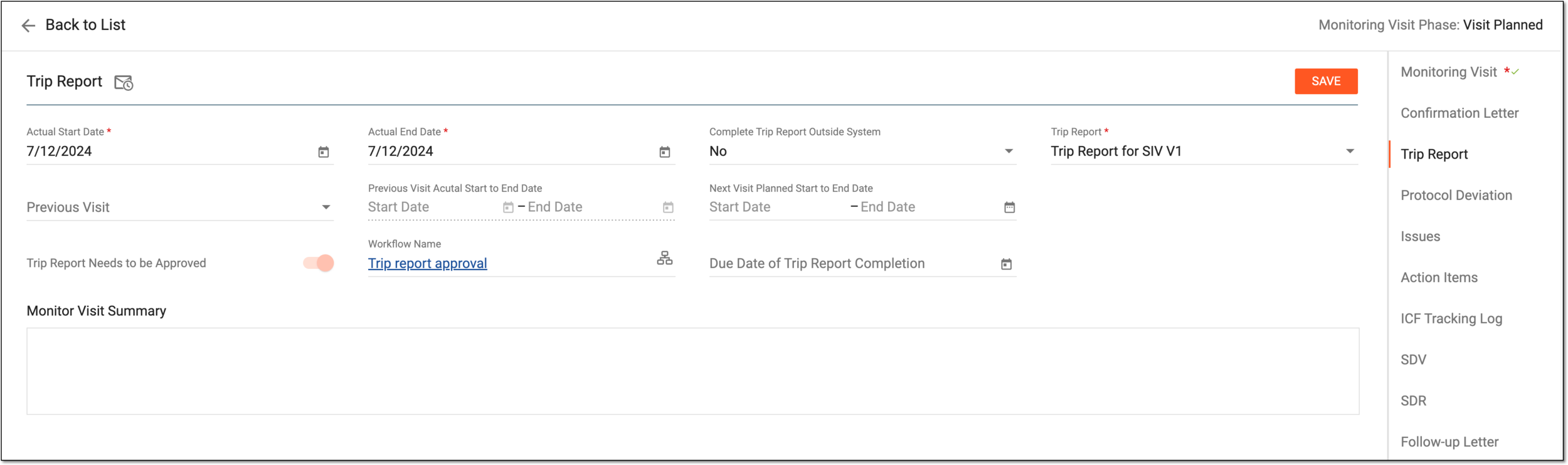 Figure 1. Configuring trip report settings
Tip
In the following table, mandatory elements are marked with an asterisk (*).
Element
Details
Mail History
Select
 next to the trip report title to view the list of already sent trip reports, which you can use as an example if you have sent a trip report
for the current visit before.
next to the trip report title to view the list of already sent trip reports, which you can use as an example if you have sent a trip report
for the current visit before.In the Mail History dialog that opens, select Download
to export the
trip report addendum in a PDF file to your computer or select Preview to view this report in the browser.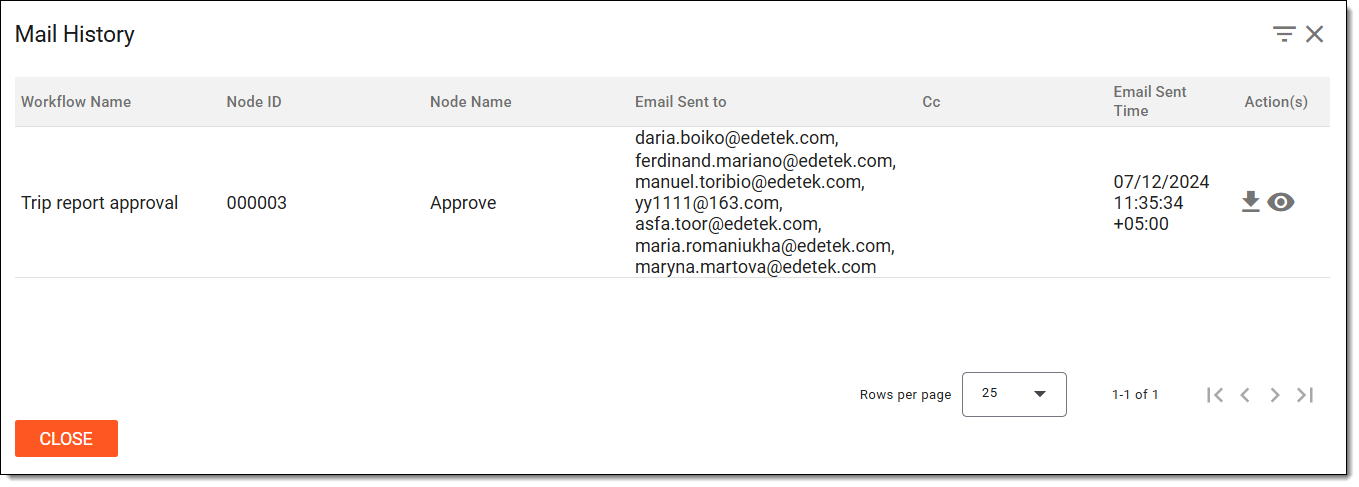 Figure 2. Viewing mail history
Actual Start Date*
Select the actual date when the monitoring activities by a monitor or CRA have started. If the monitoring visit lasts more than a day, this value differs from the actual end date.
Actual End Date*
Select the actual date when the monitoring visit has ended.
Date on Site
Enter the date when the monitor was actually at the site to perform their activities. This date must be within the actual start date and the actual end date range.
This field is only available for the IMV monitoring visit
                                    type and the On-Site Monitoring method.
Complete Trip Report Outside System
Select one of the following options:
-
No: to complete the trip report within the CTMS system.
-
Yes: to establish that the trip report is completed outside the system. In this case, you can upload this report as a monitoring visit attachment.
Trip Report*
Select the monitor template according to which a trip report for the created visit is to be generated.
Previous Visit
Select the previous monitoring visit for the same responsible monitor as the one assigned to the current visit and associated with the same site.
You cannot select future visits that occur after the current visit.Previous Visit Actual Start to End Date
Represents the actual start and end date of the selected previous monitoring visit.
You cannot update these dates.Next Visit Planned Start to End Date
Select the dates from when the next monitoring visit needs to take place. Typically, this date is pointed out in a follow-up letter to the monitoring visit.
Trip Report Needs to be Approved
Set up as follows:
-
Turn the toggle on if the trip report must be approved according to the specific workflow.
-
Turn the toggle off if the trip report does not require approval.
If the monitoring visit is associated with a particular monitoring configuration, then this setting is autopopulated and cannot be
                                    changed.
If you are creating a monitoring visit with no associated configuration, then this value can be set manually.Workflow Name
Select Associate Workflow
 to define a
workflow for the trip report approval process. You can also indicate due dates, assign actors, or apply signature settings for specific workflow steps if needed.
to define a
workflow for the trip report approval process. You can also indicate due dates, assign actors, or apply signature settings for specific workflow steps if needed.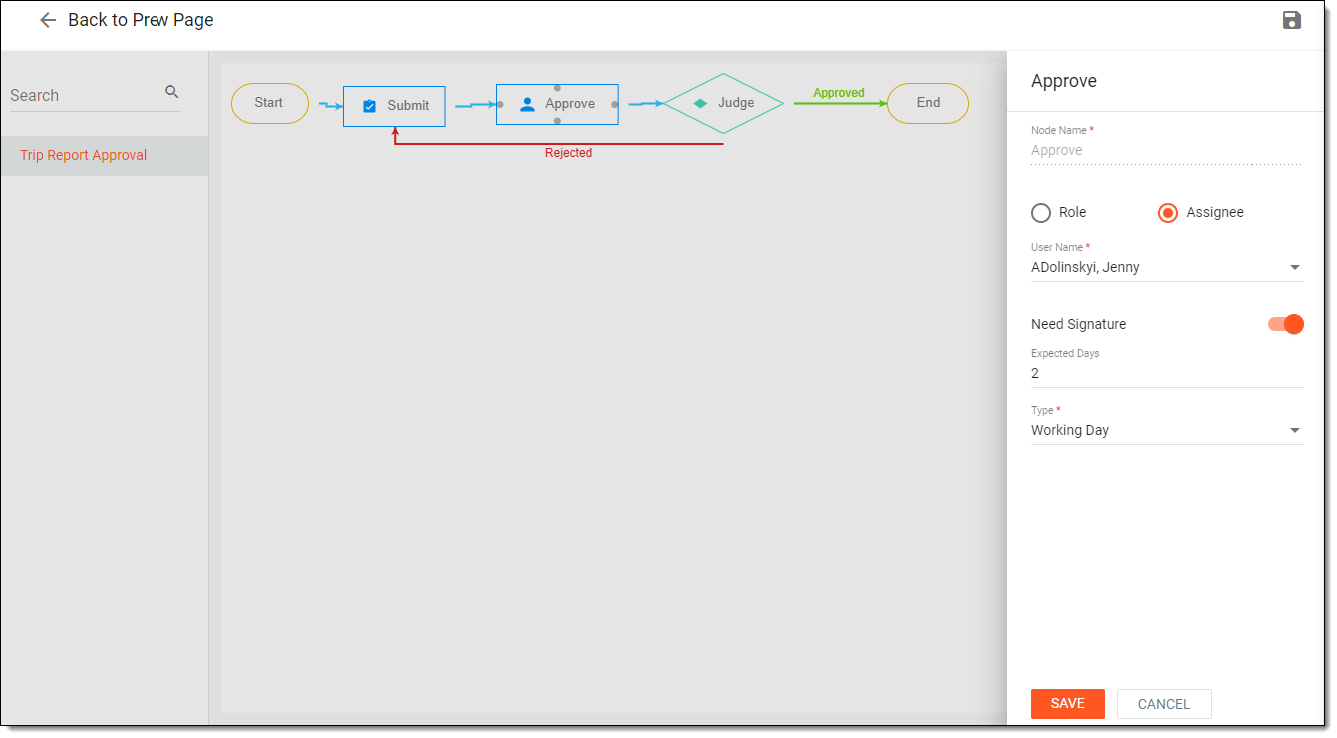 Figure 3. Associating workflow with trip report approval
The workflow can only be selected if the Trip Report Needs to be Approved toggle is switched on. Also, make sure that
                                    the necessary workflow for trip report approval has been previously configured in CTMS.
Due Date of Trip Report Completion
Select the due date for completing a trip report for the monitoring visit.
Reason for Changing the Due Date*
Enter the reason for updating the due date for completing the trip report. This field appears only after you change the original due date.
Upload Trip Report
Select
to upload a trip report completed for a monitoring visit outside CTMS.This option is available only if the trip report has been indicated as completed outside the system.Monitor Visit Summary
Enter a brief summary of what has been accomplished during the trip report as a result of the site monitoring.
After saving the configured trip report, you can open a query
                                    in this field to share any concerns or questions about the entered data with the relevant personnel and request their advice or feedback.
SAVE
Select
to apply the trip report configuration. -
The trip report is saved. You can now proceed to the next stage of monitoring visit configuration, which is Protocol Deviation.
Open query on monitoring visit summary
After configuring the trip report, you may choose to open a query to share your concerns or questions, or request advice or feedback from the relevant personnel regarding the monitoring visit summary. This summary offers a quick insight into the key activities and outcomes of the site monitoring conducted during the visit.
-
In the right pane of the page that opens, select the Trip Report stage.
-
In the configured trip report, next to the Monitor Visit Summary field, select Open Query
 .
.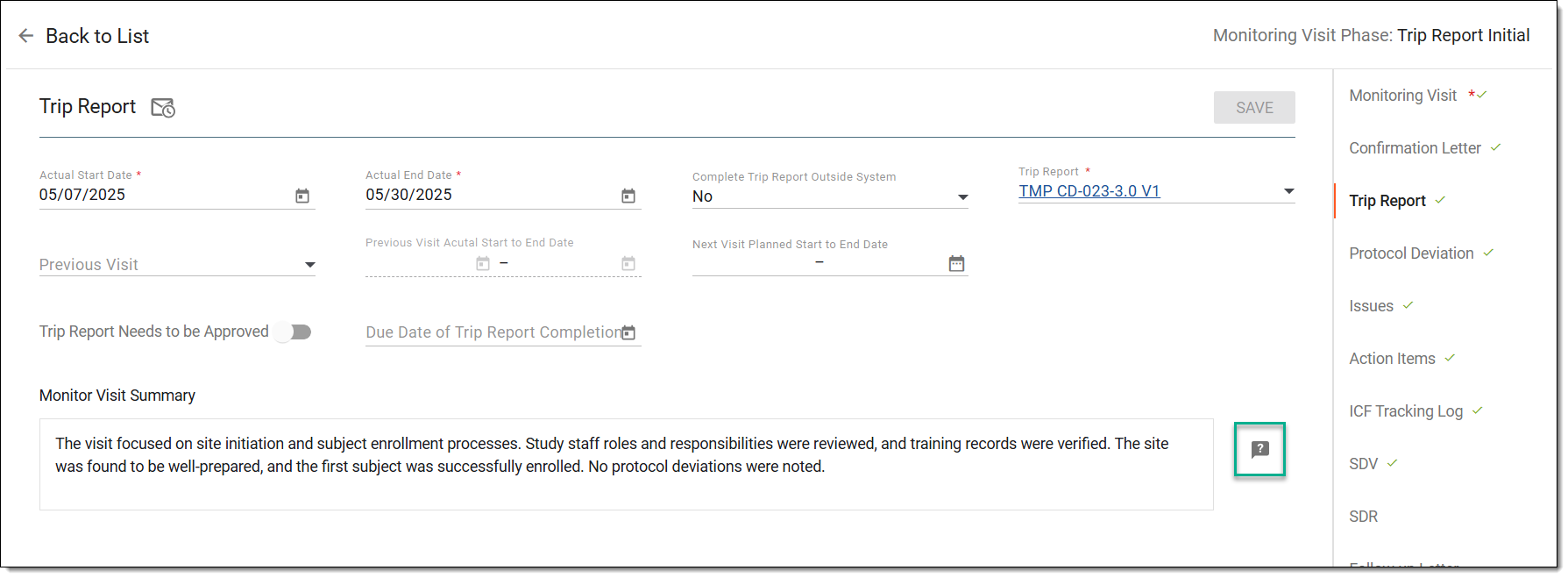 Figure 1. Opening query on monitoring visit summary
-
In the Manual Query form that appears, enter the query details as explained in the following table.
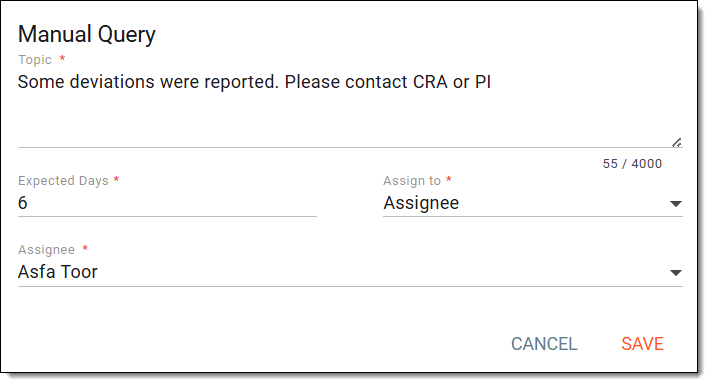 Figure 2. Entering query details for monitoring visit summary
Tip
In the following table, mandatory elements are marked with an asterisk (*).
Element
Details
Topic*
Enter your question or concern regarding the monitoring visit summary.
Expected Days*
Enter the number of days by which you expect the query to be resolved.
Assign to*
Select either Role (if you want users with a specific role to work on this query) or the Assignee (if you want specific users to work on this query).
Assignee*/Role*
If Role has been selected in the previous field, then select here a role or roles that need to work on this query.
If Assignee has been selected in the previous field, then select here a user or users who need to work on this query.
SAVE
Select
to add the query.CANCEL
Select
 to dismiss the query creation process.
Once saved, the query is added. The assigned personnel can now respond, and once you have received the necessary information, you can proceed to close the query.
Reply to monitoring visit summary query
When a query is raised about the monitoring visit summary in a configured trip report, it is forwarded to the assigned personnel for review. As the assigned individual, you can now respond to the query by providing the necessary information or feedback.
-
In the right pane of the page that opens, select the Trip Report stage.
-
In the configured trip report, next to the Monitor Visit Summary field, select My Query
 .
.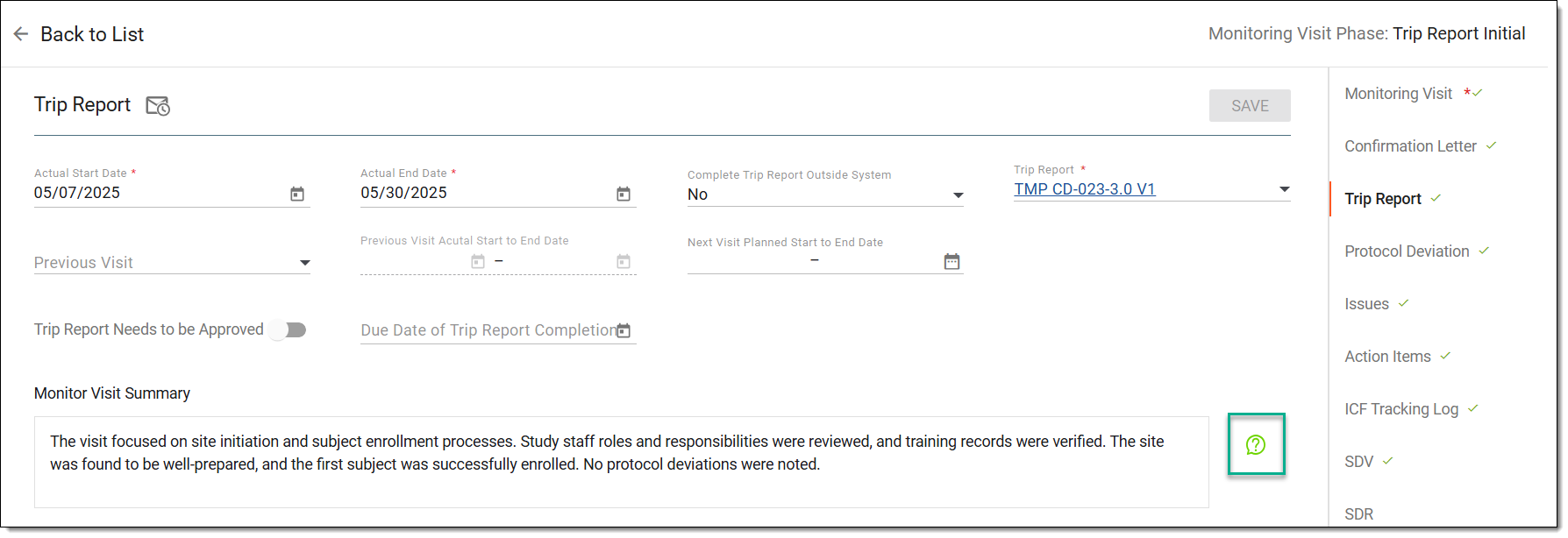 Figure 1. Accessing opened query
-
In the panel that opens on the right, expand the query and enter your reply. Then select
 .
.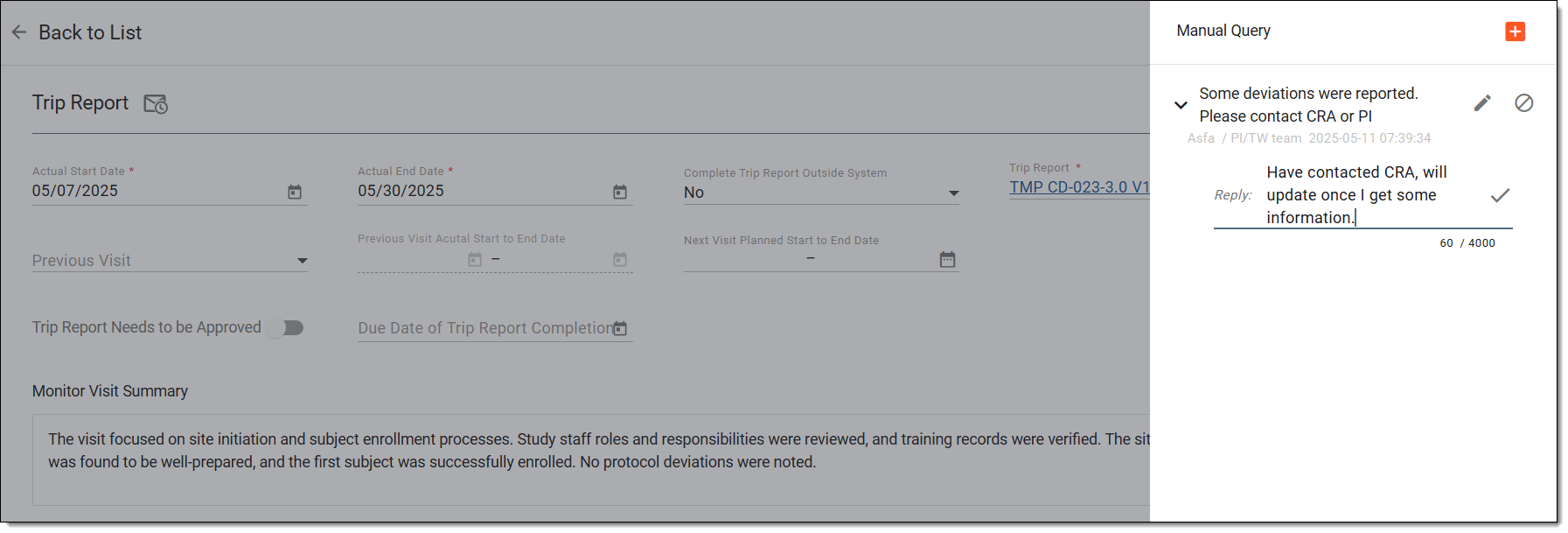 Figure 2. Responding to query
Tip
You can open a new query by selecting
and entering the details as explained in the table of the Open query on monitoring visit summary section.Note that you can create a new query, or update or close an existing one only if you are the creator of the query.
Once saved, you have responded to the query.
Edit monitoring visit summary query
After a query is raised about the monitoring visit summary in a configured trip report, it is forwarded to the assigned personnel for review. If required, you can edit the query to correct, clarify, or update the information shared with the assigned individual. This ensures that the query accurately reflects the concern or feedback intended for review.
-
In the right pane of the page that opens, select the Trip Report stage.
-
In the configured trip report, next to the Monitor Visit Summary field, select My Query
.Figure 1. Accessing opened query
-
In the panel that opens on the right, next to the query, select Edit
 .
.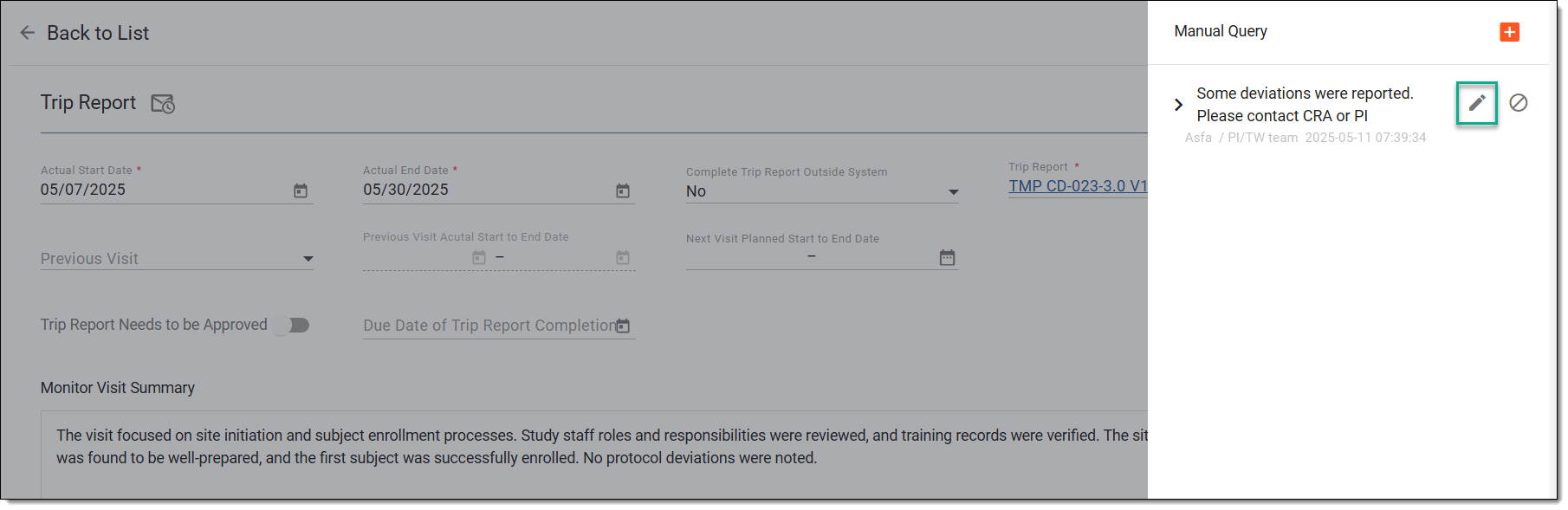 Figure 2. Selecting option to edit query
-
In the Manual Query form that appears, update the query details as explained in the table of the Open query on monitoring visit summary section.
Figure 3. Editing monitoring visit summary query
-
Select SAVE.
Once saved, the query is updated.
Close monitoring visit summary query
Once a monitoring visit summary query has been addressed in the configured trip report, and the necessary feedback or clarification has been received, the query can be closed by its creator. Closing the query marks it as resolved and helps maintain a clear and organized review process.
-
In the right pane of the page that opens, select the Trip Report stage.
-
In the configured trip report, next to the Monitor Visit Summary field, select My Query
.Figure 1. Accessing opened query
-
In the panel that opens on the right, next to the query, select Close
 .
.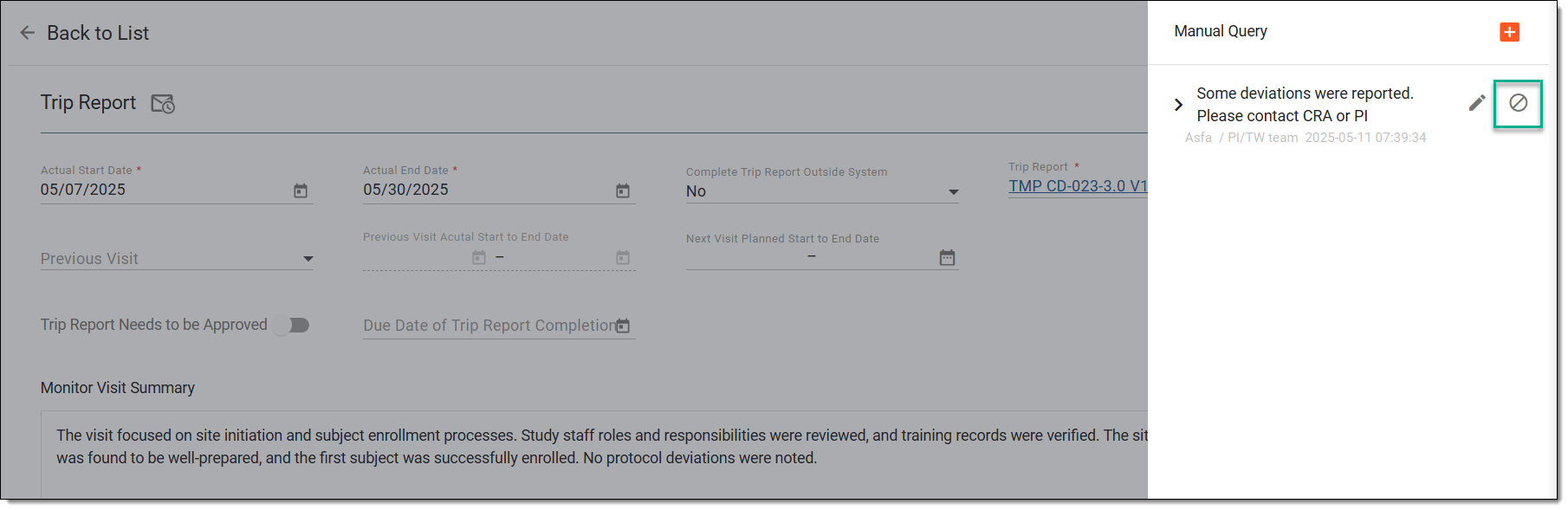 Figure 2. Closing monitoring visit summary query
-
In the confirmation dialog that appears, select Yes to close the query.
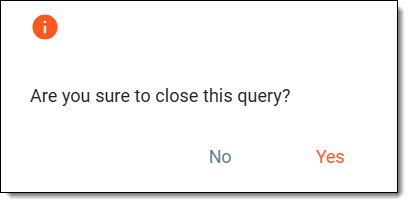 Figure 3. Confirming query closure
Once selected, the query is closed. Note that the closed query remains in the panel for review and analysis purposes.
Add protocol deviation report to monitoring visit
At this stage of the monitoring visit maintenance, you can add protocol deviation reports. A protocol deviation refers to any departure from the study protocol that was originally approved by the responsible committee. Protocol deviations can take different forms, such as deviation from the study procedure, use of prohibited medication, failure to report adverse events or other safety concerns, and so on.
Important
The Protocol Deviation stage is only available if it is added as a component of the monitoring visit configuration via Monitoring Config.
-
In the right pane of the page that opens, select the Protocol Deviation stage.
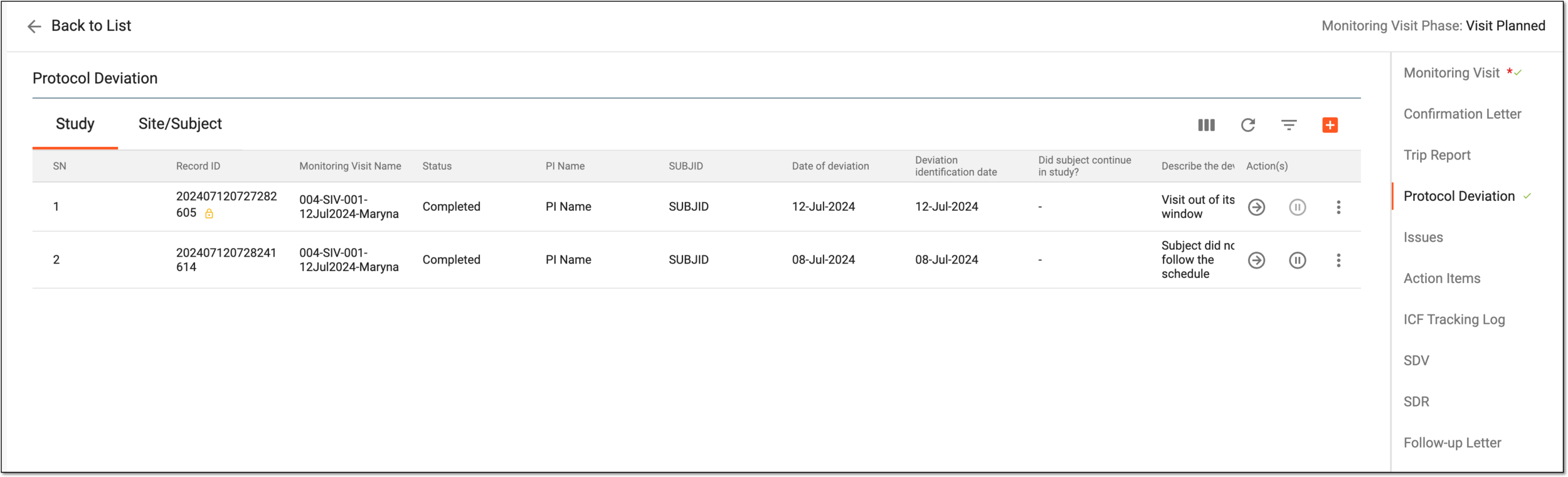 Figure 1. Selecting protocol deviation stage
-
On the page that opens, either select Study or Site/Subject tab, depending on the level at which you want to add the protocol deviation.
-
From the workspace toolbar, select New Item
.If you are creating the protocol deviation in a site or subject, then select New Item
> Site  or Subject
  as needed.
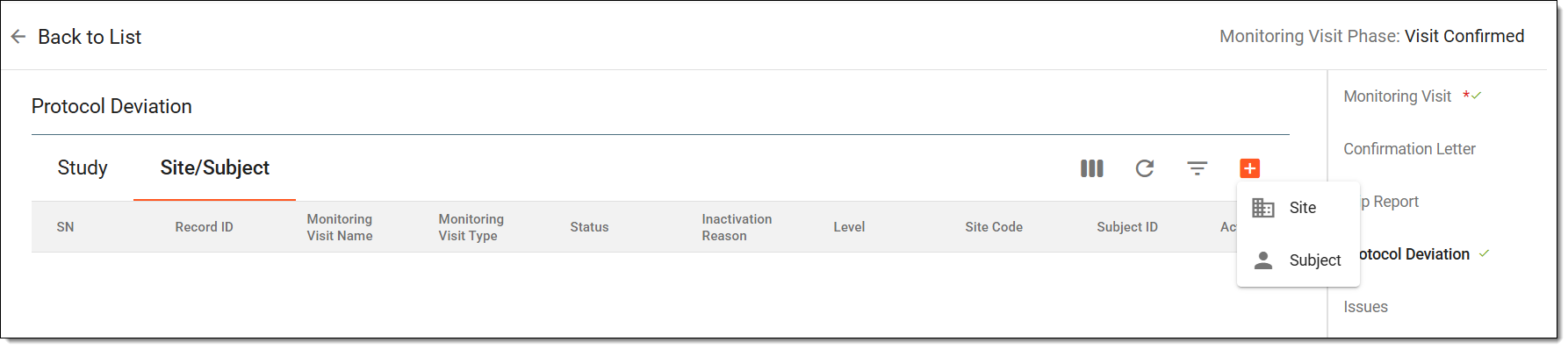 Figure 2. Adding protocol deviation to monitoring visit
-
In the form that opens, complete the details according to your study requirements. The form fields depend on the protocol deviation report template selected for your study.
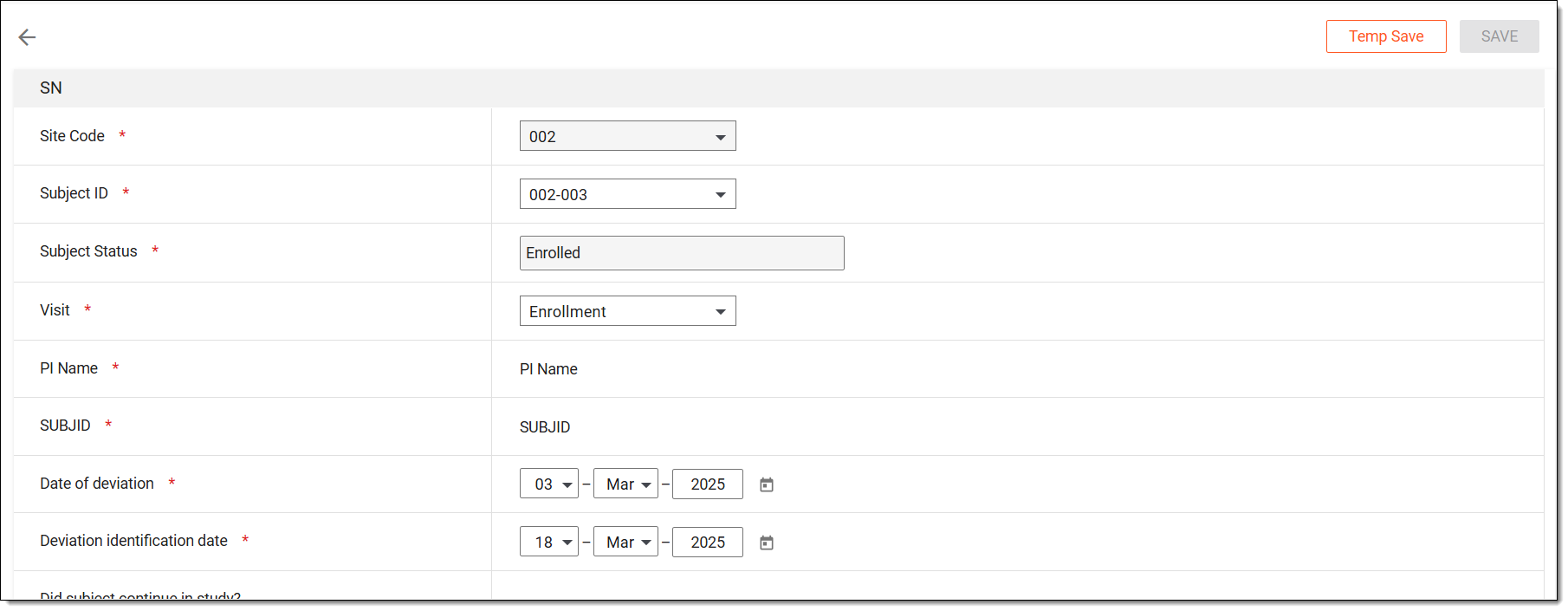 Figure 3. Filling protocol deviation report
Tip
The protocol deviation report that you add here is based on the template associated to your site, study, or subject from the Protocol Deviation module.
At this point, you can leave the form, and the record is saved with the Initial status. You can return to complete it later.
-
Once the form is initiated or completed, there are a few actions available to you as explained in the following table.
Action
Details
SAVE
Select
to save and submit the completed form.Temp Save
Select
to save the changes if the form is not entirely completed or requires further details. Thus, the form remains in the Initial status until completed.Inactivate/Activate
Select
 or
or  to deactivate or activate the protocol deviation report as explained in the Activate/Inactivate protocol deviation report in monitoring visit section.
 -
After saving, you can view and update the added protocol deviation report by returning to the Protocol Deviation page, and performing any of the actions as explained in the following sections:
Once done, the protocol deviation report is added and maintained. You can now proceed to the next stage of monitoring visit configuration, which is Issues.
View protocol deviation details in monitoring visit
During a monitoring visit, you may need to review protocol deviations recorded for a site or subject. Viewing these details helps ensure that all deviations are properly documented, understood, and addressed as part of ongoing study oversight.
-
In the right pane of the page that opens, select the Protocol Deviation stage.
Figure 1. Selecting protocol deviation stage
-
On the page that opens, either select Study or Site/Subject tab, depending on the level at which the required protocol deviation report exists.
-
Next to the required protocol deviation report, from the Action(s) column, select Go
 .
.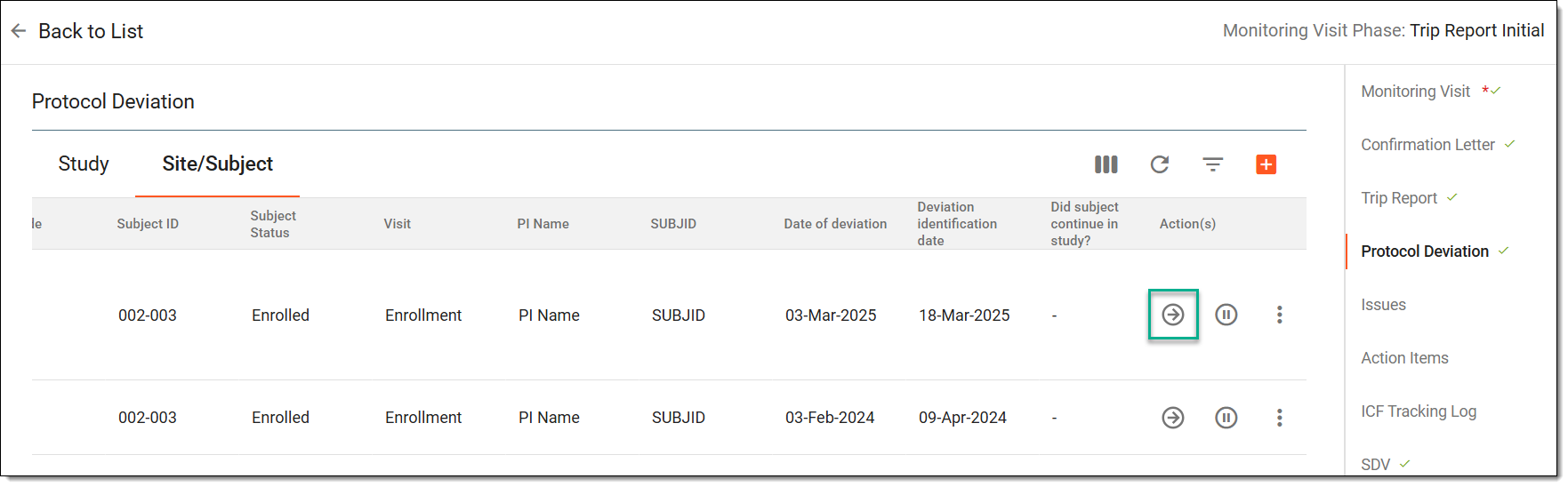 Figure 2. Accessing protocol deviation report
-
View the added report, and if needed, audit the changes made to each data item in the report by selecting
 and choosing Audit
Trail from the Action(s) column and viewing the change log.
and choosing Audit
Trail from the Action(s) column and viewing the change log.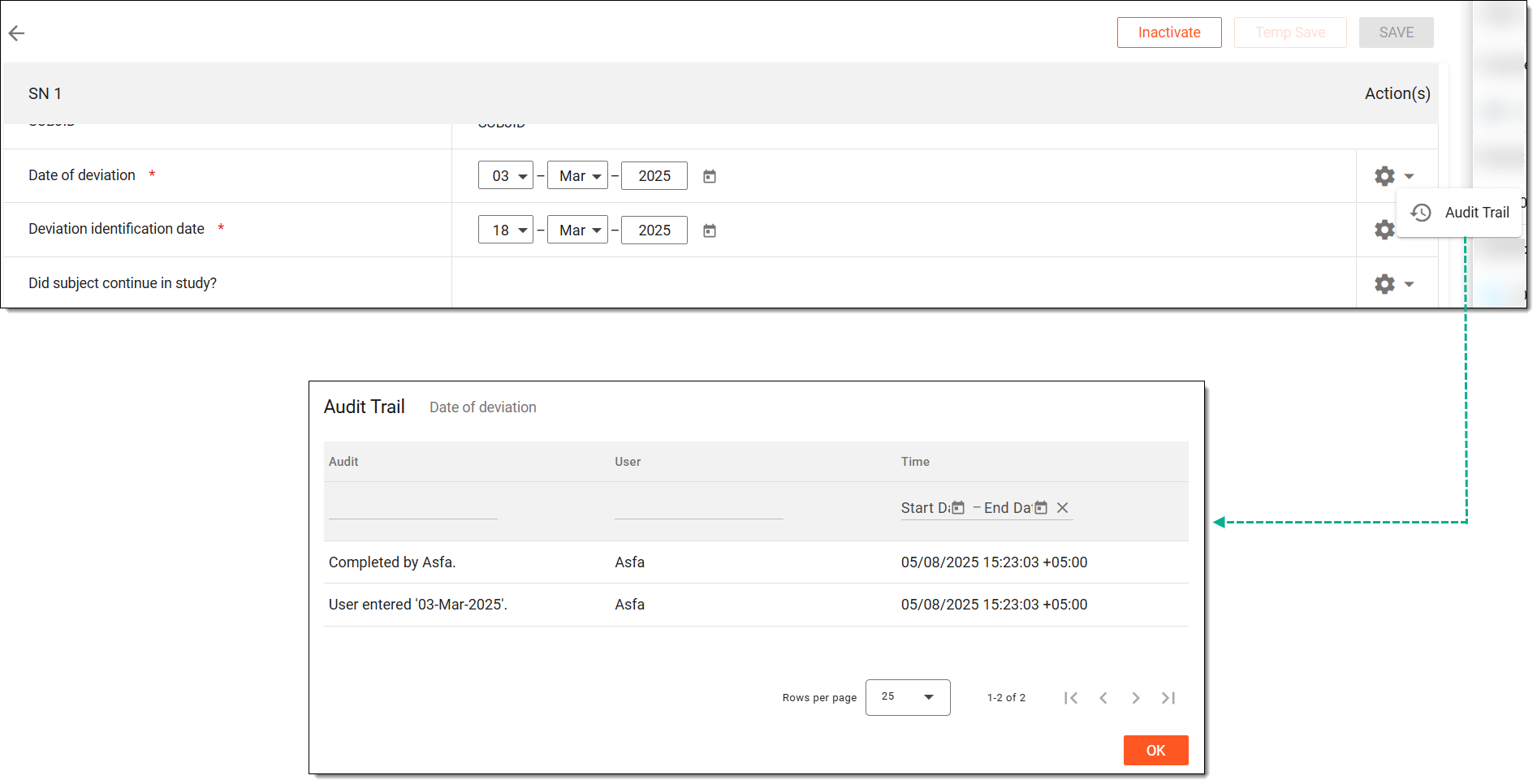 Figure 3. Analyzing change log of protocol deviation report
Once analyzed, you can return to the protocol deviation report or monitoring visit configurations.
Activate/Inactivate protocol deviation report in monitoring visit
In a monitoring visit, protocol deviation reports can be activated or inactivated based on their relevance or status. This allows monitors to manage which deviations are currently applicable for review or follow-up, helping maintain accurate and up-to-date reporting throughout the study.
-
In the right pane of the page that opens, select the Protocol Deviation stage.
Figure 1. Selecting protocol deviation stage
-
On the page that opens, either select Study or Site/Subject tab, depending on the level at which the required protocol deviation report exists.
-
Next to the added protocol deviation report, from the Action(s) column, select Inactivate
 or Activate
  to deactivate or activate the protocol deviation report.
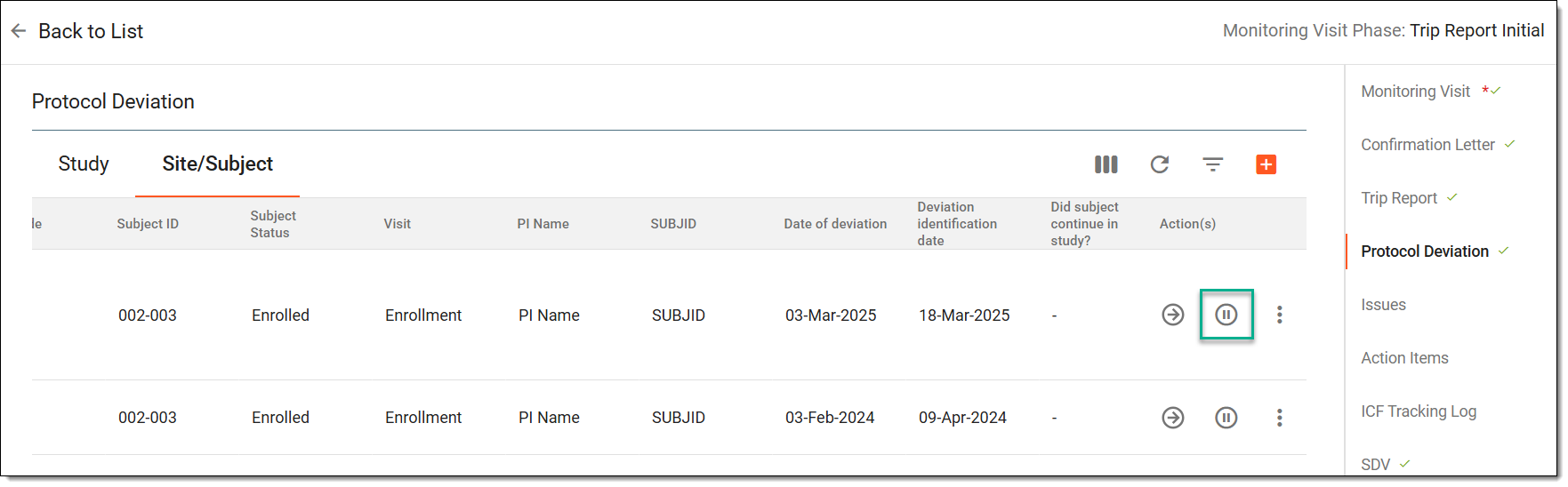 Figure 2. Inactivating protocol deviation report
Tip
Alternatively, from the Action(s) column, select Go
, and
then on the page that opens, from the workspace toolbar, select Inactivate or Activate.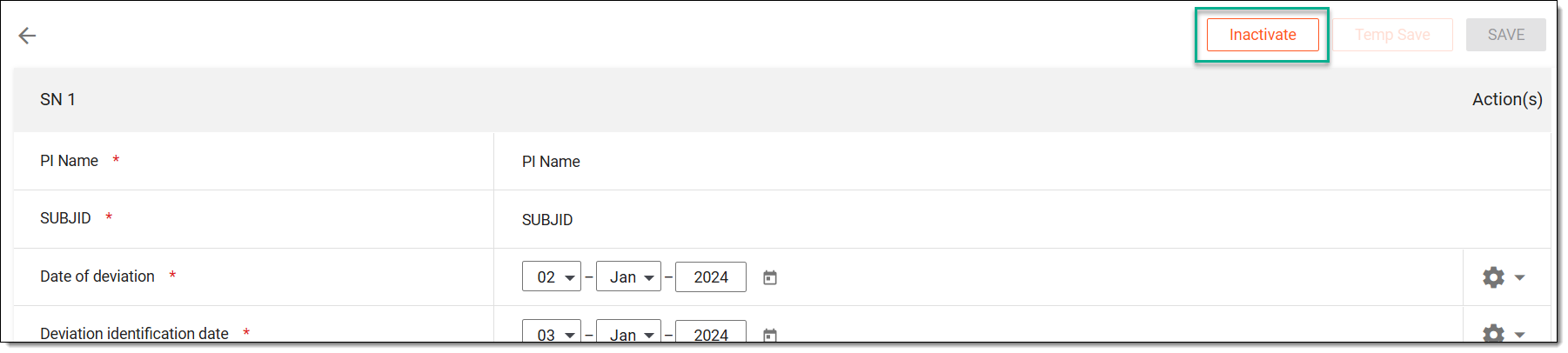 Figure 3. Selecting alternate option to inactivate protocol deviation report
-
In the Reason dialog that opens, enter the reason for deactivation or activation and then select SAVE.
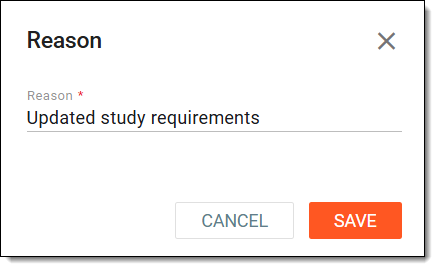 Figure 4. Entering reason to inactivate protocol deviation report
Once saved, the protocol deviation report is activated or inactivated.
Lock/Unlock protocol deviation report in monitoring visit
Locking or unlocking a protocol deviation report during a monitoring visit helps control editing access. Once locked, the report becomes read-only to preserve its contents, while unlocking allows further updates or corrections if needed.
-
In the right pane of the page that opens, select the Protocol Deviation stage.
Figure 1. Selecting protocol deviation stage
-
On the page that opens, either select Study or Site/Subject tab, depending on the level at which the required protocol deviation report exists.
-
Next to the added protocol deviation report, from the Action(s) column, select More
 > Lock
  or Unlock
  to lock or unlock the protocol deviation report, respectively.
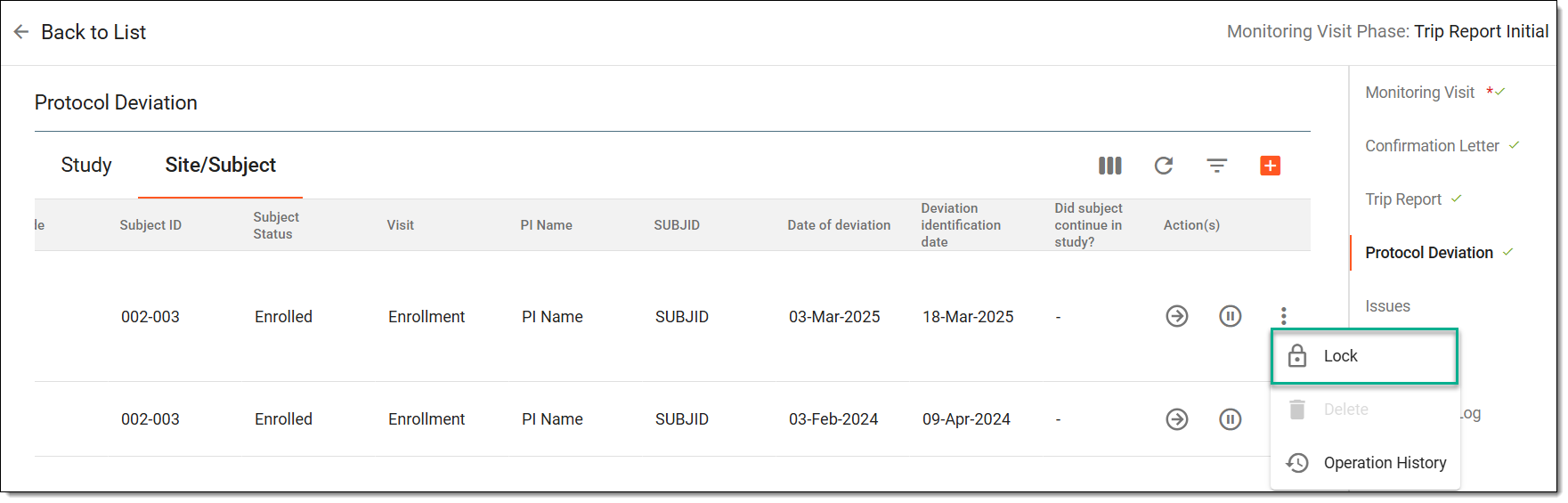 Figure 2. Locking protocol deviation report
Once the report is locked, its details can no longer be edited. Conversely, unlocking the report allows the protocol deviation details to be updated as needed.
Delete protocol deviation report from monitoring visit
Deleting a protocol deviation report may be necessary when it was created in error or is no longer relevant to the study. This action helps maintain accurate and clean records within the monitoring visit documentation.
-
In the right pane of the page that opens, select the Protocol Deviation stage.
Figure 1. Selecting protocol deviation stage
-
On the page that opens, either select Study or Site/Subject tab, depending on the level at which the required protocol deviation report exists.
-
Next to the inactivated protocol deviation report, from the Action(s) column, select More
> Delete
 to remove the protocol deviation report.
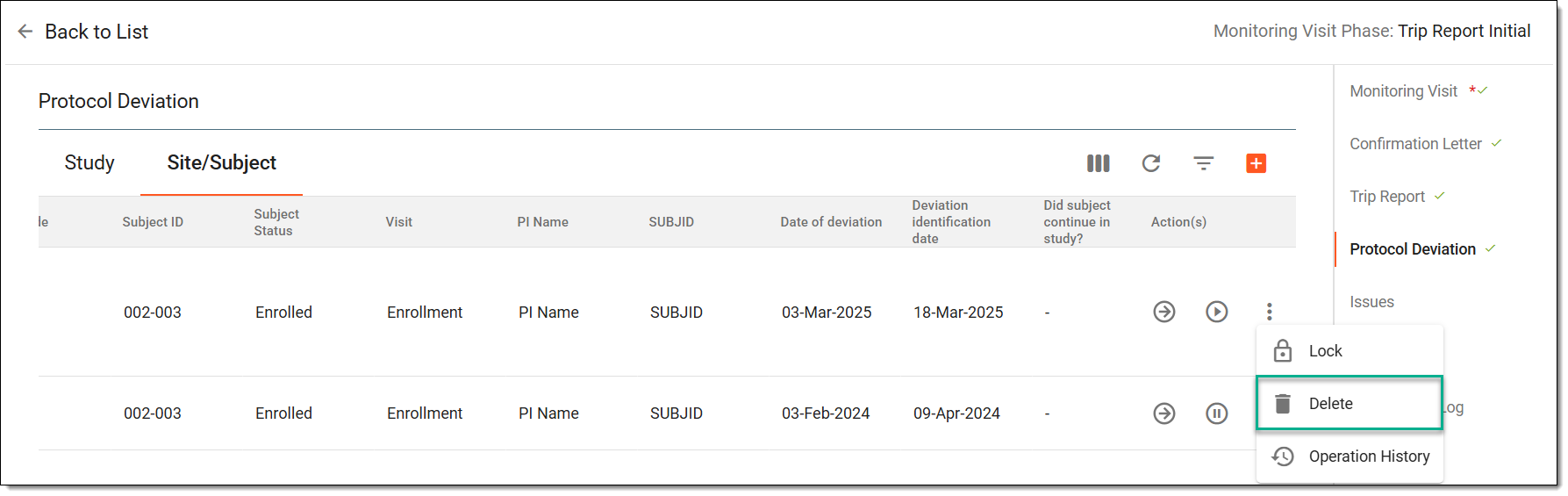 Figure 2. Deleting protocol deviation report from monitoring visit
-
In the Reason dialog that opens, enter the reason for deletion and then select SAVE.
Figure 3. Entering reason to delete protocol deviation report
Once saved, the protocol deviation report is deleted from the monitoring visit.
View operation history of protocol deviation report in monitoring visit
The operation history of a protocol deviation report displays a log of all actions performed, including creation, updates, and status changes. It provides a clear record of user activity to support traceability and compliance.
-
In the right pane of the page that opens, select the Protocol Deviation stage.
Figure 1. Selecting protocol deviation stage
-
On the page that opens, either select Study or Site/Subject tab, depending on the level at which the required protocol deviation report exists.
-
Next to the added protocol deviation report, from the Action(s) column, select More
> Operation History to view the history of changes for a specific protocol deviation report.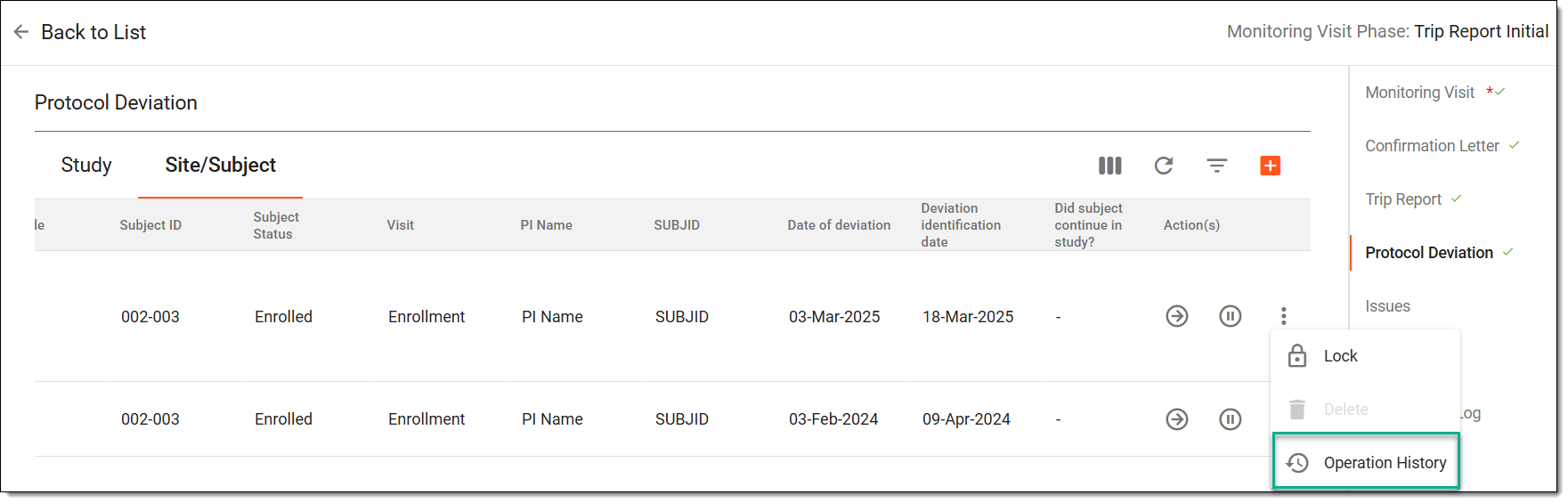 Figure 2. Accessing operation history of protocol deviation report
-
In the dialog that opens, analyze the details of the changes made to the protocol deviation report.
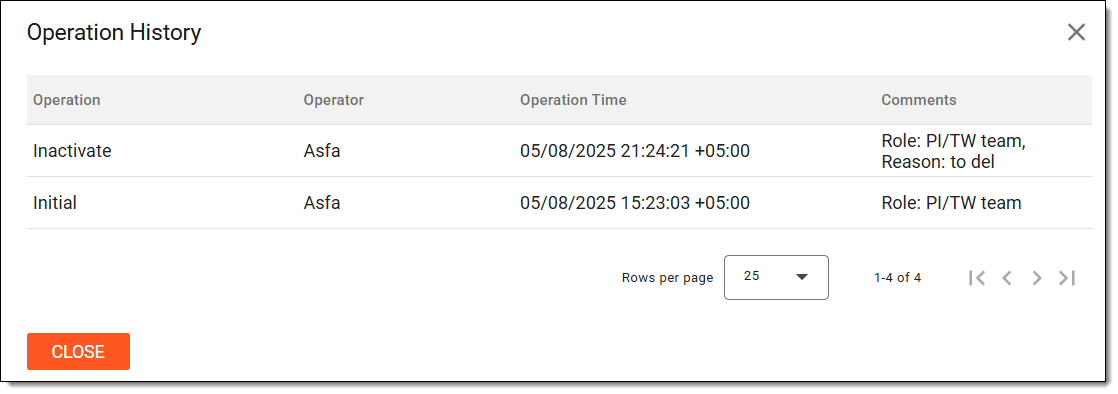 Figure 3. Analyzing operation history of protocol deviation report
Once you have analyzed the needed protocol deviation report, you can return to the protocol deviation list and continue configuring the monitoring visit.
Add issue to monitoring visit
During a monitoring visit, monitors may identify issues or discrepancies at the site that require resolution. These issues are often called findings. Issues can take many forms, depending on the nature and severity of the finding.
For example, an issue may involve providing additional training to site staff to ensure they understand and comply with the study protocol. An issue may also involve correcting data errors in subject records.
Important
The Issues stage is only available if it is added as a component of the monitoring visit configuration via Monitoring Config.
-
In the right pane of the page that opens, select the Issues stage.
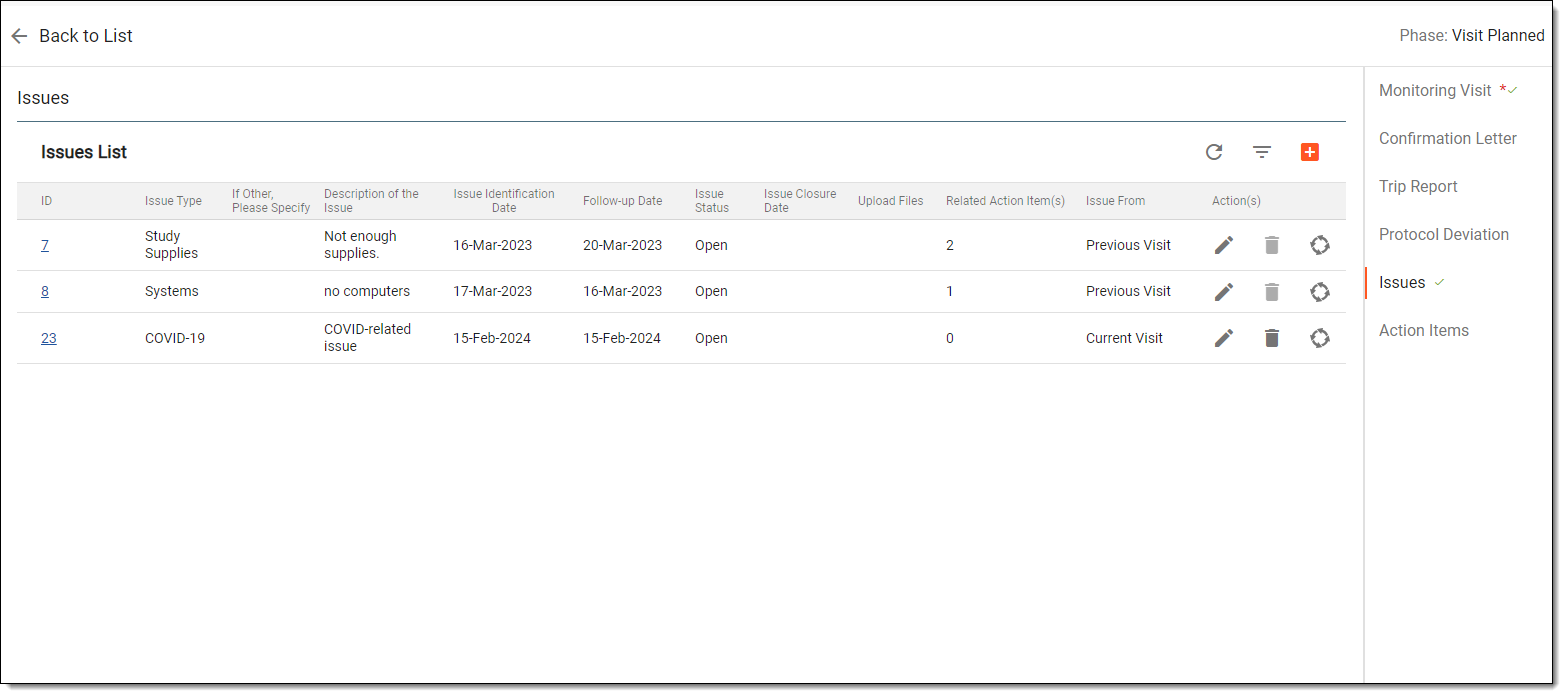 Figure 1. Selecting issues stage
-
From the workspace toolbar of the Issues table that appears, select New Item
.Tip
All of the open issues that are pertinent to the selected site and that have been opened during the previous monitoring visits are automatically added to the current monitoring visit and can be updated. Once the issue status changes to Closed, the issue remains in this monitoring visit issue list and does not appear in the next monitoring visit.
-
In the form that opens, complete the form as explained in the following table.
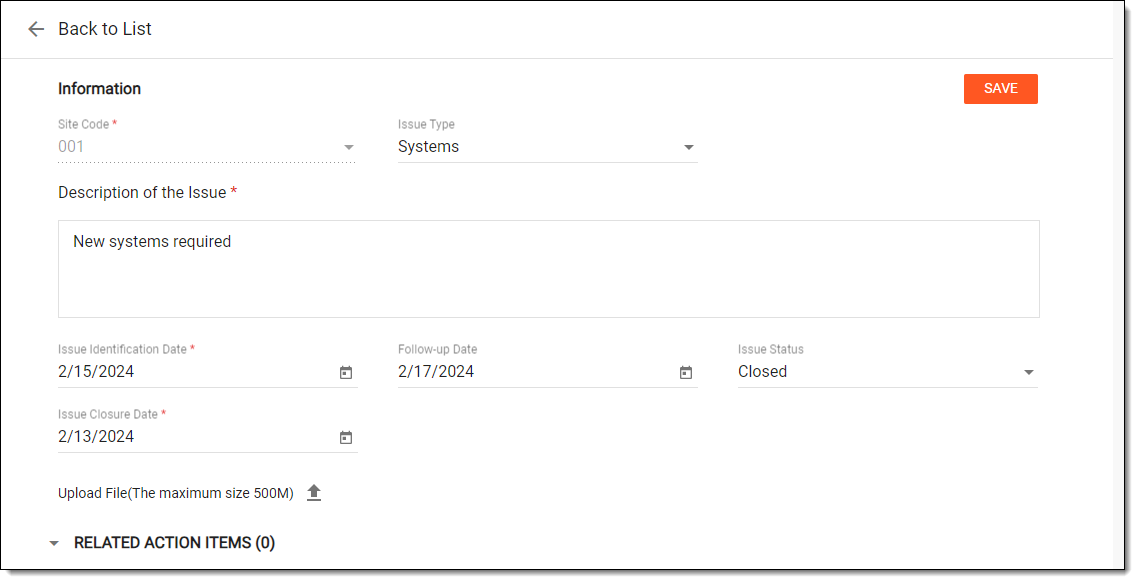 Figure 2. Adding issue
Tip
In the following table, mandatory elements are marked with an asterisk (*).
Element
Details
Site Code*
Represents the site where the monitoring visit takes place.
Issue Type
Select a type that is to reflect the purpose of the added issue.
Description of the Issue*
Enter a detailed description of the findings that have been discovered during the monitoring visit.
Issue Identification Date*
Specify a date when the issue has been discovered and registered.
Follow-up Date
Specify a follow-up date for the created issue.
Issue Status
Assign an Open or Closed status to the created issue depending on its current state.
Issue Closure Date
Specify a date when an issue has been closed. The closure date cannot precede the issue identification date.
This field becomes available only if issue status is Closed.Upload File
Select
to upload an attachment to the created issue.SAVE
Select
to add an issue to the monitoring visit. -
After saving an issue to the monitoring visit, you can perform the various actions to it as explained in the following sections:
Once done, the issue is added and maintained. You can now proceed to the next stage of monitoring visit configuration, which is Action Items.
Edit issue and update its action items in monitoring visit
Issues identified during a monitoring visit may require updates to reflect new information or progress. Additionally, while updating an issue, you can also add action items to it that reflect specific actions required to address the issue.
-
In the right pane of the page that opens, select the Issues stage.
-
Select the ID of the issue you want to view or edit, or next to it, from the Action(s) column, select Edit
.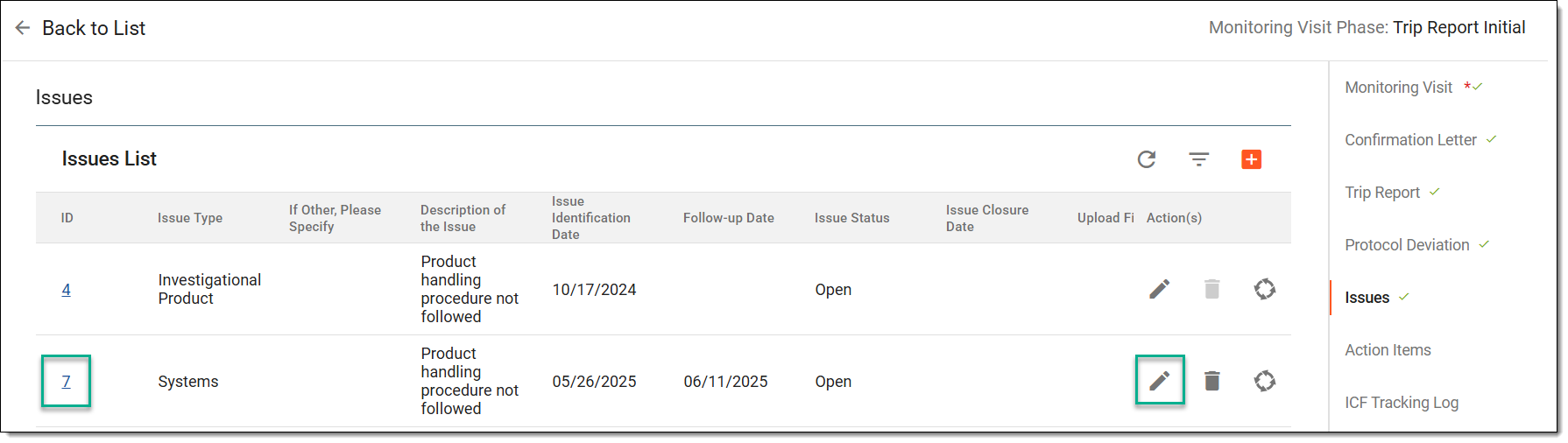 Figure 1. Editing issue
-
On the page that opens, edit the issue field as explained in the table of the Add issue to monitoring visit section.
The RELATED ACTION ITEMS block includes action items associated with the issue. Select
 to add more action items to be associated with an issue, as explained in the following table.
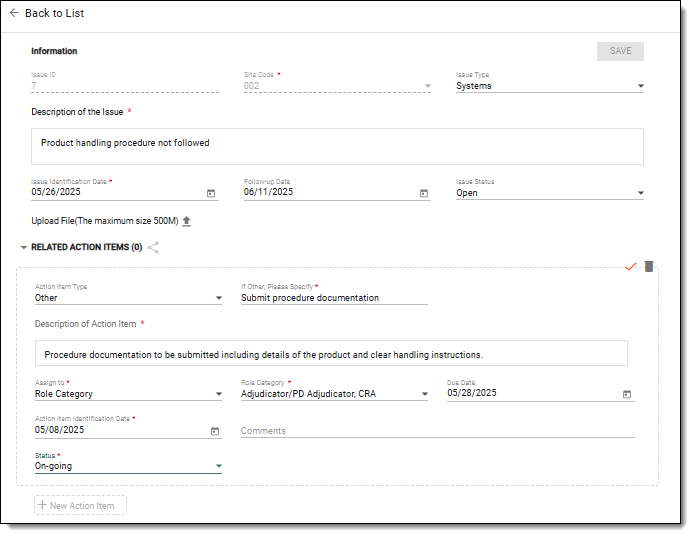 Figure 2. Analyzing and adding action item to issue
Tip
In the following table, mandatory elements are marked with an asterisk (*).
Element
Details
Action Item Type
Select the type of action you want to add, or choose Other in this field if you want to specify some custom type for the created action item.
If Other, Please Specify*
Define a title or the type of action item you are creating.
This field becomes available only if you select Other in the previous field.Description of Action Item*
Enter a meaningful description for the created action item.
Assign to*
Select either Role Category (if you want users with a specific role to work on this action item) or the Assignee (if you want specific users to work on this action item).
Role Category*/Assignee*
If Role Category has been selected in the previous field, then select here a role or roles that need to work on this action item.
If Assignee has been selected in the previous field, then select here a user or users who need to work on this action item.
Due Date
Specify a due date by which the created action item needs to be completed.
Action Item Identification Date*
Specify a date when the action item has been identified and registered.
Comments
Add a comment for the person or user role in charge of resolving the created action item.
Status*
Select the most current status of the action item in terms of its completion.
Action Item Closure Date*
Specify a date when the action item has been resolved or closed.
This field becomes available only if the status of an action item is set to Completed or Closed - Unresolved.SAVE
Select
 to confirm the creation of an action item.
Delete
Select
to dismiss the creation of the action item and remove it from the issue.
Once saved, your changes are implemented, and the action items are saved. You can now also update and manage the action items in the Action Items stage.
Delete issue from monitoring visit
An issue recorded during a monitoring visit can be deleted if it was entered by mistake or is no longer relevant. This helps maintain accurate and relevant documentation within the visit record.
-
In the right pane of the page that opens, select the Issues stage.
-
Next to the issue that is not associated with any action items, from the Action(s) column, select Delete
to remove the unnecessary issue.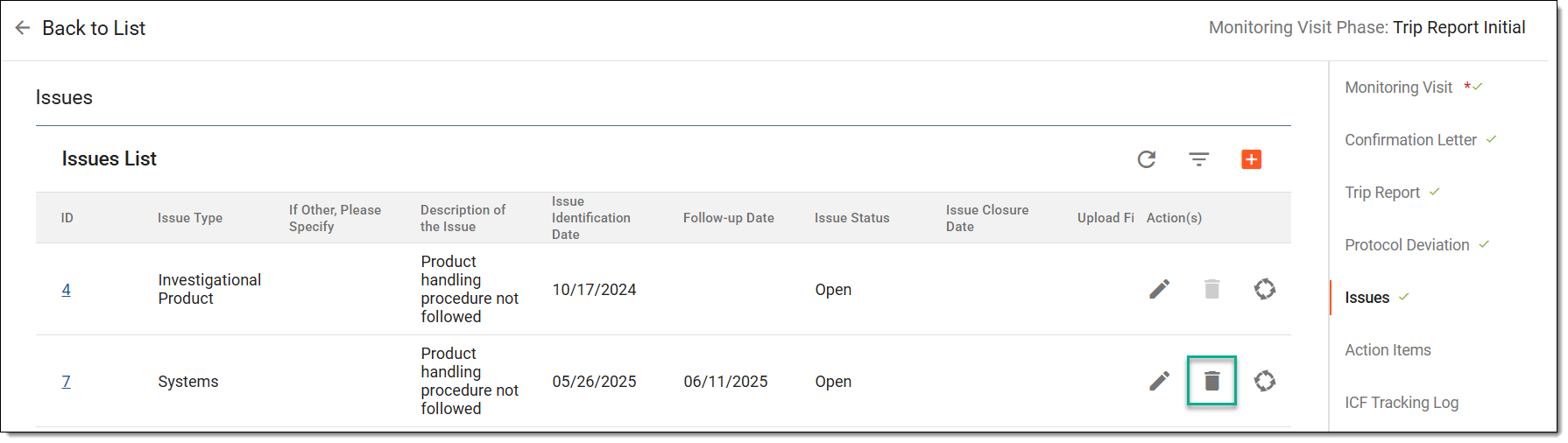 Figure 1. Deleting issue from monitoring visit
-
In the Reason dialog that opens, enter the reason for deletion and then select SAVE.
Figure 2. Entering reason to delete issue
Once saved, the issue is deleted from the monitoring visit.
Analyze issue lifecycle in monitoring visit
The issue lifecycle in a monitoring visit outlines the progression of an issue from creation to resolution. Analyzing this lifecycle helps track status changes, responsible roles, and key actions taken, supporting effective oversight and timely issue management.
-
In the right pane of the page that opens, select the Issues stage.
-
Next to the required issue, from the Action(s) column, select Issue Lifecycle
 to view the progress of issue resolution.
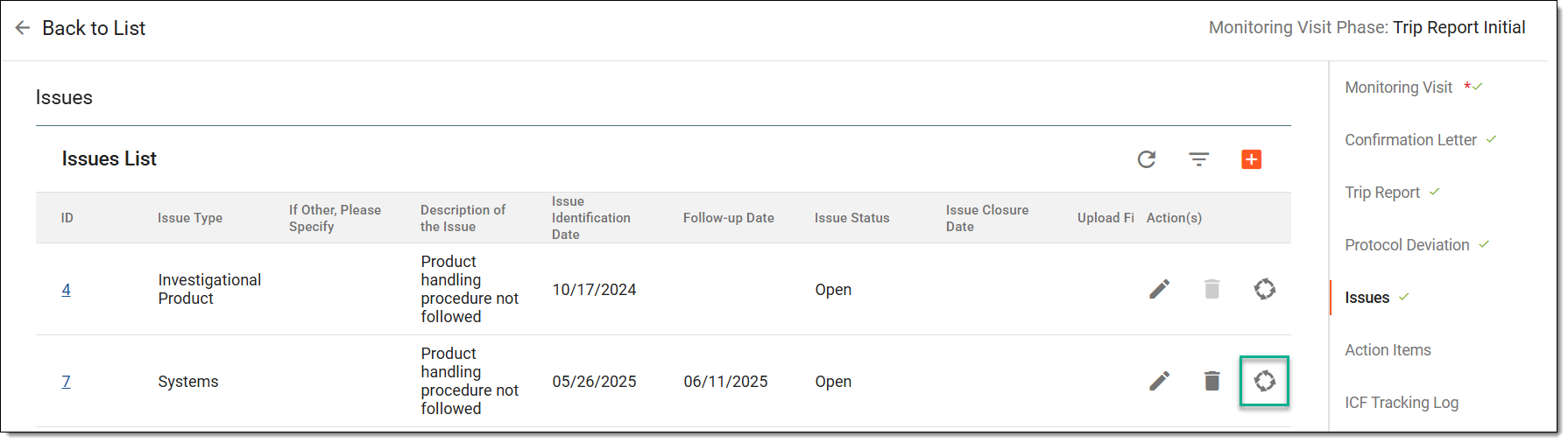 Figure 1. Accessing option to analyze issue lifecycle
-
In the Lifecycle dialog that opens, review the record of the changes made to the issue.
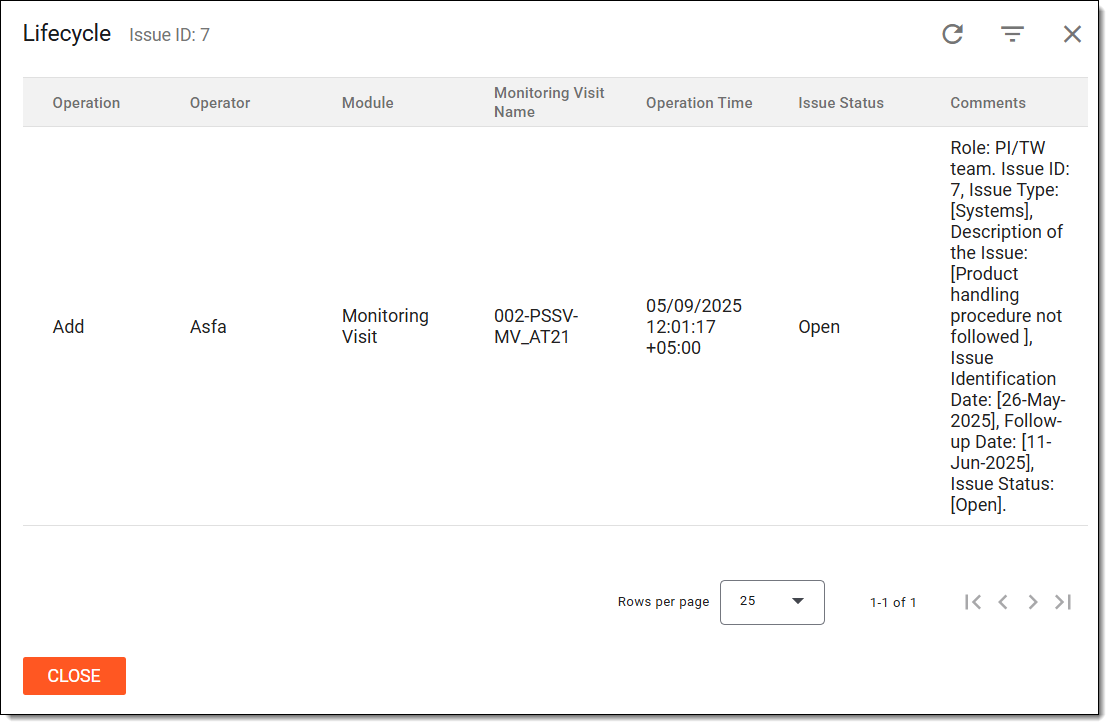 Figure 2. Analyzing issue lifecycle
Once analyzed, you can return to the issues and continue configuring the monitoring visit.
Add action items to monitoring visit
During a monitoring visit, monitors may detect issues or discrepancies at the site that need to be addressed. Once an issue is identified, related action items can be added to outline the specific steps required for resolution. An action item refers to a clearly defined task or follow-up activity assigned to resolve part of an issue. These action items can be reviewed, updated, and tracked separately from the main monitoring visit page. Since resolving a single issue may involve multiple steps, it's common for one issue to have several associated action items.
Important
The Action Items stage is only available if it is added as a component of the monitoring visit configuration via Monitoring Config.
-
In the right pane of the page that opens, select the Action Items stage.
-
On the page that opens, you can view the action items added to the issues. To add a new action item, from the workspace toolbar, select New Item
.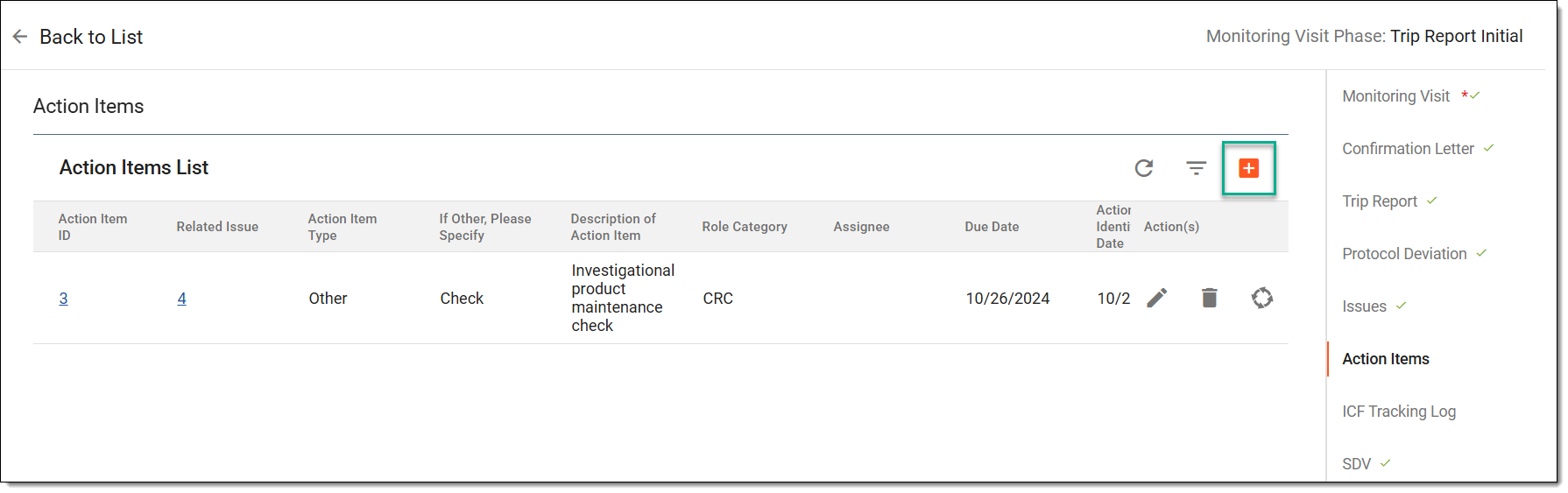 Figure 1. Creating new action item
-
In the form that appears, enter the details as explained in the following table.
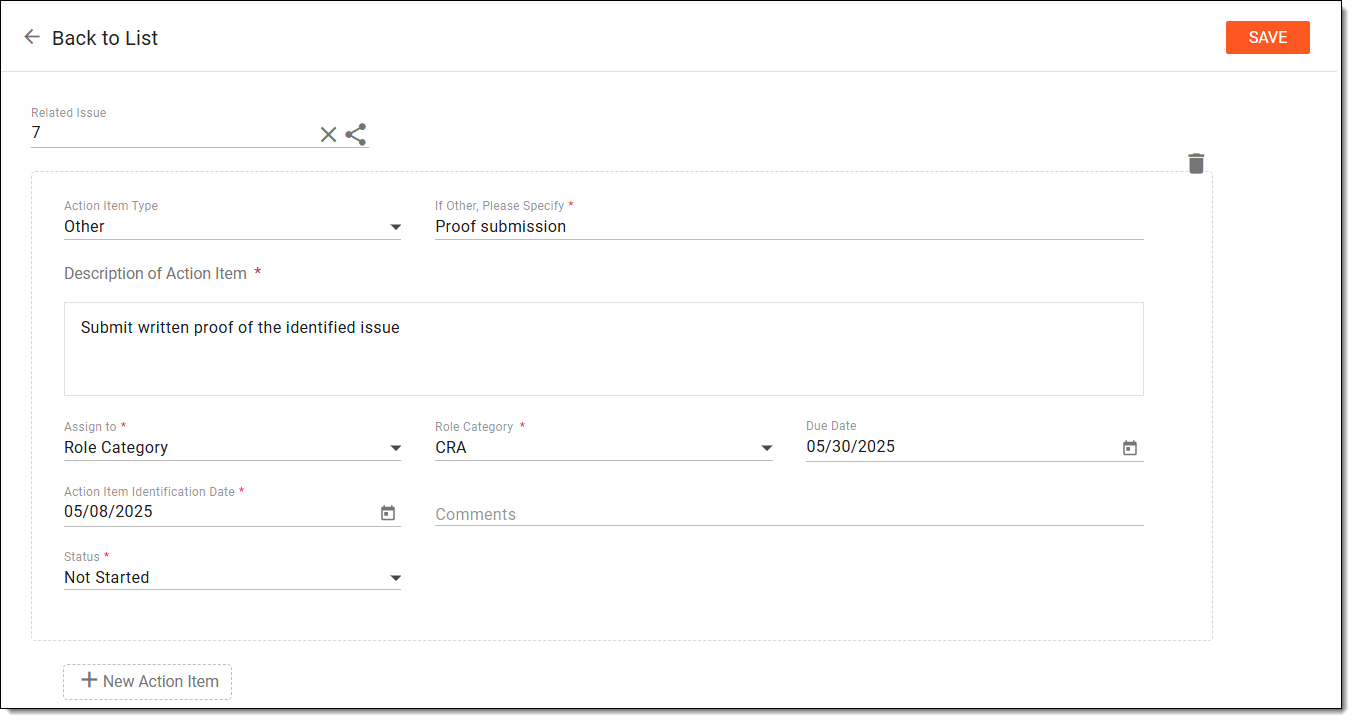 Figure 2. Adding action item to monitoring visit
Tip
In the following table, mandatory elements are marked with an asterisk (*).
Element
Details
Related Issue
Click Select Issue
 to open a dialog from which you can choose the issue you want to link to this
action item. Then select SAVE.
to open a dialog from which you can choose the issue you want to link to this
action item. Then select SAVE.Once saved, you can also click the selected issue in this field to view the details of the issue you have linked to your action item.Action Item Type
Select the type of action you want to add, or choose Other in this field if you want to specify some custom type for the created action item.
If Other, Please Specify*
Define a title or the type of action item you are creating.
This field becomes available only if you select Other in the previous field.Description of Action Item*
Enter a meaningful description for the created action item.
Assign to*
Select either Role Category (if you want users with a specific role to work on this action item) or the Assignee (if you want specific users to work on this action item).
Role Category*/Assignee*
If Role Category has been selected in the previous field, then select here a role or roles that need to work on this action item.
If Assignee has been selected in the previous field, then select here a user or users that need to work on this action item.
Due Date
Specify a due date by when the created action item needs to be completed.
Action Item Identification Date*
Specify a date when the action item has been identified and registered.
Comments
Add a comment for the person or user role in charge of resolving the created action item.
Status*
Select the most current status of the action item in terms of its completion.
Action Item Closure Date*
Specify a date when the action item has been resolved or closed.
This field becomes available only if the status of an action item as defined is set to Completed or Closed - Unresolved in the previous field.SAVE
Select
to add the action item.Delete
Select
to dismiss the creation of the action item and remove it from the issue.New Action Item
Select
to add a new action item form, where you can enter the details provided in this table to add another action item to the selected issue. -
Once saved, you can perform several actions to the added action item as explained in the following sections:
The action item is now added to the monitoring visit. You can now proceed to the next stage of monitoring visit configuration, which is Follow-up Letter.
Edit action item in monitoring visit
Editing an action item during a monitoring visit helps ensure that any updates, corrections, or progress details are accurately reflected. This keeps the issue resolution process clear, current, and aligned with study requirements.
-
In the right pane of the page that opens, select the Action Items stage.
-
In the Action Items List table, select the ID of the action item you want to view or edit, or next to it, from the Action(s) column, select Edit
.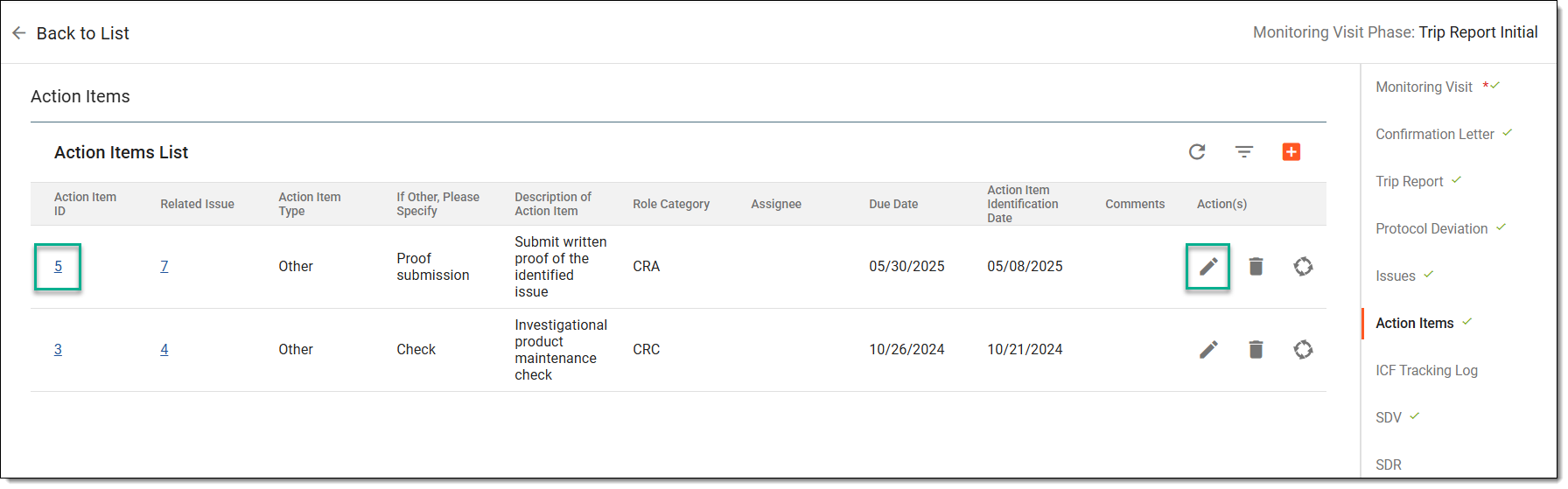 Figure 1. Accessing option to edit action item
-
On the page that opens, update the action item as explained in the table of the Add action items to monitoring visit section.
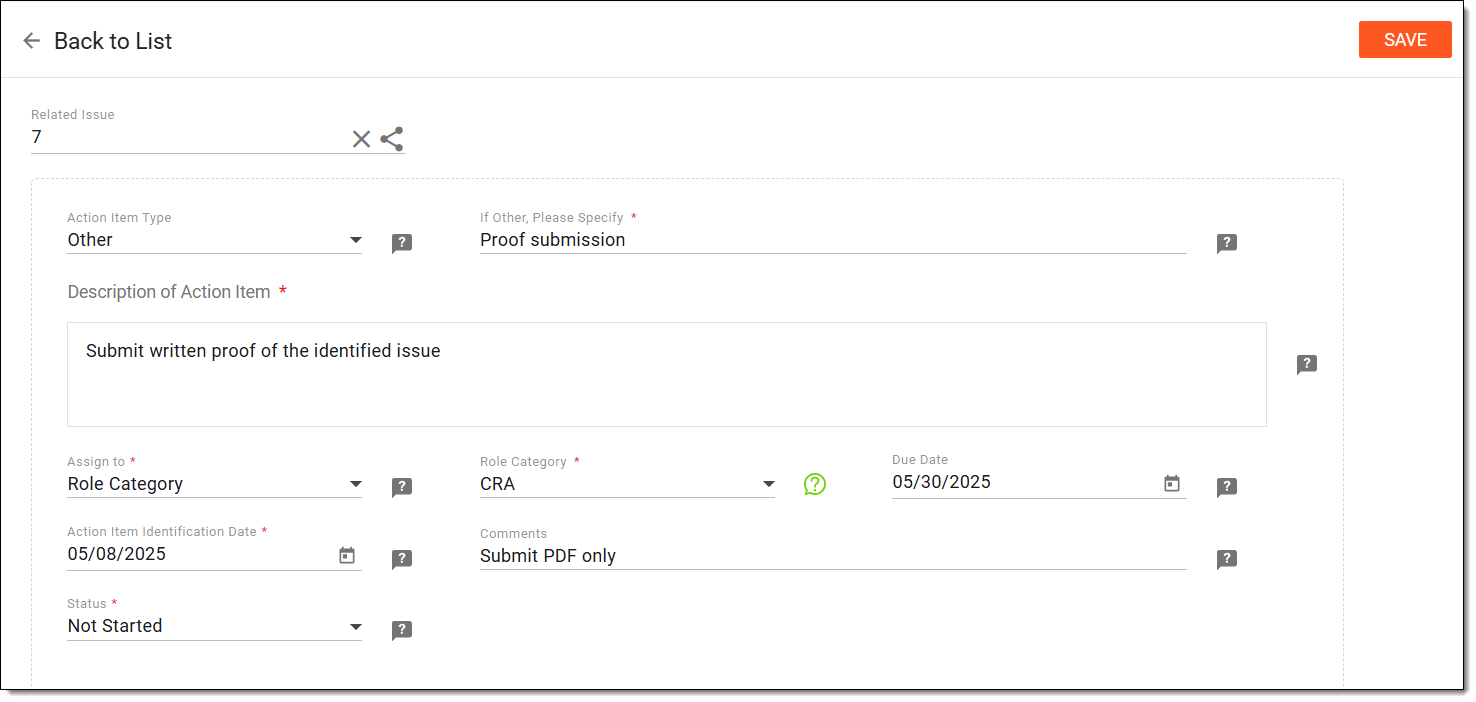 Figure 2. Editing action item in monitoring visit
-
Select SAVE.
Once saved, the action item is updated.
Open query on action item data
A query can be opened on action item data to raise questions, request clarification, or highlight concerns related to the information entered. This helps facilitate clear communication and ensures data accuracy while addressing an issue in the monitoring visit.
-
In the right pane of the page that opens, select the Action Items stage.
-
In the Action Items List table, select the ID of the required action item, or next to it, from the Action(s) column, select Edit
.Figure 1. Accessing option to edit action item
-
On the page that opens, next to the needed field, select Open Query
.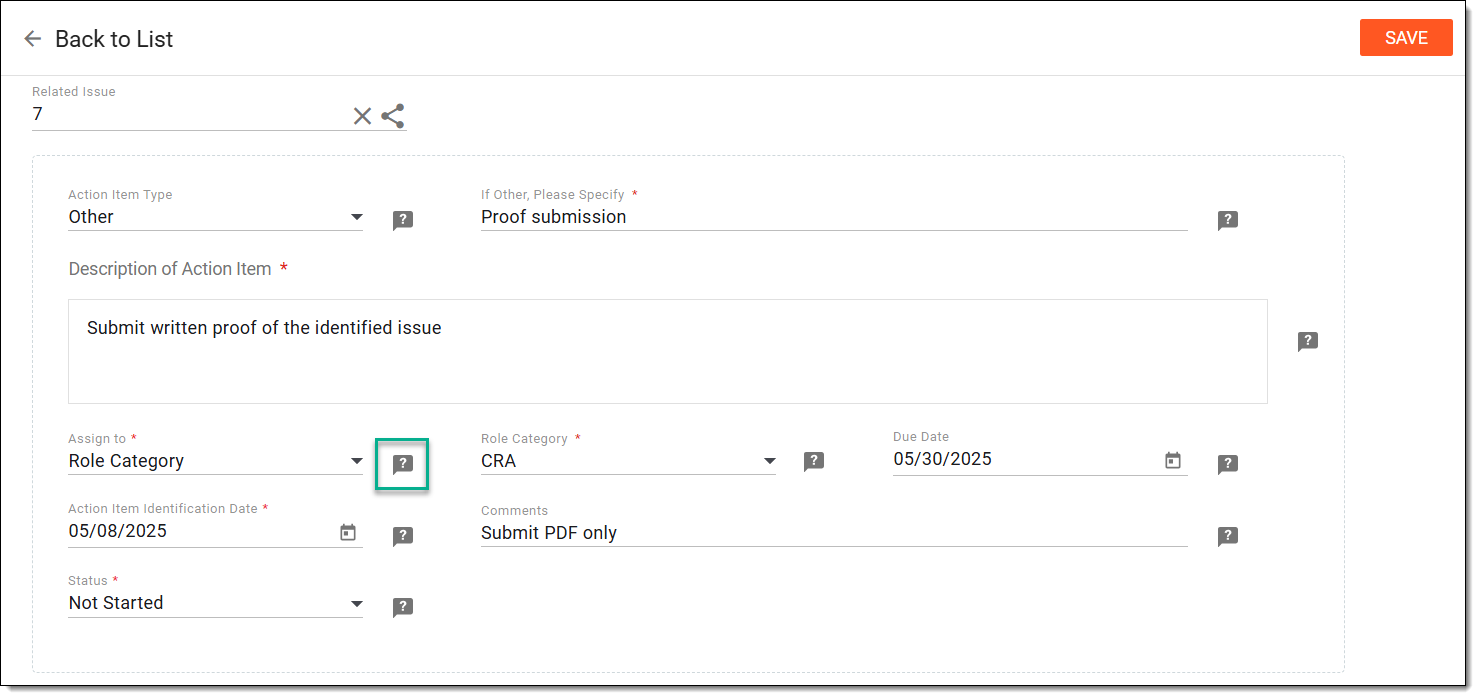 Figure 2. Opening query on action item data
-
In the Manual Query form that appears, enter the query details as explained in the following table.
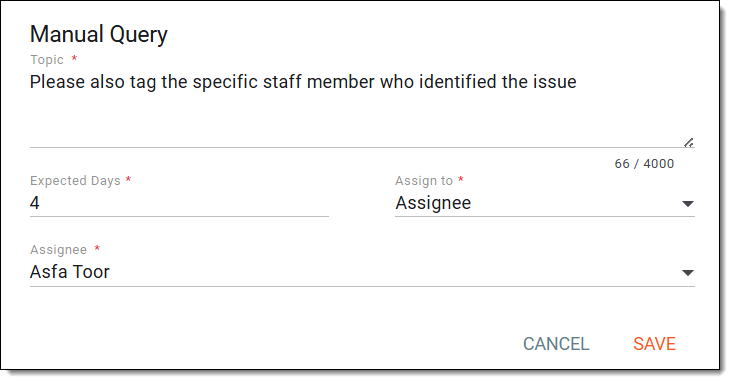 Figure 3. Entering query details for action item data
Tip
In the following table, mandatory elements are marked with an asterisk (*).
Element
Details
Topic*
Enter your question or concern regarding the action item data.
Expected Days*
Enter the number of days by which you expect the query to be resolved.
Assign to*
Select either Role (if you want users with a specific role to work on this query) or the Assignee (if you want specific users to work on this query).
Assignee*/Role*
If Role has been selected in the previous field, then select here a role or roles that need to work on this query.
If Assignee has been selected in the previous field, then select here a user or users who need to work on this query.
SAVE
Select
to add the query.CANCEL
Select
to dismiss the query creation process.
Once saved, the query is added. The assigned personnel can now respond, and once you have received the necessary information, you can proceed to close the query.
Reply to action item query
When a query is raised about an action item, it is forwarded to the assigned personnel for review. As the assigned individual, you can now respond to the query by providing the necessary information or feedback.
-
In the right pane of the page that opens, select the Action Items stage.
-
In the Action Items List table, select the ID of the required action item, or next to it, from the Action(s) column, select Edit
.Figure 1. Accessing option to edit action item
-
On the page that opens, next to the needed field, select My Query
.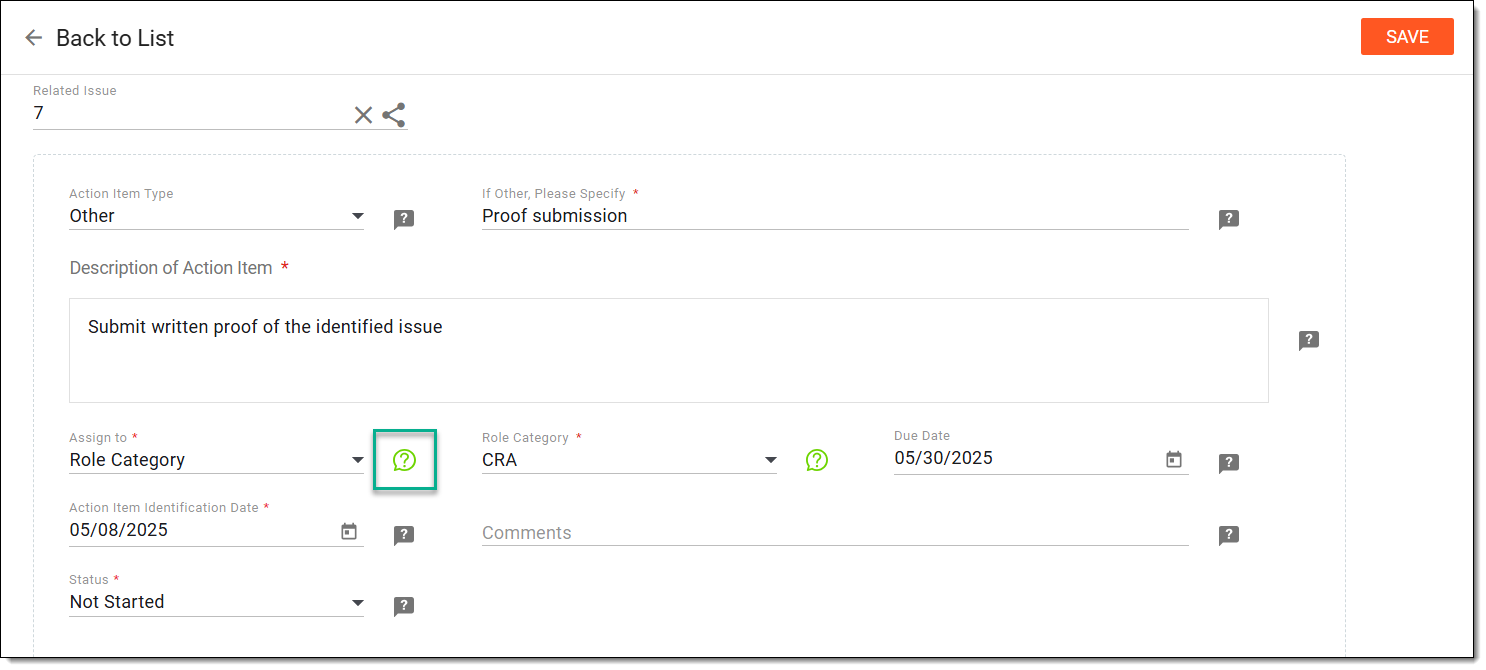 Figure 2. Accessing opened action item query
-
In the panel that opens on the right, expand the query and enter your reply. Then select
.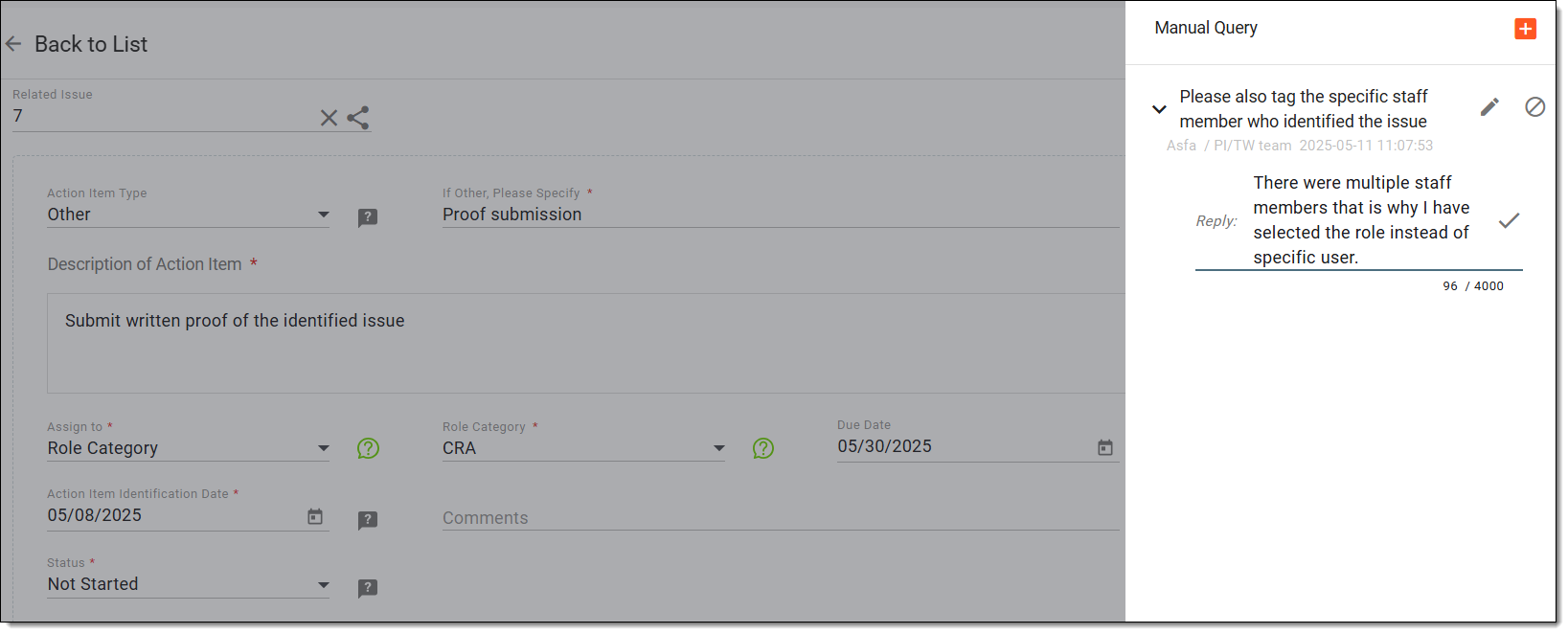 Figure 3. Responding to action item query
Tip
You can open a new query by selecting
and entering the details as explained in the table of the Open query on action item data section.Note that you can create a new query, update or close an existing one only if you are the creator of the query.
Once saved, you have responded to the query.
Edit action item query
After a query is raised about an action item, it is sent to the assigned personnel for review. If needed, the query can be edited to correct, clarify, or update the information originally provided. This helps ensure the query clearly reflects the intended concern or feedback.
-
In the right pane of the page that opens, select the Action Items stage.
-
In the Action Items List table, select the ID of the required action item, or next to it, from the Action(s) column, select Edit
.Figure 1. Accessing option to edit action item
-
On the page that opens, next to the needed field, select My Query
.Figure 2. Accessing opened action item query
-
In the panel that opens on the right, next to the query, select Edit
.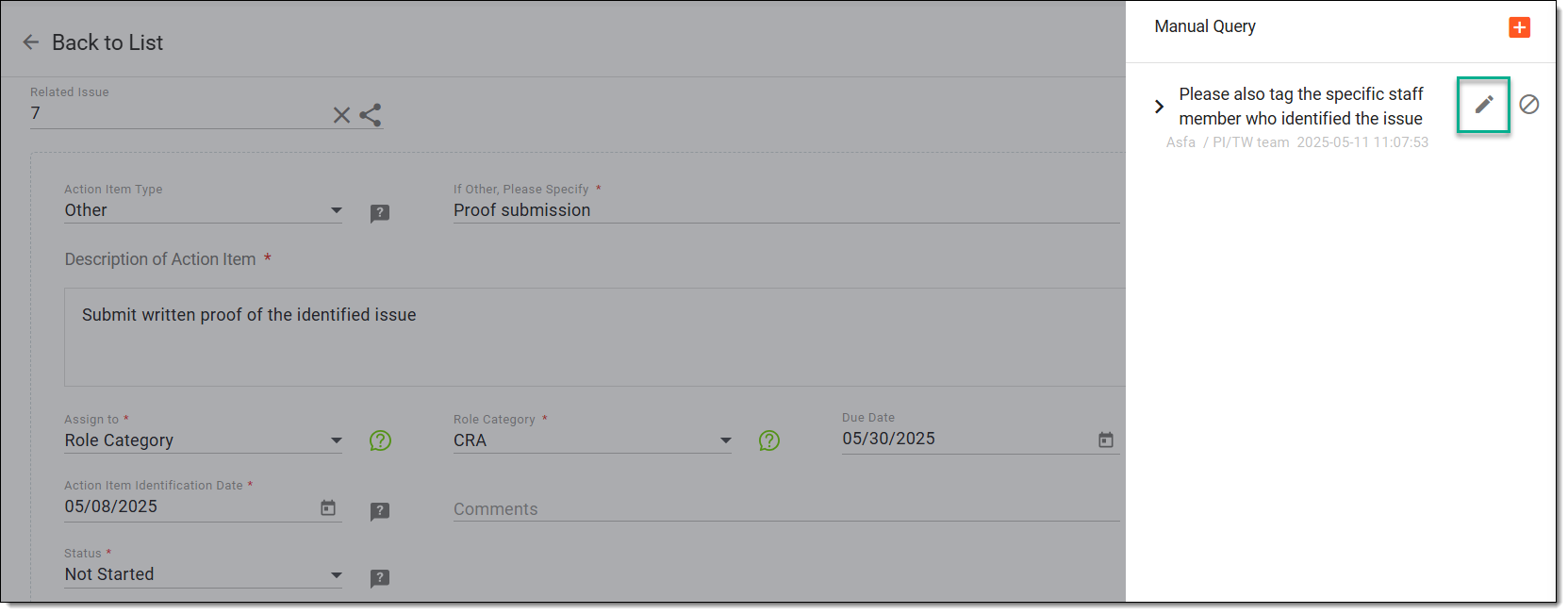 Figure 3. Selecting option to edit action item query
-
In the Manual Query form that appears, update the query details as explained in the table of the Open query on action item data section.
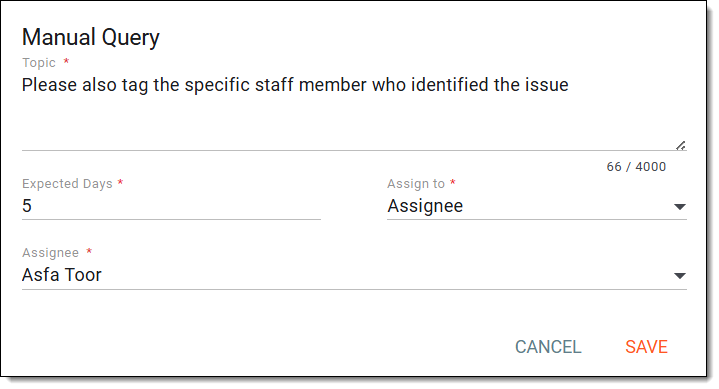 Figure 4. Editing action item query
-
Select SAVE.
Once saved, you have updated the query.
Close action item query
Once an action item query has been addressed and the required feedback or clarification has been received, the query can be closed by its creator. Closing the query marks it as resolved and helps maintain a clear and organized documentation process.
-
In the right pane of the page that opens, select the Action Items stage.
-
In the Action Items List table, select the ID of the required action item, or next to it, from the Action(s) column, select Edit
.Figure 1. Accessing option to edit action item
-
In the panel that opens on the right, next to the query, select Close
.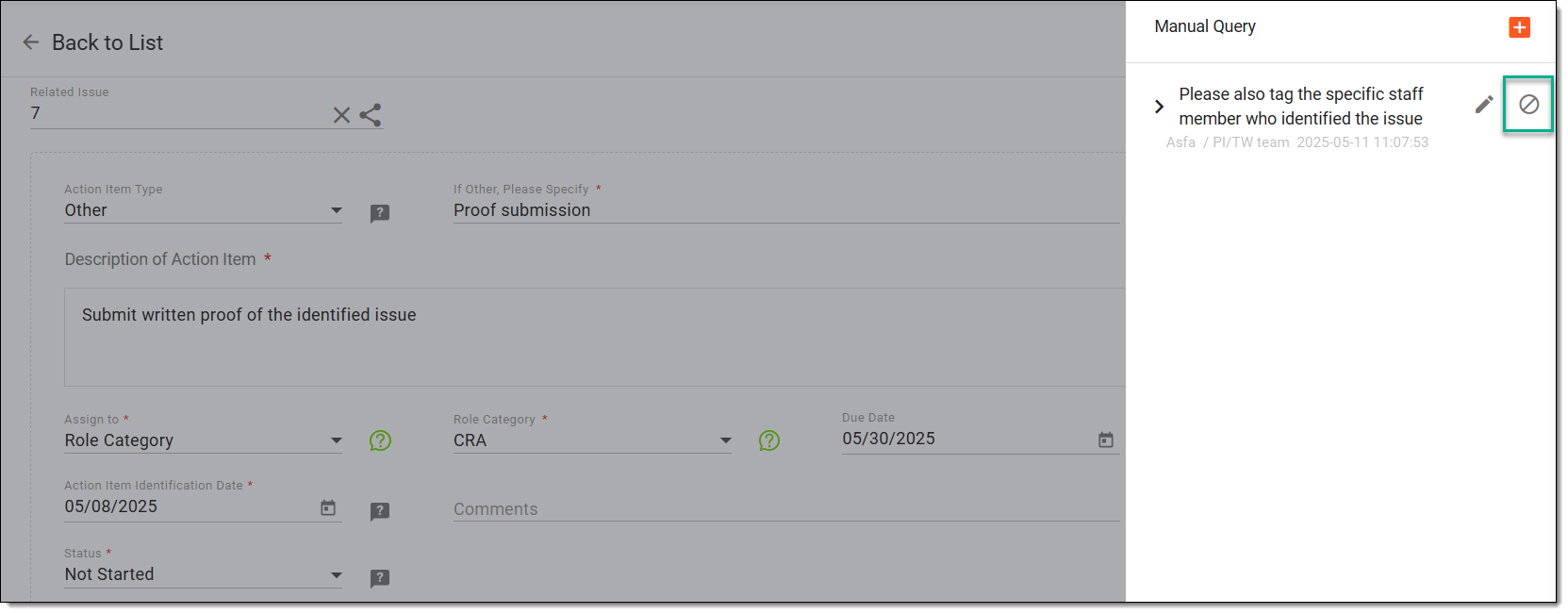 Figure 2. Closing action item query
-
In the confirmation dialog that appears, select Yes to close the query.
Figure 3. Confirming query closure
Once saved, the query is closed. Note that the closed query remains in the panel for review and analysis purposes.
Delete action item from monitoring visit
An action item recorded during a monitoring visit can be deleted if it was added by mistake or is no longer relevant. This helps keep the issue tracking and resolution accurate and focused on current, actionable items.
-
In the right pane of the page that opens, select the Action Items stage.
-
In the Action Items List table, next to the required action item, from the Action(s) column, select Delete
 .
.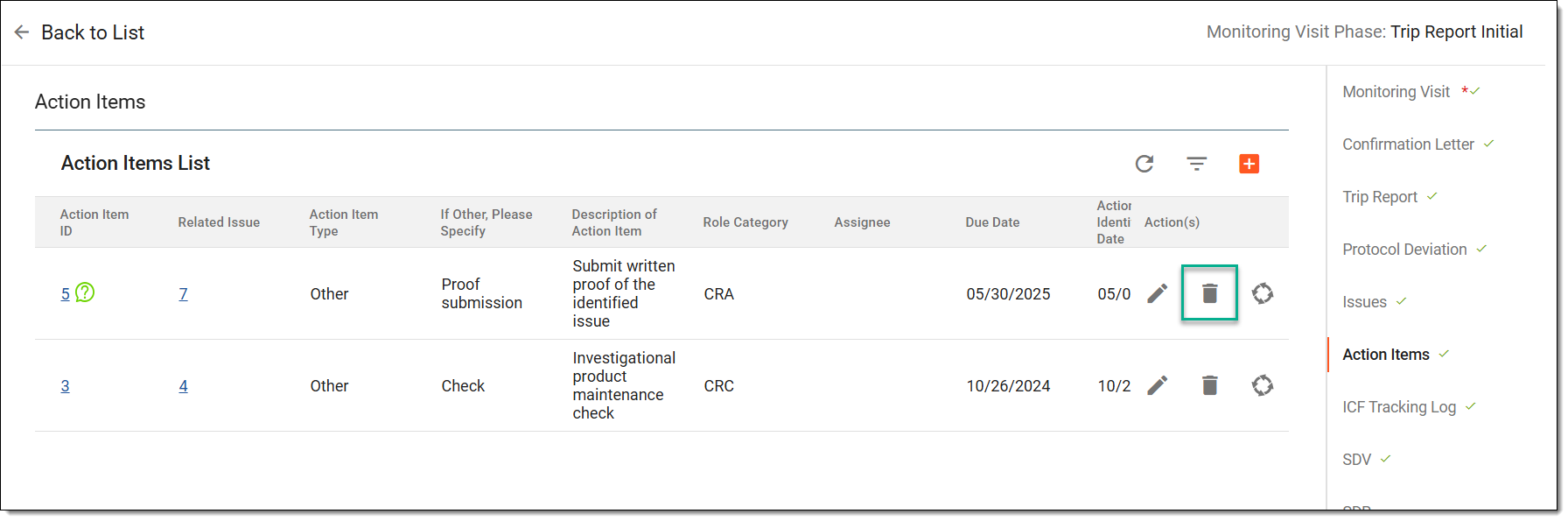 Figure 1. Deleting action item from monitoring visit
-
In the Reason dialog that opens, enter the reason for deletion and then select SAVE.
Figure 2. Entering reason to delete action item
Once saved, the action item is deleted.
Analyze action item lifecycle in monitoring visit
The action item lifecycle in a monitoring visit tracks its progress from creation to closure. Analyzing this lifecycle helps ensure timely follow-up, clear accountability, and accurate documentation of each step taken toward resolution.
-
In the right pane of the page that opens, select the Action Items stage.
-
In the Action Items List table, next to the required action item, from the Action(s) column, select Action Item Lifecycle
.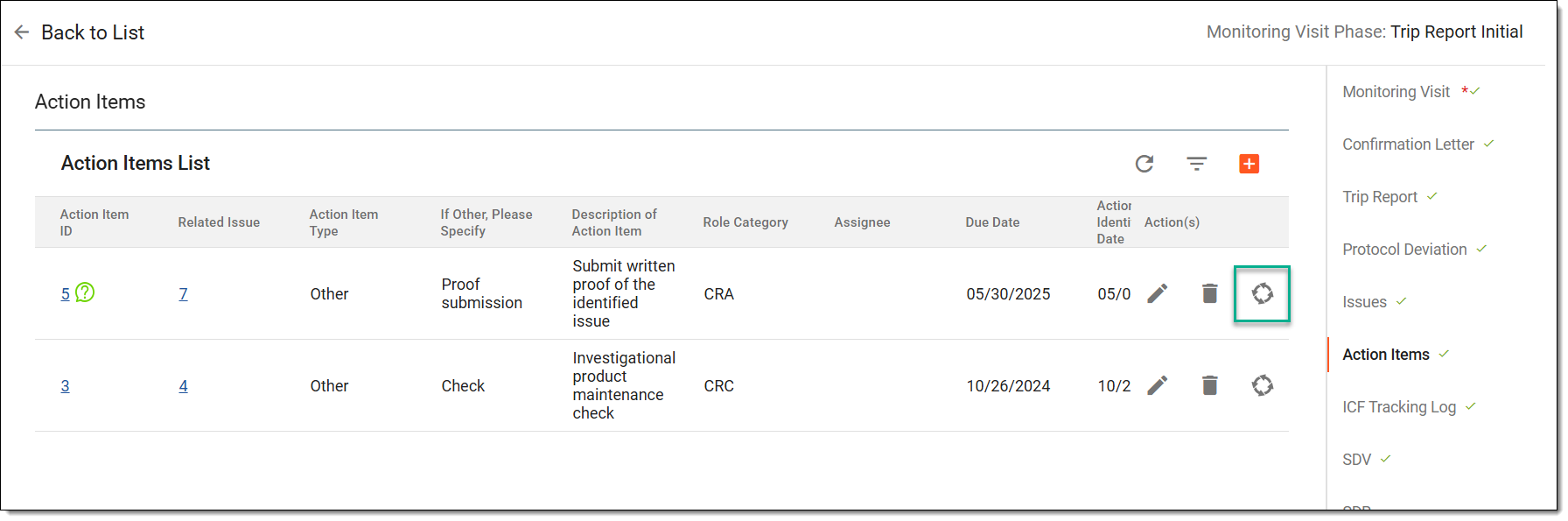 Figure 1. Accessing option to analyze action item lifecycle
-
In the Lifecycle dialog that opens, review the record of the changes made to the action item.
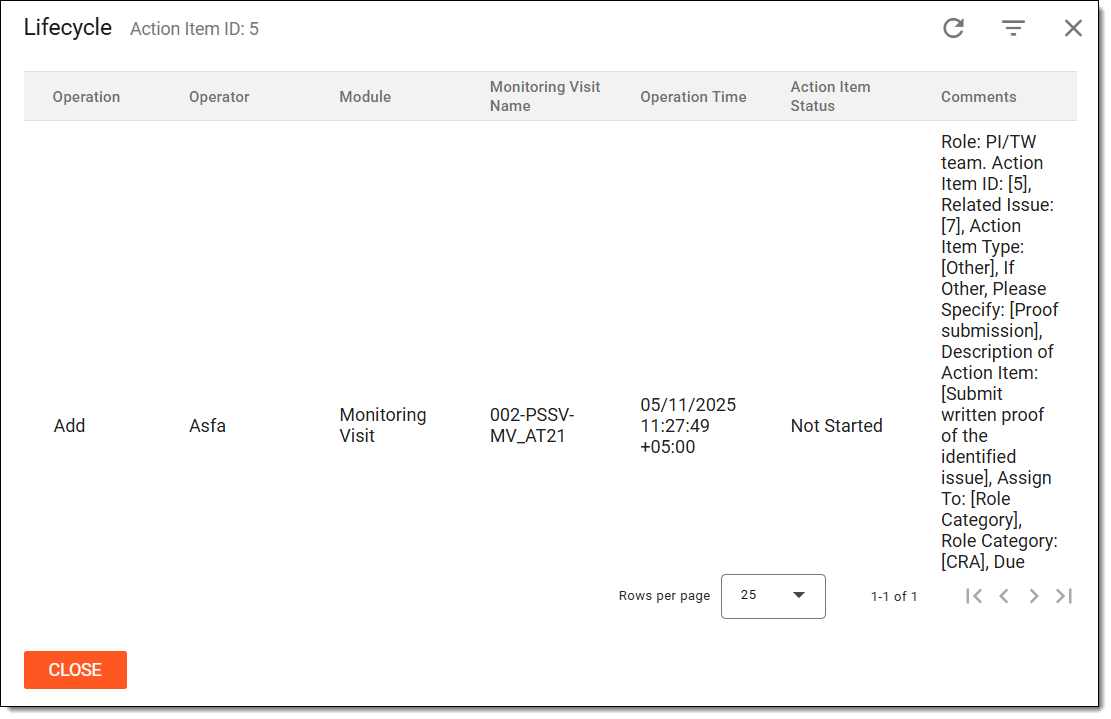 Figure 2. Analyzing action item lifecycle
Once analyzed, you can return to the action items and continue configuring the monitoring visit.
Add and manage ICF tracking log records
At this stage of the monitoring visit creation or editing, you can add ICF tracking log records to the monitoring visit.
An Informed Consent Form (ICF) is a document that provides essential information about a clinical trial to potential participants to ensure their complete understanding of the research nature, the risks and potential benefits involved, and their rights as participants. Before enrolling in a clinical trial, participants must read and understand the information in the ICF, and signing the ICF indicates their willingness to be involved, understanding that they have been fully informed about the study.
The tracking records added to a monitoring visit outline the list of subjects whose ICF signatures the monitor must check during their visit to a site.
Important
The ICF Tracking Log stage is only available if it is added as a component of the monitoring visit configuration via Monitoring Config.
-
In the right pane of the page that opens, select the ICF Tracking Log stage.
-
From the workspace toolbar of the ICF Tracking Log List table, select New Item
.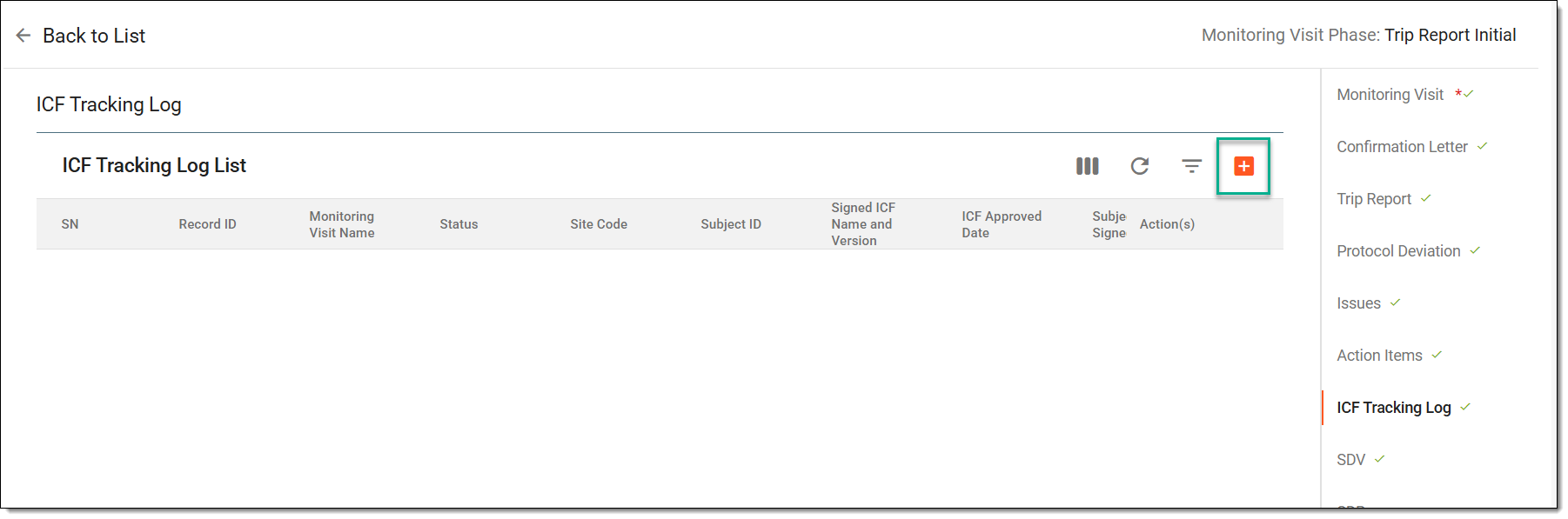 Figure 1. Selecting option to add ICF tracking report
-
In the form that opens, complete the details according to your study requirements. The form fields depend on the ICF tracking log template selected for your study.
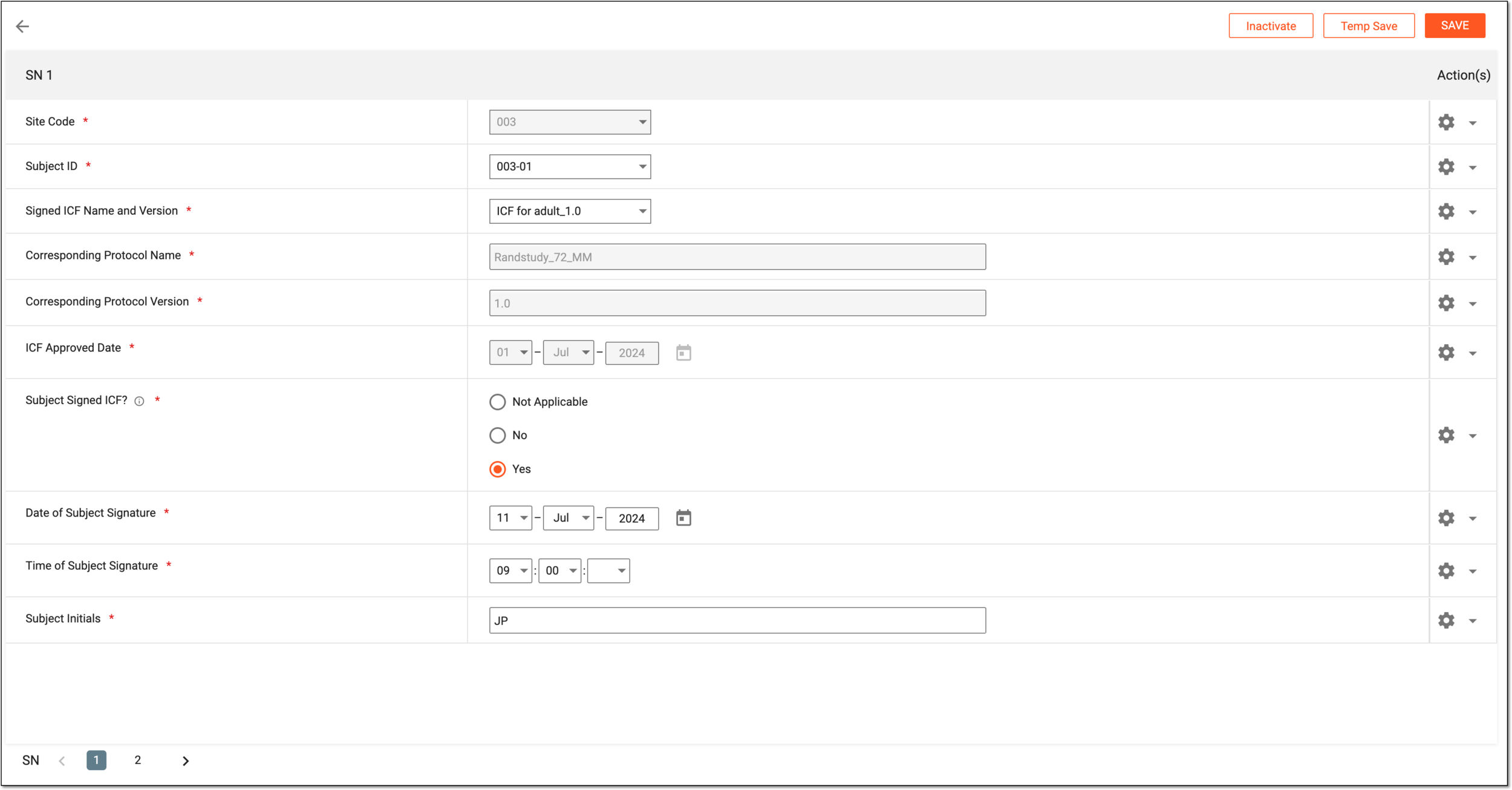 Figure 2. Completing ICF tracking record form
Tip
The ICF tracking record that you add here is based on the template selected for your study from the ICF Tracking Log Setting module.
At this point, you can leave the form, and the record is saved with the Initial status. You can return to complete it later.
-
Once the form is initiated or completed, there are a few actions available to you as explained in the following table.
Action
Details
SAVE
Select
to save and submit the completed form.Temp Save
Select
to save the changes if the form is not entirely completed or requires further details. Thus, the form remains in the Initial status until completed.Inactivate/Activate
Select
or to deactivate or activate the ICF tracking record as explained in the Activate/Inactivate ICF tracking report section. -
After an ICF tracking record is added to the monitoring visit, you can perform various actions to it s explained in the following sections:
Once all the needed actions are performed, you have completed the list of ICF tracking records for the monitoring visit.
View ICF tracking details in monitoring visit
The ICF (Informed Consent Form) section in a monitoring visit provides access to detailed records and their change history. If the record is in the Initial status, this option can be used to open and complete the required details. Reviewing the change log helps track updates over time, ensuring accuracy and compliance in consent documentation.
-
In the right pane of the page that opens, select the ICF Tracking Log stage.
-
Next to the required ICF tracking report, from the Action(s) column, select Go
.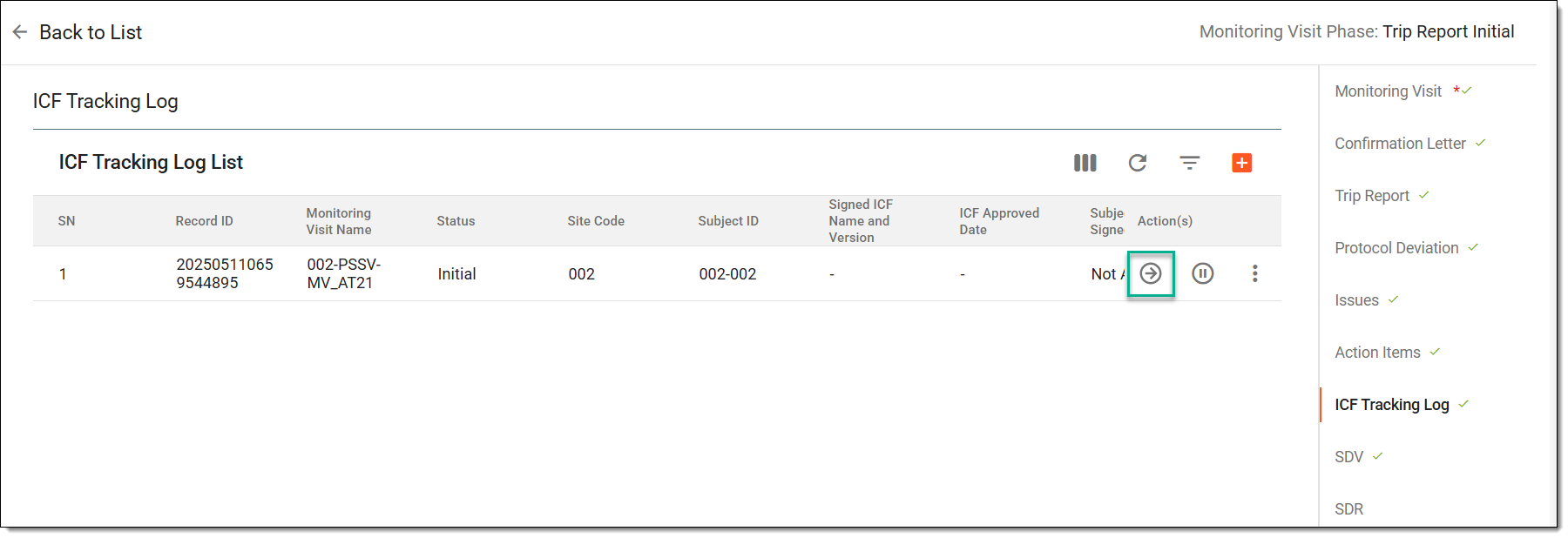 Figure 1. Accessing ICF tracking report details
-
View the added report, and if needed, audit the changes made to each data item in the report by selecting
and choosing Audit
Trail from the Action(s) column and viewing the change log.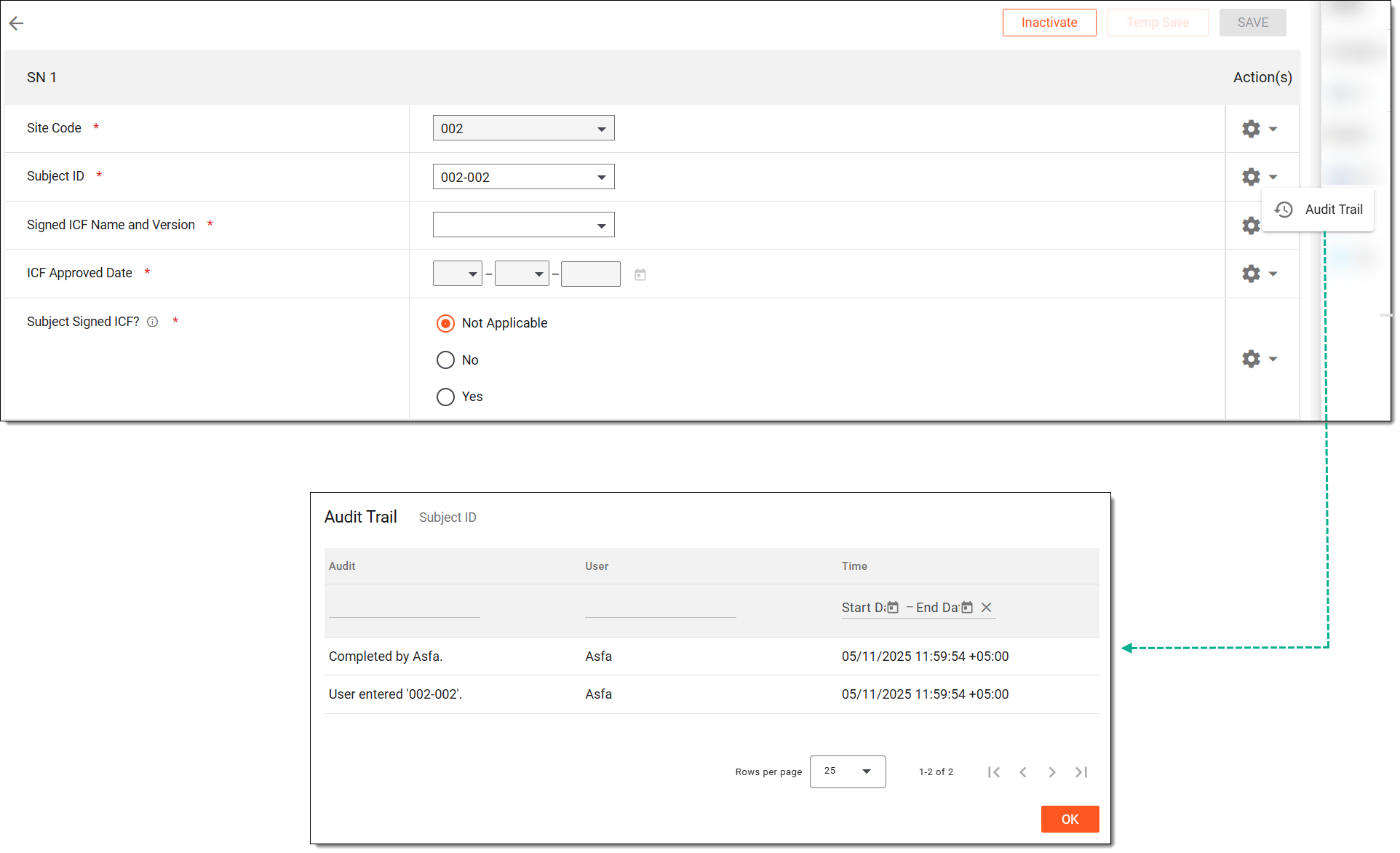 Figure 2. Analyzing change log of ICF tracking report
Once analyzed, you can return to the ICF tracking report and continue with monitoring visit configurations.
Activate/Inactivate ICF tracking report
The ICF tracking report can be activated or inactivated based on its relevance or status during a monitoring visit. This helps manage which consent records are currently applicable for review, ensuring accurate and up-to-date documentation.
-
In the right pane of the page that opens, select the ICF Tracking Log stage.
-
Next to the required ICF tracking report, from the Action(s) column, select Inactivate
or Activate to deactivate or activate the ICF tracking report.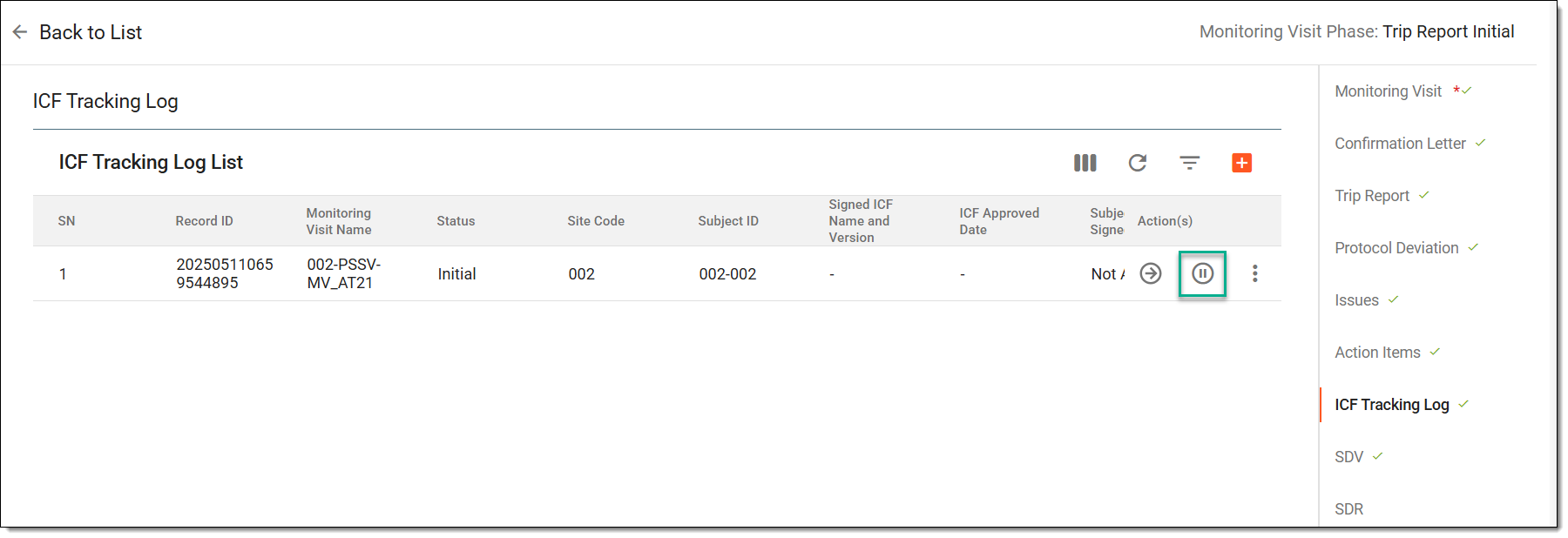 Figure 1. Inactivating ICF tracking report
Tip
Alternatively, from the Action(s) column, select Go
, and
then on the page that opens, from the workspace toolbar, select Inactivate or Activate.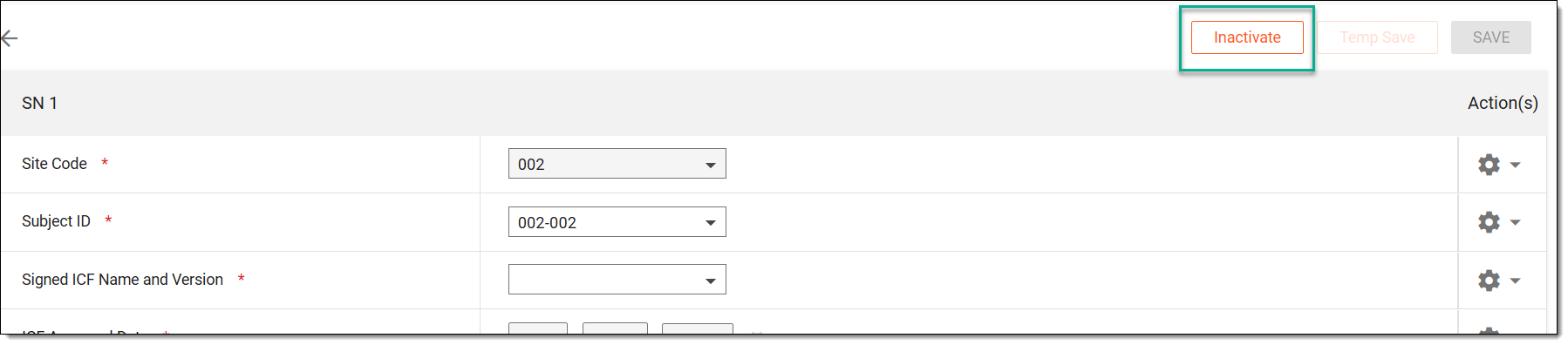 Figure 2. Selecting alternate option to inactivate ICF tracking report
-
In the Reason dialog that opens, enter the reason for deactivation or activation and then select SAVE.
Figure 3. Entering reason to inactivate ICF tracking report
Once saved, the ICF tracking report is activated or inactivated.
Lock/Unlock ICF tracking report
Locking or unlocking an ICF tracking report during a monitoring visit helps manage edit access. Once locked, the report becomes read-only to preserve its contents, while unlocking allows further updates if needed.
-
In the right pane of the page that opens, select the ICF Tracking Log stage.
-
Next to the required ICF tracking report, from the Action(s) column, select More
>
Lock or Unlock to lock or unlock the ICF tracking report, respectively.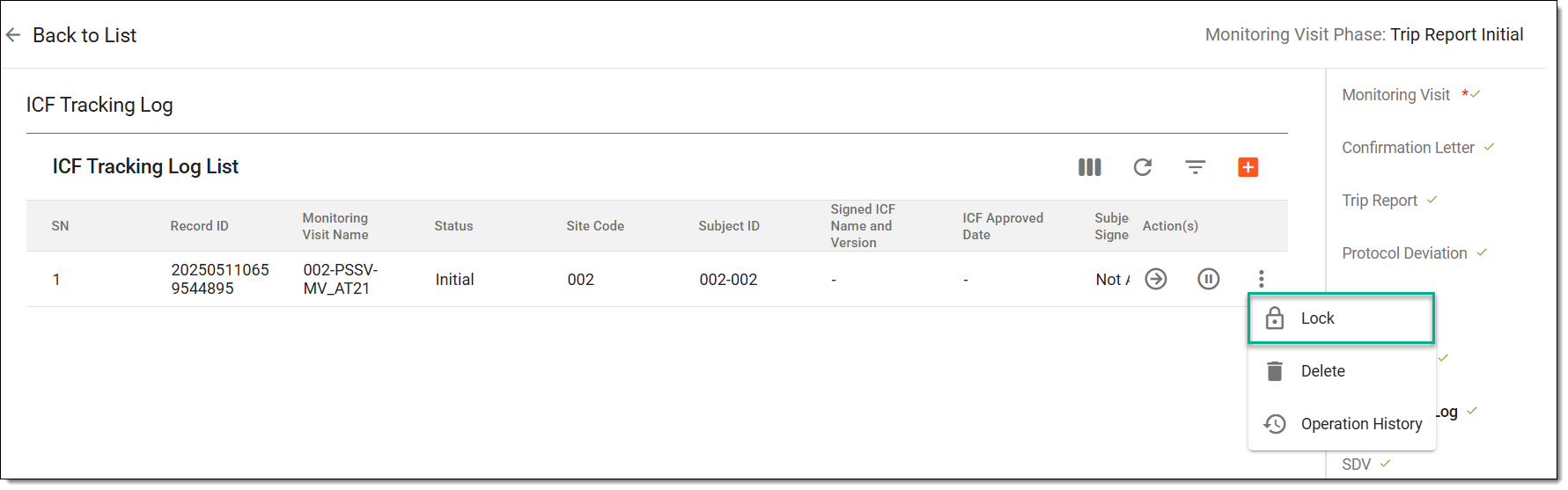 Figure 1. Locking ICF tracking report
Once the report is locked, its details can no longer be edited. Conversely, unlocking the report allows the ICF tracking details to be updated as needed.
Delete ICF tracking report from monitoring visit
An ICF tracking report can be deleted from a monitoring visit if it was added in error or is no longer required. This helps maintain clean and accurate consent documentation within the monitoring visit record.
-
In the right pane of the page that opens, select the ICF Tracking Log stage.
-
Next to the required ICF tracking report, from the Action(s) column, select More
>
Delete to remove the ICF tracking report.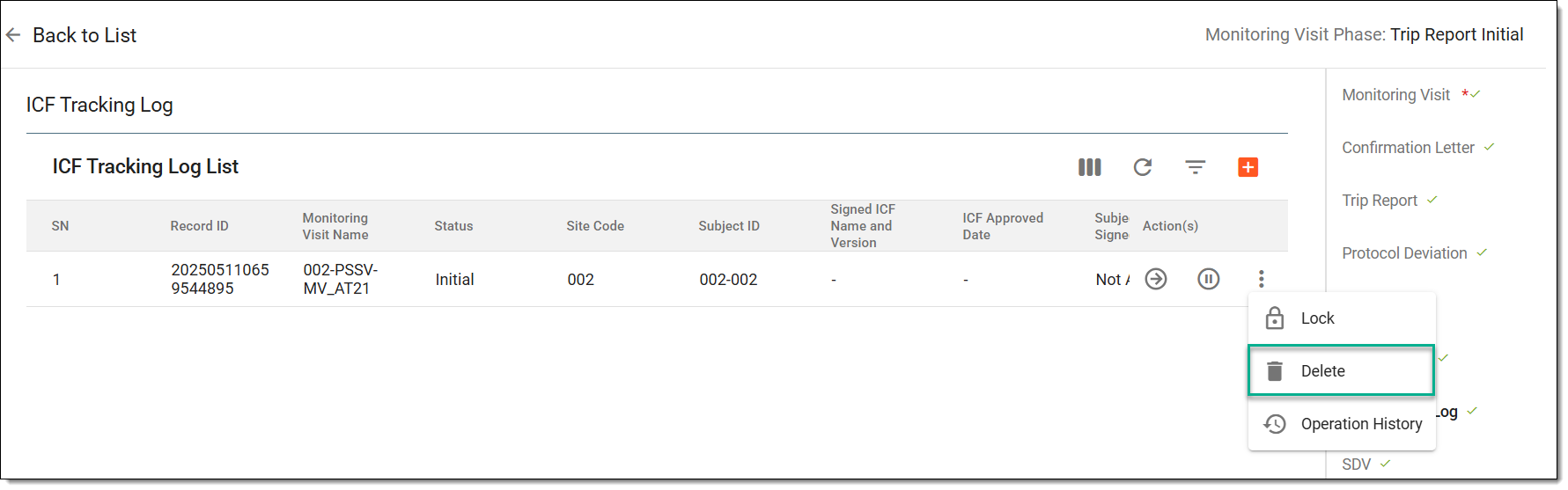 Figure 1. Deleting ICF tracking report from monitoring visit
-
In the Reason dialog that opens, enter the reason for deletion and then select SAVE.
Figure 2. Entering reason to delete ICF tracking report
Once saved, the ICF tracking report is deleted from the monitoring visit.
View operation history of ICF tracking report
The operation history of an ICF tracking report provides a record of all actions performed on the report, such as creation, edits, and status changes. This ensures transparency and supports audit readiness during the monitoring visit.
-
In the right pane of the page that opens, select the ICF Tracking Log stage.
-
Next to the required ICF tracking report, from the Action(s) column, select More
>
Operation History to view the history of changes for a specific ICF tracking report.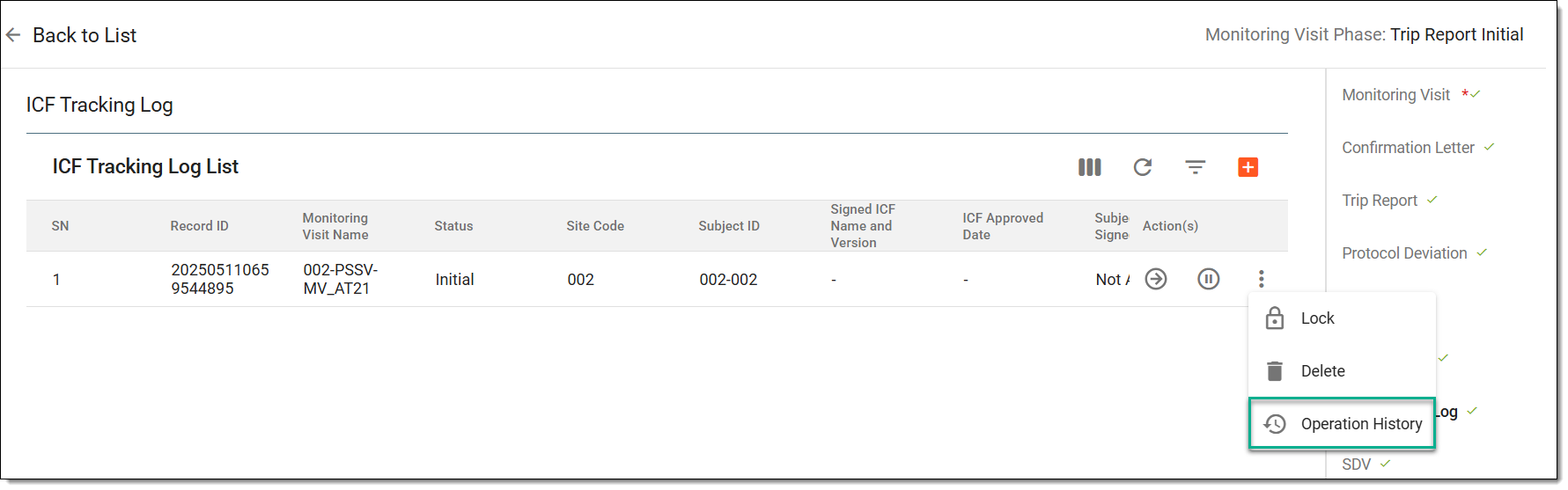 Figure 1. Accessing operation history of ICF tracking report
-
In the dialog that opens, analyze the details of the changes made to the protocol deviation report.
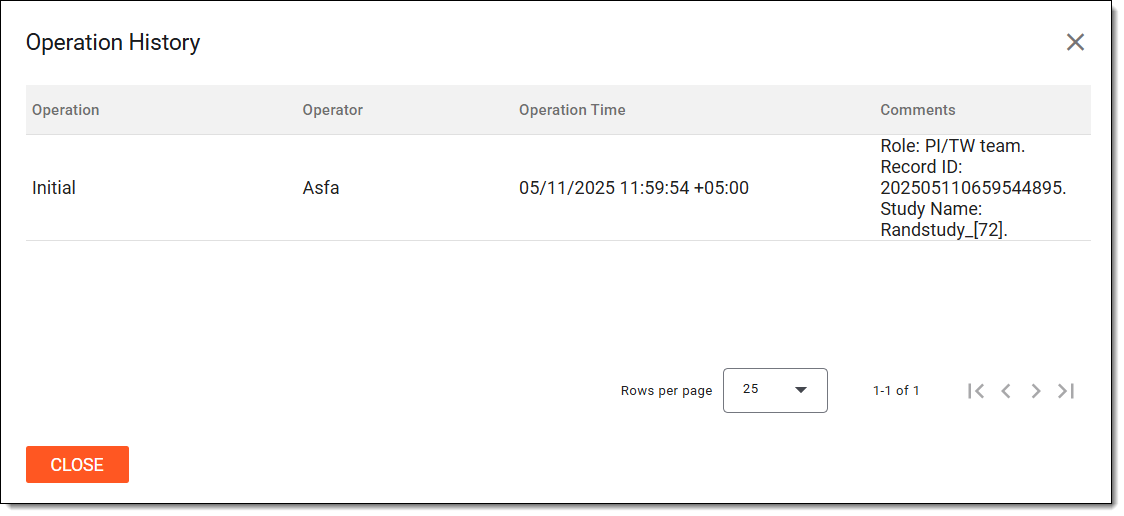 Figure 2. Analyzing operation history of ICF tracking report
Once saved, the ICF tracking report is deleted from the monitoring visit.
Complete SDV
At this stage of the monitoring visit maintenance, you can complete certain CRFs to undergo source data verification (SDV) during the monitoring visit. From this module, you can also go to EDC to perform the SDV of the forms and track the completion progress for each form.
Important
The SDV stage is only available if it is added as a component of the monitoring visit configuration via Monitoring Config.
-
In the right pane of the page that opens, select the SDV stage.
-
On the page that opens, in the Pending SDV Form List tab, from the workspace toolbar, select Start SDV
 .
.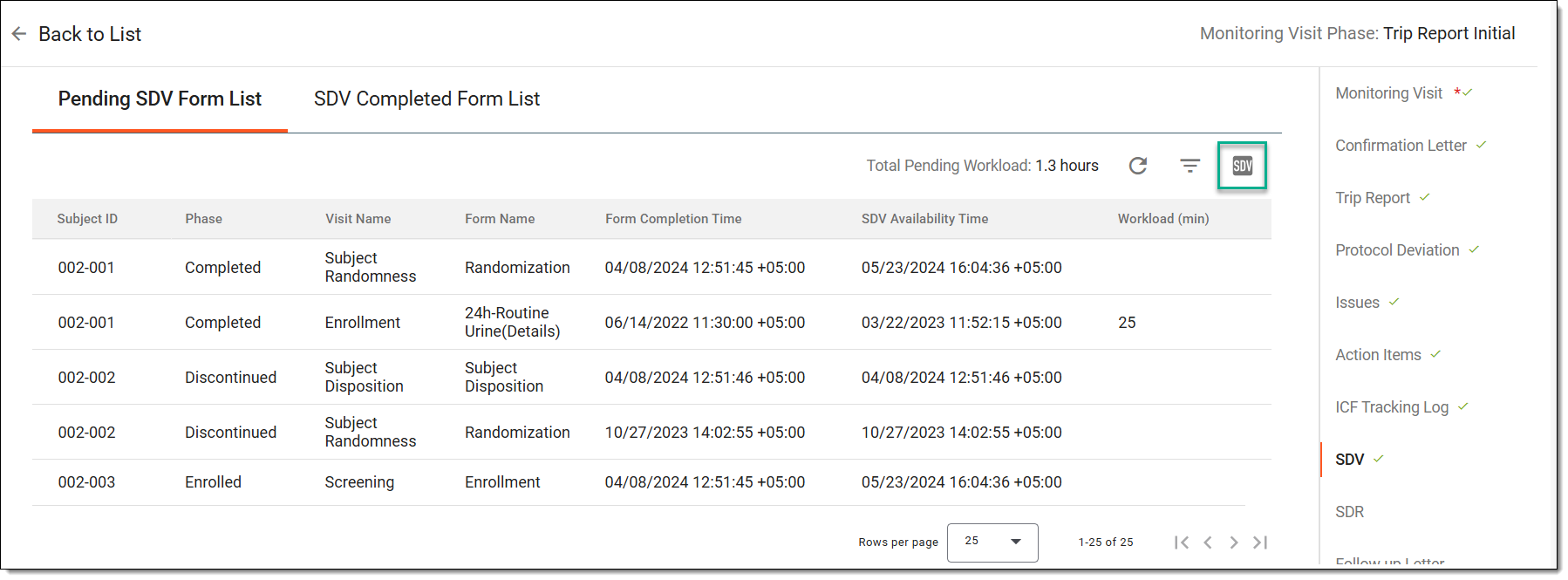 Figure 1. Initiating SDV
-
In the Start SDV dialog that appears, select the role with which you want to go to EDC and complete SDV for scheduled forms.
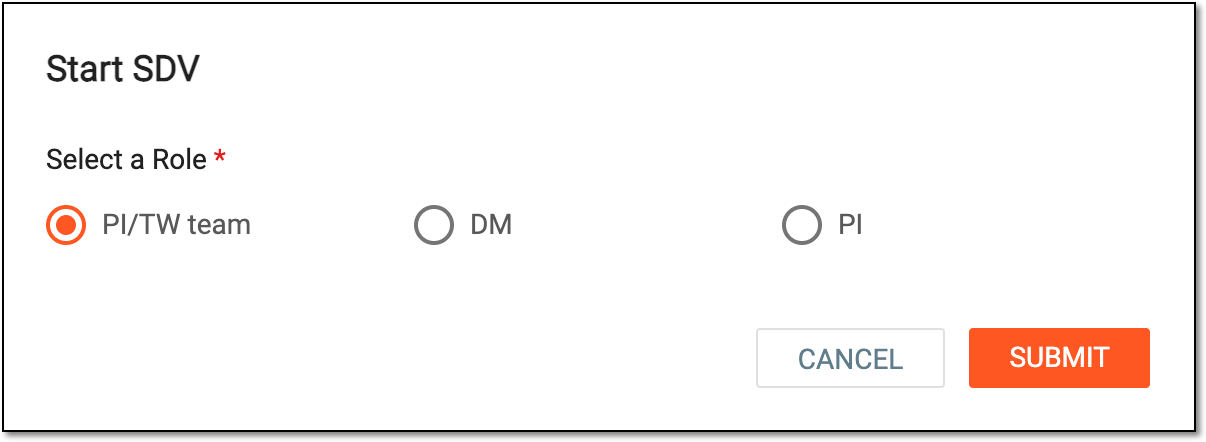 Figure 2. Selecting role to perform SDV
-
On the EDC > DATA ENTRY page that opens in a new tab, perform SDV for the form and use the task panel to go to all the forms requiring SDV.
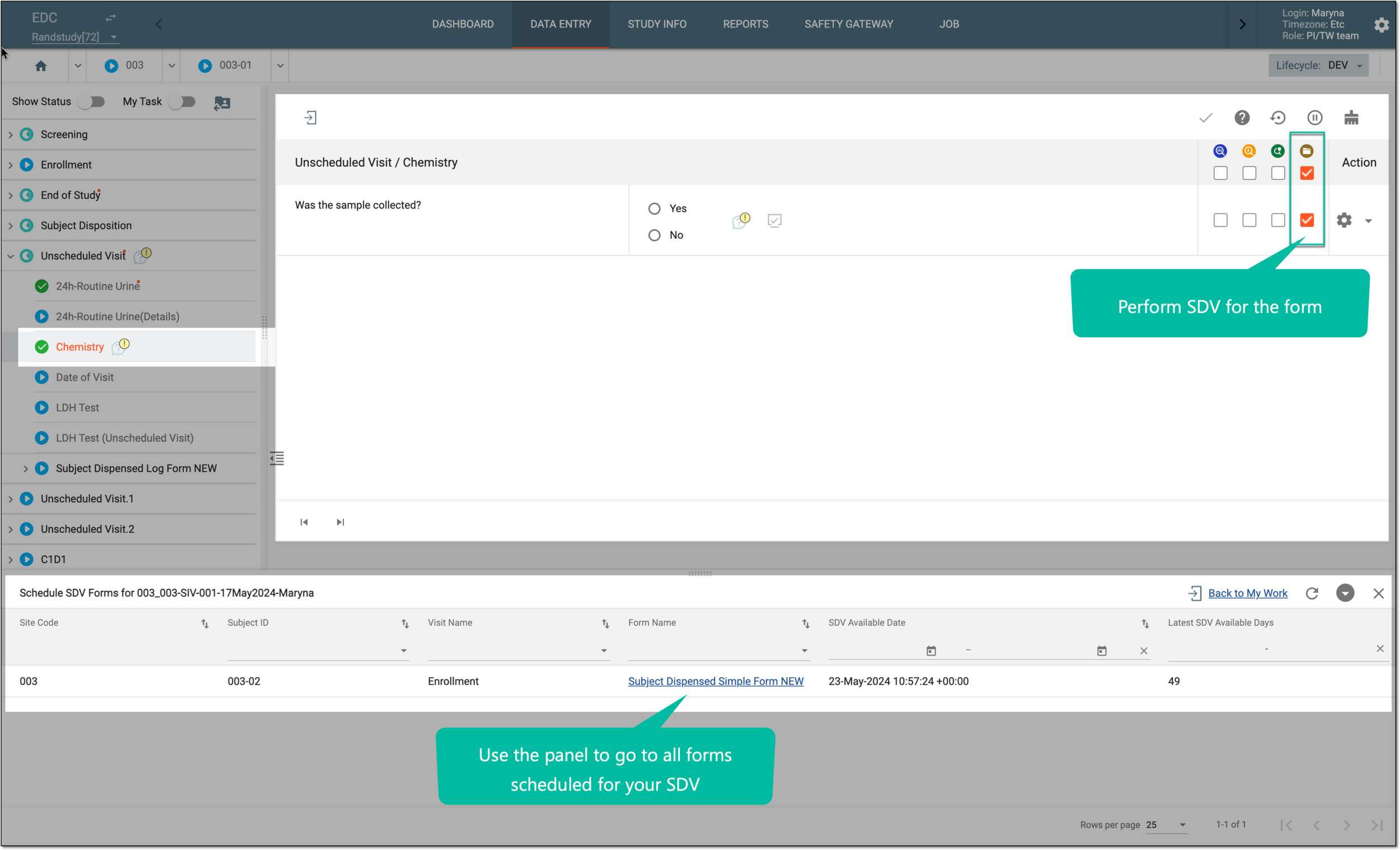 Figure 3. Completing SDV in EDC
-
Go back to the CTMS application and in the confirmation dialog that appears, select Yes or No to state whether you have performed SDV for all your pending forms or not. Then select
 .
.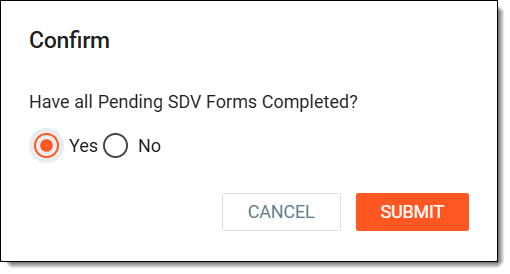 Figure 4. Confirming SDV completion
Once submitted, you have scheduled and completed the SDV for CRFs during the monitoring visit. You can track how many of the forms undergo SDV by viewing them now under the SDV Completed Form List tab.
Complete SDR
At this stage of monitoring visit maintenance, you can review specific subject visit data for source data review (SDR). This module also provides access to the EDC system to perform SDR activities and track the completion status for each visit.
Important
The SDR stage is only available if it is added as a component of the monitoring visit configuration via Monitoring Config.
-
In the right pane of the page that opens, select the SDR stage.
-
On the page that opens, in the Pending SDR Visit List tab, from the workspace toolbar, select Start SDR
 .
.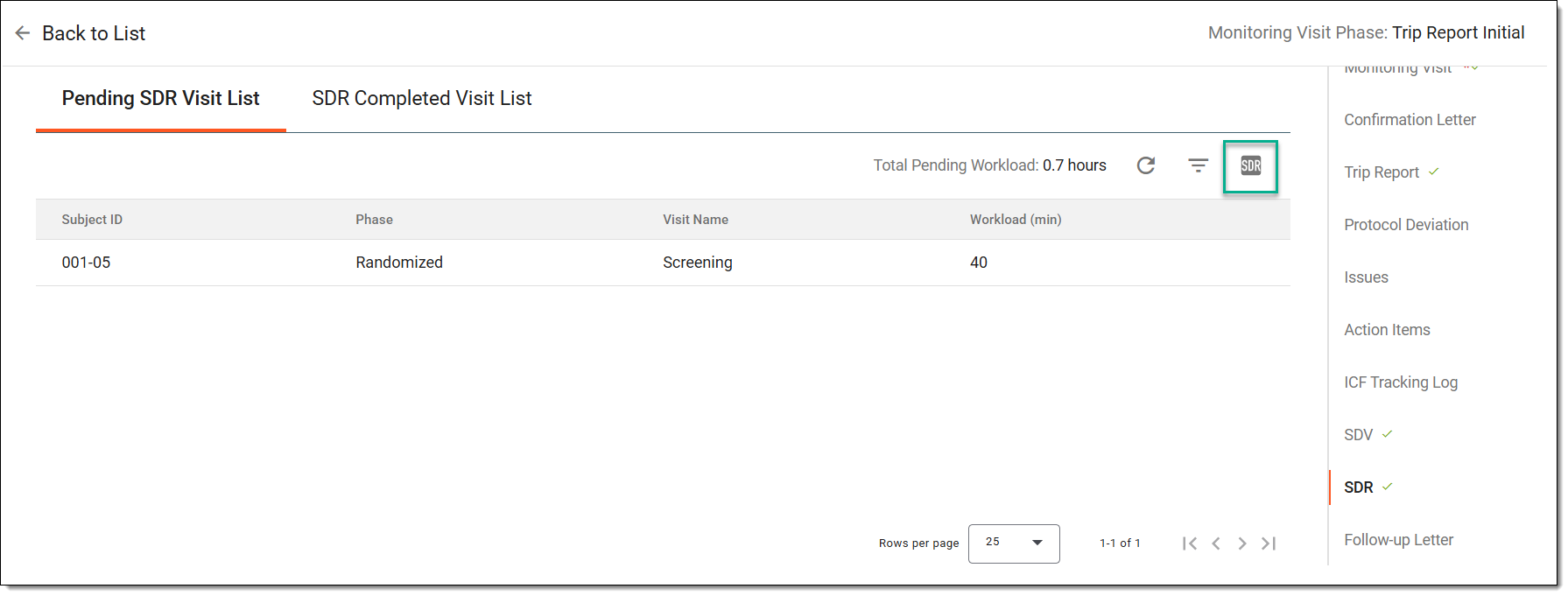 Figure 1. Initiating SDR
-
In the Start SDR dialog that appears, select the role with which you want to go to EDC and complete SDR for scheduled visits.
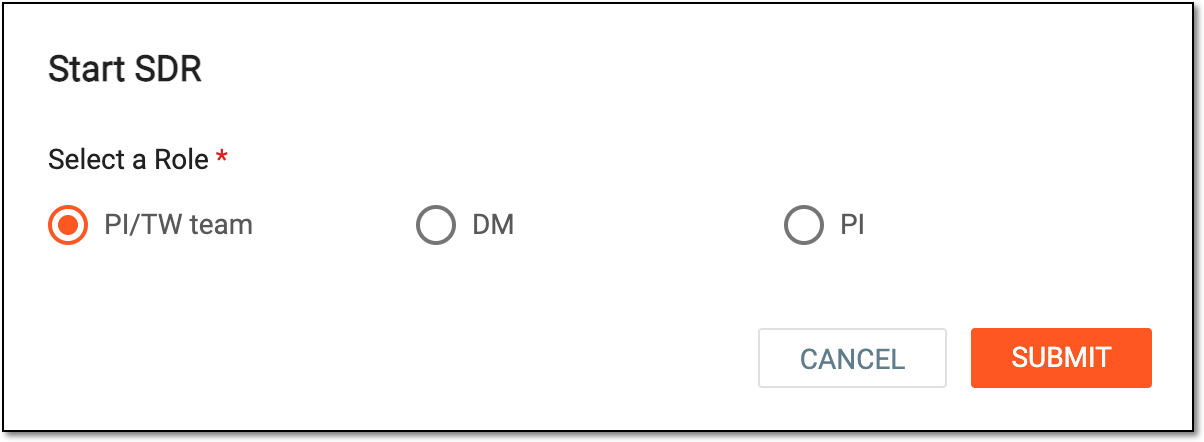 Figure 2. Selecting role to perform SDR
-
On the EDC > SDR Result page that opens in a new tab, perform SDR for the selected visits.
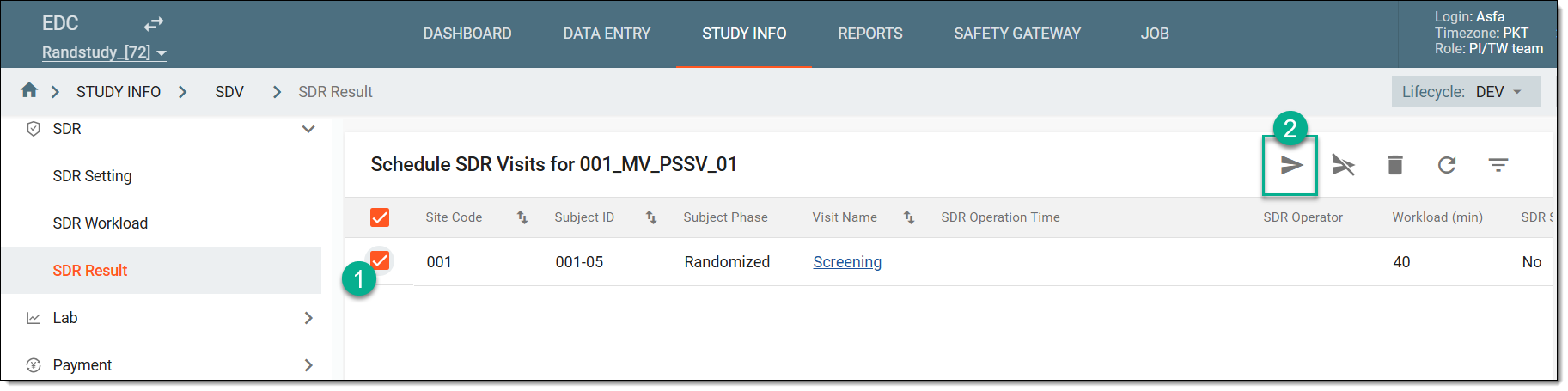 Figure 3. Completing SDR in EDC
-
Go back to the CTMS application and in the confirmation dialog that appears, select Yes or No to state whether you have performed SDR for all your scheduled visits or not. Then select
.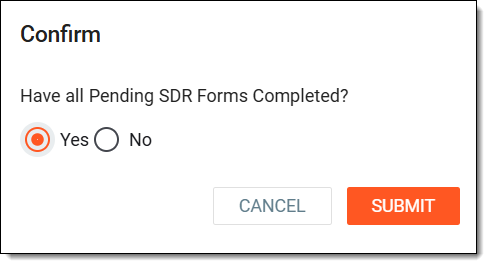 Figure 4. Confirming SDR completion
Once submitted, you have completed the SDR for subject visit data during the monitoring visit. You can track how many of the forms undergo SDR by viewing them now under the SDR Completed Visit List tab.
Configure and send follow-up letter
At this step of the monitoring visit creation, prepare the follow-up letter that is to be sent to the site staff after the monitoring visit has taken place. The letter is a notification to inform the site personnel about the monitoring visit findings that have been discovered during this visit.
Important
The Follow-up Letter stage is only available if it is added as a component of the monitoring visit configuration via Monitoring Config.
The Follow-up Letter stage may become available only after the trip report is completed if it is configured so in the corresponding component settings of the monitoring configuration that is used as a baseline for the monitoring visit creation.
-
In the right pane of the page that opens, select the Follow-up Letter stage.
-
In the Follow-up Letter form that appears, configure email settings as explained in the following table.
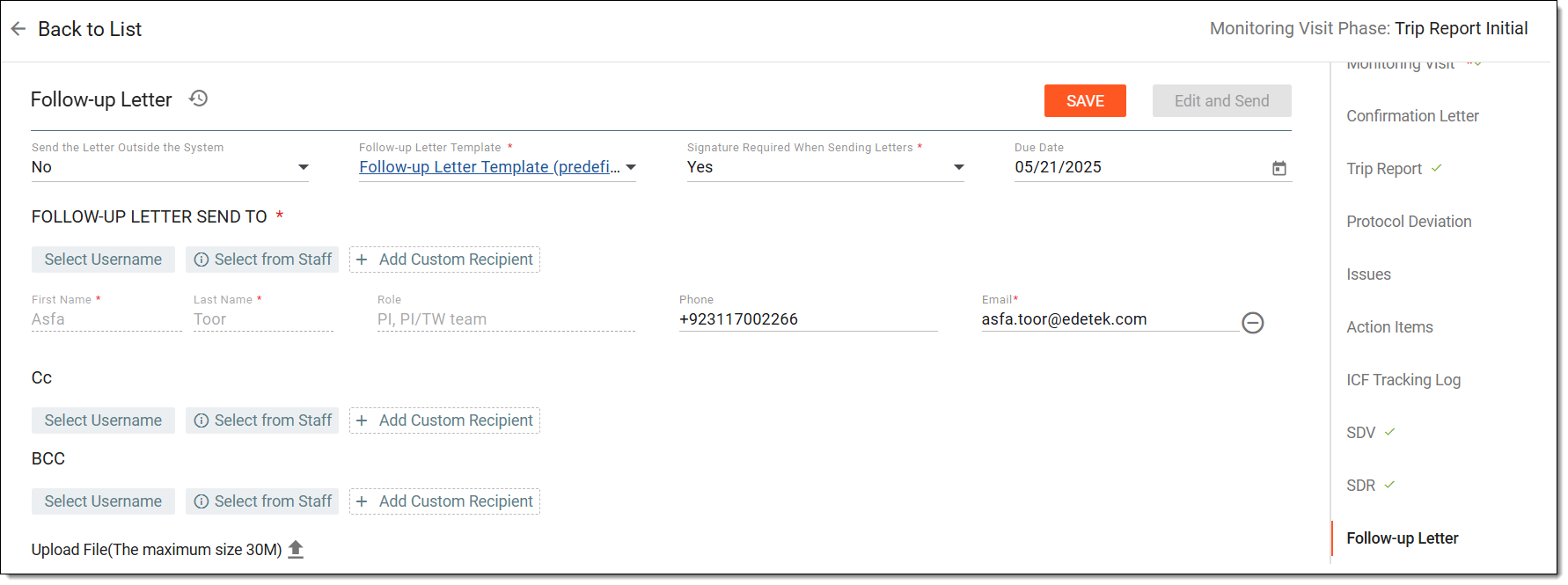 Figure 1. Configuring follow-up letter email
Tip
In the following table, mandatory elements are marked with an asterisk (*).
Element
Details
Operation History
Select
next to the form name to view the list of already sent emails which you can use as an example if you have sent a follow-up letter for the current
visit before.In the Operation History dialog that opens, select
 to export the email in the ZIP (for multiple files) or PDF (for a
single file) format to your computer; select to preview this email in a browser.
to export the email in the ZIP (for multiple files) or PDF (for a
single file) format to your computer; select to preview this email in a browser.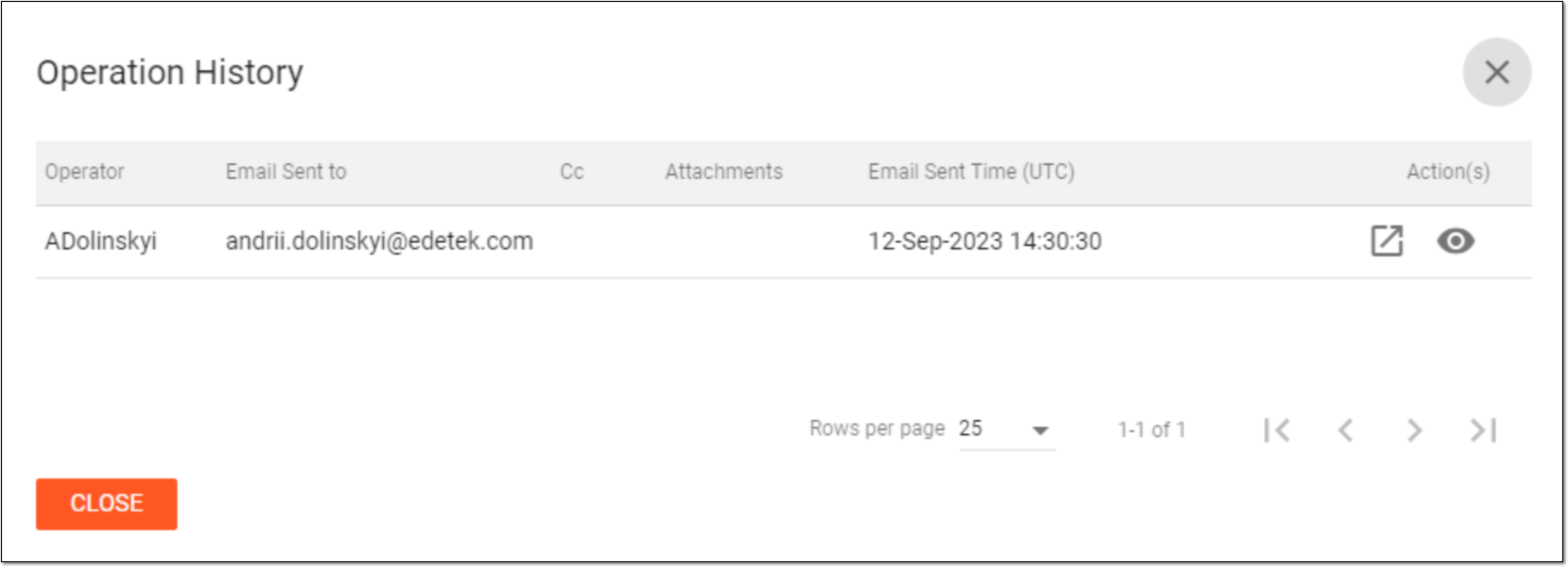 Figure 2. Viewing follow-up letter history
Send the Letter Outside the System
Select one of the following options:
-
No: to send the follow-up letter within the system, thus enabling the selection of recipients either custom or CTMS users.
-
Yes: select this option if the follow-up letter has been sent outside the system. In this case, you can upload the letters sent as a monitoring visit attachment.
Signature Required When Sending Letters*
Select one of the following options:
-
Yes: select this option to include the electronic signature details in the follow-up letter body.
-
No: select this option to exclude the electronic signature details from the follow-up letter body.
The value selected by default is preconfigured in the respective monitoring configuration setting. However, you can manually change the setting here.Date Letter Sent*
Select the date when the follow-up letter has been sent outside the CTMS system.
This field only becomes available if Send the Letter Outside the System is set to Yes.Follow-up Letter Template*
Select a template according to which the email content is to be generated for the follow-up letter.
Due Date
Select the due date for sending a follow-up letter for the completed monitoring visit.
Reason for Changing the Due Date*
Enter the reason for updating the due date for sending a follow-up letter. This field appears only after you change the original due date.
Select Username
Select
to pick the recipients of the follow-up letter among users with access rights to CTMS.Select From Staff
Select
to pick the recipients of the follow-up letter among users defined as human resources.Add Custom Recipient
Select
to add a custom recipient of the follow-up letter who is not a CTMS user.First name*
Enter the first name of the follow-up letter recipient.
This field is read-only if a username or staff has been selected as a recipient and can only be manually entered for a custom recipient.Last name*
Enter the last name of the follow-up letter recipient.
This field is read-only if a username or staff has been selected as a recipient and can only be manually entered for a custom recipient.Role
Enter the study role of the follow-up letter recipient if it has been added as custom.
This field is inactive if a username or staff has been selected as a recipient.Phone
Enter the phone number of the follow-up letter recipient.
Email*
Enter the email address of the follow-up letter recipient.
Remove
Select
next to any recipient to remove it from the list of follow-up letter recipients.Cc
Select recipients of the follow-up letter copy. The process of defining copy recipients is the same as selecting email recipients.
BCC
Select recipients of the follow-up letter copy. The process of defining copy recipients is the same as selecting email recipients.
Upload Email Attachment(s)
Select
to upload attachments to the confirmation letter.This option is available only if the follow-up letter is sent within the system.Upload Sent Letter(s)
Select
to upload follow-up letters sent outside CTMS.This option is available only if the follow-up letter is sent outside the system.SAVE
Select
to apply the follow-up letter configuration.Edit and Send
Select
to go to the email content page where you can update the follow-up letter and then send it.This button becomes available only after you save the follow-up letter configuration. -
-
On the page that opens, do one of the following actions before sending the follow-up letter:
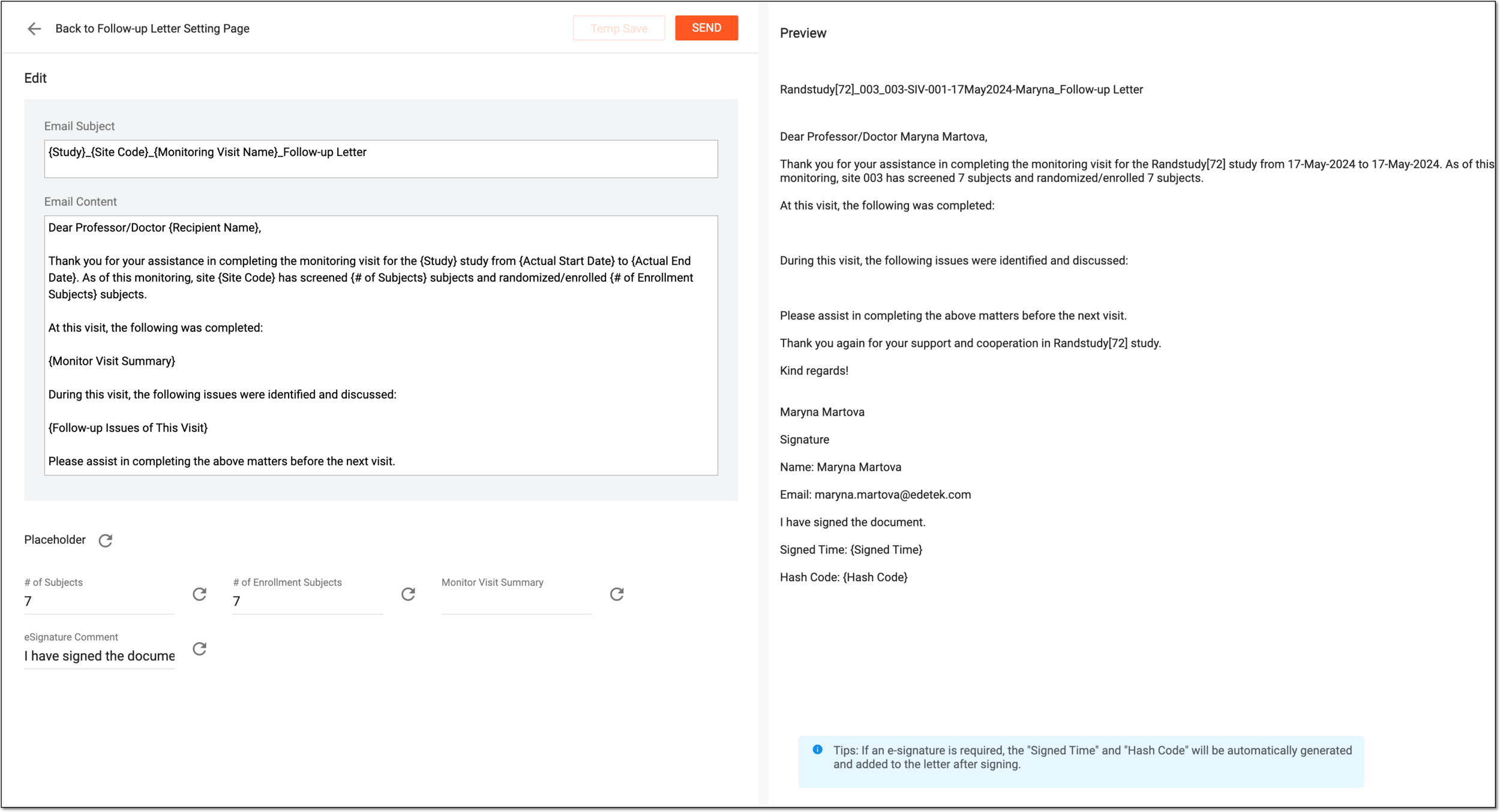 Figure 3. Updating letter content
-
In the Email Subject and Email Content text blocks of the Edit panel, update the email subject and content, respectively. The email content is generated based on the template selected previously.
Tip
The final view of the email content depends on the configurations made for your study by the EDETEK administrator. For instance, you can request the protocol deviations to be represented as a table or list, and such.
-
In the Placeholder block, update content placeholders to replace them with custom ones if needed. You can always select Refresh
next to any placeholder to reset it to the original value. -
In the Preview panel, view the follow-up letter that includes all your latest subject and content changes as well as placeholder updates.
-
From the workspace toolbar, select
to save the latest updates introduced to the follow-up letter.
-
-
Select
to send the prepared follow-up letter to the selected recipients.
Once selected, the follow-up letter for the monitoring visit is sent.