Monitor template creation
The monitor templates capture the information required to ensure the validity of the clinical trials conducted, such as source data verification, protocol deviations discovered at the site, safety protocols, site qualification, and others. Once you create a monitor template, you can add multiple types of forms to it to capture the required information in your desired format. These forms can include information about the investigator and staff qualifications, facilities and equipment at the site, Institutional Review Board (IRB) regulatory requirements, and so on.
You can create a new monitor template from scratch or by cloning the existing one as explained in the following sections.
In CTMS, you can create a custom monitor template and prepare it by adding different types of forms of your choice and adding data (questions) in the forms. This may be useful if the site has unique requirements and there is no monitor template listed in the Monitor Template List table that matches your investigational requirements.
-
In the CTMS application header, select the LIBRARY tab.
-
On the page that opens, from the left pane, select the Monitor Template subtab.
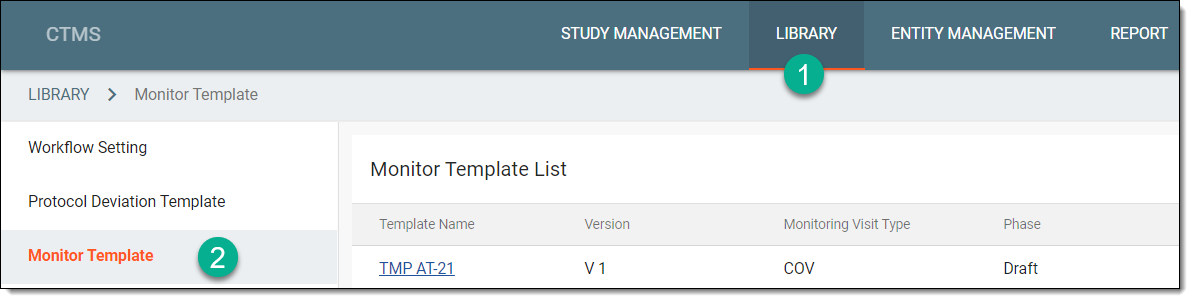 Figure 1. Accessing monitor template subtab
-
From the workspace toolbar of the Monitor Template List table, select New Item
 .
.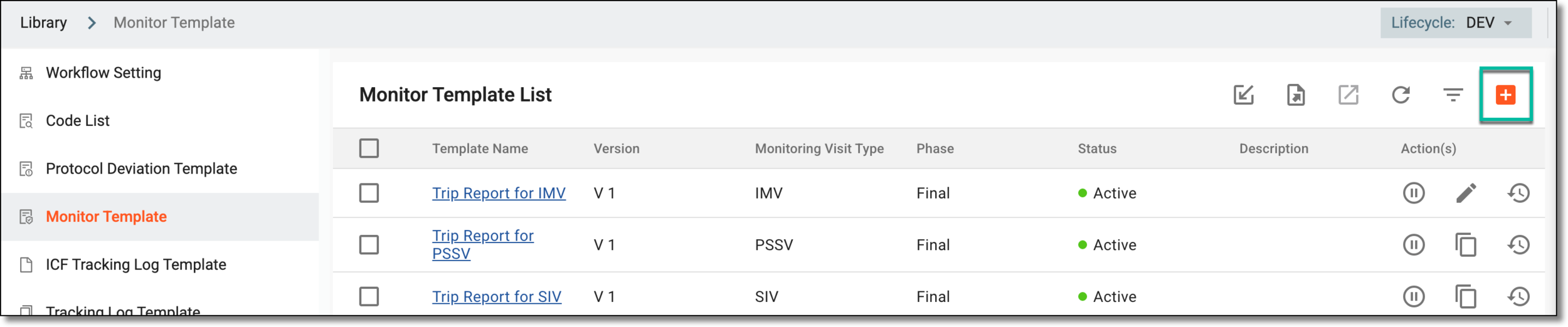 Figure 2. Selecting to create new monitor template
-
In the New dialog that appears, add the details as explained in the following table.
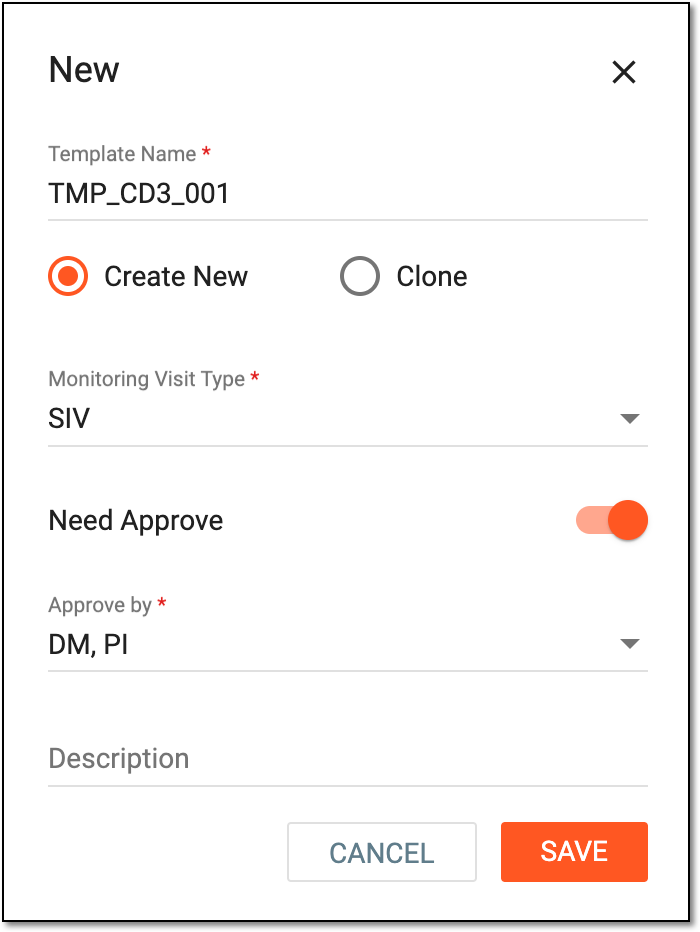 Figure 3. Creating new monitor template
Tip
In the following table, mandatory elements are marked with an asterisk (*).
Element
Details
Template Name*
Represents the name of the monitor template.
Create New
Select this option button to create a monitor template from scratch.
Clone
Select this option if you wish to clone an existing monitor template instead of creating a monitor template from scratch, then select this option.
Need Approve
Turn the toggle on if you want designated personnel to review and approve your monitor template before you can start using it for a Monitoring Visit in the STUDY MANAGEMENT tab of CTMS.
Approve By*
If the Need Approve toggle is turned on, select the user role responsible for approving your configured template.
Description
Represents a brief description of the purpose of creating a monitor template.
SAVE
Select
 to save your changes.
CANCEL
Select
 to discard your changes and return to the Monitor Template page.
Upon saving, the new monitor template is saved. The template appears in the Monitor Template List table with the Draft phase and an Inactive status.
You can now proceed with adding questions (data) in the template.
In CTMS, you can create a new monitoring template by cloning and altering the existing one. By cloning the template, you copy all the questions (data) from it and thus, do not need to add it from scratch but rather modify it as required. This may be useful if you want a monitor template for a visit required for a similar (or the same) study but with slightly changed specifications. So using the feature, you can simply clone the existing monitor template created for the study and modify the template slightly for the monitoring visit as per your requirement.
-
In the CTMS application header, select the LIBRARY tab.
-
On the page that opens, from the left pane, select the Monitor Template subtab.
Figure 1. Accessing monitor template subtab
-
From the workspace toolbar of the Monitor Template List table, select New Item
.Figure 2. Selecting to create new monitor template
-
In the New dialog that appears, add the details as explained in the following table.
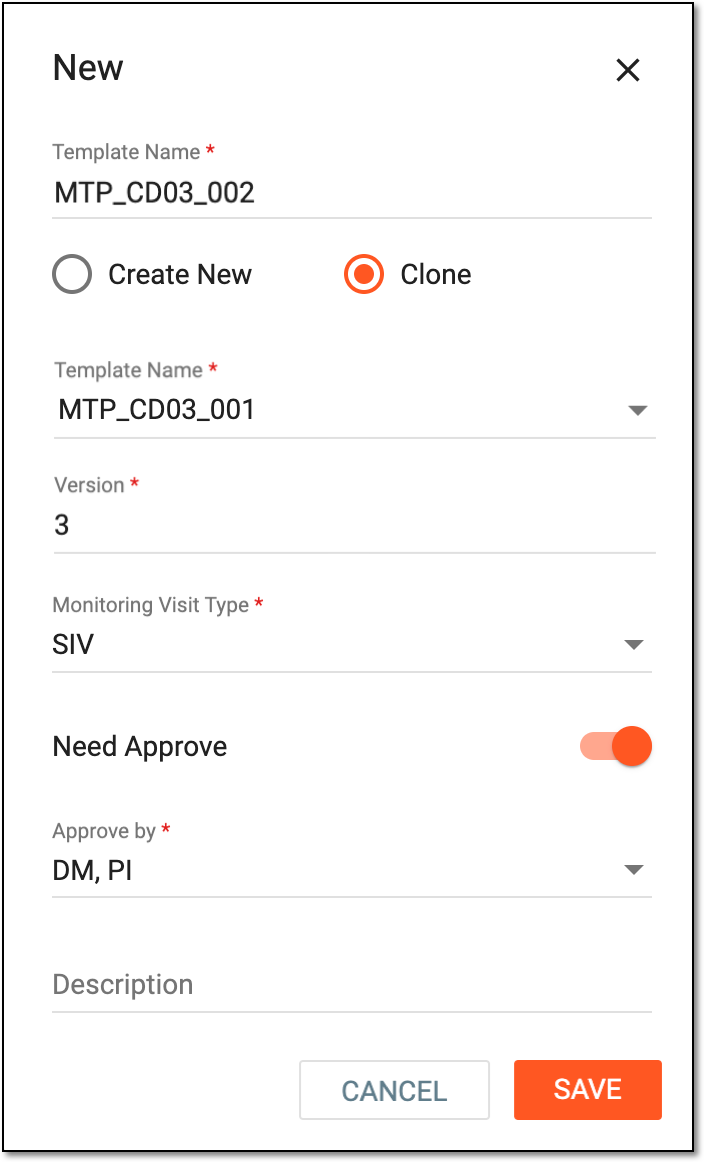 Figure 3. Creating clone of existing monitor template
Tip
In the following table, mandatory elements are marked with an asterisk (*).
Element
Details
Template Name*
Represents the name of the monitor template.
Create New
Select this option if you wish to create a new monitor template from scratch instead of cloning an existing one.
Clone
Select this option button to create a monitor template from cloning an existing template.
Template Name*
From the dropdown list, select an existing monitor template that you want to clone to the new one.
Version*
Represents the latest version of the template you have selected for cloning.
Need Approve
Turn the toggle on if you want designated personnel to review and approve your monitor template before you can start using it for a Monitoring Visit in the STUDY MANAGEMENT tab of CTMS.
Approve By*
If you have turned the Need Approve toggle on, then in this dropdown, select the person(s) to whom you want to assign the monitor template for review and approval.
Description
Represents a brief description of the purpose of creating a monitor template.
SAVE
Select
to save your changes.CANCEL
Select
to discard your changes and return to the Monitor Template List page.
Upon saving, the new monitor template is saved, and it appears in the templates listed in the Monitor Template table. You can now proceed with modifying questions (data) in the template.