Add grid form to monitor template
The grid forms can have multiple rows and columns. You can add two-dimensional questions using the functionality of grid forms, such as you may inquire about how many subjects have been enrolled, screened, or failed screening in the previous visit.
-
In the CTMS application header, select the LIBRARY tab.
-
From the left pane of the page that opens, select Monitor Template.
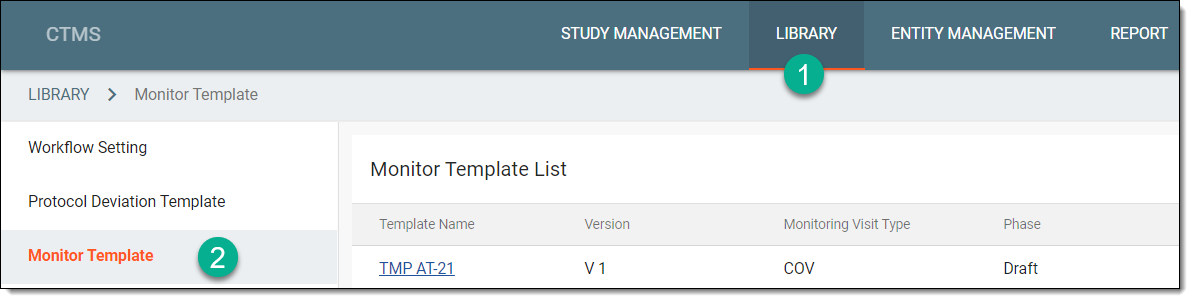 Figure 1. Accessing monitor template subtab
-
From the Monitor Template List table, select the template to which you want to add a grid form.
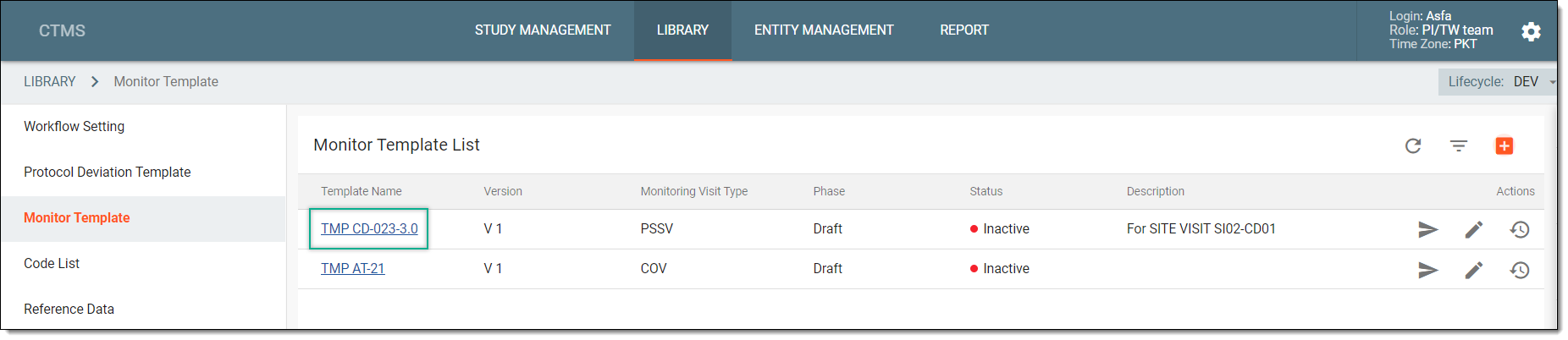 Figure 2. Selecting monitor template
-
In the explored tree of the page that opens, right-click the template name and select New Form
 .
.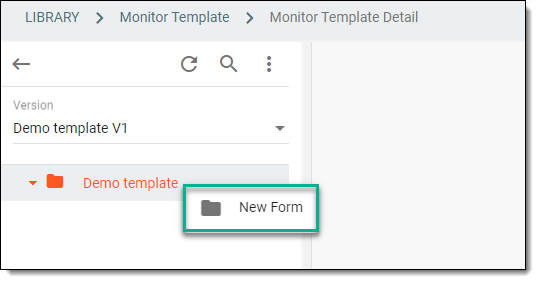 Figure 3. Selecting option to add new form
Important
In the Version field, you can select another version of the monitor template to view its questions. However, you cannot add or modify fields in previous template versions if the particular version of the template is already used in monitoring plans.
-
In the New panel that expands, specify the grid form configuration as explained in the following table.
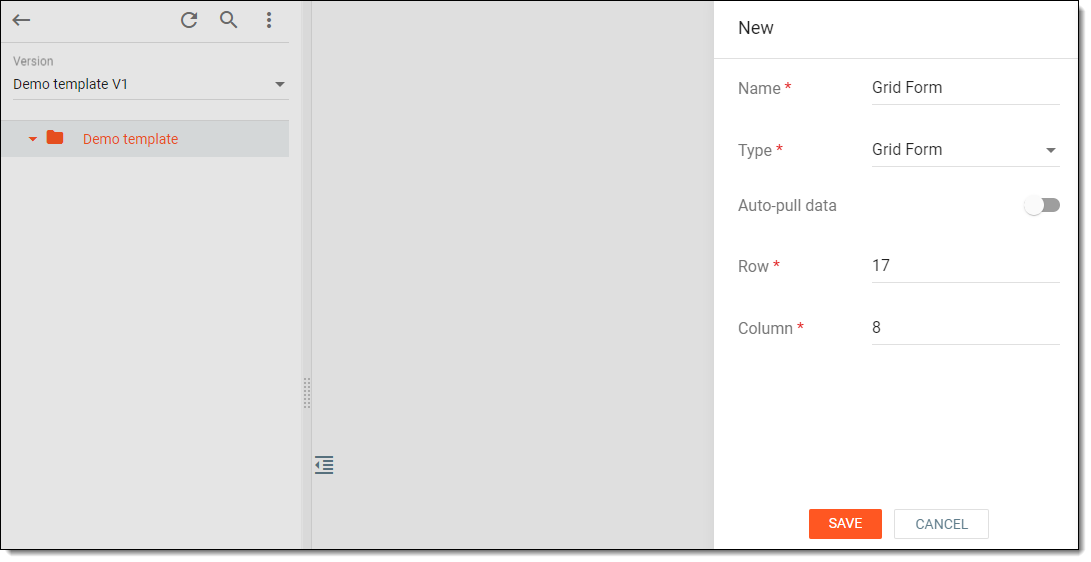 Figure 4. Adding grid form
Tip
In the following table, mandatory elements are marked with an asterisk (*).
Element
Details
Name*
Enter a unique name of the form.
Type*
Select the Grid Form option.
Auto-pull data
Turn the toggle on if you want to fetch data for the subject enrollment form from EDC.
When you turn this toggle on, then the rows and columns are defined by the system based on the data pulled from EDC. In STUDY MANAGEMENT > Monitoring > Monitoring Visit, when this form is used, the reviewer can add data in the EDC-defined cells.
Data Source*
Select the required data to add to the form. This field is available only if you have turned the Auto-pull data toggle on.
Row*
Enter the number of rows that you want to add to the grid.
Column*
Enter the number of columns that you want to add to the grid.
SAVE
Select
 to add the grid form to the monitor template.
CANCEL
Select
 to discard your changes.
Upon saving, the grid form is created. It appears in the explorer tree with the icon  indicating that the particular form is Grid
Form. You can now proceed with adding data to the grid form.
indicating that the particular form is Grid
Form. You can now proceed with adding data to the grid form.
Add data to grid form
After you have created a grid form and added rows and columns, you can start adding data to it. To add data, you can use various editing tools provided, such as using data types: option buttons, text fields, checkboxes, lists, dates, and others.
-
In the CTMS application header, select the LIBRARY tab.
-
On the page that opens, from the left pane, select the Monitor Template subtab.
Figure 1. Accessing monitor template subtab
-
From the Monitor Template List table, select the template name in which your grid form exists.
Figure 2. Selecting monitor template
-
From the explorer tree of the page that opens, select the grid form to which you want to add data.
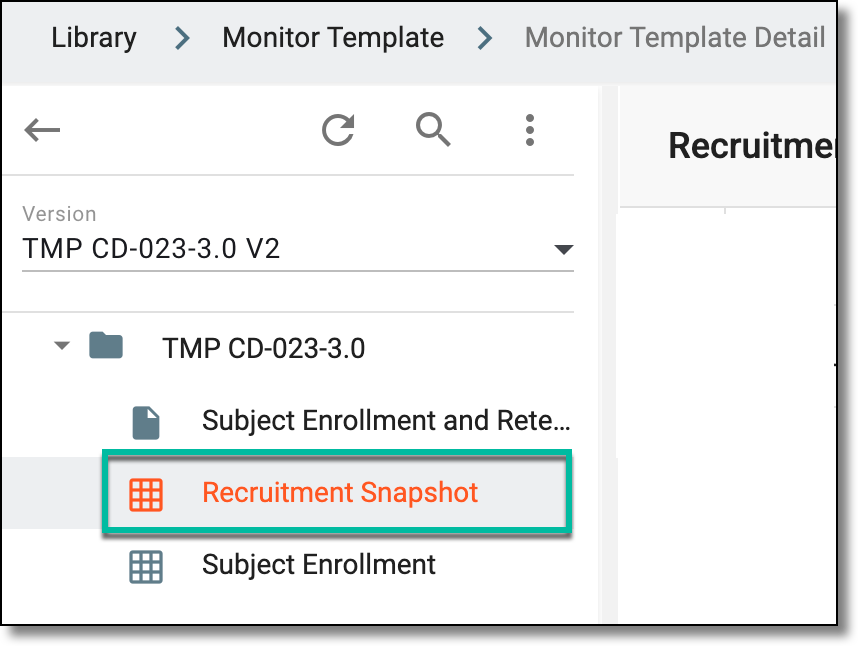 Figure 3. Accessing grid form
-
In the form content panel that appears, add a label to the columns and rows as required, that is, specify the question you want to ask the reviewer in columns and rows.
-
For each cell of the grid form, select the data type where the reviewer is supposed to provide an answer to the inquired question.
Once the rows and columns are labeled and data in the grid cells are added, your grid form is completed. You may proceed to submit the monitor template if you do not wish to add any other forms to the template.
Label columns and rows of grid form
When you create a grid form, by default, its rows and columns are empty. To start adding data to the form, first label the rows and columns. The labels of the columns and rows specify the question that you require the reviewer to answer. As shown in the following figure, for the form Subject Enrollment, the labels of the grid form can be as suggested.
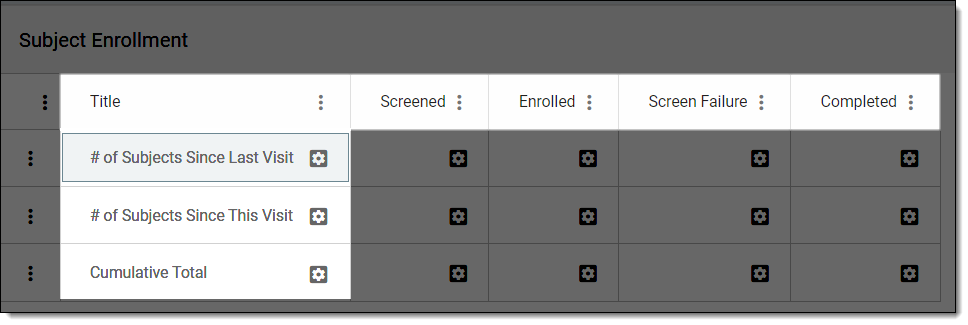
-
In the CTMS application header, select the LIBRARY tab.
-
From the left pane of the page that opens, select Monitor Template.
Figure 2. Accessing monitor template subtab
-
From the Monitor Template List table, select the needed monitor template.
Figure 3. Selecting monitor template
-
In the explorer tree of the page that opens, select the grid form to which you want to add data.
-
In the form content panel that appears, label the columns by selecting More
 > Edit
 .
.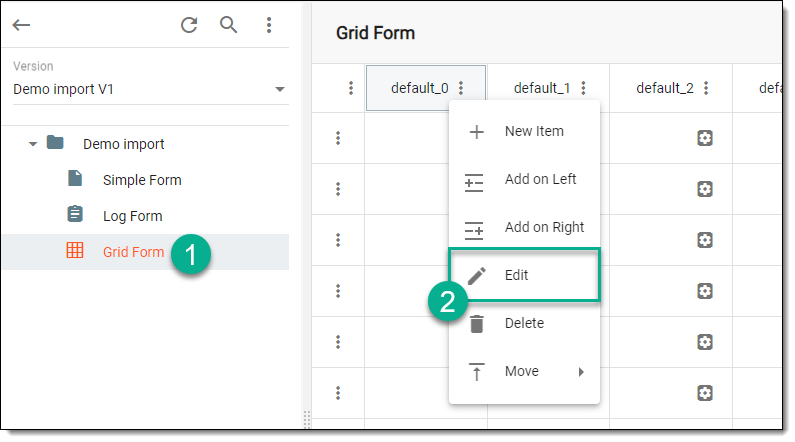 Figure 4. Selecting option to edit column
-
In the Edit Question panel that expands, update a column name and enter additional information or instructions in the Help Text field if needed. Then select
.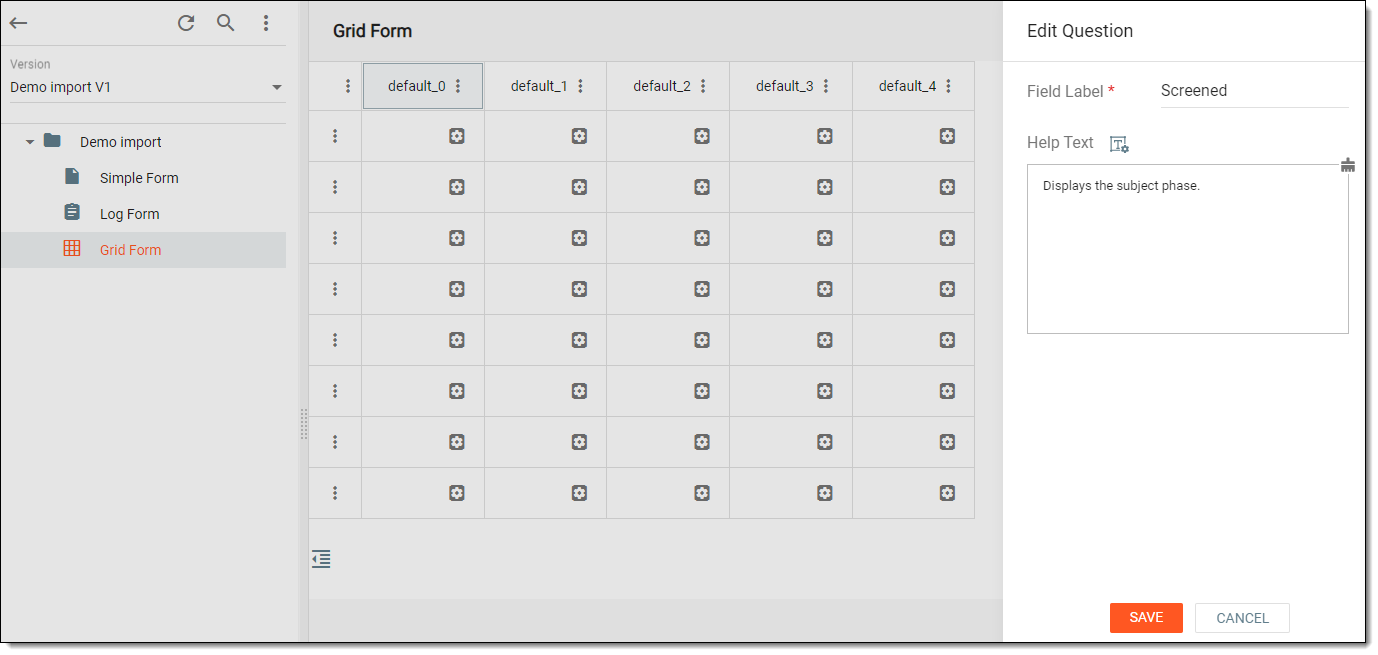 Figure 5. Labeling column
Tip
In the Help Text field, you can also select Rich Text
 to open the text editor where you can format the text with a variety of styling options. The rich text editor provides a wide range of formatting capabilities such as adding bulleted or numbered lists, making a text bold or italicized, and more.
 -
Repeat steps 5-6 to update the names of all columns.
-
After editing the columns, label the rows by selecting
 in each cell of the very first table column.
 -
In the panel that expands, enter the details as explained in the following table.
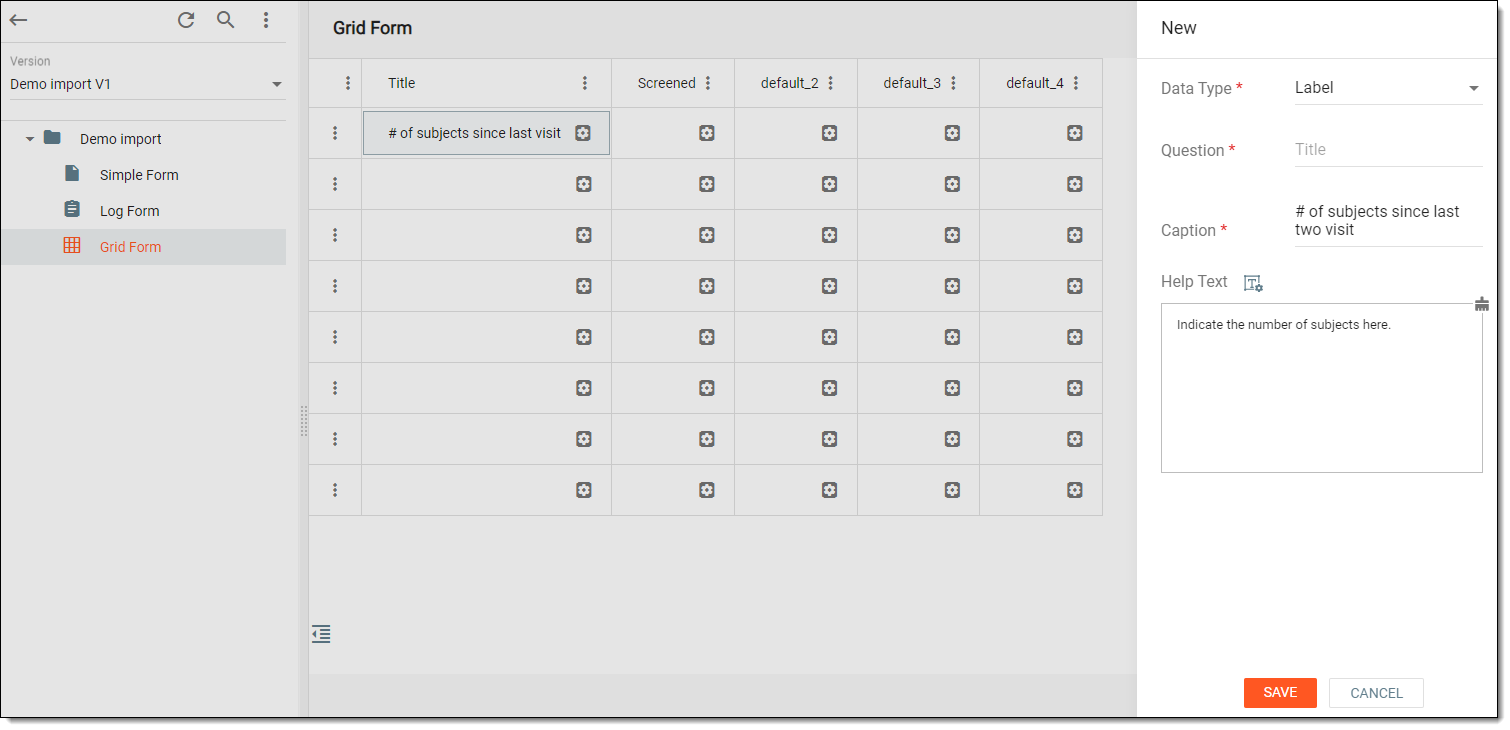 Figure 6. Associating row with item
Tip
In the following table, mandatory elements are marked with an asterisk (*).
Element
Details
Data Type*
Select the Label data type. The definition of the data types is explained in the table of the Add questions to simple or log form section.
Question*
Represents the question defined as the column label of the corresponding cell in which you are currently adding the row label.
Caption*
Enter the question that you want to display in the row cell.
Required
Turn the toggle on if you want the question to be mandatory in the form.
Show Caption
Turn the toggle on if you want the caption of the question to be displayed in the simple or log form.
This option is available for all data types except for Label, because for labels the caption is displayed by default.
Text Align
Select Right or Left to align your caption text in the form—on the right of the field or the left, respectively.
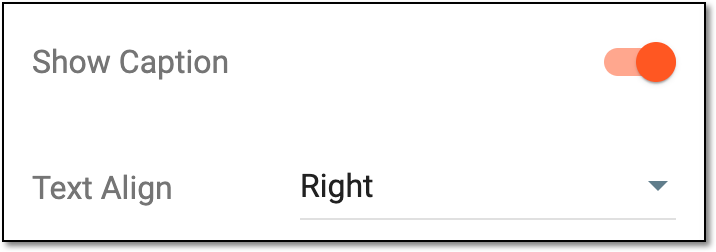 Figure 7. Selecting text alignment
This option is displayed only if the Show Caption toggle is turned on.
SAVE
Select
to save your changes.CANCEL
Select
to discard your changes. -
Repeat steps 8-9 for all the rows of the first column of the grid form.
Upon saving, the labels of the grid form are saved. You may now proceed to assign items to grid cells.
Assign items to grid form cells
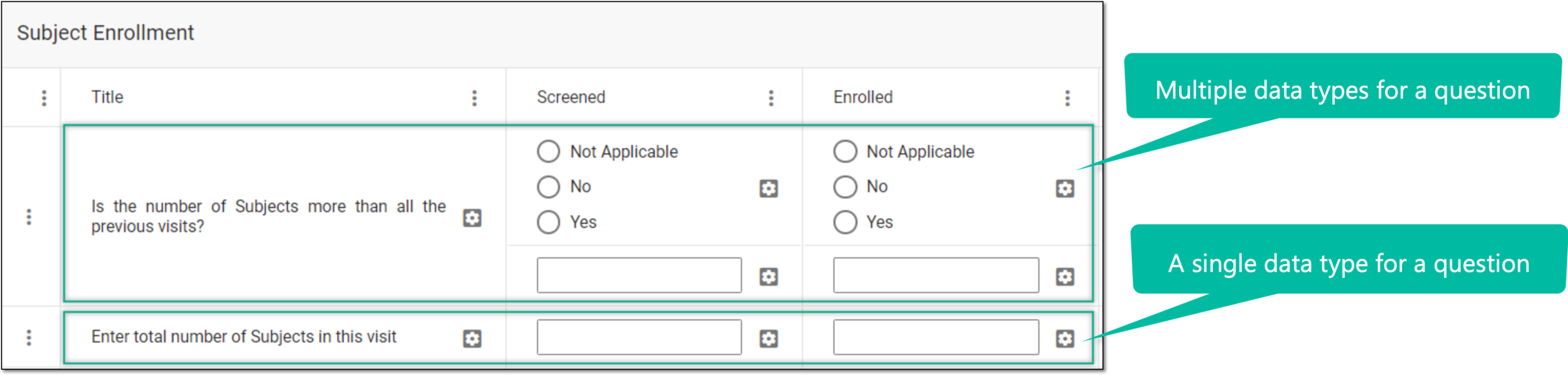
Once you have created the grid form and added column and row labels, you may now start assigning items to grid cells. The data type, such as text fields, option buttons, checkboxes, and so on, provides the reviewer with the fields to enter their responses. For each cell of the grid form, you may add a single data type or multiple data types.
-
In the CTMS application header, select the LIBRARY tab.
-
From the left pane of the page that opens, select Monitor Template.
Figure 2. Accessing monitor template subtab
-
From the Monitor Template List table, select the needed monitor template.
Figure 3. Selecting monitor template
-
From the explorer tree of the page that opens, select the grid form to which you want to add data.
-
In the form content panel that appears, associate grid cells with items by selecting
. -
In the panel that expands, provide item details as explained in the following table.
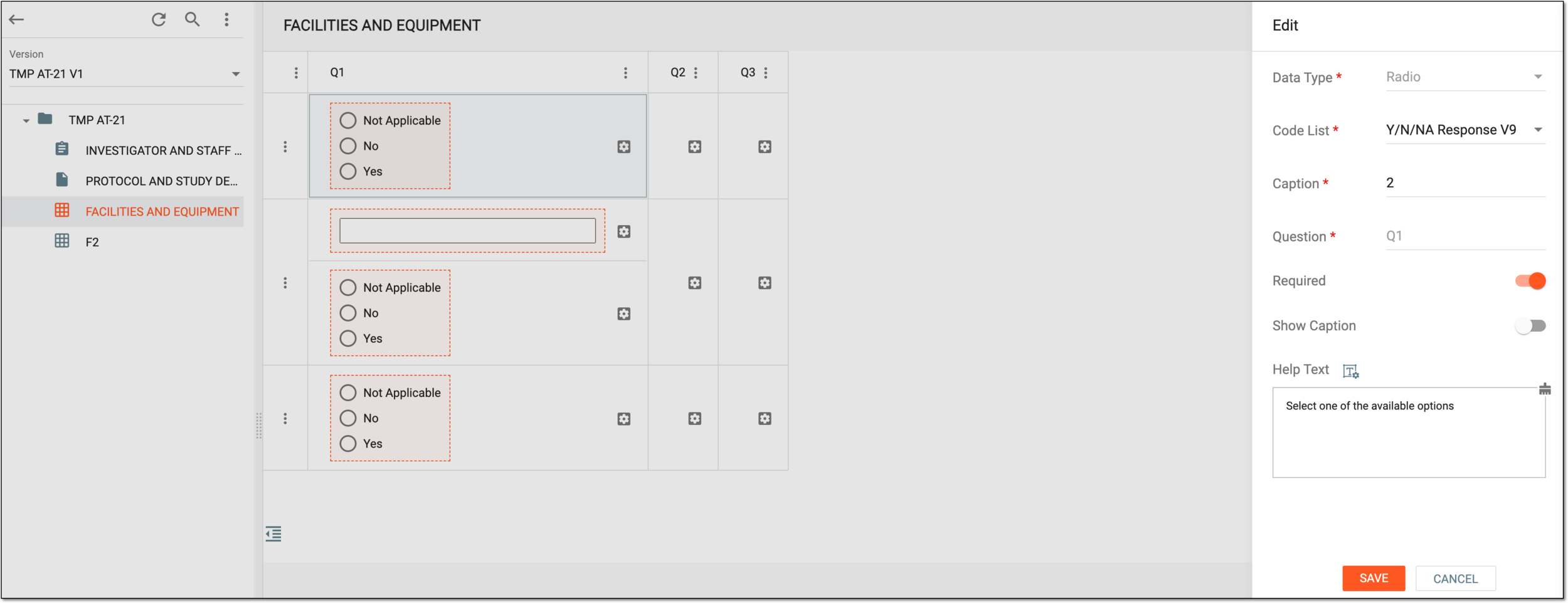 Figure 4. Associating row with item
Tip
In the following table, mandatory elements are marked with an asterisk (*).
Element
Details
Data Type*
Select the required data type, such as text, checkbox, and so on. The significance of the data types is explained in the respective table of the Add questions to simple or log form section.
Code List*
Select the code list that includes the options from which you want the user to select an answer.
This option is only displayed if you have selected the following data types: ListBox, Radio, CheckBox, and Code list Group.
Question*
Represents the question defined as the column label of the corresponding cell in which you are currently adding the data type.
Caption*
Enter the caption of a question to specify any additional details. You can select to show or hide the caption text in the form using the Show Caption toggle.
Format*
Select the format in which you want the user to provide their answer, such as month/date/year, hour/minutes/seconds, and so on.
This option is only displayed for the Date and Time data types.
Precision*
Enter a precision value up to which you want the user to provide a decimal value in the answer field.
For example, if you set the precision value to 2, then the user can enter the value "1.11" in the answer field.
This option is only displayed for the Float data type.
Required
Turn the toggle on if you want the question to be mandatory in the form.
Show Caption
Turn the toggle on if you want the caption of the question to be displayed in the simple or log form.
This option is available for all data types except for Label, because for labels the caption is displayed by default.
Text Align
Select Right or Left to align your caption text in the form—on the right of the field or the left, respectively.
Figure 5. Selecting text alignment
This option is displayed only if the Show Caption toggle is turned on.
Help Text
Enter additional information, instructions, or clarification about the item. It may include details on how to answer a corresponding question or what data is collected in the field.
You can also select Rich Text
to open the text editor where you can format the text with a variety of
styling options. The rich text editor provides a wide range of formatting capabilities such as adding bulleted or numbered lists, making a text bold or italicized, and more.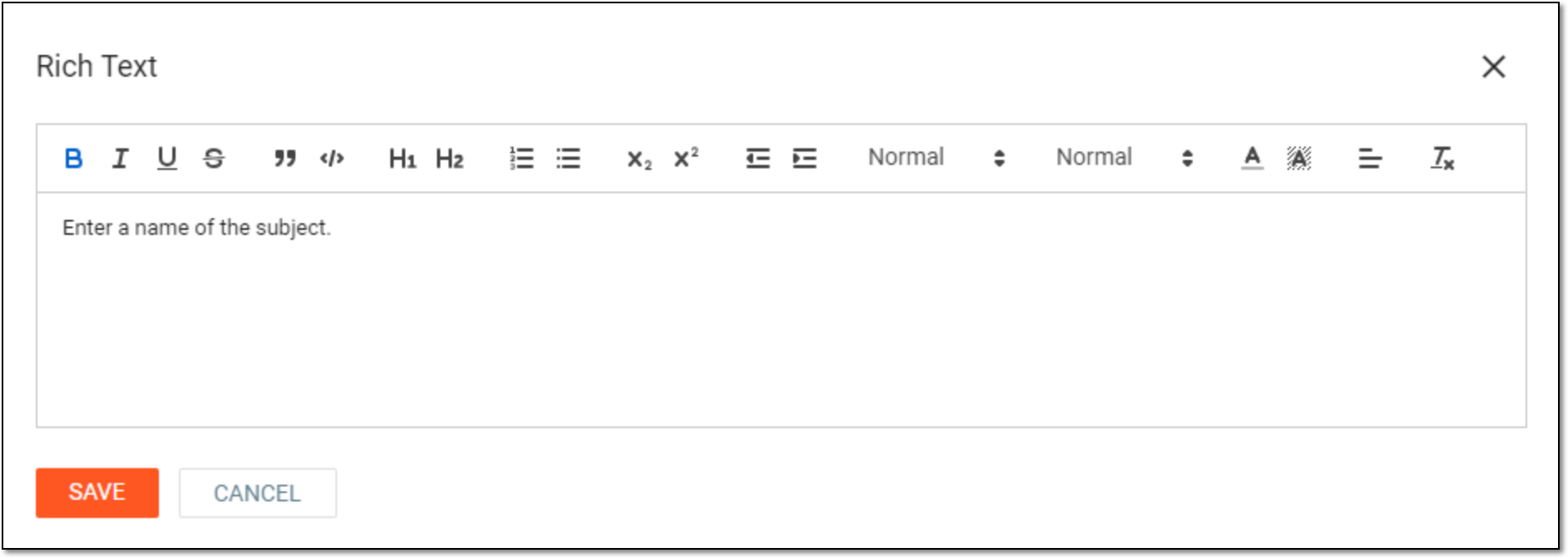 Figure 6. Entering text in rich text editor
SAVE
Select
to save your changes.CANCEL
Select
to discard your changes.Tip
To add multiple data types in a single cell, select
> New Item  . Then in the panel that expands, enter the details as explained before.
 -
Repeat steps 5-6 for all the remaining cells of the grid form except for the cells of the first column.
Upon saving, the rows are associated with items. You have successfully created the grid form and may now proceed to submit the monitor template if you do not wish to add any other forms to the template.
Modify grid form data
In CTMS, you can modify the grid form in numerous ways. Grid forms are two-dimensional forms comprising rows and columns that can be used to answer multiple answers for different fields of the same question. You can modify the data added to the grid form or modify its columns and rows. This may be required if you have cloned the monitor template, and all the forms added to the cloned template require some modification in their data items or rows and columns.
There are several modification options provided for you to alter a monitor template as discussed in the following sections.
In CTMS, you can edit a particular grid form cell, such as its caption, format, and so on. This may be required if, for example, the caption you have currently added is not appropriate, or the protocol has been changed due to which the format for the date or time needs to be updated, or due to some other reason.
-
In the CTMS application header, select the LIBRARY tab.
-
From the left pane of the page that opens, select Monitor Template.
Figure 1. Accessing monitor template subtab
-
From the Monitor Template List table, select the needed monitor template.
Figure 2. Selecting monitor template
-
From the explorer tree of the page that opens, select the grid form in which your required grid cell exists.
-
In the grid form that appears, locate the cell that you want to edit. Then next to it, select
> Edit .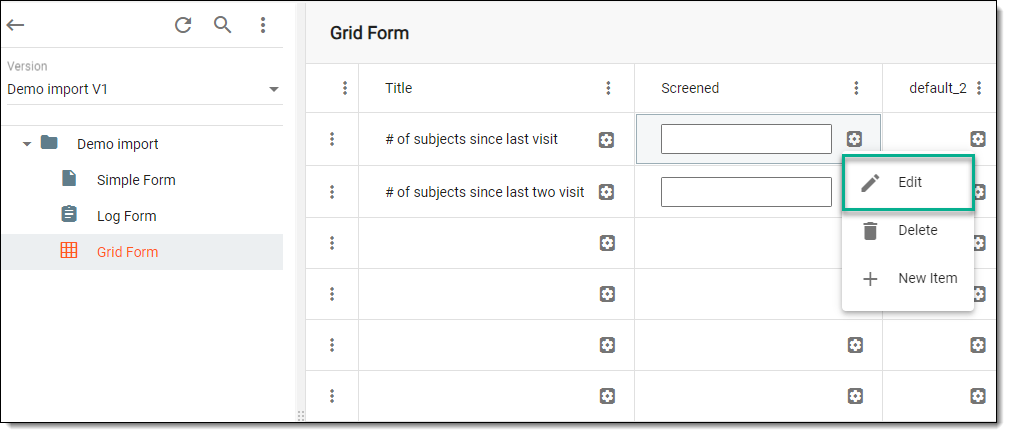 Figure 3. Selecting option to edit grid cell
-
In the panel that expands, modify the details as explained in the following table.
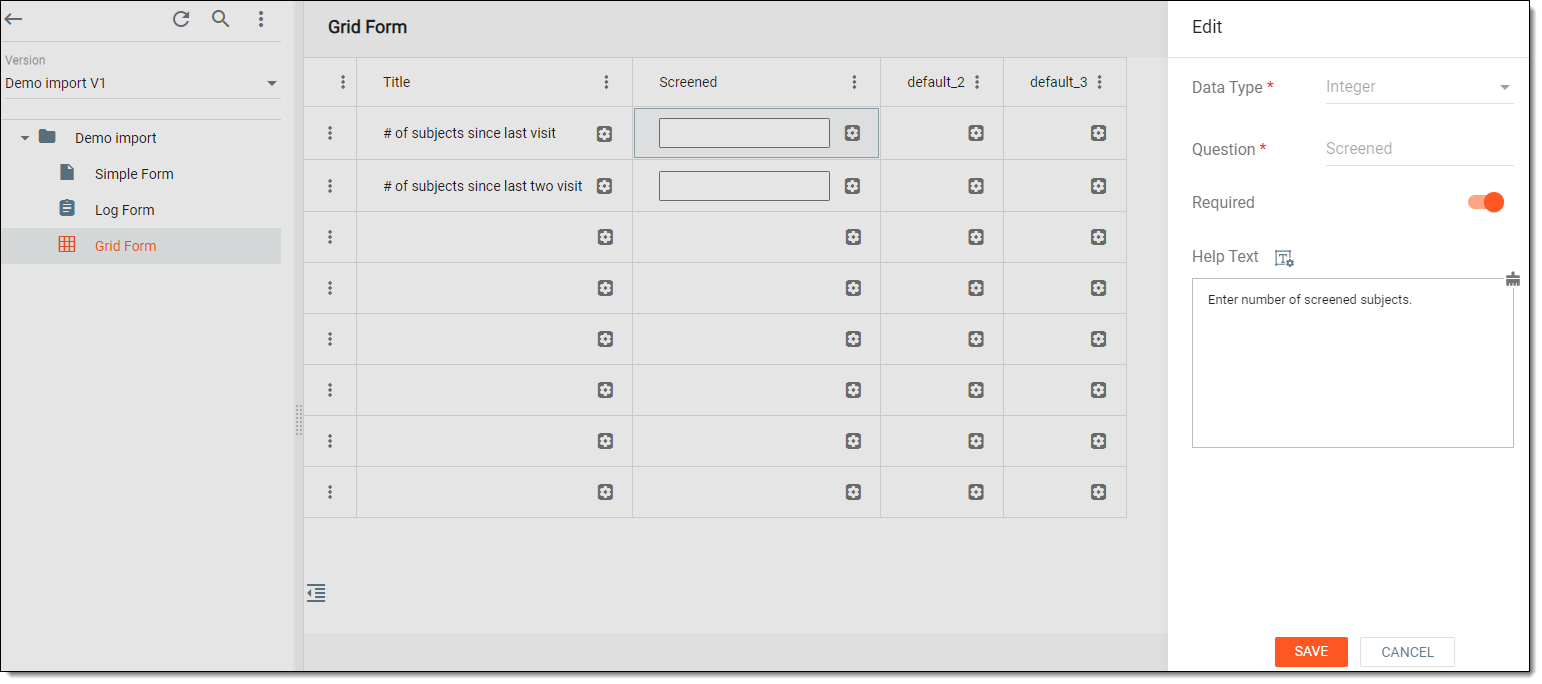 Figure 4. Editing grid form cell
Tip
In the following table, mandatory elements are marked with an asterisk (*).
Element
Details
Code List*
Select the code list that includes the options from which you want the user to select an answer.
This option is only displayed if you have selected the following data types: ListBox, Radio, CheckBox, and Code list Group.
Caption*
Enter the caption of a question. The caption text is not displayed in the form but you may use it to specify any additional details about the question. Although, if you select the Label data type, then the caption you add is displayed in the form.
Format*
Select the format in which you want the user to provide their answer, such as month/date/year, hour/minutes/seconds, and so on.
This option is only displayed for the Date and Time data types.
Precision*
Enter a precision value up to which you want the user to provide a decimal value in the answer field.
For example, if you set the precision value to 2, then the user can enter the value "1.11" in the answer field.
This option is only displayed for the Float data type.
Required
Turn the toggle on if you want the question to be mandatory in the grid form.
Help Text
Enter additional information, instructions, or clarification about the item. It may include details on how to answer a corresponding question or what data is collected in the field.
You can also select Rich Text
to open the text editor where you can format the text with a variety of
styling options. The rich text editor provides a wide range of formatting capabilities such as adding bulleted or numbered lists, making a text bold or italicized, and more.Figure 5. Entering text in rich text editor
SAVE
Select
to save your changes.CANCEL
Select
to discard your changes.
Upon saving, the grid form cell is updated.
In CTMS, you can view the operation history of a specific item in a monitor template grid form cell. You may want to view the history to analyze details of edits, such as who made the changes, what was modified, and when the updates occurred—supporting transparency and audit readiness.
-
In the CTMS application header, select the LIBRARY tab.
-
On the page that opens, from the left pane, select the Monitor Template subtab.
Figure 1. Accessing monitor template subtab
-
From the Monitor Template List table, select the template name in which your grid form exists.
Figure 2. Selecting monitor template
-
On the Monitor Template Detail page that opens, from the explorer pane, select the required grid form.
-
In the form content panel that appears, locate the required cell. Then next to it, select
. In the dropdown menu that opens, select Operation History  .
.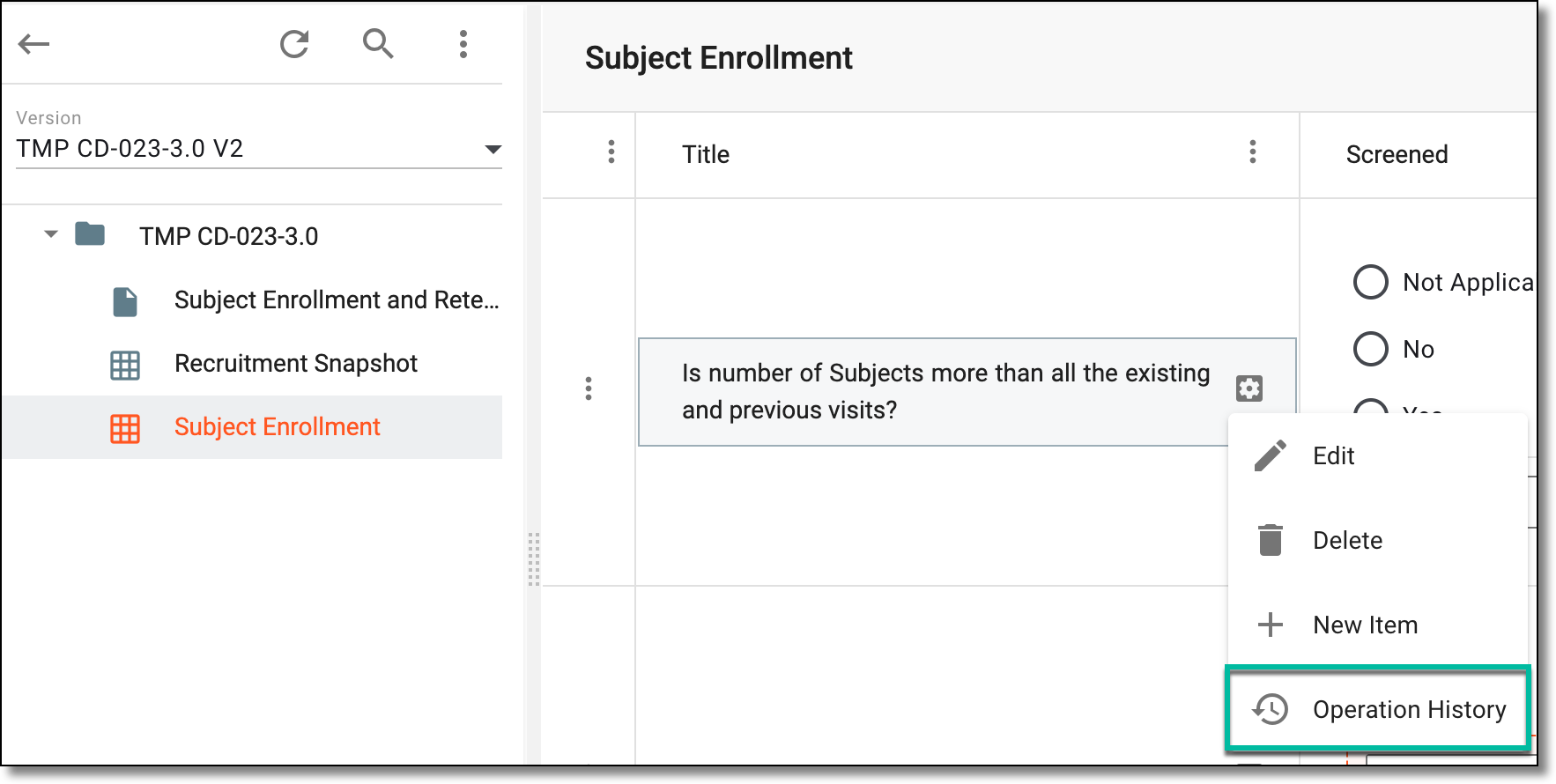 Figure 3. Accessing operation history of grid form cell
-
In the dialog that opens, analyze the details of the changes made to the column.
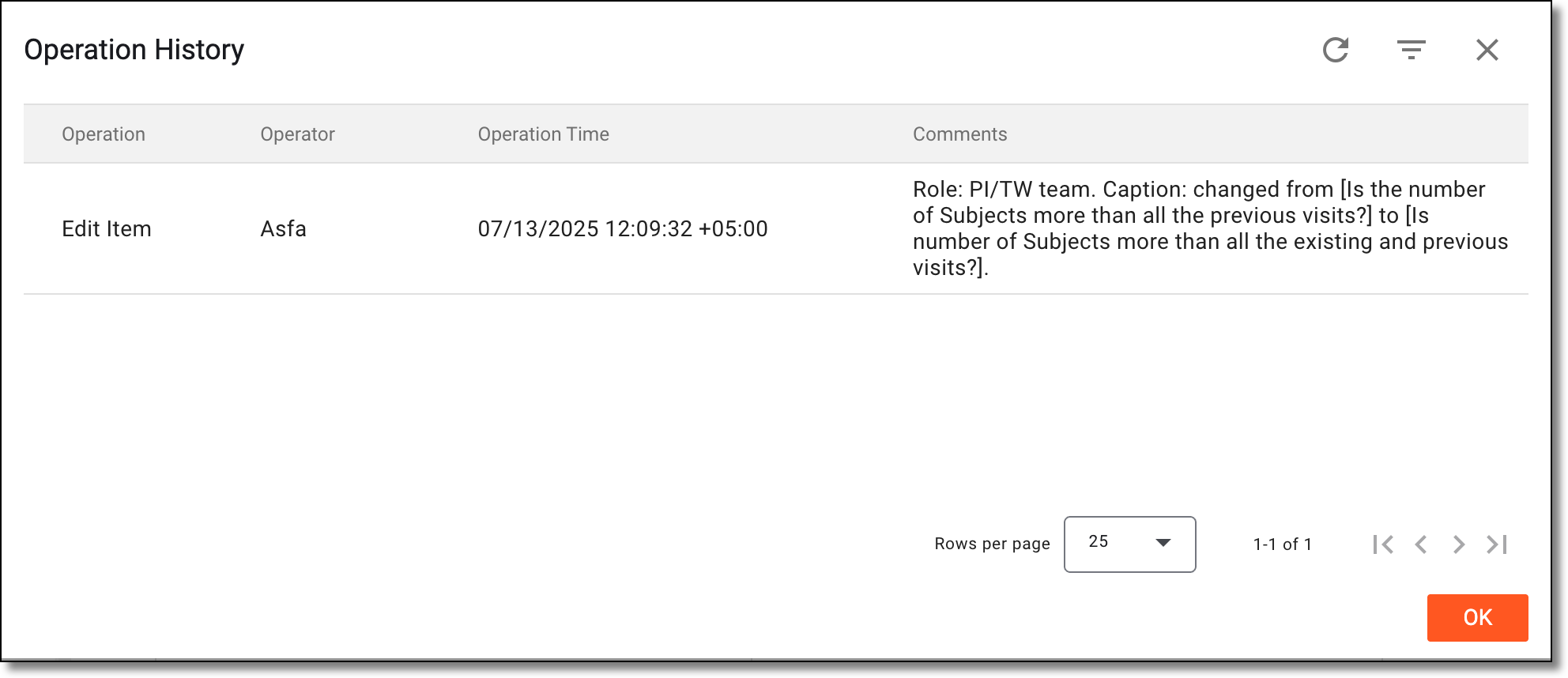 Figure 4. Analyzing operation history of grid form cell
Once you have analyzed the item's change history, select OK to close the dialog and return to the monitor template's grid form.
In CTMS, you can delete a specific item from any grid form cell. This may be required if the defined data type or label (question) of a cell has some errors, the question written in the cell lacks precision, and so on.
-
In the CTMS application header, select the LIBRARY tab.
-
On the page that opens, from the left pane, select the Monitor Template subtab.
Figure 1. Accessing monitor template subtab
-
From the Monitor Template List table, select the template name in which your grid form exists.
Figure 2. Selecting monitor template
-
From the explorer tree of the page that opens, select the grid form from which you want to delete data.
-
In the form content panel that appears, locate the required cell. Then next to it, select
> Delete  .
.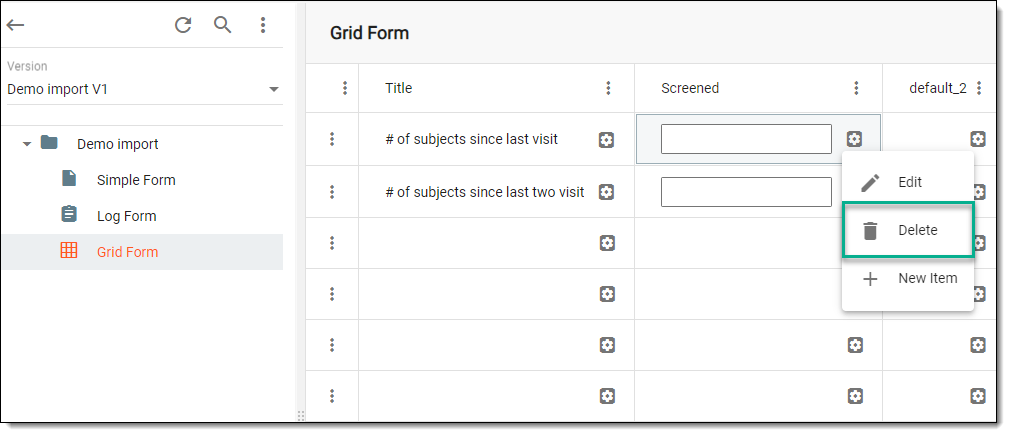 Figure 3. Selecting option to delete cell item
-
In the Delete Item dialog that appears, confirm the action by selecting
 .
.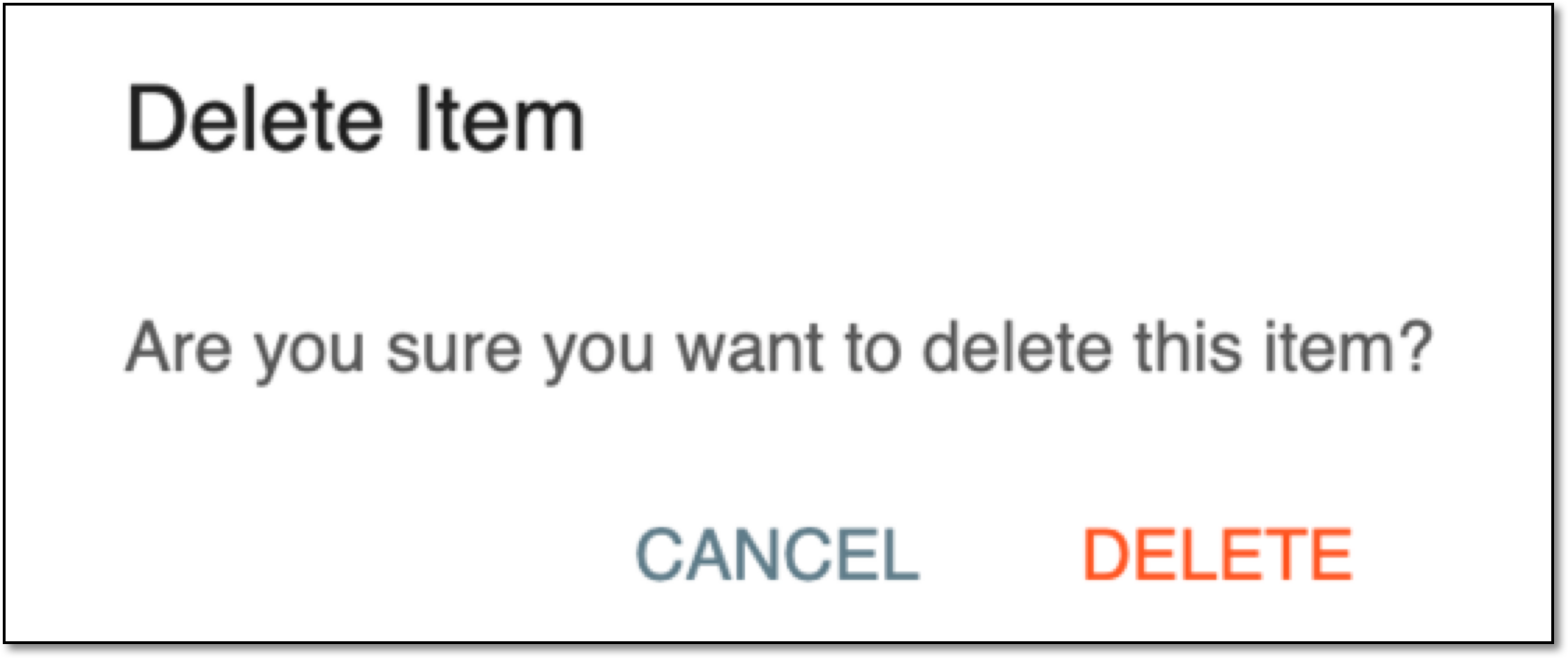 Figure 4. Confirming deletion
Upon confirmation, the defined item or label is deleted from the grid cell.
The column actions comprise the features required to modify a column in a grid form. You may want to modify a column if you want to change its position in the grid form, add a new column, change the question, or fix some other errors.
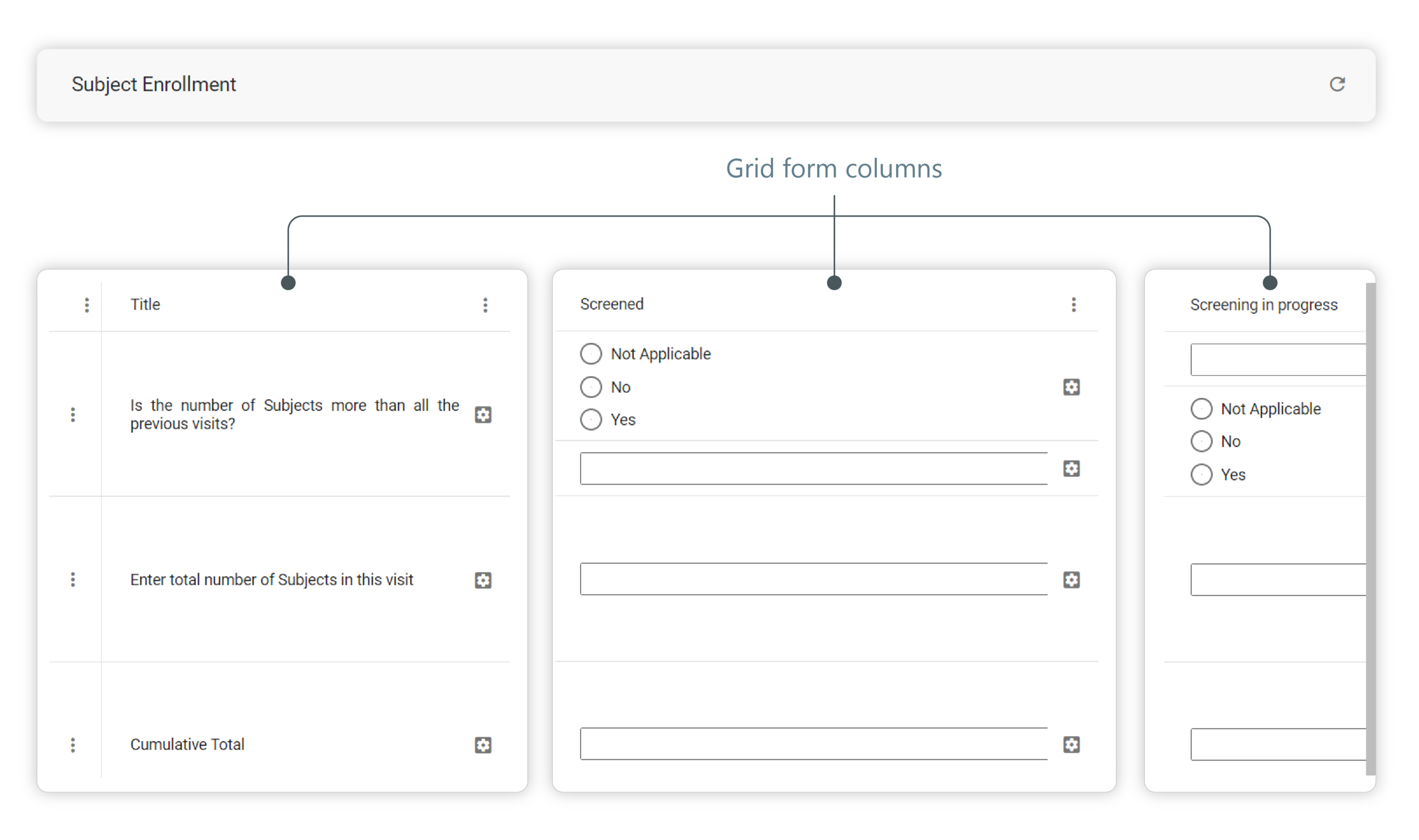
Using the features, you can perform actions to the grid form columns as explained in the following sections.
In CTMS, you can add additional columns to grid forms in any of the monitoring templates. This may be required if initially while creating the grid form, you skipped a column, or due to the changed study protocol requirements, you require adding some additional information for which a new column is required, and so on.
-
In the CTMS application header, select the LIBRARY tab.
-
On the page that opens, from the left pane, select the Monitor Template subtab.
Figure 1. Accessing monitor template subtab
-
From the Monitor Template List table, select the template name in which your grid form exists.
Figure 2. Selecting monitor template
-
From the explorer tree of the page that opens, select the grid form to which you want to add a new column.
-
In the grid form that appears, insert a new column using one of the following options:
-
From the top-left corner of the grid form, select More
> Add
Column  . The new column is inserted at the end of the grid form.
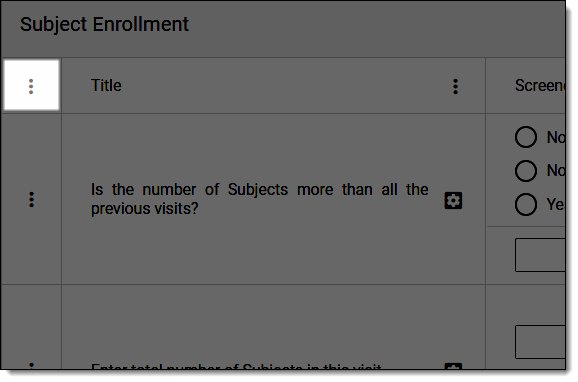 Figure 3. Inserting column at end of grid form
-
Locate the column next to which you want to add a new column, and next to the column name, select More
>
Add on Left or Add on Right  to insert the new column to the left or right of the selected column, respectively.
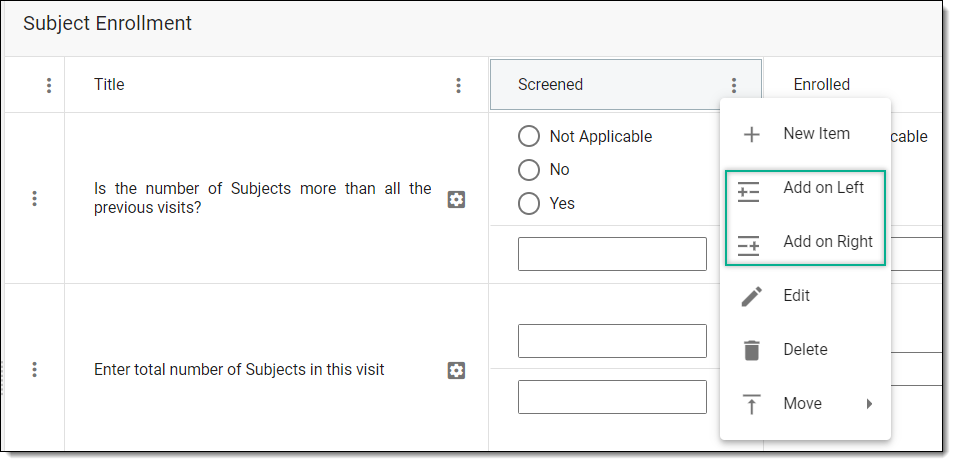 Figure 4. Inserting column at specific position in grid form
-
-
In the panel that expands, enter a unique name for your column and enter additional information or instructions in the Help Text field if needed. Then select
.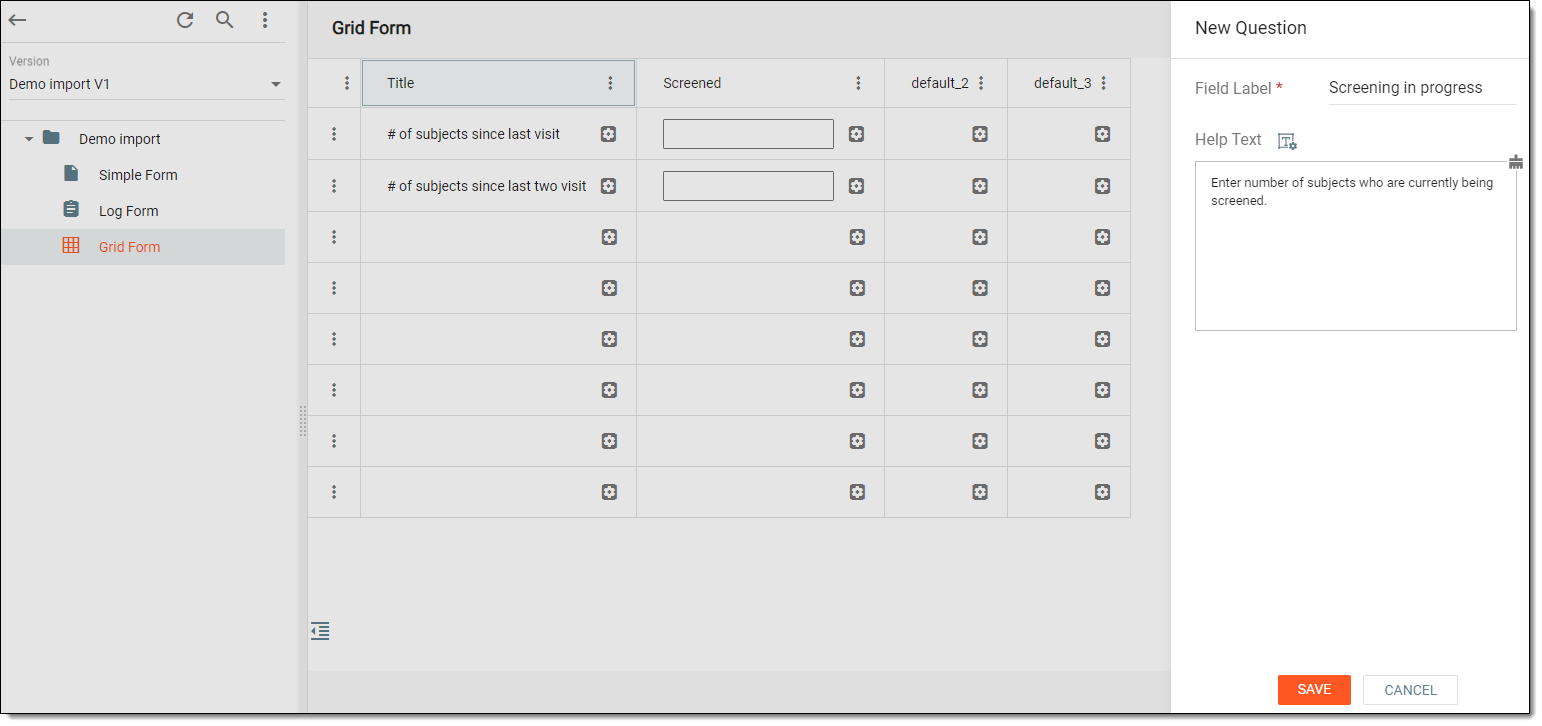 Figure 5. Adding column
Tip
In the Help Text field, you can also select Rich Text
to open the text editor where you can format the text with a variety of styling options. The rich text editor provides a wide range of formatting capabilities such as adding bulleted or numbered lists, making a text bold or italicized, and more.
Upon saving, the new column is inserted. You may now proceed with assigning items to column rows.
In CTMS, you can modify the label you have added to the column name. This may be required if the protocol requirements are changed and you need to modify the column names accordingly, the column name has some errors, and so on.
-
In the CTMS application header, select the LIBRARY tab.
-
On the page that opens, from the left pane, select the Monitor Template subtab.
Figure 1. Accessing monitor template subtab
-
From the Monitor Template List table, select the template name in which your grid form exists.
Figure 2. Selecting monitor template
-
On the Monitor Template Detail page that opens, from the explorer pane, select the grid form in which your required column exists.
-
In the grid form that appears, locate the column that you need to modify. Then next to the column name, select More
> Edit . -
In the panel that expands, update the name and help text of the column question as needed.
Figure 3. Editing column
-
Select
to save your changes.
Upon saving, the column name is updated.
In CTMS, you can move a column to your required position in the monitor template grid form.
For instance, in the Subject Enrollment grid form, you may want to place the Enrolled column before the Screening column or place Early Exit before Trial Completed, and so on.
-
In the CTMS application header, select the LIBRARY tab.
-
On the page that opens, from the left pane, select the Monitor Template subtab.
Figure 1. Accessing monitor template subtab
-
From the Monitor Template List table, select the template name in which your grid form exists.
Figure 2. Selecting monitor template
-
On the Monitor Template Detail page that opens, from the explorer pane, select the required grid form.
-
In the grid form that appears, locate the column that you need to modify. Then next to the column name, select More
> Move  .
. -
In the second dropdown menu that opens, select one of the options as explained in the following table.
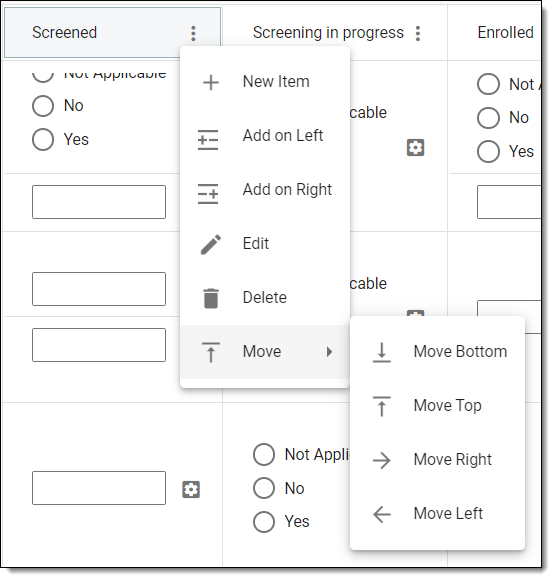 Figure 3. Selecting option to move column
Element
Details
Move Bottom

Select this option to move the selected column to the end of the grid form.
Move Top
Select this option to move the selected column to the beginning of the grid form.
Move Right

Select this option to move the selected column one place to the right from its current position in the grid form.
Move Left

Select this option to move the selected column one place to the left from its current position in the grid form.
Tip
Alternatively, you can move a column by dragging the column to its required position.
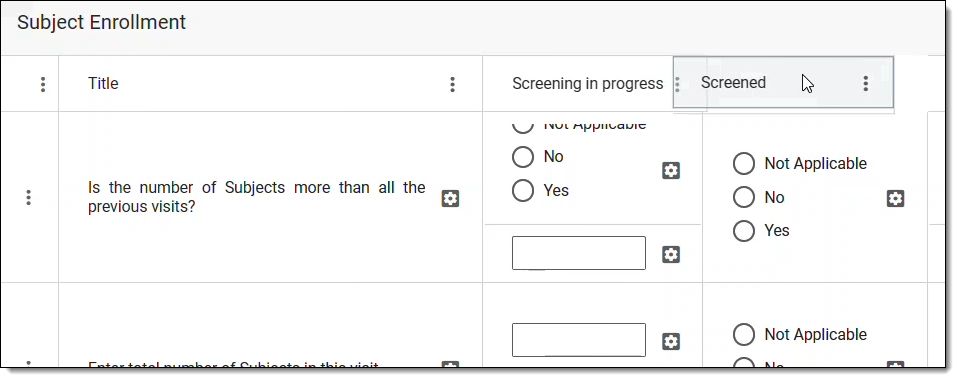 Figure 4. Moving column via dragging
After the required manipulations, the column is moved to the required position.
In CTMS, you can view operation history of a column in the monitor template grid form. You may want to view the history to analyze details of edits, such as who made the changes, what was modified, and when the updates occurred—supporting transparency and audit readiness.
-
In the CTMS application header, select the LIBRARY tab.
-
On the page that opens, from the left pane, select the Monitor Template subtab.
Figure 1. Accessing monitor template subtab
-
From the Monitor Template List table, select the template name in which your grid form exists.
Figure 2. Selecting monitor template
-
On the Monitor Template Detail page that opens, from the explorer pane, select the required grid form.
-
In the form, locate the question that you want to analyze. Then next to it, select More
> Operation History .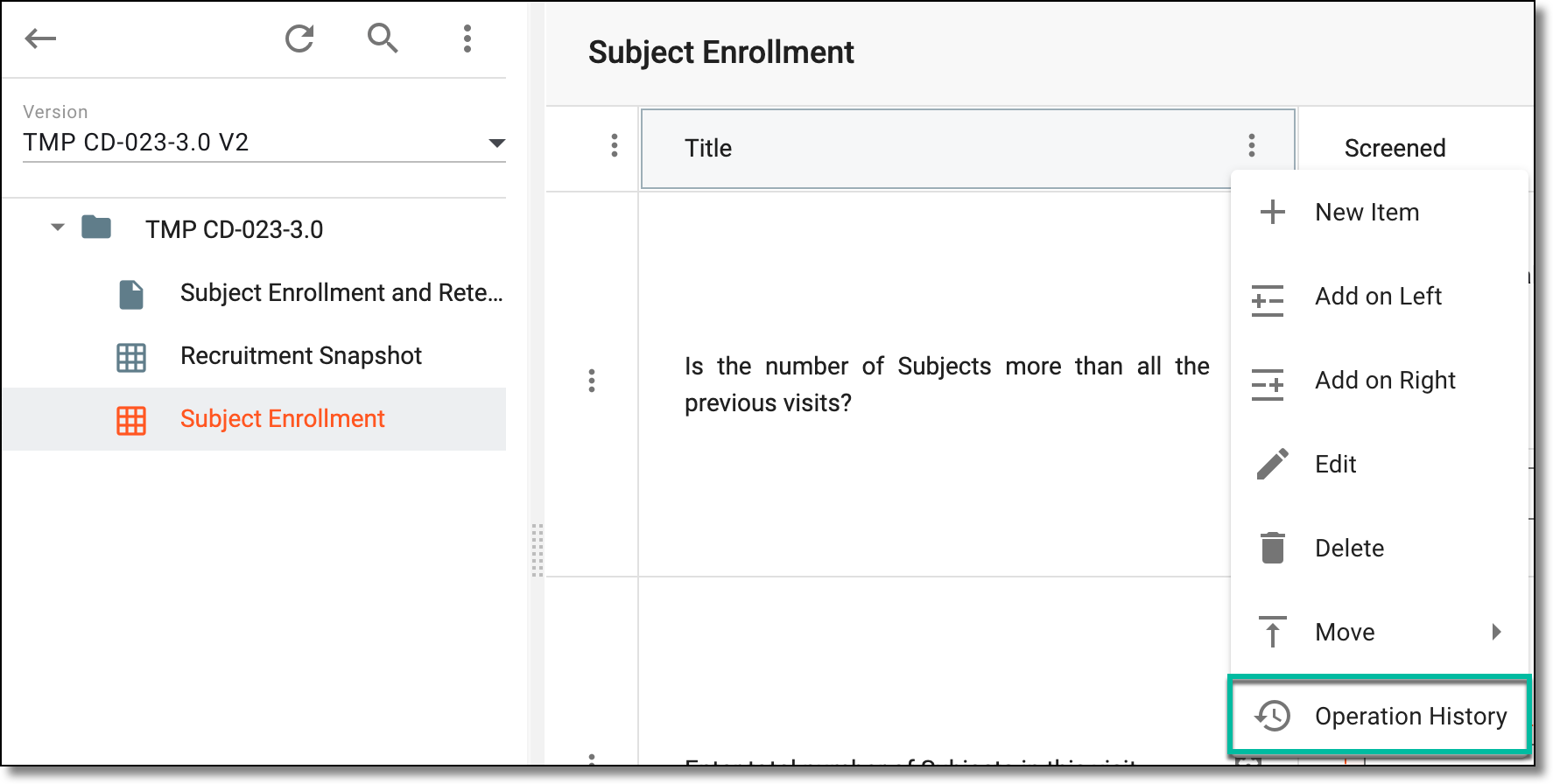 Figure 3. Accessing operation history of grid form column
-
In the dialog that opens, analyze the details of the changes made to the column.
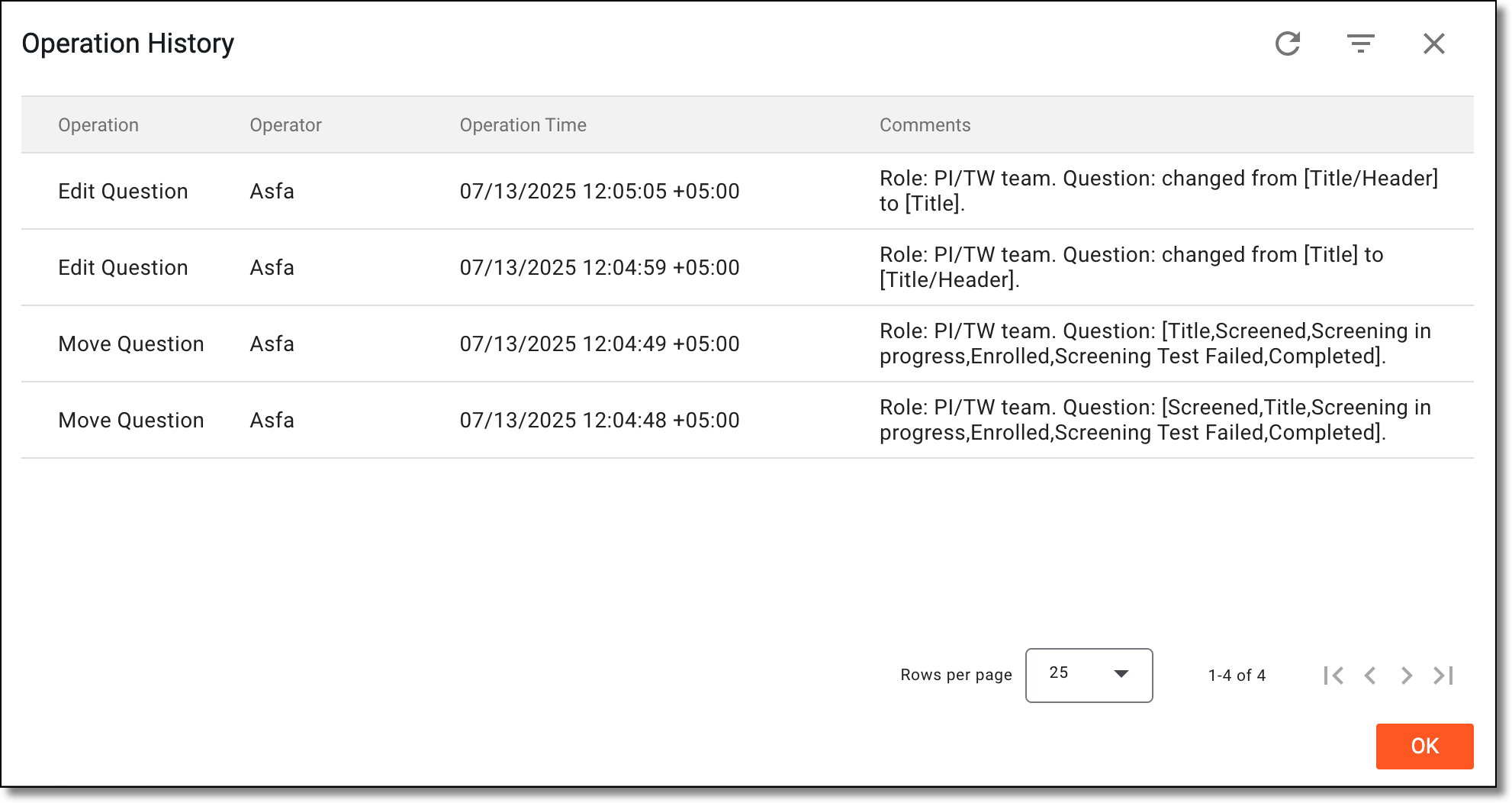 Figure 4. Analyzing operation history of grid form column
Once you have analyzed the column's change history, select OK to close the dialog and return to the monitor template's grid form.
In CTMS, you can delete a column from a monitor template grid form. You may require deleting a column if it is no longer needed in the grid form, the data in the column has some errors, or due to some other reason.
-
In the CTMS application header, select the LIBRARY tab.
-
On the page that opens, from the left pane, select the Monitor Template subtab.
Figure 1. Accessing monitor template subtab
-
From the Monitor Template List table, select the template name in which your grid form exists.
Figure 2. Selecting monitor template
-
On the Monitor Template Detail page that opens, from the explorer pane, select the grid form in which your required column exists.
-
In the grid form that appears, locate the column that you need to modify. Then next to the column name, select More
> Delete . -
In the Delete Item dialog that appears, confirm the action by selecting
.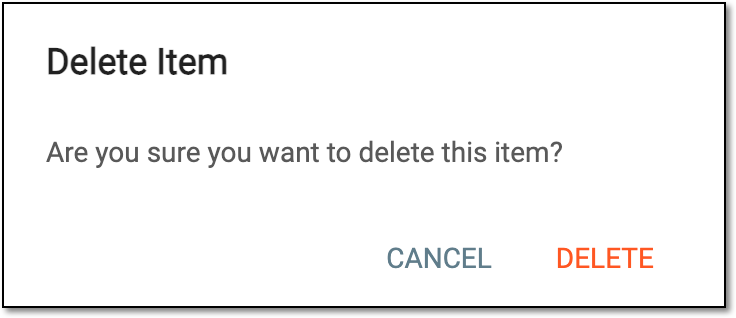 Figure 3. Deleting item
Upon confirmation, the column is deleted from the grid form.
In CTMS, you can modify your grid rows as needed with a set of available row actions. Modification of the rows may be required if you want to insert new rows to add some additional required data in the form or move the rows to organize your grid form, and so on.
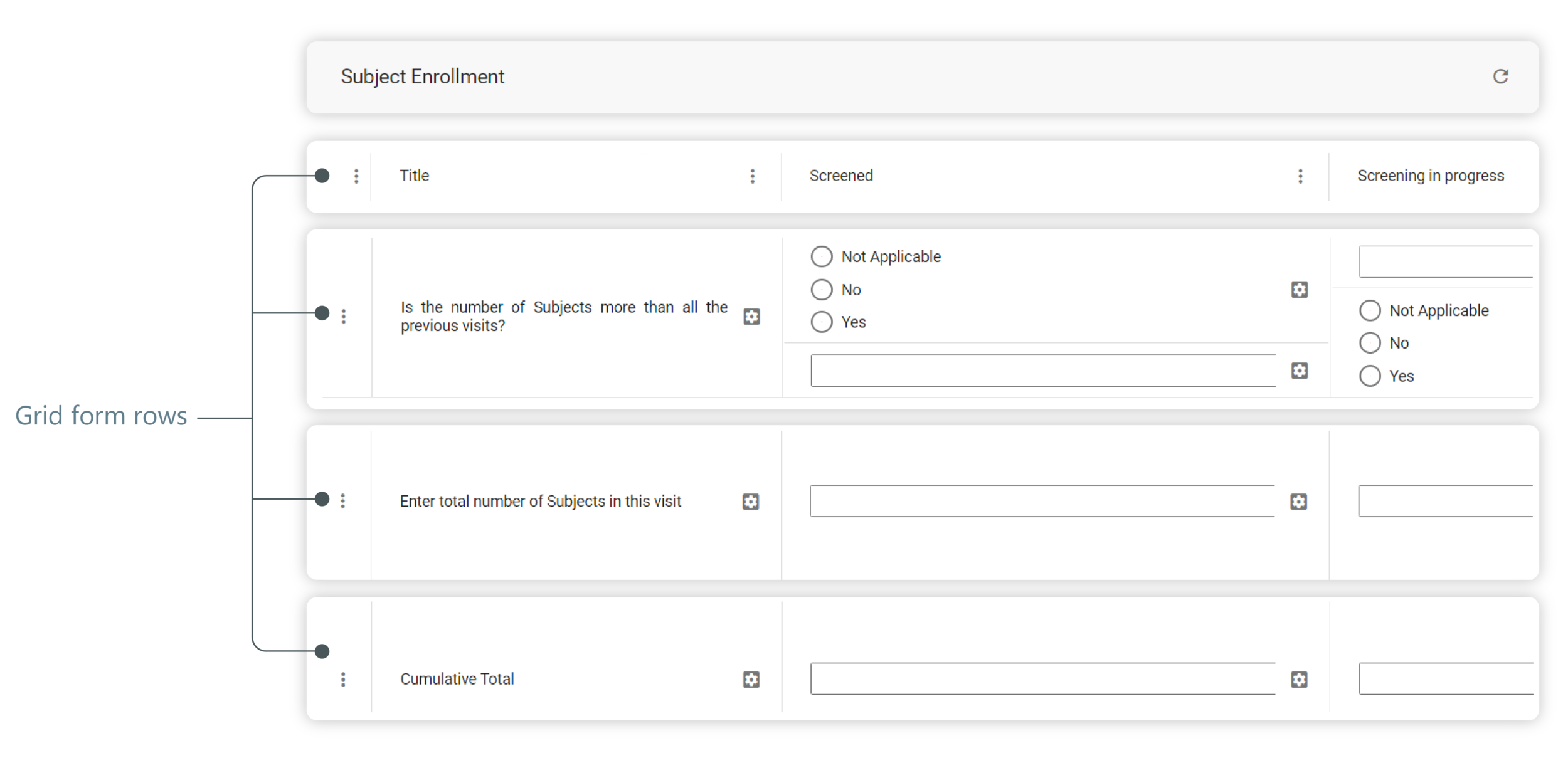
Using the features, you can perform actions to the grid form rows as explained in the following sections.
In CTMS, you can add an additional row in the monitor template grid form. This may be required if initially while creating the grid form, you skipped a row, or due to the changed study protocol requirements, you require adding some additional information for which a new row is required, and so on.
-
In the CTMS application header, select the LIBRARY tab.
-
On the page that opens, from the left pane, select the Monitor Template subtab.
Figure 1. Accessing monitor template subtab
-
From the Monitor Template List table, select the template name in which your grid form exists.
Figure 2. Selecting monitor template
-
On the Monitor Template Detail page that opens, from the explorer pane, select the grid form to which you want to insert a new row.
-
In the grid form that appears, insert a new row using any of the following options:
-
From the top-left corner of the grid form, select More
 > Add Row
 . The new row is inserted at the bottom of the grid form.Figure 3. Inserting row at bottom of grid form
-
Locate the row next to which you want to add a new row, and next to the row name, select More
> Prev New Item Group or Next New Item Group  to insert the new row above or below the selected row, respectively.
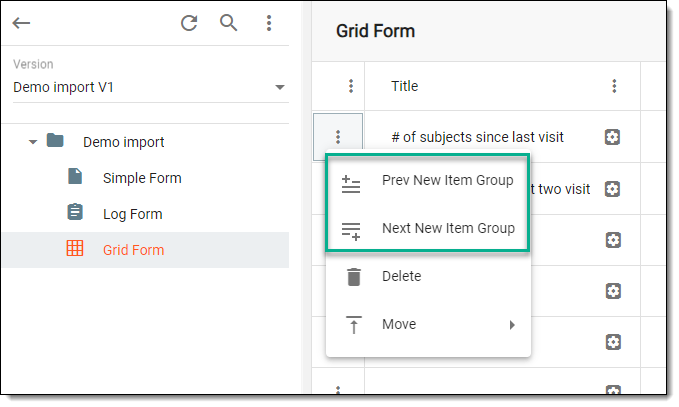 Figure 4. Inserting row at specific position in grid form
-
Upon saving, the new row is inserted. You may now proceed with selecting the data type for the grid row cells.
In CTMS, you can move a row of the monitor template grid form to a different position, as required, such as you may want to place the question inquiring about the subjects who participated in the previous visit before the question asking about the number of subjects who participated in the current visit.
-
In the CTMS application header, select the LIBRARY tab.
-
On the page that opens, from the left pane, select the Monitor Template subtab.
Figure 1. Accessing monitor template subtab
-
From the Monitor Template List table, select the template name in which your grid form exists.
Figure 2. Selecting monitor template
-
On the Monitor Template Detail page that opens, from the explorer pane, select the required grid form.
-
In the grid form that appears, locate the row that you need to move. Then next to it, select More
> Move .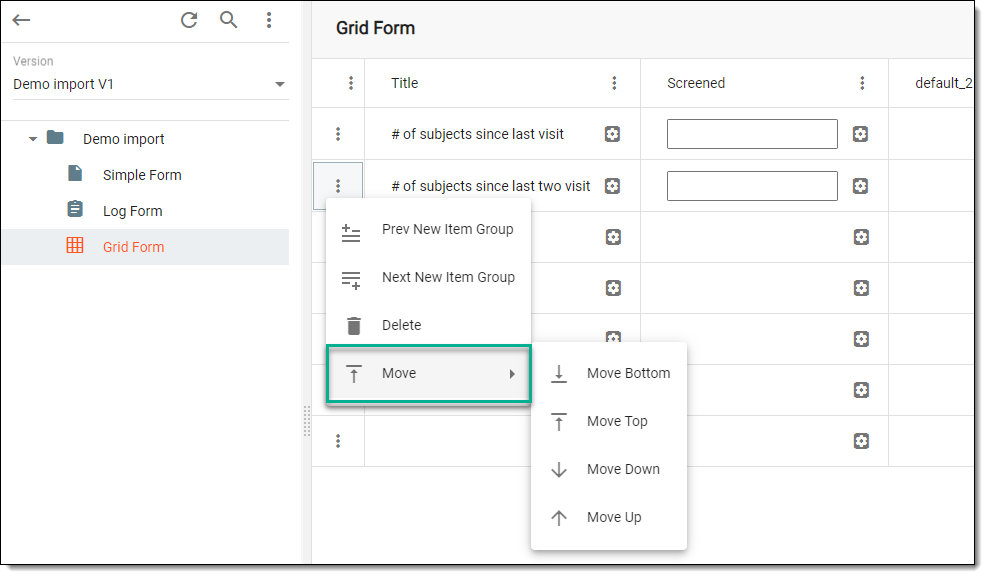 Figure 3. Selecting option to move row
-
In the second dropdown menu that opens, select an option as explained in the following table.
Element
Details
Move Bottom
Select this option to move the selected row to the bottom of the grid form.
Move Top
Select this option to move the selected row to the top of the grid form.
Move Down

Select this option to move the selected row one place below its current position in the grid form.
Move Up

Select this option to move the selected row one place above its current position in the grid form.
Tip
Alternatively, you can move a row by dragging the row and dropping it at its required position.
Figure 4. Moving row via drag-and-drop
After the required manipulations are done, the row is moved to the required position.
In CTMS, you can view operation history of a row in the monitor template grid form. You may want to view the history to analyze details of edits, such as who made the changes, what was modified, and when the updates occurred—supporting transparency and audit readiness.
-
In the CTMS application header, select the LIBRARY tab.
-
On the page that opens, from the left pane, select the Monitor Template subtab.
Figure 1. Accessing monitor template subtab
-
From the Monitor Template List table, select the template name in which your grid form exists.
Figure 2. Selecting monitor template
-
On the Monitor Template Detail page that opens, from the explorer pane, select the required grid form.
-
In the form, locate the row that you want to analyze. Then next to it, select More
> Operation History .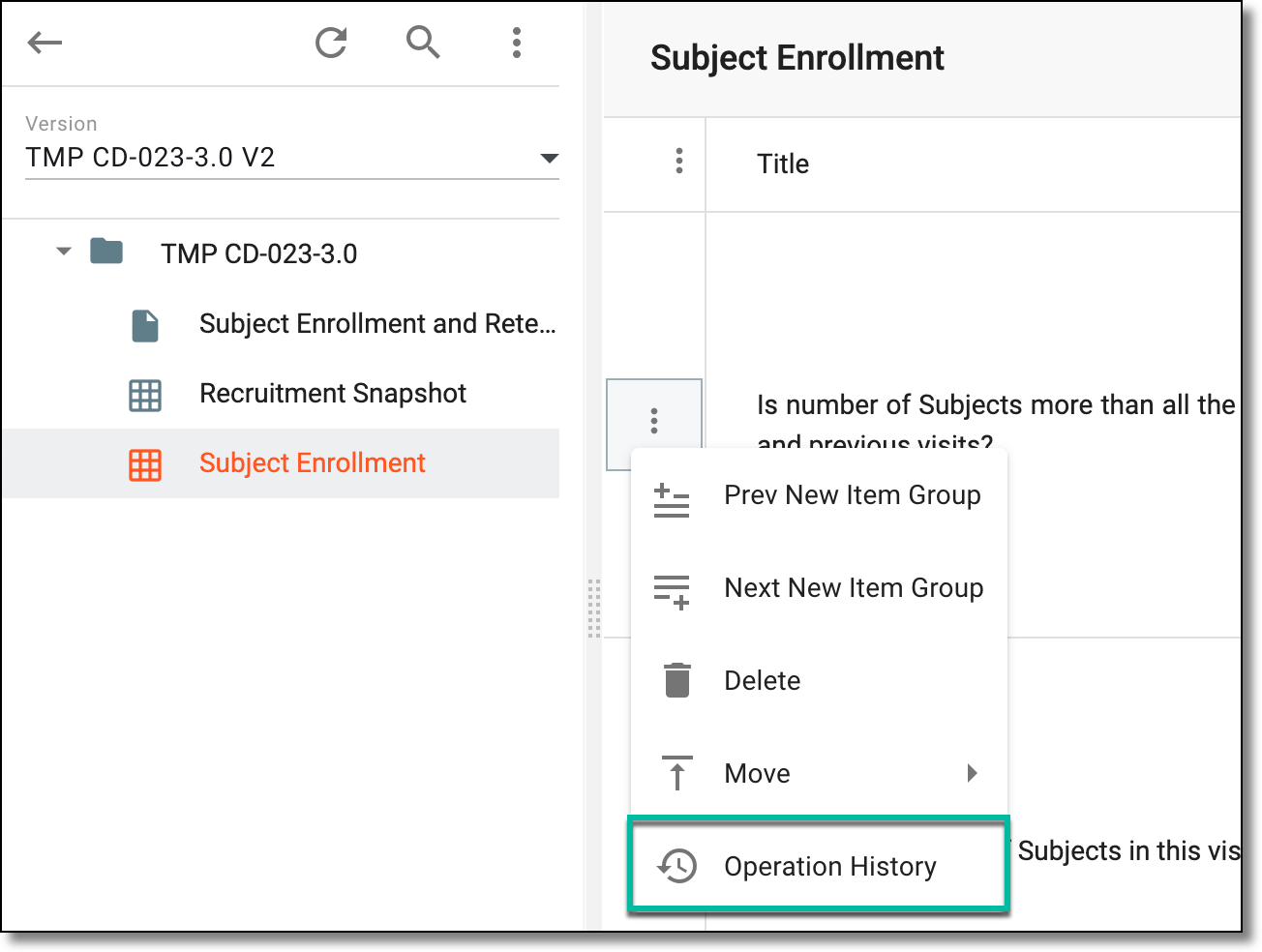 Figure 3. Accessing operation history of grid form row
-
In the dialog that opens, analyze the details of the changes made to the row.
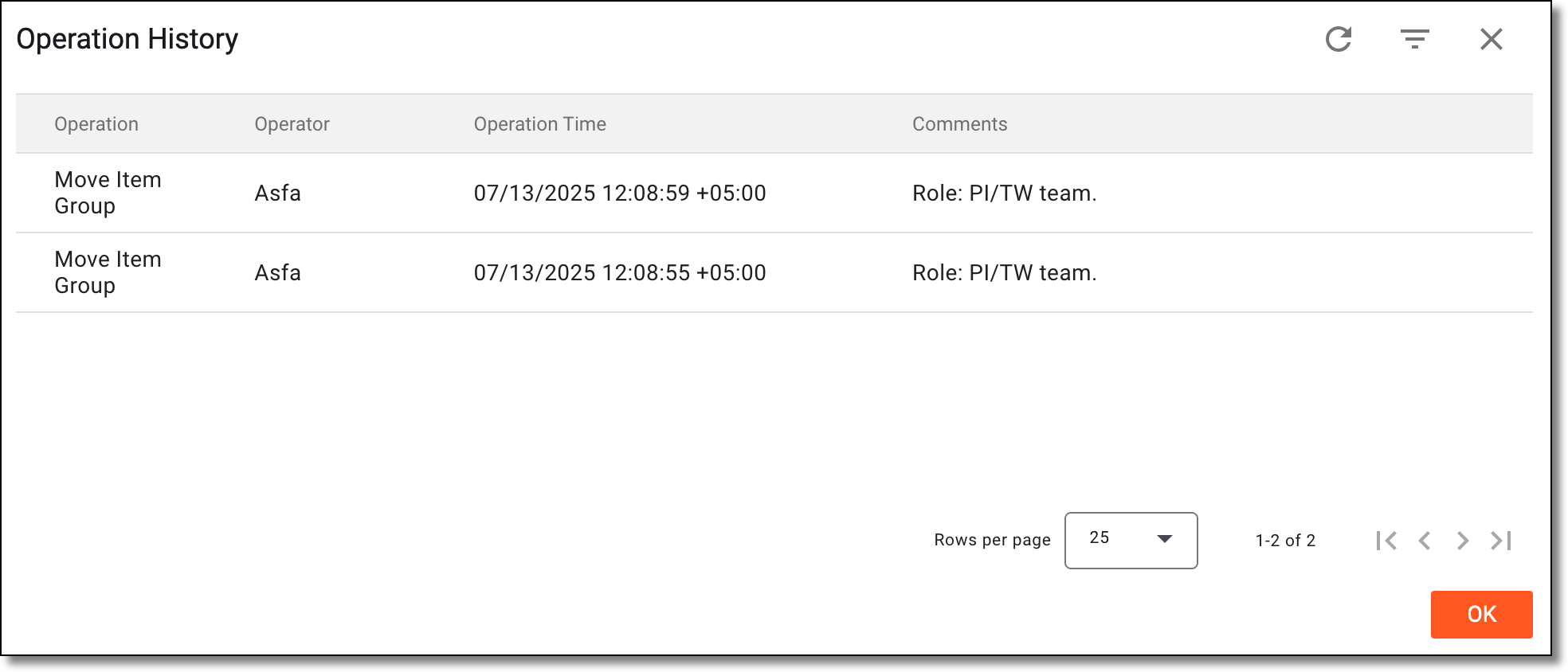 Figure 4. Analyzing operation history of grid form row
Once you have analyzed the row's change history, select OK to close the dialog and return to the monitor template's grid form.
In CTMS, you can delete a row from the monitor template grid form. You can delete a row if it is a duplicate of an existing row, the row displays faulty data, or due to some other reason.
-
In the CTMS application header, select the LIBRARY tab.
-
On the page that opens, from the left pane, select the Monitor Template subtab.
Figure 1. Accessing monitor template subtab
-
From the Monitor Template List table, select the template name in which your grid form exists.
Figure 2. Selecting monitor template
-
On the Monitor Template Detail page that opens, from the explorer pane, select the grid form in which your required row exists.
-
In the grid form that appears, locate the row that you need to delete. Then next to it, select More
>
Delete .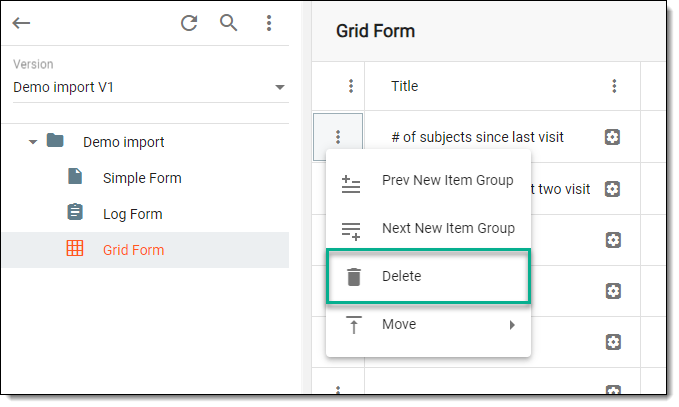 Figure 3. Selecting option to delete row
-
In the Delete Item dialog that appears, confirm the action by selecting
.Figure 4. Deleting item
Upon confirmation, the row is deleted from the grid form.