Add simple or log form to monitor template
The simple or log form is a collection of questions and items that need to be answered to assemble specific subject-related data. There are various form field options such as text fields, checkboxes, date pickers, and more. You can place these fields on the form canvas and arrange them as needed.
Tip
A question refers to a sentence or phrase that seeks information or clarification about a specific topic related to the subject. An item refers to a field within the form corresponding to a particular question. For example, a question can be "Gender" and an item for this question can be a listbox with "Female" and "Male" responses.
For example, you can create simple forms for acquiring information about subject enrollment and retention, protocol compliance, safety reporting questions, clinical supplies and facilities, and so on. Similarly, a log form can be created to ask questions related to reviewing informed consent, source data verification, deviations discovered at the site, and others.
-
In the CTMS application header, select the LIBRARY tab.
-
From the left pane of the page that opens, select Monitor Template.
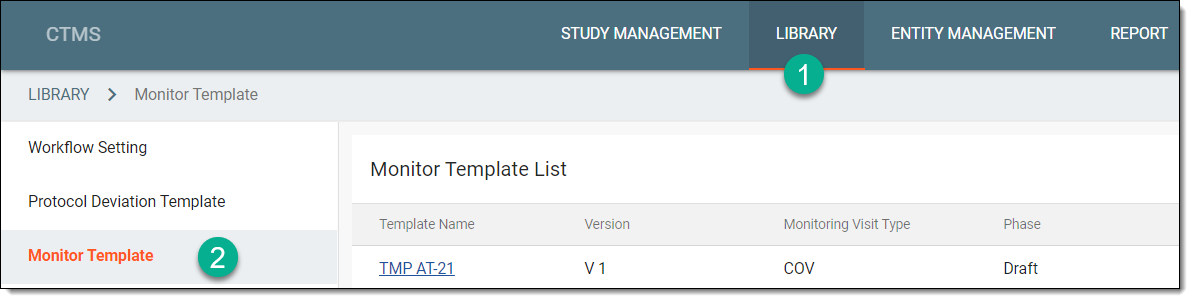 Figure 1. Accessing monitor template subtab
-
From the Monitor Template List table, select the template where you want to add a new form.
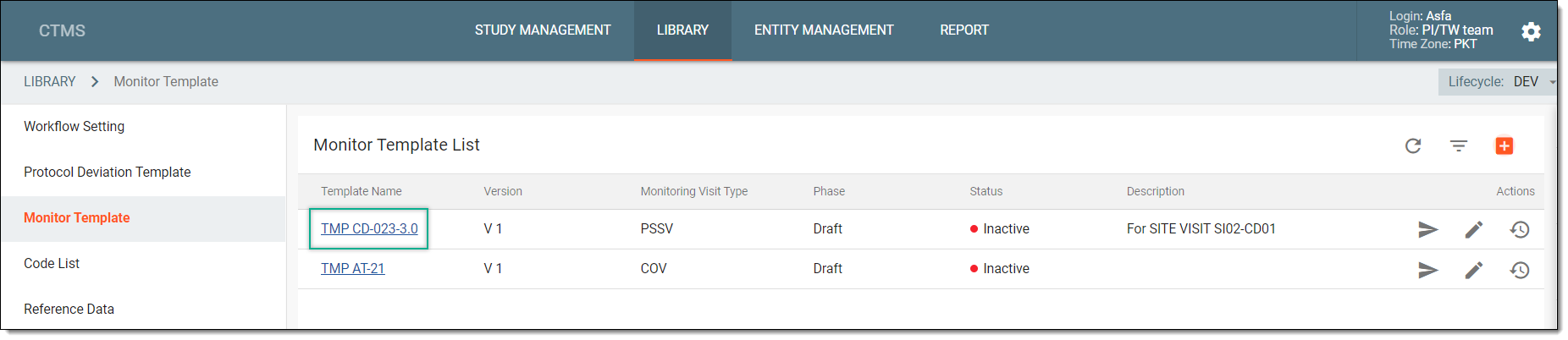 Figure 2. Selecting monitor template
-
In the explorer tree of the page that opens, right-click the template name and select New Form
 .
.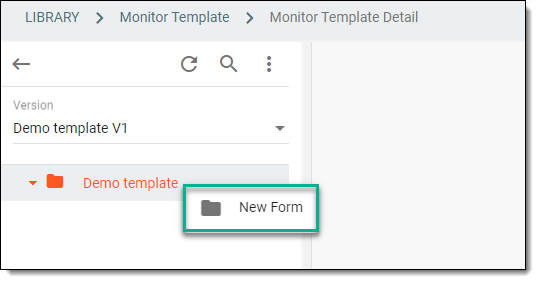 Figure 3. Selecting option to add new form
Important
In the Version field, you can select another version of the monitor template to view its questions. However, you cannot add or modify fields in previous template versions if the particular version of the template is already used in monitoring plans.
-
In the New panel that expands, enter a unique name for the form and select its type which is either Simple Form or Log Form. Then select
 .
.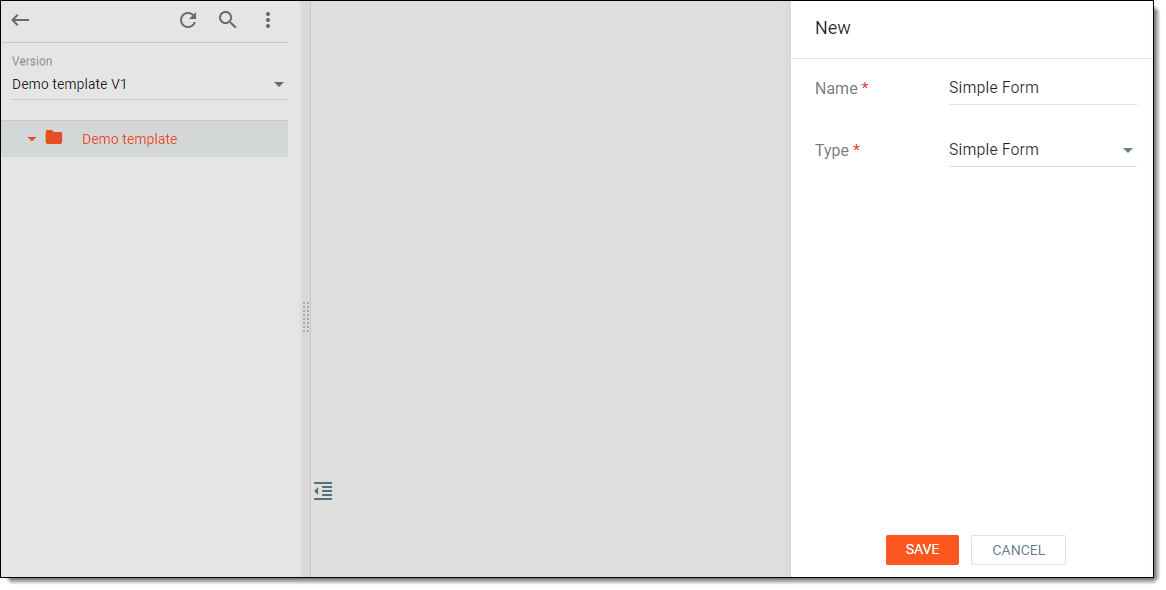 Figure 4. Adding form to monitor template
Upon saving, a simple or log form is created. It appears in the explorer pane of the Monitor Template Detail page with the respective icon next to it:  for a simple form and
  for a log form. You can now proceed with adding questions to the simple or log form.
Add questions to simple or log form
Once a simple or log form is created, start adding questions and items to the form using various editing tools. In a simple or log form, you can add questions with various items such as labels, option buttons, checkboxes, lists, dates, and so on to capture different types of data during the monitoring visit.
Tip
A question refers to a sentence or phrase that seeks information or clarification about a specific topic related to the monitoring visit. An item refers to a field within the form corresponding to a particular question. For example, a question can be "Attendee," and an item for this question can be a text box to enter the name of the person attending the site with monitoring activities.
-
In the CTMS application header, select the LIBRARY tab.
-
From the left pane of the page that opens, select Monitor Template.
Figure 1. Accessing monitor template subtab
-
From the Monitor Template List table, select the needed monitor template.
Figure 2. Selecting monitor template
-
In the explorer tree of the page that opens, select the simple or log form to which you want to add questions.
-
In the contents panel that appears, start configuring questions of the form in one of the following ways:
-
From the list of question types available on the left panel, select the needed one to add a question to the form. The definition and purpose of each question type is explained in the following table.
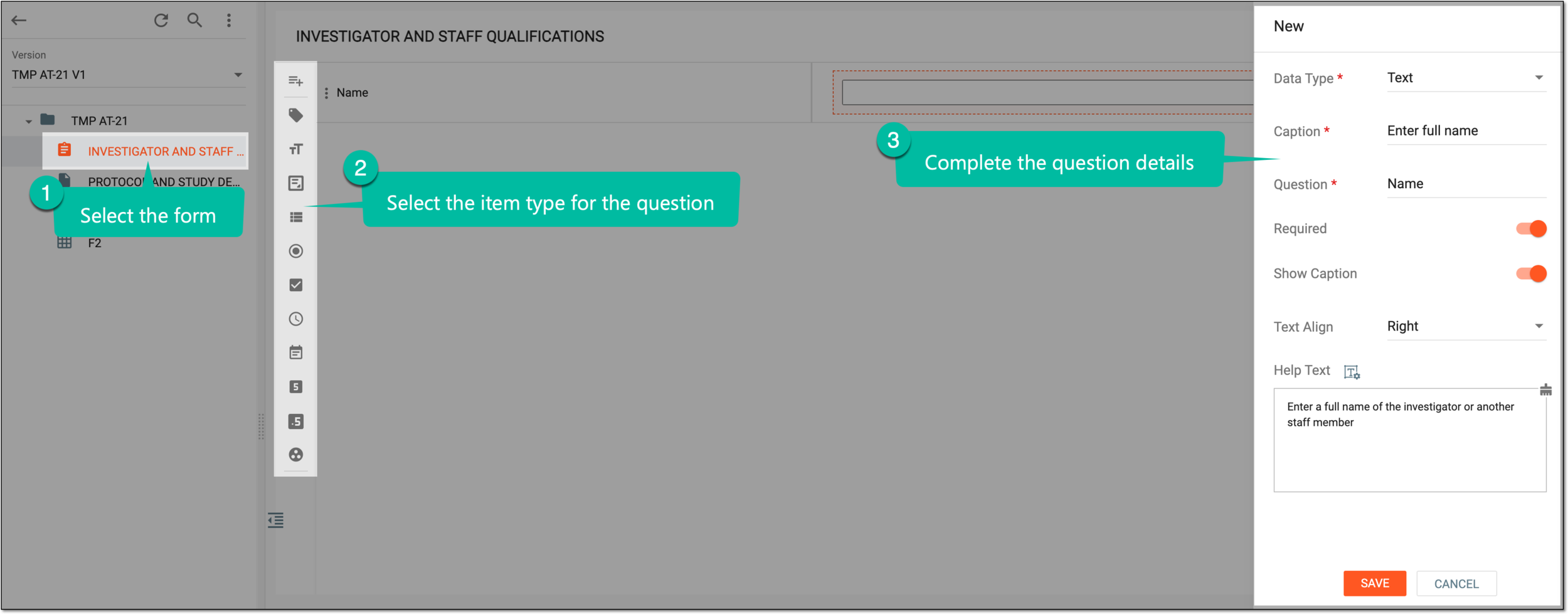 Figure 3. Adding questions and items to form
Element
Details
Question

Represents a custom question that can be added to the form whenever a clarification or a tip is needed. The custom questions may or may not be associated with items.
Label

Represents a short text field for titles, names, or labels.
Select this type for questions inquiring about the study title, sponsor, principal investigator (PI) name, and so on.
Text

Represents a text field for a brief description.
Select this type to create questions inquiring about the visit location, other people (roles and names) involved in the clinical trial, and so on.
TextArea

Represents a larger text field for long descriptions.
You can select this type to acquire a detailed description of actions to be taken to improve certain practices, recommendations, general observations, the purpose of the visit, and others.
ListBox

Represents a dropdown list from which the user can select only one option to answer the question. The list of options displayed in the dropdown is fetched from the code list. Therefore, before creating such questions, the code list must be prepared.
You can select the ListBox option to add questions inquiring about the category of the visit, visit code, or others.
Radio

Represents multiple options in the form of option buttons from which the user can select only one option to answer the question. This data type is usually used for displaying up to 5 options. If your questions have more options, then ListBox is recommended.
The multiple options displayed in the form of option buttons are fetched from Code List. Therefore, before creating such questions, the code list must be prepared.
Select the Radio data type to add questions like: "Is the site on target to meet the enrollment plan for this study?", "Is subject retention appropriate for the study?", and so on.
CheckBox

Represents multiple options from which the user can select one or more options to answer the question. The multiple options displayed are fetched from Code List. Therefore, before creating such questions, the code list must be prepared.
Use the CheckBox data type to add questions like: "Select the type of safety aspects utilized by research personnel".
Time

Represents fields to enter time in various formats, such as hour/minutes, hour/minutes/seconds, and others.
You can select this option to inquire about the time at which the monitoring visit is conducted.
Date

Represents fields to enter a date in various formats, such as date/month/year, month/year, and others.
You can select this option to inquire about the date on which the monitoring visit is conducted.
Integer

Represents a numeric field to enter a number only.
This type can be selected to include questions, such as the total number of subjects participating in the study or the total number of subjects enrolled, screened, and so on.
Float

Represents a numeric field that allows entering a number with a decimal point.
Select this type to include questions in the protocol deviation template that inquire about the amount of drug used in a study.
Code list Group

Represents a combination of dropdown lists. To answer the question, the user must select one option from each of the dropdown lists provided. The combination of the dropdown lists and the items displayed in the lists are created and fetched from Code List. Therefore, before creating such questions, the code list must be prepared.
You can select the Code list Group option to add questions inquiring about the site address, where one dropdown includes a list of provinces, the second includes cities, and the last one may include a list of streets.
-
After selecting the item type, in the panel that expands, enter the question and item information as explained in the following table.
Tip
In the following table, mandatory elements are marked with an asterisk (*).
Element
Details
Field Label*
Enter the text of your question that is to be displayed in a form in the final output.
This option is only displayed for the Question type.Data Type*
While adding the question, if you wish to change the data type that you have selected before, then from this dropdown list, select a different data type.
Code List*
Select the code list that includes the options from which you want the user to select an answer.
This option is only displayed if you have selected the following data types: ListBox, Radio, CheckBox, and Code list Group.
Question*
Enter a unique question text that you want to include in the simple or log form.
If you want to give the reviewer an option to provide an answer in multiple data formats (such as option buttons and a text field), then upon selecting the Question field, from the dropdown list that appears, select a question in which you want to add an alternative answer choice.
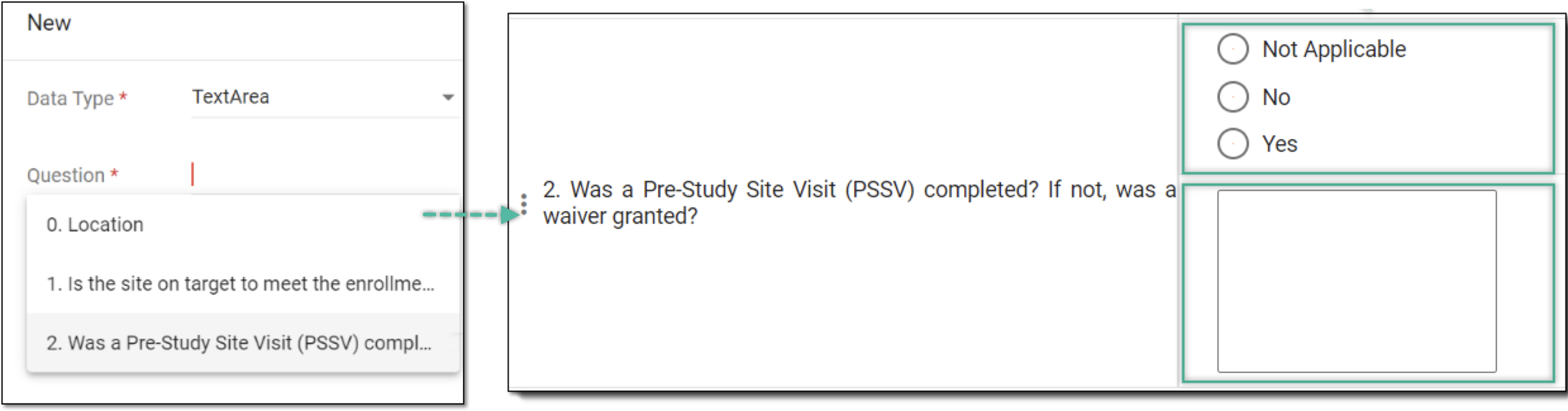 Figure 4. Adding multiple answers to same question
This way, to answer the question, the reviewer selects one of the option buttons, and then in the text field, provides their comment (if any).
Caption*
Enter the caption of a question to specify any additional details. You can select to show or hide the caption text in the form using the Show Caption toggle.
 Figure 5. Displaying caption in form
Format*
From this dropdown list, select the format in which you want the user to provide their answer, such as month/date/year, hour/minutes/seconds, and so on.
This option is only displayed for the Date and Time data types.
Precision
Enter a precision value up to which you want the user to provide a decimal value in the answer field.
For example, if you set the precision value to 2, then the user can enter the value "2.02" in the answer field.
This option is only displayed for the Float data type.
Required
Turn the toggle on if you want the question to be mandatory in the simple or log form.
Show Caption
Turn the toggle on if you want the caption of the question to be displayed in the simple or log form.
This option is displayed for all data types except for Label, because for labels the caption is displayed by default.
Text Align
Select Right or Left to align your caption text in the form—on the right of the field of on the left, respectively.
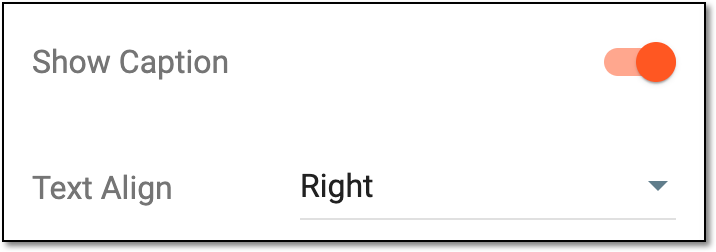 Figure 6. Selecting text alignment
This option is displayed only if the Show Caption toggle is turned on.
Help Text
Enter additional information, instructions, or clarification about the item. It may include details on how to answer a corresponding question or what data is collected in the field.
You can also select Rich Text
 to open the text editor where you can format the text with a variety
of styling options. The rich text editor provides a wide range of formatting capabilities such as adding bulleted or numbered lists, making a text bold or italicized, and more.
to open the text editor where you can format the text with a variety
of styling options. The rich text editor provides a wide range of formatting capabilities such as adding bulleted or numbered lists, making a text bold or italicized, and more.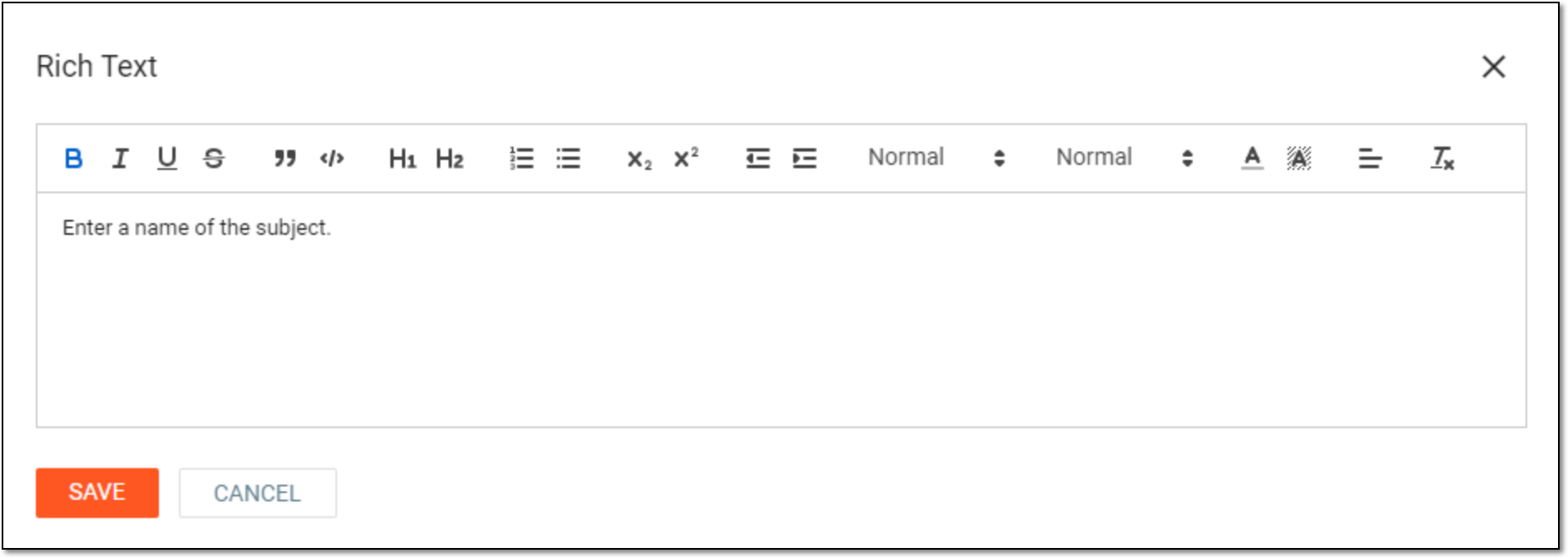 Figure 7. Entering text in rich text editor
SAVE
Select
to save your changes.CANCEL
Select
 to discard your changes and return to the Monitor Template Detail
page.
to discard your changes and return to the Monitor Template Detail
page.
-

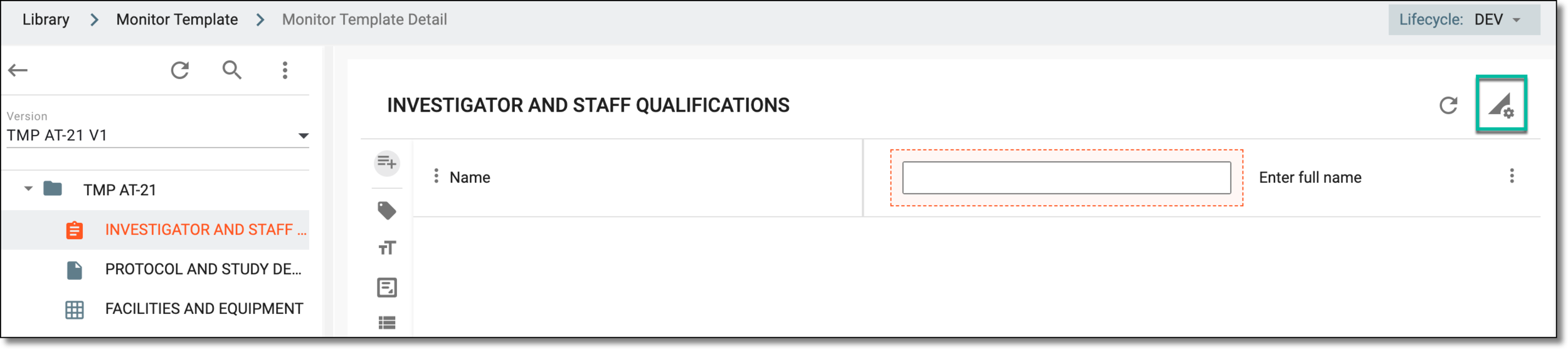
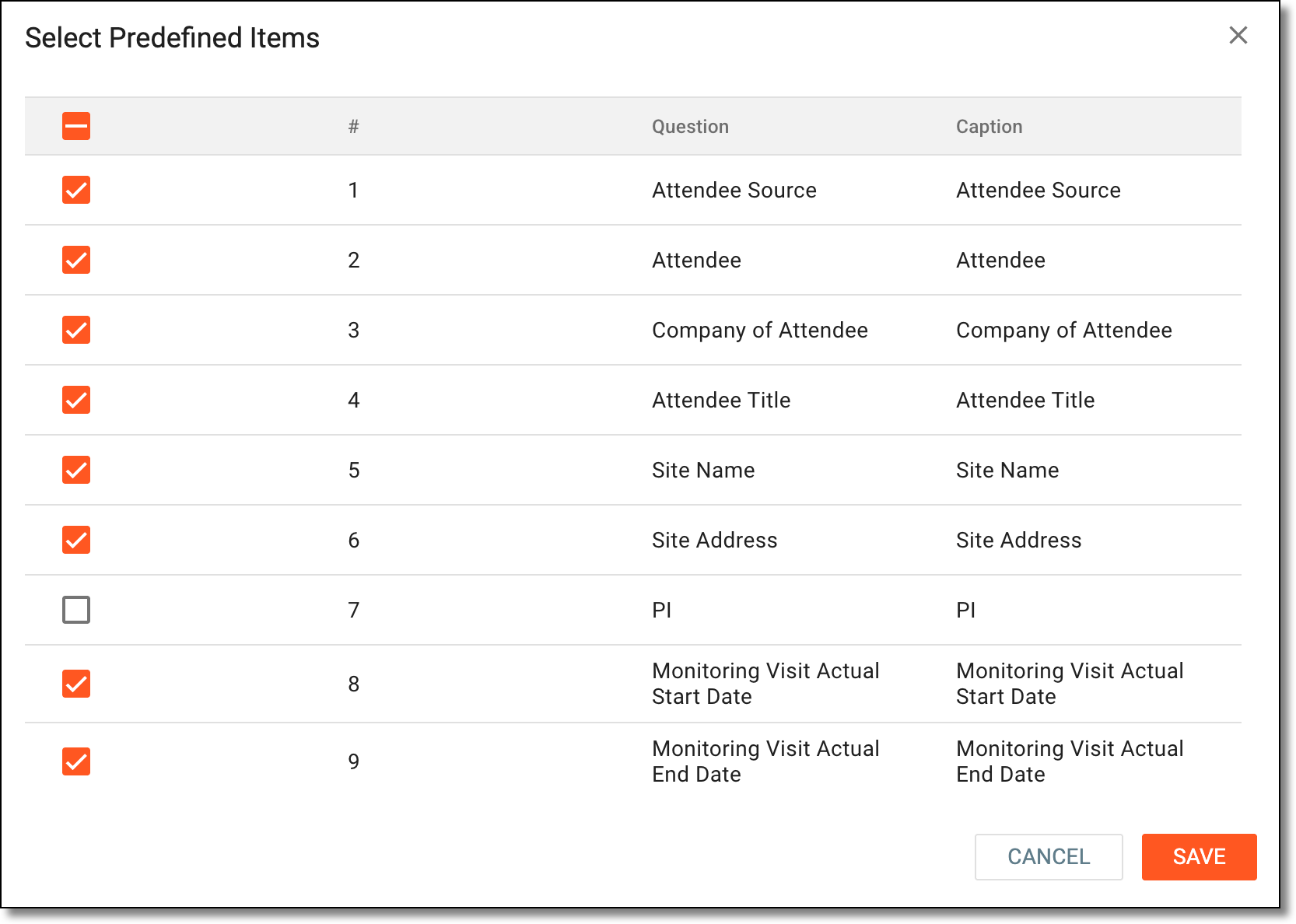
Upon confirmation, the questions and items are added to a simple or log form. You may proceed with submitting the monitor template if you do not wish to add any other forms to the template.
Modify simple or log form data
In CTMS, you can modify the data (questions and items) that you have added in the simple or log form. This may be required if you have cloned an existing template and you want to modify the data added in the simple or log forms as per your requirement or the questions currently added are not sufficient enough to acquire the complete details of the deviation, or there is an error in some question, or due to some other reason.
Important
Before you start any modification, ensure the following:
-
The monitor template in which the required simple or log form exists is not in use in STUDY MANAGEMENT > Monitoring > Monitoring Visit. If it is in use, then you may create a new version of the monitor template and modify it as required.
-
The monitor template is inactive. If it is not, then you may inactivate the template first and then proceed with the required modifications.
There are several modification options provided for you to alter a simple or log form as discussed in the following sections.
Every question—custom or predefined—on the simple or log form is usually associated with an item or items that need to be answered to assemble specific data for the monitoring visit. For different questions, there are various item options, such as text fields, checkboxes, date pickers, and more. You can edit any question or item when the updates are required due to protocol changes or other reasons.
-
In the CTMS application header, select the LIBRARY tab.
-
From the left pane of the page that opens, select Monitor Template.
Figure 1. Accessing monitor template subtab
-
From the Monitor Template List table, select the template name in which the required simple or log form exists.
Figure 2. Selecting monitor template
-
From the explorer tree of the page that opens, select the required simple or log form.
-
On the form content page that appears, locate the needed instance—question or item—and proceed as follows.
-
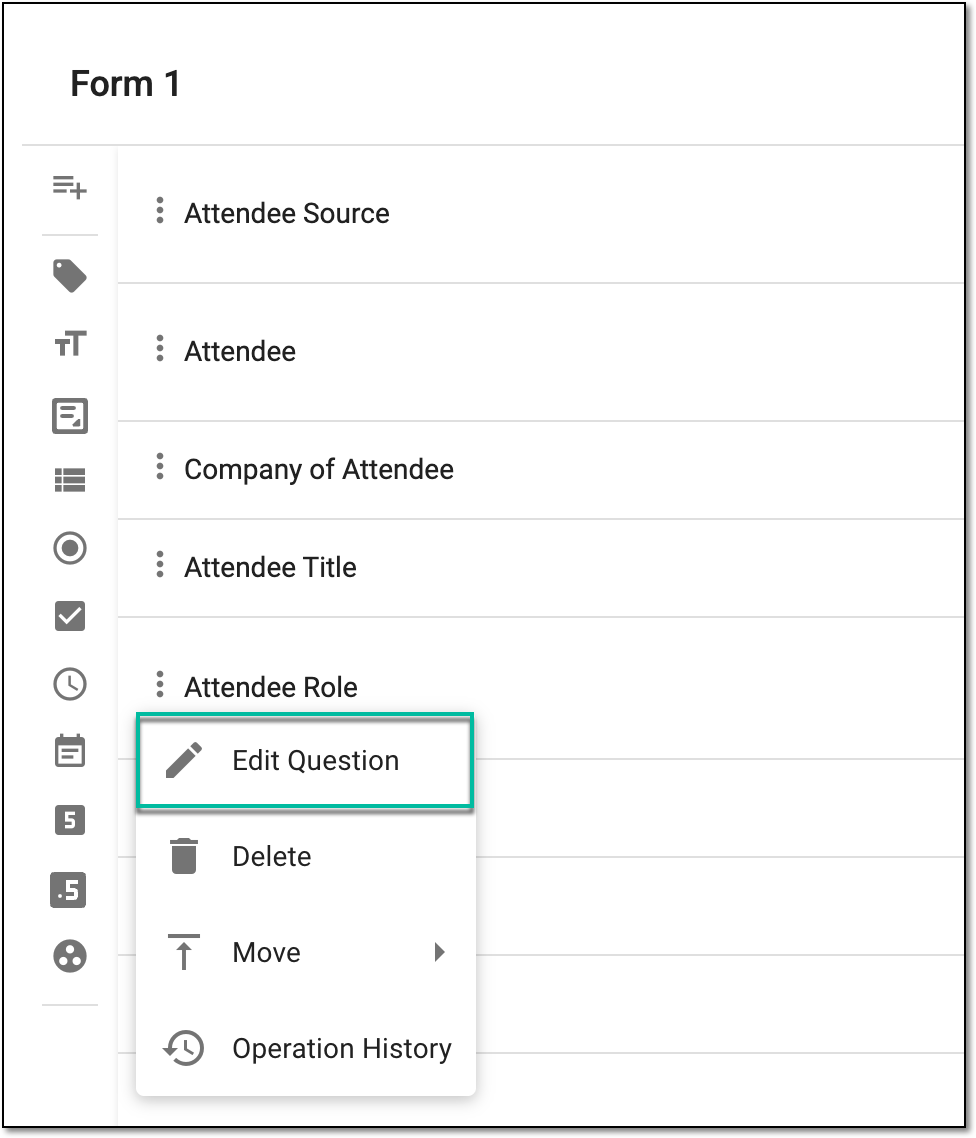
Next to the needed item, select More
 > Edit
  .
.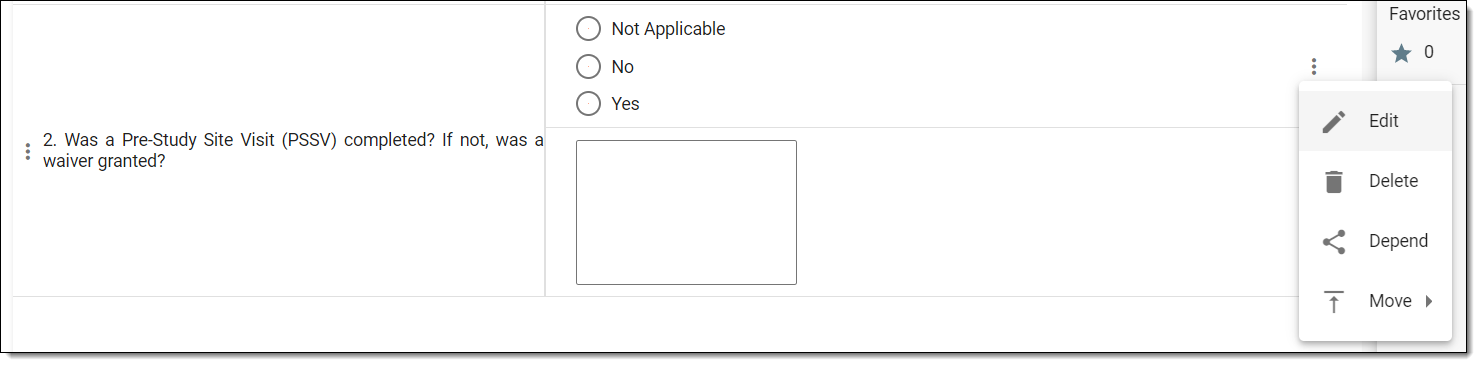 Figure 5. Selecting option to edit question item
-
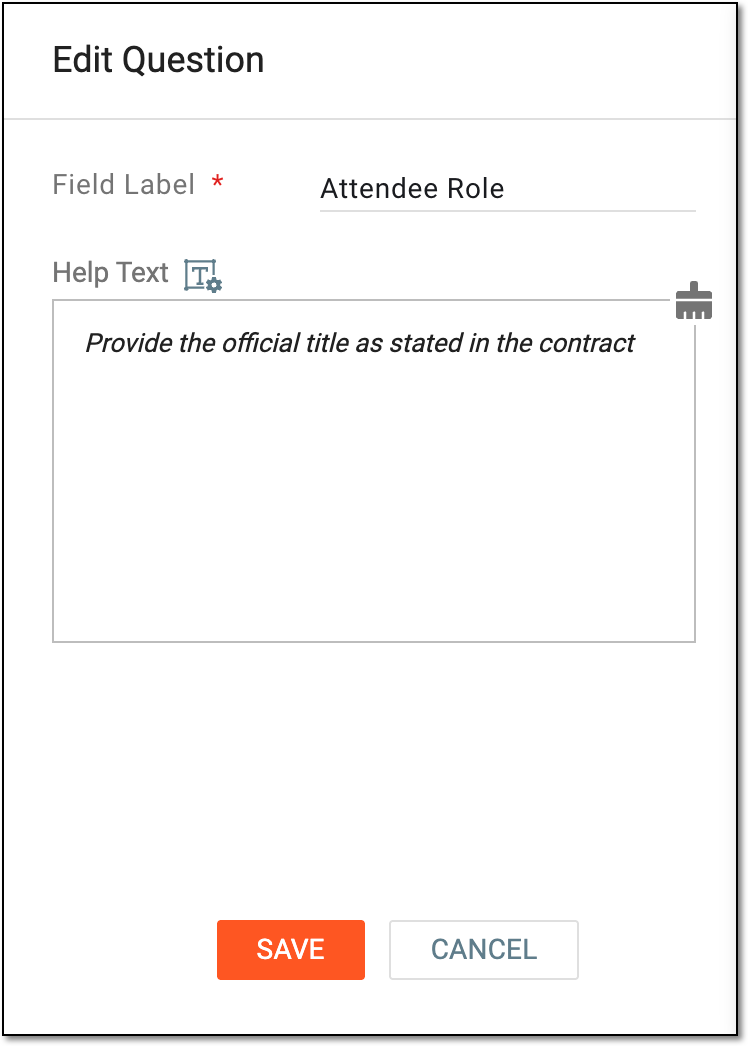
In the Edit panel that expands, update the fields as needed. These fields are identical to those explained in the table of the Add questions to simple or log form section.
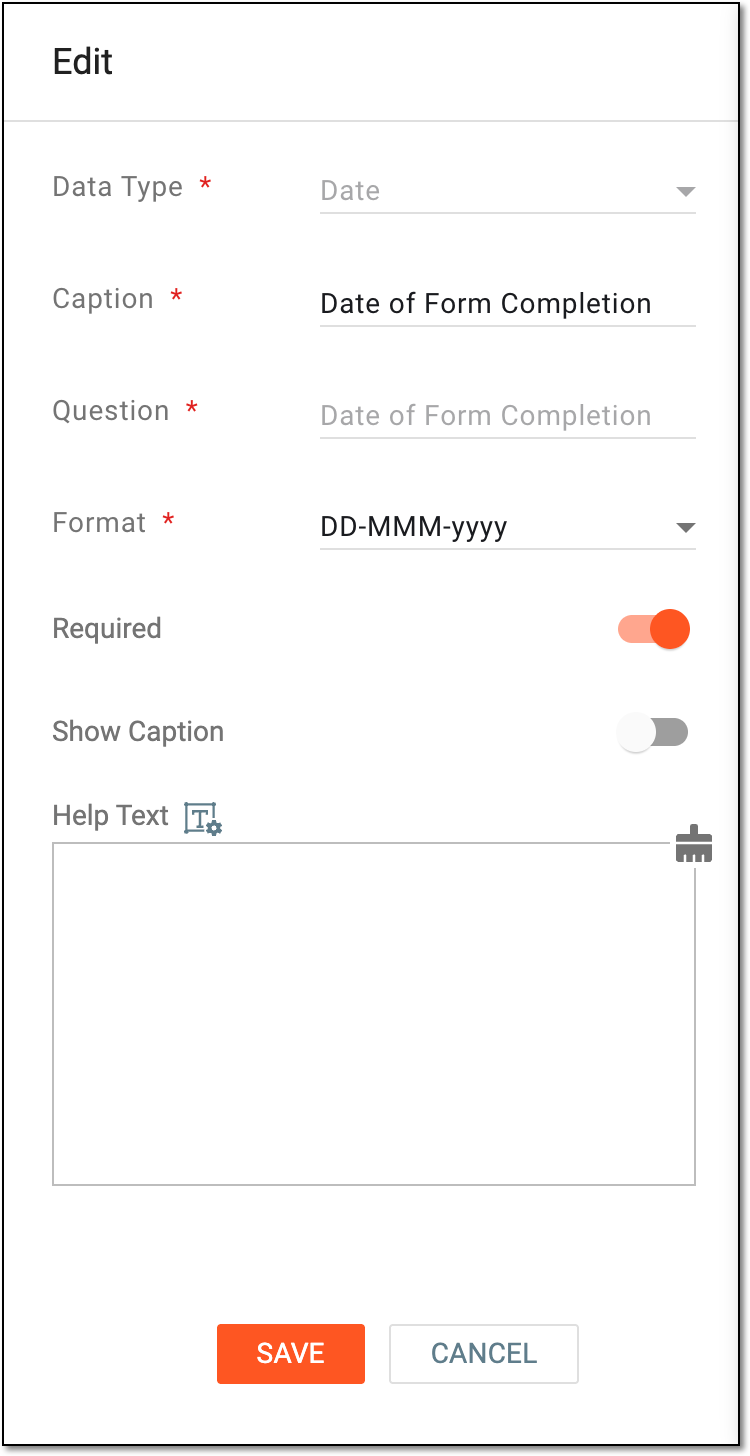 Figure 6. Editing item details
-
-
Select
.
Upon saving, the question and item details are updated in your simple or log form. You can repeat the same procedure to adjust all questions and items as needed.
In CTMS, you can associate two items in a simple or log form of a monitor template in a way that until one of the items is answered, the other one remains hidden. Therefore, by making one item dependent on the other one, you create lineage between the form questions and enable the creation of multivariant questions.
For example, you can first ask the reviewer: "Have any Safety Adverse Events (SAEs) other than the ones specified in protocol occurred?". If the user answers, "Yes", then you can ask the reviewer: "Have SAEs been reported to Institutional Review Boards (IRBs) and Independent Ethics Committees (IECs)?".
-
In the CTMS application header, select the LIBRARY tab.
-
On the page that opens, from the left pane, select the Monitor Template subtab.
Figure 1. Accessing monitor template subtab
-
From the Monitor Template List table, select the template name in which the required simple or log form exists.
Figure 2. Selecting monitor template
-
On the Monitor Template Detail page that appears, from the explorer pane, select the required simple or log form.
-
In the form, locate the needed question item. Then next to it, select More
> Depend  .
.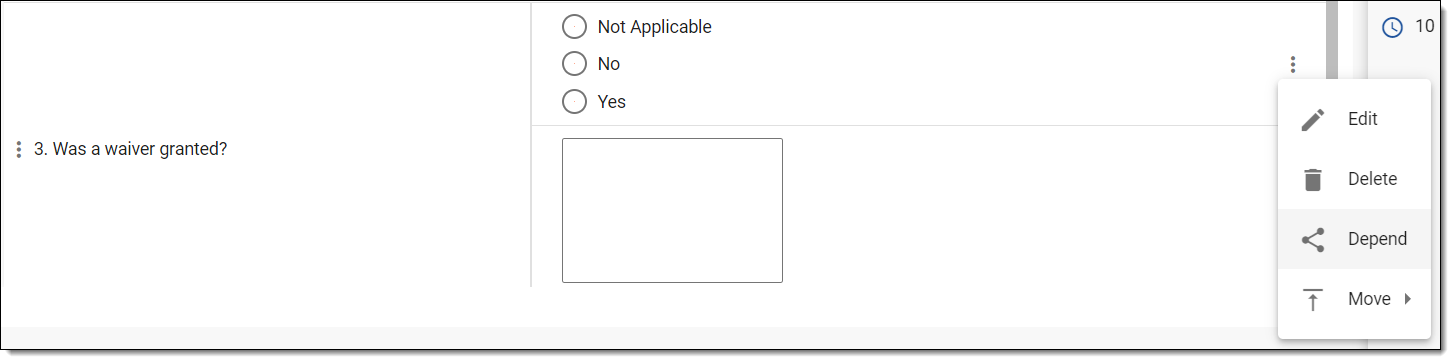 Figure 3. Selecting option to edit question
Tip
If you want to display the comment field answer option to the reviewer as well, then after adding dependence on the option buttons, repeat the same step for the comment field as well.
-
In the Depend dialog that appears, select the question and next to it, select the particular answer based on which you want to ask the dependent question from the reviewer.
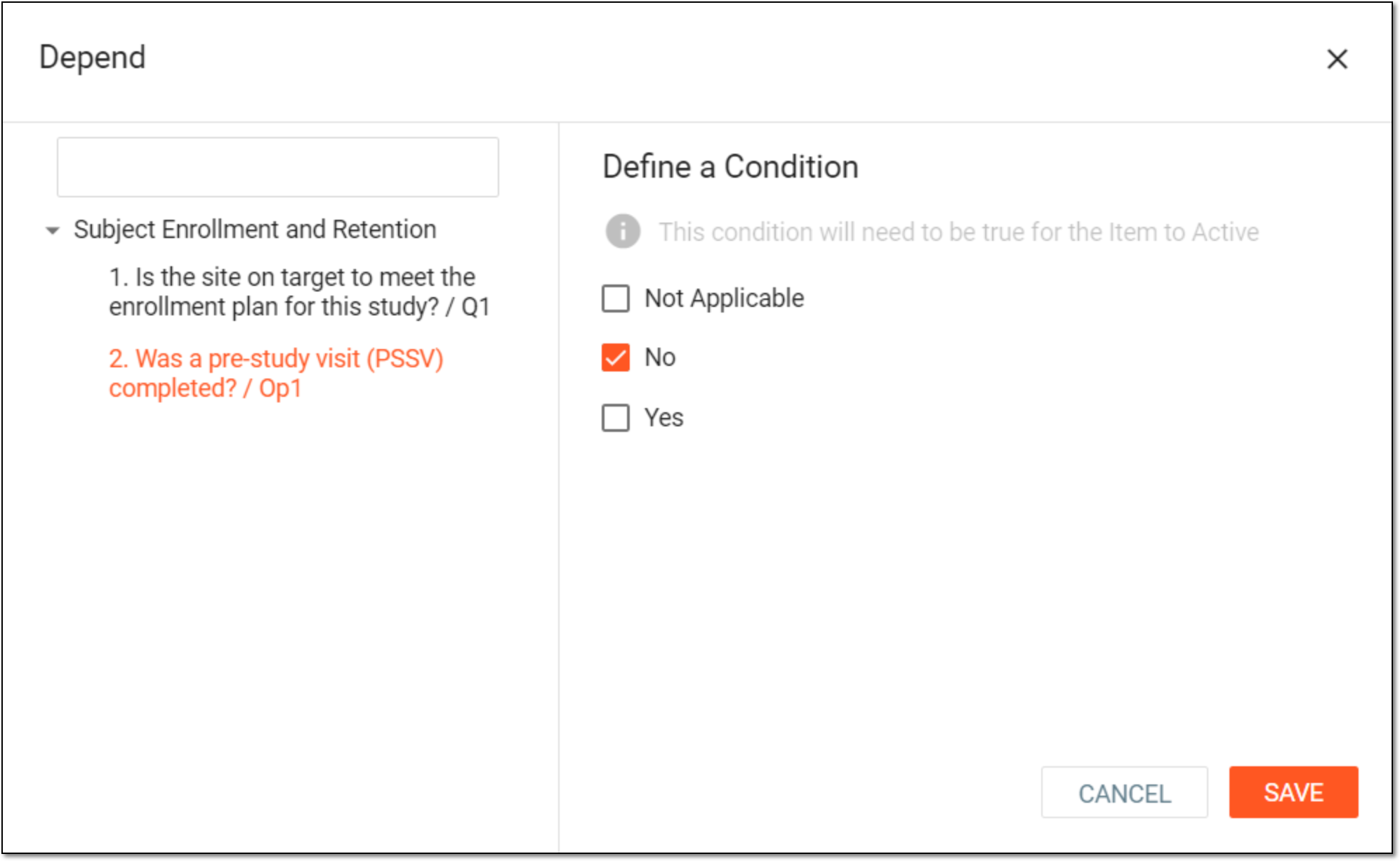 Figure 4. Selecting depending question
Tip
You can add dependence on multiple questions if required. That is, in the Depend dialog, after selecting an answer option for one question, you can move to the second question, and select the required answer option based on which you want to display the dependent question.
This way, if the reviewer provides the particular answers for the questions, only then the dependent question is asked.
For example, question 1 has two probable answers: Yes or No (option buttons), and question 2 has two data types of answers: Yesor No (option buttons) and a text field for adding comments.
If based on the answer No to question 1, you want to ask the reviewer question 2 and provide them both the answer data types: Yesor No and the comment field. Then, in this step, select the option Yes or No of question 2 and add dependence on the answer No of question 1. Once done, repeat the same step for the comment field option. That is, in this step, select the comment field option and add dependence upon the answer No to question 1.
As a result, if the reviewer answers No to question 1, then the system asks them question 2 and provides them Yes or No option buttons and a comment field to answer.
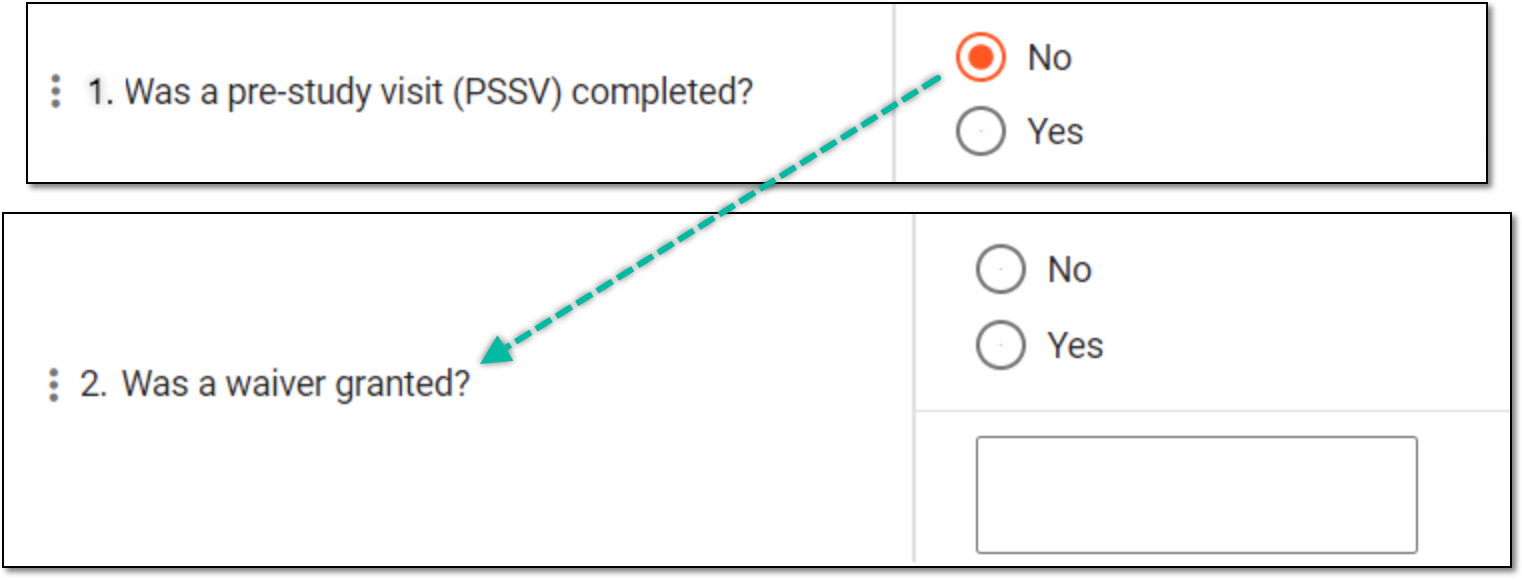 Figure 5. Dependence explanation
-
Select
to save your changes.
Upon saving, the dependence on a question item is added. The dependent question is not asked until a required answer is provided on the depending question by the reviewer.
In log and simple forms, you can move a question or item to a required position. This means that you can change the question order on a form, or you can change the order of answers to the same question.
For example, you may want to place the question "Was a pre-study visit (PSSV) completed?" before the question "Was a waiver granted?", or for a question, you may want to place the option buttons answer option before the comment field option, and so on.
-
In the CTMS application header, select the LIBRARY tab.
-
From the left pane of the page that opens, select Monitor Template.
Figure 1. Accessing monitor template subtab
-
From the Monitor Template List table, select the template name in which the required simple or log form exists.
Figure 2. Selecting monitor template
-
On the Monitor Template Detail page that appears, from the explorer pane, select the required simple or log form.
-
In the form that opens, locate the needed question or item. Then next to it, select More
> Move  . From the second dropdown menu, select an option as explained in the following table.
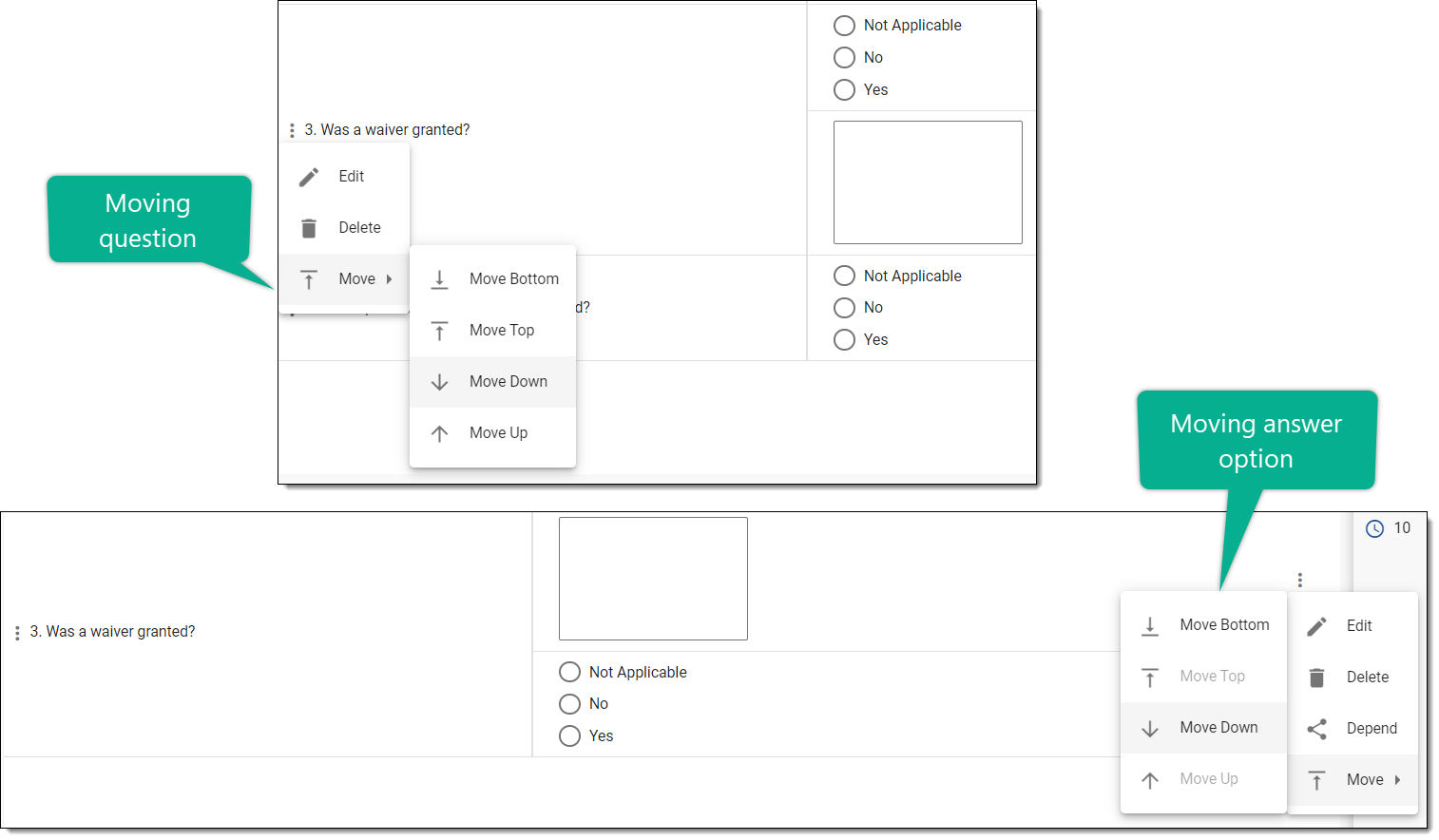 Figure 3. Selecting option to move item in simple or log form
Element
Details
Move Bottom

Select this option to move the selected instance as follows:
-
The question to the bottom of the form; that is, the question is placed at the end of the template form.
-
The item to the last place in the order of the question items.
Move Top
Select this option to move the selected instance as follows:
-
The question to the top of the form; that is, the question becomes the first one in the template form.
-
The item to the first place in the order of the question items.
Move Down

Select this option to move the selected instance as follows:
-
The question one place below its current position in the template form.
-
The item one place below its current position in order of the question items.
Select this option to move the selected
Move Up

Select this option to move the selected instance as follows:
-
The question one place above its current position in the template form.
-
The item one place above its current position in order of the question items.
Tip
Alternatively, you can move a question or item by dragging it to its required position.
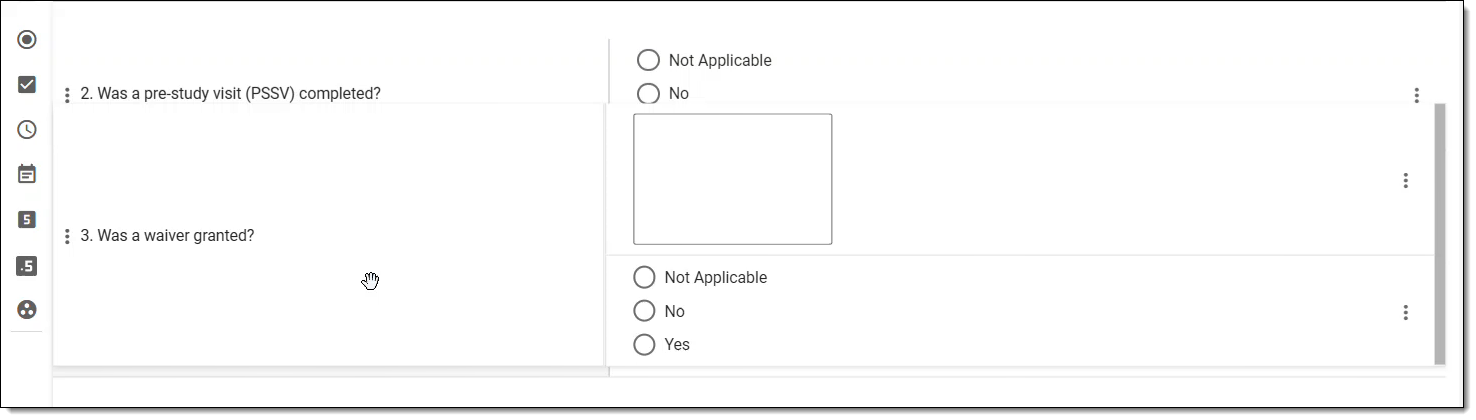 Figure 4. Dragging item to reposition
-
After the required manipulations, the question or item is moved to your required position in the simple or log form.
In CTMS, you can access the change history of a specific question or item within the log and simple forms of the monitor template. You may want to view the history to analyze details of edits, such as who made the changes, what was modified, and when the updates occurred—supporting transparency and audit readiness.
-
In the CTMS application header, select the LIBRARY tab.
-
From the left pane of the page that opens, select Monitor Template.
Figure 1. Accessing monitor template subtab
-
From the Monitor Template List table, select the template in which you want to modify the data.
Figure 2. Selecting monitor template
-
On the Monitor Template Detail page that appears, from the explorer pane, select the required simple or log form.
-
In the form, locate the question or item that you want to analyze. Then next to it, select More
> Operation History  .
.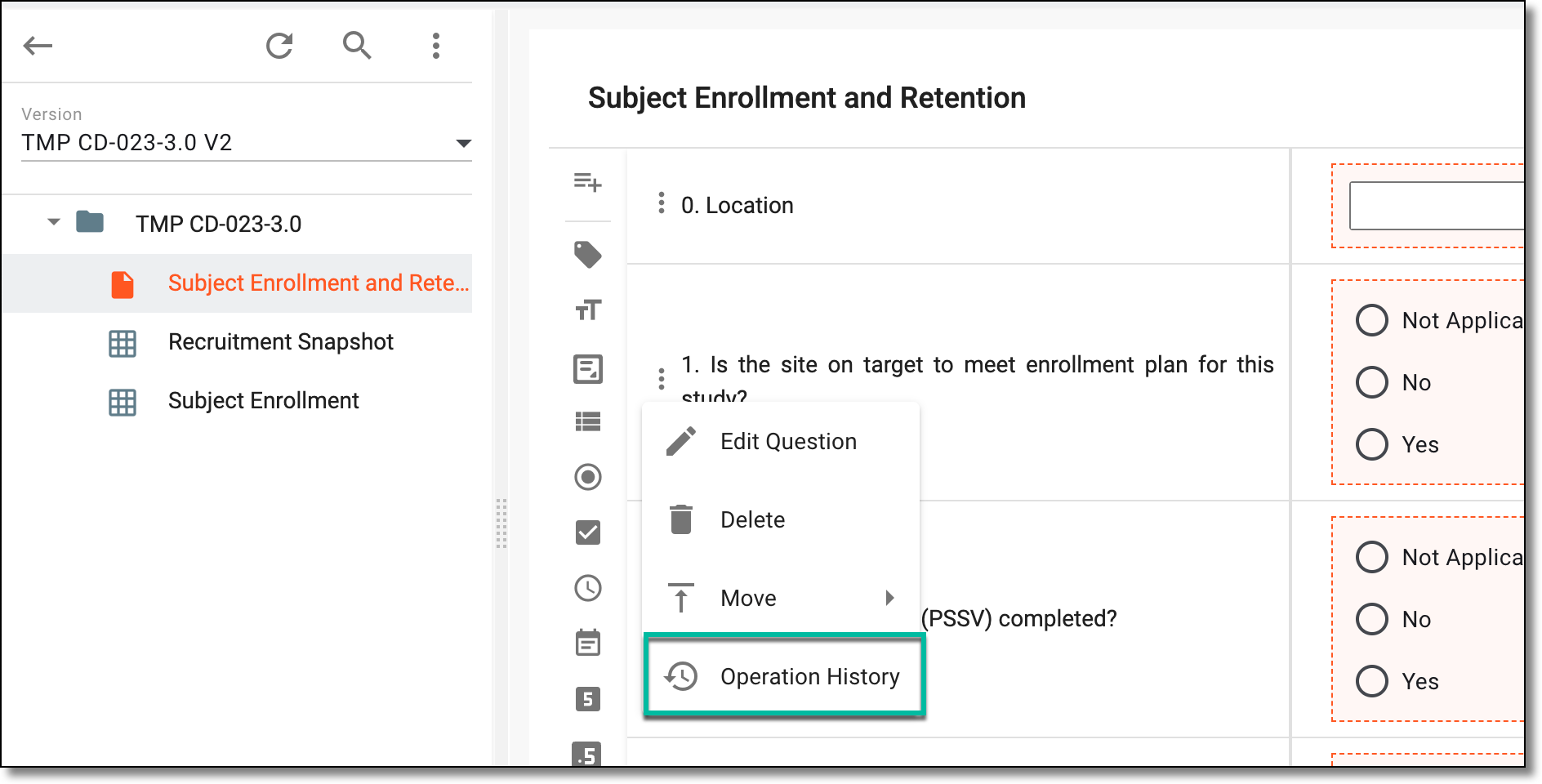 Figure 3. Accessing operation history of simple or log form item
-
In the dialog that opens, analyze the details of the changes made to the question or item from its creation to date.
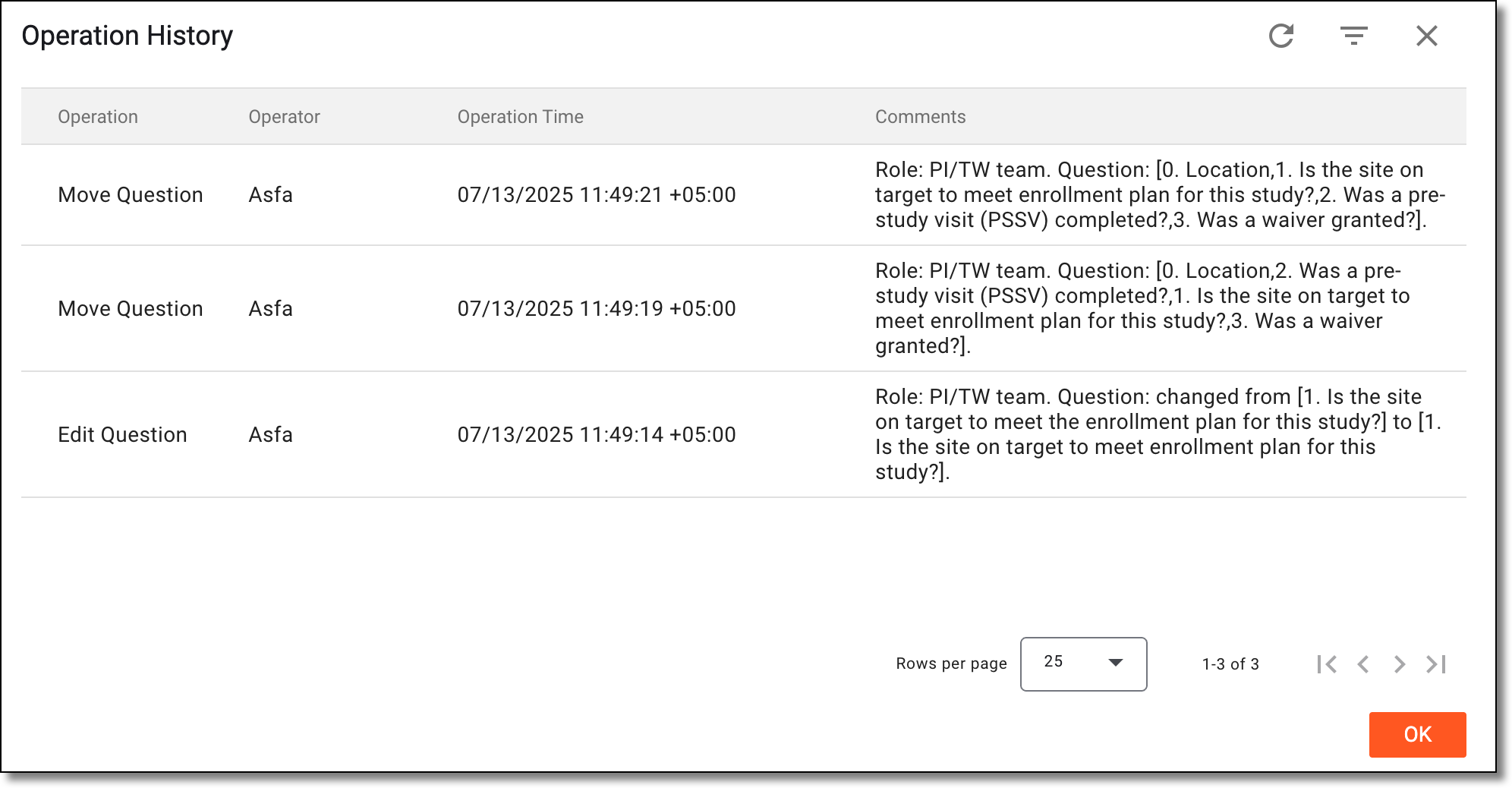 Figure 4. Analyzing operation history of simple or log form item
Once you have analyzed the change history, select OK to close the dialog and return to the monitor template's simple or log form.
Every question on the simple or log form is usually associated with an item or items that need to be answered to assemble specific data for the monitoring visit. There are various form field options such as text fields, checkboxes, date pickers, and more. You can delete questions or items from the form when the updates are required due to protocol changes or other reasons.
-
In the CTMS application header, select the LIBRARY tab.
-
From the left pane of the page that opens, select Monitor Template.
Figure 1. Accessing monitor template subtab
-
From the Monitor Template List table, select the template name in which the required simple or log form exists.
Figure 2. Selecting monitor template
-
On the page that opens, locate the question or item you want to delete. Then next to it, select More
> Delete .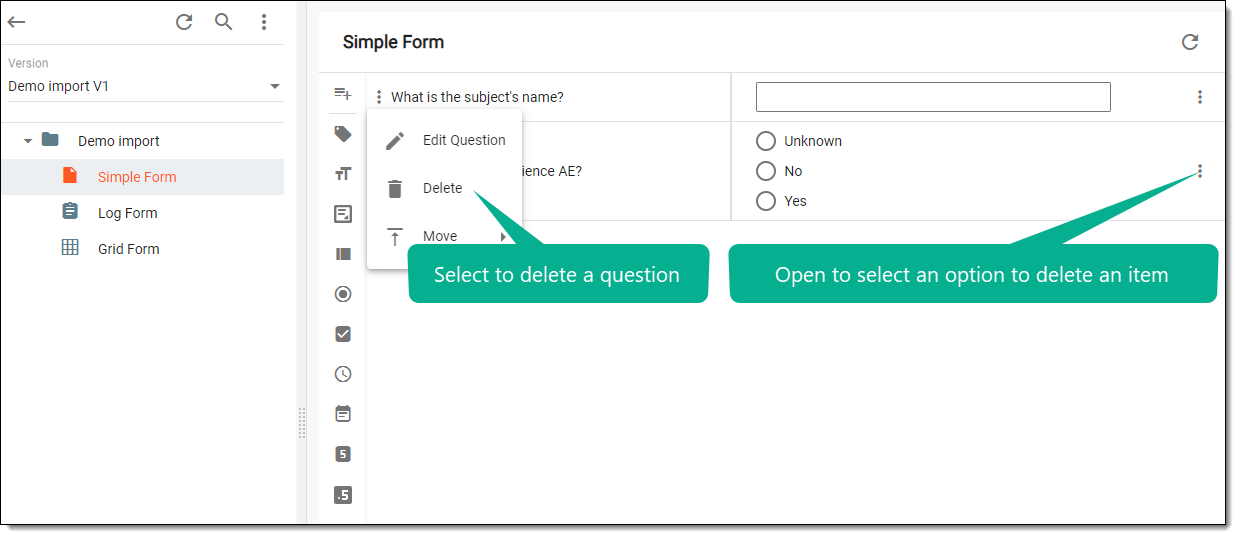 Figure 3. Selecting option to delete question or item
-
In the Delete Item dialog that appears, confirm the action by selecting
 .
.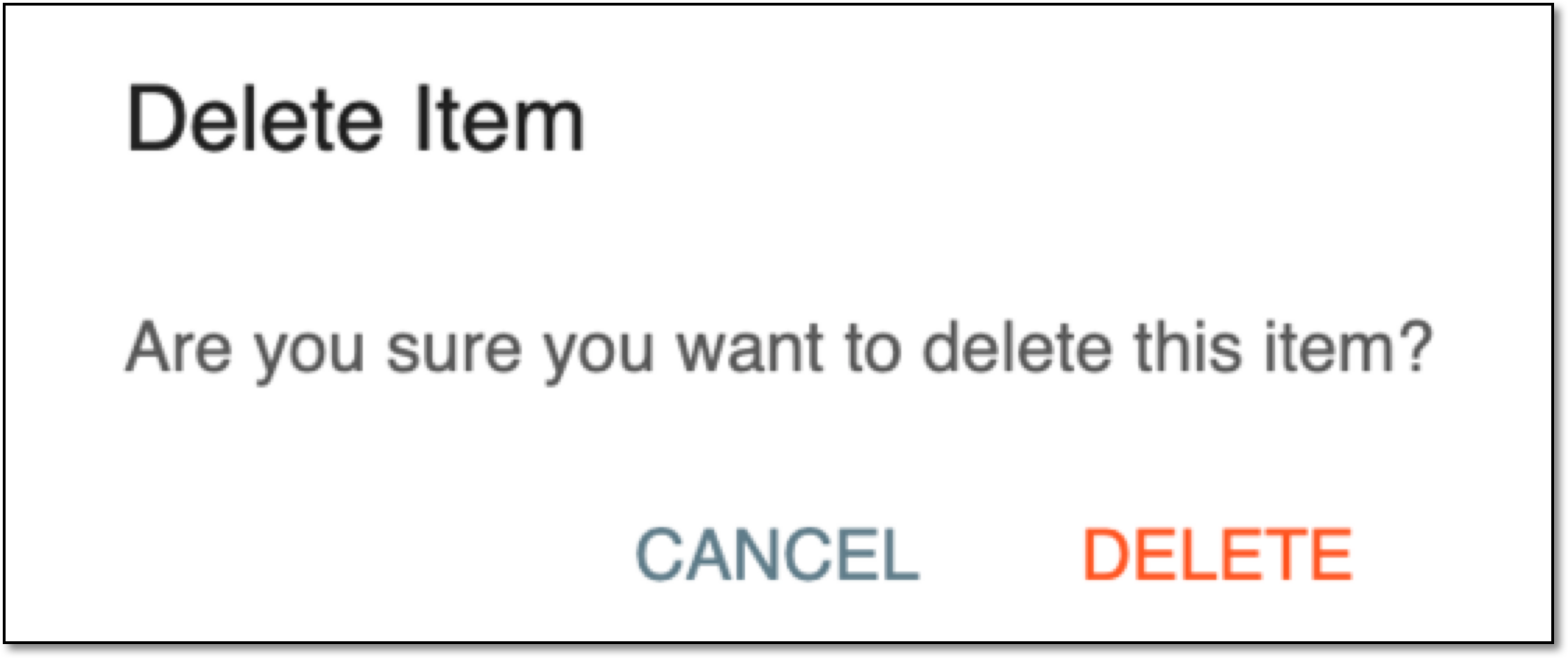 Figure 4. Confirming deletion
Upon confirmation, the question or item is deleted from the simple or log form.