Create monitoring plan
A monitoring plan refers to a comprehensive strategy that outlines how sites of a clinical trial are to be monitored for compliance, quality, and safety. You can create as many new monitoring plan entities as needed. Based on every created monitoring plan, monitoring visits will be generated by the system according to the preset schedule. Since there must be a dedicated personnel in charge of each monitoring visit generated according to the established monitoring plan, you need to add human resources first before creating a monitoring plan.
-
Access the study management page in one of the following ways:
-
In the CTMS application header, select the DASHBOARD tab and then select the study dashboard of your interest.
 Figure 1. Accessing study management from dashboard
-
In the CTMS application header, select the STUDY MANAGEMENT tab. Then from the Study Data List table, select the study name of your interest.
 Figure 2. Accessing study management from study data list
-
-
On the study page that opens, in the left pane, expand Monitoring and select Monitoring Plan.
-
Above the Monitoring Plan table that appears, on the workspace toolbar, select New Item
 .
.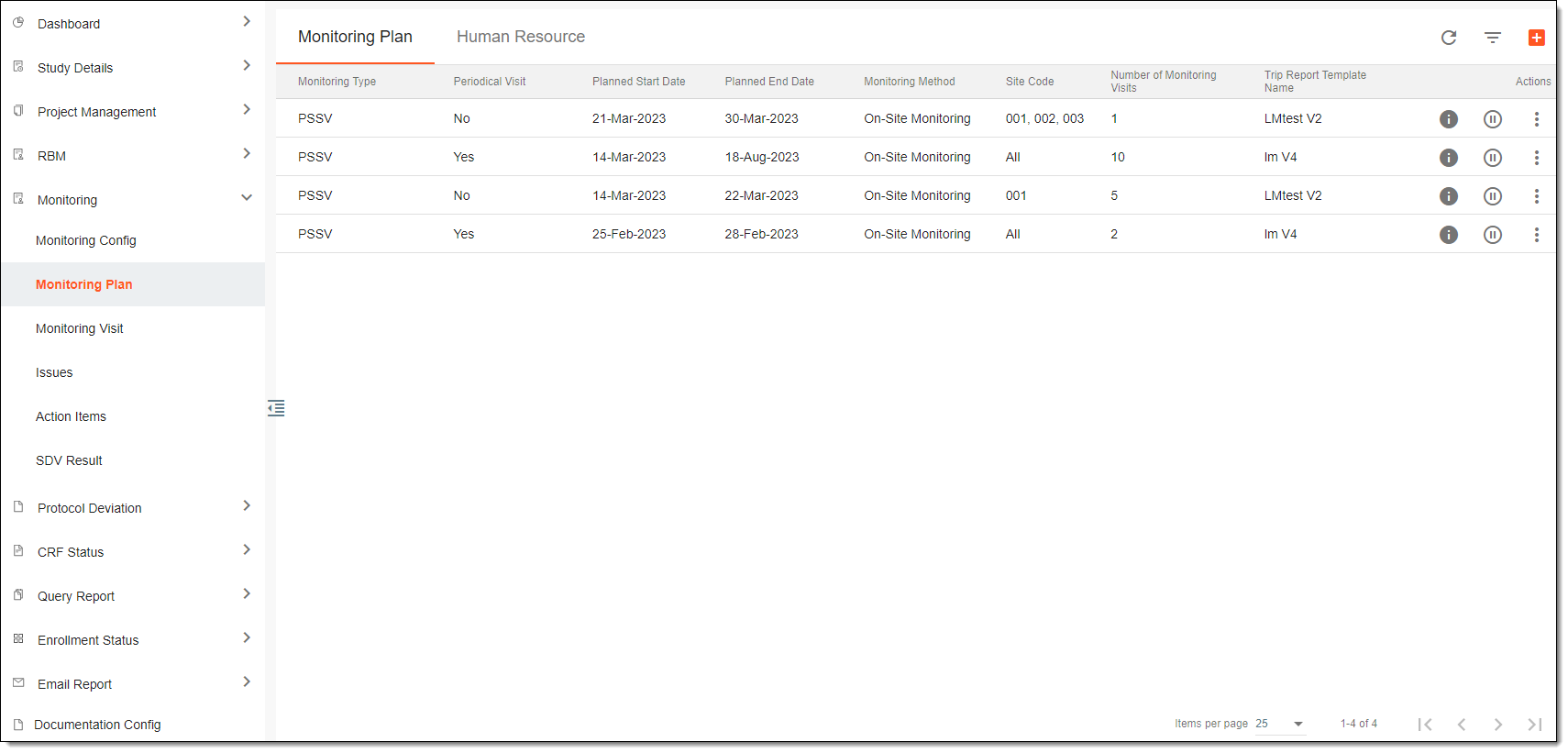 Figure 3. Accessing monitoring plans
-
On the page that opens, complete the form as suggested in the following table.
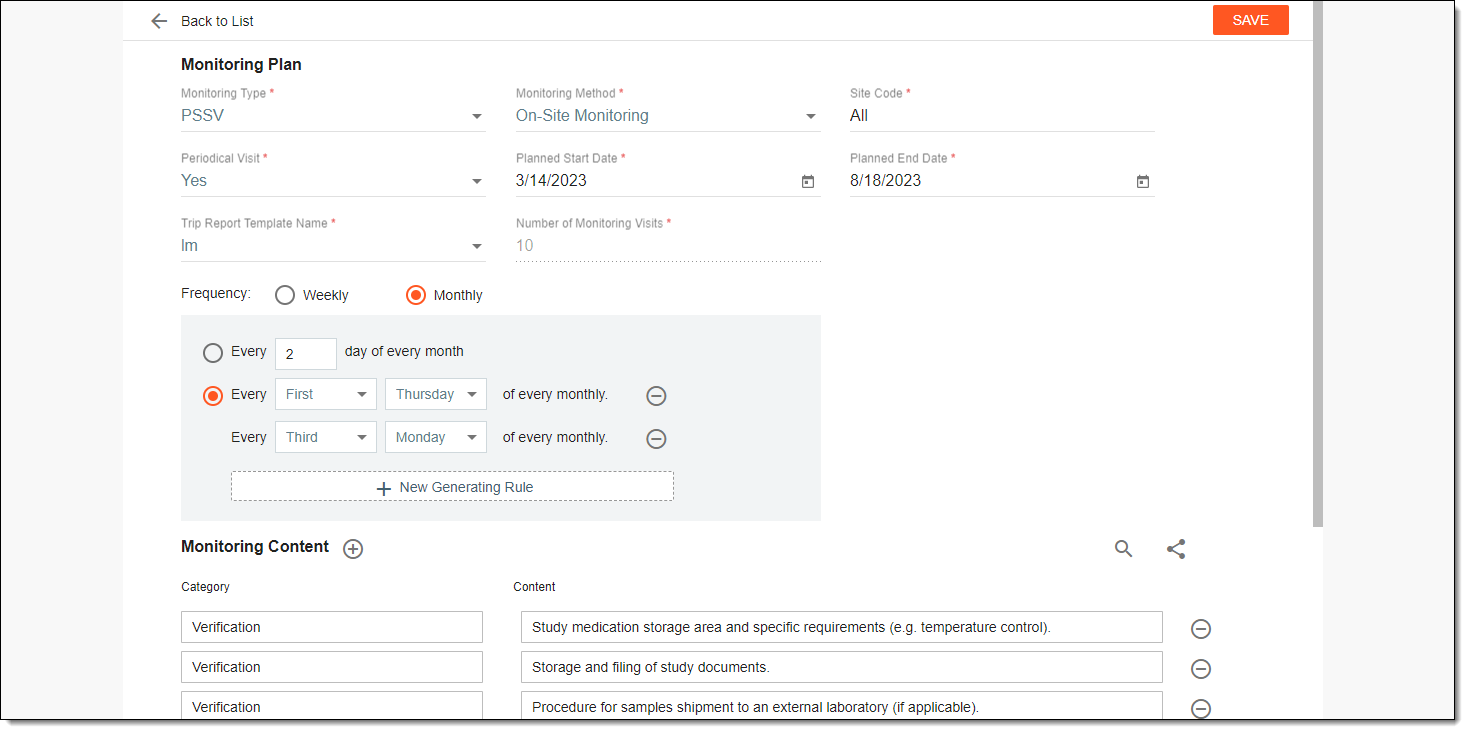 Figure 4. Creating monitoring plan
Tip
In the following table, mandatory elements are marked with an asterisk (*).
Element
Details
Monitoring Plan
Monitoring Type*
Select the type of monitoring for the created monitoring plan.
Monitoring Method*
Select the method of monitoring for the created monitoring plan.
Site Code*
Select sites for which the created monitoring plan is designed. You can also apply this plan to all sites at once.
Periodical Visit*
Define whether the monitoring visits need to occur periodically with the outlined frequency or not.
Planned Start Date*
Select the date when the monitoring plan needs to be initiated.
Planned End Date*
Select the date when the implementation of the monitoring plan is to finish.
Trip Report Template Name*
Select the monitor template according to which trip reports for visits of the created plan are to be generated.
Number of Monitoring Visits*
Enter here a number of monitoring visits that need to take place according to the created monitoring plan.
You can select a number value here only if No is selected in the Periodical Visit
                                  field.
Frequency
Select here a frequency with what monitoring visits need to be populated based on the created monitoring plan.
You can select a frequency only if Yes has been selected in the Periodical Visit
                                  field.
For example, you can select the monitoring visits to be generated every Tuesday of the week or every second Monday of the month.
Monitoring Content
Category
After selecting a monitoring type, a list of category items is populated according to the selected type. You can update these values manually depending on the monitoring plan requirements.
Content
After selecting a monitoring type, the content is populated according to the selected type and content category. You can update these values manually depending on the monitoring plan requirements.
Add Content
Select
 to add a new item to the monitoring plan content. You can then add its category and content message manually.
Remove
Select
 to remove an item from the monitoring plan content.
Library
Select
 to open the library of monitoring plan content items. You can clear the selection for those that you want to remove from the list of
monitoring plan content or select some of them to add, respectively.
to open the library of monitoring plan content items. You can clear the selection for those that you want to remove from the list of
monitoring plan content or select some of them to add, respectively.SAVE
Select
 to save the created monitoring plan entity.
Once saved, the monitoring plan entity is created. You can now proceed to creating a monitoring visit.