Action items
During a monitoring visit, monitors may identify issues or discrepancies at the site that require resolution. Once issues have been recognized and registered, action items need to be added to address these issues in a timely manner. One issue may have several action items associated with it because a resolution of a single issue may require several steps.
During a monitoring visit, monitors may identify issues or discrepancies at the site that require resolution. Once issues have been recognized and registered, action items need to be added to address these issues in a timely manner. One issue may have several action items associated with it because a resolution of a single issue may require several steps.
-
Access the study management page in one of the following ways:
-
In the CTMS application header, select the DASHBOARD tab and then select the study dashboard of your interest.
 Figure 1. Accessing study management from dashboard
-
In the CTMS application header, select the STUDY MANAGEMENT tab. Then from the Study Data List table, select the study name of your interest.
 Figure 2. Accessing study management from study data list
-
-
On the study page that opens, in the left pane, expand Monitoring and select Action Items.
-
Above the Action Items List table that appears, on the workspace toolbar, select New Item
 .
.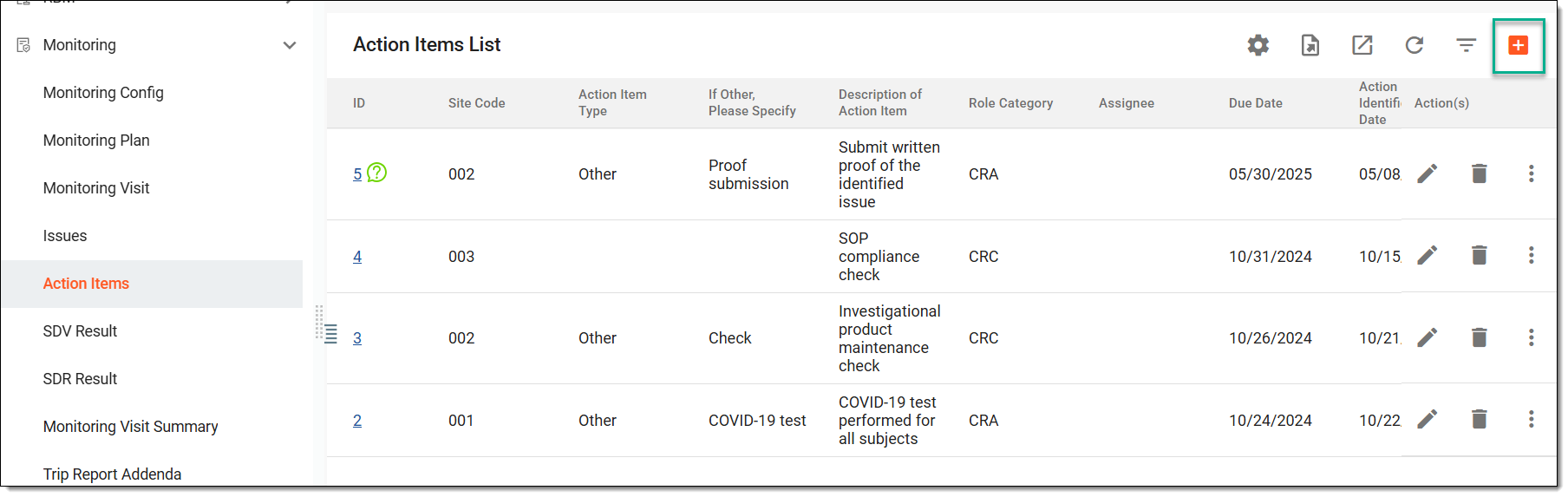 Figure 3. Selecting option to create new action item
-
On the page that opens, complete the form as suggested in the following table.
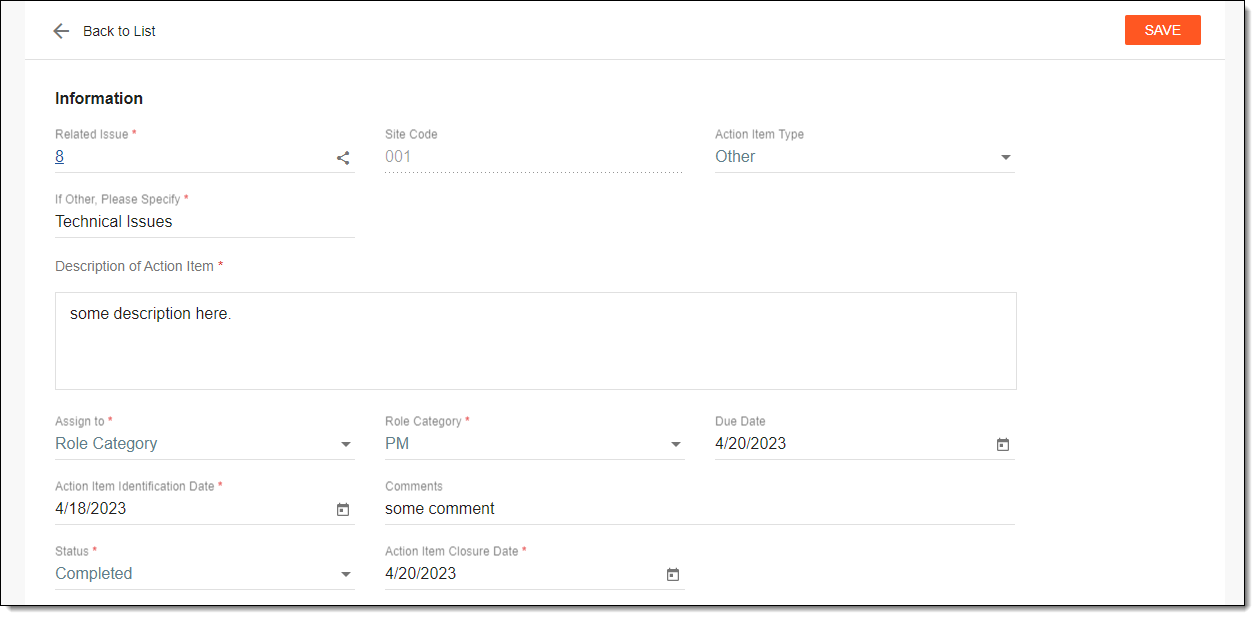 Figure 4. Adding action item
Tip
In the following table, mandatory elements are marked with an asterisk (*).
Element
Details
Related Issue*
In this field, select
 to associate one of the available existing issues with the created action item.
Site Code
Represents a code of the site to which the associated issue belongs.
Action Item Type
Select Other in this field if you want to specify some custom type for the created action item.
Description of Action Item*
Enter a meaningful description for the created action item.
Assign to*
Select either the Role Category (if you want users with a specific role to work on this action item) or the Assignee (if you want specific users to work on this action item) option.
Role Category*/Assignee*
If Role Category has been selected in the previous field, then select here a role or roles that need to work on this action item. If Assignee has been selected in the previous field, then select here a user or users who need to work on this action item.
Due Date
Specify a due date by which the created action item needs to be completed.
Action Item Identification Date*
Specify a date when the action item has been identified and registered.
Comments
Add a comment for the person or user role in charge of resolving the created action item.
Status
Select the most current status of the action item in terms of its completion.
Action Item Closure Date*
Specify a date when the action item has been resolved.
This field becomes available only if the status of an action item is set to Completed or Closed - Unresolved.SAVE
Select
 to confirm the creation of an action item.
Once saved, an action item is added. You can now add a new issue if needed.
During a monitoring visit, monitors may identify issues or discrepancies at the site that require resolution. Action items are created to outline what is to be done to resolve the encountered issues. Upon creation, each action item is assigned to a user or user role who should address the issue and then complete the action item to confirm that this aspect of an issue is resolved.
-
Access the study management page in one of the following ways:
-
In the CTMS application header, select the DASHBOARD tab and then select the study dashboard of your interest.
Figure 1. Accessing study management from dashboard
-
In the CTMS application header, select the STUDY MANAGEMENT tab. Then from the Study Data List table, select the study name of your interest.
Figure 2. Accessing study management from study data list
-
-
On the page that opens, perform one of the following actions:
-
On the My Work dashboard select the Action Items tile to start working on your action items.
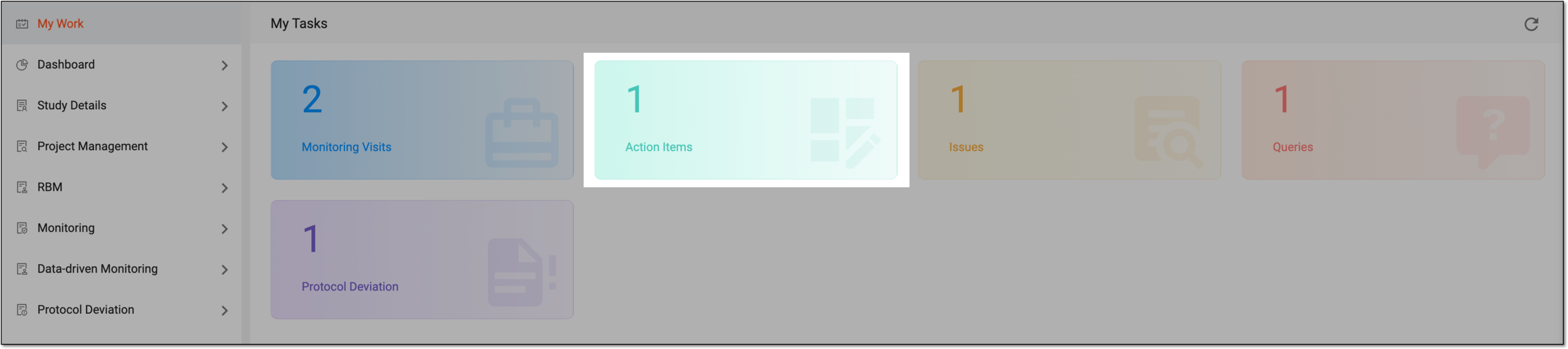 Figure 3. Accessing action items from dashboard
-
In the left pane, select Monitoring > Action Items and from the table that appears, locate and select the ID of the action item you want to complete.
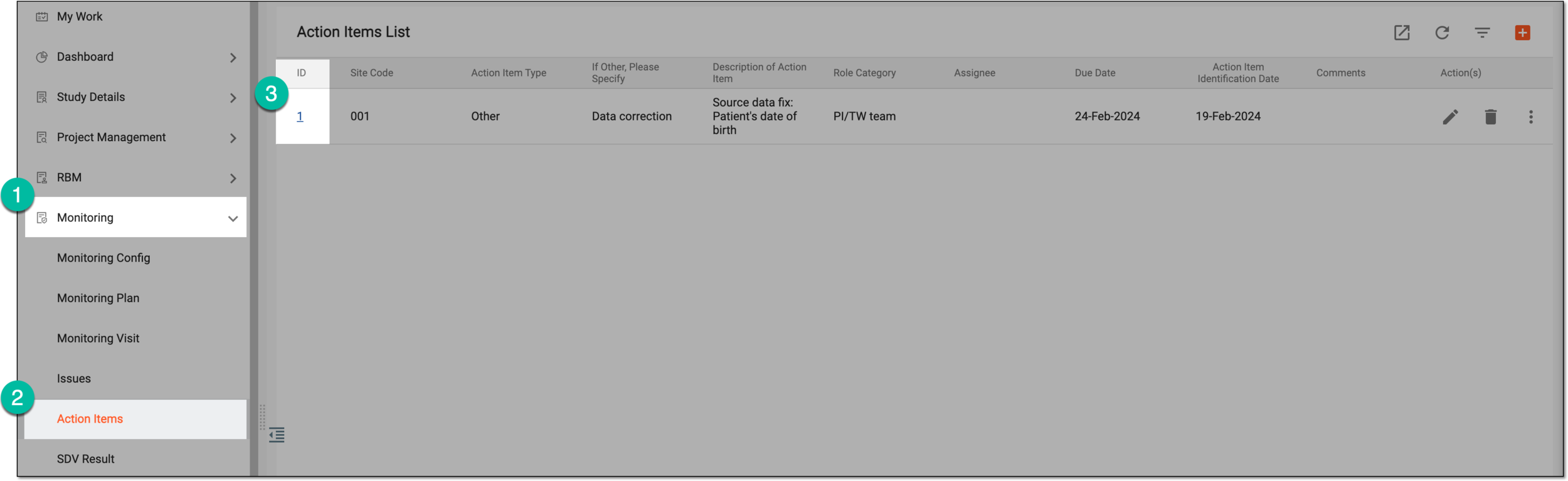 Figure 4. Accessing action item from list
-
-
In the form that opens, complete the action item by updating its status as explained in the following table.
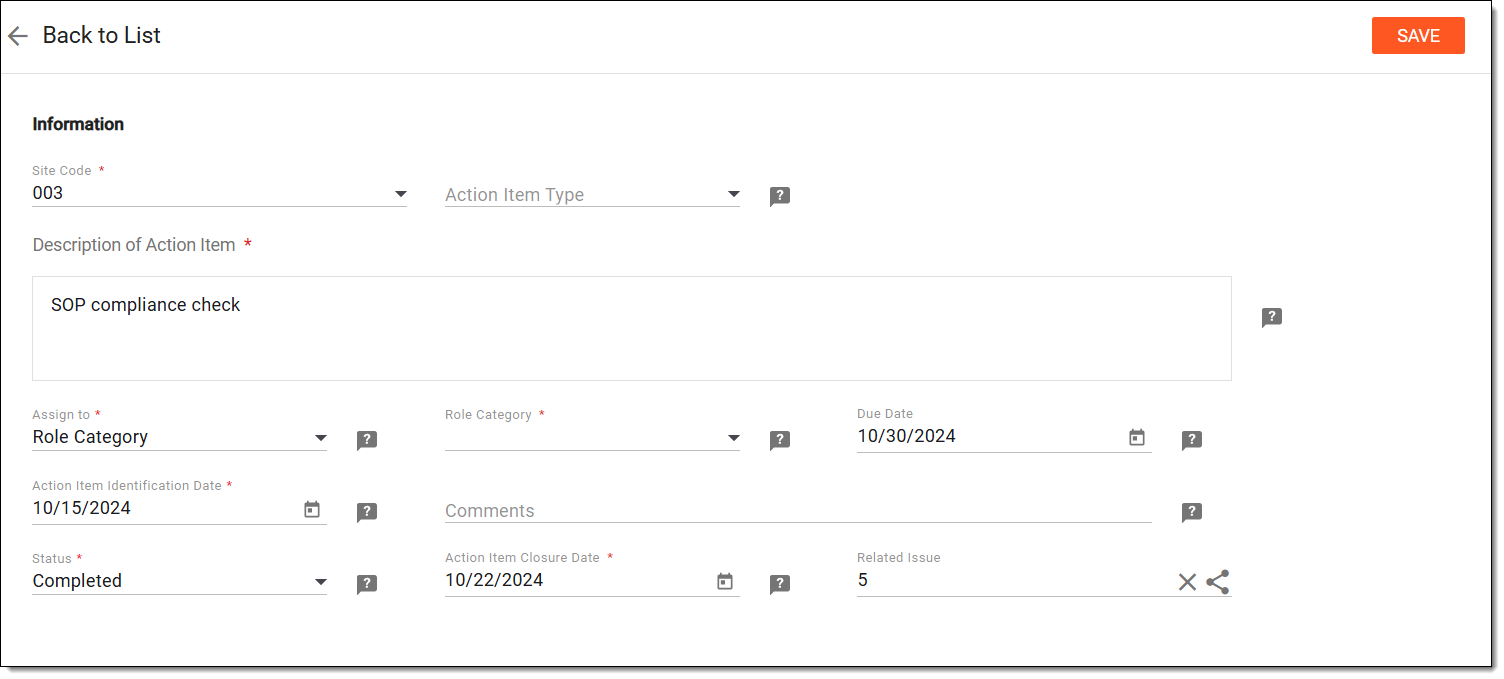 Figure 5. Completing action item
Tip
If needed, you can open a query on a specific data field to request feedback or a response from the reviewer or relevant personnel. Once the concern is addressed, you can proceed to close the query.
Element
Details
Status*
Select the Completed status to confirm that the action item is resolved.
Action Item Closure Date*
Specify a date when the action item is completed.
This field becomes available once the status of an action item is set to Completed.SAVE
Select
to confirm the completion of an action item.
Once saved, an action item is completed.
During a monitoring visit, monitors may identify issues or discrepancies at the site that require resolution. Once issues have been recognized and registered, action items need to be added to address these issues in a timely manner. One issue may have several action items associated with it because a resolution of a single issue may require several steps. You can edit existing action items if some updates need to be introduced.
-
Access the study management page in one of the following ways:
-
In the CTMS application header, select the DASHBOARD tab and then select the study dashboard of your interest.
Figure 1. Accessing study management from dashboard
-
In the CTMS application header, select the STUDY MANAGEMENT tab. Then from the Study Data List table, select the study name of your interest.
Figure 2. Accessing study management from study data list
-
-
On the study page that opens, in the left pane, expand Monitoring and select Action Items.
-
In the Action Items List table that appears, next to the needed action item, from the Action(s) column, select Edit
 .
.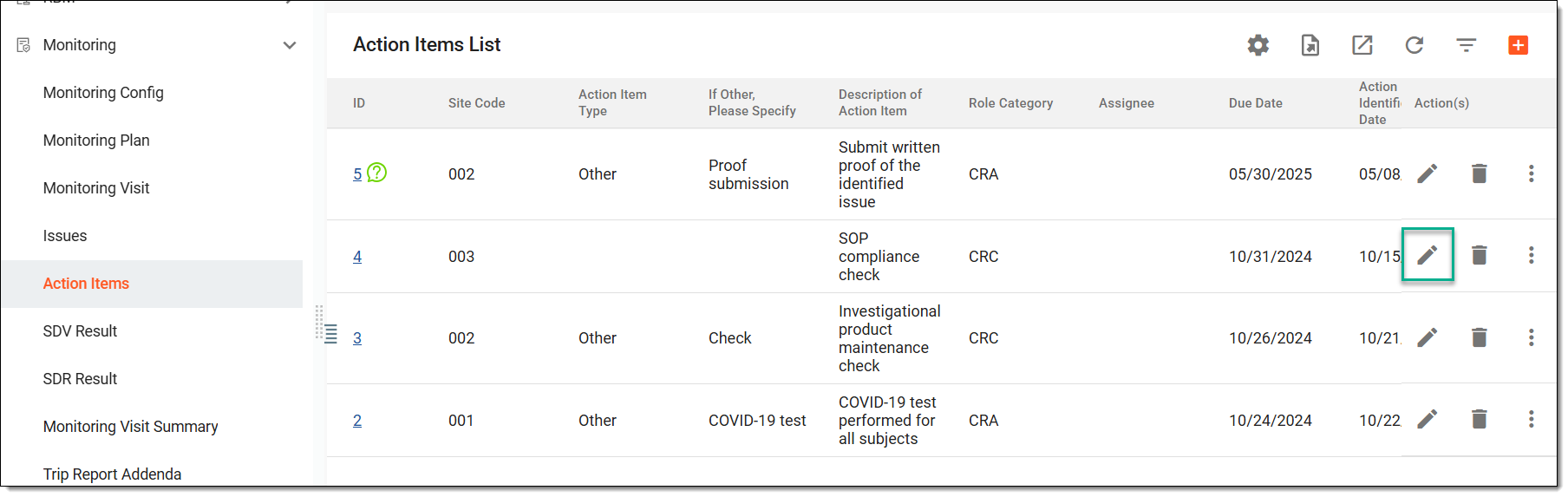 Figure 3. Selecting option to edit action item
-
On the page that opens, update the action item as explained in the table of the Add action item section. Then select
.Figure 4. Updating action item
Tip
If needed, you can open a query on a specific data field to request feedback or a response from the reviewer or relevant personnel. Once the concern is addressed, you can proceed to close the query.
Once saved, the action item is updated.
During a monitoring visit, monitors may identify issues or discrepancies at the site that require resolution. Once issues have been recognized and registered, action items need to be added to address these issues in a timely manner. One issue may have several action items associated with it because a resolution of a single issue may require several steps. Each action item has a history of actions done by CTMS users with it. It also shows the time pertinent to all operations and the type of operations that have been performed with each history record.
-
Access the study management page in one of the following ways:
-
In the CTMS application header, select the DASHBOARD tab and then select the study dashboard of your interest.
Figure 1. Accessing study management from dashboard
-
In the CTMS application header, select the STUDY MANAGEMENT tab. Then from the Study Data List table, select the study name of your interest.
Figure 2. Accessing study management from study data list
-
-
On the study page that opens, in the left pane, expand Monitoring and select Action Items.
-
In the Action Items List table that appears, next to the needed action item, select More
 > Operation History
  .
.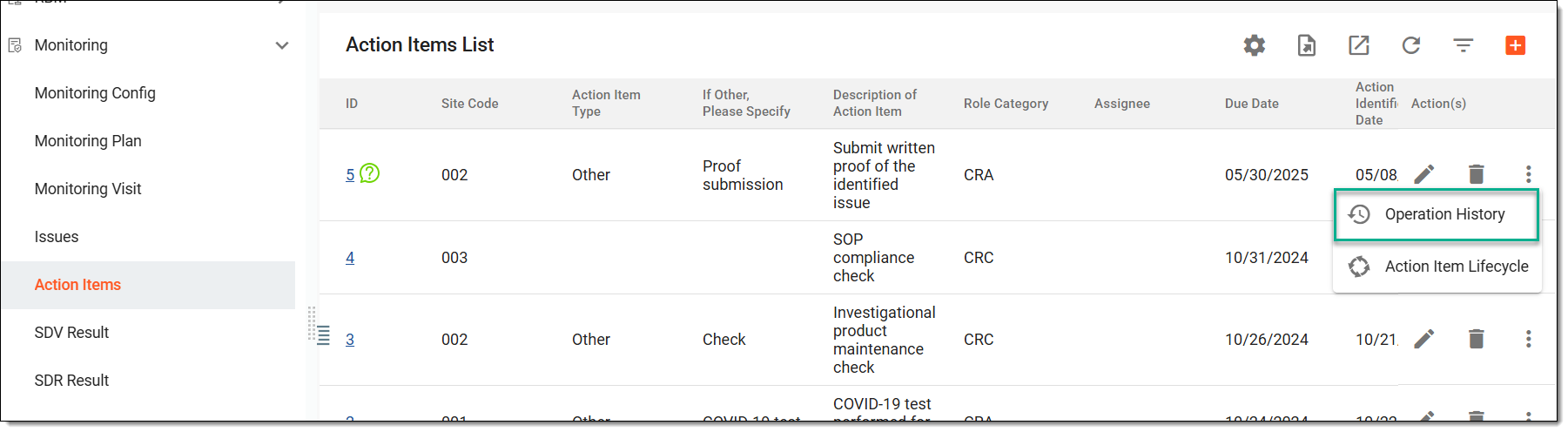 Figure 3. Accessing action item operation history
-
In the Operation History dialog that opens, view the operation history of the selected action item.
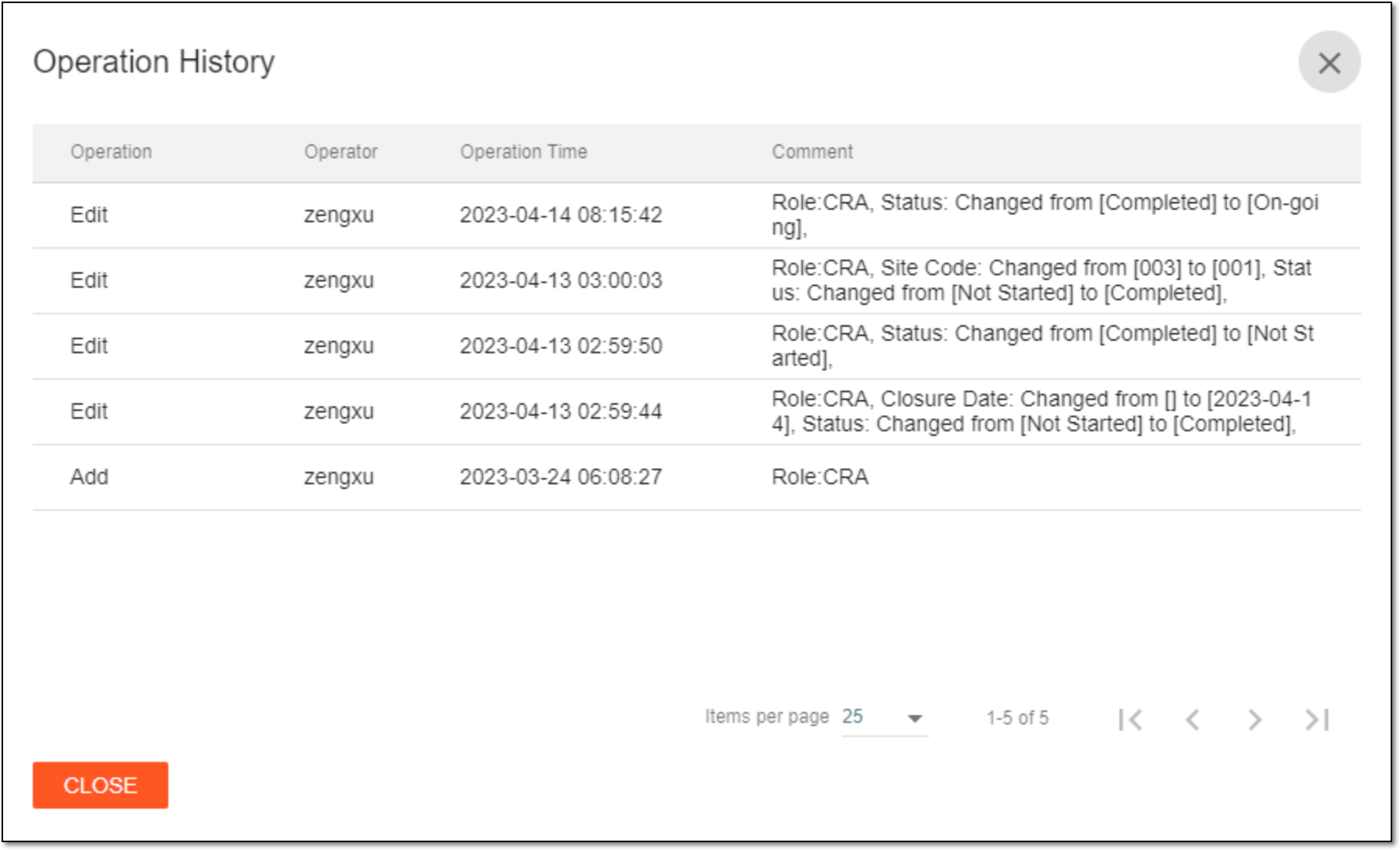 Figure 4. Viewing operation history of action item
Once viewed, select  to close the Operation History dialog.
During a monitoring visit, monitors may identify issues or discrepancies at the site that require resolution. Once issues have been recognized and registered, action items are added to address these issues in a timely manner. One issue may have several action items associated with it because a resolution of a single issue may require several steps. You can delete action items that are no longer required.
-
Access the study management page in one of the following ways:
-
In the CTMS application header, select the DASHBOARD tab and then select the study dashboard of your interest.
Figure 1. Accessing study management from dashboard
-
In the CTMS application header, select the STUDY MANAGEMENT tab. Then from the Study Data List table, select the study name of your interest.
Figure 2. Accessing study management from study data list
-
-
On the study page that opens, in the left pane, expand Monitoring and select Action Items.
-
In the Action Items List table that appears, select Delete
 next to the
needed action item.
next to the
needed action item.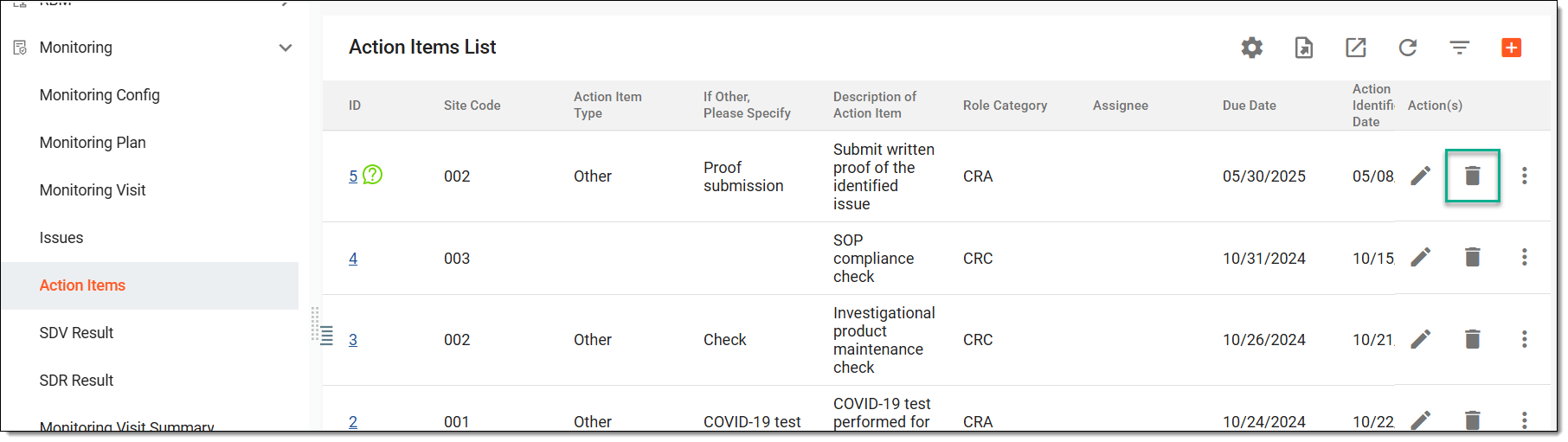 Figure 3. Deleting action item
-
In the confirmation dialog that opens, select DELETE.
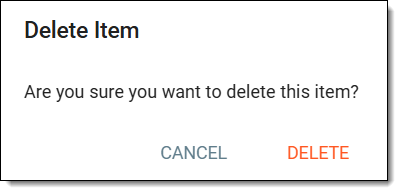 Figure 4. Confirming action item deletion
Once done, the action item is deleted.
During a monitoring visit, monitors may identify issues or discrepancies at the site that require resolution. Once issues have been recognized and registered, action items need to be added to address these issues in a timely manner. One issue may have several action items associated with it because a resolution of a single issue may require several steps. You can download the entire list of action items for a specific study in XLSX format to your computer so you view this list offline.
-
Access the study management page in one of the following ways:
-
In the CTMS application header, select the DASHBOARD tab and then select the study dashboard of your interest.
Figure 1. Accessing study management from dashboard
-
In the CTMS application header, select the STUDY MANAGEMENT tab. Then from the Study Data List table, select the study name of your interest.
Figure 2. Accessing study management from study data list
-
-
On the study page that opens, in the left pane, expand Monitoring and select Action Items.
-
Above the Action Items List table that appears, from the workspace toolbar, select Export
 .
.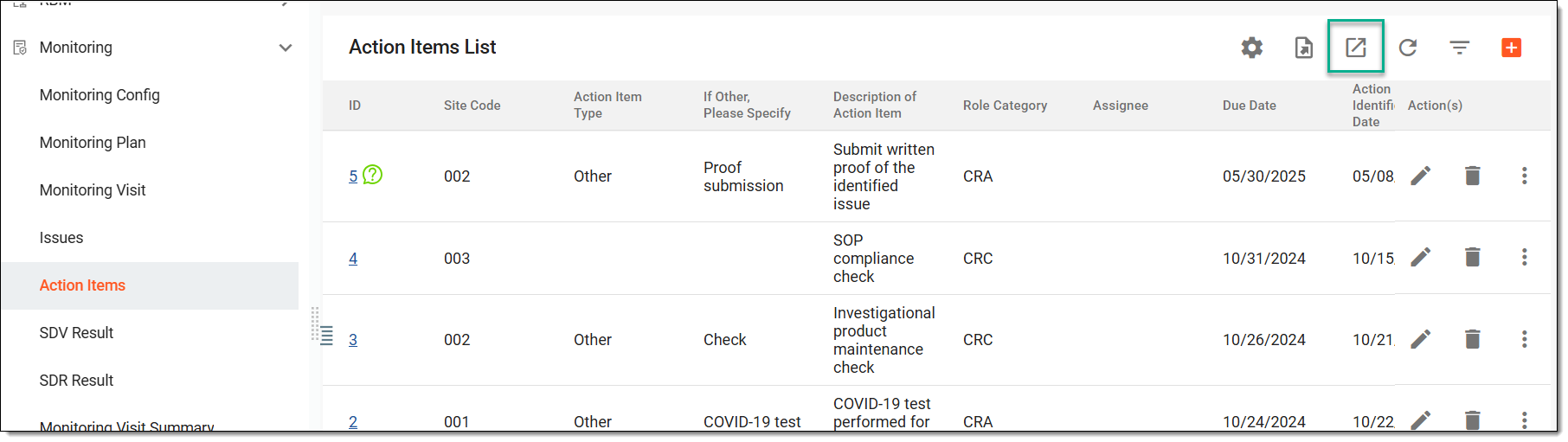 Figure 3. Exporting action items
-
The downloads widget appears showing the export progress. Select the widget to access exported files.
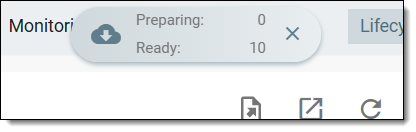 Figure 4. Downloads widget showing action items being exported
-
In the My Downloads dialog that appears, in the Download is Ready tab, select
 next to the required exported file.
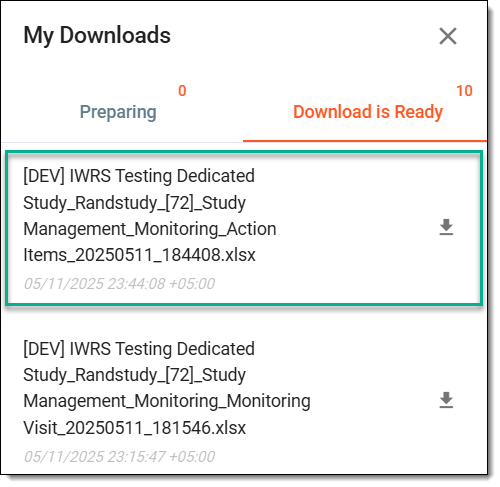 Figure 5. Downloading action items report
Once selected, the list of action items is downloaded as an XLSX file to your computer.
In Action Items, you can define the number of days within which a response to a query raised on an action item is expected. By configuring this value, the system can help track timeliness, set expectations for resolution, and possibly trigger reminders or overdue flags if a query remains unanswered beyond the specified duration.
-
Access the study management page in one of the following ways:
-
In the CTMS application header, select the DASHBOARD tab and then select the study dashboard of your interest.
Figure 1. Accessing study management from dashboard
-
In the CTMS application header, select the STUDY MANAGEMENT tab. Then from the Study Data List table, select the study name of your interest.
Figure 2. Accessing study management from study data list
-
-
On the study page that opens, in the left pane, expand Monitoring and select Action Items.
-
Above the Action Items List table that appears, from the workspace toolbar, select Setting
 .
.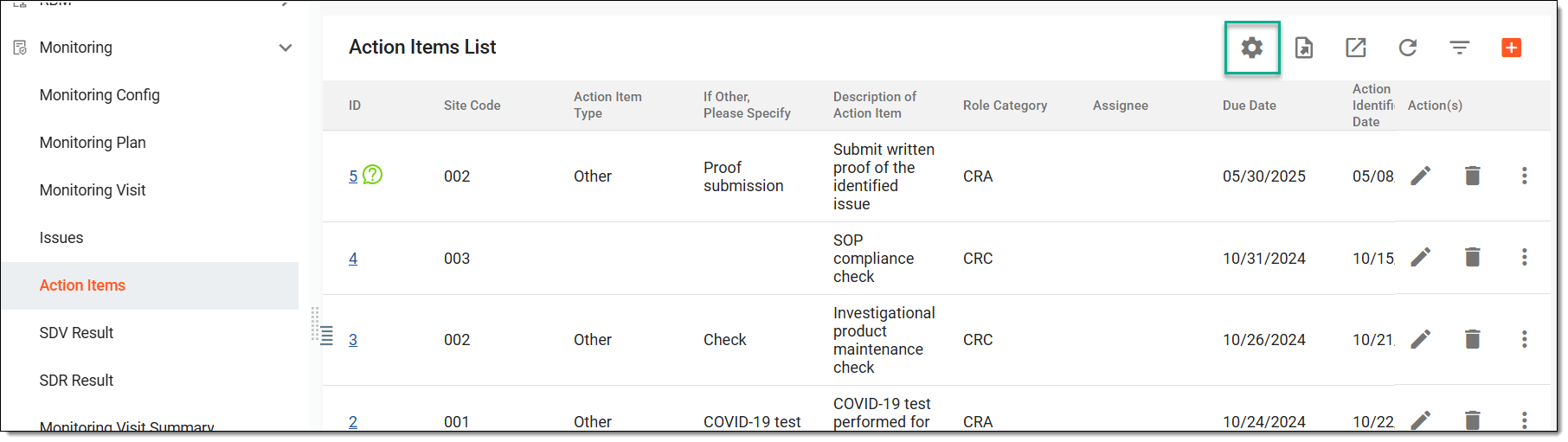 Figure 3. Selecting option to set query days value
-
In the Setting dialog that opens, enter the value by which the query must be resolved for efficient action item query management. Then select SAVE.
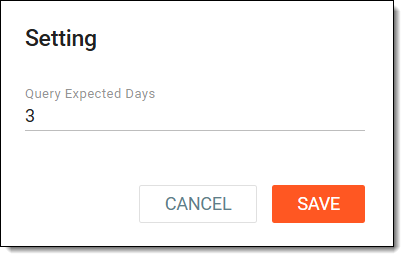 Figure 4. Setting query resolution days value
Once saved, your changes are applied, and the specified value is set as the default timeframe for resolving queries.