Issues
During a monitoring visit, monitors may identify issues or discrepancies at the site that require resolution. These issues are often called "findings." Issues can take many forms, depending on the nature and severity of the finding. An issue may also involve correcting data errors in subject records.
For example, an issue may involve providing additional training to site staff to ensure they understand and comply with the study protocol.
Issues refer to the actions that need to be taken to address the findings identified during the site monitoring visit. Issues can take many forms, depending on the nature and severity of the finding. You can manually add issues when they are not related to any monitoring visit. For example, some issues have been discovered at a trial site but not during a monitoring visit. Then such an issue can be entered manually into the CTMS system.
-
Access the study management page in one of the following ways:
-
In the CTMS application header, select the DASHBOARD tab and then select the study dashboard of your interest.
 Figure 1. Accessing study management from dashboard
-
In the CTMS application header, select the STUDY MANAGEMENT tab. Then from the Study Data List table, select the study name of your interest.
 Figure 2. Accessing study management from study data list
-
-
On the study page that opens, in the left pane, expand Monitoring and select Issues.
-
Above the Issues List table that appears, on the workspace toolbar, select New Item
 .
.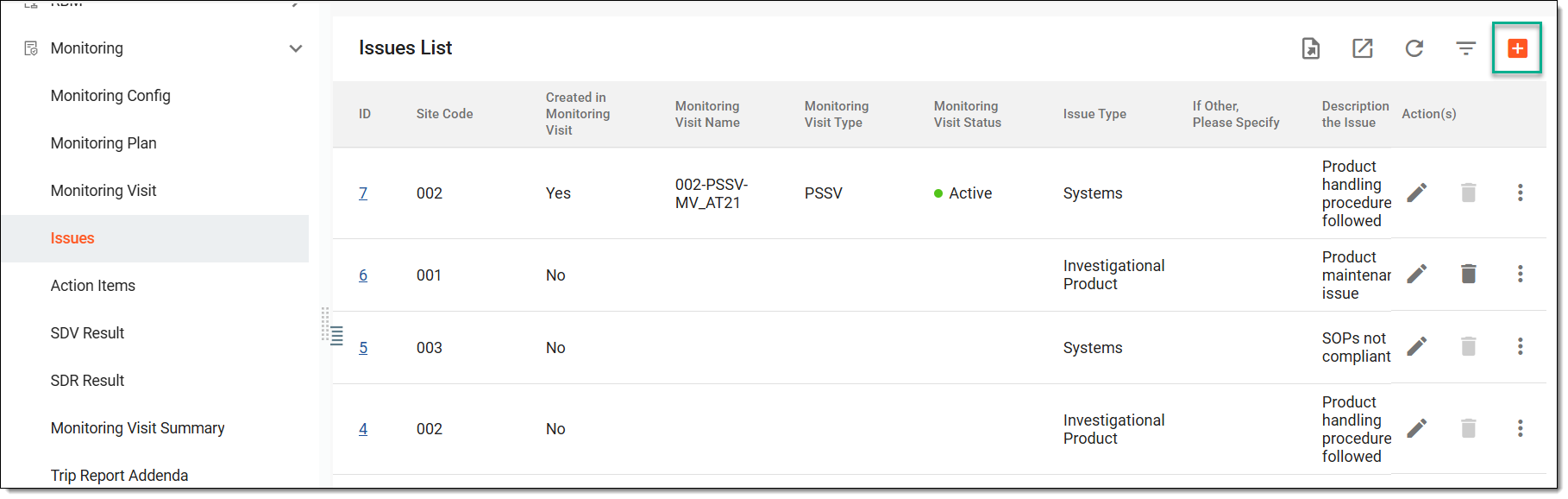 Figure 3. Selecting option to add issue
-
On the page that opens, complete the form as suggested in the following table.
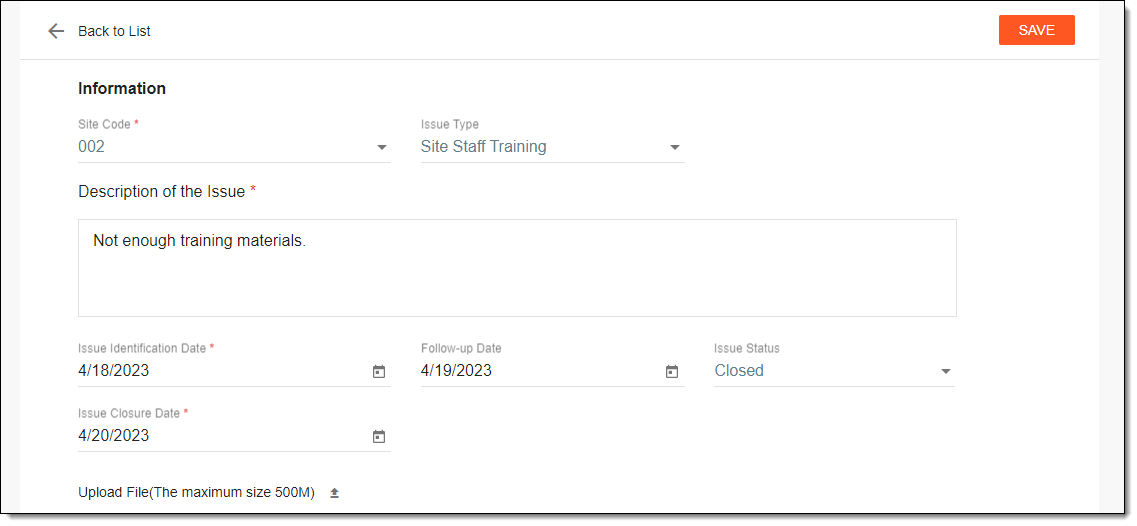 Figure 4. Adding issue
Tip
In the following table, mandatory elements are marked with an asterisk (*).
Element
Details
Site Code*
From the dropdown list, select a site to which the created issue is related.
Issue Type
From the dropdown list, select a type that reflects the purpose of the added issue.
Description of the Issue*
Enter a detailed description of the findings that have been discovered at the site.
Issue Identification Date*
Specify a date when the issue has been discovered and registered.
Follow-up Date
Specify a follow-up date for the created issue.
Issue Status
Assign an Open or Closed status to the created issue depending on its current status.
Issue Closure Date*
Specify the date when the issue has been resolved. The closure date cannot precede the issue identification date.
This field becomes available only if the issue status is Closed.Upload File
Select
 in this field to upload an attachment to the created issue.
SAVE
Select
 to implement your changes and create an issue.
Once saved, an issue is added. You can now proceed to adding an action item.
Issues refer to the actions that need to be taken to address the findings identified during the site monitoring visit. Issues can take many forms, depending on the nature and severity of the finding. You can update the details of existing issues if needed.
-
Access the study management page in one of the following ways:
-
In the CTMS application header, select the DASHBOARD tab and then select the study dashboard of your interest.
Figure 1. Accessing study management from dashboard
-
In the CTMS application header, select the STUDY MANAGEMENT tab. Then from the Study Data List table, select the study name of your interest.
Figure 2. Accessing study management from study data list
-
-
On the study page that opens, in the left pane, expand Monitoring and select Issues.
-
In the Issues List table that appears, select the ID of the required issue or next to it, from the Action(s) column, select Edit
 .
.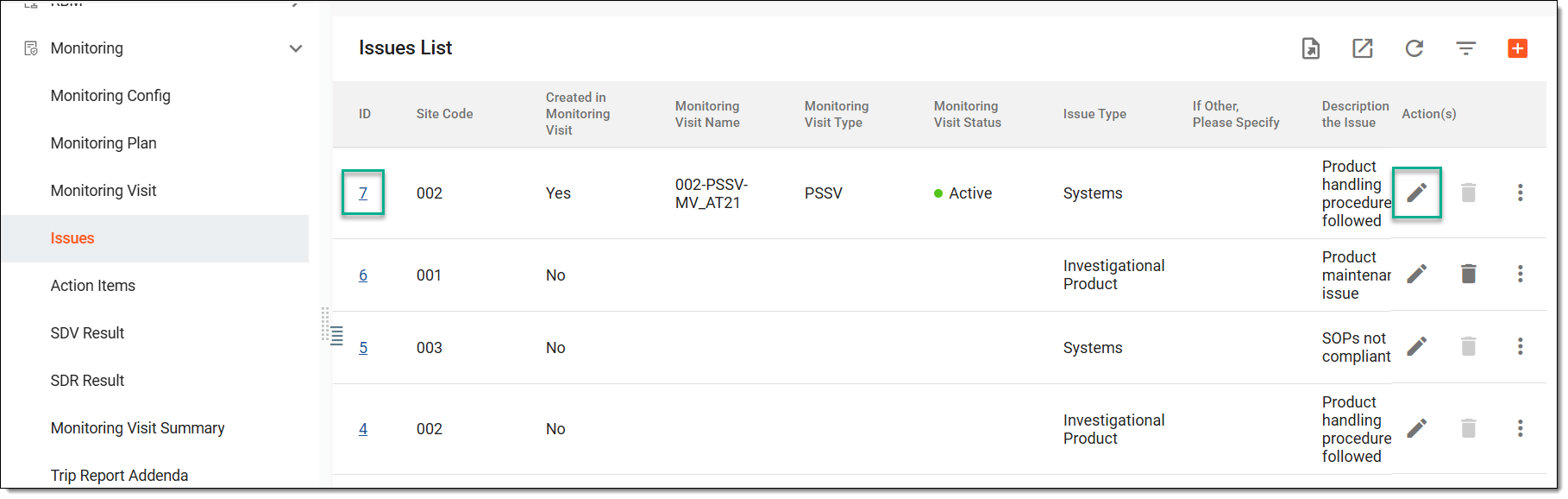 Figure 3. Choosing option to edit issue
-
On the page that opens, update the issue as explained in the table of the Add issue manually section. Select
.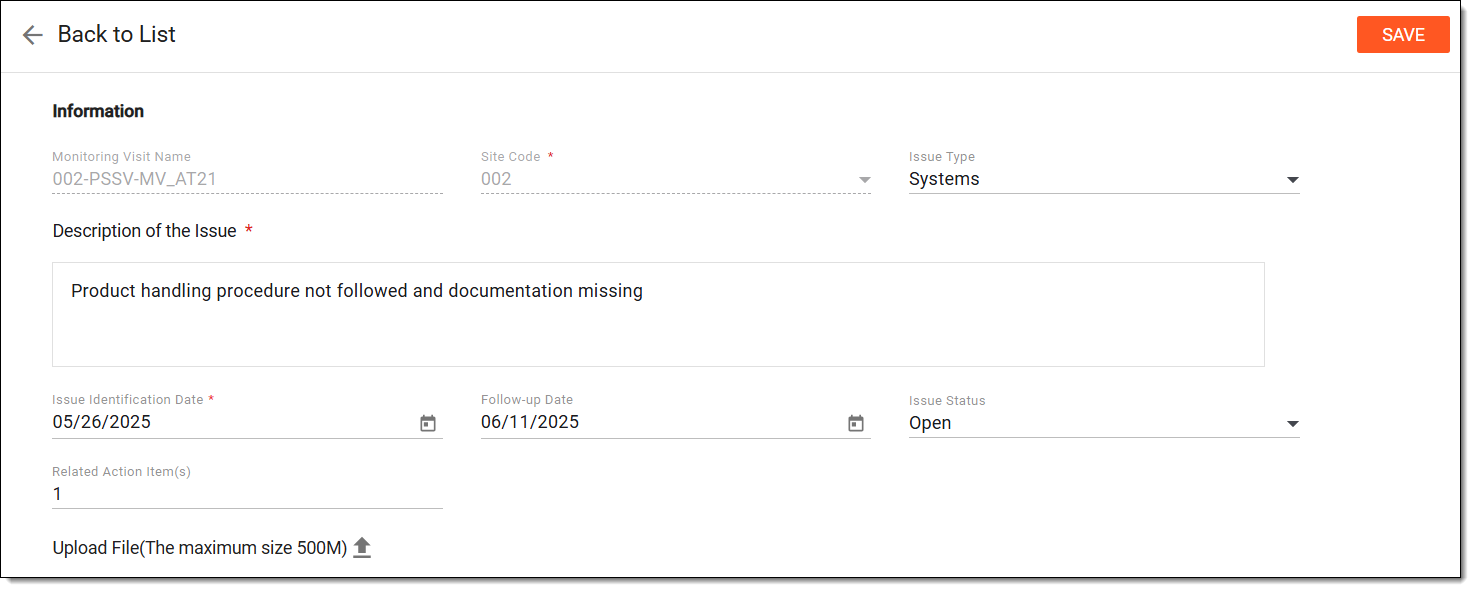 Figure 4. Updating issue
Once saved, the issue is updated.
Issues refer to the actions that need to be taken to address the findings identified during the site monitoring visit. Issues can take many forms, depending on the nature and severity of the finding. You can download the issue attachments that have been previously uploaded for this issue to your computer.
-
Access the study management page in one of the following ways:
-
In the CTMS application header, select the DASHBOARD tab and then select the study dashboard of your interest.
Figure 1. Accessing study management from dashboard
-
In the CTMS application header, select the STUDY MANAGEMENT tab. Then from the Study Data List table, select the study name of your interest.
Figure 2. Accessing study management from study data list
-
-
On the study page that opens, in the left pane, expand Monitoring and select Issues.
-
In the Issues List table that appears, next to the issue whose attachment you want to download, select More
 > Download
  .
.
Once done, the issue attachments are downloaded in a ZIP file.
Issues refer to the actions that need to be taken to address the findings identified during the site monitoring visit. Issues can take many forms, depending on the nature and severity of the finding. You can delete issues that are no longer actual and do not require any follow-up.
-
Access the study management page in one of the following ways:
-
In the CTMS application header, select the DASHBOARD tab and then select the study dashboard of your interest.
Figure 1. Accessing study management from dashboard
-
In the CTMS application header, select the STUDY MANAGEMENT tab. Then from the Study Data List table, select the study name of your interest.
Figure 2. Accessing study management from study data list
-
-
On the study page that opens, in the left pane, expand Monitoring and select Issues.
-
In the Issues List table that appears, next to the needed issue, select More
>
Delete  .
.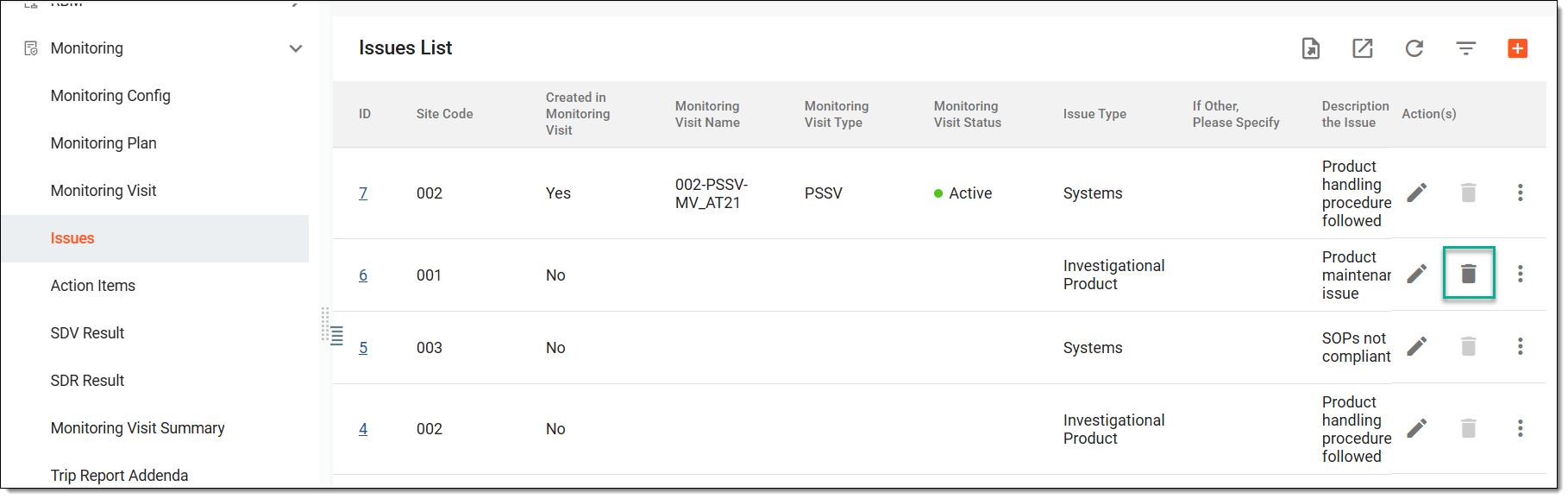 Figure 3. Deleting issue
-
In the confirmation dialog that opens, select DELETE.
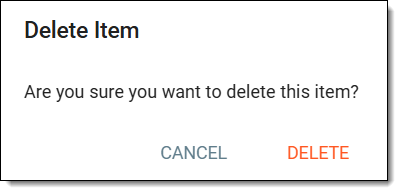 Figure 4. Confirming issue deletion
Once done, the issue is deleted.
Issues refer to the actions that need to be taken to address the findings identified during the site monitoring visit. Issues can take many forms, depending on the nature and severity of the finding. Each issue has a history of actions done by CTMS users with it. It also shows the time pertinent to all operations and the type of operations that have been performed with each history record.
-
Access the study management page in one of the following ways:
-
In the CTMS application header, select the DASHBOARD tab and then select the study dashboard of your interest.
Figure 1. Accessing study management from dashboard
-
In the CTMS application header, select the STUDY MANAGEMENT tab. Then from the Study Data List table, select the study name of your interest.
Figure 2. Accessing study management from study data list
-
-
On the study page that opens, in the left pane, expand Monitoring and select Issues.
-
In the Issues List table that appears, next to the needed issue, from the Action(s) column, select More
> Operation History  .
.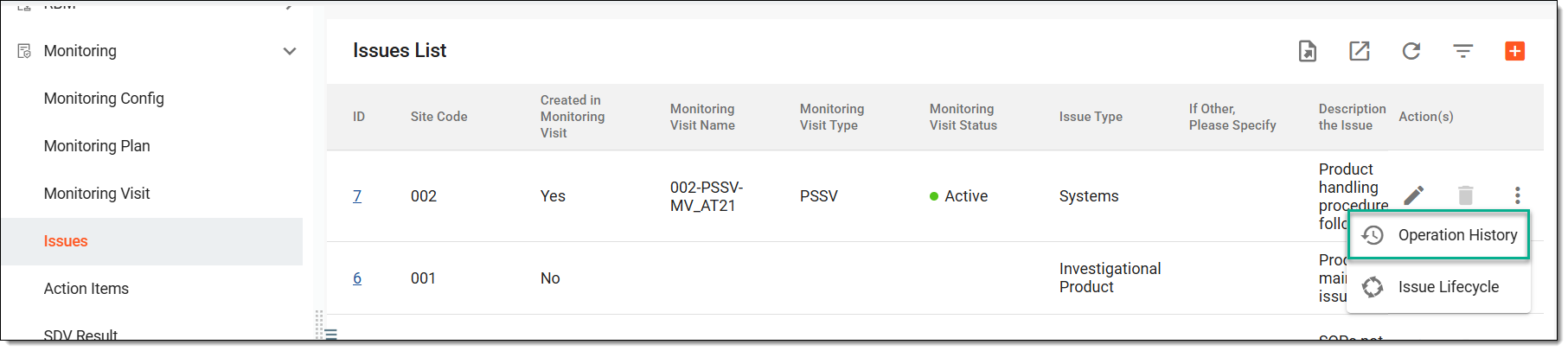 Figure 3. Accessing operation history of issue
-
In the Operation History dialog that opens, view the operation history of the selected issue.
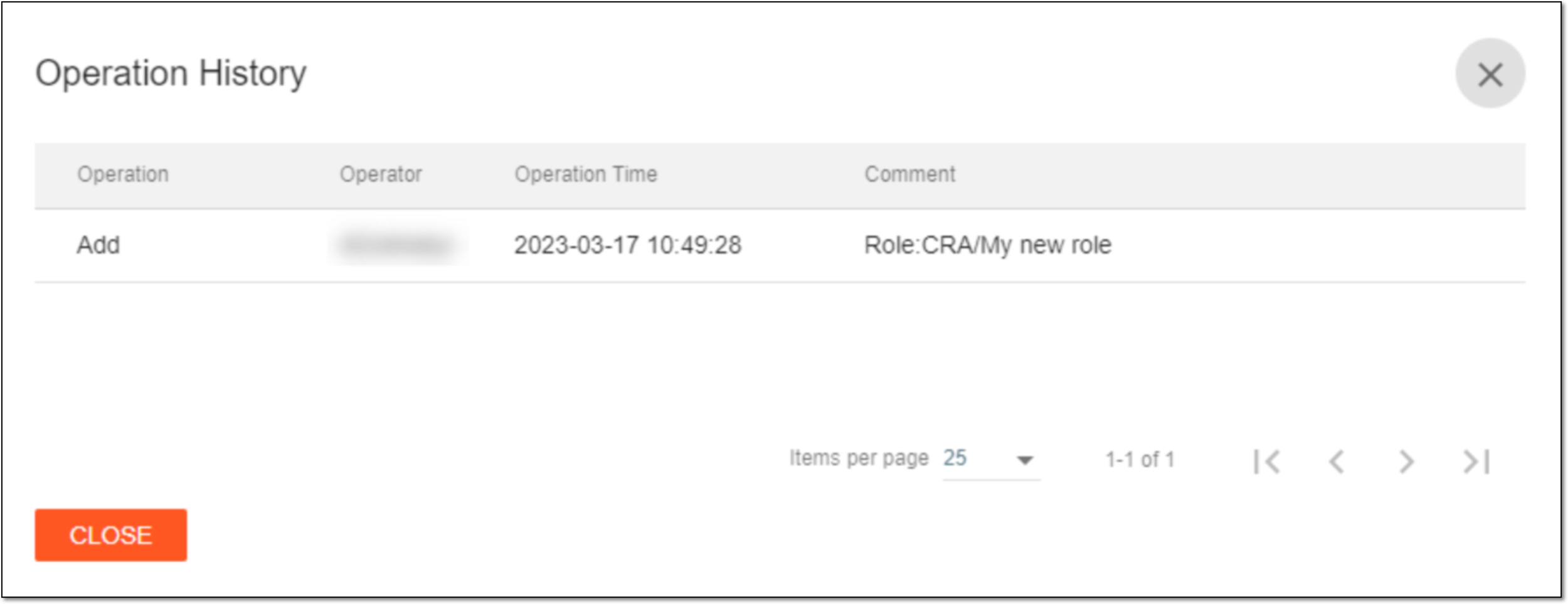 Figure 4. Viewing operation history of issue
Once viewed, select  to close the Operation History dialog.
The issue lifecycle in a monitoring visit outlines the progression of an issue from creation to resolution. Analyzing this lifecycle helps track status changes, responsible roles, and key actions taken, supporting effective oversight and timely issue management.
-
Access the study management page in one of the following ways:
-
In the CTMS application header, select the DASHBOARD tab and then select the study dashboard of your interest.
Figure 1. Accessing study management from dashboard
-
In the CTMS application header, select the STUDY MANAGEMENT tab. Then from the Study Data List table, select the study name of your interest.
Figure 2. Accessing study management from study data list
-
-
On the study page that opens, in the left pane, expand Monitoring and select Issues.
-
In the Issues List table that appears, next to the needed issue, from the Action(s) column, select More
> Issue Lifecycle  to view the progress of issue resolution.
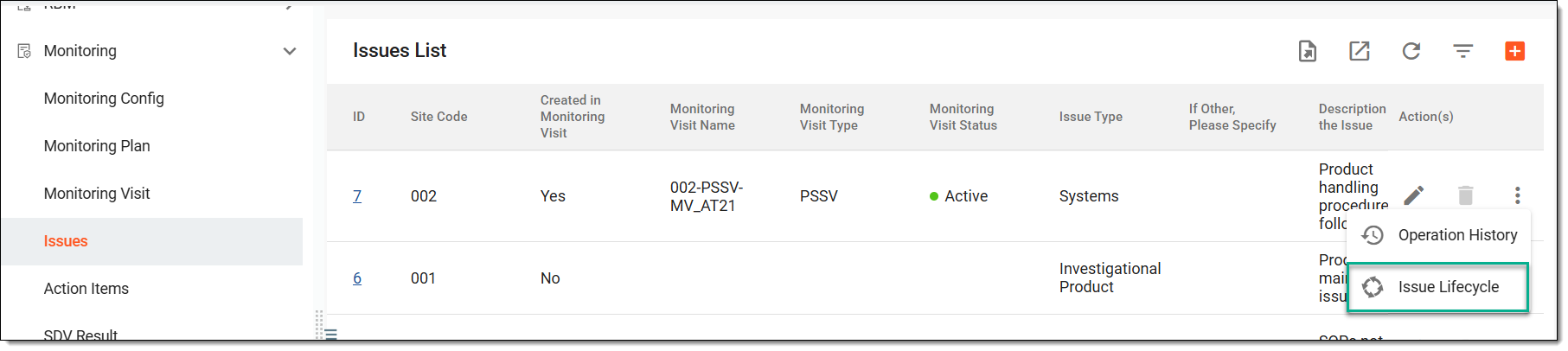 Figure 3. Accessing option to analyze issue lifecycle
-
In the Lifecycle dialog that opens, review the record of the changes made to the issue.
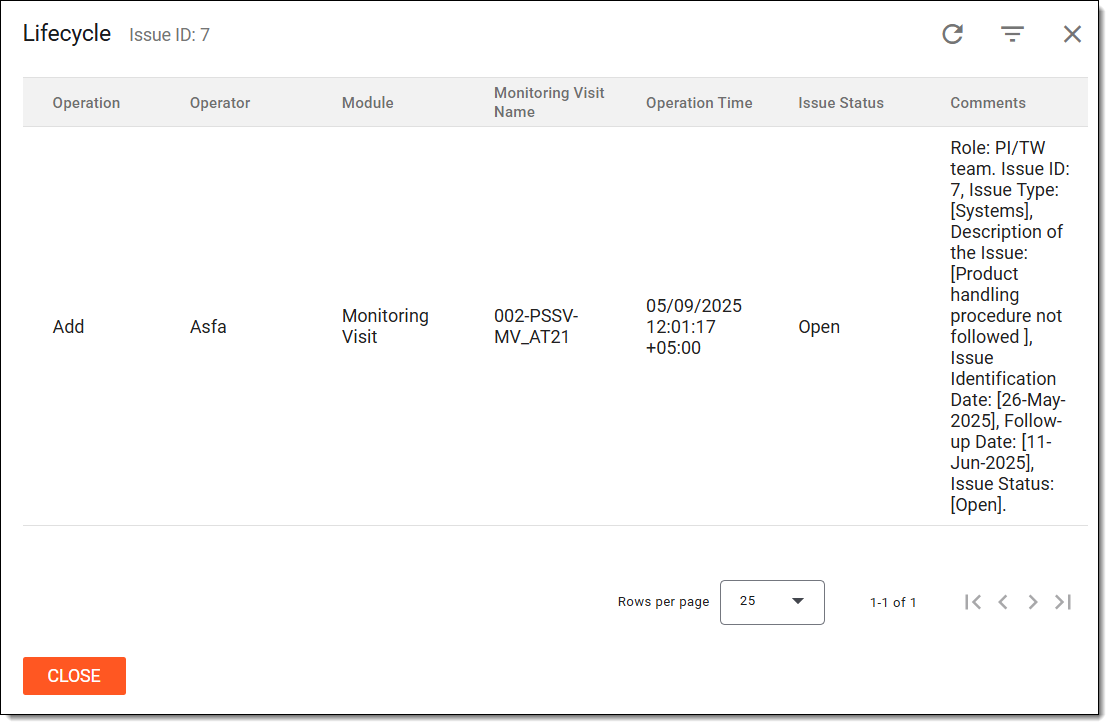 Figure 4. Analyzing issue lifecycle
Once viewed, select to collapse the Lifecycle dialog.
Issues refer to the actions that need to be taken to address the findings identified during the site monitoring visit. Issues can take many forms, depending on the nature and severity of the finding. You can download the entire list of issues for a specific study in XLSX format to your computer so you view this list offline.
-
Access the study management page in one of the following ways:
-
In the CTMS application header, select the DASHBOARD tab and then select the study dashboard of your interest.
Figure 1. Accessing study management from dashboard
-
In the CTMS application header, select the STUDY MANAGEMENT tab. Then from the Study Data List table, select the study name of your interest.
Figure 2. Accessing study management from study data list
-
-
On the study page that opens, in the left pane, expand Monitoring and select Issues.
-
Above the Issues List table that appears, from the workspace toolbar, select Export
 .
.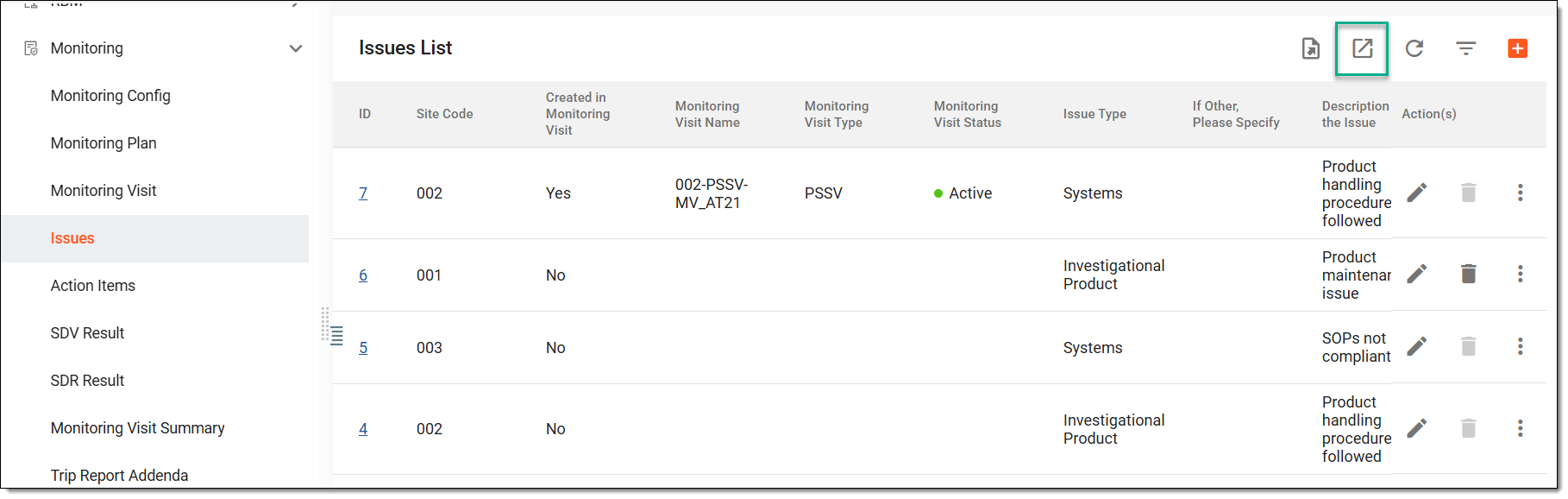 Figure 3. Exporting issues
-
The downloads widget appears showing the export progress. Select the widget to access exported files.
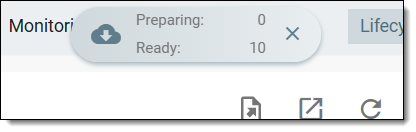 Figure 4. Downloads widget showing issues being exported
-
In the My Downloads dialog that appears, in the Download is Ready tab, select
next to the required exported file.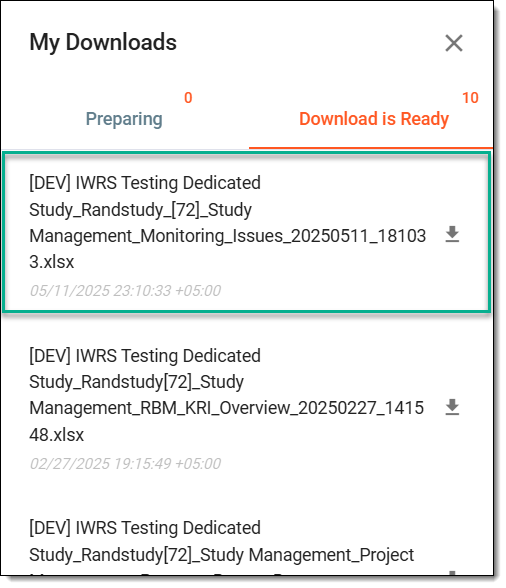 Figure 5. Downloading issues report
Once selected, the list of issues is downloaded as an XLSX file to your computer.