Upload documents for participating organization
In CTMS, you can add and store essential documents associated with participating organizations involved in a clinical trial. These may include regulatory approvals, contracts, accreditation certificates, and other compliance-related files.
-
Access the study management page in one of the following ways:
-
In the CTMS application header, select the DASHBOARD tab and then select the study dashboard of your interest.
 Figure 1. Accessing study management from dashboard
-
In the CTMS application header, select the STUDY MANAGEMENT tab. Then from the Study Data List table, select the study name of your interest.
 Figure 2. Accessing study management from study data list
-
-
From the left pane of page that opens, select Study Details > Participating Organizations.
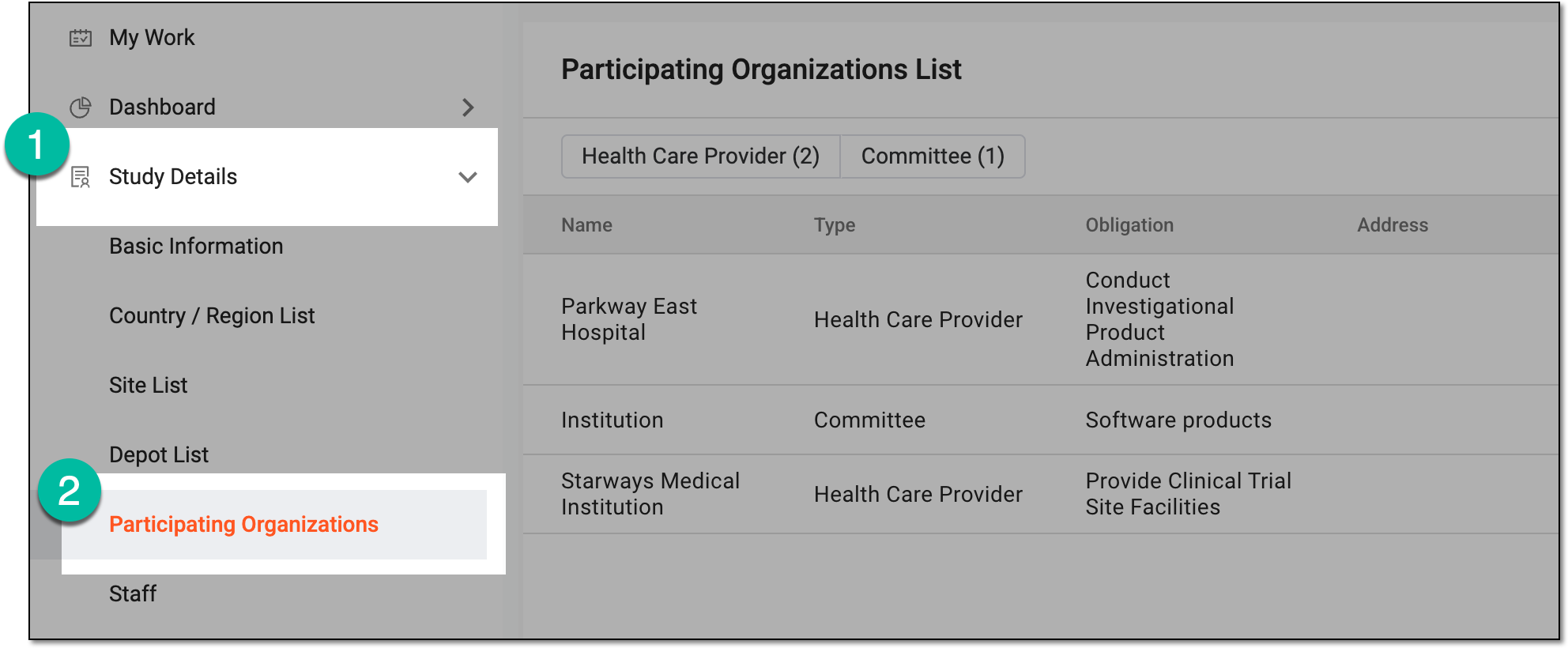 Figure 3. Accessing participating organizations of study
-
In Participating Organizations List, next to the participating organization for which you want to upload the documents, select More
 > Upload Documents
  .
.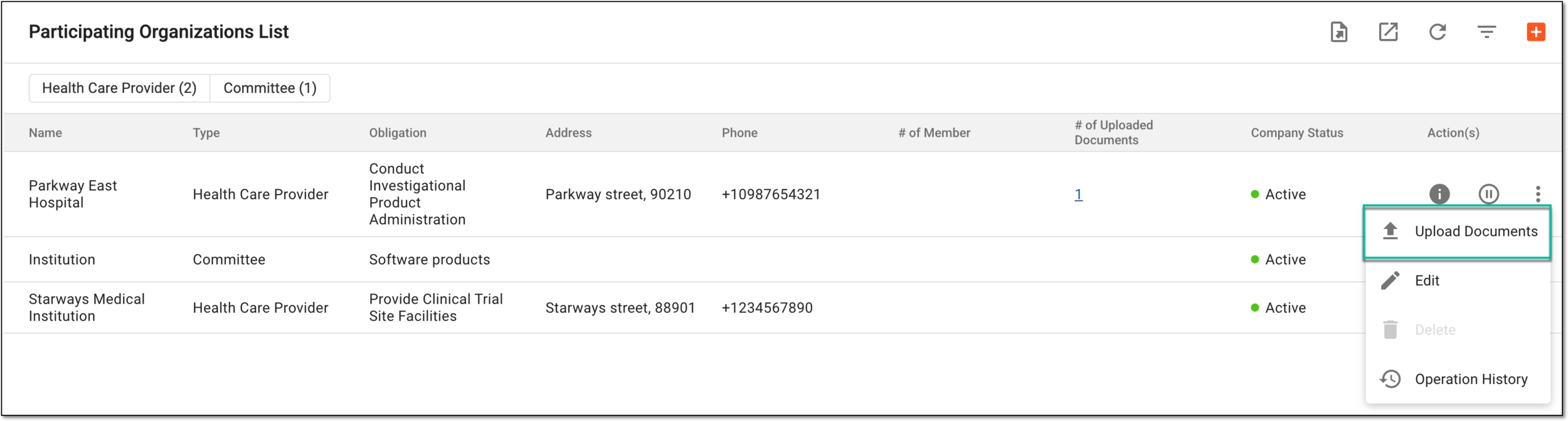 Figure 4. Selecting option to upload documents for participating organization
-
In the Upload File panel that appears on the right, enter the details as explained in the following table.
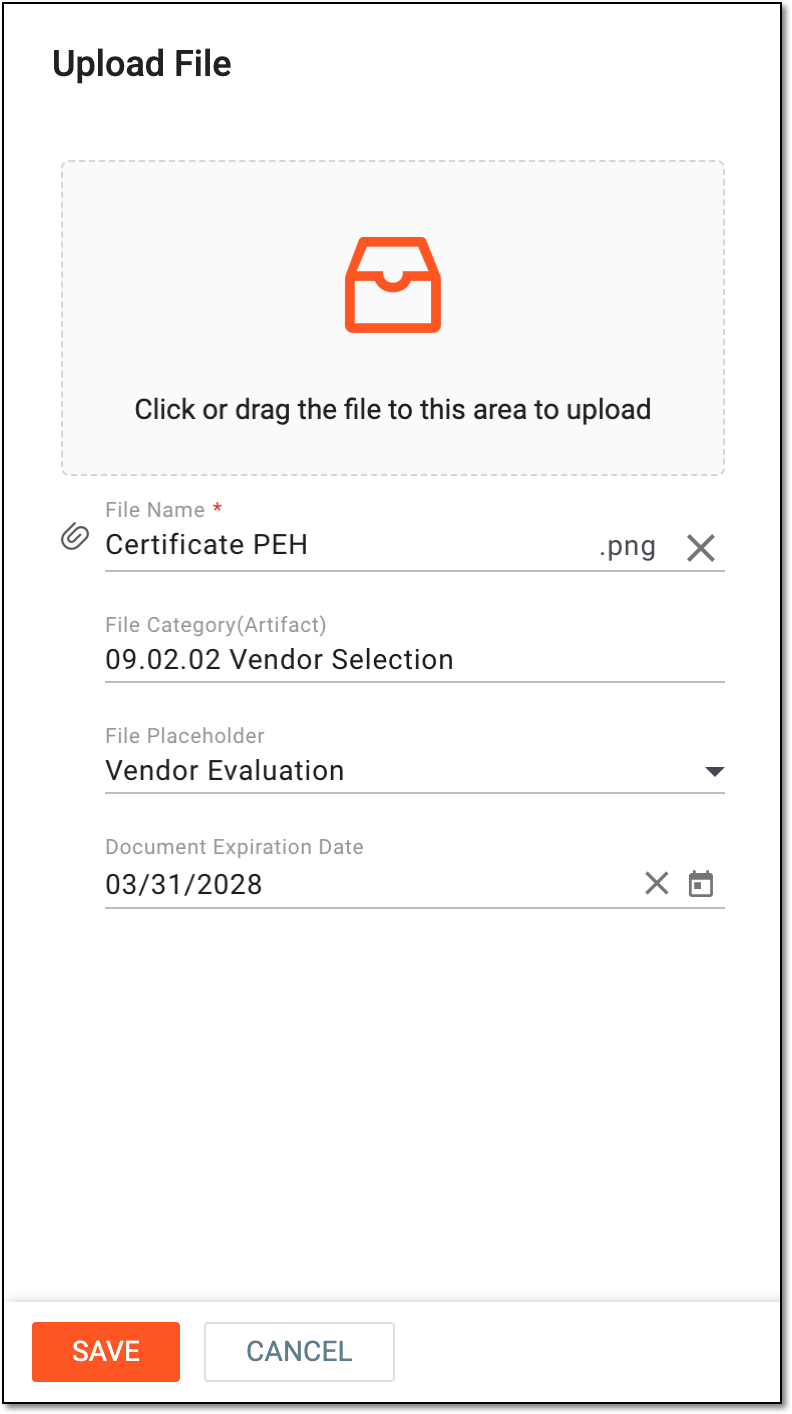 Figure 5. Uploading document for participating organization
Tip
In the following table, mandatory elements are marked with an asterisk (*).
Element
Details
Click or drag the file to this area to upload
Drag a file from your computer to this area or select this area and choose the document you want to upload from your computer.
File Category(Artifact)
Select this field and from the extensive dropdown list of the documents that appear, choose the type or category of the document you are uploading.
File Placeholder
Select the file placeholder that further categorizes the document you are uploading.
Document Expiration Date
Select the date when the uploaded document expires.
SAVE
Select
 to upload the document.
CANCEL
Select
 to dismiss the document upload process.
Once saved, the document is uploaded. Other CTMS users can now review and download this document from the system if needed.