Update tracking log entry
After completing the tracking log entry, you may want to update the entered data to reflect the most current and accurate information. Updating the tracking log entry ensures that changes such as revised dates, statuses, or attached documents are properly recorded, supporting ongoing compliance and data integrity throughout the clinical trial.
Important
Note that you can only access and update the tracking log if you have been granted the write permission for the corresponding log.
-
Access the study management page in one of the following ways:
-
In the CTMS application header, select the DASHBOARD tab and then select the study dashboard of your interest.
 Figure 1. Accessing study management from dashboard
-
In the CTMS application header, select the STUDY MANAGEMENT tab. Then from the Study Data List table, select the study name of your interest.
 Figure 2. Accessing study management from study data list
-
-
On the page that opens, from the left pane, select Tracking Log. Then from the expanded menu, select the name of the previously added tracking log.
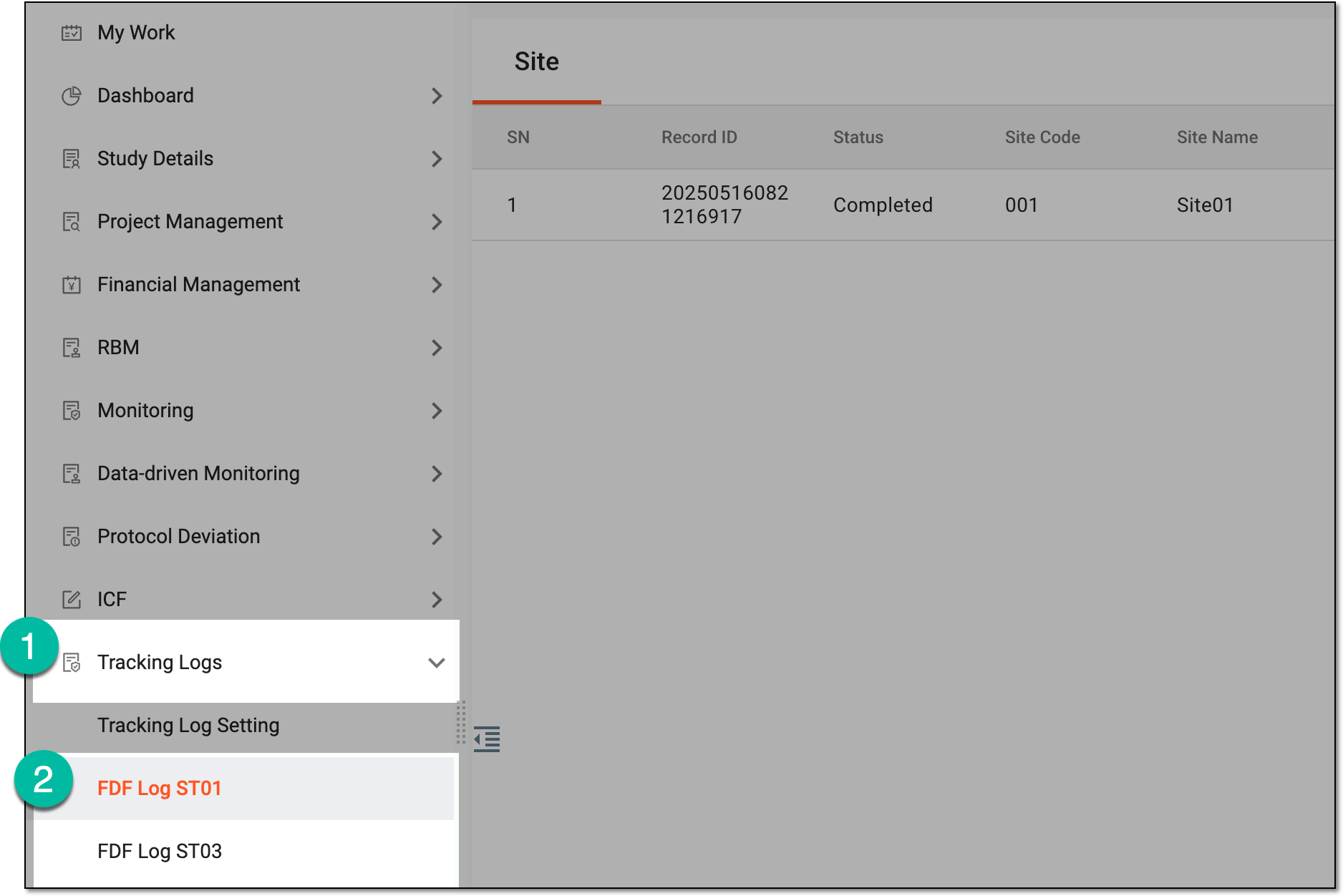 Figure 3. Accessing tracking log
-
On the page that opens, do one the following:
-
In the single-form tracking log, based on the level of the tracking log selected upon setting, the Site, Study, or both tabs are available. Select the needed tab to access the entry list.
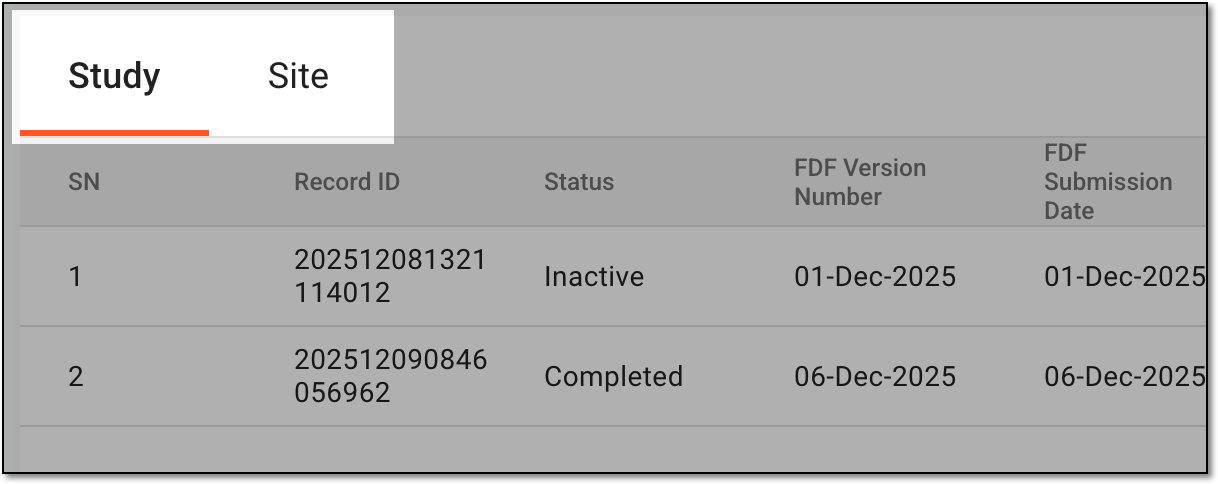 Figure 4. Selecting tab to access entry list
-
In the multiform tracking log, select the needed form to access the entry list.
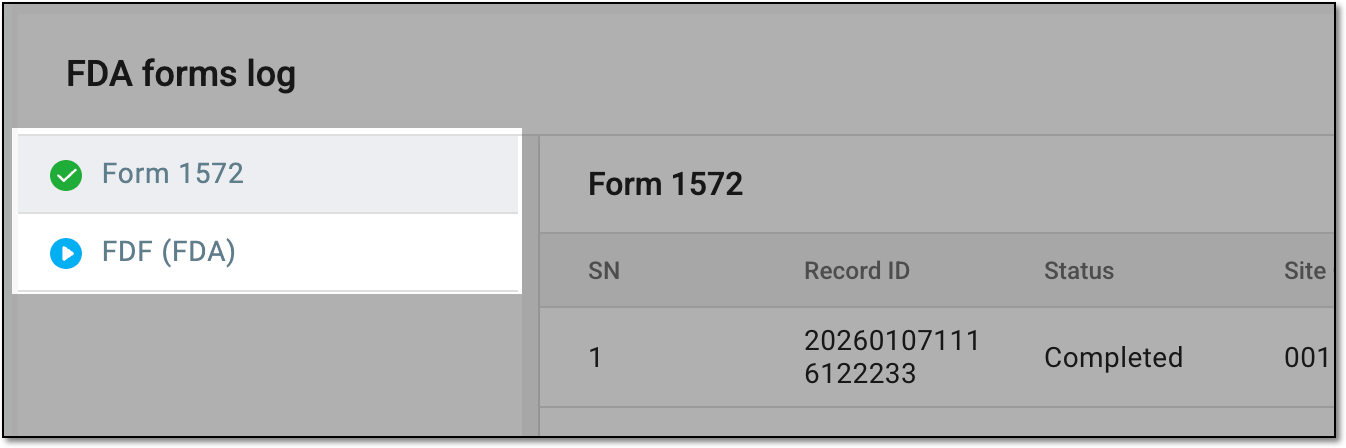 Figure 5. Selecting form to access entry list
-
-
In the resulting tracking log entry list, next to the log entry you want to modify, from the Action(s) column, select Go
 .
. Figure 6. Accessing tracking log entry
-
In the form that appears, select the data element you want to update in the form to make it editable and introduce the needed changes. The fields of this form may vary based on the template selected upon tracking log setting and the level of the tracking log—study or site.
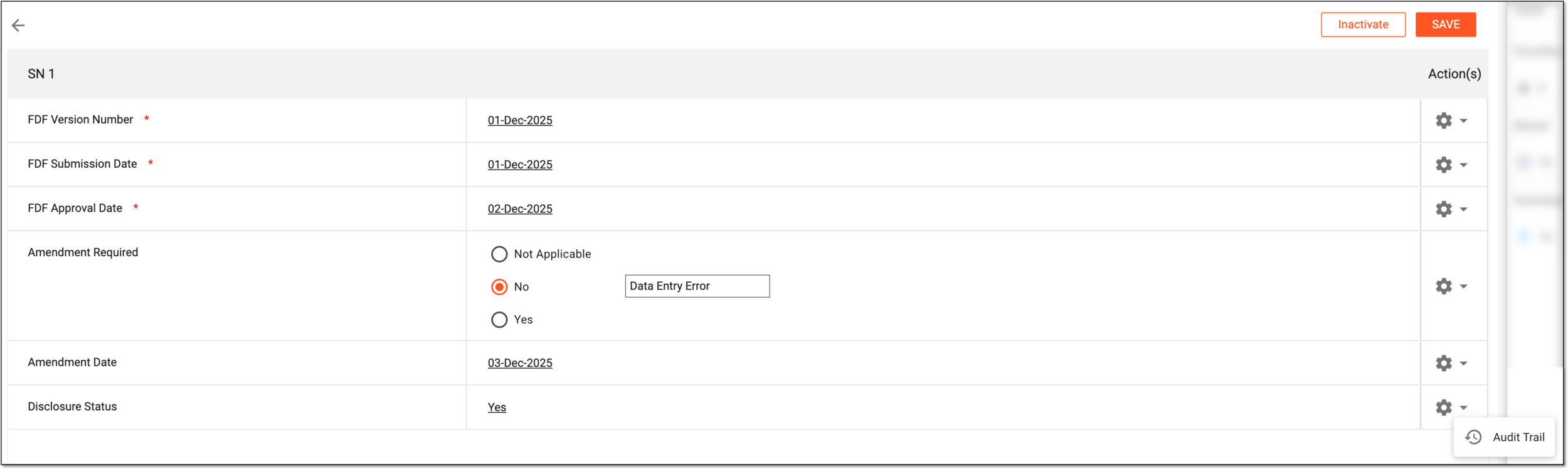 Figure 7. Updating tracking log entry
Tip
Next to a data element, from the Action(s) column, select
 and then choose Audit
  to open the dialog where you can view the history of changes made to the data element, including details of who modified it and
when.
to open the dialog where you can view the history of changes made to the data element, including details of who modified it and
when. -
Once the data is updated, there are a few actions available to you as explained in the following table.
Action
Details
SAVE
Select
 to save and submit the completed form.
Temp Save
Select
 to save the changes if the form is not entirely completed or requires further details. Thus, the form remains in the Initial status until completed.
Inactivate
Select
 to deactivate the tracking log entry. Inactive records cannot be completed or otherwise maintained.
For deactivation, you must provide the reason.
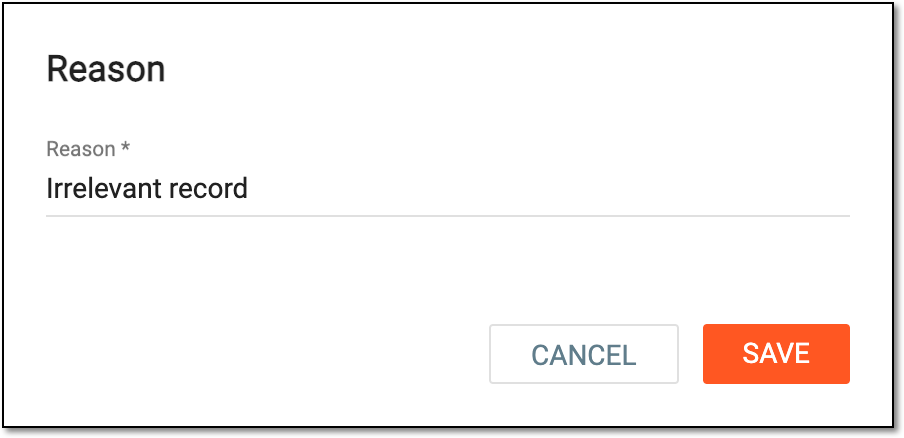 Figure 8. Providing deactivation reason
Activate
Select
 to activate the previously deactivated tracking log entry. For activation, you must provide the reason.
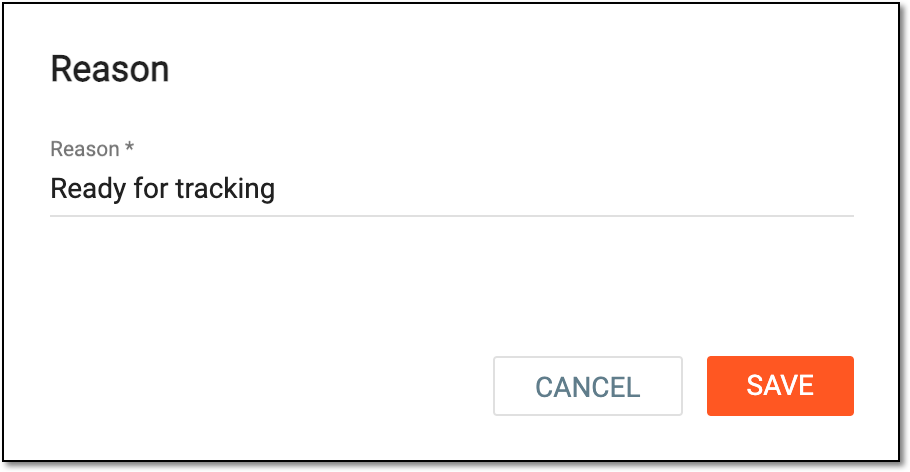 Figure 9. Providing activation reason
Once you have saved your changes, the tracking log entry is updated.